A Shortcuts video vanishes because content is discarded when a shortcut finishes, so add a Save to Photo Album action right after the camera action that records the video.
This guide covers building the shortcut, running it from the Action button, Control Center or Back Tap, faster camera shortcuts that save on their own, and fixes when the clip still disappears.
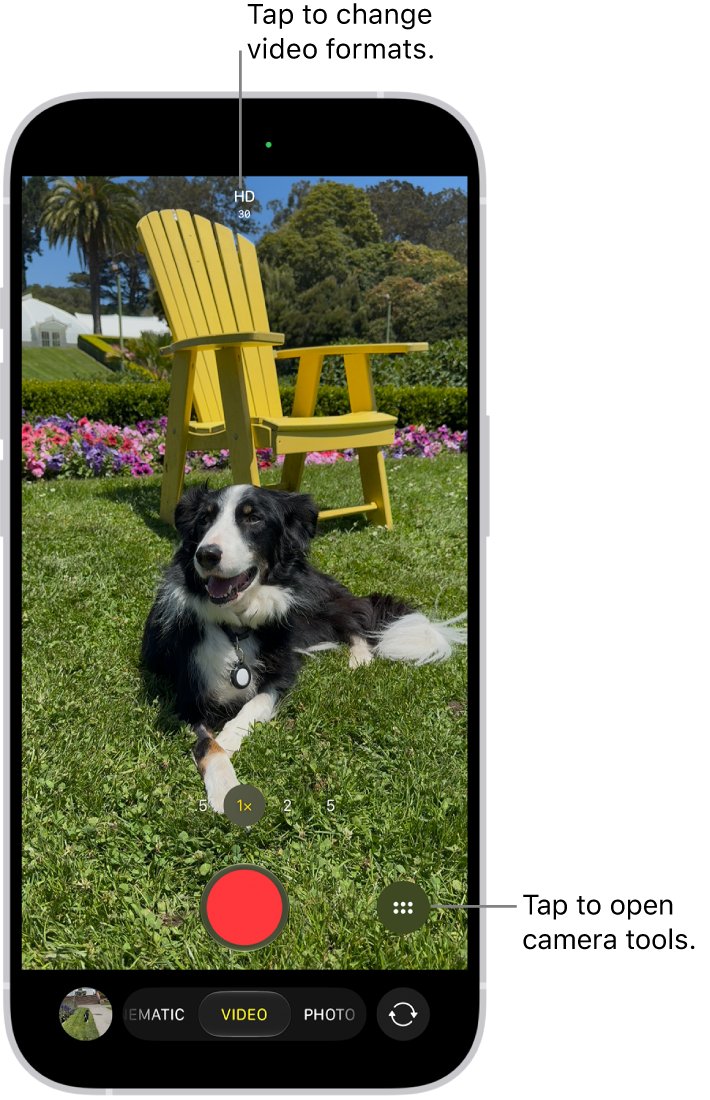
How to set up a shortcut to take video and save it to Photos
Two actions do the whole job: one records the clip, the second hands it to the Photos app before the shortcut ends.
- Open the Shortcuts app and tap the + button to create a new shortcut.
- Tap New Shortcut, tap Rename, type a name such as Record video, then confirm it.
- Tap Add Action, type video in the search field, then tap the camera action that records a video.
- Swipe up on the search field at the bottom, type save, then tap Save to Photo Album.
- Check that a connecting line joins the two actions, which means the video passes into the save action.
- Tap Done, then tap the shortcut to test it.
- When a Privacy dialog asks for camera or Photos access, tap Always Allow so the next run does not stop to ask.
Open the Photos app after the test run. The new clip should be the most recent item in your library.
Shortcut to start video recording on iPhone
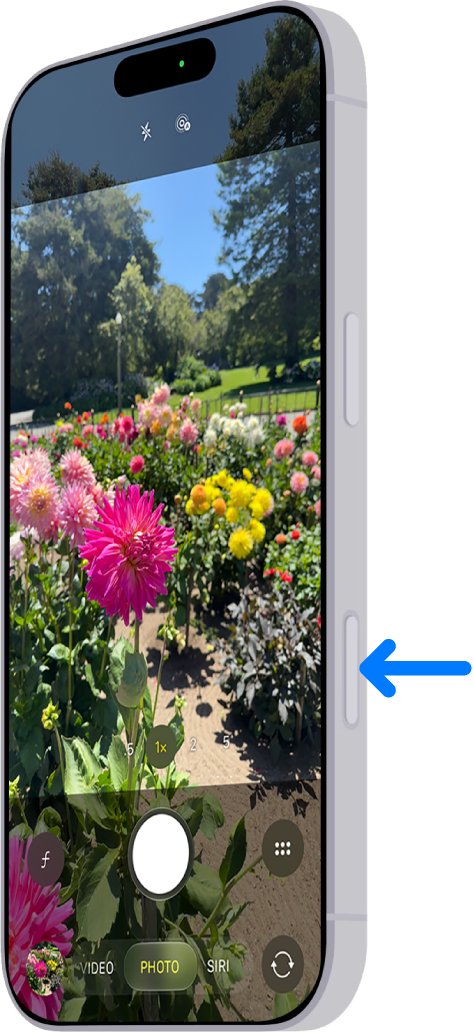
For an emergency, the Camera app itself is often quicker than any custom shortcut, and every clip it records lands in Photos automatically.
| Your situation | Use this | Why |
|---|---|---|
| iPhone 16 or later with a Camera Control | Click the Camera Control to open Camera, then click and hold to record | Works from any screen and saves straight to Photos |
| iPhone 15 Pro or later with an Action button | Settings > Action Button > Camera, or Shortcut with your video shortcut | One press and hold, even with the phone locked |
| Phone is locked and you have no extra buttons | Swipe left on the Lock Screen, then touch and hold the Shutter button in Photo mode | Opens Camera without unlocking; holding the shutter records in Photo mode |
| You want it in Control Center | Touch and hold the Camera control, then choose to record a video | Skips the Photo mode screen |
| You need extra steps, such as sending the clip to someone | A custom shortcut with a camera action and Save to Photo Album | Only Shortcuts can chain the recording to other actions |
Why a Shortcuts video is not saved to Photos
Shortcuts passes content from action to action and throws it away when the last action runs. A recording only survives if an action saves it somewhere first.
| Cause | What you see | Fix |
|---|---|---|
| The shortcut has no save action | The camera closes, the screen returns to where you started and no clip appears in Photos | Add Save to Photo Album after the camera action |
| The shortcut runs from a widget | The Shortcuts app opens to finish, because widgets cannot complete camera actions | Run it from the Action button, Control Center or Back Tap instead |
| The save action is not connected | The save action has no line linking it to the camera action | Drag Save to Photo Album directly below the camera action |
| Photos access was denied | The shortcut stops at the save step or shows a Privacy prompt every time | Reset the shortcut's privacy settings and choose Always Allow |
| The widget ran out of memory | "Unable to Load" appears in the Shortcuts widget | Add Continue Shortcut in App near the start of the shortcut |
How to run a video shortcut with the Action button
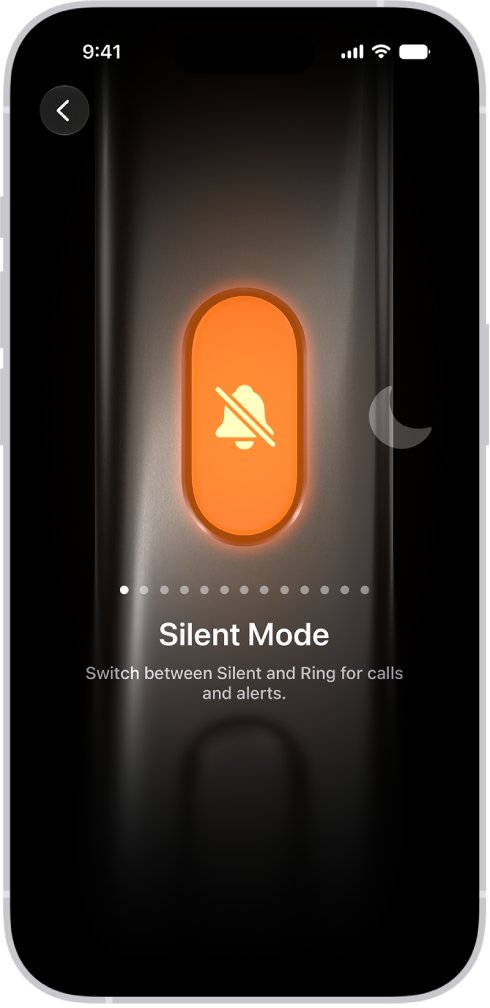
On iPhone 15 Pro and later, the Action button replaces the Ring/Silent switch and can run any shortcut you choose.
- Open the Settings app and tap Action Button.
- Swipe across the icons until Shortcut appears below the dots.
- Tap Choose a Shortcut, then select your video shortcut.
- Return to the Home Screen, then press and hold the Action button to start the shortcut.
If you only need the camera, swipe to Camera instead of Shortcut. If an options button appears below it, tap it to pick which camera mode opens.
How to add a video recording shortcut to Control Center
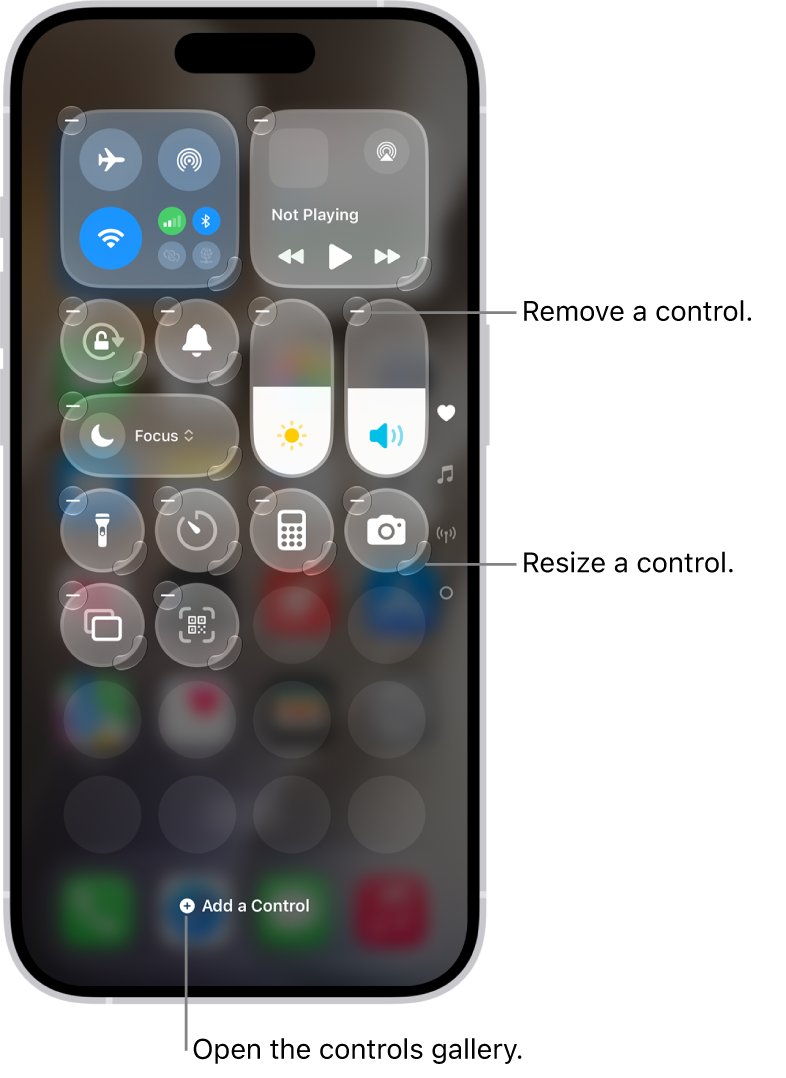
- Swipe down from the top-right corner of the screen to open Control Center.
- Tap the + button at the top left to start editing.
- Tap Add a Control at the bottom of the screen.
- Tap Shortcut, tap Choose, then select your video shortcut.
- Swipe up from the bottom center of the screen to close Control Center.
- Open Control Center and tap the new control to record.
To keep Control Center available inside apps, check that Settings > Control Center > Access Within Apps is turned on.
How to run a camera shortcut with Back Tap on iPhone
Back Tap is an Accessibility setting that runs a shortcut when you double-tap or triple-tap the back of the phone.
- Open Settings > Accessibility > Touch.
- Scroll down and tap Back Tap.
- Tap Double Tap or Triple Tap.
- Scroll down to the Shortcuts area and select your video shortcut.
- Tap Back Tap to apply the setting.
- Double-tap or triple-tap the back of your iPhone to run the shortcut.
How to take a short video on iPhone with the volume button
Photo mode can record a clip without switching to Video mode, which saves a tap when every second counts.
- Open Camera, or swipe left on the Lock Screen.
- Press and hold the volume up or volume down button to start recording in Photo mode.
- Or touch and hold the Shutter button, then slide it onto the lock to keep recording without holding it.
- Tap the Shutter button during the clip to take a still photo at the same time.
- Release the button, or tap the Record button, to stop.
- Tap the thumbnail at the bottom of the screen to view the video in Photos.
Shortcut key for video recording on PC, Mac and iPhone
Computers record the screen rather than a camera with these keys, and each platform saves the file in a fixed place.
| Device | Shortcut | What to know |
|---|---|---|
| Windows 11 or Windows 10 PC or laptop | Windows logo key + Alt + R starts and stops an Xbox Game Bar clip | Saved to Videos > Captures as an MP4 file named after the app, with the date and time |
| Windows microphone during a clip | Windows logo key + Alt + M turns the microphone on or off | Works only while a Game Bar clip is recording |
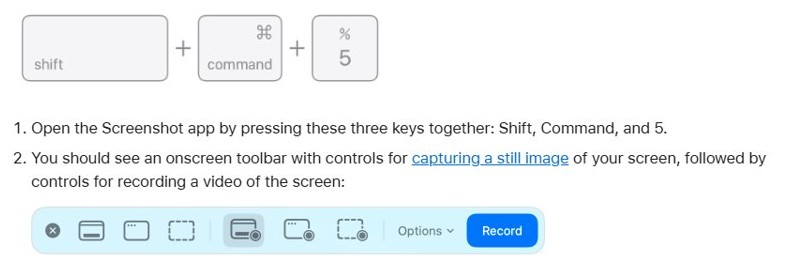
| Mac with macOS Mojave or later | Shift-Command-5 opens the screenshot and Mac screen recording tools | Shift-Command-3 and Shift-Command-4 take screenshots only |
| iPhone screen | Screen Recording control in Control Center | Saved automatically to Photos > Collections > Media Types > Screen Recordings |
On Windows, Xbox Game Bar must be turned on first: press Windows logo key + I, search for xbox and turn on Enable Xbox Game Bar.
Where do Shortcuts videos save on iPhone?
Save to Photo Album places the clip in the Photos app, in the album the action names.
- Open the Photos app and scroll to the newest items in your library.
- Tap Collections, scroll down to Media Types, then tap Videos.
- If you picked a specific album in the save action, open that album under Collections.
- If the clip is still missing, check the Hidden album and the Recently Deleted album, where you can recover deleted iPhone videos.
Clips kept in Photos can also be backed up to iCloud Photos so a lost phone does not take the footage with it.
iPhone Shortcuts video not saving to Photos
Video clip disappears and the screen goes back to the Lock Screen
The shortcut ends without a save action, and Shortcuts discards content when a shortcut finishes.
- Open Shortcuts and tap the … button on your video shortcut.
- Add Save to Photo Album directly below the camera action.
- Tap Done and run the shortcut once from the Shortcuts app.
- Open Photos and check that the clip is the newest item.
Lock Screen or Home Screen widget opens the Shortcuts app instead of recording
Actions that use the camera cannot finish inside a widget, so the shortcut moves to the Shortcuts app.
- Assign the shortcut to the Action button, Control Center or Back Tap instead of a widget.
- Or keep the widget and let the Shortcuts app open to finish the recording and the save.
- Run it once while unlocked so any Privacy prompt is answered in advance.
"Unable to Load" in the Shortcuts widget
The widget ran out of memory, which happens with large files such as video.
- Open the shortcut in the Shortcuts app.
- Add the Continue Shortcut in App action near the beginning.
- Tap Done and run the shortcut from the widget again.
Shortcut asks for permission every time or stops at the save step
Camera or Photos access was set to Allow Once or Don't Allow.
- In Shortcuts, tap the … button on the shortcut, then open Details.
- Tap Privacy, then tap Reset Privacy.
- Run the shortcut again and choose Always Allow in each Privacy dialog.
Action button does nothing when set to Shortcut
No specific shortcut was chosen, so the Shortcut action does nothing.
- Open Settings > Action Button and swipe to Shortcut.
- Tap Choose a Shortcut and select your video shortcut.
- Press and hold the Action button rather than tapping it.
Camera will not record at all
Video recording is not available during a phone or FaceTime call.
- End the call, then run the shortcut again.
- Look for the green dot at the top of the screen, which shows the camera is in use.
iPhone video recording shortcut FAQ
How do I record a video with a shortcut on iPhone?
Create a shortcut in the Shortcuts app with a camera action that records video, followed by Save to Photo Album. Assign it to the Action button, Control Center or Back Tap, then run it from there.
Why does my shortcut video not save?
Shortcuts discards content when a shortcut finishes, so a recorded clip disappears unless an action saves it. Add Save to Photo Album right after the camera action and check that a connecting line joins them.
What is the quickest shortcut to start video recording on iPhone?
On iPhone 16 and later, click the Camera Control to open Camera, then click and hold to record. On other models, swipe left on the Lock Screen and touch and hold the Shutter button, or hold a volume button in Photo mode.
How do I take a short video on iPhone?
Open Camera in Photo mode and press and hold the volume up or volume down button. Recording stops when you release it, and the clip is saved to the Photos app like any other video.
What is the shortcut key to record video on a laptop?
On a Windows 11 or Windows 10 laptop, press Windows logo key + Alt + R to start and stop an Xbox Game Bar recording. The clip is saved as an MP4 file in Videos > Captures.
What is the screen video shortcut key on a Mac?
Press Shift-Command-5 on a Mac with macOS Mojave or later. It opens the tools for taking a screenshot or making a screen recording, while Shift-Command-3 and Shift-Command-4 only take screenshots.
Can a Lock Screen widget run a video shortcut?
It can start one, but actions that use the camera cannot finish inside a widget, so the Shortcuts app opens to complete them. The Action button, Control Center and Back Tap avoid that handoff.