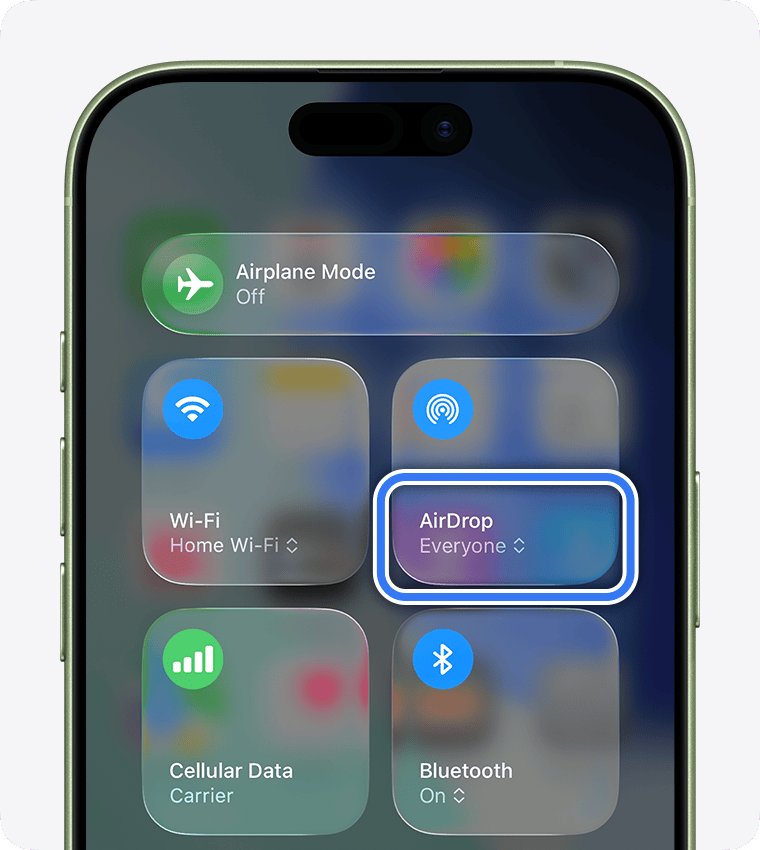
To turn on AirDrop on an iPhone or iPad, open Control Center, touch and hold the top-left group of controls, tap AirDrop, then choose Contacts Only or Everyone for 10 Minutes.
This guide covers the same switch on a Mac, the Settings route, what each receiving option does, where received files land, sharing with Android and Windows, and fixes when the other device never shows up.
How to turn on AirDrop: step-by-step
AirDrop needs Wi-Fi and Bluetooth turned on for both people, and the devices should be within 30 feet (10 meters) of each other.
- Wake and unlock both devices, and keep them within 30 feet of each other.
- Open Control Center: on an iPhone with Face ID, swipe down from the top-right corner; on iPhone SE, swipe up from the bottom edge.
- Touch and hold the top-left group of controls (Airplane Mode, Wi-Fi, Bluetooth) until it expands.
- Tap AirDrop.
- Tap Contacts Only to receive from people in your contacts, or Everyone for 10 Minutes to receive from anyone nearby.
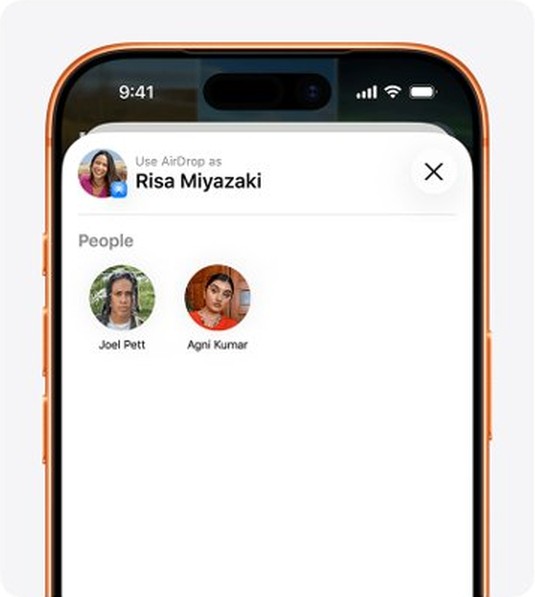
- Send something to test it: open a photo, tap the Share button, tap AirDrop, then tap the person under People.
- Ask the recipient to tap Accept on their device.
If Personal Hotspot is on for either device, turn it off first. Apple lists an active hotspot as something that stops AirDrop from connecting.
AirDrop settings compared
The receiving option decides who can see your device in their AirDrop list. Pick it by who is sending.
| Setting | Who can send to you | Use it when | What happens next |
|---|---|---|---|
| Receiving Off | Nobody | You want no incoming AirDrop requests at all | Stays off until you change it |
| Contacts Only | People in your Contacts app whose card holds their Apple Account email or phone number | Friends, family and your own devices | Stays on |
| Everyone for 10 Minutes (iPhone, iPad) | Any nearby iPhone, iPad, Mac or supported Android phone | The sender is not in your contacts | After 10 minutes it reverts to Contacts Only if you are signed in to an Apple Account, or Receiving Off if you are not |
| Everyone (Mac) | Any nearby Apple device | A one-off transfer from someone you do not have saved | Switch back to Contacts Only once the transfer finishes |
With iOS 26.2, iPadOS 26.2, macOS 26.2 or later, a sender who is not in your contacts must also enter an AirDrop code that your device shows.
How to turn on AirDrop on Mac
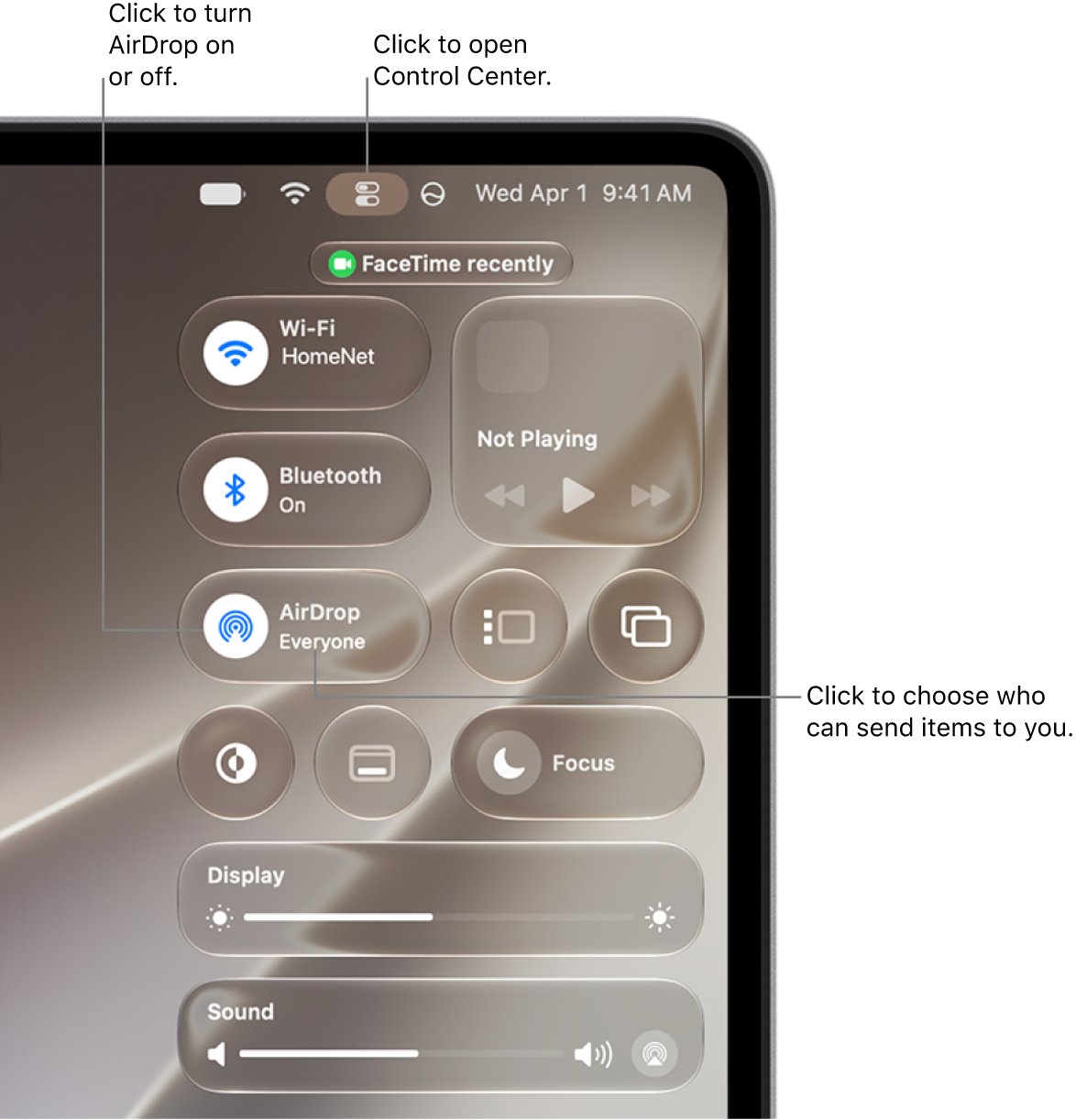
On a Mac, AirDrop lives in Control Center in the menu bar. The AirDrop icon turns blue when it is on.
- Click Control Center in the menu bar at the top right of the screen.
- Click the AirDrop icon. When it is blue, AirDrop is on.
- Click and hold the AirDrop icon, or click the arrow next to AirDrop, to see the receiving options.
- Click Contacts Only or Everyone to choose who can send items to you.
- Make sure Wi-Fi and Bluetooth are both on in Control Center.
Alternative ways to turn on AirDrop
Control Center is the fastest switch, but three other routes reach the same AirDrop options.
| Route | Device | How to do it |
|---|---|---|
| Settings app | iPhone, iPad | Open Settings > General > AirDrop, then choose who can send to you. The same page holds the Bring Devices Together switch. |
| Share sheet | iPhone, iPad, Mac | Open the item, tap or click Share, then AirDrop. Nearby devices that can accept from you appear in the list. |
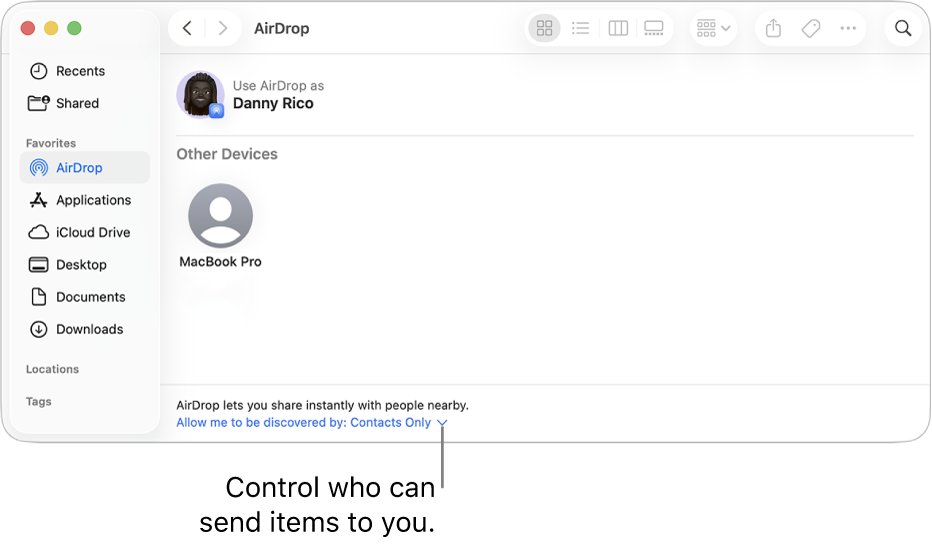
| Finder window | Mac | Click Finder in the Dock, then click AirDrop in the sidebar, or press Shift-Command-R in Finder. |
| Hold devices together | iPhone with iOS 17 or later | Open the photo or file, then move your iPhone close to a contact's iPhone to start the transfer. |
Bring Devices Together also controls NameDrop, which swaps contact cards when two iPhones touch. Turn it off in Settings > General > AirDrop if you do not want either.
How to turn on AirDrop receiving for someone not in your contacts
Contacts Only hides you from strangers, so the receiver has to open up for a short window.
- On the receiving iPhone or iPad, open Control Center and touch and hold the connectivity controls.
- Tap AirDrop, then tap Everyone for 10 Minutes.
- On the sending device, open the file, tap Share > AirDrop, and tap the receiver under People.
- If both devices run iOS 26.2 or later, the receiver taps Get AirDrop Code and reads the code aloud.
- The sender enters the code, and the item transfers.
- Ask the receiver to tap Accept if a notification appears.
After a code exchange, the sender stays on the receiver's Other Known list for 30 days, so repeat transfers skip the code. To end that early, open Contacts, find the person in Other Known and select Forget This Person.
Why is turning on AirDrop so confusing?
Apple has moved the AirDrop switch several times, and the toggle is hidden behind a long press.
| Source of confusion | What is actually going on |
|---|---|
| No AirDrop button on the first Control Center screen | The AirDrop control sits inside the top-left group; touch and hold that group to reveal it |
| AirDrop seems to switch itself off | Everyone for 10 Minutes expires and drops back to Contacts Only or Receiving Off |
| A friend cannot see you on Contacts Only | Your contact card for them, and theirs for you, must contain the Apple Account email or phone number |
| Wi-Fi shows as disconnected | Tapping Wi-Fi in Control Center only disconnects from the network; Wi-Fi stays on and AirDrop still works |
| Different labels on Mac | The Mac offers Contacts Only and Everyone, with no 10-minute timer |
| A new code prompt | From iOS 26.2 and macOS 26.2, unknown senders must enter an AirDrop code |
Where do AirDrop files go on iPhone and Mac?
Most items open in the app they came from, so a photo lands in Photos and a contact lands in Contacts. A document that does not open on its own can be tracked down when you locate received files on iPhone in the Files app.
| Item type | iPhone or iPad | Mac |
|---|---|---|
| Photos and videos | Photos app | Downloads folder, or Photos if you choose to open it there |
| Documents and other files | Files app for some items | Downloads folder |
| Items from the app they were shared from | The same app on your device | The same app, where one exists |
| Items from your own devices on the same Apple Account | Accepted and saved automatically | Accepted and saved automatically |
How to AirDrop between Android and iPhone with Quick Share
Google's Quick Share can send to AirDrop on supported Android phones, starting with the Pixel 10 family and expanding to Pixel 8a and later plus certain Samsung, OnePlus, Motorola, Xiaomi and other models.
- On the iPhone, iPad or Mac, set AirDrop to Everyone for 10 Minutes (Everyone on a Mac).
- On the Android phone, open the photo or file and tap Share.
- Tap Quick Share.
- Choose the Apple device from the list of nearby devices.
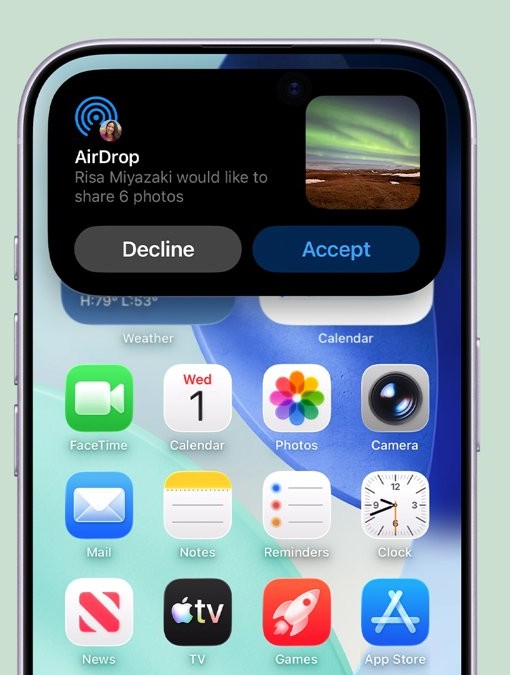
- On the Apple device, tap Accept on the AirDrop notification.
Android models without AirDrop support can share a QR code instead. Both devices need internet access, and the files stay available to download for 24 hours. For a whole phone's worth of data rather than a few files, move from Android to iPhone with a full transfer instead.
How to turn on AirDrop on Windows PC or laptop
There is no AirDrop on Windows, so an HP, Lenovo, Dell or any other Windows laptop has no AirDrop switch to turn on. Apple supports AirDrop only between iPhone, iPad and Mac.
| Goal | Apple-supported option on a Windows PC |
|---|---|
| Move iPhone photos to a PC over USB | Install the Apple Devices app from the Microsoft Store, connect the iPhone, tap Trust, then import with the Microsoft Photos app |
| Keep photos in sync without cables | Turn on iCloud Photos on the iPhone, then view them on the PC or at iCloud.com |
| Photos that open cleanly on Windows | On the iPhone, open Settings > Camera > Formats and choose Most Compatible to shoot JPEG and H.264 |
You can download the Apple Devices app before connecting the phone, and the wider iPhone and iCloud setup on a PC covers the rest of the Apple apps for Windows.
Tips for faster, safer AirDrop
| Tip | Why it helps |
|---|---|
| Leave AirDrop on Contacts Only day to day | Strangers nearby cannot see your device or send you items |
| Use Everyone for 10 Minutes only for a one-off transfer | The window closes by itself, so you do not forget to switch back |
| Sign in to the same Apple Account on all your devices | Transfers between your own iPhone, iPad and Mac are accepted and saved without a prompt |
| Stay close until the transfer starts | Once a transfer begins, it continues over the internet if you move out of Bluetooth or Wi-Fi range |
| Send a small batch, not a whole library | AirDrop suits a handful of files; iCloud or a cable sync suits large collections |
| Check what you accept | Every incoming item asks for Accept or Decline unless it comes from your own Apple Account |
Transfers are encrypted, and Communication Safety can blur sensitive images sent to or from a child's device.
How to tell if AirDrop is on
- On a Mac, open Control Center and look at the AirDrop icon: blue means on.
- On an iPhone or iPad, open Control Center, touch and hold the connectivity controls, and tap AirDrop to see which option is selected.
- If the selected option is Receiving Off, nobody can send to you; pick Contacts Only or Everyone for 10 Minutes.
- Ask the sender to open Share > AirDrop and check that your device appears under People.
- Accept a test photo and confirm it opens in the Photos app.
AirDrop still not working? Try these fixes
AirDrop keeps turning off
Everyone for 10 Minutes is a timer, not a permanent setting (iOS 16.2 and later).
- Open Control Center and tap AirDrop.
- Choose Contacts Only if the sender is in your contacts; that setting does not expire.
- Choose Everyone for 10 Minutes again just before a stranger sends, and accept within the window.
The other device does not appear under People
Wi-Fi or Bluetooth is off, the devices are too far apart, or a hotspot is active.
- Turn on Wi-Fi and Bluetooth on both devices.
- Turn off Personal Hotspot on both devices.
- Move the devices within 30 feet (10 meters) of each other.
- Check the receiver is set to Contacts Only or Everyone, not Receiving Off.
A contact cannot see you on Contacts Only
The contact card does not include the Apple Account email address or phone number.
- Open Contacts on the receiving device and find the sender.
- Add the email address or phone number the sender uses for their Apple Account.
- Try again, or switch to Everyone for 10 Minutes for this transfer.
AirDrop asks for a code
With iOS 26.2 or macOS 26.2 and later, senders outside your contacts must use an AirDrop code.
- On the receiving device, tap or click Get AirDrop Code.
- Read the code to the sender.
- Have the sender enter it on their device to start the transfer.
AirDrop is on but nothing transfers
A temporary fault on one of the devices.
- Restart both devices.
- Turn AirDrop back on from Control Center.
- Send one small photo as a test before a large batch.
If your iPhone receives but its own sends fail, the steps to fix AirDrop when sending fails go deeper into that one-way fault.
AirDrop FAQ
How do you turn AirDrop on?
Open Control Center, touch and hold the top-left group of controls, tap AirDrop, and choose Contacts Only or Everyone for 10 Minutes. On a Mac, click Control Center in the menu bar and click the AirDrop icon until it turns blue.
How do I turn on AirDrop on iPhone?
Swipe down from the top-right corner to open Control Center, touch and hold the connectivity controls, then tap AirDrop. You can also open Settings, tap General, then tap AirDrop and pick who can send items to you.
How do I turn on AirDrop on iPad?
iPad uses the same steps as iPhone. Open Control Center, touch and hold the group with Wi-Fi and Bluetooth, tap AirDrop and choose a receiving option, or go to Settings, General, AirDrop.
How do I turn on AirDrop receiving?
Receiving is on whenever the setting is Contacts Only or Everyone for 10 Minutes. If it shows Receiving Off, open the AirDrop options in Control Center or Settings and choose one of the other two.
How does AirDrop work?
AirDrop sends photos, videos and documents wirelessly to a nearby iPhone, iPad or Mac that has Wi-Fi and Bluetooth turned on. Transfers are encrypted, and the receiver accepts or declines each item unless it comes from their own Apple Account.
Do I need Wi-Fi to use AirDrop?
Wi-Fi must be turned on, but you do not need to be connected to a Wi-Fi network. Disconnecting from a network in Control Center leaves Wi-Fi on, so AirDrop keeps working. Bluetooth must be on as well.
What is the AirDrop range?
Apple asks for the two devices to be within 30 feet (10 meters) of each other. If you move out of range after a transfer starts, the transfer continues over the internet instead of failing.
Can I turn on AirDrop on a Windows PC?
No. AirDrop works only between iPhone, iPad and Mac, so no Windows laptop from HP, Lenovo or any other brand has an AirDrop setting. Use the Apple Devices app or iCloud Photos to move files to a PC.
Can I AirDrop to an Android phone?
Yes, on supported Android phones. Google's Quick Share can send to an iPhone, iPad or Mac that is set to Everyone for 10 Minutes, starting with the Pixel 10 family and expanding to other recent Pixel, Samsung and Motorola models.
Why does my AirDrop keep turning off?
Everyone for 10 Minutes switches back after ten minutes. It returns to Contacts Only if you are signed in to an Apple Account, or to Receiving Off if you are not. Choose Contacts Only to keep receiving.
Quick summary
| Device | Where to turn on AirDrop | Best everyday setting |
|---|---|---|
| iPhone | Control Center > hold connectivity controls > AirDrop, or Settings > General > AirDrop | Contacts Only |
| iPad | Control Center > hold connectivity controls > AirDrop, or Settings > General > AirDrop | Contacts Only |
| Mac | Control Center in the menu bar > AirDrop icon (blue = on) | Contacts Only |
| Android | Quick Share sends to an Apple device set to Everyone for 10 Minutes | Not applicable |
| Windows PC | No AirDrop; use the Apple Devices app or iCloud Photos | Not applicable |