USB 3 is a data-speed standard, while USB-C is the shape of the plug and port, so a USB-C port can run at USB 3 speed, slower USB 2.0 speed or faster USB4 and Thunderbolt speed.
This guide compares the two side by side, explains Thunderbolt and the USB version names, and shows how to find out what each port on your Windows 11 PC supports.
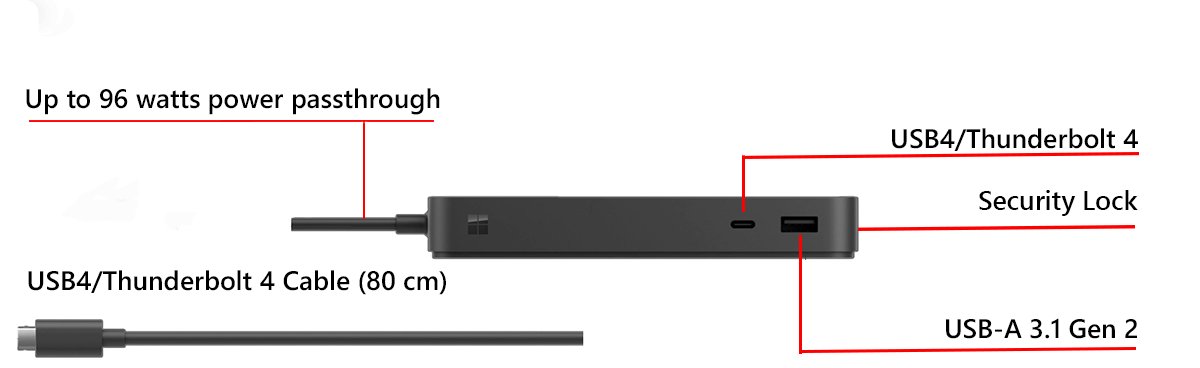
USB 3.0 vs. USB Type-C
The two terms answer different questions. USB 3.0 tells you how fast data can move. USB Type-C tells you what the connector looks like and which extra features the port can carry.
| Question | USB 3.0 | USB Type-C |
|---|---|---|
| What is it? | A USB specification revision that sets the data rate | A connector and cable design |
| Top data rate | Up to 5 Gbps (SuperSpeed USB) | Whatever the port supports: USB 2.0, USB 3.x, USB4 or Thunderbolt |
| Plug shape | Usually the rectangular USB-A port, often blue or marked with the SuperSpeed logo | Small, symmetric oval that fits either way up |
| Charging | Not the reason to pick it | 5 V at 3 A (15 W) as standard, up to 100 W with USB Power Delivery |
| Video output | No | Yes, when the port supports DisplayPort Alternate Mode |
| Older devices | Runs USB 2.0 and USB 1.x devices at their own speed | Connects to USB-A devices through a USB-C to USB-A cable or adapter |
So the honest comparison is not one or the other. A modern laptop often has a USB-C port that runs USB 3 speeds, and the label on the spec sheet tells you which.
What is USB 3.0?
USB 3.0 is a revision of the USB specification from the USB Implementers Forum. Microsoft lists its maximum transmission speed as up to 5 Gbps, about ten times the 480 Mbps of USB 2.0.
| USB 3.0 fact | Detail |
|---|---|
| Maximum speed | Up to 5 Gbps |
| Name on packaging | SuperSpeed USB |
| How to spot the port | A SuperSpeed USB logo next to it, or a blue port |
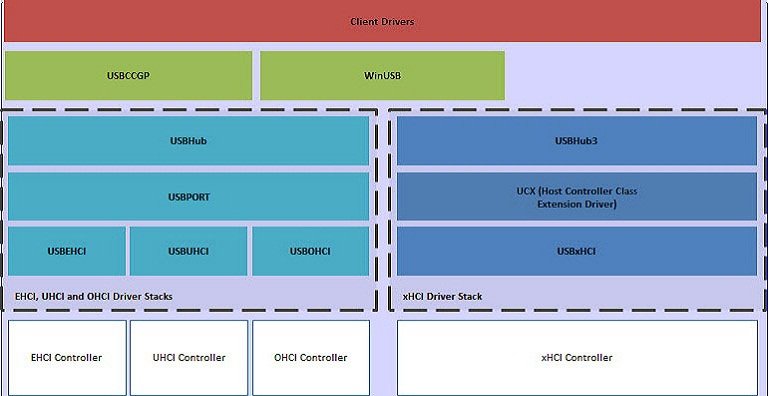
| Host controller | eXtensible Host Controller Interface (xHCI) |
| Older devices | Works with SuperSpeed, high-speed, full-speed and low-speed devices |
| SuperSpeed device in a USB 2.0 port | Runs at USB 2.0 high speed, 480 Mbps |
| Windows support | Built into Windows 8 and later, including Windows 10 and Windows 11 |
USB 3.0 started on USB-A and USB-B connectors. Later USB 3 ports also appear as USB-C, which is why a USB-C port and a USB 3 port can be the same port.
What is USB Type-C?
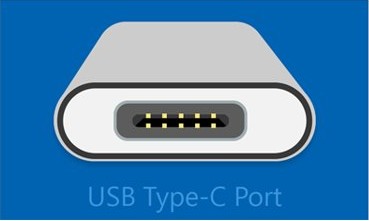
USB Type-C is a connector. The cable has the same plug on both ends, and you can insert it either way up because the design is symmetric and reversible.
| USB Type-C feature | What it means for you |
|---|---|
| Reversible plug | No right-side-up; the plug fits both ways |
| Same plug on both ends | One cable type for host and device |
| Every USB speed | Carries low, full, high and SuperSpeed USB devices |
| Alternate modes | Runs non-USB signals such as DisplayPort, MHL or Thunderbolt while keeping USB 2.0 and charging |
| Standard power | 5 V at 3 A, which is 15 W |
| USB Power Delivery | Optional; lets a port supply or receive up to 100 W, enough to charge many laptops |
| Dual role | A phone or tablet can act as a USB host for a keyboard, then as a device when plugged into a PC |
| Windows support | Windows 10 and later; earlier versions do not support USB Type-C |
A USB-C port does not promise any of the optional features. One port might only charge and run USB 2.0, while the one next to it handles a 4K monitor. Not every USB-C cable carries the same speed or power either, so match the cable to the job.
Laptop charging over the port depends on Power Delivery support, and you can enable USB-C charging on a Windows 11 laptop once you know the port accepts it.
What is Thunderbolt?
Thunderbolt is a high-speed data and display connection developed by Intel. Thunderbolt 3, 4 and 5 all use the USB-C connector, so a Thunderbolt port looks exactly like a USB-C port.
| Version | Connector | Top speed | What it adds |
|---|---|---|---|
| Thunderbolt 3 | USB-C | Up to 40 Gbps | USB4 hosts must stay compatible with Thunderbolt 3 devices |
| Thunderbolt 4 | USB-C | Up to 40 Gbps | Two 4K displays at 60 Hz; cables work with Thunderbolt 3 and USB-C devices |
| Thunderbolt 5 | USB-C | Up to 120 Gbps | Native DisplayPort 2.1 speeds; ports accept Thunderbolt 5, 4, 3 and USB-C cables |
| USB4 (for comparison) | USB-C | Links of 10, 20 or 40 Gbps | Tunnels USB 3.x, PCIe and DisplayPort through one cable |
A plain USB-C device works in a Thunderbolt port at USB speed. A Thunderbolt device in a plain USB-C port either falls back to limited functions or does not work, and Windows shows a notification when that happens.
Some ports and cables carry a lightning-bolt symbol, but not all of them do. The PC maker's spec sheet is the reliable answer, and Windows 11 has its own Thunderbolt setup steps for ports that support it.

USB jargon simplified
Spec sheets mix version numbers, speed names and marketing labels. This table maps the terms you are most likely to see to what they mean.
| Term | What it means | Data rate |
|---|---|---|
| Low speed / full speed | Original USB 1.x data rates for keyboards and mice | 1.5 Mbps / 12 Mbps |
| Hi-Speed USB | USB 2.0 | 480 Mbps |
| SuperSpeed USB | USB 3.0 | Up to 5 Gbps |
| USB 3.1 Gen 2 / USB 3.2 Gen 2 | The same 10 Gbps port; Microsoft spec sheets use both labels | 10 Gbps |
| USB 3.x 20 Gbps | The fastest USB 3.x link rate | 20 Gbps |
| USB4 | Newer standard that carries USB 3.x, PCIe and DisplayPort over USB-C | 10, 20 or 40 Gbps links; up to 120 Gbps on the newest Macs |
| USB Type-C / USB-C | The connector, not a speed | Depends on the port |
| USB Power Delivery (PD) | Charging standard over USB-C | Up to 100 W per Microsoft's USB-C guidance |
| Alternate Mode | A USB-C port carrying DisplayPort, MHL or Thunderbolt signals | Depends on the mode |
| xHCI | The USB 3 host controller in your PC | Supports every USB speed |
The rule that cuts through the names is simple: the connector says nothing about speed, and the speed label says nothing about the connector. Read both on the spec sheet.
How to check if a USB port is USB 3.0 or USB4 in Windows 11
Windows can tell you whether your PC has a USB 3 controller and whether any port supports USB4. It cannot read the speed printed on a cable, so start with the PC.
- Look at the port first: a blue USB-A port or a SuperSpeed USB logo marks USB 3.0, and a lightning bolt often marks Thunderbolt.
- Right-click Start and select Device Manager.
- Expand Universal Serial Bus controllers.
- Look for an entry with eXtensible Host Controller in its name. If one is listed, the PC has USB 3 ports.
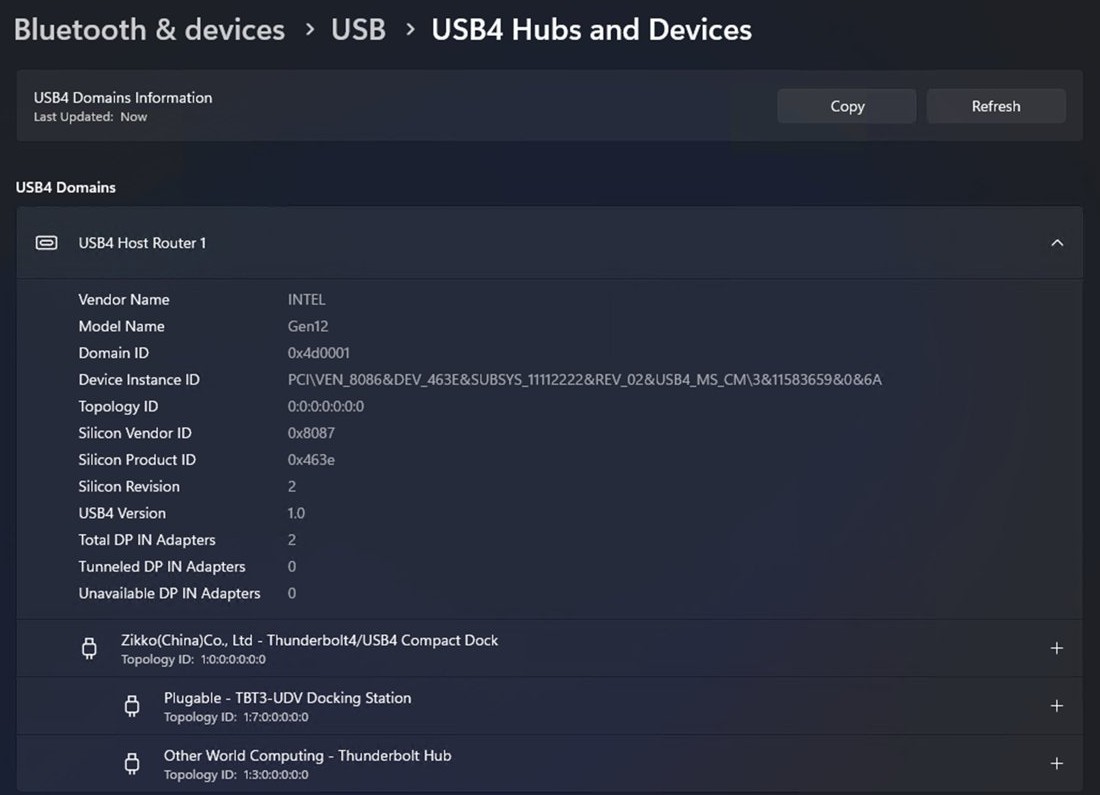
- Open Settings and select Bluetooth & devices > USB.
- Select USB4 Hubs and Devices if it appears. The page lists attached USB4 hubs and devices and what they support.
- If USB4 Hubs and Devices is missing, the PC is not USB4-capable, so its USB-C ports run USB 3.x or USB 2.0 speeds.
The USB4 page needs Windows 11 build 22621.1778 (KB5026446) or later. For the exact speed of each USB-C port, the PC maker's spec sheet remains the final word.
USB-C port not working at full speed in Windows 11
When a USB-C or USB 3 device runs slower than it should, Windows often names the problem in a notification. These fixes follow those messages.
USB 3.0 drive copies no faster than a USB 2.0 drive
Something in the chain is USB 2.0, so the drive drops to 480 Mbps high speed.
- Plug the drive straight into a USB 3 port instead of a hub.
- Replace a USB 2.0 hub with a USB 3 hub if you need one.
- Swap the cable for a USB 3 cable, or try a different one if the current cable is damaged.
- Install firmware updates for the drive and the hub from their makers.
- Update the PC's BIOS from the PC maker, since some boards route USB 3 ports to the USB 2.0 controller.
"Display connection might be limited"
The PC, cable or monitor does not support DisplayPort Alternate Mode on that path.
- Check that the PC, the monitor and the cable all support DisplayPort over USB-C.
- Connect the monitor directly to the PC instead of through a hub or dock.
- Move the cable to the USB-C port that supports DisplayPort Alternate Mode.
"USB4 device functionality might be limited" or "Thunderbolt device functionality might be limited"
The port, cable or device does not share the same USB-C features.
- Confirm in the PC's specifications that the port supports USB4 or Thunderbolt.
- Use the cable that came with the device or dock, or a certified USB4 cable.
- Connect the device directly to the PC or to a USB4 dock only.
- Unplug other Alternate Mode devices that share the same port group.
"Slow charger" or "PC isn't charging"
The charger or cable cannot supply enough power, or the port does not accept charging.
- Use the charger and cable that came with the PC.
- Plug the charger into the USB-C port marked for charging.
- Clean the port with compressed air if the plug does not seat fully.
"USB device might need more power"
The port cannot power the device on its own.
- Connect the device to its own power supply if it has one.
- Plug the PC into mains power instead of running on battery.
- Unplug USB devices you are not using.
Windows can also switch off idle ports to save battery, which you can stop in the Windows 11 USB power settings.
A dock that will not show an external screen has its own set of causes, and these USB-C dock monitor fixes work through them.
USB 3 vs. USB-C FAQ
Is USB-C the same as USB 3?
No. USB-C is a connector shape and USB 3 is a data-speed standard. Many USB-C ports run at USB 3 speeds, but a USB-C port can also be limited to USB 2.0 or support faster USB4 and Thunderbolt.
Is USB-C faster than USB 3.0?
Only if the port behind it is faster. USB 3.0 tops out at 5 Gbps. A USB-C port running USB 3.2 Gen 2 reaches 10 Gbps, USB4 and Thunderbolt 4 reach 40 Gbps, and a USB 2.0-only USB-C port stays at 480 Mbps.
Can I plug a USB 3.0 device into a USB-C port?
Yes, with a USB-C to USB-A adapter or a cable that has USB-C on one end and USB-A on the other. The device runs at the slower of the two speeds, so a USB 3.0 drive stays at up to 5 Gbps.
Are all USB-C cables the same?
No. USB-C cables differ in data speed, charging power and supported protocols. A cable sold for charging may carry only USB 2.0 data, so use the cable that came with the device or one rated for the speed you need.
Is Thunderbolt the same as USB-C?
No. Thunderbolt 3, 4 and 5 use the USB-C connector, but they are separate, faster protocols. A USB-C device works in a Thunderbolt port, while a Thunderbolt device needs a Thunderbolt or compatible USB4 port to work fully.
Can USB-C charge a laptop?
Yes, when the laptop and charger support USB Power Delivery. Standard USB-C supplies 15 W, and Power Delivery raises that to up to 100 W under Microsoft's USB-C guidance, which covers many thin laptops.
Why are some USB ports blue?
Blue is the usual color for USB 3.0 USB-A ports. Microsoft notes that USB 3.0 ports are typically blue or marked with the SuperSpeed USB logo, which helps you find the faster port on a PC that has both USB 3.0 and USB 2.0 ports.
Does every USB-C port support video?
No. Video needs DisplayPort Alternate Mode, USB4 or Thunderbolt on that port. If the port lacks it, Windows shows "Display connection might be limited" when you connect a monitor.
Verdict
Treat USB-C as the plug and USB 3 as the speed, and buy by the speed label printed next to the port: USB 3.2 Gen 2 at 10 Gbps for fast external drives, USB4 or Thunderbolt 4 at 40 Gbps for docks and dual monitors. A USB-C port can be anything from USB 2.0 to Thunderbolt 5, so the connector alone never tells you what a device will get. The data-rate label and the PC maker's spec sheet do.