You can install WhatsApp on an older iPad only after you update it to iPadOS 15.1 or later, which is possible on the iPad Air 2, iPad mini 4, iPad (5th generation), every iPad Pro and all newer models.
This guide shows how to check your model and version, update the iPad, install and link WhatsApp, and what to use instead when the iPad is stuck on iOS 12 or earlier.
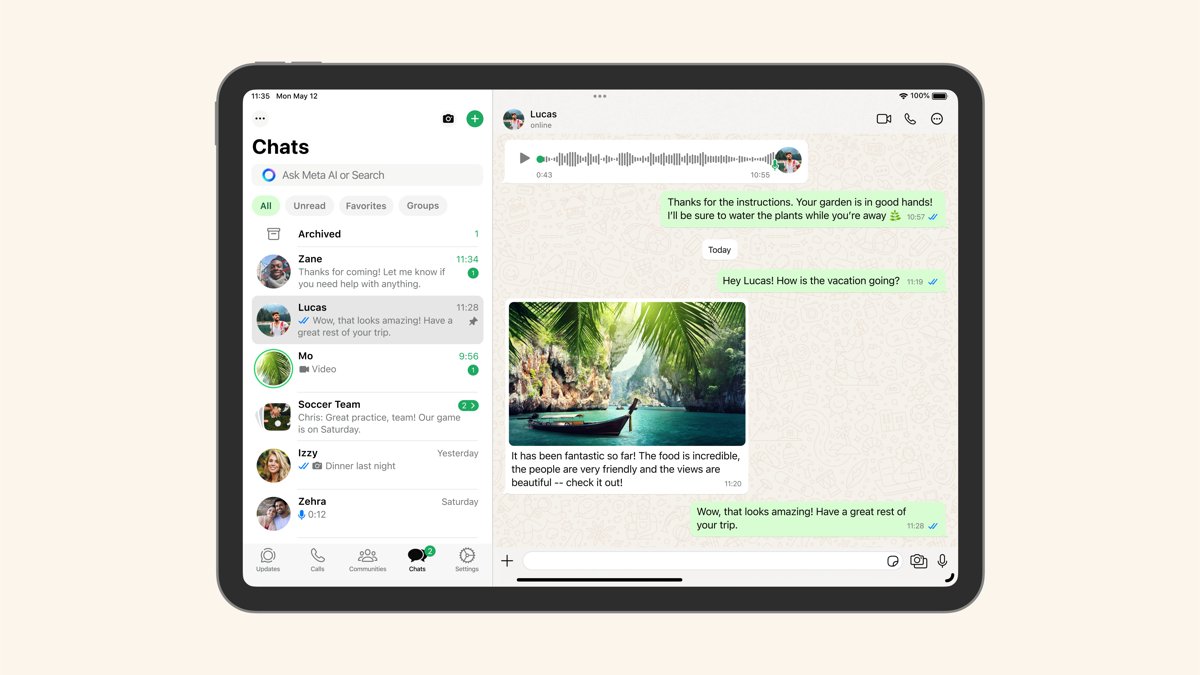
How to install WhatsApp on an older iPad
WhatsApp for iPad is compatible with iOS 15.1 or newer, and the App Store listing says the same. An iPad on iPadOS 14 or 13 that can take a newer update only needs that update first.
- Open Settings, tap General, then tap About and read the number next to iPadOS Version or iOS Version.
- If it is lower than 15.1, back up the iPad, plug it in to power and connect to Wi-Fi.
- Go to Settings > General > Software Update and tap Download and Install.
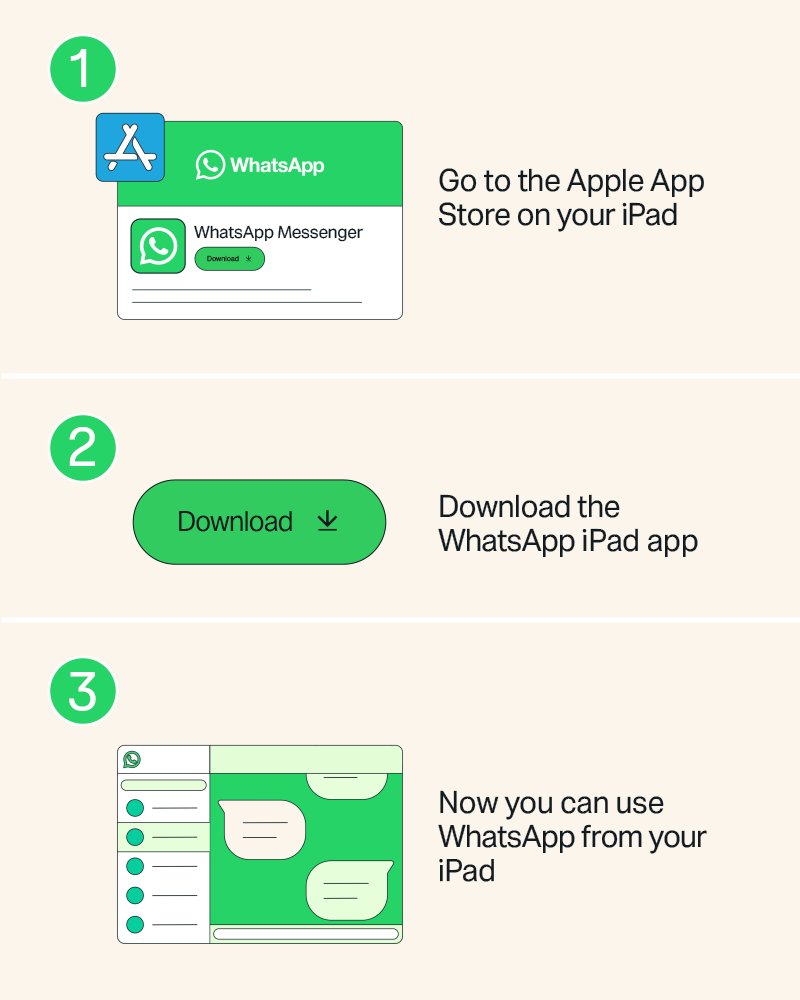
- When the iPad restarts on iPadOS 15.1 or later, open the App Store and search for WhatsApp Messenger.
- Tap Get or the download button, then open WhatsApp.
- Link the iPad to WhatsApp on your phone by scanning the QR code, or register a new account on the iPad.
If Software Update says the iPad is up to date and the version is still below 15.1, the model can't run WhatsApp. The table below shows which iPads that applies to.
Can my iPad run WhatsApp? iPad models and iOS versions
The deciding factor is the newest system your model accepts, not the version it runs today. Find your model in the first column, or match it against the full list of iPad generations if you only know its release year.
| Your iPad | Newest system it can run | Can it install WhatsApp? |
|---|---|---|
| Any iPad Pro, from the 9.7-inch and 12.9-inch (1st generation) onward | iPadOS 15 or later | Yes, after you update to iPadOS 15.1 or later |
| iPad Air 2, iPad Air (3rd generation) and later | iPadOS 15 or later | Yes, after the update |
| iPad mini 4, iPad mini (5th generation) and later | iPadOS 15 or later | Yes, after the update |
| iPad (5th generation) and later | iPadOS 15 or later | Yes, after the update |
| iPad Air (1st generation), iPad mini 2, iPad mini 3 | iOS 12 | No. Use WhatsApp on a computer or another device instead |
| iPad (4th generation) and earlier, original iPad mini | Older than iOS 12 | No. Use WhatsApp on a computer or another device instead |
These groups come from Apple's compatibility lists for iOS 12, iPadOS 13 and iPadOS 15. The iPad Air, iPad mini 2 and iPad mini 3 appear on the iOS 12 list but not on the iPadOS 13 list, so they stop at iOS 12. That is also why an iPad mini 2 can't reach iOS 15 or anything newer.
WhatsApp minimum iOS version for iPad and iPhone
WhatsApp reviews its supported systems every year and drops the oldest ones. It warns you inside the app a few times before support ends on your device.
| Device | Minimum system for WhatsApp |
|---|---|
| iPad (WhatsApp for iPad) | iPadOS 15.1 or newer |
| iPhone | iOS 15.1 or newer; from November 30, 2026, iOS 15.5 or newer |
| Android phone or tablet | Android 6.0 or newer |
| Windows PC or laptop | Windows 10 or newer |
| Mac | macOS 12.1 or newer |
| WhatsApp Web | Windows, Linux or macOS with Chrome 100+, Edge 100+, Firefox 115+, Safari 15+ or Opera 86+ |
The iPhone change on November 30, 2026 matters if you link the iPad to an iPhone: that phone also has to stay on a supported iOS version to keep the account working.
How to check iPad model and iPadOS version
You need two facts: the model, to know how far it can update, and the current version, to know whether you need to update at all.
- Open Settings and tap General.
- Tap About.
- Read the version next to iPadOS Version. Older iPads label it iOS Version.
- Note the model shown on the same screen.
- If you are unsure of the model, turn the iPad over and read the model number printed on the back cover, which starts with A.
- Match that model number on Apple's Identify your iPad model page, then find the model in the table above.
A version label of iOS Version with a number such as 12 or 10 means the iPad has never moved to iPadOS. That alone does not settle it: check the model's newest system in the table.
How to update an old iPad to iPadOS 15
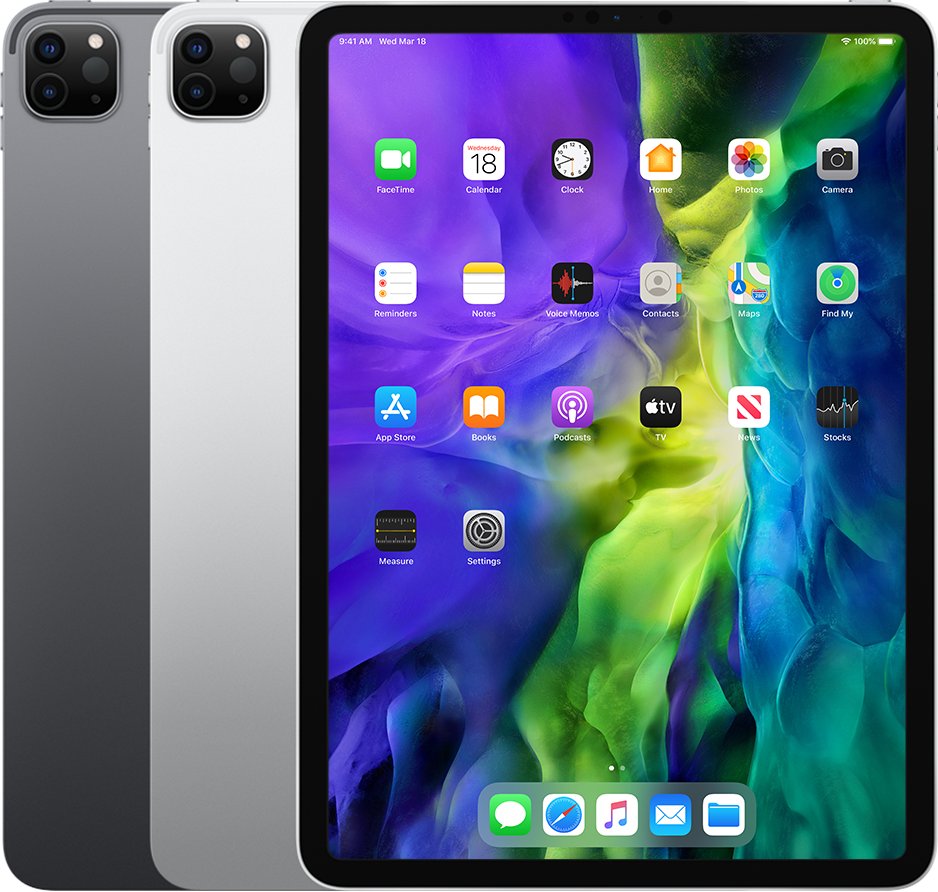
An iPad Air 2, iPad mini 4 or iPad (5th generation) still on iPadOS 13 or 14 can take iPadOS 15 wirelessly. Back it up first, because a large update rewrites the system.
- Back up the iPad with iCloud or your computer.
- Plug the iPad in to power and connect it to Wi-Fi.
- Open Settings and tap General.
- Tap Software Update to see the installed version and any update on offer.
- Tap Download and Install, then follow the onscreen instructions.
- If a message asks to remove apps temporarily for space, tap Continue. The apps reinstall automatically after the update.
If no update appears, turn off any VPN or proxy, which can stop the iPad reaching Apple's update servers. You can also update the iPad from a Mac with Finder, or from iTunes on a Windows PC or an older Mac.
Install WhatsApp on iPad from the App Store and link your phone
WhatsApp for iPad is the official app from the App Store, listed as WhatsApp Messenger. When you link it to your phone, up to a year of recent chat history syncs to the iPad.
- Open the App Store on the iPad, search for WhatsApp Messenger and tap Get.
- Open WhatsApp on the iPad to show its QR code.
- On an iPhone, open WhatsApp, tap Settings or your profile picture, then tap Linked devices > Link device > OK.
- On an Android phone, open WhatsApp, tap the menu, then tap Linked devices > Link a device.
- Unlock with Face ID, Touch ID or your PIN if asked, then point the phone at the QR code on the iPad.
- If WhatsApp asks whether to link an unrecognized device, tap Link device.
Since July 2026 you can also register a WhatsApp account directly in the iPad app without a phone link. The iPad version has most phone features, and the WhatsApp iPad app features list shows what it can and can't do.
How to install WhatsApp on a laptop or PC instead of an old iPad
An iPad stuck on iOS 12 or earlier can't run WhatsApp at all. A computer is the closest large-screen replacement, and it links to your phone the same way the iPad app would.
- Check the computer: the Windows app needs Windows 10 or newer, and the Mac app needs macOS 12.1 or newer.
- Go to whatsapp.com/download on the computer and download the Windows or Mac app.
- Install and open the app to show its QR code.
- On your phone, open WhatsApp and go to Linked devices > Link device.
- Scan the QR code on the computer screen with your phone.
- If the computer is too old for the app, open web.whatsapp.com in Chrome, Edge, Firefox, Safari or Opera and scan that QR code instead.
One WhatsApp account can link up to four devices at a time, so a computer and a newer iPad can both stay connected to the same phone.
WhatsApp Web on an old iPad: does it work?
WhatsApp Web lists Windows, Linux and macOS as its supported systems, so an iPad browser is not a supported way in. It also needs Safari 15 or newer, which rules out the older Safari on iPads stuck on iOS 12.
| Option for an iPad on iOS 12 or earlier | Official status | Result |
|---|---|---|
| WhatsApp for iPad app | Needs iPadOS 15.1 or newer | Won't install |
| web.whatsapp.com in Safari on the iPad | WhatsApp Web supports Windows, Linux and macOS only | Not supported |
| Third-party "WhatsApp for iPad" apps or websites | Unofficial; WhatsApp does not support them | Can get the account temporarily or permanently banned |
| WhatsApp on a Windows PC, Mac or WhatsApp Web on a computer | Supported linked device | Works with your phone's account |
| WhatsApp on an Android tablet | Supported linked device, Android 6.0 or newer | Works with your phone's account |
Avoid any app that promises WhatsApp on an old iPad. WhatsApp warns that linking an unofficial app can compromise the account and get it banned, even if you linked it in the past.
How to tell if WhatsApp is linked on iPad
The phone keeps the list of every device signed in to your account. If the iPad is on that list, the install and link both worked.
- Open WhatsApp on your phone.
- On iPhone, tap Settings or your profile picture, then Linked devices. On Android, tap the menu, then Linked devices.
- Look for the iPad in the list of linked devices.
- On the iPad, open a chat and send a message; it should also appear on the phone.
- Open WhatsApp on the phone at least once every 14 days so the iPad stays linked.
To remove the iPad later, tap it in Linked devices and tap Log out. WhatsApp also disconnects a linked device after 30 days of inactivity. When an app update arrives, you can update WhatsApp manually from the App Store.
Why can't I install WhatsApp on my iPad?
App Store says WhatsApp requires iOS 15.1 or later
The iPad runs an iPadOS or iOS version older than 15.1.
- Open Settings > General > Software Update and install any update offered.
- Check the version again in Settings > General > About.
- Once it reads 15.1 or later, return to the App Store and download WhatsApp Messenger.
Software Update shows no newer version and the iPad is below 15.1
The model's last supported release is older than iPadOS 15, as on the iPad Air, iPad mini 2 and iPad mini 3.
- Confirm the model with the model number on the back cover.
- If it is in the iOS 12 or earlier group, stop trying to install the iPad app.
- Use WhatsApp on a Windows PC, a Mac, WhatsApp Web on a computer, or an Android tablet linked to your phone.
WhatsApp won't download or the icon stays greyed out
The App Store download is stalled, often by a payment, billing or connection problem.
- Touch and hold the WhatsApp icon on the Home Screen and choose Prioritize Download.
- Restart the iPad and check whether the download continues.
- Add a valid payment method to your Apple Account; it can be required even for free apps.
- If a message says billing problem with previous purchase or verification required, fix the payment method first.
WhatsApp was on the iPad before but is no longer installed
The app was removed, and you need to download it again from your purchase history.
- Open the App Store and tap your photo at the top of the screen.
- Tap Apps & Purchase History, then Your Apps.
- Tap Not on this iPad, find WhatsApp and tap the Redownload button.
WhatsApp installed on the iPad but keeps logging out
Linked devices disconnect when the primary phone has not opened WhatsApp for 14 days, or after 30 days of inactivity on the iPad.
- Open WhatsApp on your phone and keep it updated.
- Open WhatsApp on the iPad and link it again with the QR code.
- Make sure the phone still runs a supported system, especially an iPhone after November 30, 2026.
The same model limits apply to every iPad size. An iPad mini running WhatsApp needs the mini 4 or later on iPadOS 15.1 or newer.
Installing WhatsApp on an older iPad FAQ
Why can't I install WhatsApp?
The most common reason is an operating system older than WhatsApp's minimum: iPadOS 15.1 on iPad, iOS 15.1 on iPhone and Android 6.0 on Android. Update the device if it offers an update. If it can't update, use WhatsApp on a computer or a newer device.
Why can't I install WhatsApp on my phone?
Your phone may run an unsupported system. iPhones need iOS 15.1 or newer, rising to iOS 15.5 on November 30, 2026, and Android phones need Android 6.0 or newer. The phone must also receive SMS or calls to verify the number during setup.
How can I install WhatsApp on my phone?
Download WhatsApp from the App Store on an iPhone or Google Play on Android, open it and register your phone number. The phone needs a supported system and must be able to receive an SMS or call with the verification code.
How to install WhatsApp on Android?
Open Google Play, search for WhatsApp Messenger and tap Install, then open the app and verify your phone number. The phone or tablet needs Android 6.0 or newer. An Android tablet can also be linked to the WhatsApp account on your phone.
How can I install WhatsApp on my laptop?
Download the WhatsApp app for Windows or Mac from whatsapp.com/download, open it and scan its QR code from Linked devices on your phone. The Windows app needs Windows 10 or newer, and the Mac app needs macOS 12.1 or newer.
Can I install WhatsApp on my PC?
Yes. WhatsApp has an official Windows app for Windows 10 or newer, and you link it to your phone with a QR code. On an older PC, open web.whatsapp.com in a supported browser such as Chrome 100 or Edge 100 and link it the same way.
Why won't WhatsApp install on my laptop?
The laptop may run Windows older than Windows 10 or a macOS version older than 12.1, which the desktop apps don't support. Use WhatsApp Web in an up-to-date browser instead. It needs Chrome 100, Edge 100, Firefox 115, Safari 15 or Opera 86 or newer.
How to install WhatsApp on Windows?
On Windows 10 or newer, download the WhatsApp app from whatsapp.com/download and open it. Then open WhatsApp on your phone, go to Linked devices, tap Link device and scan the QR code shown on the PC.