If the Photos app on your iPhone 17 Pro keeps crashing or hanging, quit it from the App Switcher, reopen it, and restart the iPhone; if it still freezes, install the latest iOS update and free up storage.
This guide covers each fix in order, from a force restart and iCloud Photos upload pause to Reset All Settings and a full erase and restore, plus what to try when Photos will not open at all.
How to fix iPhone 17 Pro Photos app crashing
Quitting and reopening an app is Apple's first step when an app is not responding. A restart clears anything still stuck in the background.
- Open the App Switcher, swipe right to find Photos, then swipe up on it to quit it.
- Go to the Home Screen or App Library and tap Photos to reopen it.
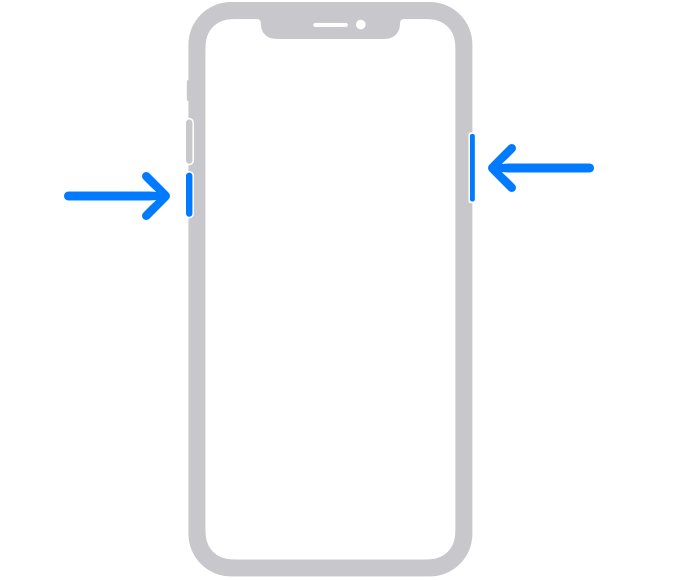
- If it freezes again, press and hold either volume button and the side button until the power-off slider appears.
- Drag the slider, then wait 30 seconds for the iPhone to turn off.
- Press and hold the side button on the right until the Apple logo appears, then open Photos again.
Quitting apps you are not using does not save battery, because iPhone manages background apps itself. Only quit Photos when it is actually stuck.
Why does the Photos app keep crashing on iPhone 17 Pro?
Apple does not publish a single cause for Photos crashes. Match what you see to a row, then start with the fix in that row.
| What you notice | What to check | Fix to try first |
|---|---|---|
| Photos freezes once, then works after reopening | A one-off app hang | Quit and reopen Photos |
| The whole iPhone stops responding | The system, not just Photos | Force restart |
| Crashes started after an iOS release | Whether a newer update is available | Settings > General > Software Update |
| Little free space left at the top of iPhone Storage | Photos, videos, messages and apps filling the device | Free space, or turn on Optimize Storage |
| Photos hangs while a large library is uploading to iCloud | iCloud Photos upload status | Pause the upload for a day |
| Crashes continue after all of the above | Settings or software on the device | Reset All Settings, then erase and restore |
Force restart iPhone 17 Pro when Photos freezes
Use a force restart when Photos has frozen the screen and you cannot reach the power-off slider.
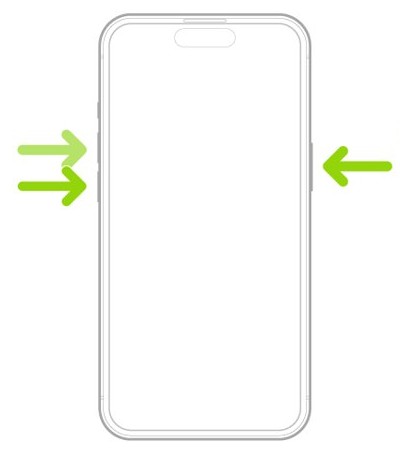
- Press and quickly release the volume up button.
- Press and quickly release the volume down button.
- Press and hold the side button.
- When the Apple logo appears, release the side button.
- After the iPhone starts, open Photos and see whether it still hangs.
If the iPhone does not restart after these steps, work through the fixes for a force restart that is not working, or visit Apple Support.
Update iOS on iPhone 17 Pro to fix Photos app bugs
Photos is a built-in app, so its fixes arrive with iOS updates rather than through the App Store. Apple ships bug fixes in its latest software releases.
- Back up your iPhone using iCloud or your computer.
- Plug the iPhone into power and connect to Wi-Fi.
- Open Settings, tap General, then tap Software Update.
- If an update is available, tap Download and Install and follow the onscreen instructions.
- If a message asks to temporarily remove apps for space, tap Continue; those apps reinstall automatically after the update.
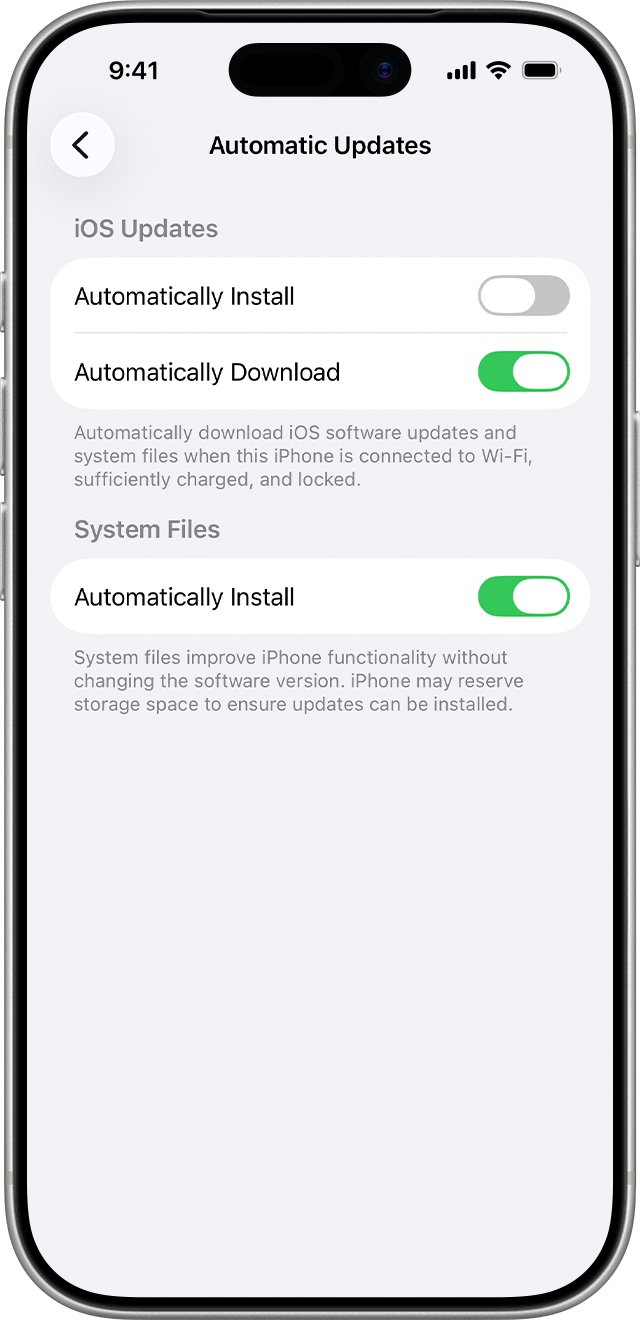
A VPN or proxy connection can stop the iPhone from reaching Apple's update servers. To get future fixes automatically, tap Automatic Updates on the same screen and turn on Automatically Install.
iPhone 17 Pro storage full: free space for the Photos app
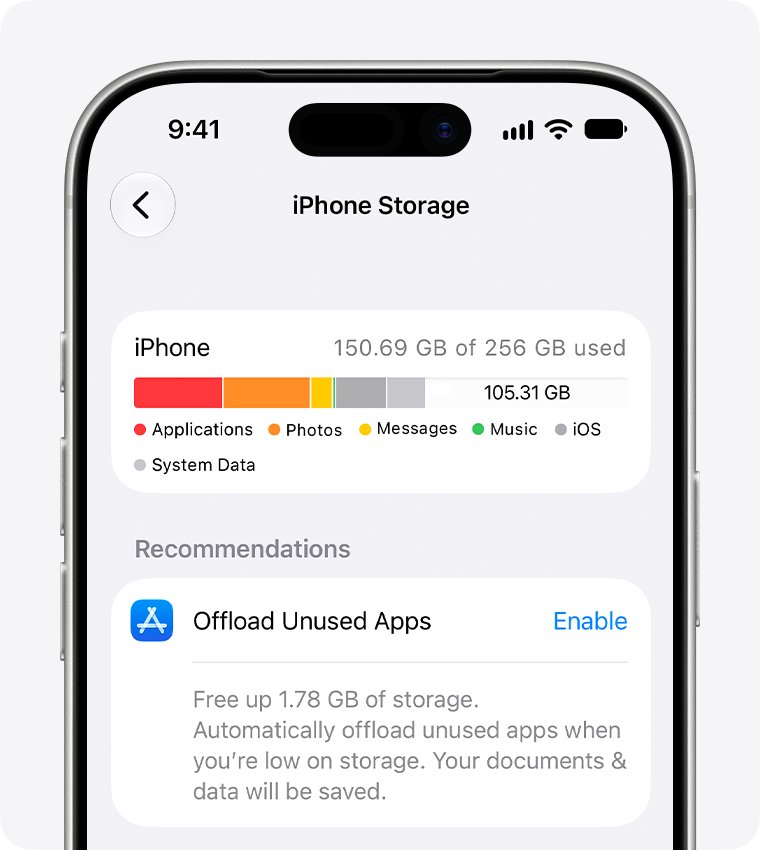
Photos and videos are a common source of storage use. Check the free space first, then remove what you no longer need.
- Open Settings, tap General, then tap iPhone Storage. Available storage is shown at the top.
- Delete Messages conversations and attachments, downloaded TV and streaming videos, and old files in the Files app that you no longer need.
- Delete apps you no longer use, or go to Settings > Apps > App Store and turn on Offload Unused Apps.
- If you use iCloud Photos, go to Settings, tap your name, tap iCloud, then under Saved to iCloud tap Photos.
- Tap iPhone Storage and choose Optimize Storage. In iOS 26 or earlier, choose Optimize Storage directly.
- Restart the iPhone and open Photos again.
Optimize Storage for Photos keeps space-saving versions on the iPhone while full-resolution originals stay in iCloud, and originals download over Wi-Fi or cellular when you need them.
Pause iCloud Photos sync when Photos hangs on iPhone 17 Pro
A large library can take a long time to upload to iCloud, depending on its size and your internet speed. Pausing the upload for a day shows whether Photos stops hanging while sync is idle.
- Open the Photos app.
- Tap Collections.
- Tap the profile button to check the iCloud Photos upload status.
- Tap Pause. The upload pauses for one day.
- Use Photos as normal and note whether it still freezes or crashes.
These steps apply to iOS 26 or later. Pause might not be offered, depending on your library status. In iOS 27, Sync Immediately does the opposite and prioritizes uploads, which can use more cellular data if Photos is allowed to use it.
Reset all settings on iPhone 17 Pro without losing photos
Reset All Settings returns every setting to its default, but no data or media are deleted. Your photo library stays where it is.
- Back up the iPhone first if you want the option to restore your current settings later.
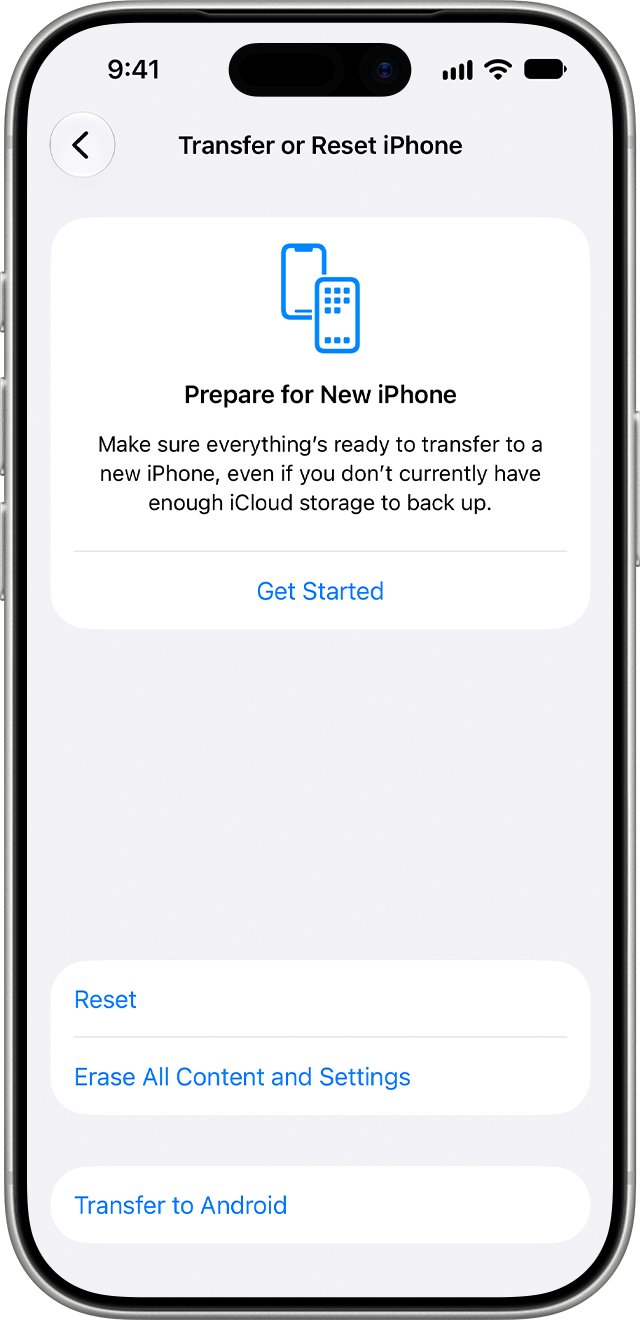
- Open Settings, tap General, then tap Transfer or Reset iPhone.
- Tap Reset.
- Tap Reset All Settings and confirm. Do not choose Erase All Content and Settings at this stage.
- After the iPhone restarts, reconnect to Wi-Fi and open Photos.
This also resets network settings, the keyboard dictionary, location and privacy settings, and removes Apple Pay cards, so add your cards to Wallet again afterwards.
Erase and restore iPhone 17 Pro if Photos keeps crashing
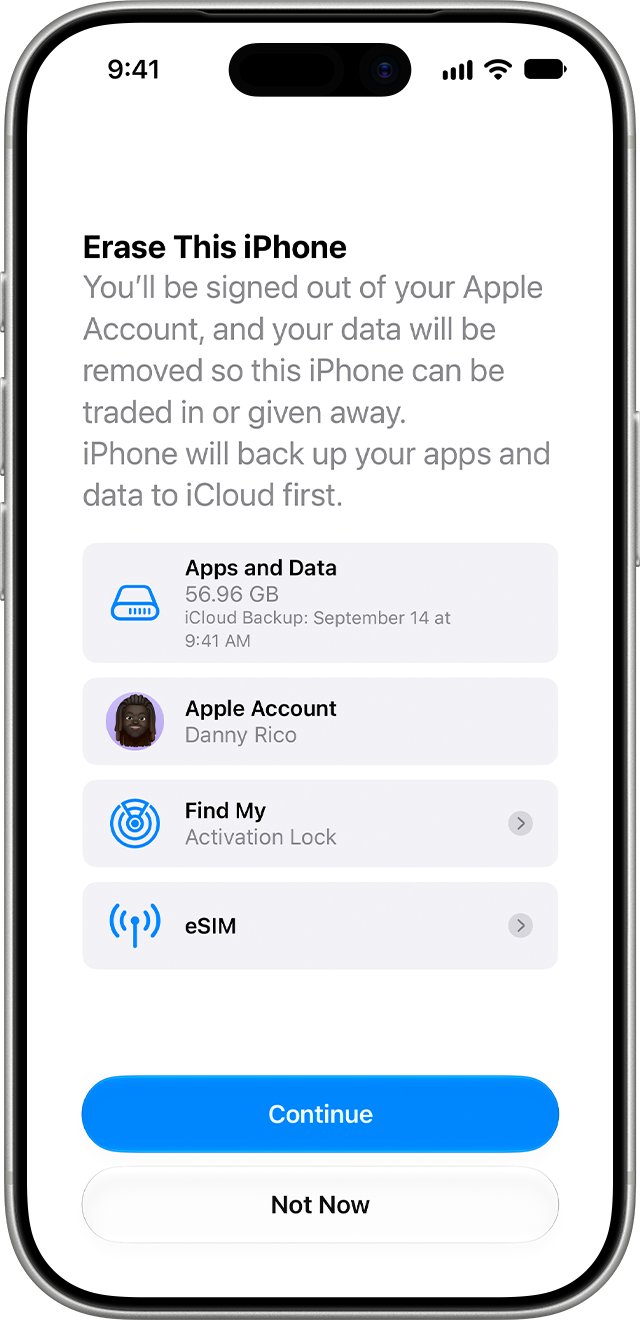
Erasing the iPhone removes all content and settings, so only do it after every fix above has failed and your library is safe. iCloud Photos items are not duplicated in an iCloud backup, so keep separate copies of your library.
- Back up the iPhone: open Settings, tap your name, tap iCloud, tap iCloud Backup, then tap Back Up Now.
- If iCloud Photos is off, copy your photos to a computer before you continue.
- Open Settings, tap General, tap Transfer or Reset iPhone, then tap Erase All Content and Settings.
- Tap Continue, choose to keep or delete your eSIM, and enter your passcode.
- Enter your Apple Account password, tap the done button on the keyboard, and wait for the iPhone to reset.
- When the Hello screen appears, set up the iPhone and restore from your backup.
If you delete the eSIM, contact your carrier to reactivate your cellular plan. To keep a local copy of your library first, transfer photos from iPhone to a computer.
iPhone 17 Pro Photos app freezing or not opening
Photos will not open or closes straight away
The app is stuck in a failed state, or iOS needs an update.
- Quit Photos from the App Switcher and reopen it.
- Restart the iPhone with the volume and side buttons.
- Check Settings > General > Software Update and install any update listed.
Photos hangs while photos are uploading to iCloud
A large iCloud Photos upload is running.
- In Photos, tap Collections, then the profile button, and check the upload status.
- Tap Pause to stop the upload for one day.
- Connect to a fast Wi-Fi network before you let the upload resume.
Photos freezes and the whole iPhone stops responding
The system is unresponsive, not only the app.
- Press and release volume up, press and release volume down, then hold the side button until the Apple logo appears.
- Open Settings > General > iPhone Storage and check how much space is free.
- Free space if the iPhone is nearly full.
Photos still crashes after a reset and restore
A problem that needs Apple's help.
- Note when the crash happens, for example opening a specific album or playing a video.
- Contact Apple Support through the Apple Support app or support.apple.com.
- Keep the iPhone backed up until the issue is resolved.
iPhone 17 Pro Photos app crashing FAQ
Why does my Photos app keep crashing on iPhone 17 Pro?
Apple does not list one cause. Start by quitting and reopening Photos and restarting the iPhone, then install the latest iOS update and free storage. If Photos hangs only while iCloud Photos is uploading, pause the upload for a day and see whether it stops.
Can I delete and reinstall the Photos app to fix crashes?
Photos is a built-in app whose fixes come through iOS updates, so update iOS from Settings > General > Software Update instead. If crashes continue after updating, Reset All Settings, then erase and restore the iPhone from a backup.
Does Reset All Settings delete my photos?
No. Reset All Settings returns settings such as network, keyboard dictionary, location and privacy to their defaults, and removes Apple Pay cards, but Apple states that no data or media are deleted. Erase All Content and Settings is the option that removes your content.
Does pausing iCloud Photos delete anything?
No. Pausing stops the library upload to iCloud for one day; your photos stay on the iPhone and the upload resumes later. In iOS 26 or later, open Photos, tap Collections, tap the profile button, then tap Pause.
Will updating iOS fix the Photos app freezing?
It can, if the freezing comes from a software bug, because Apple delivers bug fixes and security updates in its latest iOS releases. Back up the iPhone, connect it to power and Wi-Fi, then go to Settings > General > Software Update.
How much free storage does iPhone 17 Pro need for Photos to run smoothly?
Apple does not publish a minimum. Check Settings > General > iPhone Storage, where available space is shown at the top, and remove videos, message attachments, files and unused apps, or turn on Optimize Storage for iCloud Photos.
Will I lose photos if I erase my iPhone 17 Pro?
Erasing removes everything on the iPhone. Photos synced with iCloud Photos stay in iCloud, but they are not duplicated in an iCloud backup, so keep a separate copy, for example on a computer, before you choose Erase All Content and Settings.