You cannot install GarageBand on Windows 11 or Windows 10, because Apple makes it only for Mac, iPhone and iPad, so on a PC you either move songs made in GarageBand onto Windows or make music in a Windows or browser app instead.
This guide covers both routes: exporting GarageBand songs to a Windows PC through iCloud Drive, the free and paid GarageBand alternatives that run on Windows 11, and the Windows settings that matter for recording music.
How to use GarageBand on Windows 11/10
Pick the row that matches the devices you own. GarageBand itself always runs on the Apple device; the Windows PC receives the finished audio or runs a different music app.
| Your situation | What to do | Why |
|---|---|---|
| You own a Mac and a Windows PC | Make the song in GarageBand for Mac, export it as WAVE, and open the file on the PC | WAVE and AIFF exports open in Windows audio apps such as Audacity |
| You own an iPhone or iPad and a Windows PC | Make the song in GarageBand for iOS, save it to Files, and sync it with iCloud for Windows | GarageBand for iOS is free and saves finished songs to the Files app |
| You only have a Windows PC and want something free | Open BandLab Studio in your web browser | BandLab describes Studio as a 100% free DAW with unlimited multi-track projects |
| You only need to record and edit audio on Windows | Install Audacity from audacityteam.org | Audacity is free, open source and runs on Windows, macOS and Linux |
| You want a full paid music studio on Windows | Try FL Studio or Ableton Live | Both offer free trials and run on Windows and Mac |
Skip any site offering a GarageBand for Windows installer. Apple's App Store listing marks GarageBand as Only for Mac, so those files do not come from Apple.
Is there a Windows version of GarageBand?
No. Apple publishes GarageBand for macOS, iOS and iPadOS only, and there is no Windows edition or web version.
| Platform | GarageBand available? | Price | Requirement |
|---|---|---|---|
| Mac | Yes, from the Mac App Store | Free | macOS 15.6 or later for the current App Store version |
| iPhone and iPad | Yes, from the App Store | Free download | iOS 16 or later |
| Windows 11 or Windows 10 | No | Not sold | No Windows version exists |
| Web browser | No | Not offered | GarageBand has no browser edition |
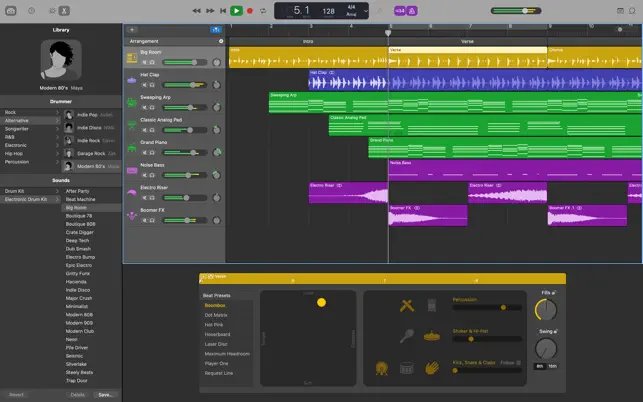
GarageBand for Mac handles up to 255 audio tracks, while GarageBand for iOS handles up to 32 tracks. Both need an Apple Account to download from the App Store.
How to export GarageBand songs from a Mac to a Windows PC
Export the finished mix as an audio file on the Mac first. AIFF and WAVE are the safest choices if you plan to edit the song further on Windows, while MP3 and AAC suit sharing and playback.
- Open the song in GarageBand for Mac and choose Share > Export Song to Disk from the menu bar.
- Select the name in the Save As field and type a new file name if you want one.
- Use the Where pop-up menu to choose a location; click the down arrow to pick iCloud Drive.
- Select WAVE as the format, or AIFF, MP3 or AAC if you prefer.
- Choose a setting from the Quality pop-up menu.
- Turn on Export cycle area, or length of selected regions (if Cycle is turned off) only if you want part of the song.
- Click Export, then open the file on the PC from iCloud Drive, a USB drive or email.
GarageBand trims silence at the start and end of the project during export. The project file itself stays on the Mac, so keep editing the arrangement there and export again after each change.
How to use GarageBand on iPhone or iPad with a Windows PC
GarageBand for iOS is the cheapest way for a Windows user to get the real app, because it runs on an iPhone or iPad you may already own. Save each finished song to the Files app so it can reach the PC.
- In the GarageBand My Songs browser, touch and hold the song, then tap Share.
- Tap Song.
- Select the audio quality and enter the artist, composer and title information.
- Tap Share.
- Tap Save to Files; if you do not see it, tap More.
- Choose a folder in iCloud Drive, then tap Save.
- Open the same iCloud Drive folder on the Windows PC to play or edit the song.
GarageBand for iOS also keeps song projects in sync across your iPhone and iPad through iCloud, so you can start on one device and finish on the other before exporting.
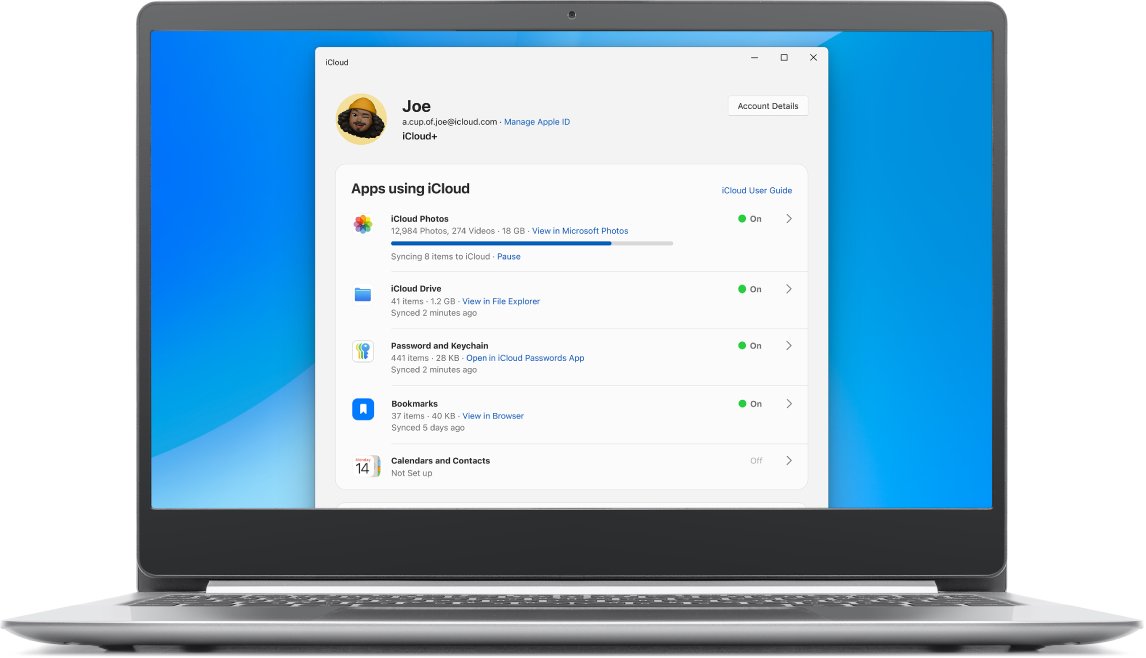
How to get GarageBand files on Windows with iCloud Drive
iCloud for Windows puts iCloud Drive on the PC, so a song saved from GarageBand on a Mac, iPhone or iPad appears on Windows without a cable. The latest version needs Windows 11 and installs from the Microsoft Store app.
- Open the Microsoft Store on the PC, search for iCloud, and install iCloud for Windows.
- Open iCloud for Windows and sign in with the same Apple Account you use for GarageBand.
- Click the arrow button to the right of iCloud Drive, then turn on iCloud Drive.
- Click Done.
- Open File Explorer and go to
C:\Users\[user name]\iCloud Driveto find the exported song.
Files under 1 MB download automatically; larger song exports download when you open them. On iCloud for Windows 14 or later you can click Change in the iCloud Drive options to move the folder to another NTFS drive.
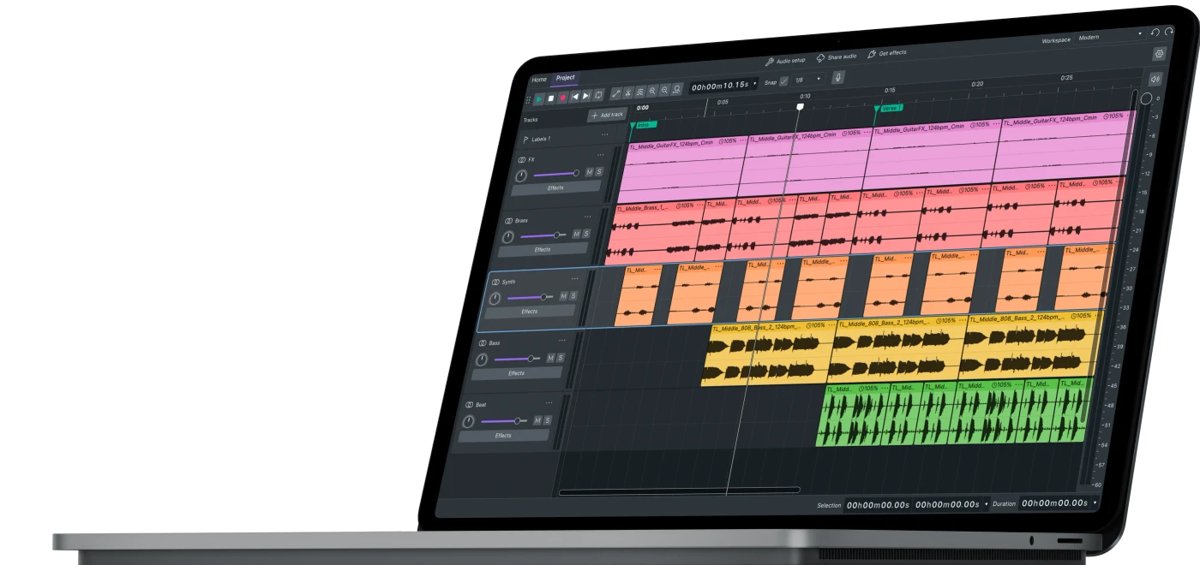
Free GarageBand alternative for Windows 11: BandLab Studio
BandLab Studio runs in a web browser, so it works on Windows 11 and Windows 10 without installing a program. BandLab describes it as a 100% free studio with unlimited multi-track projects, free cloud storage and up to 50 collaborators per project.
- Open bandlab.com in Microsoft Edge or another current browser.
- Create a free BandLab account or log in.
- Start a new project in Studio.
- Allow microphone access when the browser asks, so Studio can record your voice or instrument.
- Add instruments, sounds and effects, then record your parts.
BandLab also has iPhone and Android apps that open the same cloud projects. That makes it the closest match to GarageBand's sketch-on-phone, finish-on-computer workflow for a Windows user.
How to edit GarageBand exports in Audacity on Windows
Audacity is a free, open source audio recorder and editor for Windows, macOS and Linux. It opens WAVE and AIFF exports from GarageBand, lets you trim and record more audio, and exports MP3 or WAV again.
- Install Audacity from audacityteam.org, then open it.
- Drag the exported GarageBand file into the project window, or choose File > Import.
- Open the Audio setup menu, choose Recording devices, and select your microphone; click Rescan audio devices if it is missing.
- Press the red record button to add a new take, then press stop and listen back.
- Choose File > Save Project > Save Project to keep an editable copy.
- Choose File > Export Audio… and pick MP3, WAV, FLAC or another format.
Audacity needs FFmpeg installed before it can import M4A files, which matters for AAC exports from GarageBand. Export WAVE or AIFF from GarageBand to avoid that extra step.
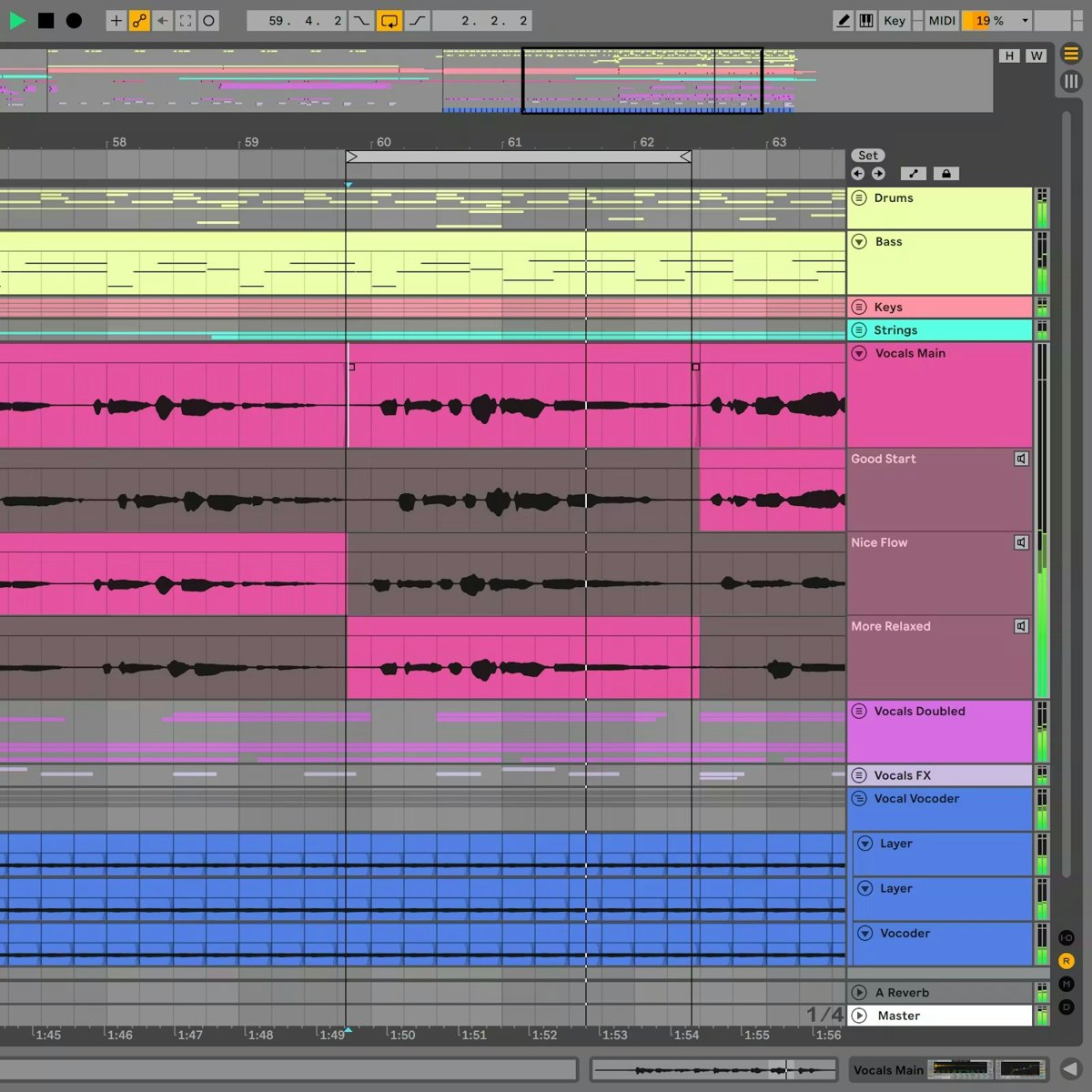
GarageBand equivalent for Windows 11
These apps run on Windows 11 and cover the jobs people use GarageBand for. Prices and editions come from each maker's own site.
| App | Runs on | Price | Closest GarageBand job |
|---|---|---|---|
| BandLab Studio | Web browser, iPhone, Android | Free | Loop-based song sketches, recording and collaboration |
| Audacity | Windows, macOS, Linux | Free and open source | Recording vocals and instruments, editing and exporting audio |
| FL Studio | Windows and macOS | Paid editions from $99 with lifetime free updates; free trial | Beat making, instruments and full song production |
| Ableton Live | Windows 11 version 24H2 or later, macOS 14 or later | Paid Intro, Standard and Suite editions; 30-day free Suite trial | Live loops, recording and full song production |
Ableton Live Intro is limited to 16 audio and MIDI tracks, while Standard and Suite have no track limit. The Ableton Live trial includes saving and exporting, and FL Studio offers a Rent-to-Own plan that becomes a full licence after 12 payments.
Optimize Windows 11 for music production
Windows sound processing and power saving can add crackles and dropouts during recording. These settings come from Microsoft's own audio and power guidance, and they apply whichever music app you use.
- Select Start > Settings > System > Power & battery, and under Power mode choose Best performance for Plugged in.
- Select Start > Settings > System > Sound, select your output device under Output, select Audio enhancements, and turn enhancements off.
- On the same device page, select Advanced and try a different Default format if playback sounds distorted.
- Select Start > Settings > Privacy & security > Microphone, and turn on Microphone access, Let apps access your microphone and Let desktop apps access your microphone.
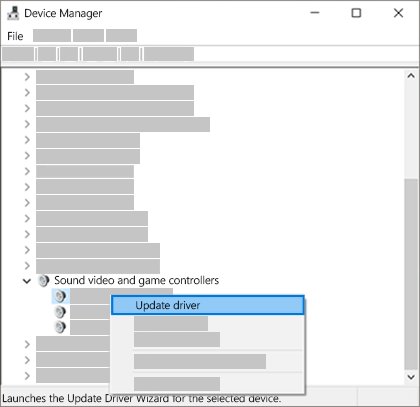
- Open Device Manager, expand Sound, video and game controllers, right-click your audio device and select Update driver.
- Install the latest driver for your audio interface from its manufacturer's website if the update does not fix the sound.
If Power mode cannot be changed, a custom power plan is selected. Open Control Panel > System and Security > Power Options and select Balanced to unlock it.
Is a GarageBand for Windows 11 free download safe?
Searches for a GarageBand for Windows 11 free download lead to sites offering installers that Apple did not make. Apple's App Store listing for GarageBand says Only for Mac, and the iPhone and iPad version comes only from the App Store.
Do not install any file sold or shared as GarageBand for Windows; use GarageBand on an Apple device or a Windows app from its own maker's site. Apple distributes GarageBand only through the App Store for Mac, iPhone and iPad, so a Windows installer is a repackaged or unrelated program from an unknown source.
GarageBand on Windows FAQ
Can you use GarageBand on Windows 11?
No. GarageBand runs only on Mac, iPhone and iPad, so Windows 11 cannot install it. You can still play and edit songs exported from GarageBand on a Windows 11 PC, or make music in a Windows app such as BandLab Studio or Audacity.
How do you get GarageBand for Windows?
You cannot get GarageBand for Windows, because Apple has never released a Windows version. The real app comes free from the Mac App Store or the App Store on iPhone and iPad. Treat any download labelled GarageBand for Windows as unofficial.
How do you run GarageBand on Windows?
GarageBand does not run on Windows. The practical setup is to run GarageBand on an iPhone, iPad or Mac, save finished songs to iCloud Drive, and open them on the PC through iCloud for Windows or File Explorer.
How do you install GarageBand on Windows 11?
There is no installer for Windows 11. Install a Windows music app instead: BandLab Studio runs in the browser with no install, Audacity installs from audacityteam.org, and FL Studio and Ableton Live offer free trials from their makers' websites.
Is GarageBand free on PC?
GarageBand is not available on PC at any price. On a Mac it is free from the Mac App Store, and on iPhone and iPad it is a free App Store download. The free Windows options closest to it are BandLab Studio and Audacity.
What is the GarageBand equivalent for Windows 11?
BandLab Studio is the closest free equivalent, with loops, instruments, recording and cloud projects in a web browser. For a full installed studio, FL Studio and Ableton Live both run on Windows 11, and Audacity covers recording and editing.