To create bulk users in Office 365, open the Microsoft 365 admin center, go to Users > Active users, select Add multiple users and upload a CSV file with up to 249 users.
This guide covers the CSV format, Microsoft Entra ID bulk create, Microsoft Graph PowerShell, bulk users in on-premises Active Directory, licensing, group membership and sign-in problems for the new accounts.
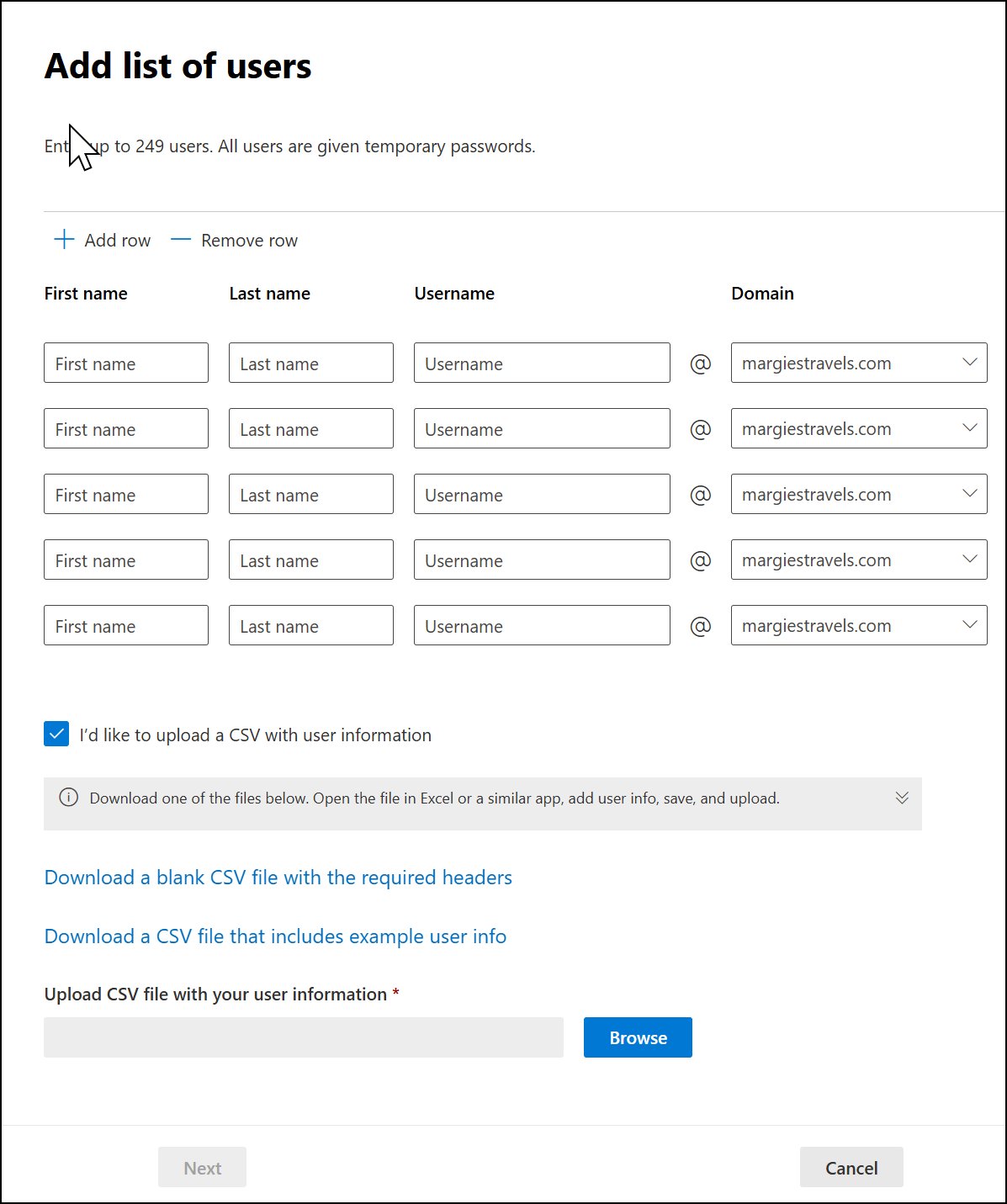
How to create bulk users in Office 365
The admin center wizard creates the accounts, sets their sign-in status and assigns one license to all of them in one pass.
- Sign in to the Microsoft 365 admin center with your work or school account.
- Go to Users > Active users and select Add multiple users.
- On the Import multiple users panel, download the sample CSV file, with or without sample data.
- Fill in one user per row under the heading row, then save the file in CSV format.
- Enter the file path or select Browse to pick the CSV file, then select Verify.
- On Set user options, choose the sign-in status and the product license for all users.
- On View your result, choose who receives the results and check how many users were created.
The results message lists the passwords in plain text, so send it only to yourself or the admin who hands out credentials. Use an admin account when you open the Microsoft 365 admin center for this job.
Bulk create users 365: admin center, Entra ID or PowerShell
| Your situation | Use this | Why |
|---|---|---|
| Up to 249 users with a license each | Admin center Add multiple users | Creates accounts and assigns the license in one wizard |
| You set each user's starting password | Entra ID Bulk create | The CSV carries an Initial password column |
| Hundreds of users, or a repeatable script | Microsoft Graph PowerShell | No row limit per file and licenses assigned in the same loop |
| Users must exist in an on-premises domain | New-ADUser with Import-Csv |
Creates Active Directory accounts that sync to Microsoft 365 |
| Users already exist and need a group | Entra Bulk operations > Import members | Adds members from a CSV of user names |
Office 365 bulk add users CSV format
Keep the heading row exactly as it is in the sample file. Changing, adding or removing a heading can stop Microsoft 365 creating users from the file.
Only User Name and Display Name are required. Leave an optional field blank with a space and a comma, and save the file as Unicode or UTF-8 if names use other alphabets.
| Column | Required | Maximum length |
|---|---|---|
| User Name | Yes | 79 characters including @; alias up to 50, domain up to 48 |
| Display Name | Yes | 256 |
| First Name, Last Name | No | 64 each |
| Job Title, Department | No | 64 each |
| Office Number | No | 128 |
| Office Phone, Mobile Phone, Fax | No | 64 each |
| Address | No | 1023 |
| City, State or Province, Country or Region | No | 128 each |
| ZIP or Postal Code | No | 40 |
A file needs at least two rows and no more than 250, so one file holds up to 249 users. Use a separate file for each country or region, because the wizard applies one location to every user in a file.
How to create user accounts for 1,000 new employees by uploading a list of users to Microsoft 365?
The 249-user limit applies per file, not per tenant. Split a large list and run the wizard once per file.
- Export the employee list to Excel with the column headings from the sample CSV file.
- Sort the rows by country or region.
- Split the rows into files of no more than 249 users each, keeping the heading row in every file. 1,000 users need at least five files.
- Save each file in CSV format. Select Yes when Excel warns that some features will be lost.
- Run Add multiple users once for each file and pick the license on Set user options.
- Check the user count on View your result before you move to the next file.
For a list this size, the PowerShell script further down handles every row in one run.
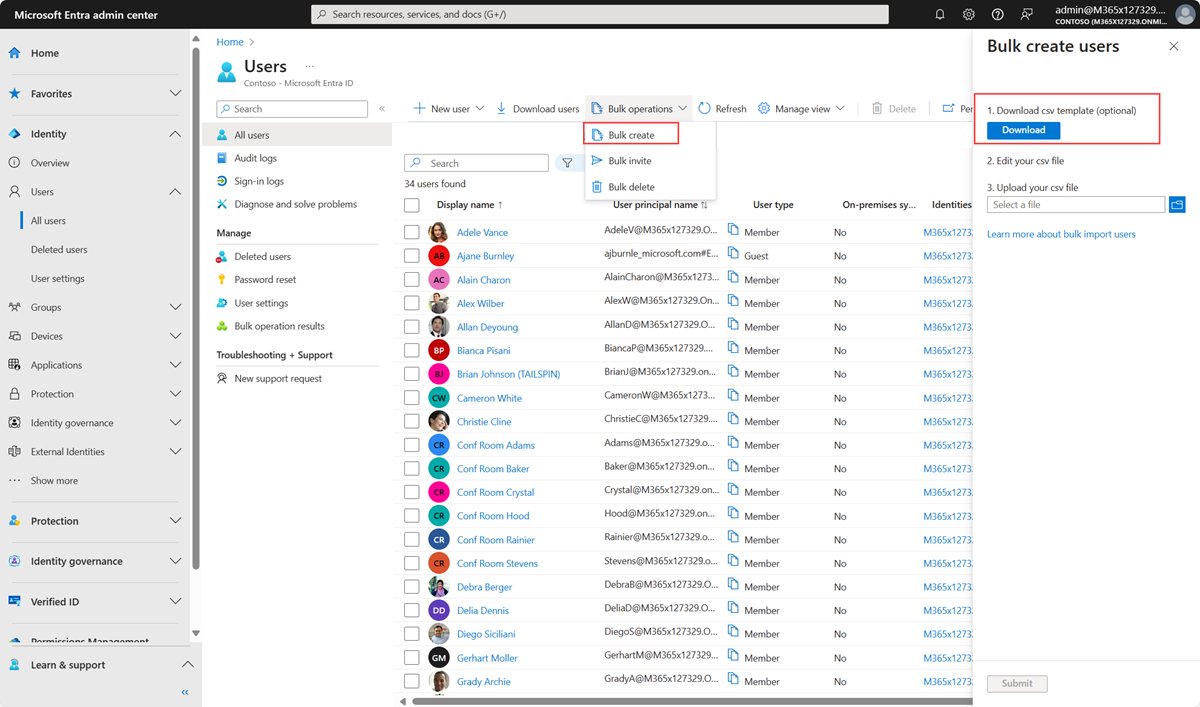
Bulk create users in Microsoft Entra ID
Bulk create in Microsoft Entra ID needs at least the User Administrator role. It sets an initial password for each user and sends no invitation emails, so share the sign-in details yourself.
- Sign in to the Microsoft Entra admin center as at least a User Administrator.
- Browse to Entra ID > Users > Bulk create.
- On the Bulk create user page, select Download to get the CSV template.
- Add one user per row with Name, User name and Initial password, keeping the headings as downloaded. Remove any spaces before or after the user name.
- Under Upload your CSV file, browse to the file and select Submit to validate it.
- When File uploaded successfully appears, select Submit to start the import.
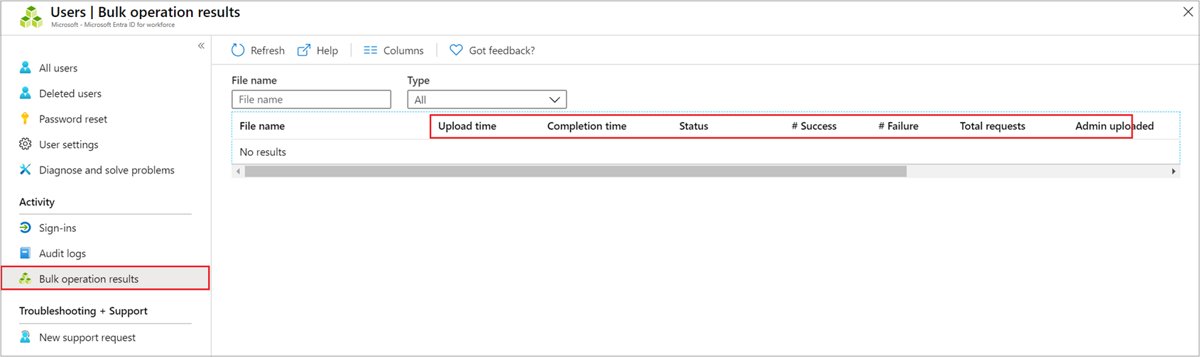
- Open Bulk operation results to check the job status and download the results file.
Initial passwords must meet the tenant's current password policy. A job that does not finish within an hour can fail, so split very large files into smaller batches.
Create bulk users in Microsoft 365 using PowerShell
Microsoft Graph PowerShell replaces the old Azure Active Directory module. Save a CSV with the headings UserPrincipalName,FirstName,LastName,DisplayName,UsageLocation,MailNickname, then connect with Connect-MgGraph -Scopes "User.ReadWrite.All".
$users = Import-Csv -Path "C:\temp\NewAccounts.csv"
$PasswordProfile = @{ Password = 'Password123' }
foreach ($user in $users) {
  $newUser = New-MgUser -DisplayName $user.DisplayName -GivenName $user.FirstName -Surname $user.LastName -UserPrincipalName $user.UserPrincipalName -UsageLocation $user.UsageLocation -MailNickname $user.MailNickname -PasswordProfile $PasswordProfile -AccountEnabled
  $e5Sku = Get-MgSubscribedSku -All | Where SkuPartNumber -eq 'SPE_E5'
  Set-MgUserLicense -UserId $newUser.Id -AddLicenses @{SkuId = $e5Sku.SkuId} -RemoveLicenses @()
}
$users | Export-Csv -Path "C:\temp\NewAccountResults.csv" -NoTypeInformation
Import-Csv reads each row, New-MgUser creates the account from the row's columns, and Set-MgUserLicense assigns the license whose SKU part number you name. Replace SPE_E5 with your own SKU and Password123 with a password of 8 to 16 characters.
You should see: Each new account appears in Active users, and NewAccountResults.csv holds the rows the script processed.
UsageLocation takes a two-letter country code such as US. A user without it cannot receive a license, and an account has 30 days to get one after it is created.
How to create 100 users in Active Directory?
In a hybrid setup, accounts usually start in on-premises Active Directory and sync to Microsoft 365. New-ADUser creates them from a CSV with the columns Name,GivenName,Surname,SamAccountName,UserPrincipalName,Path.
- Open PowerShell on a computer with the Active Directory module, signed in with an account that can create users.
- Save the CSV as
C:\temp\NewADUsers.csv, with the OU's distinguished name in the Path column for each row. - Run
$pw = Read-Host -AsSecureString 'Initial password'and type the starting password. - Run
Import-Csv -Path C:\temp\NewADUsers.csv | ForEach-Object { New-ADUser -Name $_.Name -GivenName $_.GivenName -Surname $_.Surname -SamAccountName $_.SamAccountName -UserPrincipalName $_.UserPrincipalName -Path $_.Path -AccountPassword $pw -ChangePasswordAtLogon $true -Enabled $true }. - Run
Get-ADUser -Filter * -SearchBase "<OU distinguished name>"to list the new accounts.
Leave the Path column out and New-ADUser places the accounts in the default Users container. An enabled account needs a password, which is why -AccountPassword comes before -Enabled $true.
Assign licenses to multiple users in Office 365
Use this when you created the accounts without a license, or when a later file needs a different one.
- In the admin center, go to Users > Active users.
- Select the circles next to the users who need a license.
- At the top, select Manage product licenses.
- Select Assign more: Keep the existing licenses and assign more, then Next.
- Under Licenses, select the license, and clear any services the users should not have.
- Select Save changes.
Once licensed, each person can install Microsoft 365 apps on up to five PCs or Macs, five tablets and five phones.
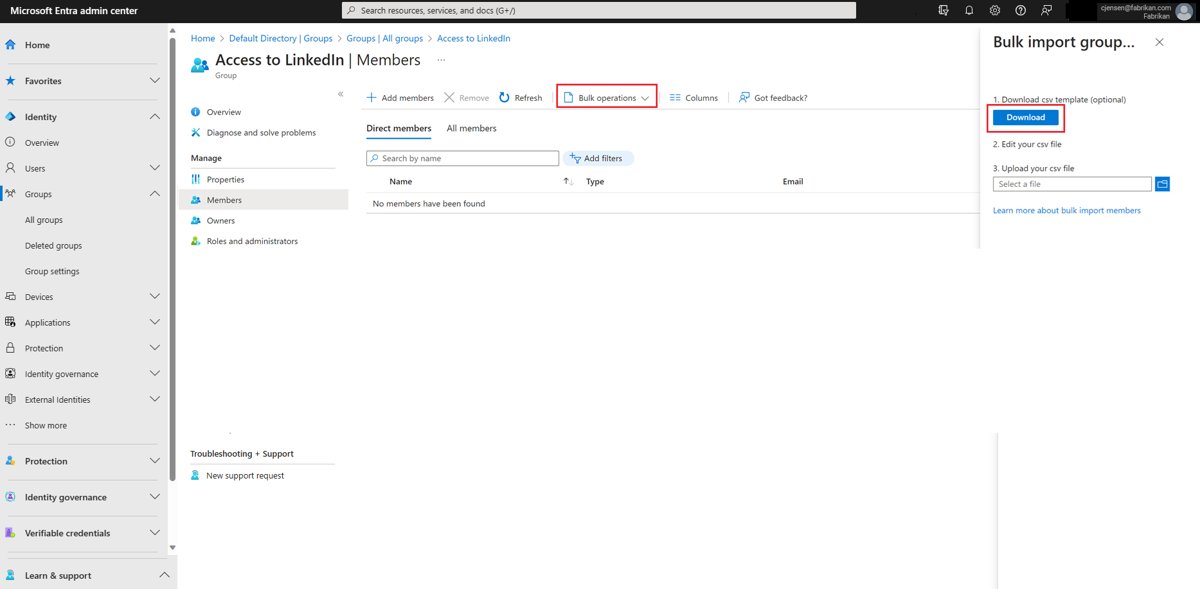
Bulk add users to a group in Microsoft Entra ID
- Sign in to the Microsoft Entra admin center as at least a Groups Administrator, or as the group's owner.
- Select Groups > All groups and open the group.
- Select Members, then Bulk operations > Import members.
- Select Download to get the template, then add one user principal name or object ID per row. The file needs at least two members.
- Under Upload your csv file, browse to the file and wait for File uploaded successfully.
- Select Submit to add the members.
To add users to a distribution list instead, run Add-DistributionGroupMember -Identity "Staff" -Member "[email protected]" in Exchange Online PowerShell, once per user or inside an Import-Csv loop.
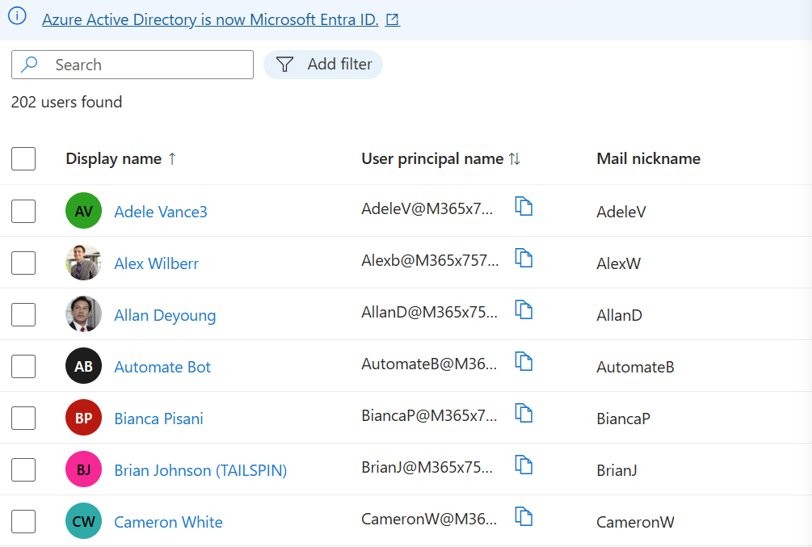
How to see bulk created users in the Microsoft 365 admin center
- Go to Users > Active users in the Microsoft 365 admin center.
- Search for a user name from the CSV file and open the account.
- Select Licenses and Apps to check the license was assigned.
- In the Entra admin center, select Users > All users to see the same accounts.
- In PowerShell, run
Get-MgUser -Filter "UserType eq 'Member'"to list them.
New users can take a few minutes to appear across every Microsoft 365 service.
Bulk add users CSV errors in Microsoft 365
Verify reports a problem with the CSV file
The headings, separators or field lengths do not match the sample file.
- Download the log file from the panel to see which row failed.
- Compare the heading row with the sample file, word for word.
- Check that every field is separated by a comma and stays within the length limits.
- Save the file again in CSV format and select Verify.
Entra ID bulk create fails for some rows
A user name has extra spaces, or an initial password breaks the password policy.
- Open Bulk operation results and download the results file.
- Read the error reason listed for each failed row.
- Remove spaces around the user name and set a password that meets the policy.
- Upload a file with the failed rows only.
View your result says more licenses are needed
The subscription has fewer free licenses than users in the file.
- Note how many users were created without a license.
- Buy more licenses for the subscription.
- Assign them with Manage product licenses on Active users.
Microsoft 365 Authentication couldn’t be completed
New accounts often hit sign-in prompts on their first day, because the organization may ask each user to register multifactor authentication at first sign-in.
Authentication did not complete in Microsoft Authenticator
The app is locked, notifications are silenced or the phone's clock is wrong.
- Unlock Microsoft Authenticator on the phone.
- Turn on notifications for the app and check text messages for a code.
- Update the app and set the phone's date and time correctly.
- Switch between Wi-Fi and mobile data, then sign in again.
A new user cannot sign in at all
Sign-in was blocked on Set user options, or the account has no license.
- Open the user in Active users.
- Check the sign-in status and allow sign-in if it is blocked.
- Open Licenses and Apps and assign a license if none is listed.
The user forgot the starting password
The results message was not passed on, or the password expired.
- Open the user in Active users.
- Reset the password and share the new one through your own process.
- Ask the user to sign in and finish the security info prompts.
Office 365 bulk user creation FAQ
How many users can I add at once in Office 365?
The admin center's Add multiple users wizard takes up to 249 users per CSV file, because a file is limited to 250 rows including the heading. Run the wizard again for more users, or use Microsoft Graph PowerShell, which reads a CSV of any length.
How do I create bulk users in Azure AD?
Azure AD is now Microsoft Entra ID. Sign in to the Entra admin center as at least a User Administrator, go to Entra ID > Users > Bulk create, download the template, fill in Name, User name and Initial password, then upload and submit it.
How do I create bulk users in Active Directory?
Use Import-Csv with New-ADUser in PowerShell. Each CSV row supplies the name, sign-in name and OU path, and -AccountPassword sets a starting password. Accounts synced to Microsoft 365 then appear in the admin center.
How do I bulk add users to a group?
In the Microsoft Entra admin center, open the group, select Members > Bulk operations > Import members, and upload the template with one user principal name or object ID per row. Groups Administrators and group owners can run the import.
How do I add bulk users to a distribution list?
Run Add-DistributionGroupMember -Identity with the group name and -Member with each user's address in Exchange Online PowerShell. Put the command inside an Import-Csv loop to add a whole list in one run.
Does Microsoft 365 email passwords to bulk-created users?
No. The admin center sends the results, with passwords in plain text, only to the people you choose on View your result. Entra ID bulk create sends no invitation emails at all, so share credentials through your own process.
Do bulk-created users need a license?
An account can exist without a license, but it needs one to use Microsoft 365 services such as email and the apps. You have 30 days to license an account after you create it, and the account needs a usage location first.
Why don't new users show up in Microsoft 365 right away?
Changes take a little while to reach every Microsoft 365 service. Wait a few minutes, then refresh Active users. If users are still missing, check the import log or results file for rows that failed.