To access your clipboard on iPhone, open a blank note in the Notes app, touch and hold the empty note, then tap Paste to see what you last copied.
iOS has no clipboard app or clipboard screen, so this guide covers pasting to view it, a Shortcuts clipboard viewer, copy gestures, Universal Clipboard with a Mac, clearing the clipboard and fixes when pasting fails.
Step by step tutorial: How to access your clipboard on iPhone
The iPhone clipboard is invisible storage for the last thing you copied. You see its contents by pasting them somewhere, and a blank note is the safest place to do that.
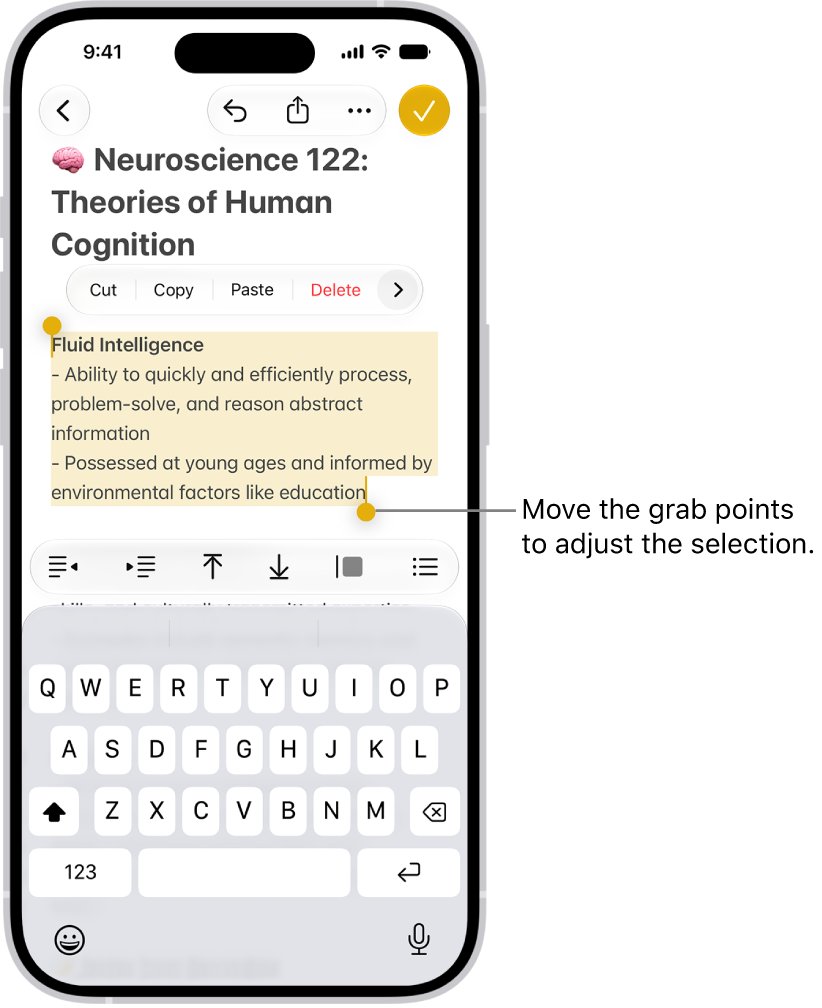
- Copy something first: double-tap a word to select it, or touch and hold an image, then tap Copy.
- Open the Notes app.
- Tap the new-note button to start a blank note.
- Tap inside the empty note where you want the content to go.
- Tap Paste.
- Read what appears in the note. That is the current content of your clipboard.
- Delete the note afterwards if the pasted content was a password or other private text.
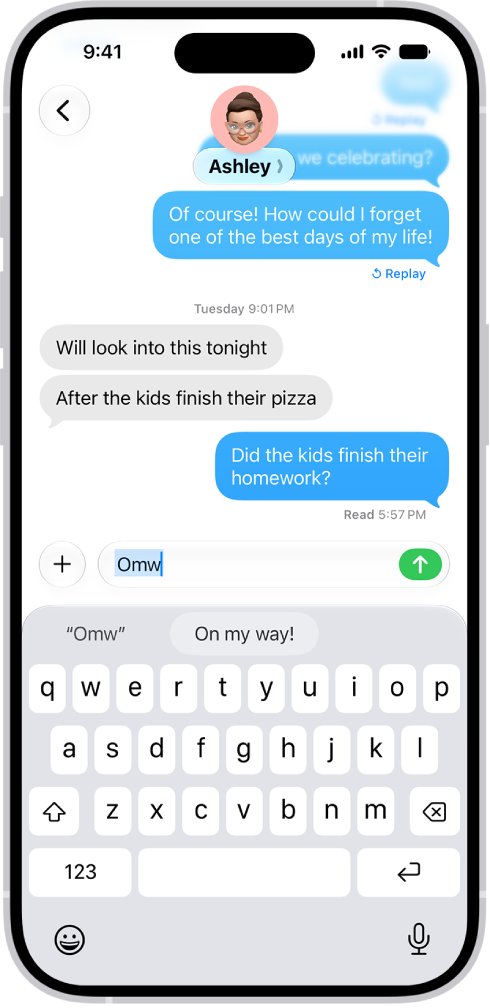
You can paste into any text field the same way, such as a Messages reply or the Safari address bar. Notes is useful because nothing gets sent or searched by accident.
How to see what is copied on iPhone
| Your situation | Use this | Why |
|---|---|---|
| You want to check the clipboard once | Paste into a blank note | Works on every iPhone with no setup |
| You check the clipboard often | A Shortcuts clipboard viewer | One tap shows the clipboard without opening an app to paste |
| You copied something on your Mac or iPad | Universal Clipboard | Mac or iPad copies paste straight into iPhone apps |
| You want older copied items back | Clipboard history on a Mac | iPhone keeps only the latest copy; Mac Spotlight keeps a history |
| You copy the same text every day | Text Replacement | A short code types the full phrase, so the clipboard is not needed |
How to copy and paste on iPhone with gestures
These gestures work in apps that let you edit text. They put content on the clipboard and take it off again without hunting for menu buttons.
- Select a word by double-tapping it with one finger, or select a paragraph by triple-tapping it.
- Drag the grab points to widen or shrink the selection.
- Copy the selection by pinching closed with three fingers, or tap the selection and tap Copy.
- Cut instead of copying by pinching closed with three fingers two times.
- Tap where you want the content to go.
- Paste by pinching open with three fingers, or tap the insertion point and tap Paste.
- Undo a wrong paste by swiping left with three fingers, then tapping Undo at the top of the screen.
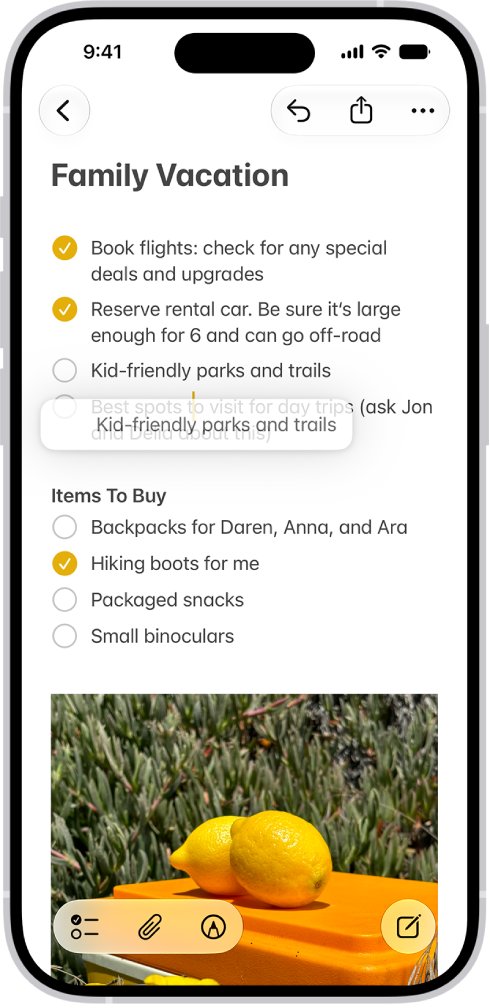
To move text inside the same app without touching the clipboard, select it, touch and hold it until it lifts up, then drag it to the new spot.
How to view clipboard on iPhone with a shortcut
The Shortcuts app has a Get Clipboard action that reads the clipboard and a Quick Look action that previews content. Together they make a clipboard viewer you can run from the Home Screen or a widget.
- Open the Shortcuts app and tap the add button to create a new shortcut.
- Tap New Shortcut, tap Rename, and name it Show Clipboard.
- Tap Add Action, type
clipboardin the search field, and tap Get Clipboard. - Search for
quick lookand add the Quick Look action under Get Clipboard. - Tap Done to save the shortcut.
- Tap the Show Clipboard shortcut to run it. A preview of the copied text, image or link opens.
Apple notes that preview actions such as Quick Look open the Shortcuts app when run from a widget or Apple Watch. Run this one from the Shortcuts app or the Home Screen for the cleanest result.
How to copy text from a photo or camera on iPhone
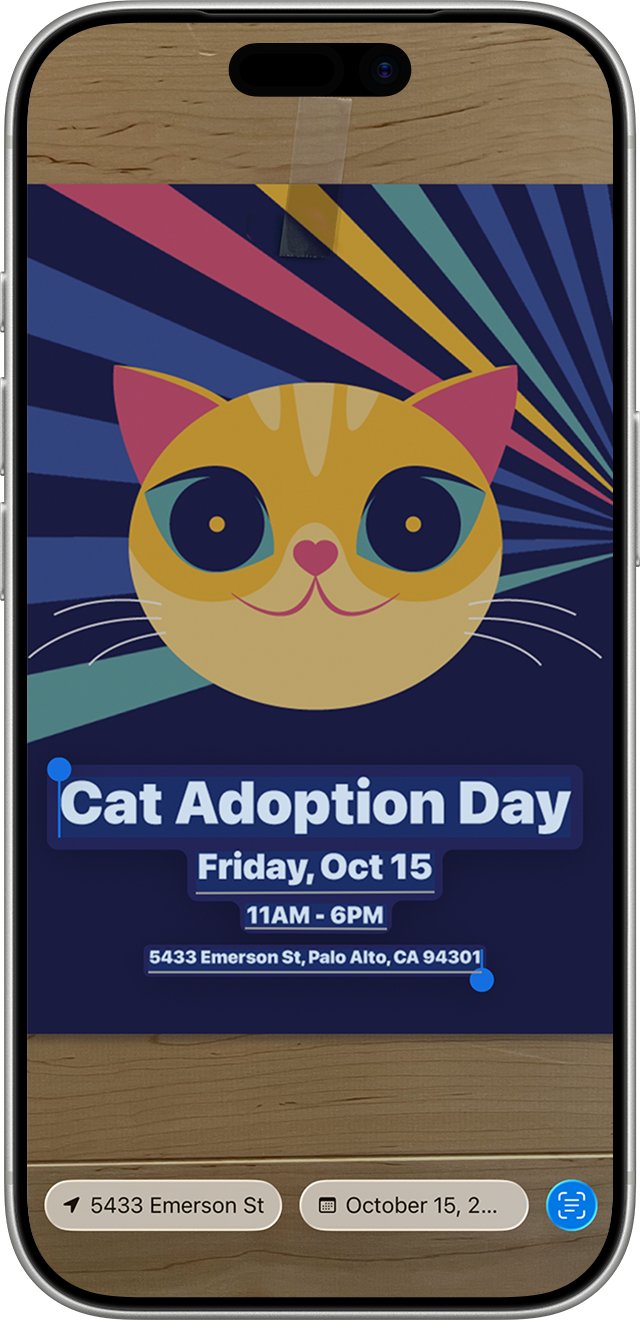
Live Text puts printed text from the camera on the clipboard, so you can paste a sign, receipt or label into Notes or Messages without typing it.
- Open the Camera app.
- Point the iPhone at the text until a yellow frame appears around it.
- Tap the Live Text button.
- Touch and hold the text, then drag the grab points to select the part you want.
- Tap Copy, or tap Select All first to take everything in the frame.
- Open the app you want and tap Paste.
If no yellow frame appears, go to Settings > Camera and turn on Show Detected Text. Live Text is not available in every region or language.
How to copy a picture to clipboard on iPhone
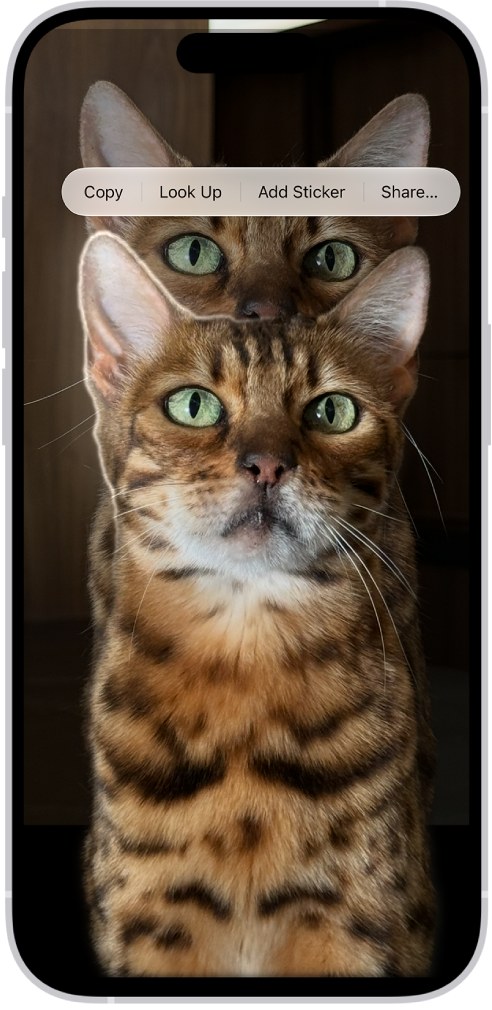
Images go on the clipboard the same way as text. You can copy a whole picture, or lift just the subject off its background and copy that.
- To copy a whole image in Safari, Messages or Mail, touch and hold the image, then tap Copy.
- To copy only the subject, open a photo in full screen in Photos, or pause a video on a frame.
- Touch and hold the subject until an outline appears around it.
- Tap Copy or Copy Subject.
- Open an email, message or note and tap Paste to drop the image in.
Subject lifting also works in Safari and Quick Look, not only in Photos.
How to use Universal Clipboard on iPhone and Mac
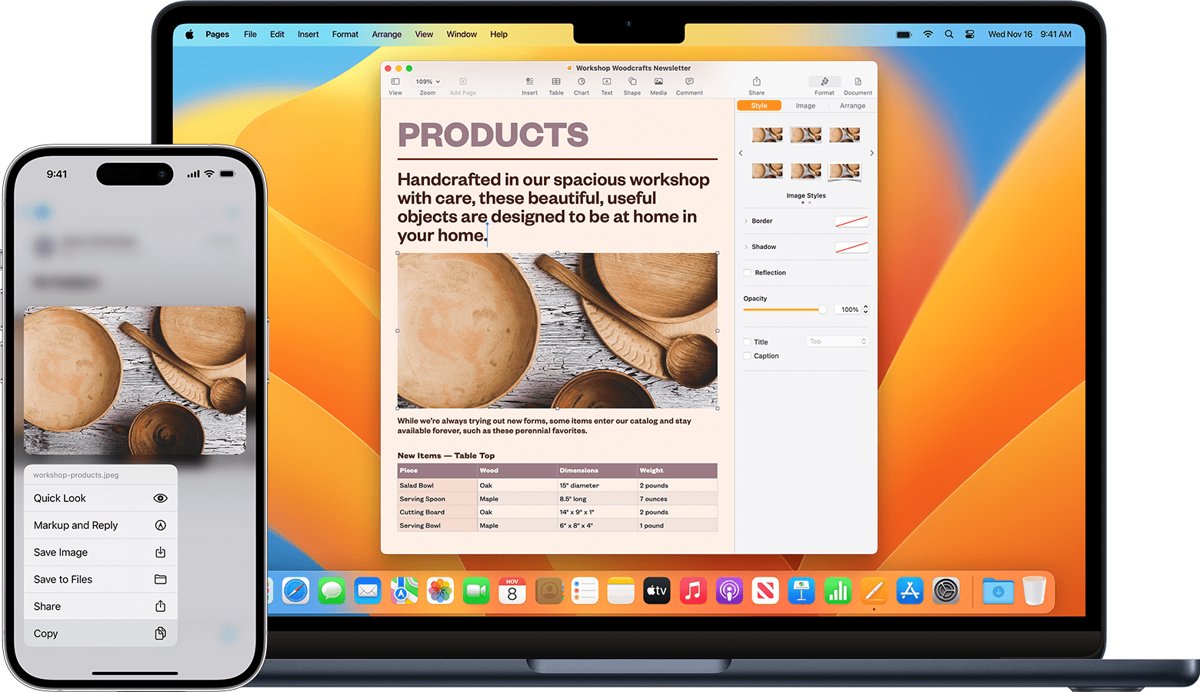
Universal Clipboard shares one clipboard between your iPhone, iPad and Mac. Copy text, an image, a photo or a video on one device and paste it on the other.
Both devices need the same Apple Account, Wi-Fi and Bluetooth turned on, Handoff turned on, and must be close together. Apple puts the range at 30 feet (10 meters).
- On iPhone, open Settings > General > AirPlay & Continuity (or AirPlay & Handoff) and turn on Handoff.
- On the Mac, choose Apple menu > System Settings > General > AirDrop & Continuity (or AirDrop & Handoff).
- Turn on Allow Handoff between this Mac and your iCloud devices.
- Copy text or an image on the Mac with Command-C.
- On iPhone, tap where you want the content within a short time, then tap Paste.
- To go the other way, copy on iPhone and press Command-V on the Mac.
Content shared this way stays available only briefly, or until you copy something else on either device. If you are new to the Mac side, copy and paste on a Mac works with the same keyboard shortcuts.
Tips: Maximizing your clipboard usage on iPhone
| Tip | How to do it | When it helps |
|---|---|---|
| Paste into Notes as a holding area | Paste each item into one note before copying the next | iPhone keeps one item, so a note acts as your own clipboard history |
| Save phrases with Text Replacement | Settings > General > Keyboard > Text Replacement, then tap the add button | Addresses, email signatures and replies you paste every day |
| Make copied text expire | Use the Shortcuts Copy to Clipboard action and set Expire At | Codes or passwords you want erased from the clipboard at a set time |
| Keep a copy on this iPhone only | Turn on Local Only in the Copy to Clipboard action | Stops that content from reaching your Mac or iPad via Handoff |
| Process copied text in a shortcut | Start a shortcut with Get Clipboard | Apps that have no Share option for the content you want |
| Grab text you cannot select | Use Live Text in Camera, then tap Copy | Printed text, screenshots and signs |
Can you see clipboard history on iPhone?
No. The iPhone clipboard holds the most recent item you copied, and copying something new replaces it. Apple documents a searchable clipboard history only for the Mac, in Spotlight.
| Device | Clipboard history | How to open it |
|---|---|---|
| iPhone | No built-in history; latest item only | Paste into a note, or run a Get Clipboard shortcut |
| Mac with macOS Tahoe 26 or later | Yes, in Spotlight | Press Command-Space bar, then Command-4 |
| Windows 11 and Windows 10 | Yes, once turned on | Press Windows logo key + V |
On a Mac, the first clipboard search may ask permission to show clipboard results. Click Allow. To erase it, use the button next to the search field and choose Clear History.
How to clear clipboard on iPhone
iOS has no Clear Clipboard button. Replace what is on it with something harmless instead, so a password or private message cannot be pasted by mistake.
- Open a blank note in the Notes app.
- Type a single space or one letter.
- Double-tap it to select it, then tap Copy.
- Delete the note.
- Tap any text field and tap Paste to check that only the space or letter comes out.
If you copy sensitive text often, a shortcut using Copy to Clipboard with Expire At set erases it automatically.
How to tell if Universal Clipboard is working on iPhone
- Copy a short, unusual word on the Mac or iPad.
- Within a few seconds, open Notes on the iPhone and start a blank note.
- Tap inside the note and tap Paste.
- If the word from the other device appears, Universal Clipboard is working. If something you copied earlier on the iPhone appears instead, it is not.
iPhone clipboard not working
Universal Clipboard is not pasting between iPhone and Mac
One of the Continuity conditions is missing: account, radios, Handoff or distance.
- Check the Apple ID on each device and make sure both use the same Apple Account.
- Turn on Wi-Fi, Bluetooth and Handoff on both devices.
- Bring the devices within 30 feet (10 meters) of each other.
- If you use a VPN, make sure its configuration does not block local networking.
- Install available software updates on both devices, then restart them and try again.
Can't find a clipboard app on iPhone
iOS has no clipboard app; the clipboard only shows itself when you paste.
- Paste into a blank note to see the current content.
- Build the Show Clipboard shortcut above for a one-tap viewer.
- Add that shortcut to the Home Screen so it sits where an app would.
Paste shows old content instead of what you just copied
The copy did not register, or the content came from another device and has expired.
- Select the text again and tap Copy rather than relying on a gesture.
- Paste right away into a blank note to confirm the clipboard changed.
- If the content came from a Mac or iPad, copy it again there and paste on the iPhone within a short time.
Frequently asked questions about the iPhone clipboard
Is there a clipboard app on the iPhone?
No. iOS has no clipboard app or clipboard screen. The clipboard holds what you last copied, and you see it by pasting into a note or another text field. A Shortcuts shortcut using Get Clipboard and Quick Look gives you a one-tap viewer.
Why can't I find a clipboard app on my iPhone?
Apple builds the clipboard into iOS as background storage rather than an app. Copy, Cut and Paste in the edit menu are the only controls. To look at the contents, open a blank note, tap inside it, and tap Paste.
How long does something stay on the iPhone clipboard?
It stays until you copy something else, which replaces it. Content that arrives from a Mac or iPad through Universal Clipboard is different: Apple says it remains only briefly. The Shortcuts Copy to Clipboard action can also set an Expire At time.
Can I view a history of my clipboard on iPhone?
No. The iPhone keeps only the most recent copied item and has no built-in history. A Mac with macOS Tahoe 26 or later has clipboard history in Spotlight under Command-4. On iPhone, paste items into a note to keep a manual history.
Can I save items from my clipboard to use later?
Yes. Paste each item into a note before you copy the next one, because a new copy replaces the old. For phrases you reuse daily, add them under Settings > General > Keyboard > Text Replacement and type the short code instead.
How can you quickly access the clipboard on iPhone?
The quickest way is to tap any text field, tap again, and tap Paste. For a dedicated viewer, build a shortcut with the Get Clipboard and Quick Look actions and add it to your Home Screen.
How do you access the clipboard on an iPad or tablet?
An iPad works like an iPhone: paste into a note to see the clipboard, and use the same three-finger pinch gestures to copy and paste. Universal Clipboard also shares the clipboard between an iPad, an iPhone and a Mac.
How do you access your clipboard on a Windows PC?
Press the Windows logo key + V to open clipboard history on Windows 11 or Windows 10, and select Turn on the first time. Clipboard history can be cleared from the same panel, and you can clear the Windows 11 clipboard from Settings too.
What is the purpose of the clipboard?
The clipboard holds content you copy or cut so you can paste it somewhere else, such as text from Safari into Messages or an image into Mail. On iPhone it holds one item at a time and works across apps.