Azure Arc brings a Hyper-V host and its guest VMs into Azure by installing the Azure Connected Machine agent on each machine, which you can do with the Azure Arc Setup wizard on Windows Server 2022 or later, a portal-generated script, or Windows Admin Center.
This guide covers what to prepare, how to onboard the host and its guests, what you can manage remotely afterwards, what it costs, and where Arc falls short for a standalone Hyper-V estate.
Why Azure Arc for Hyper-V? A quick practical framing
A standalone Hyper-V host connects to Azure as an Azure Arc-enabled server, the same service Microsoft recommends for physical servers and for VMs on any other hypervisor. Each connected machine gets an Azure resource ID and sits in a resource group beside native Azure resources.
| What you want for your Hyper-V estate | Does Arc-enabled servers do it? | Notes |
|---|---|---|
| Inventory, tags and Azure Resource Graph queries for hosts and VMs | Yes | Listed as free on the Azure Arc pricing page |
| Patch hosts and guests from one place | Yes, with Azure Update Manager | Paid per server unless covered by Software Assurance or pay-as-you-go |
| Defender for Cloud, Sentinel and Azure Monitor coverage | Yes | Each service is billed on its own |
| Run scripts without RDP | Yes, with Run command (preview) | Azure CLI, PowerShell or REST API only, not the portal |
| Start, stop, create or delete Hyper-V VMs from Azure | No | Lifecycle and power operations are listed for Arc-enabled VMware vSphere and Azure Local, not Arc-enabled servers |
| Agentless discovery of every VM on the host | No | Each guest needs its own Connected Machine agent |
If the gaps in the last two rows decide it for you, read the section on where Arc fits before you onboard anything.
Background / Overview
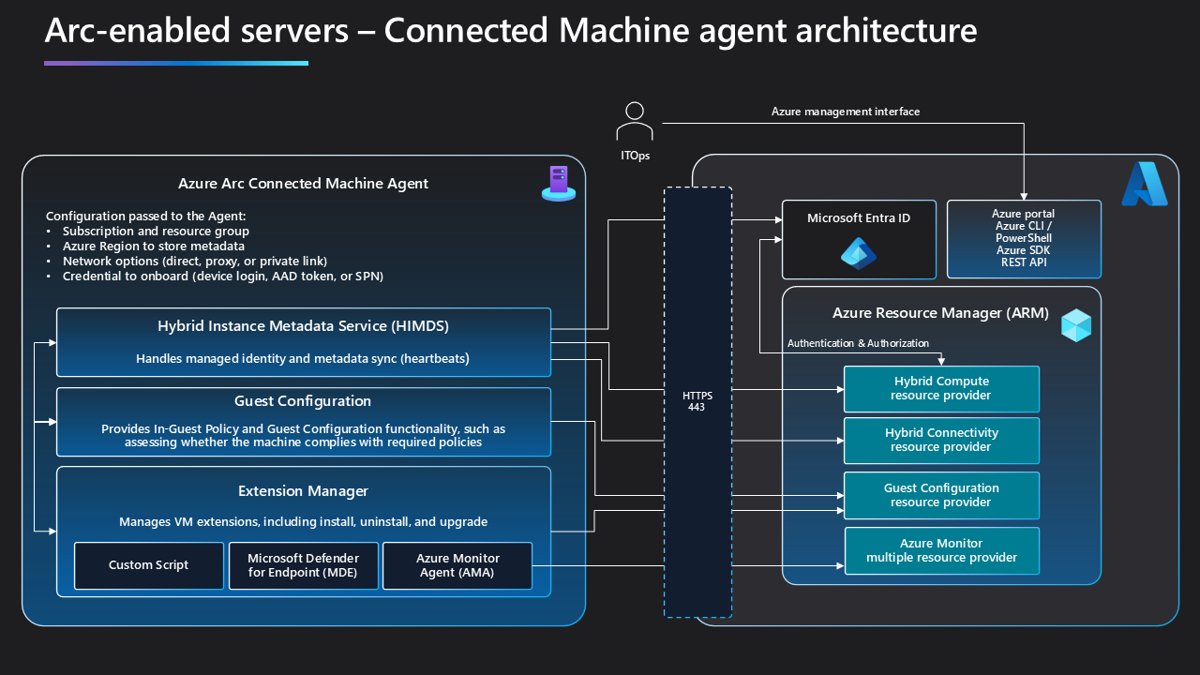
Azure Arc-enabled servers manages Windows and Linux machines hosted outside Azure as hybrid machines. You manage them in Azure much as you manage native Azure VMs, through the agent installed on each one.
| Component | What it does on a Hyper-V machine |
|---|---|
| Azure Connected Machine agent | Four services, managed with the azcmagent command line, that connect the machine to Azure |
| Hybrid Instance Metadata Service (HIMDS) | Registers the server, sends heartbeats and handles the managed identity; runs as the NT SERVICE\himds virtual account |
| Extension manager | Installs, upgrades and removes extensions such as Azure Monitor Agent; runs as Local System |
| Guest configuration service | Evaluates and enforces Azure machine configuration policies; runs as Local System |
| Azure Arc proxy | Routes agent traffic through an Azure Arc gateway; off until you configure a gateway |
| Heartbeat | Sent every five minutes; a machine shows Disconnected after 15 to 30 minutes without one |
Azure is the source of truth for the agent. The agent acts only when someone takes an action on the server's Azure resource, so Azure role-based access control and Azure Policy are evaluated before any change reaches the host.
What to prepare before onboarding a Hyper-V host
| Item | Requirement | Where to check |
|---|---|---|
| Host operating system | Windows Server 2012 R2, 2016, 2019, 2022 or 2025, Desktop or Server Core, x86-64 | Connected Machine agent prerequisites |
| Guest operating systems | Any supported Windows or Linux version on the same list; Windows 10 and 11 only when always on and connected | Same list; 32-bit systems are not supported |
| Local rights | Member of the local Administrators group on every machine you onboard | Each host and guest |
| Azure role | Azure Connected Machine Onboarding or Contributor on the target resource group | Access control (IAM) in the portal |
| Resource providers | Microsoft.HybridCompute, Microsoft.GuestConfiguration and Microsoft.HybridConnectivity registered | Subscription settings |
| Network | Outbound HTTPS on TCP 443 to the Arc endpoints, directly or through a proxy | azcmagent check |
| Pilot group | A representative set of non-critical machines, run for at least 30 days | Microsoft's planning guide |
Plan around templates now. Machines that are cloned, restored as a second copy or built from a golden image must be onboarded after they are created, or two agents end up sharing one identity.
Subscription, regions and access
Pick the subscription, a dedicated resource group and the Azure region closest to the host. Machine metadata, such as the OS name, computer name and agent version, is stored in the geography of the region you choose, which matters for data residency.
Connect-AzAccount
Set-AzContext -SubscriptionId <subscription-id>
Register-AzResourceProvider -ProviderNamespace Microsoft.HybridCompute
Register-AzResourceProvider -ProviderNamespace Microsoft.GuestConfiguration
Register-AzResourceProvider -ProviderNamespace Microsoft.HybridConnectivity
Signs in to Azure PowerShell, selects the subscription that will hold your Hyper-V machines, and registers the three resource providers Arc-enabled servers needs. Add Microsoft.AzureArcData only if you plan to Arc-enable SQL Server, and Microsoft.Compute for Azure Update Manager and automatic extension upgrades.
You should see: Each registration returns a RegistrationState of Registering or Registered. You can also register the providers in the Azure portal.
There is no limit on the number of Arc-enabled servers per resource group or subscription. Each server does count as an object against your Microsoft Entra directory quota.
Identity and roles
Microsoft advises against onboarding with an Owner account. Give the people and service principals doing the work only the role each task needs.
| Task | Built-in role or right | Scope |
|---|---|---|
| Connect hosts and guests | Azure Connected Machine Onboarding (or Contributor) | Target resource group |
| Read, change and delete Arc machines | Azure Connected Machine Resource Administrator | Target resource group |
| Pick the resource group in the Generate script page | Reader | That resource group |
| Assign Arc roles to a new service principal | Owner or User Access Administrator | Onboarding subscription |
| Create a service principal | App registration allowed, or Application Administrator / Cloud Application Administrator | Microsoft Entra tenant |
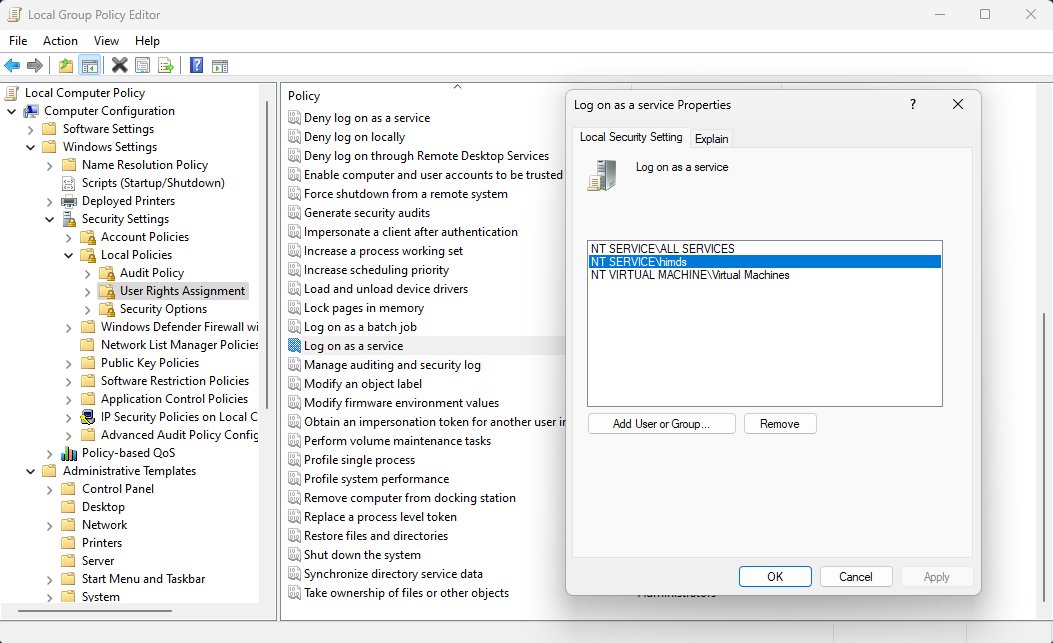
| Run the agent services | Log on as a service right for NT SERVICE\himds | Each machine; check if Group Policy edits that right |
A service principal with the Azure Connected Machine Onboarding role is used only during onboarding. It is the safer way to connect many guest VMs without a privileged personal account.
Host prerequisites and networking
The agent only makes outbound connections over TCP 443, so a Hyper-V host needs no inbound firewall rule for Arc itself. Proxies are supported, but proxy authentication is not.
| Endpoint or tag | Used for | When |
|---|---|---|
| download.microsoft.com | Windows agent installer | Install time and automatic updates |
| login.microsoftonline.com and *.login.microsoft.com | Microsoft Entra tokens | Always |
| management.azure.com | Creating or deleting the Arc resource | Connect and disconnect |
| *.his.arc.azure.com | Metadata and hybrid identity | Always |
| *.guestconfiguration.azure.com | Extension management and guest configuration | Always |
| guestnotificationservice.azure.com and *.servicebus.windows.net | Notifications, Windows Admin Center and SSH | Always, or when you use those tools |
| *.waconazure.com | Windows Admin Center connectivity | If you use Windows Admin Center in Azure |
| Service tags | AzureActiveDirectory, AzureTrafficManager, AzureResourceManager, AzureArcInfrastructure, Storage, AzureFrontDoor.Frontend | If your firewall filters by service tag |
Use TLS 1.2 or 1.3. From agent version 1.56 on Windows, the host must offer the cipher suites Microsoft lists for at least one of those versions.
Normal agent traffic is light: one persistent WebSocket, a heartbeat under 64 KB every five minutes and small status checks. Extension packages are the exception and can reach 2 GB.
Step-by-step: Onboarding a Hyper-V host (GUI and agent installer)
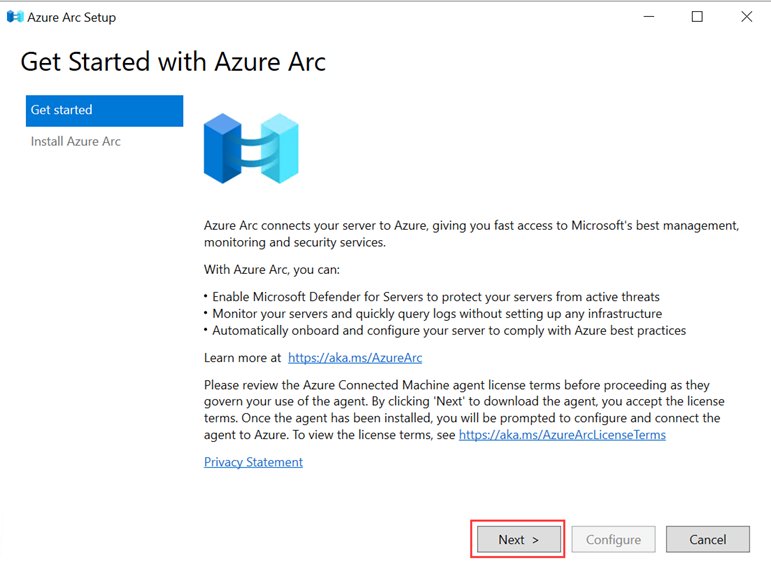
On Windows Server 2022 and later, Azure Arc Setup is built in and enabled by default. It checks prerequisites, installs the latest agent and connects the host.
- Sign in to the Hyper-V host as a local administrator.
- Select the Azure Arc icon in the system tray, then select Launch Azure Arc Setup. You can also start it from Server Manager or the Start menu.
- Select Next on the introduction page, wait for the prerequisite check and agent install, then select Configure.
- Select Next, choose your Azure cloud and select Sign in to Azure.
- In Resource details, pick the tenant, subscription and resource group, then select Next.
- Select Finish when configuration completes.
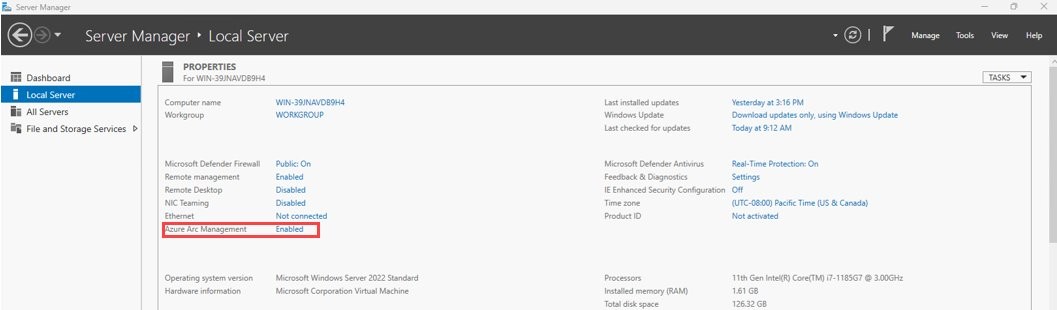
- Open Server Manager > Local Server and confirm the Azure Arc Management field shows Enabled.
On Windows Server 2016, 2019 or a host without the wizard, generate a script instead. In the Azure portal, open Azure Arc > Infrastructure > Machines > Onboard/Create > Onboard existing machines, fill in the Basics page, choose Authenticate machines manually, add tags, then select Download to save OnboardingScript.ps1 and run it on the host as an administrator.
On Windows Server 2025, Azure Arc Setup is a Feature on Demand. Uninstalling it never removes the agent itself.
How to connect a Hyper-V host with azcmagent connect
If you install the agent package yourself, for example on Server Core or through your own deployment tool, connect it from an elevated PowerShell window after setup finishes.
msiexec.exe /i AzureConnectedMachineAgent.msi /qn /l*v "C:\Support\Logs\Azcmagentsetup.log"

& "$env:ProgramFiles\AzureConnectedMachineAgent\azcmagent.exe" connect `
  --resource-group "myResourceGroup" `
  --tenant-id "<tenant-id>" `
  --location "eastus" `
  --subscription-id "<subscription-id>"
The first line installs the agent silently and writes a setup log. The second connects the host to Arc in the resource group, tenant, region and subscription you name. Add –proxy "http://proxy:port" if the host reaches the internet through a proxy, or –verbose to write detail to the agent log.
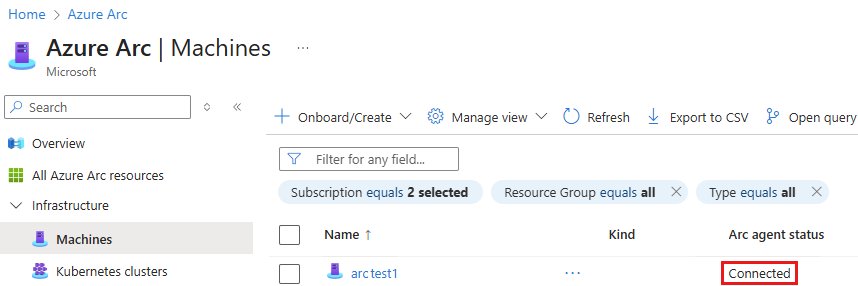
You should see: The command reports a successful connection and the host appears under Azure Arc > Machines with a Connected status. If the agent does not start, check the logs in %ProgramData%\AzureConnectedMachineAgent\log.
Onboarding the guest VMs efficiently: PowerShell Direct + Arc scripts
PowerShell Direct runs PowerShell inside a Windows guest from its Hyper-V host, whatever the guest's network or remote management settings. It needs a Windows 10 or Windows Server 2016 host and guest or newer, a running VM on that host, a Hyper-V administrator on the host and valid guest credentials.
First create a service principal in Azure Arc > Additional setup > Service principals with the Azure Connected Machine Onboarding role. Then generate the onboarding script with Authenticate machines automatically and that service principal, so the script runs without a sign-in prompt.
$cred = Get-Credential
foreach ($vm in Get-VM | Where-Object State -eq 'Running') {
  Invoke-Command -VMName $vm.Name -Credential $cred -FilePath C:\Arc\OnboardingScript.ps1
}
Run this in an elevated PowerShell window on the host. It prompts once for guest credentials, then sends the onboarding script from C:\Arc on the host into each running VM through PowerShell Direct. Each guest downloads and installs the agent, then connects as its own Arc-enabled server.
You should see: Each guest appears under Azure Arc > Machines as a separate resource. Run Invoke-Command -VMName <VMName> -Credential $cred -ScriptBlock { azcmagent show } to read one guest's status from the host.
Each guest still needs outbound internet access to the Arc endpoints, because PowerShell Direct only delivers the script. Linux guests and Windows guests older than Windows 10 or Windows Server 2016 need SSH, VMConnect or a network session instead.
The service principal script needs the client secret, so treat the finished file as a credential and delete copies once the guests are connected.
Remote management once onboarded: Run Command and Connected Machine PowerShell
Run command is built into the Connected Machine agent from version 1.33, so no extension is needed. It is in preview, works from Azure CLI, Azure PowerShell or the REST API, and is not yet in the Azure portal. The Az.ConnectedMachine PowerShell module drives it.
New-AzConnectedMachineRunCommand -ResourceGroupName "myRG" -MachineName "HV-HOST01" -Location "eastus" -RunCommandName "CheckVMs" -SourceScript "Get-VM | Select-Object Name, State"

Get-AzConnectedMachineRunCommand -ResourceGroupName "myRG" -MachineName "HV-HOST01" -RunCommandName "CheckVMs"
The first cmdlet sends a script to the Arc-enabled host, runs it and returns the output. The second reads the latest output, start and end times, exit code and execution state. Separate several commands in -SourceScript with a semicolon, or point -SourceScriptUri at a script in a storage blob.
You should see: InstanceViewExecutionState shows the script succeeded and the exit code is 0. A nonzero exit code means the script failed.
Run command itself is free, but scripts you store in Azure are billed. Remove old Run command resources with Remove-AzConnectedMachineRunCommand so they do not pile up on the machine.
Windows Admin Center (WAC) and VM conversion: extending Arc's reach
Once you install Windows Admin Center, it can install the agent and register a host without any steps outside the tool. You need administrator rights on the target server and membership of the Gateway users role.
- Sign in to Windows Admin Center and connect to the Hyper-V host from the Overview connection list.
- Select Azure hybrid services in the left pane, then Discover Azure services.
- Under Leverage Azure policies and solutions to manage your servers with Azure Arc, select Set up.
- Authenticate to Azure if prompted, then select Get started.
- On Connect server to Azure, choose the subscription, resource group and region, and select Use proxy server if needed.
- Select Set up, then follow progress under Notifications.
- Open Events and look for MsiInstaller events in the Application log to confirm the agent installed.
Windows Admin Center in Azure for Arc then manages the host from the Azure portal without a VPN, a public IP address or inbound connectivity, including Hyper-V management. It needs Windows Server 2016 or later and is part of Windows Server Management enabled by Azure Arc for licenses with Software Assurance or pay-as-you-go.
The VM Conversion extension, still in preview, migrates VMware VMs from vCenter 6.x, 7.x or 8.x to Hyper-V in batches of up to 10. It copies disks while the source runs, uses Change Block Tracking for the final sync, and removes VMware Tools from Windows guests. Arc-enable the converted VMs once they run on Hyper-V.
How to check Azure Arc agent status with azcmagent show
azcmagent show "Agent Status" "Agent Last Heartbeat"
azcmagent check
azcmagent show reports whether the agent is connected, its Azure resource details and the state of its services, and does not need administrator rights. azcmagent check tests every required endpoint and shows whether the agent used a private endpoint, proxy or Arc gateway.
You should see: Agent Status reads Connected, the last heartbeat is within five minutes, and every endpoint in the check table is reachable. In the portal, the machine shows Connected under Azure Arc > Machines.
Azure Arc pricing for Hyper-V servers
Connecting a host or VM costs nothing. The bill comes from the Azure services you switch on per server, at the US prices Microsoft lists on its Azure Arc pricing page.
| Service | Listed price | Free when |
|---|---|---|
| Inventory, tags, Resource Graph | Free | Always |
| SSH, Run command and Custom Script Extension | Free | Always |
| Azure Update Manager | $5 per server per month | Software Assurance, pay-as-you-go or Defender for Servers Plan 2 |
| Machine configuration and Change Tracking and Inventory | $6 per server per month | Software Assurance or pay-as-you-go |
| Microsoft Defender for Servers | $5 (Plan 1) or $15 (Plan 2) per server per month | Never |
| Azure Monitor Logs | $2.76 per GB | Never; ingestion is billed for every customer |
| Windows Server pay-as-you-go | $33.58 per core per month | Replaces a conventional license |
Software Assurance benefits are not applied automatically. You must attest for each server under Azure Arc > Licenses > Azure Benefits – Windows Server, or enroll it in Windows Server pay-as-you-go.
Operational and security trade-offs: an honest assessment
| Area | What you gain | What it costs you |
|---|---|---|
| Control plane | One Azure view and RBAC model for hosts, guests and cloud VMs | Anyone with subscription or management group admin rights can effectively administer the host |
| Agent footprint | Light, outbound-only traffic | Extension manager and guest configuration run as Local System on every machine |
| Remote execution | Scripts without RDP or VPN | A compromised Azure account can push code; Microsoft lists Custom Script Extension as an attack path |
| VM lifecycle | Each guest is visible and patchable | No start, stop or create of Hyper-V VMs from Azure |
| Connectivity | Machines keep running if the link drops | Disconnected machines expire after 45 days and must be reconnected |
| Images and clones | Normal golden-image workflows still work | Agents copied inside an image share one identity and misbehave |
Hyper-V hosts often sit at the same trust level as domain controllers. Microsoft's Tier 0 guidance applies: use a dedicated subscription and switch off agent features you do not use.
Azure Arc for Hyper-V strengths
| Strength | Why it matters on Hyper-V |
|---|---|
| Built-in onboarding on Windows Server 2022 and later | Azure Arc Setup connects a host in a few clicks |
| Bulk guest onboarding through PowerShell Direct | No network path from your admin PC to each guest is needed |
| Outbound-only TCP 443 | No inbound ports or public IP addresses on the host |
| Software Assurance benefits | Update Manager, Change Tracking, machine configuration and Windows Admin Center in Azure at no extra license cost |
| Hotpatch for Windows Server 2025 | Available once the server is Arc-enabled |
| Same tools as Azure VMs | Azure Policy, Defender for Cloud, Sentinel and Azure Monitor treat hosts and guests like cloud machines |
Azure Arc for Hyper-V risks and caveats
| Caveat | Detail | Mitigation |
|---|---|---|
| Preview features | Run command, VM Conversion and Essential Machine Management are in preview | Keep them out of change-controlled production work until they reach general availability |
| Short-lived and VDI VMs | Microsoft does not recommend Arc on ephemeral servers or VDI VMs | Leave pooled or throwaway guests out of scope |
| Old guests | Windows Server 2012 stopped receiving new agent versions in October 2026; ESUs for 2012 and 2012 R2 end on October 13, 2026 | Upgrade guests before onboarding them long term |
| Client OS guests | Windows 10 and 11 are supported only in always-on, server-like roles | Use Intune or Configuration Manager for user desktops |
| Hardened images | The agent is not tested on CIS Benchmark-hardened systems | Pilot hardened builds first |
| Log costs | Change Tracking and Best Practices Assessment need a Log Analytics workspace | Set data collection rules and a budget alert |
To lock down a sensitive host, run azcmagent config set incomingconnections.enabled false to block remote access features, azcmagent config set guestconfiguration.enabled false if you do not use machine configuration, and azcmagent config set extensions.allowlist with only the extensions you need.
Practical rollout recommendations (checklist for admins)
- Create a dedicated resource group and a tagging plan for hosts, clusters and guest roles.
- Decide whether to use an existing Log Analytics workspace before any monitoring extension goes on.
- Register the resource providers and create an onboarding service principal with the Azure Connected Machine Onboarding role only.
- Run
azcmagent checkon one host to prove the firewall and proxy allow every endpoint. - Pilot on non-critical hosts and guests for at least 30 days, with a written rollback plan.
- Onboard hosts first, then guests in batches through PowerShell Direct.
- Set extension allowlists on hosts, then attest Software Assurance benefits for eligible servers.
- Onboard VMs built from templates only after deployment, never inside the golden image.
Common pitfalls and troubleshooting notes
AZCM0018: the command ran without administrative privileges
azcmagent connect needs an elevated session.
- Open PowerShell with Run as administrator.
- Run the connect command or onboarding script again.
AZCM0026: network configuration error during onboarding
A firewall or proxy blocks a required endpoint, or the Private Link Scope ID is missing.
- Run
azcmagent checkand note every endpoint that fails. - Allow those URLs or the Arc service tags on the firewall.
- For a private endpoint, add
--private-link-scopewith the scope's resource ID to the connect command.
AZCM0044: a resource with the same name already exists
A guest reuses the name of an older or deleted VM that still has an Arc resource.
- Delete the stale machine under Azure Arc > Machines, or
- Connect again with
--resource-nameand a new name.
429 errors or a status that flips between Connected and Disconnected
The machine was probably cloned with the agent already connected.
- Run
azcmagent disconnecton the clone. - Connect it again so it gets its own identity.
- Remove the agent connection from the template and onboard after deployment.
The machine shows Expired in the portal
It was disconnected for 45 days and its managed identity credential lapsed.
- Run
azcmagent disconnecton the server. - Run
azcmagent connectagain with the original resource group and region.
The HIMDS service will not start
Group Policy removed the Log on as a service right from NT SERVICE\himds.
- Open
gpedit.mscand go to Computer Configuration > Windows Settings > Security Settings > Local Policies > User Rights Assignment > Log on as a service. - Check for NT SERVICE\ALL SERVICES or NT SERVICE\himds.
- If neither is listed, ask the Group Policy administrator to add NT SERVICE\himds to the policy.
Onboarding through a proxy fails
The agent does not support proxy authentication, or the proxy variable is not set.
- Set the machine-level
https_proxyenvironment variable to your proxy address and port. - Restart the agent with
Restart-Service -Name HIMDS. - Use a proxy rule that allows the Arc endpoints without authentication.
Where Arc fits in the broader migration and management story
Microsoft's guidance is to match the Arc service to where the machine runs. A standalone Hyper-V estate lands on Arc-enabled servers, which you can extend later.
| Your machines | Connect with | What you get beyond Arc-enabled servers |
|---|---|---|
| Standalone Hyper-V hosts and their guests | Azure Arc-enabled servers | Nothing extra; hosts and guests are managed as individual servers |
| Hyper-V VMs managed by System Center Virtual Machine Manager | Arc with System Center Virtual Machine Manager | VM self-service, lifecycle and power operations, listed as free |
| VMware VMs you plan to keep | Azure Arc-enabled VMware vSphere | Agentless discovery, VM lifecycle and self-service |
| VMware VMs moving to Hyper-V | Windows Admin Center VM Conversion, then Arc-enabled servers | A no-cost migration path into the same Arc model |
| New hyperconverged clusters | Azure Local | VM and Kubernetes lifecycle from Azure through the Arc resource bridge |
| Workloads moving to Azure | Native Azure VMs, without the agent | Arc must not be installed on Azure VMs |
Azure Arc for Hyper-V FAQ
Does Azure Arc support Hyper-V?
Yes. Microsoft recommends Azure Arc-enabled servers for VMs on any hypervisor other than VMware and Azure Local, which includes Hyper-V. You install the Connected Machine agent on the Hyper-V host and on each guest you want to manage.
Is Azure Arc free for Hyper-V servers?
Connecting servers, inventory, tagging, SSH and Run command are listed as free. Services you enable per server, such as Defender for Servers, Update Manager or Azure Monitor, are billed, although several are included for Windows Server licenses with Software Assurance.
Should I install the Arc agent on the Hyper-V host or the VMs?
Install it on both if you want to manage both. Arc-enabled servers treats every machine separately, so the host's agent does not see or manage its guests. Each guest needs its own agent to appear in Azure.
Can Azure Arc start or stop Hyper-V virtual machines?
Not on a standalone Hyper-V host. Lifecycle and power operations are offered for Arc-enabled VMware vSphere, Azure Local and VMs managed by System Center Virtual Machine Manager. You can still run Get-VM or Start-VM on the host through Run command.
Does Azure Arc need inbound ports on the Hyper-V host?
No. The Connected Machine agent only connects outbound to Azure over TCP 443, directly or through a proxy. Windows Admin Center in Azure and SSH also reach the host through the agent's outbound connection.
Can I add the Arc agent to a golden image?
Do not connect the agent inside the image. Machines cloned from a connected image share one source ID and behave inconsistently in Azure. Use an automation step that onboards each VM after it is created from the template.
What happens when an Arc-enabled server goes offline?
The status changes to Disconnected 15 to 30 minutes after the last heartbeat, and back to Connected when heartbeats resume. After 45 days disconnected, the machine can expire and must be disconnected and reconnected before Azure can manage it again.
Can I onboard Linux VMs on Hyper-V to Azure Arc?
Yes, if the distribution is on Microsoft's supported list, such as Ubuntu 24.04 or RHEL 9. PowerShell Direct does not work with Linux guests, so run the Linux onboarding script over SSH or through your configuration tool.
Final verdict — who should adopt Azure Arc for Hyper-V and when
Adopt Azure Arc for Hyper-V now if you already use Defender for Cloud, Azure Monitor or Update Manager, or own Windows Server licenses with Software Assurance, and start with a 30-day pilot on non-critical hosts. Those teams get patching, policy and Windows Admin Center in Azure at little or no extra cost, and onboarding is a wizard on the host plus one PowerShell Direct loop for its guests. Teams that mainly want to create, start and stop VMs from Azure should wait or look at System Center Virtual Machine Manager integration or Azure Local, because Arc-enabled servers does not manage the Hyper-V VM lifecycle.