To enable automatic device locking in Windows 11, pair your phone with the PC over Bluetooth, then open Settings > Accounts > Sign-in options and turn on Dynamic lock.
This guide covers how Dynamic lock decides when to lock, its limits, the Group Policy and Intune settings for managed PCs, and the inactivity, sleep, screen saver and presence sensor locks that work without a phone.
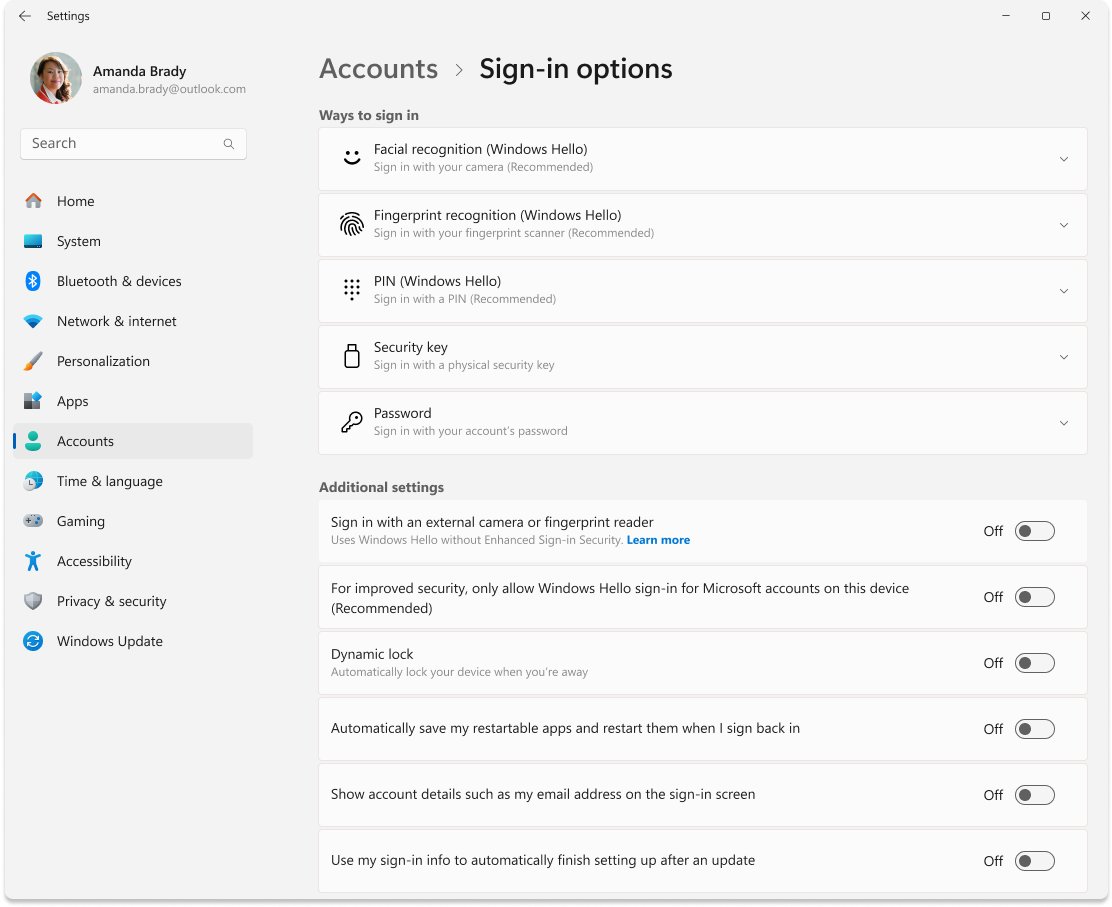
How to enable automatic device locking feature in Windows 11 (step-by-step)
Dynamic lock is the Windows 11 feature built for this job. Pair your phone first, then switch the feature on.
- Turn on Bluetooth on your phone and on the PC.
- Pair the phone with the PC from Settings > Bluetooth & devices.
- Open Settings and select Accounts.
- Select Sign-in options.
- Under Additional settings, find Dynamic lock and turn the toggle On.
- Walk away with your phone. Windows locks within about a minute after you are out of Bluetooth range.
Press Windows logo key + L whenever you want to lock the screen straight away. Dynamic lock is a backup for the times you forget.
Check Windows sign-in and lock requirements
A lock only protects the PC if signing back in needs a password, PIN or Windows Hello. Check each line before you rely on any automatic lock.
| Requirement | Why it matters | Where to check |
|---|---|---|
| A password, PIN or Windows Hello on the account | Without one, a locked PC opens with a click | Settings > Accounts > Sign-in options |
| Bluetooth on the PC | Dynamic lock reads the phone's Bluetooth signal; a USB Bluetooth adapter adds it to PCs without one | Settings > Bluetooth & devices |
| A paired phone | Phone is the only device class Dynamic lock supports | The phone appears under your devices in Bluetooth & devices |
| Windows 11 Pro, Enterprise or Education | Needed for the Machine inactivity limit policy | Settings > System > About |
| A built-in presence sensor | Needed for lock on leave | Settings > System > Power & battery > Screen and sleep |
If you have not set up a PIN or face sign-in yet, set up Windows Hello first so the lock has something to protect.
Why you should use Dynamic Lock: The key benefits
| Benefit | What it means in practice |
|---|---|
| Covers the times you forget to lock | Walking off without pressing Windows logo key + L no longer leaves the desktop open for long |
| Uses hardware you already carry | Any phone paired over Bluetooth works; no sensor or extra device is needed |
| Free and built in | It ships with Windows 11 and Windows 10 and is switched on from Settings |
| Works alongside timeouts | Sleep, screen saver and inactivity locks still apply as a second layer |
| Manageable at scale | Administrators can turn it on with Group Policy or Microsoft Intune |
Behind the scenes: How does Dynamic Lock actually work?
Windows measures the Received Signal Strength Indicator (RSSI) of the paired phone's Bluetooth signal. When that signal drops below the in-range level and the PC is idle, Windows locks the session.
| Rule value | Default | What it controls |
|---|---|---|
| classOfDevice | 512 (Phone) | The kind of paired device Windows watches; Phone is the only supported type |
| rssiMin | -10 | Signal strength needed for the phone to count as in range, enough to move around an average office or cubicle |
| rssiMaxDelta | -10 | Windows locks once the signal weakens by more than 10 |
| Signal scale | 0 is stronger than -10, which is stronger than -60 | Lower numbers mean the phone and PC are further apart |
Home users never see these values. They only matter when an administrator sets the signal rule through Group Policy or Intune, and Microsoft recommends keeping the defaults.
Enable Dynamic Lock with a paired phone
Dynamic lock does nothing until Windows has a phone in its Bluetooth device list. Pair it once, and the two reconnect whenever they are in range.
- Turn on Bluetooth on your phone and make it discoverable, using the phone's own Bluetooth settings.
- On the PC, select the Network, Sound or Battery icon next to the time and date.
- Select the Manage Bluetooth devices chevron on the Bluetooth quick setting.
- Select your phone under New devices, scrolling past Your devices if needed.
- Confirm the pairing prompts on the phone and the PC, then select Done.
- Go to Settings > Accounts > Sign-in options and turn Dynamic lock on.
If the phone does not appear, set the Bluetooth devices discovery setting to Advanced in Bluetooth & devices.
Understanding the limitations of Dynamic Lock
| Limitation | Effect | What to add |
|---|---|---|
| Locks only when the PC is idle | If someone uses the PC before the signal drops, it stays unlocked | Press Windows logo key + L as a habit |
| Takes up to about a minute | The desktop stays open briefly after you leave range | A short screen timeout |
| Phone only | Smartwatches, tablets and earbuds are not supported device types | Presence sensing if the PC has a sensor |
| Depends on Bluetooth range | Walls and distance change when the signal drops | Test it from your usual seat |
| Locks but never unlocks | You still sign in with a PIN, password or Windows Hello | Windows Hello face or fingerprint for fast sign-in |
Microsoft describes Dynamic lock as an additional barrier that reduces risk when you forget to lock, not a replacement for locking the PC yourself.
The advanced method: Enabling Dynamic Lock via the Registry Editor
Microsoft does not publish a Registry Editor value for Dynamic lock. Registry tweaks for it come from forum posts, not from Microsoft documentation, so skip them on any PC you care about.
The documented ways to switch it on outside Settings are the policy and device-management settings below. They are the routes Microsoft supports for turning it on at scale.
| Your setup | Documented route | Setting |
|---|---|---|
| Home PC | Settings app | Accounts > Sign-in options > Dynamic lock: On |
| Windows 11 Pro or domain PC | Group Policy | Configure dynamic lock factors: Enabled |
| Intune-managed PC | Custom OMA-URI | ./Device/Vendor/MSFT/PassportForWork/DynamicLock/DynamicLock set to Boolean True |
| Intune signal rule | Custom OMA-URI | ./Device/Vendor/MSFT/PassportForWork/DynamicLock/Plugins with the default signal rule string |
For IT pros: Managing Dynamic Lock with Group Policy
In a domain, scope the policy to computer accounts. On a single Windows 11 Pro PC, the same policy sits in the Local Group Policy Editor.
- Open the Group Policy Management Console and scope a domain-based Group Policy object to the computer accounts in Active Directory.
- Edit that Group Policy object.
- Go to Computer Configuration > Administrative Templates > Windows Components > Windows Hello for Business.
- Open Configure dynamic lock factors and select Enabled.
- Leave the default signal rule in place unless testing in your environment shows a need to change it.
- Close the Group Policy Management Editor to save the object.
When enabled, the policy creates this default rule: <rule schemaVersion="1.0"><signal type="bluetooth" scenario="Dynamic Lock" classOfDevice="512" rssiMin="-10" rssiMaxDelta="-10"/></rule>. The type and scenario attributes cannot be changed.
Set Windows to lock after sleep or screen timeout
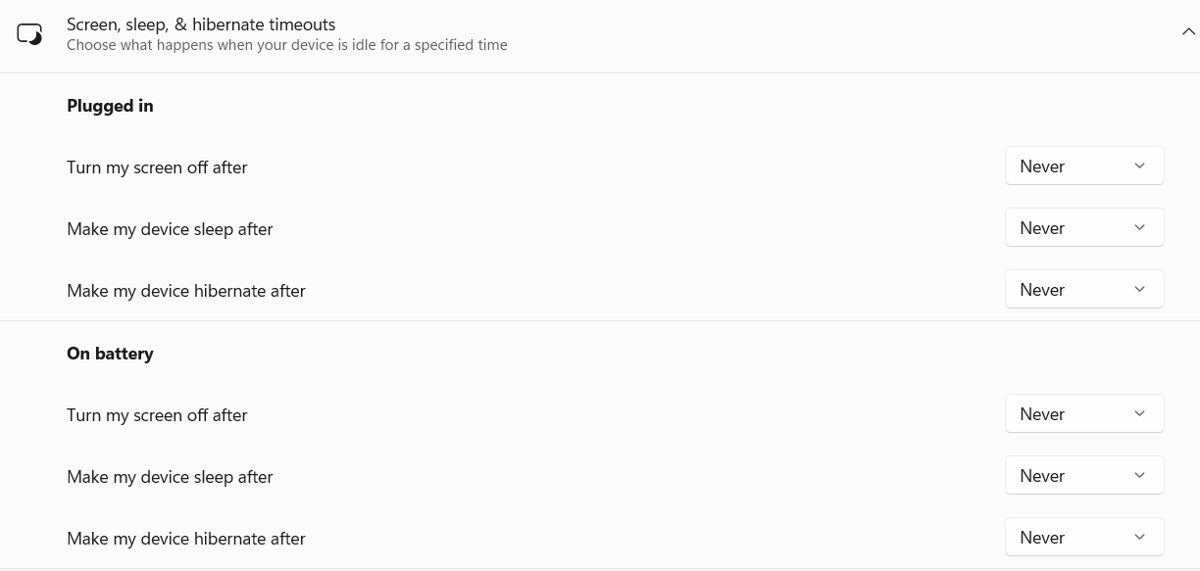
This lock needs no phone. Windows asks for sign-in when the PC wakes, so a short screen or sleep timer becomes an automatic lock after a set time.
- Open Settings > Accounts > Sign-in options.
- Under Require sign-in, choose to require sign-in when Windows wakes from sleep.
- Open Settings > System > Power & battery.
- Select Screen and sleep.
- Set the screen and sleep timers; 10 or 15 minutes of idle time is a reasonable interval.
- Leave the PC idle and confirm it asks for your PIN or password when you return.
Turning the screen off is enough to trigger the lock. Letting the PC sleep as well saves power.
Use screen saver settings to lock automatically
- Open Settings > Personalization > Lock screen.
- Under Related settings, select Screen saver.
- In the Screen Saver Settings window, pick a screen saver from the list.
- Set Wait to the number of idle minutes before it starts.
- Check On resume, display logon screen.
- Select OK to save.
Microsoft now recommends sleeping the display to save energy, but the screen saver lock still works and is useful on desktops that must stay awake.
Configure automatic locking with Group Policy or registry
The Interactive logon: Machine inactivity limit policy locks the session after a set number of idle seconds, whatever the user's own timers say. It applies to Windows 11 Pro, Enterprise and Education.
- Press Windows logo key + R, type
gpedit.mscand press Enter. - Go to Computer Configuration > Windows Settings > Security Settings > Local Policies > Security Options.
- Open Interactive logon: Machine inactivity limit.
- Enter the idle time in seconds, from 1 to 599,940; 0 or blank disables the lock.
- Select OK and restart the PC, because the policy needs a restart to take effect.
Once set, the PC also locks whenever the screen saver starts or the display turns off through power settings. On Intune-managed devices, the same setting is the ./Device/Vendor/MSFT/Policy/Config/LocalPoliciesSecurityOptions/InteractiveLogon_MachineInactivityLimit policy. Microsoft does not document a direct registry value for it.
Windows 11 lock when you leave with presence sensing
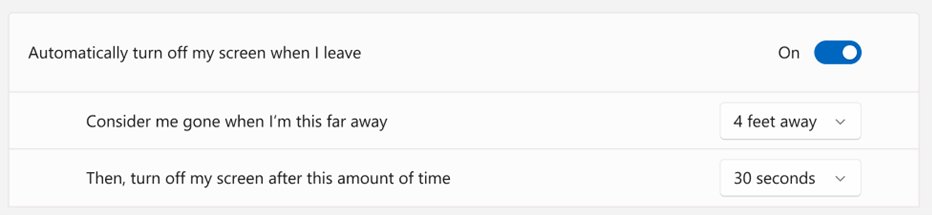
Some Windows 11 laptops have a built-in presence sensor. Lock on leave turns the screen off when you walk away, and the device locks after the selected timeout.
- Open Settings > System > Power & battery.
- Select Screen and sleep.
- Turn on Automatically turn off my screen when I leave.
- Select More options next to it to open the presence sensing settings.
- Set Consider me gone when I'm this far away and Then, turn off my screen after this amount of time.
- Turn on Lock my device when I leave while an external display is connected if you use a monitor.
If these settings are missing, the PC has no presence sensor. Lock on leave does not fire during a video or a call, and the shorter of the power timeout and the presence timeout always wins.
How to tell if Dynamic Lock is working in Windows 11
- Open Settings > Accounts > Sign-in options and confirm Dynamic lock is On.
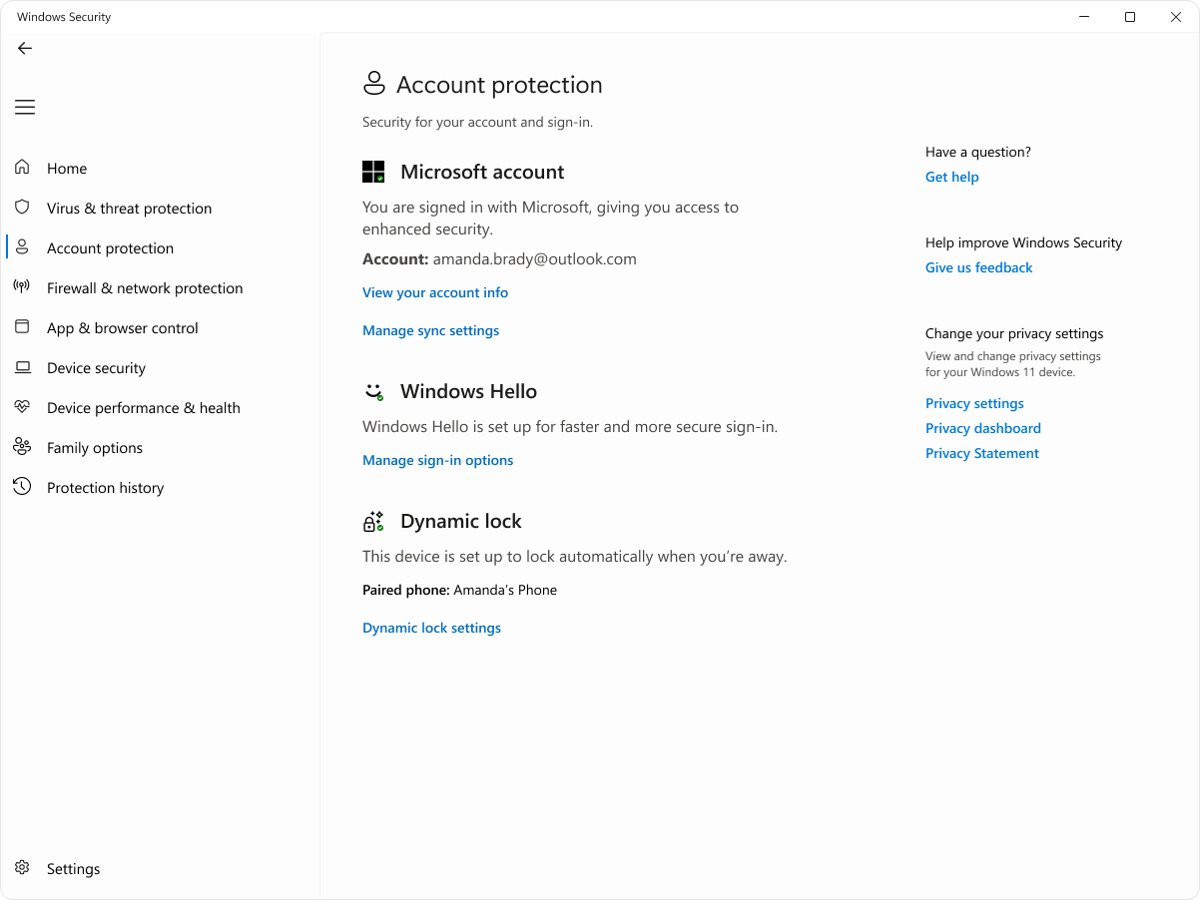
- Open Windows Security > Account protection and read the Dynamic lock status.
- Confirm your phone is listed and connected in Settings > Bluetooth & devices.
- Stop using the PC and walk out of range with the phone.
- Wait a minute, come back, and check that the lock screen is showing.
How to disable automatic device locking in Windows 11
- Open Settings > Accounts > Sign-in options and turn Dynamic lock off.
- Under Require sign-in, change the wake-from-sleep option if you no longer want a sign-in prompt.
- In Settings > System > Power & battery > Screen and sleep, lengthen the screen and sleep timers.
- Clear On resume, display logon screen in Screen Saver Settings.
- Set Interactive logon: Machine inactivity limit to 0 and restart, if you set it earlier.
To keep a PC awake for a long task without removing every lock, stop Windows from locking automatically only for that session.
Troubleshooting: Dynamic Lock not working or greyed out?
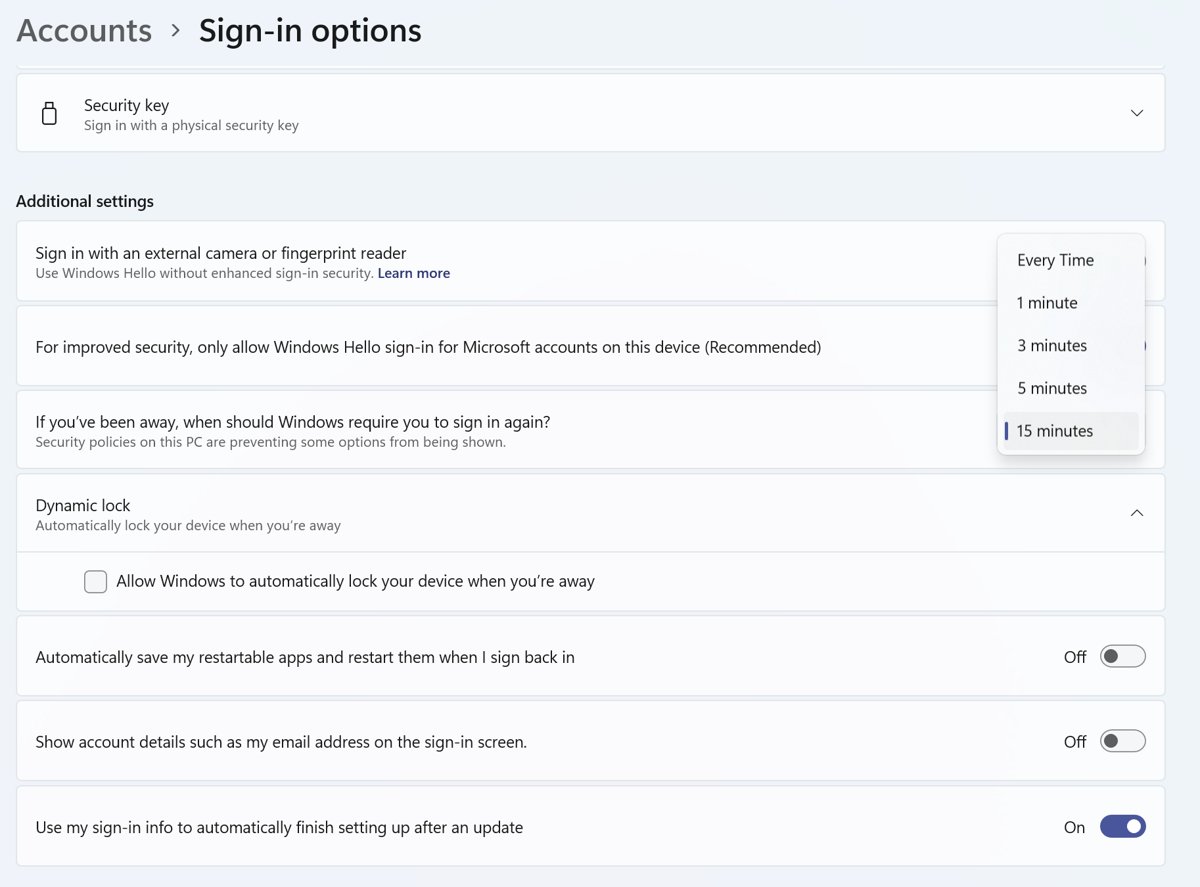
Dynamic lock is greyed out in Sign-in options
An organization manages the setting through Group Policy or Intune, or the PC has no Bluetooth.
- Check Settings > Bluetooth & devices for a Bluetooth switch; if it is missing, the PC may have no adapter or no driver.
- On a work or school PC, ask the IT administrator whether Configure dynamic lock factors is set by policy.
- On a personal Pro PC, open Configure dynamic lock factors in the Local Group Policy Editor and set it to Not Configured or Enabled.
Dynamic lock is on but the PC does not lock
The phone is not connected, is still in range, or the PC was in use when you left.
- Confirm the phone shows as connected in Bluetooth & devices.
- Turn Bluetooth off and on in quick settings to reset the connection.
- Remove the phone from Bluetooth & devices, pair it again, and turn Dynamic lock off and on.
- Stop typing or moving the mouse before you leave, because Dynamic lock waits for the PC to be idle.
- Walk further away; thin walls and open offices keep the signal strong.
Dynamic lock locks the PC while you are sitting at it
The phone is out of range or the signal is weak where you keep it.
- Keep the phone closer to the PC while you work.
- Confirm the phone shows as connected, not just paired, in Bluetooth & devices.
- On managed PCs, ask IT whether the signal rule was changed from Microsoft's default values.
Troubleshoot automatic locking problems
Windows 11 system getting locked automatically too soon
A short screen timeout, screen saver or Machine inactivity limit is triggering the lock.
- Lengthen the timers in Settings > System > Power & battery > Screen and sleep.
- Raise the Wait time in Screen Saver Settings.
- Check Interactive logon: Machine inactivity limit; if your organization set it, only IT can change it.
- On PCs with a presence sensor, raise the lock on leave timeout or distance.
PC wakes from sleep without asking for a password
The Require sign-in option is set to never, or the account has no password or PIN.
- Open Settings > Accounts > Sign-in options.
- Set Require sign-in to ask when Windows wakes from sleep.
- Add a PIN or password if the account has none.
Screen saver starts but the PC stays unlocked
On resume, display logon screen is not checked.
- Open Settings > Personalization > Lock screen > Screen saver.
- Check On resume, display logon screen and select OK.
Machine inactivity limit has no effect
The PC has not restarted since the policy changed, or the edition is Windows 11 Home.
- Restart the PC after changing the policy.
- Check Settings > System > About for the edition; on Home, use the screen timeout and sign-in option instead.
Windows 11 Dynamic Lock and auto lock FAQ
How far away do I need to be for Dynamic Lock to work?
Far enough that the phone's Bluetooth signal drops out of range. Microsoft's default lets you move around an average office or cubicle without locking, and Windows locks within about a minute after you leave Bluetooth range.
Will my PC unlock automatically when I come back?
No. Dynamic lock only locks the PC. You sign in again with your PIN, password or Windows Hello when you return. Windows Hello face recognition makes that step fast.
Can I use my smartwatch or tablet for Dynamic Lock?
No. Microsoft lists Phone as the only device class Dynamic lock currently supports. A smartwatch, tablet or pair of earbuds paired over Bluetooth will not trigger it.
How do I enable auto lock in Windows 11 without a phone?
Set Windows to require sign-in when it wakes from sleep under Settings > Accounts > Sign-in options, then set a short screen timeout in Settings > System > Power & battery > Screen and sleep. A screen saver with On resume, display logon screen also works.
How do I disable auto lock on Windows 11?
Turn off Dynamic lock in Sign-in options, lengthen the screen and sleep timers in Power & battery, clear On resume, display logon screen in Screen Saver Settings, and set the Machine inactivity limit policy to 0 if you used it.
How do I prevent Windows 11 from locking automatically?
Find which lock is firing. Lengthen the screen timeout, raise the screen saver Wait time, turn off Dynamic lock and presence sensing lock on leave. On a work PC, the Machine inactivity limit may be set by IT and cannot be changed by you.
How do I lock my laptop quickly in Windows 11?
Press Windows logo key + L. The lock screen appears at once and your apps stay open behind it. Automatic locks such as Dynamic lock and screen timeouts are backups for the times you forget.
Is Dynamic Lock available in Windows 11 Home?
Yes. Dynamic lock is in Settings > Accounts > Sign-in options on Windows 11 and Windows 10. The Machine inactivity limit policy, by contrast, applies only to Pro, Enterprise and Education.
Is Dynamic Lock worth turning on in Windows 11?
Turn on Dynamic lock if you carry your phone, and pair it with a sign-in requirement after a short screen timeout. On laptops with a presence sensor, add lock on leave. Dynamic lock only fires when the PC is idle and can take a minute, so a screen timeout closes the gap, and Windows logo key + L remains the fastest lock of all.