To make a shopping appointment at an Apple Store, open Apple's Shop with a Specialist page, choose what you want to see and book a one-on-one session at a store, although shopping itself is drop-in and needs no appointment.
This guide covers booking that session, shopping online with a Specialist instead, reserving items for in-store pickup, sharing a saved list with store staff, Small Business help and the Personal Setup session you get after buying.
Book Shop with a Specialist at an Apple Store
Shop with a Specialist is Apple's booking for a one-on-one session at an Apple Store to browse, shop and demo products. Each store page also shows Shop as available by drop-in, so you can walk in without booking.
- Go to apple.com/retail and search for your store by location, ZIP code or store name.
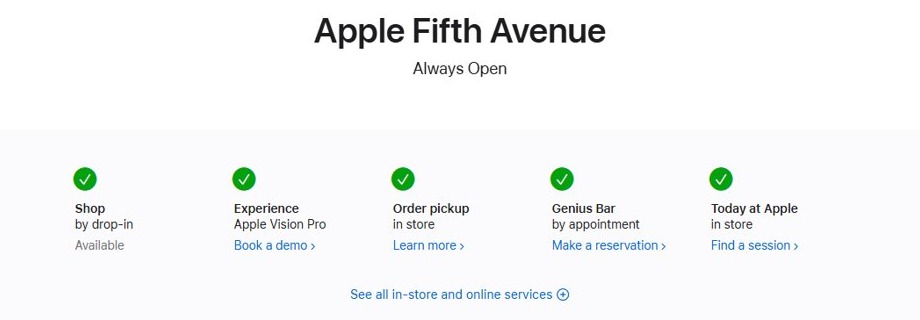
- Open the store page and check the services row: Shop by drop-in, Genius Bar by appointment, Order pickup in store.
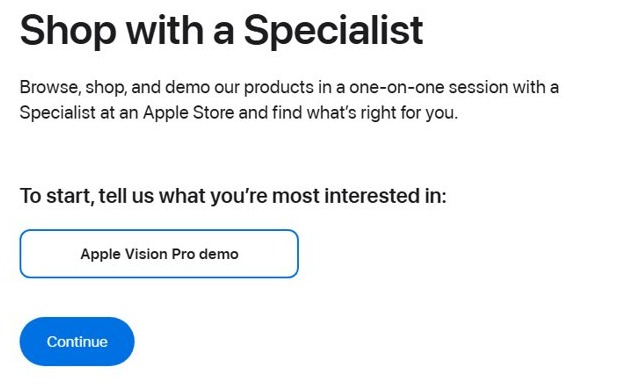
- For a booked session, open Apple's Shop with a Specialist page at apple.com/retail/instore-shopping-session.
- Under "tell us what you're most interested in", choose a topic such as Apple Vision Pro demo.
- Click Continue, then follow the onscreen steps to choose your store and a time.
The topics on the booking page change. If the product you want is not listed, drop in during store hours or use the online Specialist session below.
Apple Store appointment types for shopping, pickup and support
| What you want to do | Book this | How it works |
|---|---|---|
| Browse and buy in person | Nothing; drop in | Store pages list Shop as available by drop-in |
| A one-on-one in-store session or product demo | Shop with a Specialist | Choose a topic, such as an Apple Vision Pro demo, and book a session |
| Advice before buying, without going in | Shop online with a Specialist | A one-on-one online session from your store page or Contact Apple Retail |
| Collect a product you already ordered | Apple Pickup | Choose pickup at checkout and bring the QR code, order number and photo ID |
| Help setting up a device bought from Apple | Personal Setup | Free online one-on-one session; invitation arrives by email |
| Repair or technical support | Genius Bar | By appointment, in the Apple Store app or from the store page |
| Buying for a business | Small Business Team | Talk to an Expert online or call 1-800-854-3680 |
| Free classes | Today at Apple | Sign up for in-store sessions at apple.com/today |
A shopping session does not cover service, so book a Genius Bar appointment for repairs.
How to shop online with an Apple Specialist
Apple offers an online one-on-one session for people who want help choosing but do not have time to stop by a store.
- Open your store's page from apple.com/retail.
- Under How can we help you?, click Shop online with a Specialist.
- On the Contact Apple Retail page, choose Help purchasing a product.
- Click Connect With A Specialist and follow the prompts to start the session.
- Prefer the phone? Call 1-800-MY-APPLE (1-800-692-7753) to order or ask about a product.
The same Contact Apple Retail page routes you to Order Help for an order you already placed, and to Apple Support for a product you already own.
How to save items to share with an Apple Store Specialist
Saving items before your visit lets a store Specialist pick up exactly where you left off online.
- Sign in to apple.com or the Apple Store app with your Apple Account.
- On a product, tap Save for later or the bookmark icon. You can also save an item straight from Bag.
- Create a customized list from your saved items.
- Find the list later under Your Saves in Account.
- Show the list to the Specialist at the Apple Store, or share it with friends and family.
A wearable fit you have identified, or a product you started customizing, is saved too, so you can finish the customization or buy it in the store.
How to reserve an iPhone for pickup at an Apple Store
Ordering online with in-store pickup is the closest thing to a timed shopping appointment for a specific product. Before you order, you can check Apple Store inventory for the model you want.
- Add the product to your bag on apple.com or in the Apple Store app.
- Click Bag, select the item for pickup and choose your Apple Store.
- Click Check Out Now, sign in or continue as a guest, and add your mobile number for text updates.
- Pick a time window if one is offered, then click Place Order Now.
- Wait for the pickup email and notification with a QR code before you go to the store.
- At the store, show the order number, a valid government-issued photo ID and the QR code or Wallet pass to the Specialist.
Screenshots or photos of the QR code email or Wallet pass are not accepted. You can name someone else as the pickup contact, and they bring the same items.
The Apple Store app is the fastest way to buy standard-configured Mac, iPad, Apple Watch and iPhone models. Customized Macs and personalized iPads are ordered on apple.com, in a store or by phone.
How to check Apple Store pickup order status
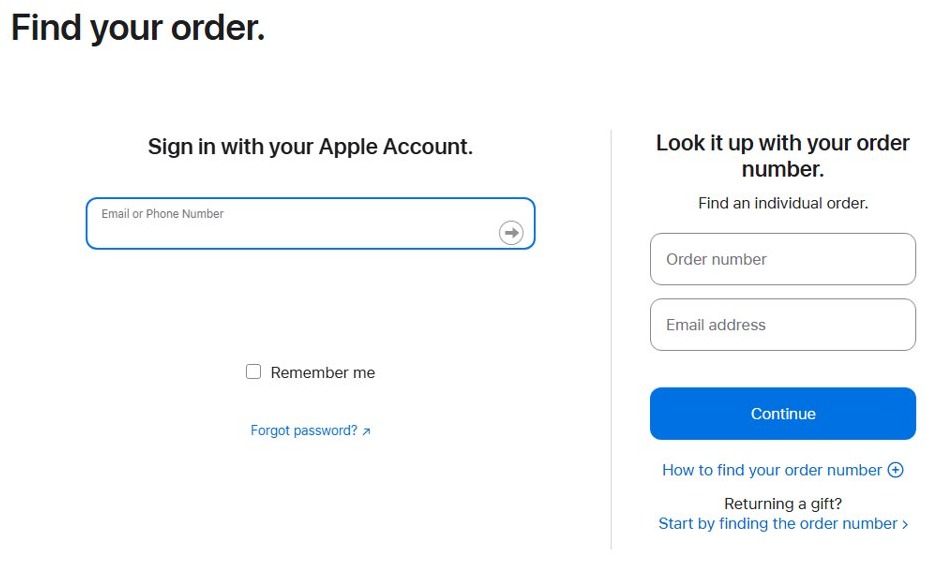
- Go to apple.com/orderstatus.
- Sign in with the Apple Account and password used for the order.
- Open the order to see the pickup store, pickup contact and whether the item is ready.
- Use the same page to cancel items, change the order or print an invoice.
Apple sends a pickup notification email once the items are available, and a reminder if they are still waiting. You can add the pickup pass to the Wallet app.
How to book an Apple Personal Setup session after buying
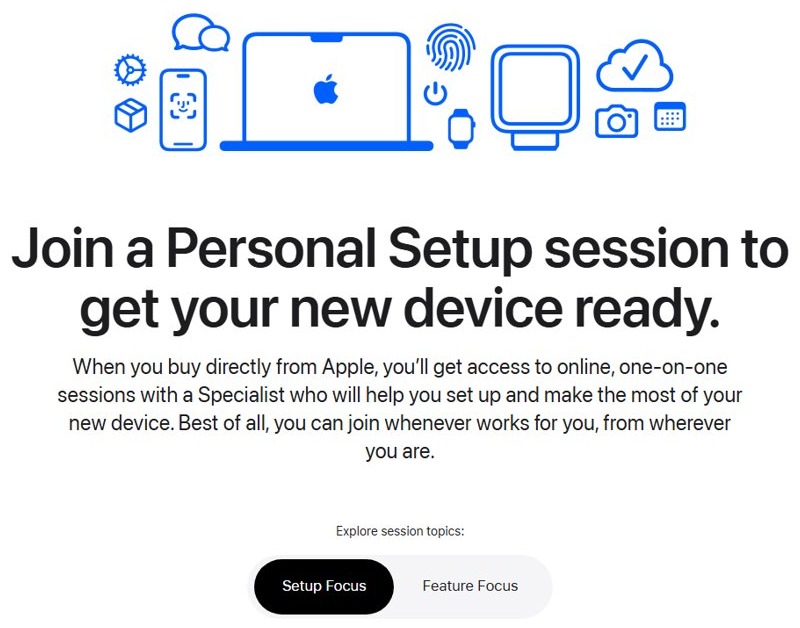
Personal Setup is a free online, one-on-one session with a Specialist covering setup, data transfer, switching from Android or PC, pairing and more. It is available only when you buy the device directly from Apple.
- Wait for the email invitation Apple sends as soon as your order is delivered.
- Or open apple.com/shop/personal-setup and click Sign in under Already purchased? to start a session from your Orders page.
- Choose Setup Focus or Feature Focus and pick the topic you need.
- If you bought the device in an Apple Store, use the contact link on the Personal Setup page to request an email invitation.
Apple Store small business appointment with the Business Team
Business buyers get a dedicated team rather than a standard shopping session.
| What the Small Business Team does | How to reach it |
|---|---|
| Advises on devices that fit your budget | Click Talk to an Expert on apple.com/retail/business |
| Finds financing options at no extra cost | Call 1-800-854-3680 |
| Helps compare apps and fit Apple devices into Google Workspace, QuickBooks or Microsoft 365 | Talk to an Expert or call 1-800-854-3680 |
| Trade-in credit for eligible business devices | Ask the team when you buy new devices |
Apple Store shopping appointment FAQ
Do you need an appointment to shop at an Apple Store?
No. Apple Store pages list shopping as available by drop-in, so you can walk in during store hours. Book Shop with a Specialist only if you want a guaranteed one-on-one session, such as an Apple Vision Pro demo.
Can you shop with an Apple Specialist online?
Yes. Click Shop online with a Specialist on any Apple Store page, choose Help purchasing a product and then Connect With A Specialist. You can also call 1-800-MY-APPLE (1-800-692-7753).
How does Apple online shopping work step by step?
Add items to your bag, click Bag and then Check Out Now, sign in or continue as a guest, enter shipping and billing details, choose a payment method and click Place Order Now. Apple then emails an order acknowledgment.
What do I need to pick up an Apple Store order?
Bring the order number, a valid government-issued photo ID and the QR code or Wallet pass from the pickup notification. Wait for that notification before going in; screenshots or photos of the QR code are not accepted.
Can someone else pick up my Apple Store order?
Yes. Name a designated pickup contact when you order. That person shows the order number, their government-issued photo ID and the QR code or Wallet pass to the Specialist at the store.
Can I make a Genius Bar reservation in the Apple Store app?
Yes. The Apple Store app lets you find a nearby Apple Store, reserve a new iPhone for pickup and make a Genius Bar reservation. The Genius Bar is for support and repairs, not shopping.
Can I return an online Apple purchase to an Apple Store?
Yes. You can return a product to an Apple Store within 14 days of delivery, or start a return at apple.com/orderstatus and have a carrier collect it. Holiday purchases can get a longer window.