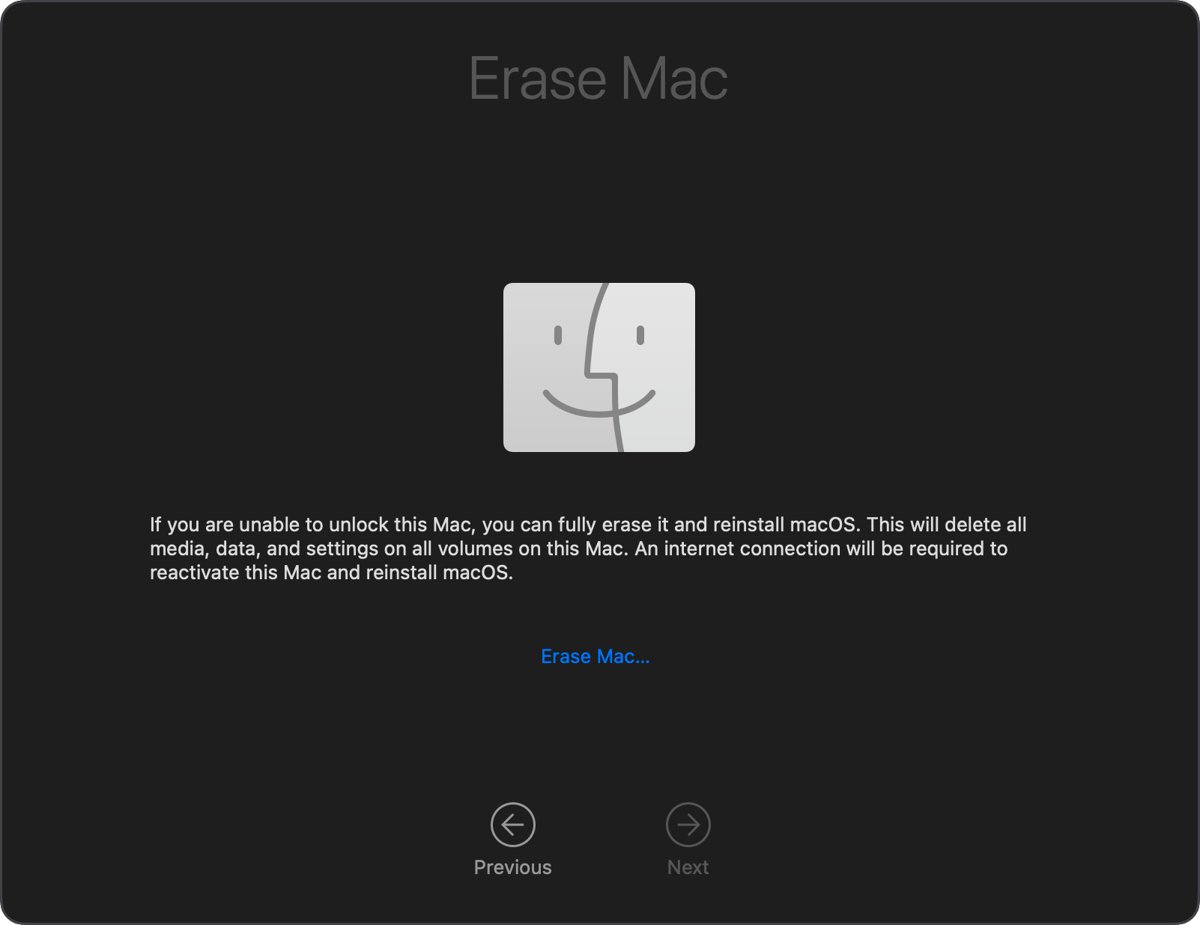
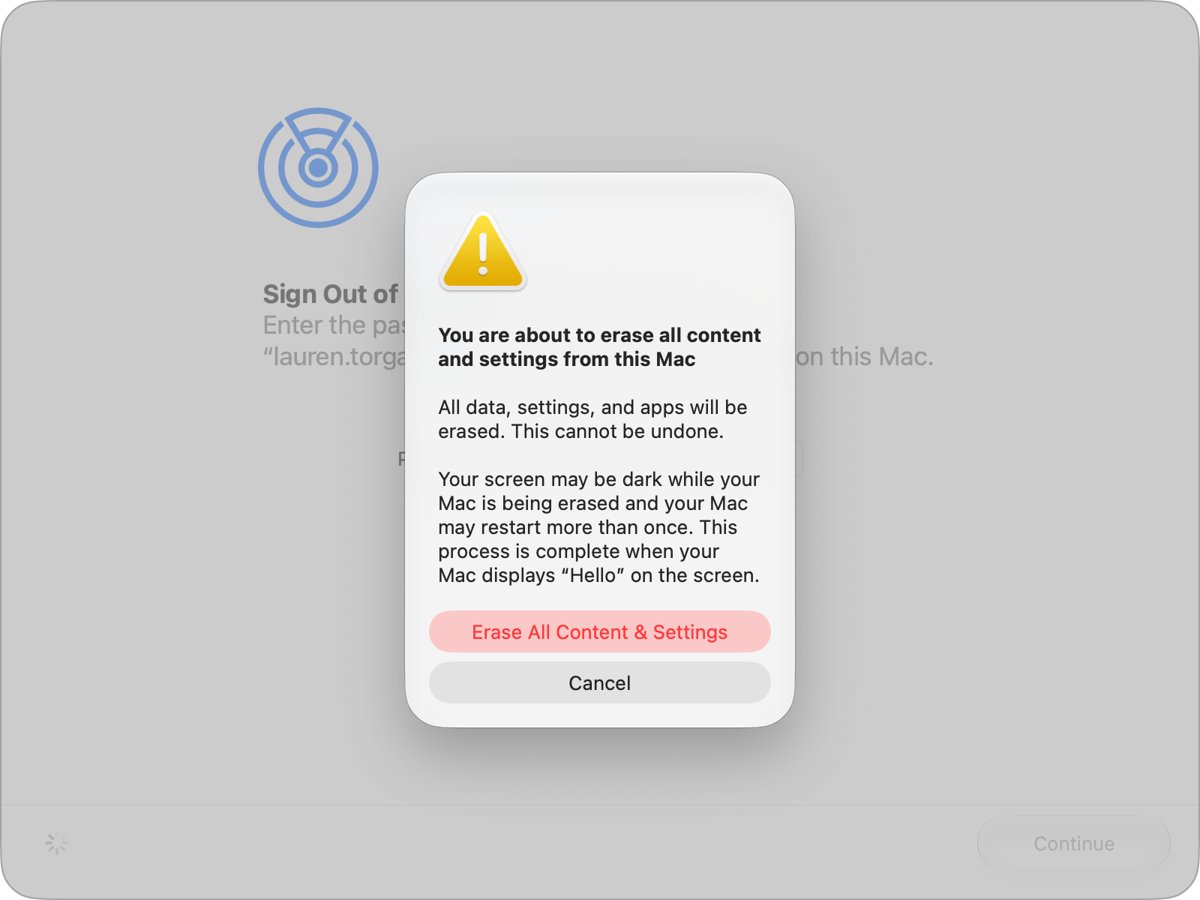
To fully erase a Mac using Recovery Assistant, start up from macOS Recovery, choose Recovery Assistant > Erase Mac in the menu bar when asked to select a user, then click Erase Mac twice to confirm.
This route works even when you cannot log in; this guide covers starting Recovery on Apple silicon and Intel Macs, activating the Mac afterwards, reinstalling macOS, the Disk Utility alternative, and what to do when the erase fails.
How to erase a Mac with Recovery Assistant
Apple lists this as the last resort when you cannot reset your login password: erasing permanently removes every user account, its password and its data. Back up anything you can reach first, because nothing on the internal disk survives.
- Shut down the Mac. If it will not shut down normally, press and hold the power button for up to 10 seconds until it turns off.
- Start up from macOS Recovery: on a Mac with Apple silicon, hold the power button until Loading startup options appears, then click Options > Continue; on an Intel-based Mac, press the power button and immediately hold Command (⌘)-R.
- If asked to select a volume to recover, select Macintosh HD and click Next.
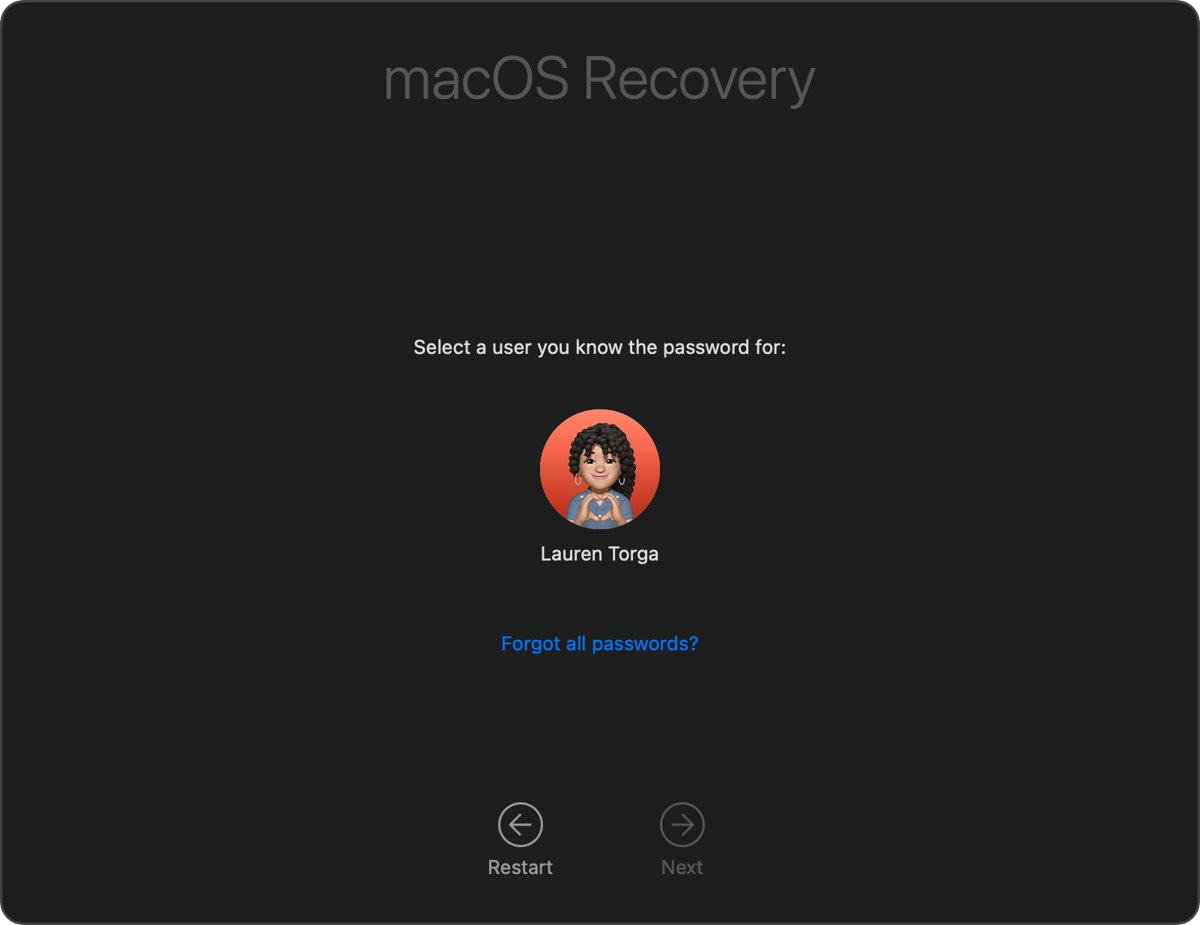
- When asked to select a user you know the password for, choose Erase Mac from the Recovery Assistant menu in the menu bar.
- In the window that opens, click Erase Mac, then click Erase Mac again to confirm.
- Wait while the Mac erases and restarts on its own.
- If an Activate Mac window appears, choose a Wi-Fi network from the Wi-Fi menu or connect a network cable, then enter your Apple Account email or phone number and password.
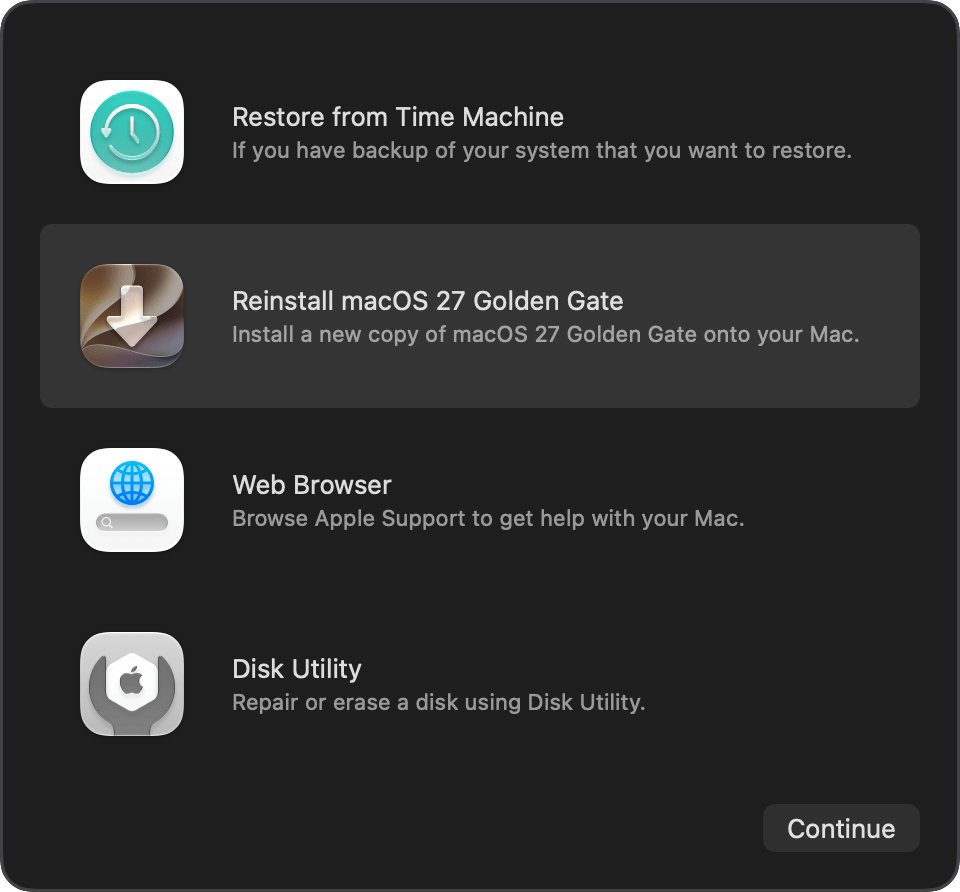
- After the Mac activates, click Exit to Recovery, then select Reinstall macOS and click Continue.
If the Mac restarts to a question mark instead, turn it off, start macOS Recovery again and reinstall macOS from there.
Should you erase a Mac with Recovery Assistant or Erase Assistant?
macOS has three ways to wipe a Mac, and the right one depends on whether you can log in and what kind of Mac you have.
| Your situation | Use this | Why |
|---|---|---|
| You can log in, Mac has Apple silicon or a T2 chip, macOS Monterey 12 or later | Erase All Content and Settings in System Settings | Erase Assistant signs you out of iCloud, turns off Find My and Activation Lock, and keeps macOS installed |
| You forgot the login password and cannot reset it | Recovery Assistant > Erase Mac in macOS Recovery | Apple's route to regain access by erasing every account and its data |
| Intel-based Mac without a T2 chip, or Erase Mac is not offered | Disk Utility in macOS Recovery, then Reinstall macOS | Erases Macintosh HD manually; you sign out of services yourself first |
| Selling, trading in or giving away the Mac | Erase All Content and Settings when available | Apple advises Erase Assistant, not a Recovery erase, because it also removes Activation Lock |
If you can still log in, the Mac factory reset steps for each MacBook and iMac model use the System Settings route.
What does it mean to erase a Mac?
Erasing deletes your files, accounts and settings so the Mac starts like a new one. What else happens depends on the tool you use.
| Tool | What it removes | What it leaves |
|---|---|---|
| Erase Assistant (Erase All Content and Settings) | Content, settings, installed apps, all user accounts, all volumes including a BOOTCAMP volume; signs out of iCloud and turns off Find My and Activation Lock | The installed macOS, so the Mac restarts to Hello |
| Recovery Assistant > Erase Mac | Each user account, its password and its data | Activation Lock, if Find My was on; you may need to reinstall macOS |
| Disk Utility erase in Recovery | Everything on the selected Macintosh HD volume group | No working macOS until you choose Reinstall macOS |
| Reinstall macOS without erasing | Nothing; Apple says it does not remove your apps or personal data | All files and accounts |
How to start up a Mac in macOS Recovery
Recovery Assistant lives inside macOS Recovery, so this is the first step for every Recovery erase. The keys differ by processor; if you are not sure which Mac you have, Apple says it is safe to try both sets of steps.
| Mac type | How to start Recovery | What you see |
|---|---|---|
| Mac with Apple silicon | Turn the Mac off, then press and hold the power (or Touch ID) button until Loading startup options or the Options icon appears; click Options, then Continue | A volume or user picker, then the Recovery window |
| Intel-based Mac | Press and release the power button, then immediately hold Command (⌘)-R until an Apple logo or spinning globe appears | The Recovery window with Disk Utility and Reinstall macOS |
| Intel Mac, built-in Recovery fails | Hold Option-Command-R to start Internet Recovery | Offers the latest macOS compatible with the Mac |
| Intel Mac, original macOS wanted | Hold Shift-Option-Command-R | Offers the macOS that came with the Mac, or the closest version still available |
| Apple silicon Mac with a Bluetooth keyboard | Hold the power button until startup options appear, then press it three times, one second apart | Bluetooth Setup Assistant to pair the keyboard, mouse or trackpad |
On an Intel Mac, use the built-in keyboard on a laptop, or a wired Mac keyboard on a desktop, so the Mac registers the keys at startup.
How to erase a Mac hard drive with Disk Utility
Use this when Recovery Assistant does not offer Erase Mac, or when you can log in to Recovery but want to wipe the startup disk directly. These steps are for a Mac with Apple silicon; an Intel Mac uses the same buttons but may offer Mac OS Extended (Journaled) as the format.
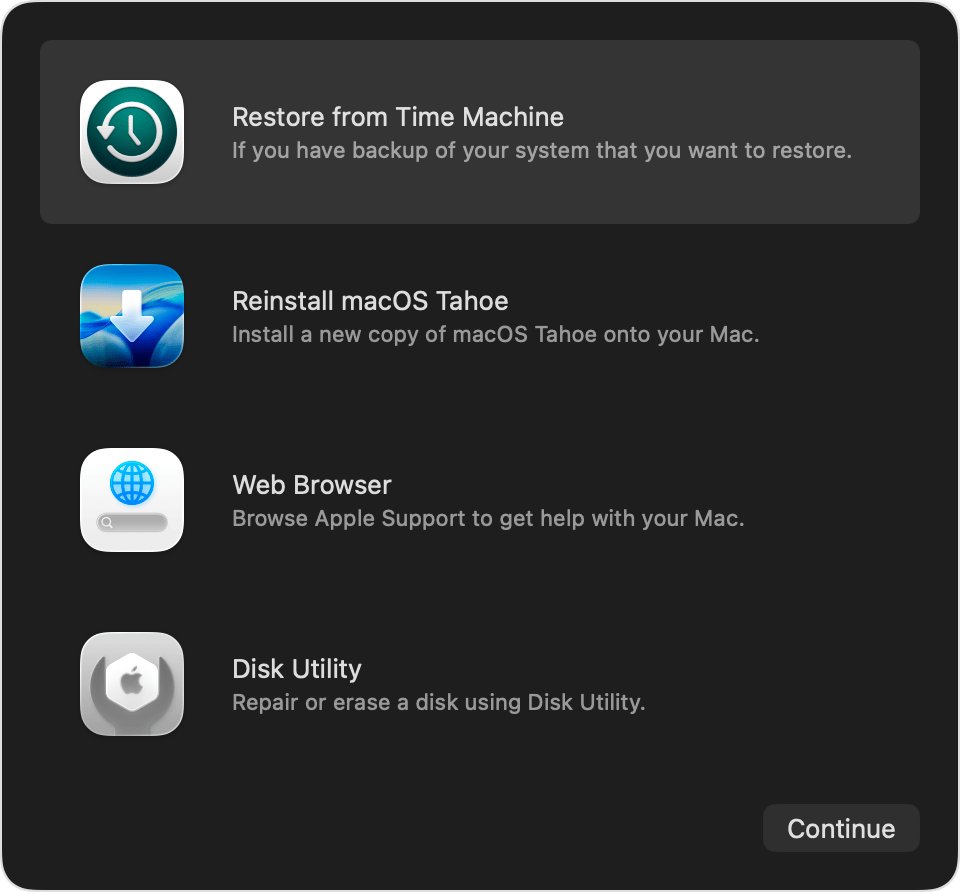
- Start up from macOS Recovery, select Disk Utility, then click Continue.
- In the Internal section of the sidebar, find the volume named Macintosh HD.
- If you added other internal volumes, select each one and click the delete volume (–) button in the toolbar, ignoring Macintosh HD and Macintosh HD – Data.
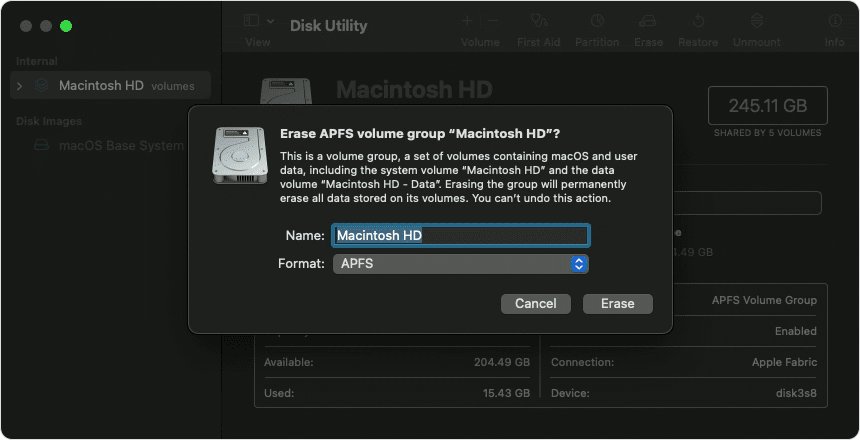
- Select Macintosh HD, then click Erase in the toolbar.
- Set Name to Macintosh HD and Format to APFS.
- Click Erase Volume Group if you see it; otherwise click Erase.
- Enter your Apple Account details if asked, then click Erase Mac to confirm.
- When the Mac restarts, choose your language, connect to Wi-Fi so it can activate, then click Exit to Recovery Utilities.
Erasing this way disconnects Bluetooth accessories, so connect a keyboard, mouse or trackpad with a USB cable if you can.
How to erase and reinstall macOS from Recovery
After any Recovery erase, the Mac has no usable macOS until you reinstall it. Recovery needs a broadband connection using DHCP over Wi-Fi or Ethernet for this step, and a USB installer or Internet Recovery are other ways to reinstall macOS on a Mac.
- Plug a Mac laptop into its power adapter.
- In the Recovery window, select Reinstall macOS, then click Continue.
- Follow the onscreen instructions and pick Macintosh HD if the installer offers it alongside Macintosh HD – Data.
- Enter your Mac login password if the installer asks to unlock the disk.
- Leave the lid open and the Mac awake while it restarts and shows a progress bar several times.
- When the setup assistant appears, set the Mac up, or quit setup and click Shut Down if the Mac is going to a new owner.
On a Mac with Apple silicon, Recovery installs the current version of the most recently installed macOS. If you upgraded macOS and then erased with Disk Utility, you might get the version you had before the upgrade.
How to erase a MacBook Pro from System Settings
If you can still log in, Erase All Content and Settings is the faster and more complete option. It needs macOS Monterey 12 or later on a Mac with Apple silicon or the Apple T2 Security Chip.
- Choose Apple menu > System Settings.
- Click General in the sidebar, then click Transfer or Reset.
- Click Erase All Content and Settings.
- Enter your Mac login password when Erase Assistant asks for administrator credentials, then click Unlock.
- Review the items to be removed, click Continue, and enter your Apple Account password when asked.
- Click Erase All Content & Settings, ignoring any prompt to sign back in to iCloud.
- Wait for the Mac to restart and show Hello.
On macOS Monterey 12, open System Preferences instead and choose Erase All Content and Settings from the System Preferences menu in the menu bar.
Activation Lock after erasing a Mac
A Recovery erase does not remove Activation Lock. With Find My on, Apple requires the Apple Account password or device passcode before anyone can erase, reactivate and use the Mac, which is why the Activate Mac window appears after Erase Mac.
Activation Lock applies to Macs with Apple silicon or the Apple T2 Security Chip running macOS Catalina 10.15 or later.
- Before you erase a Mac you are giving away, choose Apple menu > System Settings and click your name in the sidebar.
- Click iCloud, then click See All (or Show More Apps).
- Click Find My Mac, turn it off, and enter your Apple Account password.
- If the Mac is already erased or offline, go to iCloud.com/find on another device and sign in.
- Select the Mac and click Remove to take it off your account.
If the Mac belonged to someone else, only the owner of that Apple Account can remove it. Erasing again does not change that.
How to tell a Mac is completely erased
- After Erase All Content and Settings, look for the Hello screen and the setup assistant, as on a new Mac.
- After Recovery Assistant or Disk Utility, expect either the Activate Mac window or a Recovery window with Reinstall macOS; your old login window should not appear.
- Once macOS is reinstalled, confirm the Mac opens to the setup assistant with no user accounts to choose.
- To leave the Mac in an out-of-box state for a new owner, press Command-Q at the setup assistant to shut down, or press and hold the power button until it turns off.
Erase Mac not working
No Recovery Assistant menu or Erase Mac option
You were not asked to select a user you know the password for, or the Mac signed you straight into Recovery.
- Select Disk Utility in the Recovery window and click Continue.
- Erase Macintosh HD as an APFS volume group, as in the Disk Utility steps above.
- Quit Disk Utility and choose Reinstall macOS.
Macintosh HD does not appear in Disk Utility
A connected device is in the way, or the internal storage has a fault.
- Choose Apple menu > Shut Down.
- Unplug every nonessential device, then start macOS Recovery again.
- If the disk is still missing or Disk Utility reports that the erase failed, contact Apple, because the Mac might need service.
Mac starts up to a question mark after erasing
The startup disk has been erased and holds no macOS yet.
- Turn off the Mac.
- Start up from macOS Recovery.
- Select Reinstall macOS and follow the onscreen instructions.
Activate Mac window asks for an Apple Account
Activation Lock is on because Find My was enabled before the erase.
- Choose a Wi-Fi network from the Wi-Fi menu or connect a network cable.
- Enter the Apple Account email or phone number and password used on this Mac, not the Mac login name.
- Click Exit to Recovery after activation and reinstall macOS.
Message that other volumes need to be erased
Windows was installed with Boot Camp, so a second partition exists.
- Start the Mac in macOS and open Boot Camp Assistant.
- Use it to remove Windows and its partition.
- Run Erase All Content and Settings again.
Spinning globe with a warning symbol in Internet Recovery
The Mac cannot reach Apple's servers; errors such as -2001F, -2002F or -2003F point to the network.
- Connect by Ethernet instead of Wi-Fi, or try a different network.
- Try Command-R, Option-Command-R and Shift-Option-Command-R in turn.
- Avoid networks that need a captive login page, 802.1X security or PPPoE, then try again later.

Erase Mac with Recovery Assistant FAQ
How do I completely erase a MacBook?
If you can log in, use System Settings > General > Transfer or Reset > Erase All Content and Settings. If you cannot, start macOS Recovery and choose Recovery Assistant > Erase Mac, then reinstall macOS. Both remove every user account and its data.
How do I erase everything on a Mac?
Erase All Content and Settings removes content, settings, installed apps, every user account and all volumes, including a Boot Camp volume. On a Mac that lacks it, erase Macintosh HD with Disk Utility in Recovery and reinstall macOS.
How do I erase an iMac or other Mac desktop?
The steps are the same as on a MacBook. Use Erase All Content and Settings on an Apple silicon or T2 iMac with macOS Monterey or later, or start macOS Recovery and use Erase Mac or Disk Utility. Use a wired Mac keyboard if Recovery keys do not register.
How do I erase macOS itself?
Erasing Macintosh HD with Disk Utility in macOS Recovery removes macOS along with your data. The Mac then has no operating system until you select Reinstall macOS. Erase All Content and Settings is different: it keeps the installed macOS.
How do I erase a Mac computer before selling it?
Use Erase All Content and Settings, because only Erase Assistant also turns off Find My and Activation Lock. A Recovery Assistant or Disk Utility erase leaves Activation Lock on, so turn off Find My Mac first or remove the Mac at iCloud.com/find.
How do I clear a Mac without losing macOS?
Use Erase All Content and Settings. Apple says it erases your data, settings and apps while keeping the operating system currently installed, and the Mac restarts to the Hello screen ready for setup.
How do I erase and reinstall macOS on an older Intel Mac?
On an Intel Mac without the T2 chip, choose Apple menu > Restart and hold Command-R. In Recovery, open Disk Utility, erase the volume as APFS with Erase Volume Group, quit Disk Utility, then click Reinstall macOS and follow the prompts.
How do I erase all data from a Mac without the password?
Start macOS Recovery and choose Recovery Assistant > Erase Mac when asked for a user you know the password for. It permanently removes every user account and its data, but you still need the Apple Account password used on the Mac to pass Activation Lock.