A CefSharp.BrowserSubprocess.exe application error means the browser engine inside one of your installed apps crashed, so the fix is to repair or reinstall that app and the runtimes it depends on.
This guide shows how to find which app owns the file, what the 0xe0434352 exception code means, and the Windows repairs to run when reinstalling is not enough.
Fix CefSharp.BrowserSubprocess.exe application error
CefSharp.BrowserSubprocess.exe is not part of Windows. It ships inside a third-party app, so start with that app and work outwards.
- Note the full error text, including the exception code such as 0xe0434352.
- Open Event Viewer, go to Windows Logs > Application, and find the matching Event ID 1000 entry to see the Faulting application path.
- Close the app that lives in that folder, then select Start > Settings > Apps > Installed apps and use Repair or Reset if the app offers them.
- If the error returns, uninstall the app, restart the PC, and install the latest version from the publisher's own website.
- Install the latest Microsoft Visual C++ Redistributable and run the .NET Framework Repair Tool.
- Run
DISM.exe /Online /Cleanup-image /Restorehealthand thensfc /scannowfrom an administrator Command Prompt. - If the crash still happens, perform a clean boot to check whether another program is interfering.
Most readers are done after step 4. The later steps fix shared components that several apps use.
What is CefSharp.BrowserSubprocess.exe?
CefSharp is an open-source framework that lets a Windows desktop app show web pages using the Chromium core that powers many modern browsers.
Apps that embed it start CefSharp.BrowserSubprocess.exe to do the web rendering work in a separate process, which is why you can see several copies in Task Manager while one app is open.
| Question | Answer |
|---|---|
| Is it a Windows system file? | No. It is installed by a third-party app and lives in that app's folder. |
| What it is built on | CefSharp, which wraps the Chromium Embedded Framework for .NET desktop apps. |
| Example of an app that uses it | Microsoft's Unified Service Desk for Dynamics 365 bases its Chrome Process hosting on CefSharp. |
| Why several copies run | Each embedded browser or page can run in its own subprocess. |
| Who fixes a real bug in it | The publisher of the app that installed it, because each app ships its own copy. |
The exception unknown software exception (0xe0434352/0xe0000008) occurred at location
Microsoft documents 0xE0434352 as a CLR exception: an error thrown by a .NET application. The letters "CCR" are the code in ASCII.
That points the blame at the app's own .NET code or a damaged .NET installation, not at your hardware.
| Code in the message | What it tells you | Where to start |
|---|---|---|
| 0xe0434352 | A .NET (CLR) exception inside the app went unhandled | Repair or reinstall the app, then repair .NET Framework |
| 0xe0000008 | A different exception code reported for the same kind of crash | Update or reinstall the app, then send the code to its publisher |
| Faulting module KERNELBASE.dll | Windows reported the crash; the app caused it | Treat it as an app problem, not a Windows file problem |
| Any other code | The developer's clue to what failed | Use the same repair order shown above |
Find which app uses CefSharp.BrowserSubprocess.exe in Event Viewer
Several unrelated apps can carry their own copy of the file, so you need the folder path before you repair anything.
- Select Search, type Event Viewer, and open it.
- In the left pane, expand Windows Logs and select Application.
- Select Filter Current Log in the right pane, type 1000 in the event ID box, and select OK.
- Open the newest Application Error entry that names CefSharp.BrowserSubprocess.exe as the faulting application.
- Read the Faulting application path line. The folder in that path belongs to the app you need to repair.
- Note the Exception code and Faulting module name lines for the troubleshooting steps below.
If the faulting application is Explorer.exe instead, the cause lies in Windows itself, and you need to fix the Explorer.exe application error rather than repair a third-party app.
Repair or reset the app that runs CefSharp
Windows can repair some desktop apps in place, which keeps your settings. Not every app shows these options.
- Close the app and end any of its windows that are still open.
- Select Start > Settings > Apps > Installed apps.
- Select the More (three dots) icon next to the app.
- Select Advanced options if it is listed, then select Repair.
- If Repair is missing or does not help, select Reset.
- For older desktop programs, open Control Panel > Programs > Programs and Features, right-click the program, and select Repair or Change.
Reinstall the app that ships CefSharp.BrowserSubprocess.exe
A clean reinstall replaces the app's copy of CefSharp.BrowserSubprocess.exe and the Chromium files that sit next to it.
- Select Start > Settings > Apps > Installed apps.
- Find the app from the Event Viewer path, then select More > Uninstall.
- If it cannot be removed from Settings, open Control Panel > Programs > Programs and Features, right-click it, and select Uninstall or Uninstall/Change.
- Restart the PC so no leftover CefSharp process holds files open.
- Download the current version from the publisher's official website and install it.
- Open the app and use the feature that crashed before.
Never download CefSharp.BrowserSubprocess.exe or libcef.dll on its own from a DLL site. The file must match the app's own CefSharp version.
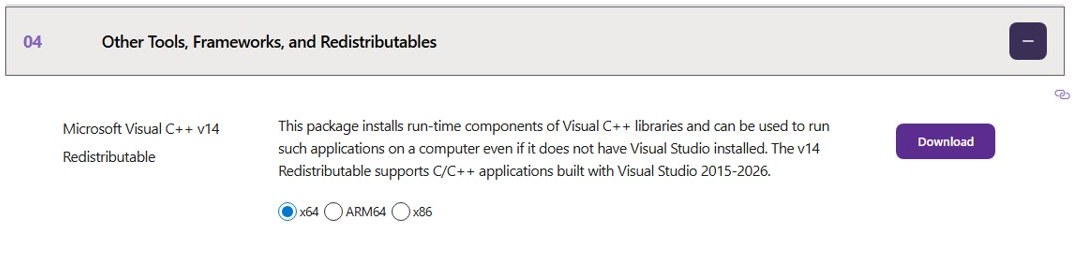
Install the latest Visual C++ Redistributable for CefSharp
Many apps built with Microsoft Visual C++ need its runtime libraries, and the installed package must be at least as recent as the tools used to build the app.
The package architecture must match the app, so 32-bit apps need the x86 package even on 64-bit Windows.
- Open the Latest supported Visual C++ Redistributable downloads page on Microsoft Learn.
- Under Latest supported redistributable version, select the X64 link for 64-bit apps.
- Also install the X86 package if the app folder is under Program Files (x86).
- Run each installer and select Repair if the same version is already installed.
- Restart the PC and open the app again.
The latest v14 package covers apps built with Visual Studio 2017, 2019, 2022 and 2026, and it supports Windows 10 and Windows 11.
Repair .NET Framework for CefSharp.BrowserSubprocess.exe crashes
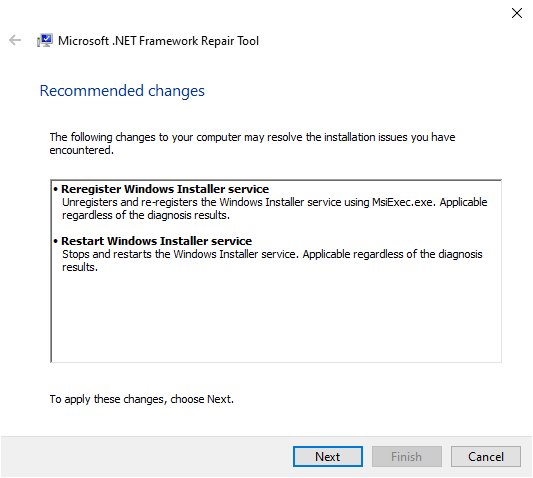
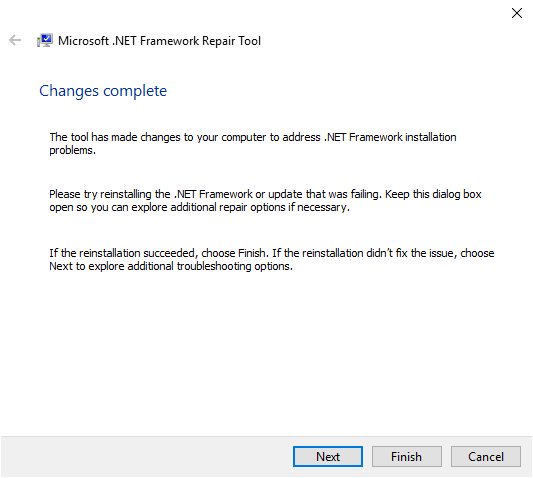
Because 0xe0434352 is a .NET exception, a damaged .NET Framework install is worth ruling out with the .NET Framework Repair Tool. Microsoft says this applies when an app crashes right after you try to start it.
- Open the Repair .NET Framework page on Microsoft Learn and download the .NET Framework Repair Tool (NetFxRepairTool.exe).
- Run the tool and select Next when it recommends changes.
- Leave the final dialog open and try the crashing app again.
- Select Finish if the app now works, or Next to send diagnostic information to Microsoft.
- If the app still fails, install the latest .NET Framework version supported by your Windows version.
- If the publisher says the app needs modern .NET, install that version from the official Download .NET page, where .NET 10.0 is the current Long Term Support release.
Run SFC and DISM to fix CefSharp.BrowserSubprocess.exe errors
This repairs Windows' own files. It will not change the app's copy of CefSharp, so run it after the app-level fixes.
You need to open Command Prompt as an administrator for both commands. In the taskbar search box, type command prompt, right-click Command Prompt, and select Run as administrator.
DISM.exe /Online /Cleanup-image /Restorehealth
sfc /scannow
DISM repairs the Windows component store first. SFC then checks protected system files and replaces damaged ones from that store. Install the latest Windows updates and restart before you start.
You should see: DISM ends with "The operation completed successfully" and SFC ends with "Verification 100% complete". Type exit and restart the PC.
Clean boot Windows to stop CefSharp.BrowserSubprocess.exe crashing
A clean boot starts Windows with only essential drivers and startup programs. If the app works in that state, another program is interfering with it.
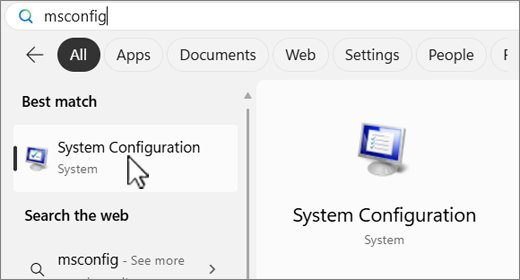
- Sign in as an administrator, select Search, type msconfig, and open System Configuration.
- On the Services tab, select Hide all Microsoft services, then Disable all, and select Apply.
- On the Startup tab, select Open Task Manager.
- On the Startup apps tab, select each Enabled item and select Disable, noting what you change.
- Close Task Manager, select OK in System Configuration, and restart.
- Open the crashing app. If it now works, re-enable half of the services at a time and restart until the crash returns, which identifies the conflicting program.
- To finish, open msconfig, select Normal Startup on the General tab, select Enable all on the Services tab, and re-enable your startup apps.
Scan CefSharp.BrowserSubprocess.exe with Windows Security
A genuine copy sits inside an installed app's folder. A copy in an unexpected folder, or one that keeps running after you uninstall every app that could own it, deserves a scan.
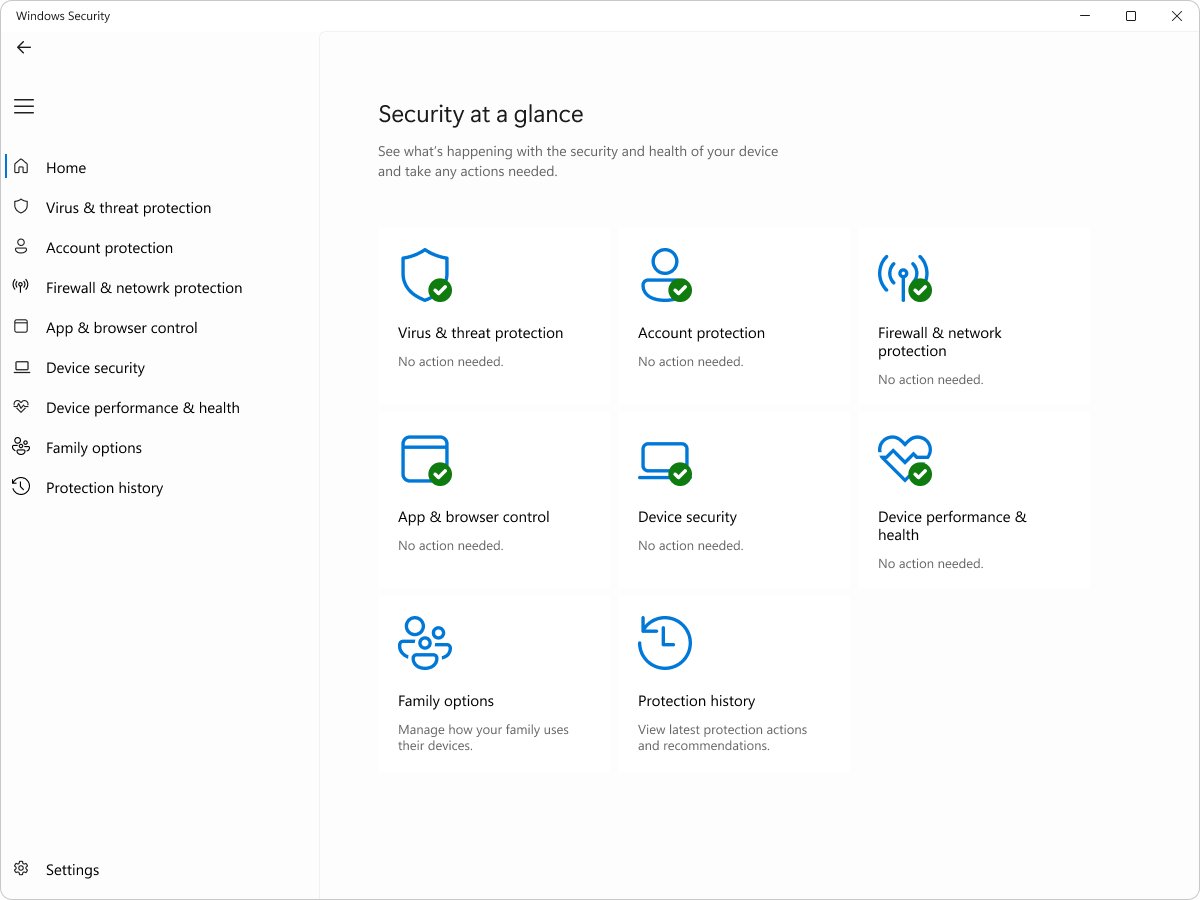
- Open the Windows Security app and select Virus & threat protection.
- Select Scan options.
- Choose Full scan to check every file and program, then select Scan now.
- If the full scan finds nothing but you still suspect malware, choose Microsoft Defender Antivirus (offline scan), which restarts the PC and scans before Windows loads.
- After the restart, open Windows Security and select Protection history to read the results.
How to tell if CefSharp.BrowserSubprocess.exe errors have stopped
- Use the app for the same task that triggered the error, including closing it and shutting down Windows if that is when the message appeared.
- Open Event Viewer > Windows Logs > Application.
- Filter for Event ID 1000 and check that no new Application Error entry names CefSharp.BrowserSubprocess.exe after your repair.
- If a new entry appears, compare its Faulting application path with the old one. A different path means a second app has the same problem.
CefSharp.BrowserSubprocess.exe crash, exception, or application error in Windows
"The exception unknown software exception (0xe0434352) occurred in the application"
The app's .NET code threw an error it did not handle, or .NET Framework is damaged.
- Update the app to its latest version from the publisher.
- Run the .NET Framework Repair Tool and restart.
- Reinstall the app if the code still appears.
- Send the Event ID 1000 details to the app's publisher if a clean reinstall does not help.
The error appears when you shut down or restart Windows
The app is still running in the background and its browser subprocess fails while Windows closes it.
- Close the app from its own menu before you shut down, including any icon in the notification area.
- Check whether the app has a setting to stop running in the background, and turn it off.
- Repair or reinstall the app if the message continues.
"Unable to locate required Cef/CefSharp dependencies" or a missing libcef.dll
Files the app needs next to CefSharp.BrowserSubprocess.exe were deleted, quarantined or never installed.
- Open Windows Security > Virus & threat protection > Protection history and check whether a file from the app folder was quarantined.
- Uninstall the app, restart, and install a fresh copy from the publisher.
- Do not copy the missing files from another app, because each app ships its own CefSharp version.
The application error points to a different file, such as code 0xc0000142
The crash is not in CefSharp at all, and a different fix applies.
- Read the Faulting application name in Event Viewer.
- If the code is 0xc0000142, solve Application Error 0xc0000142 with its own set of fixes.
- If the Windows error reporting process itself crashes, fix the WerFault.exe error first.
CefSharp.BrowserSubprocess.exe FAQ
What is CefSharp.BrowserSubprocess.exe?
CefSharp.BrowserSubprocess.exe is a helper process from CefSharp, an open-source framework that embeds a Chromium-based browser inside Windows desktop apps. It is installed by those apps, not by Windows, and it handles the web content they display.
Is CefSharp.BrowserSubprocess.exe a virus?
No, the genuine file is a normal part of apps that embed CefSharp. It should sit in an installed app's folder. If you find a copy elsewhere, or it runs with no such app installed, scan the PC with a Windows Security full scan.
Can I delete CefSharp.BrowserSubprocess.exe?
Do not delete it by hand, because the app that installed it will break or show a missing-file error. To remove it, uninstall the app that owns it from Settings > Apps > Installed apps, and the file goes with it.
Why are there several CefSharp.BrowserSubprocess.exe processes in Task Manager?
Apps that use CefSharp run web rendering in separate subprocesses, so one open app can start several copies. They close when you exit the app. Many copies after the app is closed suggest the app is still running in the background.
What does exception code 0xe0434352 mean?
Exception code 0xe0434352 is a CLR exception, meaning a .NET application threw an error that was not handled. For CefSharp.BrowserSubprocess.exe it points to the app's own code or a damaged .NET Framework install, so repair the app first and then run the .NET Framework Repair Tool.
Which app does CefSharp.BrowserSubprocess.exe belong to?
Open Event Viewer, go to Windows Logs > Application, and open the Event ID 1000 entry for the crash. The Faulting application path line shows the folder the file runs from, and that folder belongs to the app you need to repair or reinstall.
Can I end CefSharp.BrowserSubprocess.exe in Task Manager?
Yes, but ending it only stops the web content inside the app that started it, and that app may show a blank page or crash. Close the app normally instead, and the subprocesses exit with it.
Will reinstalling Windows fix the CefSharp.BrowserSubprocess.exe error?
Usually it is unnecessary, because the file belongs to an app rather than Windows. Repair or reinstall that app, update Visual C++ and .NET, and run SFC and DISM. If the app still crashes on a healthy system, the fix has to come from its publisher.