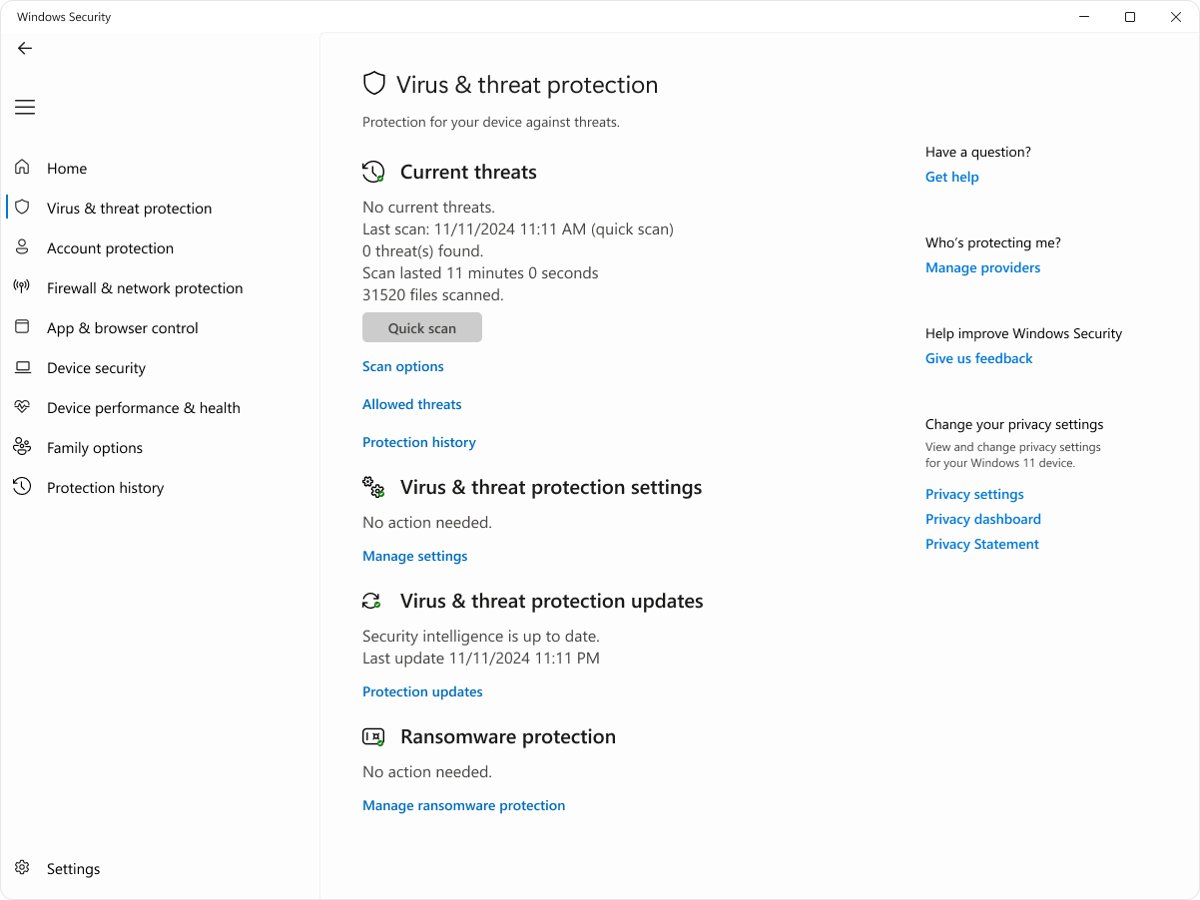
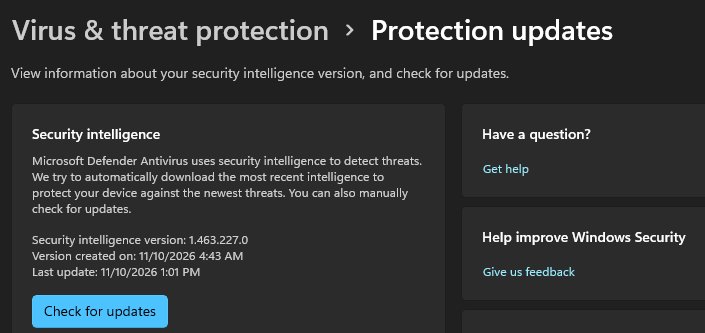
Open Windows Security, select Virus & threat protection, then select Protection updates to see the Windows Defender Antivirus signature version and the date it was downloaded.
Microsoft now calls signatures security intelligence, and this guide also shows the PowerShell check, what each version number means, how to tell if yours is current, and how the scan types differ.
How to find Windows Defender Antivirus signature version in Windows 11
Microsoft's documentation explains that the security intelligence version was previously called the definition version. It is the version of the antimalware definitions that Microsoft Defender Antivirus is using right now.
- Select Start, type Windows Security and open the app.
- Select the Virus & threat protection tile, or the shield icon in the left menu.
- Under Virus & threat protection updates, select Protection updates.
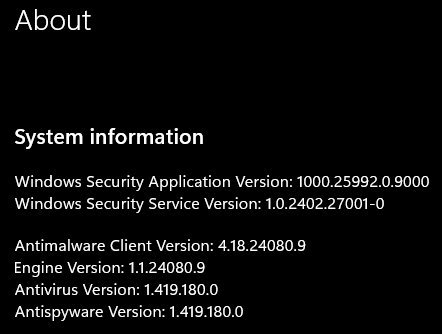
- Read the security intelligence version number and the date it was created and last updated.
- Select Check for updates if you want Defender to download a newer version now.
The version reads like 1.xxx.xxx.0. Write it down or copy it if you need to compare it with Microsoft's latest release.
Check Windows Defender version with PowerShell
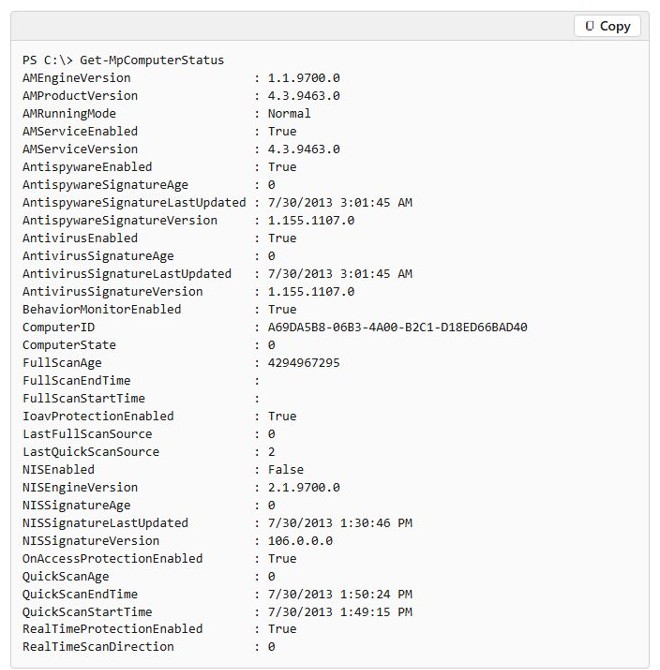
The Get-MpComputerStatus cmdlet reports every Defender version on the PC in one go, including the signature version and when it was last updated. It is the quickest route if you manage several PCs or need the numbers as text.
Get-MpComputerStatus | Select-Object AntivirusSignatureVersion, AntivirusSignatureLastUpdated, AntispywareSignatureVersion, AMEngineVersion, AMProductVersionOpen Terminal or Windows PowerShell from Start and run the command. AntivirusSignatureVersion is the antivirus signature (security intelligence) version, AntivirusSignatureLastUpdated is when it was installed, AMEngineVersion is the antimalware engine and AMProductVersion is the Defender platform version.
You should see: PowerShell prints each property name with a value, for example AntivirusSignatureVersion : 1.xxx.xxx.0. Run Get-MpComputerStatus on its own to see every field, including AntivirusSignatureAge in days.
Windows Defender version numbers explained
Defender reports several version numbers, and only one of them is the signature version. These are the fields Get-MpComputerStatus returns.
| Field | What it is | Typical format | How it updates |
|---|---|---|---|
| AntivirusSignatureVersion | Antivirus security intelligence (signature) version | 1.xxx.xxx.0 | Security intelligence updates, KB2267602 |
| AntispywareSignatureVersion | Antispyware security intelligence version | 1.xxx.xxx.0 | Same update as the antivirus signatures |
| AMEngineVersion | Antimalware engine that reads the signatures | 1.1.xxxxx.x | Included with security intelligence updates, released monthly |
| AMProductVersion | Defender platform (antimalware client) version | 4.18.xxxx.x | Monthly platform updates, KB4052623 |
Microsoft also lists the latest engine and platform versions next to the latest security intelligence version, so all three can be checked against one page.
Is my Windows Defender signature version up to date?
- Note the version shown under Protection updates, or the
AntivirusSignatureVersionvalue from PowerShell. - Open Microsoft's Security intelligence updates for Microsoft Defender Antivirus and other Microsoft antimalware page on microsoft.com.
- Find Latest security intelligence update and compare its Version with yours.
- Compare Engine Version and Platform Version on the same page with
AMEngineVersionandAMProductVersion. - If yours is lower, select Check for updates in Protection updates and compare again once it finishes.
Windows Update installs security intelligence automatically. If your version still lags behind the published one, force an update by hand as the next section shows.
Update Windows Defender security intelligence from Command Prompt
If the version is old, force an update from an elevated Command Prompt. The MpCmdRun tool is not on the PATH, so first change to the Defender folder. You can also update Microsoft Defender Antivirus manually with the offline update packages.
cd "%ProgramFiles%\Windows Defender"
MpCmdRun.exe -SignatureUpdate
Select Start, type cmd, right-click Command Prompt and select Run as administrator, then run both lines. -SignatureUpdate checks for new security intelligence updates. Add -MMPC to download them directly from the Microsoft Malware Protection Center.
You should see: The command finishes without an error. Check the version again under Protection updates or with Get-MpComputerStatus; the number and the last-updated date change if a newer update was installed.
Microsoft notes that the newest copy of MpCmdRun lives in %ProgramData%\Microsoft\Windows Defender\Platform\<antimalware platform version>, which you can use instead of the Program Files folder.
Microsoft Defender antivirus file location
These are the Defender folders Microsoft documents. Updates write to them, so there is no need to change anything inside them by hand.
| Folder | What it holds |
|---|---|
%ProgramFiles%\Windows Defender |
The version of Defender that ships with Windows, including MpCmdRun.exe |
%ProgramData%\Microsoft\Windows Defender\Platform\<version> |
The latest platform version installed by updates, with the newest MpCmdRun.exe |
C:\ProgramData\Microsoft\Windows Defender\Offline Scanner |
Where the Microsoft Defender Offline scan starts from |
C:\ProgramData\Microsoft\Windows Defender\Support |
Trace files created by MpCmdRun.exe -Trace |
Windows Defender Offline Scan vs Full Scan vs Quick Scan explained
All four scans are under Virus & threat protection > Scan options in Windows Security. Each one uses the security intelligence version installed when it starts, which is why checking the signature version first matters.
| Scan | What it checks | How long | When to use it |
|---|---|---|---|
| Quick scan | Places malware registers to start with Windows, such as registry keys and startup folders, plus mounted USB drives | The shortest of the four | Routine checks; Microsoft's recommended scan for most cases |
| Full scan | Starts with a quick scan, then every file and program on the fixed drives | A few hours or days, depending on the data | After a detection, or when a quick scan recommends it |
| Custom scan | Only the files and folders you pick, such as a USB drive | Depends on the selection | Checking one download, folder or drive |
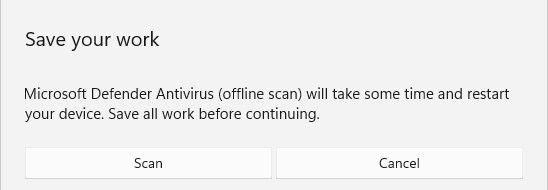
| Microsoft Defender Antivirus (offline scan) | Scans from the Windows Recovery Environment after a restart, without loading Windows | About 15 minutes, then the PC restarts | Suspected rootkits or persistent malware |
A full scan does not pick up signatures released while it runs, so Microsoft says another full Defender scan is needed to use them. The Defender offline scan needs Windows RE turned on, is not available on Arm PCs, and may ask for the BitLocker recovery key unless you suspend BitLocker first. You can also start it with Start-MpWDOScan in an elevated PowerShell window.
Windows Defender version check not working
"MpCmdRun is not recognized as an internal or external command"
The folder that contains MpCmdRun is not on the PATH.
- Open Command Prompt with Run as administrator.
- Run
cd "%ProgramFiles%\Windows Defender"first. - Run
MpCmdRun.exe -SignatureUpdateagain from that folder.
Virus & threat protection settings are grayed out
Your organization manages Defender through Group Policy, so local settings are locked.
- Read the version under Protection updates, which still shows on managed PCs.
- Use
Get-MpComputerStatusin PowerShell if the page will not open. - Ask your IT admin to push an update if the version is out of date.
Windows Security shows another antivirus instead of Defender
Defender turns itself off when another antivirus product is installed.
- Check the other product's own update page for its signature version.
- If you uninstall the other product, restart the PC and open Virus & threat protection again.
- Select Check for updates so Defender downloads current security intelligence.
Windows Defender signature version FAQ
How can I tell what version of Defender I have?
Run Get-MpComputerStatus in PowerShell. AMProductVersion is the Defender platform version, AMEngineVersion is the engine and AntivirusSignatureVersion is the signature version. In Windows Security, Protection updates shows the signature version and its date.
Is Windows Defender signature based?
Partly. Microsoft Defender Antivirus uses security intelligence updates, which are its signatures, but it also uses always-on cloud-delivered protection and dynamic updates downloaded between regular releases. The signatures still matter because every scan uses the version installed when it starts.
Where is Windows Defender on my computer?
In Windows 11 and Windows 10, Microsoft Defender Antivirus lives inside the Windows Security app. Select Start, type Windows Security and open it, then select Virus & threat protection to see scans, updates and protection settings.
How do I open Microsoft Defender Antivirus?
Search the Start menu for Windows Security and open it, then select the Virus & threat protection tile or the shield icon in the left menu. That page holds the scan buttons, protection updates and real-time protection settings.
How to check Windows Defender is running?
Open Windows Security, select Virus & threat protection, then Manage settings, and check that Real-time protection is On. In PowerShell, Get-MpComputerStatus shows AntivirusEnabled and RealTimeProtectionEnabled as True when it is running. The Microsoft Defender Antivirus Service must also be running.
How to run Microsoft Defender Antivirus?
Open Windows Security, select Virus & threat protection and select Quick scan. For a deeper check, select Scan options and choose Full scan, Custom scan or the offline scan, then select Scan now. Results appear in Defender's protection history.
What is the difference between signature version and engine version?
The signature (security intelligence) version is the threat definitions, which are released as security intelligence updates under KB2267602. The engine version is the scanning engine that reads them, and it is updated monthly as part of the security intelligence updates. The platform version is the Defender program itself.
Where to get Windows Defender updates?
Windows Update installs them automatically. You can also select Check for updates under Protection updates in Windows Security, run MpCmdRun.exe -SignatureUpdate as administrator, or get the manual update package from Microsoft's security intelligence updates page.