To back up an iPhone to a Mac, connect it with a cable, select it in the Finder sidebar and click Back Up Now; on macOS Mojave or earlier, use iTunes instead.
This guide covers the Finder and iTunes routes, Wi-Fi backups, encrypted backups, where the backup files live, how to restore one, and what to do when the Mac will not back up the iPhone.
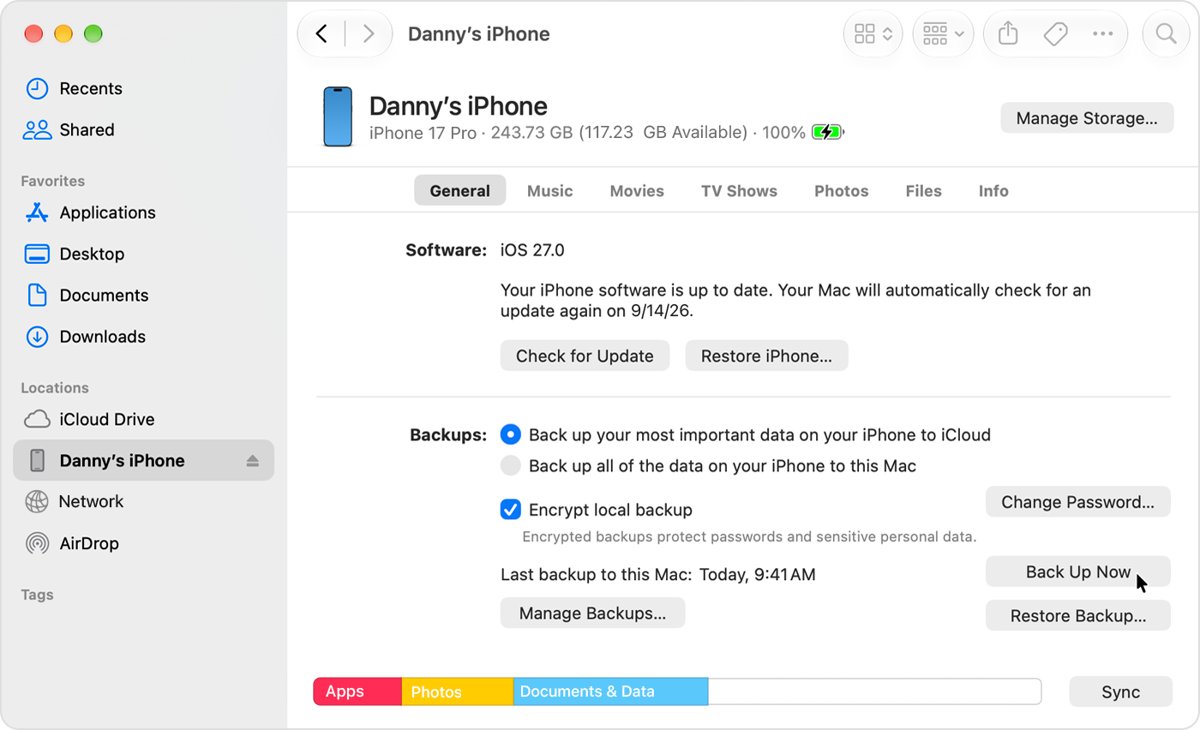
Step by step tutorial on how to backup iPhone to Mac
These steps use the Finder, which handles iPhone backups on macOS Catalina 10.15 and every later version; the Apple Devices app is for Windows PCs only. They work the same on a MacBook Air, MacBook Pro, iMac or Mac mini.
- Connect the iPhone to the Mac with a USB or USB-C cable that supports data, not just charging.
- If the Mac shows Allow accessory to connect?, click Allow.
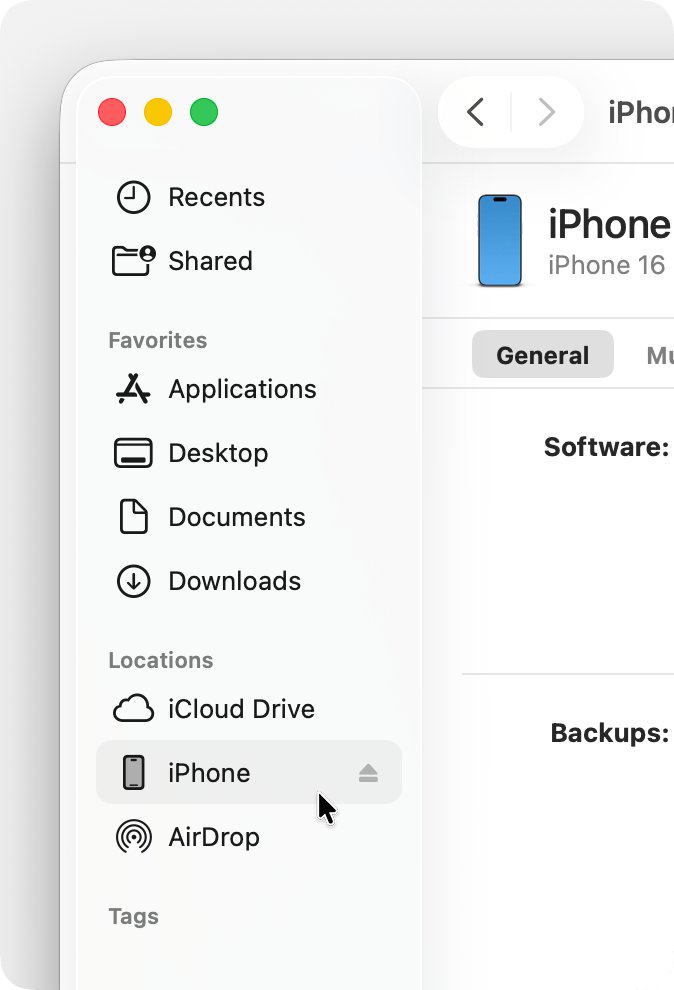
- Open the Finder and select your iPhone in the Finder sidebar.
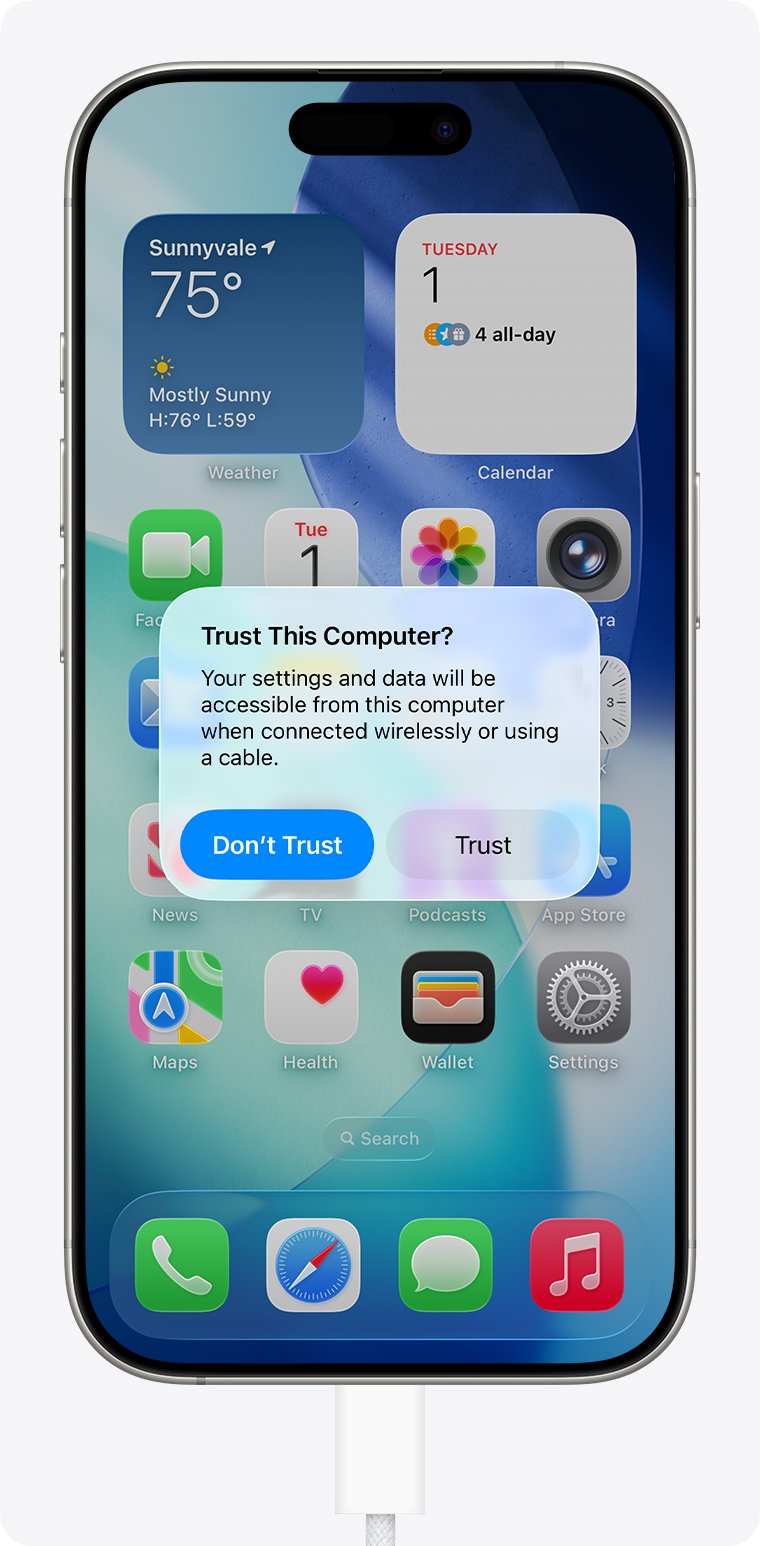
- If asked, click Trust on the Mac, then tap Trust on the iPhone and enter the iPhone passcode.
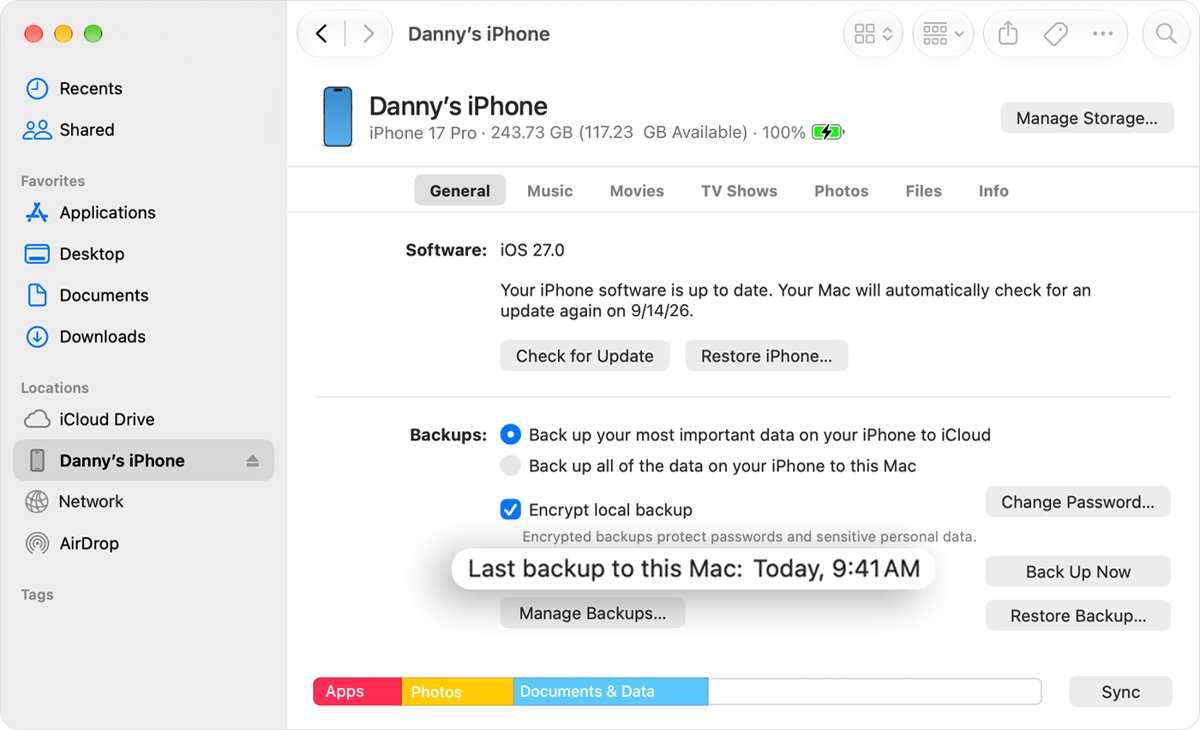
- Click General in the row near the top of the window.
- Under backups, select Back up all of the data on your iPhone to this Mac.
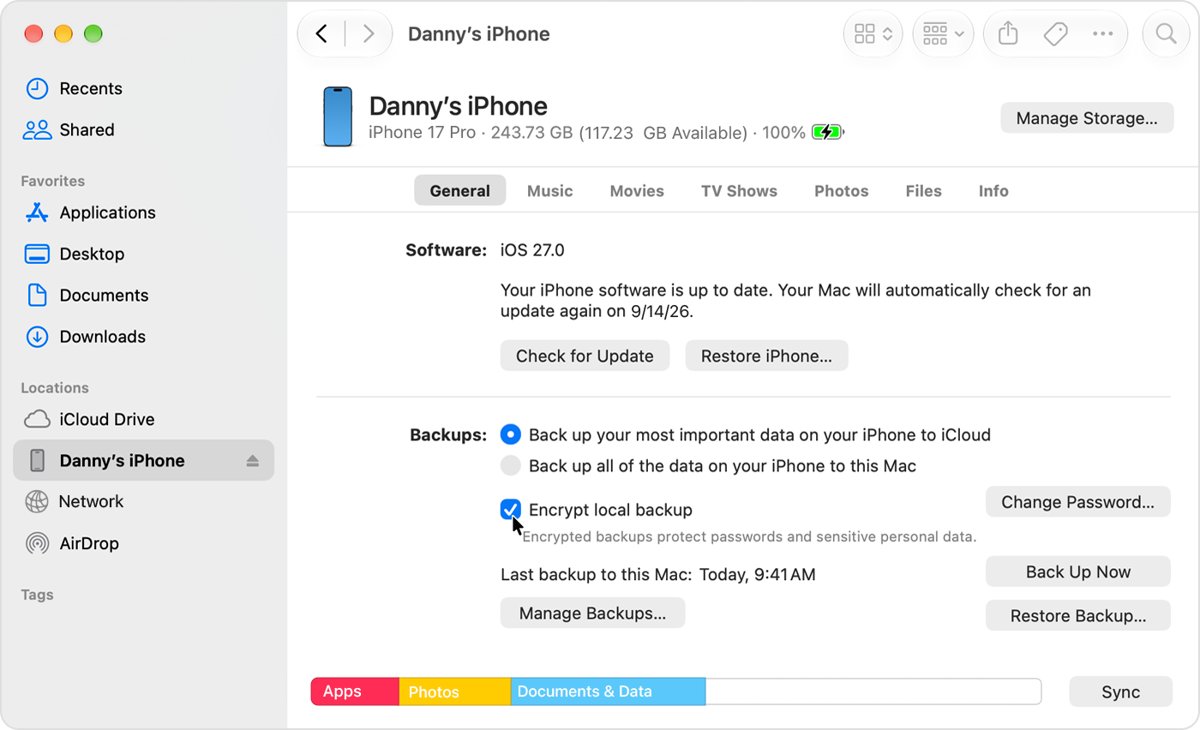
- To include Health and Activity data, select Encrypt local backup, create a password, enter it again and click Set Password.
- Click Back Up Now and keep the cable connected until the backup finishes.
When the backup is complete, the Finder shows the date and time of the latest backup on the General tab. Click the Eject button next to the iPhone in the sidebar before you unplug it.
iPhone backup to Mac vs iCloud backup
Apple supports two backup destinations, and the Finder can point to either one from the same General tab. Many people keep both: iCloud backups for daily copies and the Mac for a full local copy before a big change.
| Your situation | Back up to | Why |
|---|---|---|
| Your iCloud storage is full or small | This Mac | Space depends only on the Mac's free disk space |
| You want backups without plugging in | iCloud, or Mac over Wi-Fi | iCloud backs up anywhere on Wi-Fi; Mac Wi-Fi backups need the same network |
| You need saved passwords, Health and call history kept | Encrypted Mac backup or iCloud | Unencrypted Mac backups leave that data out; iCloud always encrypts |
| You are about to update, repair or replace the iPhone | This Mac, then restore | A local backup restores over the cable without waiting on a download |
| The Mac runs macOS Mojave or earlier | This Mac with iTunes | The Finder handles iPhone backups only on Catalina and later |
How to backup iPhone to Mac with iTunes on macOS Mojave or earlier
Macs on macOS Mojave 10.14 or earlier have no iPhone backup option in the Finder. iTunes backs up the iPhone automatically when you connect it, and you can also start a backup by hand.
- Connect the iPhone to the Mac with a cable.
- If asked, click Allow to let the accessory connect.
- Open iTunes.
- Select your iPhone near the upper-right corner of the iTunes window.
- If asked, click Trust on the Mac, tap Trust on the iPhone and enter the passcode.
- On the Summary page, select Encrypt local backup if you want Health and Activity data included, then set the password.
- Click Back Up Now and wait for the backup to finish.
To find out which macOS version you have, open the Apple menu in the upper-left corner of the screen and choose About This Mac. If it lists Catalina 10.15 or later, use the Finder steps above instead.
How to backup iPhone to Mac wirelessly over Wi-Fi
Wi-Fi syncing lets the Finder reach the iPhone without a cable once it is set up. The first connection still has to be over a USB or USB-C cable.
- Connect the iPhone to the Mac with a cable.
- Open the Finder and select the iPhone in the sidebar.
- Click General in the row near the top of the window.
- Select Show this iPhone when on Wi-Fi.
- Click Apply, then click the Eject button and unplug the cable.
- Later, with the Mac and iPhone on the same Wi-Fi network, select the iPhone in the Finder sidebar and click Back Up Now.
Wi-Fi backups are slower than cable backups. If you plug in the cable during a Wi-Fi session, the transfer continues over the cable.
How to encrypt iPhone backup on Mac
Mac backups are not encrypted by default. Encryption adds saved passwords, Wi-Fi settings, website history, call history, and Health and Activity data to the backup. Face ID, Touch ID and the device passcode are never included.
- Connect the iPhone and select it in the Finder sidebar.
- Click the General tab.
- Under backups, select Encrypt local backup.
- Create a password when asked and store it in a password manager.
- Confirm the password; the Finder starts a backup and encrypts the earlier backups for this iPhone.
Write the password down somewhere safe. An encrypted backup cannot be restored without it, and Apple cannot recover it for you.
To stop encrypting, clear the Encrypt local backup checkbox and enter the current password.
How to tell if iPhone backup to Mac was successful
- Select the iPhone in the Finder sidebar and click General.
- Look for the date and time of the latest backup to this Mac under the backup options.
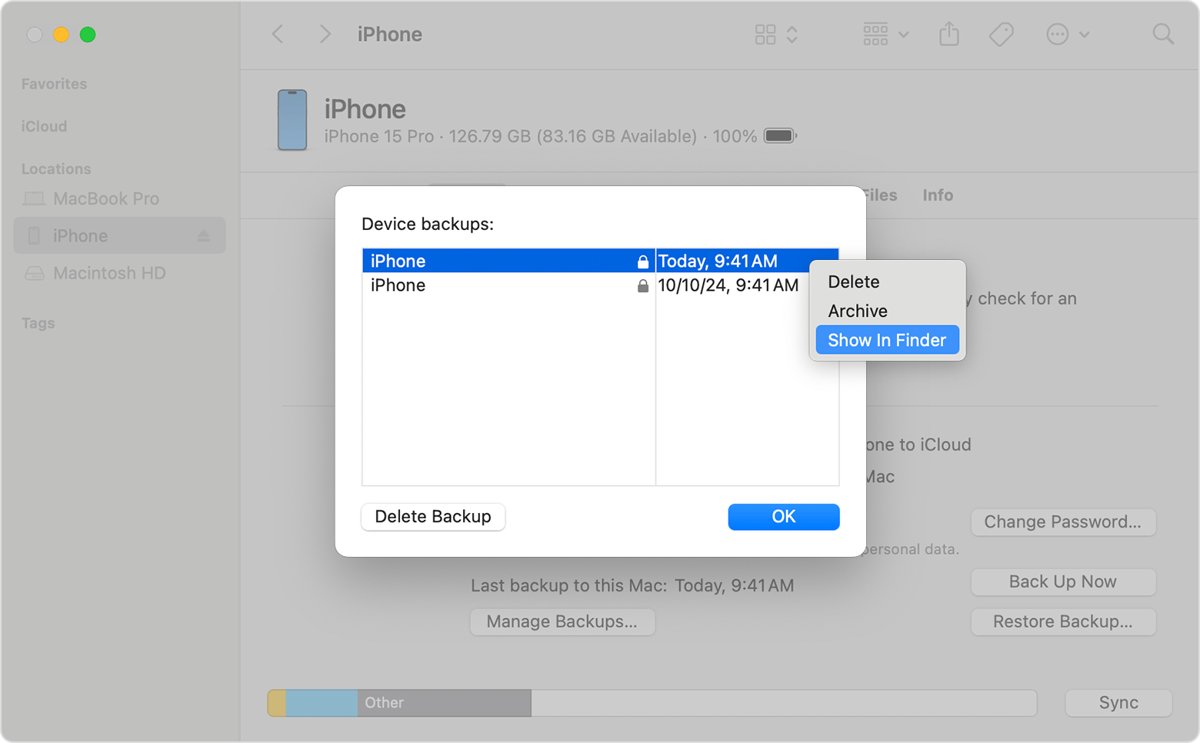
- Click Manage Backups to see every backup this Mac holds for your devices.
- Check for a lock icon next to the device name; it means that backup is encrypted.
- Click OK to close the list.
If the latest date is older than the backup you just ran, the backup did not finish. Run it again with the cable connected and the iPhone unlocked.
Where are iPhone backups stored on Mac
The Finder and iTunes save iPhone backups in the same folder inside your Mac user Library.
- Click the desktop or open a Finder window.
- From the Go menu in the menu bar, choose Go to Folder.
- Type
~/Library/Application Support/MobileSync/Backup/in the text field. - Press Return to open the folder.
Each subfolder is one device backup. Do not rename, move or edit those folders by hand; manage them from Manage Backups in the Finder instead.
What does an iPhone backup on Mac include
A computer backup copies almost all of the iPhone's data and settings. These items stay out of it, mostly because they already live in iCloud or come back from Apple's stores.
| Not in the Mac backup | Where it comes back from |
|---|---|
| iTunes Store, App Store and Apple Books content | Downloaded again from Apple after a restore |
| Music, videos, books and photos synced from the Mac | Synced again from the Mac |
| iCloud Photos, iMessages, SMS and MMS stored in iCloud | iCloud, once you sign in |
| Face ID or Touch ID settings | Set up again on the iPhone |
| Apple Pay information and settings | Add cards again in Wallet |
| Apple Mail data | Your mail accounts |
| Activity, Health and Keychain data | Included only in an encrypted backup |
| Offline maps | Downloaded again in Maps |
Photos you copied onto the iPhone from the Mac are a sync, not part of the backup, so move pictures from the Mac to the iPhone again after a restore. Files kept in iCloud Drive also stay in iCloud rather than in the local copy; if they look out of date on the Mac, refresh iCloud Drive.
How to restore iPhone from Mac backup
Restoring replaces what is on the iPhone with the contents of the backup you pick. Use the newest backup unless you need data from an earlier date.
- Open the Finder on a Mac with macOS Catalina 10.15 or later.
- Connect the iPhone with a USB cable and select it in the sidebar.
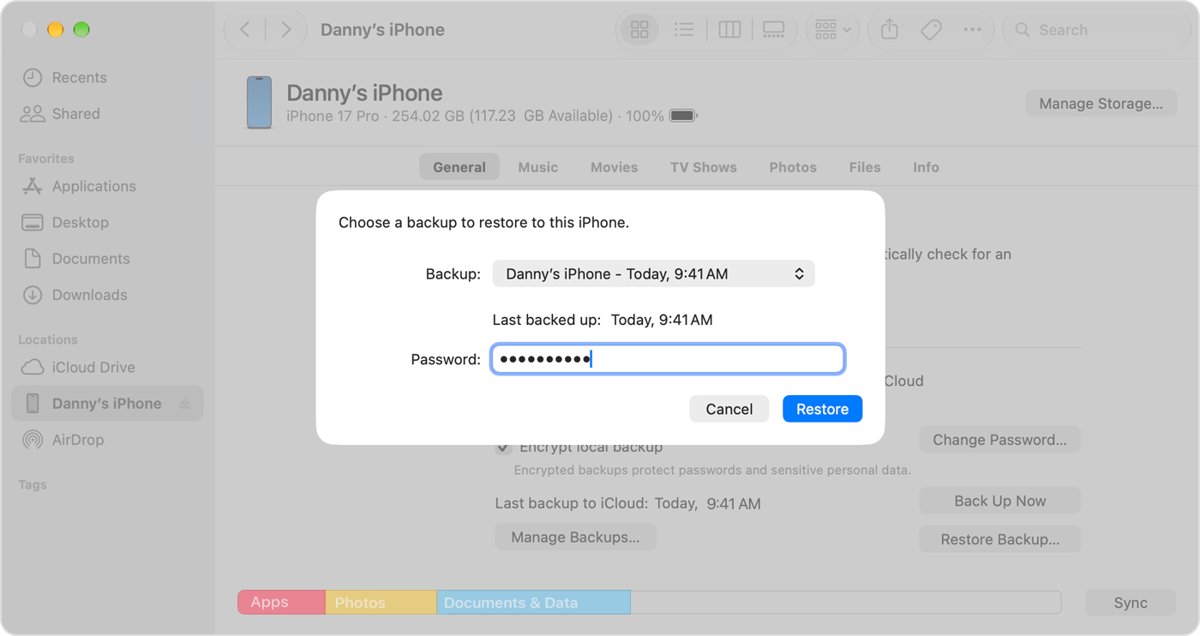
- On the General tab, click Restore Backup.
- Open the Backup menu, check the date and size of each backup, and choose one.
- If the backup is encrypted, enter its password.
- Click Restore.
- Keep the iPhone connected while it restarts and syncs, then disconnect it.
If the iPhone shows a message that it needs a newer iOS version, follow the onscreen steps to update, then restore again.
How to delete old iPhone backups on Mac
Old backups take up disk space, and a deleted backup cannot be recovered. Archive a backup if you want to keep it, so later backups do not replace it.
- Open the Finder and connect the iPhone with a USB cable.
- Select the iPhone in the sidebar; tap Trust and enter the passcode if prompted.
- Click the General tab, then click Manage Backups.
- Right-click the backup you want.
- Choose Delete, Archive or Show in Finder.
- Click OK when you finish.
Tips for how to backup iPhone to Mac
| Tip | Why it matters |
|---|---|
| Use a cable that carries data | Charge-only cables power the iPhone but the Finder never sees it |
| Check free space on the Mac first | A local backup is limited by the Mac's available storage |
| Turn on Encrypt local backup | Without it, saved passwords, Health, Activity and call history are left out |
| Keep the encryption password safe | An encrypted backup cannot be restored without it |
| Archive a backup before a big change | Archived backups are not replaced by the next backup |
| Keep macOS and iOS up to date | Apple lists outdated software as a cause of the Mac not recognising the iPhone |
| Eject the iPhone before unplugging | Unplugging mid-transfer stops the backup |
iPhone backup to Mac not working
iPhone not showing up in Finder on Mac
The Finder sidebar is hidden, the device type is turned off in Finder settings, or the cable or port is not passing data.
- In the Finder menu bar, choose View and then Show Sidebar.
- Choose Finder > Settings and select CDs, DVDs, and iOS Devices.
- Unplug the cable and check the iPhone charging port for debris.
- Try a different cable that supports both data and charging.
- Try another USB port or another Mac.
- Check for a VPN or other third-party security software that may block the connection.
Trust This Computer alert does not appear on iPhone
The alert was dismissed with Don't Trust earlier, so the iPhone no longer asks.
- On the iPhone, open Settings > General > Transfer or Reset iPhone > Reset.
- Tap Reset Location & Privacy and enter the passcode.
- Restart the Mac and the iPhone.
- Reconnect the iPhone to the Mac and tap Trust when the alert appears.
Forgot encrypted iPhone backup password
Encrypted backups cannot be opened without their password, and the old backup stays locked.
- On the iPhone, open Settings > General > Transfer or Reset iPhone > Reset.
- Tap Reset All Settings, enter the passcode and confirm.
- Reconnect the iPhone to the Finder and create a new encrypted backup with a new password.
iPhone backup to Mac fails or does not finish
Low disk space on the Mac, out-of-date software or a dropped connection interrupts the backup.
- Free up disk space on the Mac, or delete old backups from Manage Backups.
- Update the Mac to the latest version of macOS.
- Update the iPhone to the latest version of iOS.
- Connect with a cable rather than Wi-Fi and keep the iPhone unlocked.
- Click Back Up Now again and wait for the new date to appear.
Resetting all settings keeps your data and passwords but resets things like brightness, Home Screen layout and wallpaper. On iOS 10 or earlier the backup password cannot be reset; use an iCloud backup or an older unencrypted backup instead.
Back up iPhone to Mac FAQ
How do I back up my iPhone to a MacBook Air or MacBook Pro?
Connect the iPhone to the MacBook with a data cable, open the Finder, select the iPhone in the sidebar and click Back Up Now on the General tab. A MacBook Air and MacBook Pro use the same Finder steps as any Mac on macOS Catalina or later.
How do I back up my iPhone to an iMac or Mac mini?
Use the same Finder steps as on a MacBook: connect the cable, select the iPhone in the Finder sidebar, choose Back up all of the data on your iPhone to this Mac and click Back Up Now. Older iMacs on macOS Mojave or earlier use iTunes.
Can I back up my iPhone without iCloud?
Yes. A Mac backup stores everything on the Mac's own drive and uses no iCloud storage. Select Back up all of the data on your iPhone to this Mac in the Finder, then click Back Up Now. The Mac's free space sets the size limit.
What should I do if the backup fails?
Free up disk space on the Mac, update macOS and iOS, connect with a data cable instead of Wi-Fi, keep the iPhone unlocked and click Back Up Now again. If the iPhone does not appear in the Finder, turn on CDs, DVDs, and iOS Devices in Finder settings.
Can I back up my iPhone to my Mac wirelessly?
Yes. Connect once with a cable, select Show this iPhone when on Wi-Fi on the General tab and click Apply. After that, the iPhone appears in the Finder whenever both devices share a Wi-Fi network, and you can click Back Up Now without a cable.
How do I know if my iPhone backup was successful?
Open the iPhone in the Finder and check the General tab for the date and time of the latest backup to this Mac. Click Manage Backups to see the full list; a lock icon next to a backup means it is encrypted.
Can I access the files in my iPhone backup on my Mac?
You can find the backup folder at ~/Library/Application Support/MobileSync/Backup/ or through Show in Finder in Manage Backups. Apple's tools do not open individual items inside a backup; the supported way to get the data back is Restore Backup.
How often should I back up my iPhone to my Mac?
Apple sets no fixed schedule. Back up before an iOS update, before a repair and before you replace the iPhone, because those are the moments a restore is most likely. Wi-Fi syncing makes regular backups easier because no cable is needed.