You can read Kindle books on a PC with Amazon's free Kindle app for Windows 11, or without installing anything by opening Kindle for Web at read.amazon.com in your browser.
This guide covers both routes, how to add your own EPUB and PDF files, where to find free Kindle ebooks, and what to do when the Kindle app is not working on Windows.
How to read Kindle books on PC without an app
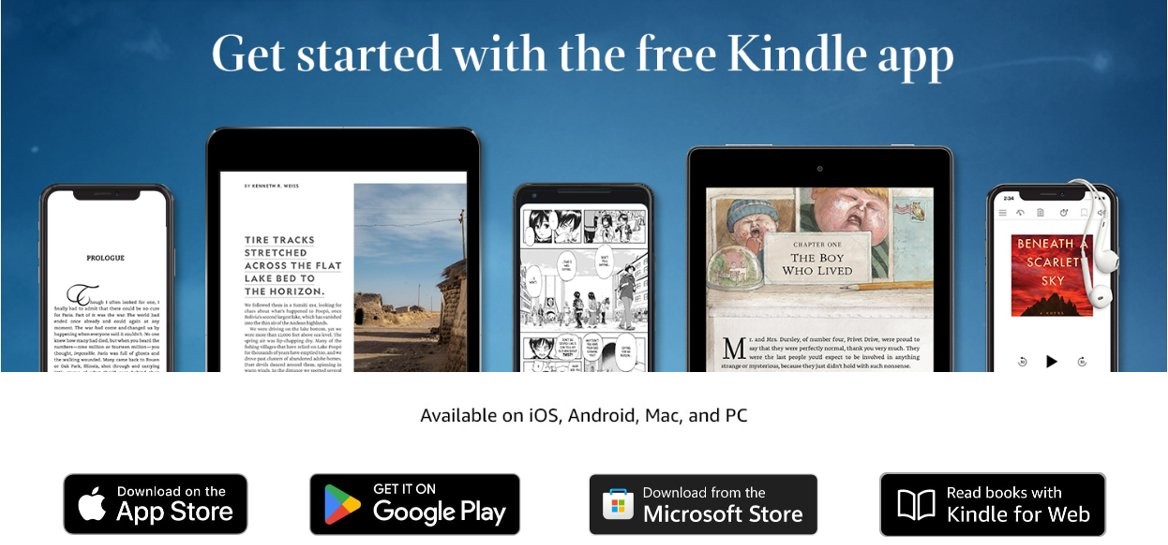
Kindle for Web is the browser reader that Amazon used to call Kindle Cloud Reader. It needs only a browser and your Amazon sign-in.
- Open your browser and go to read.amazon.com.
- Select Sign in with your account and sign in with the Amazon account you buy Kindle books with.
- Your Kindle library opens. Select a book cover to open it.
- Use the reader menu to adjust text size, font, layout, margins and background color.
- Make notes and highlight lines, then find them again from the book's annotations.
The same books appear in the Kindle app if you install it later, because both read from your Amazon library.
Best ways to read Kindle books on PC
| Your situation | Use this | Why |
|---|---|---|
| Windows 11 PC and you read often | Kindle app from Microsoft Store | Full library, notes, comics with Guided View, and your own documents |
| Work or school PC where you cannot install apps | Kindle for Web at read.amazon.com | Runs in the browser with nothing to install |
| Windows 10 PC, or the Store will not install the app | Kindle for Web | The current Store app needs Windows 11 |
| You have EPUB, PDF or Word files of your own | Send to Kindle for Windows | Adds them to your Kindle library so they open in the Kindle app |
| You manage a large collection of DRM-free ebooks | Calibre, plus Send to Kindle | Calibre organises the files; Send to Kindle puts them in your library |
Use Amazon's Kindle for PC
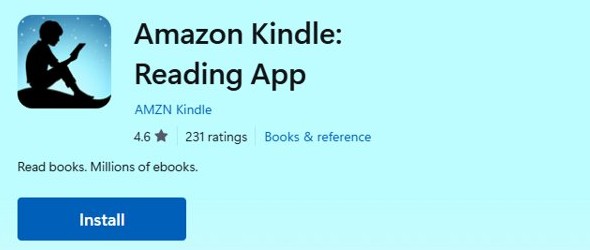
The Windows app is listed in Microsoft Store as Amazon Kindle: Reading App, published by AMZN Kindle. It is free, needs Windows 11 (build 22000 or later), and ships as an x64 package.
- Open Microsoft Store and search for Amazon Kindle.
- Select Amazon Kindle: Reading App and select Get.
- When it finishes installing, select Open.
- Sign in with your Amazon account. Kindle books you bought on Amazon appear in your library.
- Select a book to open it, then use the Aa menu to change typeface, text size, background, margins and columns.
- Select a word to see its definition, and open the notebook view to review your bookmarks, highlights and notes.
The app does not sell books. Buy them on Amazon's website and they show up in the app's library. You can also get the Kindle app for PC through the Microsoft Store listing on the download page. If Microsoft Store is missing from the PC, reinstall the Microsoft Store app first.
Use Kindle Cloud Reader (Kindle for Web)
Amazon states that Kindle Cloud Reader is now known as Kindle for Web, and it runs at read.amazon.com.
- Go to read.amazon.com in Microsoft Edge, Chrome or another current browser.
- Sign in with your Amazon account.
- Open a book from your library.
- Use search inside the book to find a word, phrase or character name and jump to that page.
- Press and hold a word, then release it, to see its dictionary definition.
- Close the tab when you finish, and open the same book later from the Kindle app or another browser.
Send to Kindle for Windows: read EPUB and PDF files in the Kindle app
Send to Kindle adds personal documents to your Kindle library, where they get reading progress, notes, highlights and bookmarks like a purchased book.
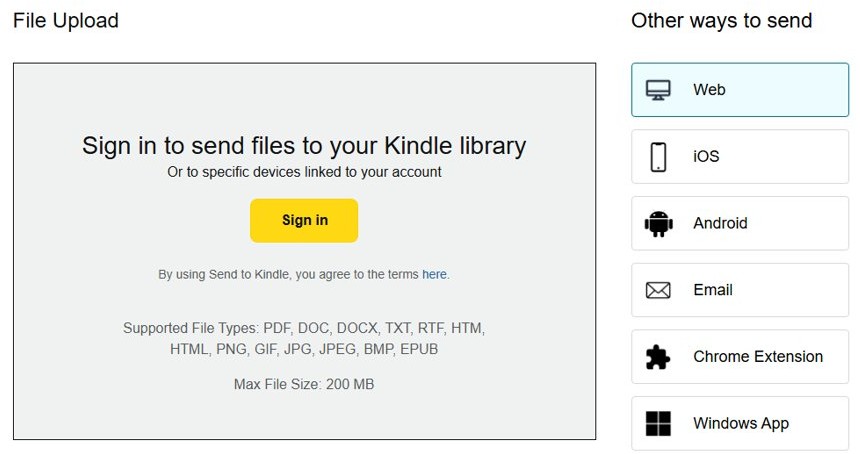
- Open amazon.com/sendtokindle and select Windows App under Other ways to send.
- Install the Send to Kindle for Windows app and sign in with your Amazon account.
- In File Explorer, right-click the file and select Send to > Kindle, or drag it into the Send to Kindle app.
- Wait for the upload to finish, then open the Kindle app or read.amazon.com to find the document in your library.
- In the Kindle app for Windows, you can also drag a document straight into the app window.
Supported types are PDF, DOC, DOCX, TXT, RTF, HTM, HTML, PNG, GIF, JPG, JPEG, BMP and EPUB, up to 200 MB per file. The web uploader at amazon.com/sendtokindle works without installing anything. For a PDF you only need once, you can also open PDF files in Windows 11 without the Kindle app.
How to get free Kindle eBooks
These are the free routes Amazon and public libraries offer. Each one works in the Kindle app and in Kindle for Web, except where the table says otherwise.
| Source | What you get | Cost |
|---|---|---|
| Book samples on Amazon | Samples of books, magazines and comics to read before you buy | Free |
| Prime Reading | A rotating catalog of ebooks, magazines and comics, plus one free pre-release ebook a month | Included with Amazon Prime |
| Kindle+ (formerly Kindle Unlimited) | Millions of ebooks, magazines, comics and audiobooks with no per-title cost | Subscription with a free trial |
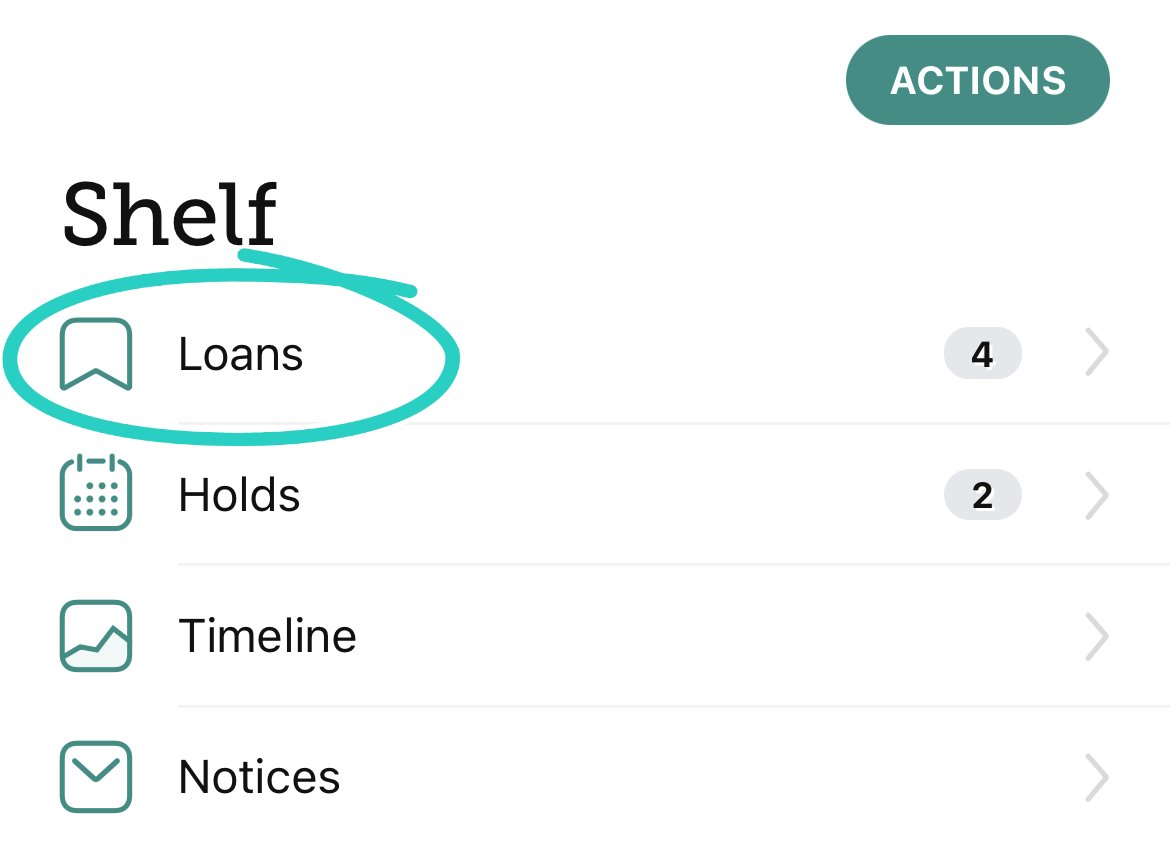
| Your public library through Libby | Library loans you can send to Kindle with Read With… > Kindle on the loan | Free with a library card; U.S. only |
| Your own DRM-free files | EPUB or PDF books you already own, added through Send to Kindle | Free |
Libby says its Kindle delivery is designed for Kindle ereaders in the U.S. On a PC, you can also read the loan in the Libby web app.
Calibre eBook management software for PC and Kindle
Calibre is a free desktop ebook manager that many readers use to organise, convert and read DRM-free ebook files on Windows. It is the third-party reader app route for files you own.
Books bought from the Kindle Store are copy-protected and open in Amazon's Kindle apps, Kindle for Web and Kindle devices. Removing that protection is not covered here.
| Task | Best tool | Note |
|---|---|---|
| Read a Kindle Store purchase on PC | Kindle app or Kindle for Web | Purchases sync from your Amazon account |
| Organise a folder of DRM-free EPUB and PDF files | Calibre | Keeps metadata and covers in one library |
| Read a DRM-free EPUB inside Kindle apps | Send to Kindle | EPUB is a supported Send to Kindle file type |
| Read a library loan | Libby, or Libby's Kindle delivery in the U.S. | Loans return themselves when they expire |
How to read Kindle books on laptop, Surface, Mac, iPad and iPhone
| Device | How to read Kindle books |
|---|---|
| Windows 11 laptop or Surface | Kindle app from Microsoft Store, or read.amazon.com |
| Windows 11 on Arm, such as a Surface with an Arm chip | The x64 Kindle app runs through Windows 11's built-in x64 emulation; Kindle for Web works too |
| Windows 10 PC | Kindle for Web at read.amazon.com |
| MacBook | Kindle app from the Mac App Store (macOS 11 or later), or Kindle for Web |
| iPad and iPhone | Amazon Kindle app from the App Store |
| Kobo or reMarkable | Kindle Store purchases are not listed for these devices; use them for DRM-free files instead |
Apple's ebook store has no Windows app, so reading Apple Books on Windows takes a different route from Kindle.
Amazon Kindle is not working on Windows PC
The Kindle app will not install from Microsoft Store
The current app needs Windows 11 build 22000 or later, or Microsoft Store itself is stuck.
- Restart the PC if Windows updates were installed recently.
- Press Windows key + R, type
wsreset.exe, and select OK to reset Microsoft Store. - Search for Amazon Kindle again and select Get.
- On Windows 10, use Kindle for Web at read.amazon.com instead.
The Kindle app opens but crashes or shows a blank window
The app's files or settings are damaged.
- Select Start > Settings > Apps > Installed apps.
- Select More next to Amazon Kindle, then Advanced options.
- Select Repair. If that does not help, select Reset and sign in again.
- Check Microsoft Store for an app update, since Store apps update automatically unless updates are paused.
Why can't I read my Kindle books on PC
You are signed in with a different Amazon account, or the book has not synced yet.
- Sign in to read.amazon.com with the account you bought the book with and check that the book is listed.
- In the Kindle app, sign out and sign back in with that same account.
- Make sure the PC is online so the library can sync.
- For your own files, confirm they went through Send to Kindle and are a supported file type.
An EPUB or PDF file does not appear in the Kindle library
The file is over 200 MB, is not a supported type, or was sent from another Amazon account.
- Check the file type against the Send to Kindle list: PDF, DOC, DOCX, TXT, RTF, HTM, HTML, PNG, GIF, JPG, JPEG, BMP or EPUB.
- Check that the file is 200 MB or smaller.
- Sign in to Send to Kindle with the same Amazon account as the Kindle app, then send the file again.
Read Kindle books on PC FAQ
How do I read Kindle books on my PC?
Install the free Amazon Kindle: Reading App from Microsoft Store on Windows 11 and sign in with your Amazon account, or open read.amazon.com in a browser. Both show every Kindle book you bought on Amazon and keep your place in sync.
Can I read Kindle books on my laptop without the app?
Yes. Go to read.amazon.com, sign in with your Amazon account, and open a book from your library. Kindle for Web runs in the browser, so it works on laptops where you cannot install apps, including Windows 10 PCs.
How do I read Kindle books on Windows 11?
Open Microsoft Store, search for Amazon Kindle, select Get, then Open, and sign in. The Store app needs Windows 11 build 22000 or later and is free. Kindle for Web at read.amazon.com is the no-install alternative.
How do I read Kindle books online?
Use Kindle for Web, the reader formerly called Kindle Cloud Reader, at read.amazon.com. Sign in with your Amazon account and your library loads in the browser, with text size, font, notes, highlights, in-book search and dictionary lookup.
How do I read Kindle books on a Microsoft Surface?
Use the Kindle app from Microsoft Store on a Surface running Windows 11, or read.amazon.com in Edge. On Arm-based Surface models, Windows 11 runs the x64 Kindle app through its built-in emulation.
How do I read Kindle books on a MacBook?
Download the Kindle app from the Mac App Store, which needs macOS 11 or later, and sign in with your Amazon account. Purchased books appear right away. You can also read in a browser at read.amazon.com.
Can I read Kindle books on Kobo?
Kindle Store purchases are copy-protected and open in Amazon's Kindle apps, Kindle for Web and Kindle devices, and Amazon does not list Kobo among them. A Kobo reader suits DRM-free EPUB files and books from its own store.
Do Kindle books read to you?
Kindle+ (formerly Kindle Unlimited) lets you switch between reading and listening for titles that include audiobooks, and Prime Reading includes audiobooks too. For standard ebooks, the Kindle reading app focuses on text, notes and highlights.
Is Kindle Cloud Reader still available?
Yes, under a new name. Amazon says Kindle Cloud Reader is now known as Kindle for Web, and it lives at read.amazon.com. Sign in with your Amazon account to read your library in any current browser.
Can I read EPUB files in Kindle for PC?
Yes, after you add them through Send to Kindle. EPUB is a supported file type, up to 200 MB per file. Right-click the file in File Explorer and select Send to > Kindle, or drag it into the Kindle app.