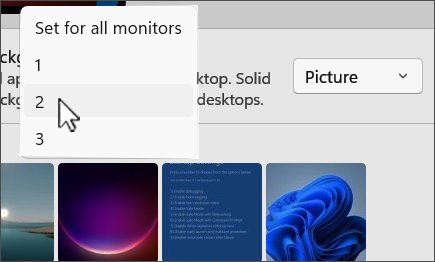
To set a different background for each monitor in Windows 11, open Settings > Personalization > Background, choose Picture, then right-click an image under recent images and pick the monitor it should go on.
This guide covers the per-monitor steps, how to tell which display is monitor 1 or 2, spanning one image across screens, slideshows, the virtual desktop conflict and the fixes when the option does not appear.
Step-by-step tutorial: Windows 11 how to set different background for each monitor
Connect every display and set it to extend the desktop before you start. The per-monitor choice only appears with Picture selected.
- Right-click an empty area of the desktop and select Personalize, or open Settings > Personalization.
- Select Background.
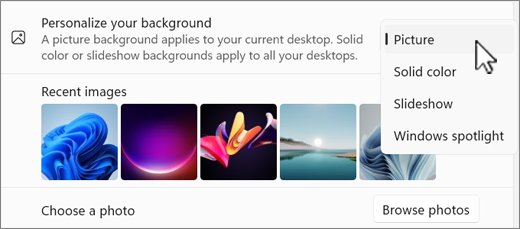
- Set Personalize your background to Picture.
- Select Browse and add each image you want to use, so they all appear under recent images.
- Right-click the image you want on the first display and choose the option for monitor 1.
- Right-click a second image and choose the option for monitor 2.
- Repeat for any other connected display.
To put one image on every screen again, right-click it and choose the option for all monitors.
Windows 11 dual monitor wallpaper options
Windows 11 offers four ways to fill more than one screen. Each one comes from the same Background page.
| What you want | Use this | Why |
|---|---|---|
| A different picture on each screen | Picture, then right-click an image and pick a monitor | Windows lets you assign one picture per display |
| One wide image across all screens | Picture with the Span fit | Span stretches a single image over multiple monitors |
| Rotating pictures on every screen | Slideshow with a folder of images | Each screen shows a different picture from the folder |
| A different picture per virtual desktop | Right-click an image and pick a desktop | Per-desktop pictures replace per-monitor pictures |
| The same picture everywhere | Right-click the image and choose the all-monitors option | One click resets every display |
How do I know what monitor number each screen is in Windows 11
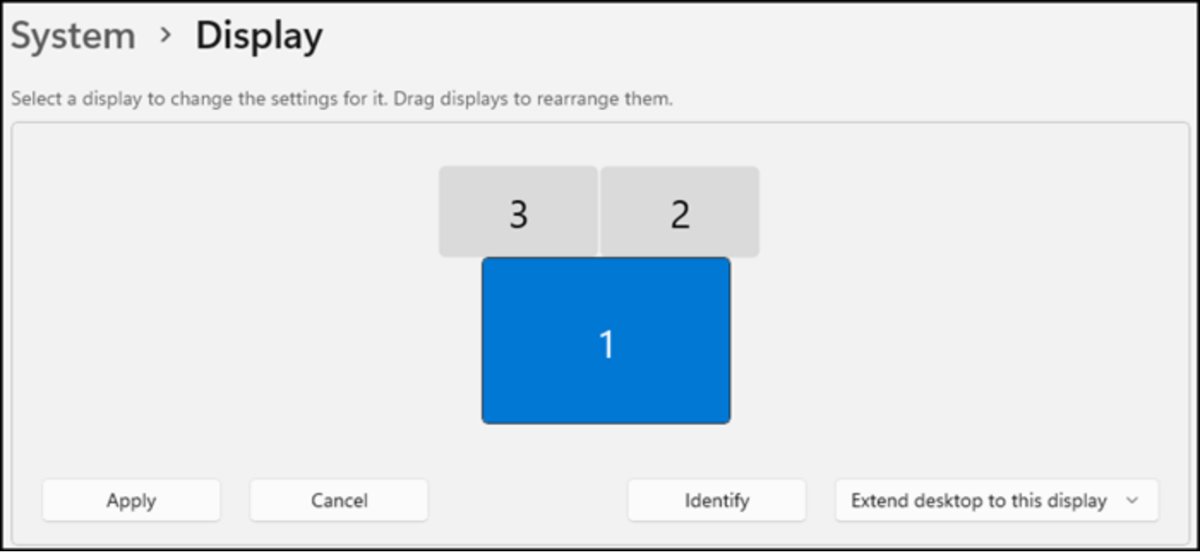
The monitor numbers in the right-click menu match the numbers Windows shows in Display settings. Check them first so the right picture lands on the right screen.
- Select Start and open Settings.
- Select System > Display.
- Select Identify.
- Read the large number that appears on each screen for a few seconds.
- Drag the numbered boxes to match your desk layout if needed, then select Apply.
If a connected screen has no number, open Multiple displays on the same page and select Detect.
How to span one wallpaper across two monitors in Windows 11
Span treats every connected screen as one wide canvas. A panoramic image sized for the combined width looks best.
- Open Settings > Personalization > Background.
- Set Personalize your background to Picture.
- Select the wide image, or select Browse to add it.
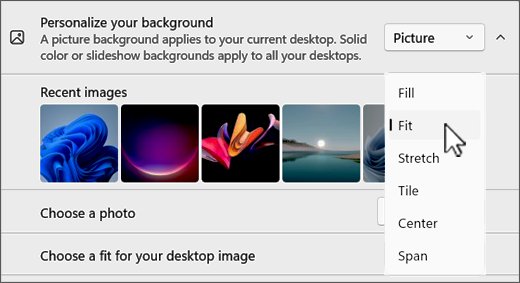
- Open the fit drop-down next to the picture list and select Span.
- Look across your screens to check the image continues from one to the next.
Fill crops the image to cover each screen, Fit keeps the aspect ratio and may leave bars, and Stretch can distort an image whose shape differs from the display.
Can I use a slideshow as a background on multiple monitors
Yes. With Slideshow selected, Windows shows a different picture from the same folder on each screen.
- Put the pictures you want in one folder.
- Open Settings > Personalization > Background.
- Set Personalize your background to Slideshow.
- Select Browse and choose the folder.
- Set how often the picture changes and whether to shuffle the order.
- Right-click the desktop and select Next desktop background to move on to the next picture.
A slideshow does not let you choose which picture goes on which monitor. Use Picture for a fixed image per screen.
Windows 11 wallpaper per monitor with multiple desktops
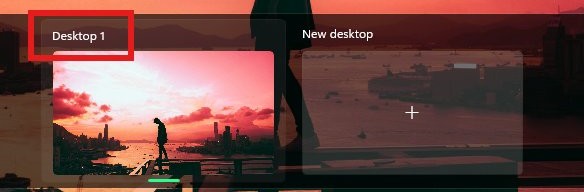
Per-monitor pictures and per-desktop pictures cannot be used together. Once you add a second virtual desktop, the right-click menu offers desktops instead of monitors.
| Setup | Per-monitor picture | Per-desktop picture | Slideshow |
|---|---|---|---|
| One desktop, two or more monitors | Supported | Not applicable | Supported, different picture per screen |
| Two or more virtual desktops | Not supported | Supported through Set for all desktops or a named desktop | Not supported |
To get per-monitor pictures back, close the extra desktops from Task view until only one remains, then repeat the right-click steps.
Why can't I set different wallpapers on my monitors
The right-click menu has no monitor choices
The background is not set to Picture, or more than one virtual desktop is open.
- Set Personalize your background to Picture.
- Close the extra virtual desktops so only one remains.
- Right-click an image under recent images again.
Both screens show the same thing
The displays are set to Duplicate, which shows the same content on all screens.
- Press Windows key + P.
- Select Extend.
- Set a picture for each monitor again.
The second monitor is missing from the list
Windows has not detected the display.
- Check the cable at both ends, or at the dock.
- Open Settings > System > Display > Multiple displays and select Detect.
- Open Settings > Windows Update and select Check for updates.
The picture lands on the wrong screen
The monitor numbers do not match the physical order of the screens.
- Open Settings > System > Display and select Identify.
- Note the number on each screen.
- Right-click the image again and pick the matching monitor number.
Tips: Windows 11 how to set different background for each monitor
Monitors with different sizes often need their own resolution and display scaling per monitor, and the wallpaper choice should follow those settings.
| Tip | Why it helps |
|---|---|
| Add every image with Browse first | Only images under recent images offer the monitor menu |
| Match each image to its screen's resolution | Fill crops less when the shapes already match |
| Run Identify before assigning pictures | Monitor 1 is not always the screen on the left |
| Use Extend, not Duplicate | Duplicate shows identical content on every screen |
| Pick Span for panoramas | One wide image flows across the screens without repeating |
| Keep a single virtual desktop | Extra desktops switch off per-monitor pictures |
Windows 11 multi-monitor wallpaper FAQ
How do I change the background for just one monitor in Windows 11?
Open Settings, Personalization, Background and set it to Picture. Right-click the image you want under recent images and choose the monitor number for that screen. The other displays keep their current pictures.
Why can't I set different wallpapers on my monitors?
The per-monitor option needs Picture as the background type and only one virtual desktop. It also needs the screens set to Extend, because Duplicate mirrors the same content to every display. Press Windows key + P to change the mode.
Can I use a slideshow as a background on multiple monitors?
Yes. Choose Slideshow, pick a folder, and each screen shows a different picture from it. You cannot assign a specific picture to a specific monitor in a slideshow, and slideshows do not work when you use multiple virtual desktops.
How do I know what monitor number each screen is?
Open Settings, System, Display and select Identify. Windows shows a large number on each screen for a few seconds. Those numbers match the monitor choices in the background right-click menu.
Will this method work if I have more than two monitors?
Yes. The right-click menu lists every connected display that Windows has detected, so you can give three or more monitors their own picture. Add enough images with Browse first, then assign one image to each monitor number.
How do I stretch one wallpaper across two monitors in Windows 11?
Select Picture, choose the image, and set the desktop image fit to Span. Windows then spreads that single image across all connected monitors. A wide panoramic image gives the cleanest result.
Can each virtual desktop have its own wallpaper in Windows 11?
Yes. With two or more desktops open, right-click an image under recent images and choose Set for all desktops or a specific desktop. Per-monitor pictures are not available while more than one desktop is open.