To find a docking station in Windows 11 Device Manager, select View > Devices by connection, turn on Show hidden devices, and look for its router, hub, network and audio entries, because a dock often has no entry under its own name.
If nothing changes when you plug it in, the fault sits below Windows, so this guide moves from Device Manager checks to error codes, drivers, Thunderbolt settings, firmware and the hardware itself.
How to find a docking station in Windows 11 Device Manager
- Connect the dock's power adapter, plug the dock into the PC, and sign in to Windows.
- Right-click Start and select Device Manager.
- Select View > Devices by connection.
- Select View > Show hidden devices.
- Select Action > Scan for hardware changes.
- Expand the branches and look for USB4 routers, USB hubs, and network or audio devices that appear only when the dock is connected.
A yellow warning icon means Windows found the part but it is failing, so read its error code. If no entry changes at all, go straight to the hardware and firmware checks below.
Background: how Windows 11 detects a docking station
A dock is a bundle of separate devices behind one cable. Windows detects each part on its own, so the entries you see depend on the type of dock.
| Dock type | How Windows 11 lists it | What it relies on |
|---|---|---|
| Thunderbolt or USB4 | On USB4 PCs, a USB4 Device Router under the USB4 Host Router in the connection view | Windows connection manager drivers on USB4 PCs, and Intel's Thunderbolt driver on PCs with a discrete Thunderbolt 3 controller |
| USB-C with DisplayPort Alternate Mode | Separate hub, network and audio entries, with monitors listed under the graphics adapter | A USB-C port that supports video, plus the laptop's integrated graphics driver |
| DisplayLink | USB devices, with its screens driven by DisplayLink software instead of the usual video path | DisplayLink software from Synaptics or the PC maker |
Check the port first, because a Thunderbolt dock will not work on a data-only USB-C port. Intel says to look for the Thunderbolt icon beside the port or check the PC's I/O specification.
Overview: where a dock can hide in Device Manager
| Device Manager category | What the dock can add | `pnputil` class name |
|---|---|---|
| Universal Serial Bus controllers | The dock's USB hubs | USB |
| Universal Serial Bus devices | USB devices that fit no other category | USBDevice |
| Network adapters | The dock's Ethernet port | Net |
| Sound, video and game controllers | The dock's audio jack | Media |
| Display adapters | The graphics adapter that carries the dock's video | Display |
| Monitors | Screens attached through the dock | Monitor |
| System devices | System buses and bridges, including Thunderbolt-related entries | System |
List one category from an elevated Command Prompt with pnputil /enum-devices /class "Net", swapping in the class name you need.
Quick checklist — first things to try
- Reseat the docking cable at both ends.
- Use the laptop port that supports the dock, because only one port on some laptops provides full dock function.
- Use the cable that came with the dock, because not all USB-C cables support all features.
- Use the dock's own power adapter rather than a substitute.
- Disconnect the dock's power cable, wait 10 seconds, and reconnect it.
- Save your work, disconnect the dock, restart, and reconnect the dock once you reach the desktop.
- Unlock the PC, because some Thunderbolt devices stay blocked until you sign in.
Detailed step-by-step: find and verify your dock in Device Manager
Work through the four numbered steps below, then match what you see to a row in this table.
| What you see | What it means | Next move |
|---|---|---|
| New router, hub or network entries with no warning | Windows detected the dock | Test each port and display |
| A yellow exclamation mark on a dock entry | Windows found the part, but it has a problem | Read the code under Device status |
| Faded entries that show only with hidden devices on | Windows remembers the part, but it is not connected now | Check the cable, port and power |
| Nothing changes when you plug the dock in | Windows is receiving nothing from the dock | Run the hardware and firmware checks |
1. Open Device Manager and scan likely categories
- Search for Device Manager from the Start menu and open it.
- With the dock connected, expand each category in the table above.
- Note any entry that names the dock's maker, USB4 or Thunderbolt.
- Select Action > Scan for hardware changes.
- Look for a yellow triangle with an exclamation mark on any entry that appeared.
2. Show hidden devices and view device details
Hidden view also shows devices that were removed but still have registry entries. Microsoft says these non-present devices should not cause problems, so do not rush to delete them.
- Select View > Show hidden devices.
- Right-click an entry that belongs to the dock and select Properties.
- On the General tab, read Device status for any error code.
- On the Driver tab, note the driver version and date.
- On the Details tab, choose the hardware IDs property to get the identifier a vendor can look up.
- On the Events tab, read the device's install and configuration history.
3. Reconnect and watch Device Manager live
- Select View > Devices by connection and keep the window visible.
- Unplug the dock and watch which branches disappear.
- Plug the dock back in and watch which branch returns.
- If nothing changes, select Action > Scan for hardware changes.
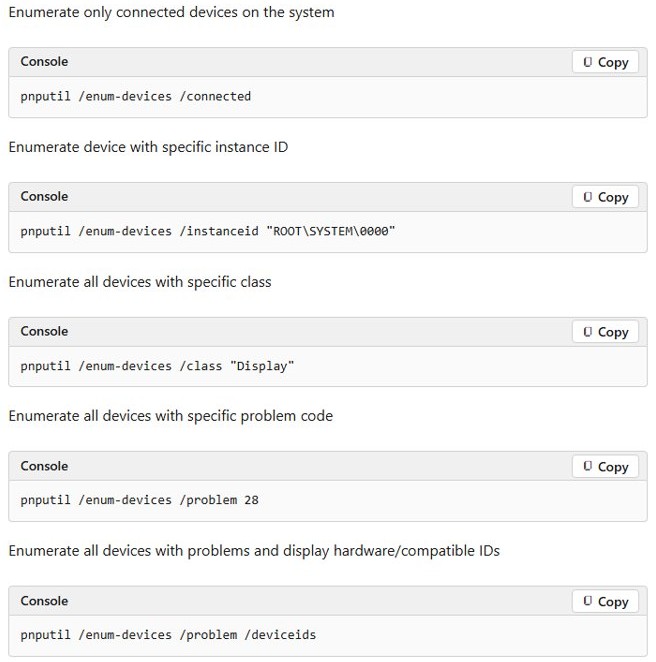
- From an elevated Command Prompt, run
pnputil /scan-devices, thenpnputil /enum-devices /connected.
Do this while the PC is awake and signed in. Microsoft documents that plugging or unplugging a Thunderbolt dock during Modern Standby, Hibernate or Soft Off with Fast Startup on can leave its devices failing.
4. Update, rollback, or reinstall drivers
| Your situation | Do this | Steps |
|---|---|---|
| The entry has an old driver | Update | Right-click it, select Update driver > Search automatically for updated driver software, then Search for updated drivers on Windows update if none is found |
| The problem began after a driver update | Roll back | Open Properties > Driver > Roll Back Driver, choose a reason, and select Yes |
| An error code stays after an update | Reinstall | Select Uninstall device > Uninstall, then restart so Windows reinstalls the driver |
| You have a driver from the dock or PC maker | Install manually | Select Update driver > Browse my computer for drivers > Browse…, choose the folder, and select Next |
Deeper diagnostics and advanced remediation
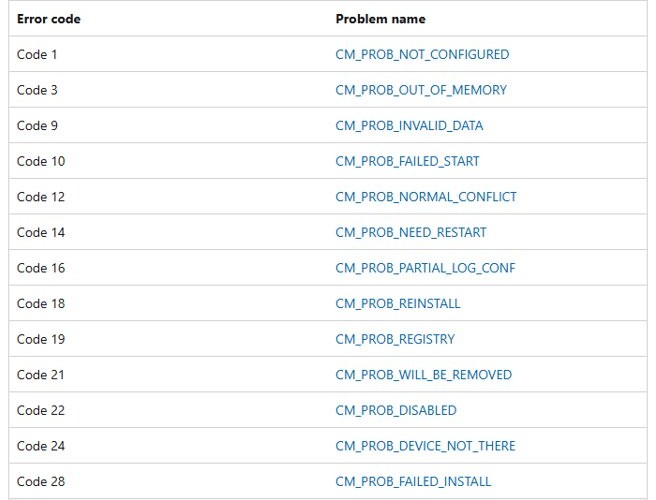
An error code tells you what to do next. Run pnputil /enum-devices /problem from an elevated Command Prompt to list every device that has one.
| Code | Message | Fix |
|---|---|---|
| Code 10 | This device cannot start. | Update the driver from the Driver tab |
| Code 22 | This device is disabled. | Select Action > Enable Device |
| Code 28 | The drivers for this device are not installed. | Uninstall the device, then select Action > Scan for hardware changes |
| Code 31 | Windows cannot load the drivers required for this device. | Reinstall the driver by updating it |
| Code 43 | Windows has stopped this device because it has reported problems. | Check the maker's documentation, or uninstall the device and scan for hardware changes |
| Code 45 | This hardware device is not connected to the computer. | No fix needed, because it clears when you reconnect the dock |
| Code 48 | The software for this device has been blocked from starting. | Install the latest driver from the hardware maker |
| Code 52 | Windows cannot verify the digital signature for the drivers. | Download the latest driver from the hardware maker's website |
Check Windows Update (Optional updates) and vendor packages
- Open Settings and go to Windows Update > Advanced options.
- Turn on Receive updates for other Microsoft products.
- Under Additional options, select Optional updates.
- Check any driver updates shown, select Download and install, and restart the PC.
- Get remaining packages from the PC maker's support page. Dell offers SupportAssist and Dell Command | Update, and lists the manual order as Thunderbolt driver, BIOS, then dock firmware.
- For a DisplayLink dock, install the DisplayLink software from Synaptics or the PC maker.
Thunderbolt authorization and BIOS/UEFI settings
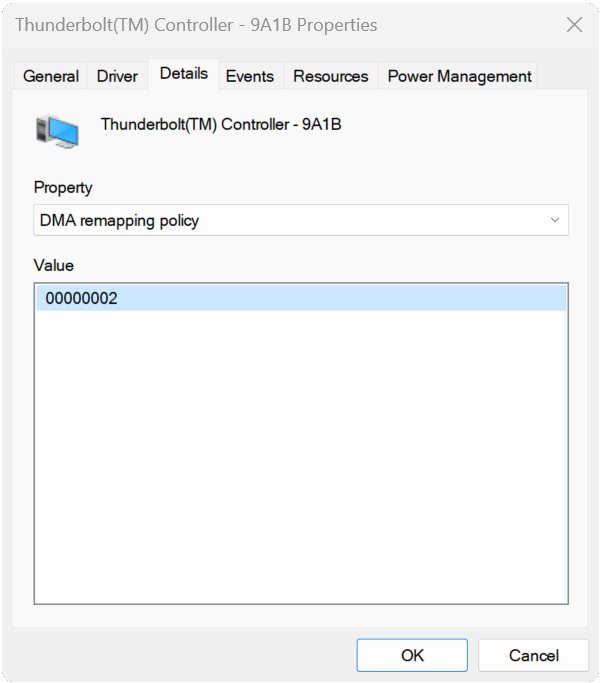
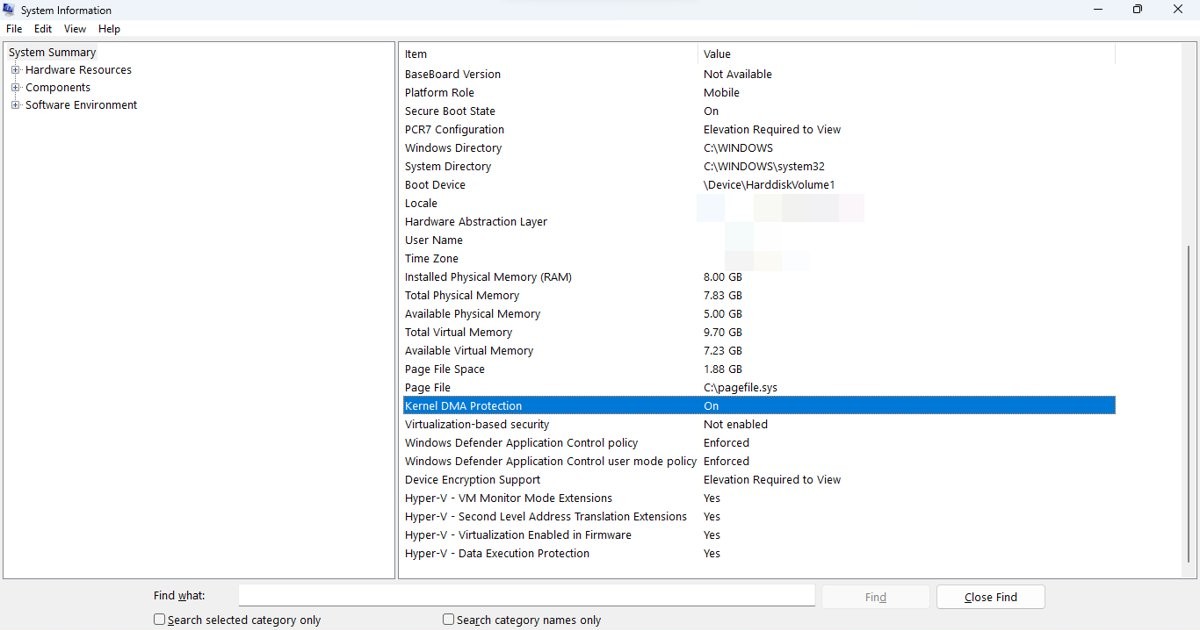
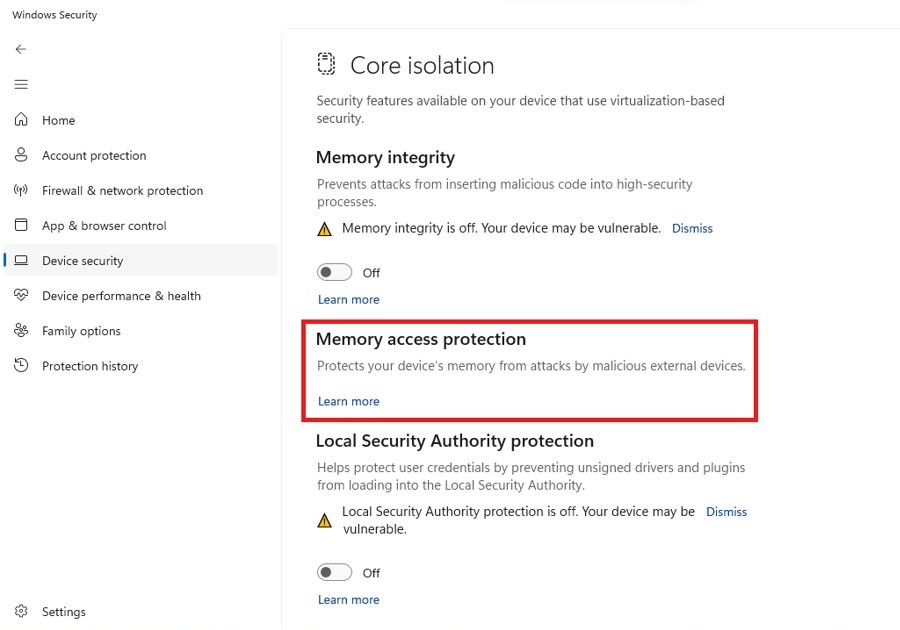
Kernel DMA Protection blocks Thunderbolt and USB4 peripherals whose drivers lack DMA remapping until you sign in or unlock the screen. This protects the PC, so leave it on.
- Sign in and unlock the PC, then reconnect the dock.
- Open Windows Security and select Device security > Core isolation details > Memory access protection to read its state.
- Alternatively, open
msinfo32.exeand read the Kernel DMA Protection value. - If it is OFF and Hyper-V – Virtualization Enabled in Firmware is NO, reboot into UEFI settings and turn on Intel Virtualization Technology and VT-d.
- On a PC with Intel's DCH Thunderbolt driver, install Thunderbolt Control Center from the Microsoft Store, open it, and approve the dock if it is listed.
- In UEFI settings, confirm Thunderbolt or USB-C support is not turned off. Setting names vary, so follow the PC maker's manual and keep its security defaults.
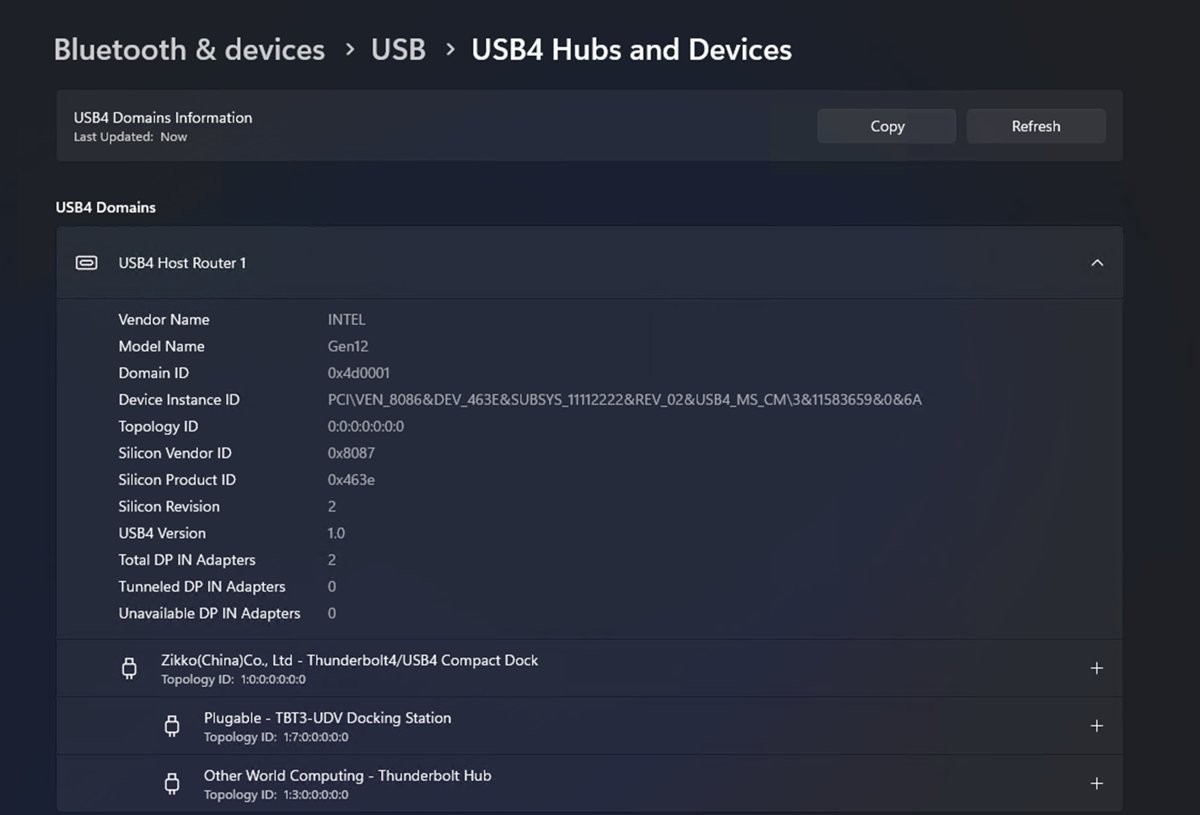
On a USB4 PC, go to Settings > Bluetooth & devices > USB > USB4 Hubs and Devices to see attached docks and their capabilities. That page does not appear on a PC that is not USB4-capable.
Use Event Viewer and driver installation logs
- Reconnect the dock and note the time.
- Search for Event Viewer, open it, and select Windows Logs > System.
- Look for warnings and errors at that time, and note any that name a driver or device.
- Open
%SystemRoot%\inf\SetupAPI.dev.login Notepad and scroll to the newest section at the end. - Search that section for the hardware ID you copied from the Details tab.
- Look up the error:
0xe0000248means Group Policy blocked the install, and0x000005B4means the install took too long and was stopped.
Clean driver removal: Display Driver Uninstaller (when applicable)
Display Driver Uninstaller is a third-party tool for graphics drivers, so it cannot make a missing dock appear. Skip it for a detection problem. When a screen on the dock is the only fault, Windows has its own clean removal.
- In Device Manager, expand Display adapters.
- Right-click the adapter and select Uninstall device.
- Select Attempt to remove the driver for this device, then select Uninstall.
- Restart the PC.
- Right-click the adapter again and select Update driver > Search automatically for updated driver software.
Firmware, EDID, and bandwidth: why displays can fail through a dock
USB-C and Thunderbolt docks route video through the laptop's integrated graphics, so a dark screen is not the same fault as a missing dock. If the dock is healthy and one screen stays dark, try these second monitor detection fixes.
| Factor | How it fails | What to do |
|---|---|---|
| Dock firmware | Screens are missing or misarranged until the dock is updated | Update the firmware with the maker's tool while the dock stays connected |
| EDID | A monitor reports its capabilities through EDID, and invalid data can lead to incorrect display modes | Try another monitor or cable, then check with the monitor's maker |
| Bandwidth | Thunderbolt 4 guarantees at least 40 Gbps and dual 4K, while USB4 requires only 20 Gbps | Lower the resolution or refresh rate, or connect fewer screens |
| Port type | Windows shows Display connection might be limited | Use the port that supports DisplayPort Alternate Mode, and reduce other USB-C devices |
| Monitor limit | Extra screens stay dark | Check the limit, which depends on the dock, laptop graphics and each display's resolution |
A practical troubleshooting sequence (recommended order)
This order runs from the cheapest checks to the riskiest changes, so you avoid touching firmware for what turns out to be a loose cable.
- Check the cable, port and power, then power-cycle the dock.
- View Device Manager by connection, with hidden devices showing.
- Read any error code and apply its fix.
- Sign in, then check Memory access protection and the Thunderbolt app.
- Install Windows updates and optional driver updates.
- Update the Thunderbolt driver, BIOS and dock firmware in the maker's order.
- Reinstall the failing driver.
- Test the dock on a second PC, then contact its maker.
Reinstalling or removing drivers safely
- Create a system restore point before you change anything.
- Unplug the dock, because Windows might otherwise rediscover the device and reinstall its driver straight away.
- In Device Manager, select View > Show hidden devices, right-click the entry, and select Uninstall device.
- To remove the driver package too, select Attempt to remove the driver for this device, then confirm.
- If the package returns, run
pnputil /enum-driversto find its published name, such asoem6.inf. - Run
pnputil /delete-driver <published name> /uninstallfrom an elevated Command Prompt. - Restart the PC and reconnect the dock.
Windows Update can reinstall a driver it decides is missing. If no other package matches the device, it has no driver and will not function until you install one.
When the dock never appears: hardware and firmware checks
These checks use Dell's documented WD19 and WD22 behavior, and other makers publish equivalents in their manuals. Owners of Dell hardware can also try these Dell docking station fixes on Windows 11.
- Look at the docking cable LED, because a lit LED is the best sign of power and a connection.
- Run a self-test: unplug the dock from the PC, unplug the AC adapter, and plug it back in. Three flashes of the power button mean the dock has power and is working.
- Do a hard reset: unplug all devices and the AC adapter, then hold the power button for at least 30 seconds.
- Try another laptop port and another cable.
- Test the dock on a second PC to separate a dock fault from a PC fault.
- Install the latest BIOS from the PC maker, then the dock firmware.
- Contact the maker with the model and service details if the dock still fails.
Enterprise and security considerations
On a work PC, a dock can be blocked on purpose. Dell notes that security policies can prevent USB-C and Thunderbolt devices and drivers from being installed, which shows up as a yellow exclamation mark. Ask your IT team rather than working around the policy.
| Control | Effect on a dock | Where it lives |
|---|---|---|
| Device Installation Restrictions | Blocks the install, and SetupAPI logs 0xe0000248 |
Computer Configuration > Administrative Templates > System > Device Installation > Device Installation Restrictions |
| Thunderbolt controller block | Stops the controller installing, so PCIe devices behind the port stop working | A device ID policy that matches PCI\CC_0C0A |
| Kernel DMA enumeration policy | Blocks, allows, or allows after sign-in any peripherals with incompatible drivers | Administrative Templates\System\Kernel DMA Protection, or DmaGuard policies in MDM |
Risks and cautions — what can go wrong and how to avoid it
| Action | What can go wrong | How to avoid it |
|---|---|---|
| Dock firmware update | Disconnecting the dock interrupts the update | Leave it connected until the tool finishes, then power-cycle the dock |
| BIOS or UEFI update | It can trigger BitLocker recovery at the next start | Have your recovery key ready, and suspend BitLocker for the planned update |
| Docking or undocking | Microsoft lists this as a possible BitLocker recovery trigger | Keep the recovery key somewhere other than the PC |
pnputil /delete-driver /force |
It deletes a package still in use, leaving the device with no driver | Use /uninstall without /force, and create a restore point first |
pnputil /remove-device /force |
It can remove a device that provides critical system functionality | Remove one named device, and leave out /force |
| Third-party driver updater apps | They can install a driver the PC maker does not support | Use Windows Update and the PC or dock maker's own tools |
Example diagnostic scenarios (real-world patterns)
| Pattern | Likely cause | Fix |
|---|---|---|
| Dock devices show Code 10, 24 or 43 after sleep or hibernate | The dock was plugged or unplugged during a power state change with Fast Startup on | Reattach the dock, and restart if that fails |
| Dock keyboard works in BIOS, fails at sign-in, then works after sign-in | Kernel DMA Protection, which Dell describes as working by design | Sign in with the laptop's own keyboard, or ask IT to adjust the policy |
| Windows shows Thunderbolt device functionality might be limited | A hub in the chain, the wrong port, or too many Alternate Mode devices | Connect directly to the port that supports Thunderbolt |
| Windows shows USB4 device functionality might be limited | The PC or cable does not fully support USB4 | Use the dock maker's cable or a certified USB4 cable |
| Windows shows USB device not recognized | The device reported an error | Read the code under Device status in Device Manager |
| Everything works, but the laptop does not charge | The dock or charger cannot meet the laptop's power needs | Connect the laptop's own charger |
Scenario A — Dock partially functional: USB works, display doesn't
Dock USB ports work but monitors stay dark
Windows detected the dock, so the fault is in the video path through the laptop's graphics.
- Press Windows logo key + P and confirm Extend is selected.
- Go to Settings > System > Display > Multiple displays and select Detect.
- Confirm the monitor is on and set to the right input.
- Press Windows logo key + Ctrl + Shift + B to reset the graphics driver.
- Update the integrated graphics driver, or install DisplayLink software on a DisplayLink dock.
Monitors work but dock USB or Ethernet does not
Video is fine, so look at the USB device, its port, or the dock's network driver.
- Test the USB device directly on the laptop, then try another dock port.
- If a drive stays missing, use these fixes for unrecognized USB devices.
- For Ethernet, check or replace the cable and install the latest network driver from the PC maker.
- Reset the dock and update its firmware.
Scenario B — Dock not detected at all
Nothing changes in Device Manager when the dock is plugged in
No data is reaching Windows, which points to power, the cable, the port or the dock.
- Confirm the dock has power with its self-test.
- Try the port with the Thunderbolt icon or the one that supports the dock's connection type.
- Run
pnputil /scan-devicesfrom an elevated Command Prompt. - Test the dock on a second PC. If it fails there too, contact the dock's maker.
The dock shows only as a faded entry
Windows remembers an earlier connection, but the device is not connected now.
- Run
pnputil /enum-devices /disconnectedto list the entries Windows remembers. - Reconnect the dock, because Code 45 clears when the hardware returns.
- If it stays faded, unplug the dock, uninstall the faded entry, and restart.
- Reconnect the dock once you reach the desktop.
Tools and commands for power users
Run these from an elevated window, because administrator rights are required for most pnputil commands. A connected device with no fault shows the status Started.
| Command | What it shows | Works on |
|---|---|---|
pnputil /scan-devices |
Forces Windows to look for new hardware | Windows 10 version 2004 and later |
pnputil /enum-devices /connected |
Devices connected now | Windows 10 version 1903 and later |
pnputil /enum-devices /problem /deviceids |
Devices with problem codes, plus their hardware IDs | Windows 11 version 21H2 and later |
pnputil /enum-devicetree /connected |
The tree of connected devices | Windows 11 version 23H2 and later |
pnputil /enum-containers /connected /devices |
Connected devices grouped by physical container | Windows 11 version 23H2 and later |
pnputil /enum-drivers |
Third-party driver packages in the driver store | Windows 10 version 1607 and later |
Get-PnpDevice -PresentOnly -Status ERROR,DEGRADED,UNKNOWN |
Attached devices reporting a fault, in PowerShell | Windows 11 |
msinfo32.exe |
The Kernel DMA Protection state | Windows 11 |
How to tell if a docking station is detected in Windows 11
- From an elevated Command Prompt, run
pnputil /enum-devices /connectedand find the dock's entries with the status Started. - In Device Manager, confirm those entries have no yellow warning icon.
- Plug a USB device into a dock port and confirm it opens.
- Connect Ethernet through the dock and confirm you are online.
- Go to Settings > System > Display and confirm each monitor is listed.
Docking station not detected FAQ
Why is my docking station not detected in Windows 11?
A docking station is usually not detected because of the cable, a port without dock support, missing power, an outdated driver or old dock firmware. On Thunderbolt and USB4 docks, Kernel DMA Protection can also hold some devices back until you sign in.
Does a docking station show up in Device Manager?
Yes, but often as several parts rather than one named device. Look for USB hubs, network and audio entries, and USB4 routers. Select View > Devices by connection to see which entries sit behind the same port.
Does a docking station need drivers on Windows 11?
Many docks work with drivers Windows already provides, and Intel says Thunderbolt accessories need no extra software. Some still need vendor packages, including DisplayLink software for DisplayLink docks and network or audio drivers for certain older models.
Why does my dock only work after I sign in?
Kernel DMA Protection blocks peripherals with incompatible drivers until an authorized user signs in or unlocks the screen. After that, they keep working until a restart or until you unplug them. This protects the PC against drive-by memory attacks, so it should stay on.
Do I need Thunderbolt Control Center for a dock?
You may. Intel says the Thunderbolt Control Center app may be required for a Thunderbolt port to work properly, and the app needs Intel's DCH Thunderbolt driver. USB4 PCs on Windows 11 use the connection manager built into Windows and have a Settings page instead.
Why do my dock's USB ports work but not my monitors?
USB and video take different paths through a dock. Video goes through the laptop's integrated graphics, so check the graphics driver, whether the port supports video, the monitor's input, and the number of screens your dock and laptop support together.
Can a docking station trigger BitLocker recovery?
Yes. Microsoft lists docking or undocking a portable computer as a possible BitLocker recovery trigger, along with BIOS or UEFI firmware upgrades. Keep your recovery key available before you update firmware, and suspend BitLocker for a planned update.
Final assessment — strengths, weaknesses, and recommended best practices
Start with Device Manager's connection view, because it answers the first question: can Windows see the dock at all? Move to firmware only after the cable, power, sign-in state and drivers are ruled out.
| Tool | Strength | Weakness | Recommended use |
|---|---|---|---|
| Device Manager | Shows the dock's parts and their error codes | A dock has no single named entry | First check on every dock problem |
pnputil |
Exact status, and easy to compare before and after | Some switches need newer Windows versions | Confirm detection and find problem devices |
| SetupAPI log and Event Viewer | Record why an install failed | Long and technical | Use when a code alone does not explain the fault |
| Maker's update tool | Updates the dock itself | Model-specific, and an interrupted update is risky | Use last, with the dock connected |