Start with a hard reset when a Dell docking station stops working on Windows 11: unplug the dock, hold its power button for at least 30 seconds, then reconnect it.
This guide covers Dell's full troubleshooting order, firmware and driver updates, and fixes for monitors, USB ports, Ethernet and charging.
How to reset a Dell docking station
A hard reset drains leftover power from the dock's circuits. Dell says it can recover a dock that is unresponsive or has ports that stopped working.
- Unplug the dock's USB-C or Thunderbolt cable from the laptop.
- Unplug every monitor, USB device and network cable from the dock.
- Unplug the AC adapter from the dock.
- Press and hold the dock's power button for at least 30 seconds.
- Plug the AC adapter back into the dock, leaving the laptop disconnected.
- Watch the power button light flash three times, which means the dock has power and passed its self-test.
- Reconnect the dock cable to the laptop, then plug your devices back in.
Docks without a power button get a simpler power cycle: unplug the power cable, wait 10 seconds, and plug it back in.
Why won't my Dell docking station work?
Match what you see to a row, then jump to the fix.
| What you see | Likely cause | Fix |
|---|---|---|
| Nothing works and the cable light is off | No power or a bad connection | Check the AC adapter, reseat the cable, then hard reset the dock |
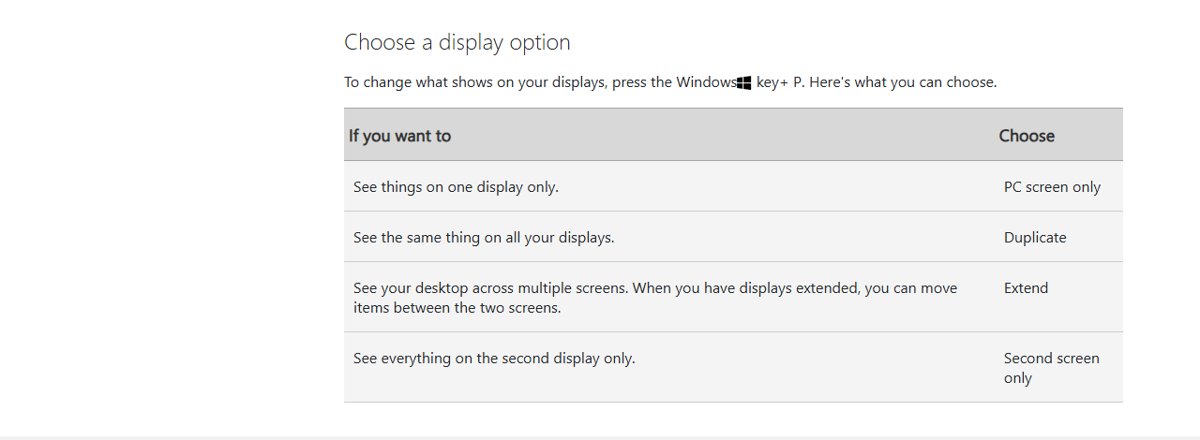
| Monitors stay black but USB works | Wrong projection mode or a graphics driver fault | Press Windows + P and select Extend, then reset the graphics driver |
| Thunderbolt dock does nothing on one laptop | The laptop port is USB-C only, not Thunderbolt | Use a Thunderbolt port or a universal USB-C dock |
| Ethernet is missing | Missing Realtek USB GBE or DisplayLink driver | Install the dock driver for your model |
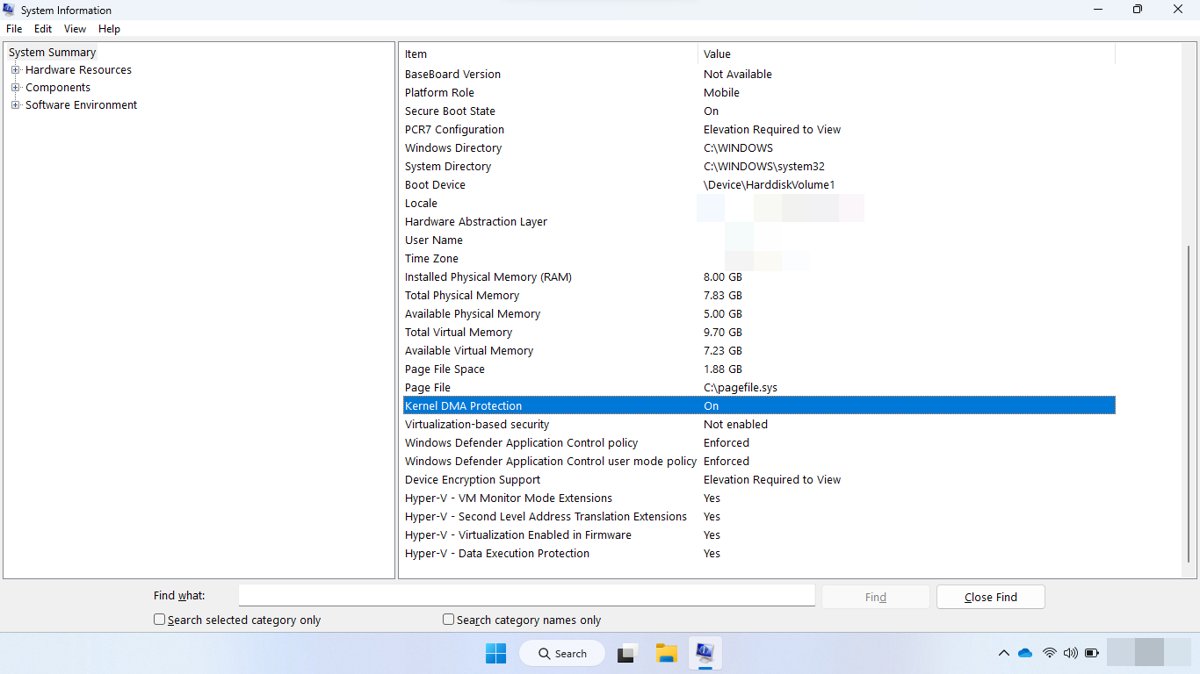
| Keyboard and mouse fail at the sign-in screen only | Kernel DMA Protection holds the dock until you sign in | Sign in with the laptop keyboard; on work PCs ask IT |
| Problems started after an update | New display driver or old dock firmware | Roll back the display driver or update the dock firmware |
| Laptop does not charge | Underpowered adapter or a high-wattage laptop | Use the dock's original adapter, and the laptop's own adapter if needed |
Fix Dell docking station not working on Windows 11
Dell's own troubleshooting order goes from the cheapest check to the slowest one. Work through it in sequence and stop when the dock works.
- Confirm the dock type matches the laptop port: a Thunderbolt dock needs a Thunderbolt port, and a universal USB dock needs USB-C with DisplayPort alternate mode.
- Check that the dock uses the power adapter that came with it and that both ends are firmly connected.
- Reseat the dock cable in the laptop, or try another USB-C or Thunderbolt port.
- Power cycle the dock: unplug its power cable, wait 10 seconds, and plug it back in.
- Save your work, disconnect the dock, restart the laptop, and reconnect the dock once the desktop appears.
- Install Windows updates, dock firmware, BIOS and driver updates as shown in the firmware section below.
- Reconnect monitors, keyboard, mouse and USB devices one at a time to find the device that fails.
If the dock still fails after these steps, run the dock diagnostics in Dell SupportAssist before you contact Dell support.
Dell docking station power button light meaning
On WD19, WD19S, WD19DC, WD19DCS, WD19TB, WD19TBS and WD22TB4 docks, the power button light is normally off. An unlit button does not mean the dock has no power.
| Light | What it shows | If it looks wrong |
|---|---|---|
| Power button LED off during use | Normal; Dell keeps it dark to avoid distraction | Nothing to fix |
| Power button LED flashes three times | Self-test passed: the dock has power and works | Nothing to fix |
| Cable LED on the USB-C plug at the laptop | The dock has power and a data connection | Reseat the cable, then hard reset the dock |
| Two cable LEDs on WD19DC or WD19DCS | Both cables are connected and powered | Use laptop ports that carry power, data and video |
| AC adapter LED ring off | The adapter has no power | Reseat the power cable and try another wall outlet |
To run the self-test, unplug the dock from the laptop, unplug the AC adapter, plug the adapter back in, and watch for three flashes.
How to update Dell docking station firmware
Dell lists firmware and driver updates as a core step in its dock troubleshooting. Keep the dock connected the whole time, or the tool cannot detect it.
Dell's update apps are Dell SupportAssist for all Dell PCs and Dell Command Update for Latitude, Precision and XPS.
- Connect the dock to the laptop and to its power adapter.
- Open Settings > Windows Update, select Check for updates, and install everything offered.
- Open Dell SupportAssist, or Dell Command | Update on Latitude, Precision and XPS models.
- Run the update check and install the dock firmware, BIOS and driver updates it finds.
- On a non-Dell laptop, get the Dell Dock Firmware Update Utility from Dell's Drivers & Downloads site by entering the dock's Dell Service Tag or model number.
- Restart the laptop when the tool asks you to.
- Power cycle the dock after the firmware update: unplug its power, wait 10 seconds, and plug it back in.
Dell docking station drivers for Windows 11
Not every dock needs every driver. Install only the ones that match your dock and laptop, then keep those Dell drivers updated as new versions ship.
| Driver | Needed for | Not needed for |
|---|---|---|
| Realtek USB GBE Ethernet Controller | Wired Ethernet on docks with a Realtek chip, such as the WD19 series | DisplayLink docks |
| DisplayLink | Video and Ethernet on DisplayLink docks such as the D3100 and D6000 | WD19 and WD22TB4 docks |
| Realtek USB Audio | Older docks such as the WD15 and D6000 | WD19S, WD19TBS, WD19DCS, WD22TB4 and newer |
| Intel Thunderbolt controller driver and firmware | Pre-10th Gen Intel laptops with Thunderbolt 3 and a separate controller | 10th Gen Intel and newer, and AMD Ryzen laptops |
| Integrated graphics (Intel UHD, Intel Iris Xe, AMD Radeon) | All USB-C and Thunderbolt docks, which send video through it | None |
Dell docking station displays not working
External monitors stay black
Windows is set to show only one screen, or the graphics driver stalled.
- Press Windows + P and select Extend.
- Press Windows + Ctrl + Shift + B to reset the graphics driver.
- Restart the laptop if the screens are still black.
- Try another cable between the dock and the monitor.
Only one monitor works through the dock
The number of monitors depends on the dock model, the laptop's graphics and each screen's resolution.
- Connect one monitor and confirm it works on its own.
- Add the second monitor and check whether it appears.
- Lower the resolution or refresh rate of the first screen if the second will not light up.
- Check the dock's user guide for its monitor limits at your resolution.
Thunderbolt dock shows no video at all
The laptop's USB-C port carries data only and does not support Thunderbolt.
- Look for the Thunderbolt symbol next to the laptop port.
- Move the dock cable to a Thunderbolt port if the laptop has one.
- Use a universal USB-C dock with DisplayPort alternate mode if it does not.
Monitors go black when you close the laptop lid
Windows sleeps when the lid closes by default.
- Press a key or move the mouse to wake the laptop.
- Press the dock's power button if the laptop stays asleep.
- Change the lid setting to Do nothing as shown in the lid section below.
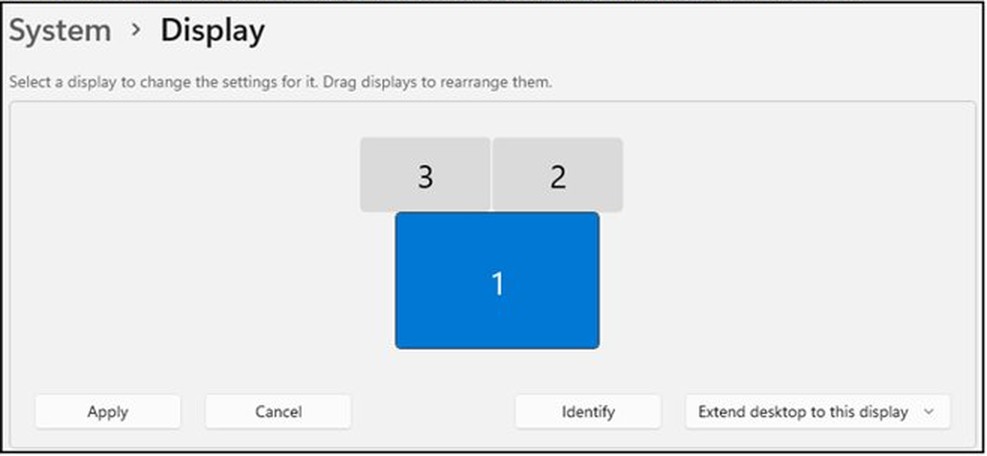
If Windows does not list the screen at all, the steps to fix a second monitor not detected apply to dock-connected screens too.
Dell docking station not working after update
Monitors stopped working after a Windows or driver update
A new display driver does not work with your setup.
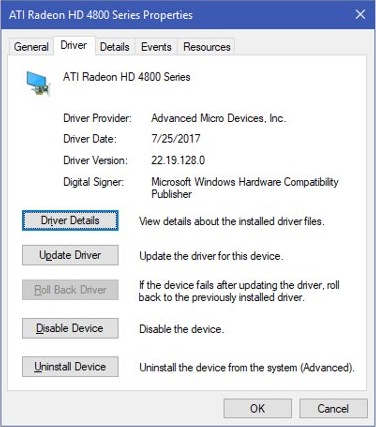
- In the search box on the taskbar, enter device manager and open Device Manager.
- Expand Display adapters.
- Right-click your display adapter and select Properties.
- On the Driver tab, select Roll Back Driver.
- Restart the laptop and reconnect the dock.
No Roll Back Driver option
Windows kept no earlier driver, so a clean reinstall is the next step.
- In Device Manager, right-click the display adapter and select Uninstall device.
- Check Attempt to remove the driver for this device, then select Uninstall.
- Restart the laptop if asked.
- Open Device Manager again, right-click the display adapter, and select Update driver.
- Choose the automatic search option and follow the prompts.
Dock acts up after a firmware update
The dock has not restarted on the new firmware.
- Unplug the dock's power cable.
- Wait 10 seconds.
- Plug the power back in and reconnect the laptop.
Dell docking station USB ports and Ethernet not working
Dock keyboard and mouse do not work at the Windows sign-in screen
Kernel DMA Protection stops Thunderbolt and USB-C docks from starting until you sign in. Dell calls this working as designed.
- Sign in with the laptop's built-in keyboard or touchpad.
- Wait for the dock's USB ports and network port to start after sign-in.
- On a work laptop, ask IT to change the DmaGuard policy if the dock must work at the sign-in screen.
Dock shows a yellow exclamation mark in Device Manager
A group policy in a custom Windows image blocks Thunderbolt and USB-C drivers from installing.
- Open Device Manager and confirm the warning on the dock.
- On a company PC, give IT the dock model and the warning.
- Ask them to review the policy that blocks Thunderbolt controllers in the image.
Ethernet through the dock does not connect
The dock's network chip needs its own driver.
- Install the Realtek USB GBE Ethernet Controller driver for WD19-series docks.
- Install the DisplayLink driver for D3100 and D6000 docks.
- Restart the laptop and reconnect the network cable.
One USB device does not work
A single device or port is faulty, or it draws too much power.
- Unplug every USB device from the dock.
- Plug them back in one at a time and test each one.
- Hard reset the dock if several ports stay dead.
Dell docking station not charging laptop
Laptop works on the dock but does not charge
The laptop needs more power than the dock delivers, or the cable does not support power delivery.
- Confirm the dock uses its original Dell adapter, rated 130W, 180W or 240W depending on the model.
- Check that the laptop's USB-C or Thunderbolt port supports charging.
- Connect the laptop's own power adapter as well if it needs more than 90W; a UD22 delivers up to 96W.
Dock does not power on
The adapter has no power, or the dock needs a reset.
- Check the light ring on the AC adapter plug.
- Plug the adapter into a wall outlet you know works.
- Hard reset the dock and run the self-test.
- Try a compatible adapter from another working Dell dock, if you have one.
How to close the laptop lid with a Dell dock on Windows 11
Set the lid to do nothing so external monitors stay on when the laptop is closed.
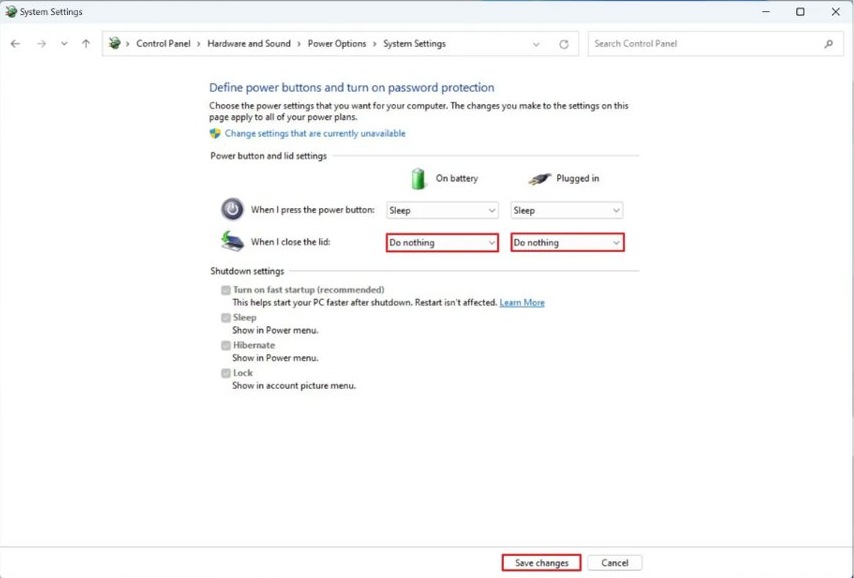
- Open Control Panel from the Start menu.
- Select Hardware and Sound > Power Options.
- Select Choose what closing the lid does.
- Set When I close the lid to Do nothing for both On battery and Plugged in.
- Select Save changes.
To keep the lid open but turn off the laptop screen, open display settings, select the laptop screen, and choose Disconnect this display from the dropdown.
How to tell if a Dell docking station is working
- Look at the USB-C plug at the laptop end: the cable LED should be lit.
- Open Device Manager and check that no dock device shows a yellow exclamation mark.
- Press Windows + P and confirm Extend shows every connected monitor.
- Open a website over the dock's Ethernet port with Wi-Fi turned off.
- Run the dock diagnostics in Dell SupportAssist for a full hardware test.
Dell docking station FAQ
Why did my Dell docking station stop working?
The usual causes are lost power, a loose cable, outdated dock firmware, or a display driver change after a Windows update. Hard reset the dock first, then update its firmware, BIOS and drivers with Dell SupportAssist or Dell Command | Update.
How do I reset my Dell docking station?
Unplug the dock from the laptop, remove all devices, and unplug the AC adapter. Hold the power button for at least 30 seconds, plug the adapter back in, and look for three flashes before you reconnect.
How do I update my Dell docking station firmware?
Keep the dock connected and run Dell SupportAssist, or Dell Command | Update on Latitude, Precision and XPS. On other laptops, use the Dell Dock Firmware Update Utility from Dell's Drivers & Downloads site, then power cycle the dock.
Why is the light on my Dell dock off?
On WD19 and WD22TB4 docks the power button light stays off during normal use by design. Check the LED on the USB-C plug at the laptop instead; it should be lit when the dock is connected and powered.
Why does my Dell dock only work after I sign in to Windows?
Kernel DMA Protection stops USB-C and Thunderbolt docks from starting before Windows loads. The dock's USB ports and network port start after sign-in, and Dell describes this as working as designed.
How many monitors can a Dell docking station run?
It depends on the dock model, the laptop's graphics and each monitor's resolution. Most Dell docks support two or more screens; the dock's user guide lists the exact limits for each resolution.
Will a Thunderbolt dock work in any USB-C port?
No. A Dell Thunderbolt dock needs a Thunderbolt port on the laptop, and a USB-C port that only carries data will not work with it. Universal USB-C docks need a port with DisplayPort alternate mode.
Which power adapter does a Dell docking station need?
Use the Dell adapter that came with the dock, which is 130W, 180W or 240W depending on the model. Dell's checks for power and charging faults start with confirming that original adapter.