Function (Fn) keys usually stop working in Windows 11 because Fn Lock has reversed the top row, so press Fn + Esc and test the key again.
This guide then covers the BIOS hotkey setting, keyboard and hotkey drivers, brand-specific fixes, and related key problems in Excel and with the Windows key.
Function (Fn) keys not working in Windows 11/10
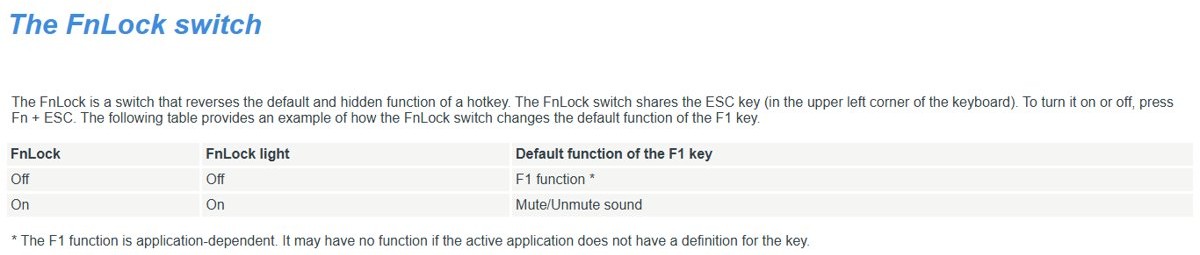
Fn Lock swaps a top-row key between its F1–F12 job and its volume, brightness or media job. The key still works, but it does the other job. These steps work the same way on Windows 10.
- Look on the Esc key for a padlock or FnLk icon.
- Hold Fn and press Esc once.
- Press a top-row key and check whether it now does what you expect.
- On a Surface Keyboard or Type Cover, press Fn on its own so its light turns on or off, then test the key again.
- On a keyboard with an F Lock key, press F Lock. A lit indicator means F1–F12 are active, and an unlit one means the alternate commands are active.
- If nothing changes, restart the PC and use the cause table below.
To keep the top row in one mode, you can turn off Fn Lock and leave it that way. Not every keyboard has this lock. ASUS, for example, supports Fn + Esc only on models with an LED at the upper right of the Fn key.
Why are function keys not working in Windows 11?
| What you notice | Likely cause | Fix to use |
|---|---|---|
| F1–F12 change volume or brightness instead | Fn Lock or the firmware hotkey default is reversed | Fn + Esc, then the BIOS setting |
| The keys work only while you hold Fn | The top row defaults to the other job | Fn + Esc, the BIOS setting, or the maker's app |
| A key does nothing in one app only | That app has no command for that key | Test the key in another app |
| F6–F10 fail while text is selected | The Microsoft Japanese IME reserves them | Clear the selection or switch out of Japanese mode |
| Volume or camera keys fail, other keys work | A hotkey or device driver is missing | Install the maker's hotkey driver |
| An external keyboard fails, but the laptop keyboard works | The external keyboard has its own lock, cable or battery fault | Press Fn + Esc on that keyboard, then check its connection |
| Letters and numbers fail as well | The whole keyboard or its driver has failed | Reinstall the keyboard driver and test the keyboard on another PC |
How to test function keys in Windows 11
What a function key does depends on the app in focus, so test in more than one app before you blame the hardware.
- Open an app with a Help system and press F1. It typically opens Help for the active window.
- Hold Fn and press F1, then compare the result.
- Press Fn + Esc and repeat both presses. On a Lenovo Legion 5 with FnLock on, F1 mutes the sound by default instead.
- On a Surface Pro Keyboard or Type Cover, press Caps and Fn a couple of times and watch whether the lights turn on and off.
- Connect an external keyboard to another PC. If it fails there too, the keyboard itself may need replacing.
Change function key behavior in BIOS on Windows 11
The firmware option sets the default for the top row before Windows loads. The name varies by maker, and Lenovo calls it Hotkey Mode. Firmware menus are built for advanced users, so change only this one setting.
- Save your work and close your apps.
- Open Start, select Power, then hold Shift while you select Restart.
- Select Troubleshoot > Advanced options > UEFI Firmware Settings > Restart.
- Find the top-row option. On Lenovo models that list it, go to Configuration > Hotkey Mode.
- Change the value, then save. On those Lenovo models, select Exit > Exit Saving Changes.
- Let Windows start, then test the keys.
If UEFI Firmware Settings is not listed, press the firmware key as the PC boots. Microsoft names F1, F2, F12 and Esc as the usual keys.

Reinstall keyboard driver to fix function keys in Windows 11
A damaged keyboard driver can stop some or all keys. Windows installs the driver again when the PC restarts.
- Search for Device Manager in Start and open it.
- Expand Keyboards.
- Right-click your keyboard and select Uninstall device, then select Uninstall.
- Repeat for any other devices listed under Keyboards.
- Restart the PC so Windows reinstalls the driver, then test the keys.
Run the keyboard troubleshooter in Windows 11
ASUS lists this built-in troubleshooter among its fixes for keys that stop responding. If Keyboard is not offered on your build, use another fix on this page.
- Search for Troubleshoot settings in Start and open it.
- Select Other troubleshooters.
- Select Run next to Keyboard.
- Follow the prompts and apply any fix Windows suggests.
- Test the function keys again.
ASUS function keys not working in Windows 11
ASUS hotkeys rely on different drivers per key, so a single missing driver can stop only some of them. These are the requirements ASUS lists for its laptops, and the key layout varies by model.
| Key | Job | What it needs |
|---|---|---|
| F1, F2, F3 | Volume | ASUS System Control Interface driver and Audio driver |
| F4, F5 | Display brightness | No driver or utility; check Windows Update if they fail |
| F6 | Touchpad on or off | ASUS System Control Interface driver and Touchpad driver |
| F10 | Camera on or off | ASUS System Control Interface driver and Camera driver |
| Fn + Esc | Function key lock | ASUS System Control Interface driver |
To find the driver, open your model's page on the ASUS support site and look for ASUS System Control Interface V2 or ASUS Keyboard Hotkeys Driver (ATK Package) under Others, or ATKPackage under ATK. Your laptop uses only one of the three.
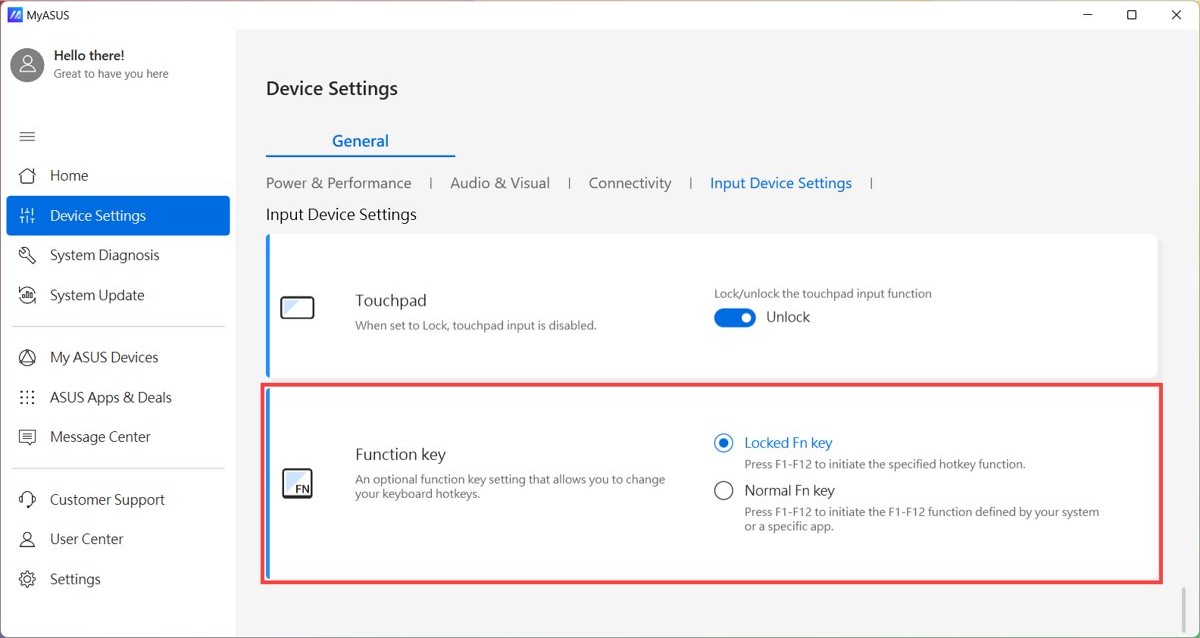
To change the mode, open MyASUS, select Device Settings > Input Device Settings and check Fn Function key. Older models use the ASUS Keyboard Hotkeys app, with Hotkeys and F1-F12 options.
Lenovo, Dell and HP function keys not working in Windows 11
Each maker handles the top row its own way. Start with the row that matches your keyboard.
| Keyboard | What to do | What to expect |
|---|---|---|
| Lenovo laptop | Press Fn + Esc, then set Configuration > Hotkey Mode in UEFI/BIOS setup on models that list it | The FnLock light shows the state; on a Legion 5, F1 mutes with it on and sends the app's F1 command with it off |
| Dell external multimedia keyboard | Press Fn + Esc on the keyboard, and press it again to swap back | Keys with no media icon stay traditional function keys in either mode |
| Dell keyboard with F1–F12 as primary | Hold Alt and press the top-row key for its media job | Plain presses keep sending F1–F12 |
| HP laptop | Look for a lock icon on the Esc or Fn key, then check the keyboard section of your model's guide on HP's support site | The guide shows what each top-row key does on your model |
| Surface keyboard or Type Cover | Press Fn, or use Surface app > your device > Customize keyboard on supported models | The Fn light shows the state and the app changes what the top row does |
Enable or disable keyboard backlight auto brightness in Windows 11
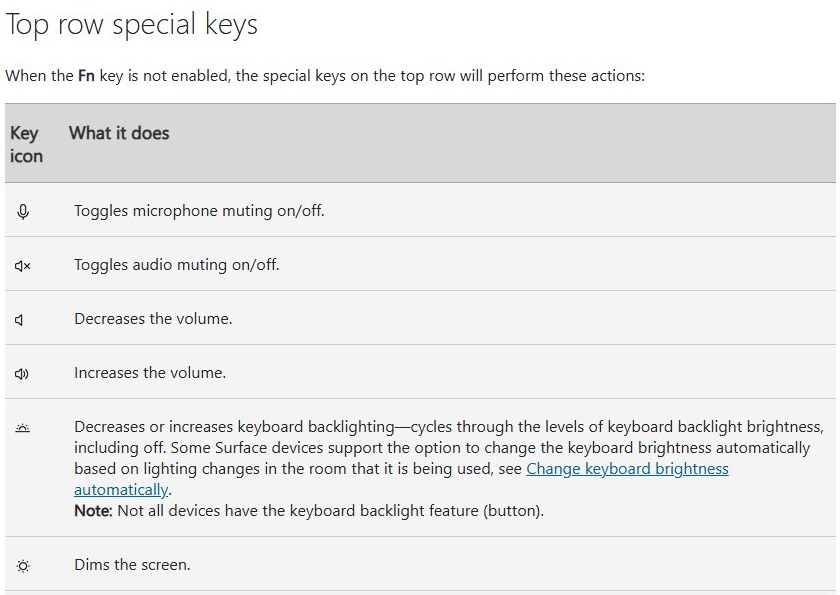
If your backlight key seems to do nothing, Windows may be setting the keyboard brightness on its own. The option needs a compatible backlit keyboard, an ambient light sensor, and Windows 11 version 25H2 build 26200.7922 or later.
- Press Win + I to open Settings.
- Select Bluetooth & devices > Keyboard.
- Expand Keyboard backlight.
- Turn Change keyboard brightness automatically when lighting changes on or off.
- Press your backlight key to test it.
With the option on, a backlight key press is only a temporary override, which ends when the room light changes enough. Energy saver can dim the light as well.
Ctrl Shift Arrow keys not working in Excel [Fix]
Ctrl + Shift + Arrow extends a selection to the last nonblank cell in the same row or column. Scroll Lock changes how Excel's arrow keys behave, so turn it off first.
- Look for Scroll Lock on the Excel status bar. If it is hidden, right-click the status bar and tick Scroll Lock.
- Press the Scroll Lock or ScrLk key if Scroll Lock is showing.
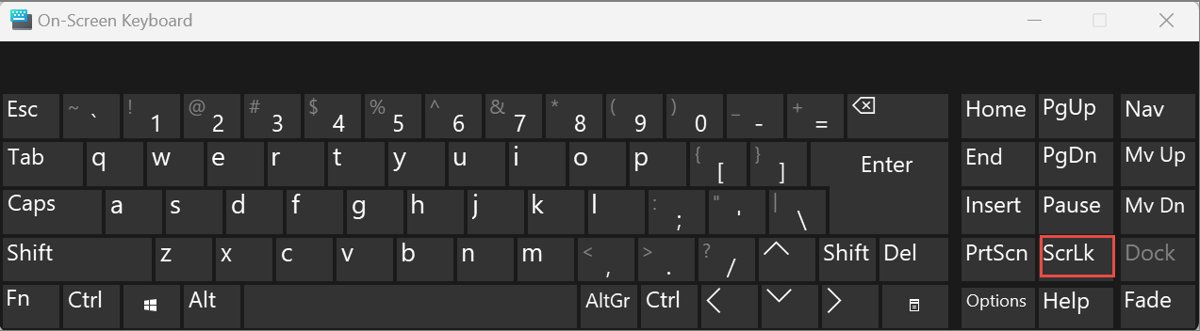
- If your keyboard has no such key, select Start > Settings > Accessibility > Keyboard and turn on the On-Screen Keyboard.
- Select ScrLk on the On-Screen Keyboard, then close it.
- Select a cell in Excel and press Ctrl + Shift + Arrow to test the selection.
If the arrow keys still misbehave, try these fixes for arrow keys in Excel.
Windows key or WinKey not working on Windows 11
The Windows key is separate from the function row, so a fix for one does not always fix the other. Many gaming keyboards block the Windows key in Game Mode.
- Look for a lit Game Mode or Win Lock indicator on the keyboard, and press that button to turn it off.
- Press the Windows key to see whether Start opens.
- Press Ctrl + Shift + Esc to open Task Manager.
- Right-click Windows Explorer and select Restart.
- Press the Windows key again to test it.
If the key still fails, a policy, registry value or PowerToys remap may be blocking it, so try the deeper Windows key fixes.
Function keys stopped working in Windows 11
Volume function keys not working in Windows 11
Volume keys can depend on a hotkey driver and the audio driver, as they do on ASUS laptops.
- Press Fn + Esc and try the volume key again.
- Hold Fn and press the volume key.
- Install the hotkey and audio drivers for your exact model from the maker's support page.
Some function keys not working in Windows 11
Keys without a command in the active app do nothing, and the Microsoft Japanese IME reserves F6-F10 while text is selected.
- Test the same key in a different app.
- If you use the Japanese IME, clear any selected text and try again.
- Switch out of Japanese mode, or revert to a previous version of the Japanese IME, if the app still ignores those keys.
Function keys stopped working after a Windows update
Windows Update delivers driver updates, so it is the first place to look for a corrected driver.
- Search for check for updates in Start and select Check for updates.
- Install what Windows Update offers, then restart.
- If the problem started recently and a restore point exists, restore the PC to a point before it began.
Keys respond late after you press them
Filter keys is on, which can delay characters.
- Search for Accessibility keyboard settings in Start and open it.
- Turn off Filter keys.
- Test the function keys again.
Function keys not working on an external keyboard
The keyboard's own lock, cable, hub or battery is the usual fault.
- Press Fn + Esc on the external keyboard, not on the laptop.
- Unplug the USB cable, wait a little while, then plug it into a different USB port on the PC.
- Remove any USB hub, and fit fresh batteries in a wireless keyboard.
- Unplug a wireless USB receiver, wait about 10 seconds, and plug it back in.
Every key on the keyboard stopped working
The problem is the whole keyboard rather than the function row.
- Check for dirt under the keys and damage on any cable.
- Connect an external keyboard to another PC to test it.
- Work through the fixes for a keyboard not typing on Windows 11.
Function keys not working FAQ
Why are function keys not working in Windows 11?
The most common cause is Fn Lock, which swaps the top row between F1-F12 and the media commands. Press Fn + Esc to test it. After that, check the firmware hotkey setting, the maker's hotkey driver and the keyboard driver in Device Manager.
Why are some function keys not working in Windows 11?
An F key does nothing when the active app has no command for it. On ASUS laptops, individual hotkeys also need different drivers. With the Microsoft Japanese IME in Japanese mode, F6-F10 are reserved for language functions while text is selected.
Why are HP function keys not working in Windows 11?
Start with the keyboard itself: look for a lock icon on Esc or Fn and try holding Fn with the key. Then reinstall the keyboard driver in Device Manager, and check your HP model's guide for its firmware option.
Why are Lenovo function keys not working in Windows 11?
Lenovo's FnLock reverses the default job of each hotkey. Press Fn + Esc and watch the FnLock light. To change the default on models that list it, open UEFI/BIOS setup, go to Configuration > Hotkey Mode, then select Exit > Exit Saving Changes.
Why are Dell function keys not working in Windows 11?
On Dell external multimedia keyboards, Fn + Esc swaps the primary and secondary jobs of the top row, and a second press swaps them back. Keys without a media icon stay traditional function keys in either mode.
Why did my function keys stop working in Windows 11?
A toggled Fn Lock is the first thing to check, even if you don't remember pressing it. If the problem began after an update, install what Windows Update offers, then reinstall the keyboard driver or use a restore point from before it began.
Do these fixes work when function keys are not working in Windows 10?
Yes. Fn Lock, firmware settings and maker hotkey drivers work the same way on Windows 10. Device Manager also has the same Keyboards category, and the top-row keys behave the same because the keyboard handles them.
Why isn't the Windows key working in Windows 11?
A Game Mode or Win Lock switch on the keyboard is the usual cause. Turn it off, then restart Windows Explorer from Task Manager. A policy, registry value or PowerToys remap can also block the key.