Use Media Creation Tool to upgrade a PC to Windows 11 by making a USB drive or ISO file, then running setup.exe from it while you are signed in to your current Windows.
This guide covers downloading the tool, each screen it shows, keeping your files, going back, and fixes for a blank screen or a failed upgrade.
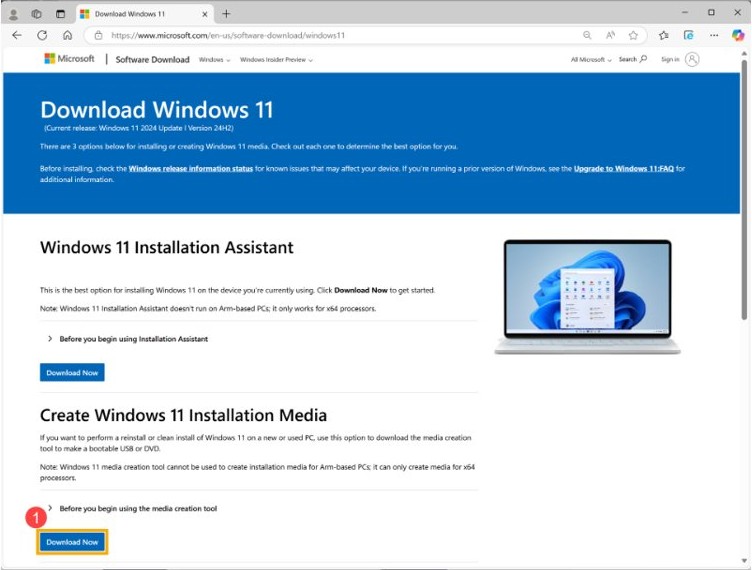
Use Media Creation Tool to upgrade PC to Windows 11
These steps upgrade the PC you are using and keep your files and apps by default. Back up anything important before you begin.
- Open the Download Windows 11 page on microsoft.com and select Download Now under Create Windows 11 Installation Media.
- Run MediaCreationTool.exe as an administrator and select Accept on the license terms.
- Choose Create installation media for another PC if the tool asks, then select Next.
- Confirm the language, edition and 64-bit architecture, choose USB flash drive, and pick a blank drive of at least 8 GB.
- When the drive is ready, open File Explorer, select the USB drive, and run setup.exe. Select Yes if User Account Control appears.
- Step through the Windows 11 Setup pages until Ready to install appears, and check that it shows Keep personal files and apps.
- Finish the Setup pages to start the upgrade, and leave the PC on while it restarts several times.
- Sign in at the Windows sign-on screen to complete the upgrade.
Stay inside Windows for this job. Booting the PC from the USB drive starts a clean install with Media Creation Tool, which wipes the drive.
Media Creation Tool vs Installation Assistant for a Windows 11 upgrade
Microsoft recommends waiting for Windows Update to offer Windows 11, and it describes installation media as an alternate method. Match your own case to a row.
| Your situation | Use this | Why |
|---|---|---|
| Windows Update already offers Windows 11 | Settings > Windows Update > Download and install | Microsoft's recommended method |
| Upgrading only this x64 PC, with no USB drive to spare | Windows 11 Installation Assistant | Microsoft calls it the best option for the device you are using |
| You want a USB copy of Windows 11 to run on this PC | Media Creation Tool, then setup.exe | The drive holds a full copy of the Windows 11 files |
| You have no blank USB drive but want to run Setup yourself | Media Creation Tool ISO file, mounted in Windows | Microsoft says mounting the ISO performs an upgrade of the current system |
| You want to wipe the PC and start fresh | Media Creation Tool USB, booted at startup | Booting from the media erases the drive and installs a fresh copy |
| The PC has an Arm processor | Windows 11 ISO for Arm64 devices | The Media Creation Tool and Installation Assistant support x64 only |
If you prefer the app route with no media at all, the Windows 11 Installation Assistant upgrade needs one download and a restart prompt.
Can this PC upgrade to Windows 11 with Media Creation Tool?
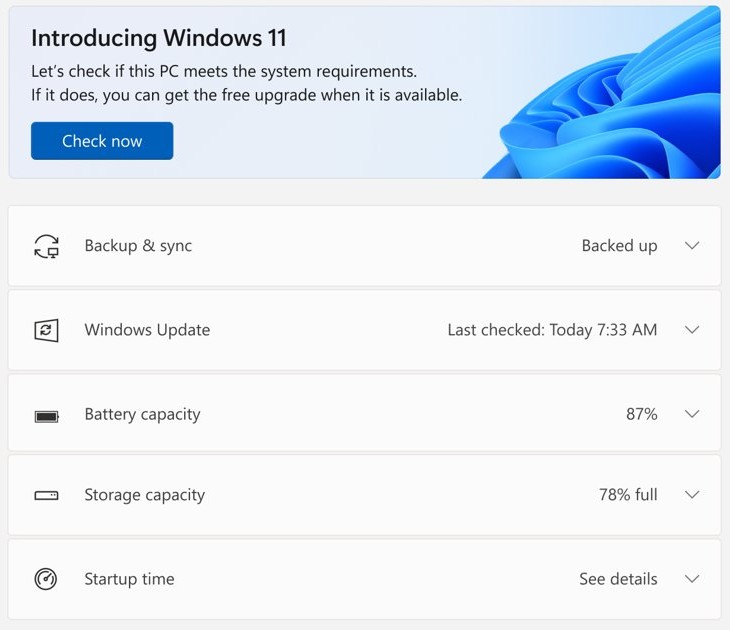
Run the PC Health Check app on the current Windows first, because it reports which requirement fails. Microsoft does not recommend installing Windows 11 on a PC that misses these minimums.
| Requirement | What Microsoft asks for |
|---|---|
| Licence | A Windows 11 license, or a Windows 10 device that qualifies for the upgrade |
| Processor | 1 GHz or faster, 2 or more cores, on a compatible 64-bit processor; the tool makes x64 media only |
| Memory | 4 GB of RAM |
| Storage | A 64 GB or larger storage device |
| Free disk space | At least 20 GB free to upgrade a 64-bit system |
| System firmware | UEFI, Secure Boot capable |
| TPM | Trusted Platform Module version 2.0 |
| Graphics | Compatible with DirectX 12 or later, with a WDDM 2.0 driver |
| Display | 720p, greater than 9 inches diagonally, 8 bits per color channel |
| USB flash drive | Blank, at least 8 GB; the tool deletes everything on it |
| Language | The same language your current Windows uses |
| Account | Administrator rights to run the tool and Setup |
How to download Media Creation Tool
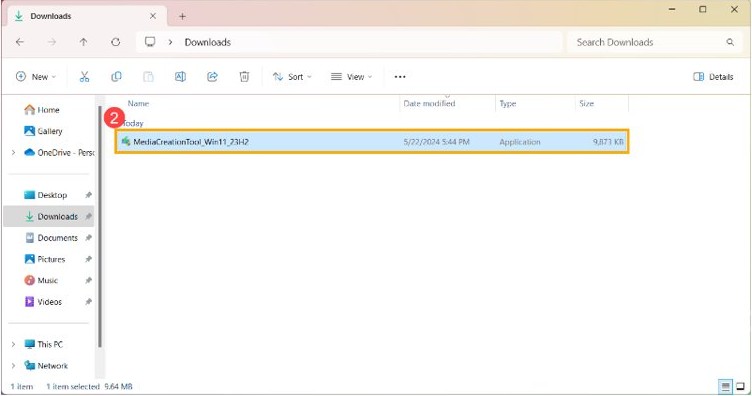
Microsoft's steps go straight from download to run, so there is nothing to install first. Get the file from Microsoft's own page rather than a third-party download site such as Uptodown.
- Open microsoft.com/software-download/windows11 in your browser.
- Find Create Windows 11 Installation Media, the second option on the page.
- Select Download Now. The browser saves MediaCreationTool.exe.
- Open your downloads list and keep the file ready for the next section.
How to use Microsoft Media Creation Tool to make a USB drive
The tool's wording says another PC, but the finished drive also runs on the PC that made it. Download time depends on your internet connection.
- Plug in a USB flash drive with at least 8 GB of space. Copy off anything you need, because the tool deletes it.
- Run MediaCreationTool.exe as an administrator.
- Select Accept on the license terms.
- On What do you want to do?, select Create installation media for another PC, then select Next.
- Select the language, edition and 64-bit architecture. Choose the language your PC uses now.
- Select USB flash drive, then pick your drive from the list.
- Wait while the tool downloads Windows 11 and writes it to the drive.
Upgrade Windows 11 using Media Creation Tool USB drive
This is the part that performs the upgrade. Run it from inside your current Windows, signed in with an administrator account.
- Sign in to Windows on the PC you are upgrading, and close your open apps.
- Attach the USB flash drive. If a pop-up asks what to do with it, select Run setup.exe.
- If no pop-up appears, right-click Start, select File Explorer, then select This PC.
- Under Devices and drives, right-click the installation media and select Install or run program from your media.
- Select Yes at User Account Control, or enter an administrator user name and password if asked.
- Follow the Windows 11 Setup pages to Ready to install, and keep or change what stays on the PC.
- Finish the Setup pages. The PC restarts a few times and ends at the Windows sign-on screen.
Keep the USB drive after the upgrade. Microsoft says you need it if you later go back to your previous Windows.
Media Creation Tool ISO file upgrade without a USB drive
Microsoft says mounting a Windows 11 ISO lets you run Setup with no USB drive or DVD, and that this performs an upgrade of your current system.
- Run MediaCreationTool.exe, and choose ISO file in place of USB flash drive.
- Save the file somewhere with enough free space, and wait for it to finish.
- Right-click the ISO file and select Properties.
- On the General tab, set Opens with to Windows Explorer, then save the change.
- Right-click the ISO file again and select Mount.
- Open the virtual disc that appears, and double-click setup.exe.
- Follow the Setup pages to Ready to install, then finish them to start the upgrade.
Media Creation Tool upgrade this PC now option
Upgrade this PC now appears in Microsoft's instructions for the Windows 10 tool. The Windows 11 instructions list only Create installation media for another PC, so the upgrade comes from setup.exe on the media.
| Microsoft download | Option in its instructions | What you get |
|---|---|---|
| Windows 10 Media Creation Tool | Upgrade this PC now | Windows 10 2022 Update, version 22H2, not Windows 11 |
| Windows 11 Media Creation Tool | Create installation media for another PC | A USB drive or ISO file; you then run setup.exe |
| Windows 11 Installation Assistant | Accept and install | A direct upgrade of the PC you are using |
How does the Media Creation Tool work?
| Stage | What happens | What to expect |
|---|---|---|
| Download | The tool fetches the current Windows 11 release | Microsoft's page lists Windows 11 2026 Update, version 26H2 |
| Write | It erases the USB drive and writes the files, or saves an ISO | An ISO can also go on a blank DVD of at least 8 GB |
| Run inside Windows | setup.exe upgrades the installed Windows | Files and apps stay by default |
| Boot at startup | Windows 11 Setup installs a fresh copy | All files and apps on the drive are lost |
Media Creation Tool for an in-place upgrade on Windows 11
A PC already on Windows 11 can use the same media to reinstall Windows without losing data. Select the edition your license covers, because a Home license needs Windows Home again.
- Back up your personal files to an external drive or a cloud location such as OneDrive.
- Check your edition under Settings > System > About, next to Edition.
- Connect the installation media, open File Explorer, and select the drive.
- From the root of the drive, open setup.exe and select Yes when asked to allow changes.
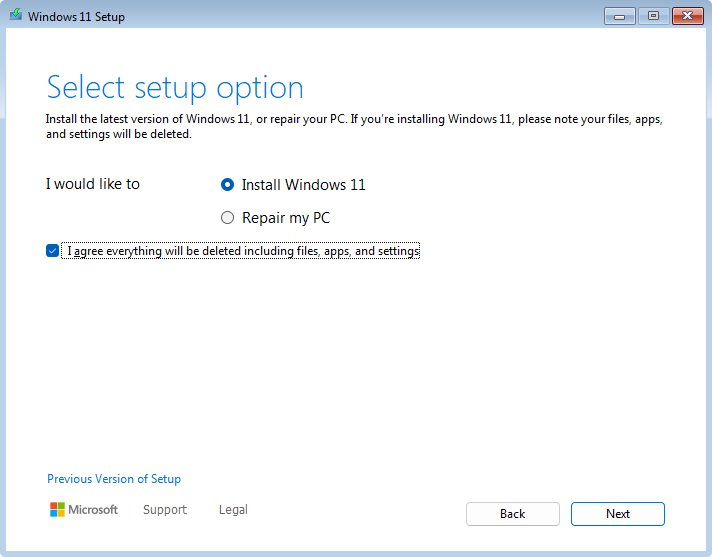
- Select Change what to keep, pick Keep personal files and apps, then select Next.
- Select Install, and let the PC restart several times.
Keep personal files and apps during a Windows 11 upgrade
Keep personal files and apps is the default on the Ready to install page. Select Change what to keep only when you want one of the other outcomes.
| Option | Personal files | Apps and Windows settings |
|---|---|---|
| Keep personal files and apps | Kept and moved to Windows 11 | Kept and moved to Windows 11 |
| Keep personal files only | Kept and moved to Windows 11 | Deleted |
| Nothing | Removed from the new install; saved in the Windows.old folder for 10 days | Deleted |
Windows.old does not help after a boot-from-USB install, because that route formats the drive and every file is lost.
Check Windows 11 version after a Media Creation Tool upgrade
- Right-click Start and select Settings.
- Select System, then About.
- Under Windows specifications, check that Edition matches your license and Version reads 26H2 or the release you installed.
- Open Settings > Windows Update and select Check for updates to pick up anything newer than the media.
Windows usually activates by itself once the PC is online. Your personal files should sit in the same user folders as before.
Go back to Windows 10 after a Windows 11 upgrade
In most cases you have 10 days to go back and keep your files. Going back removes apps and drivers installed after the upgrade, along with changes you made in Settings.
- Keep the windows.old and $windows.~bt folders in place; do not clean them up.
- Remove any user accounts you added after the upgrade.
- Have the USB drive you upgraded with ready.
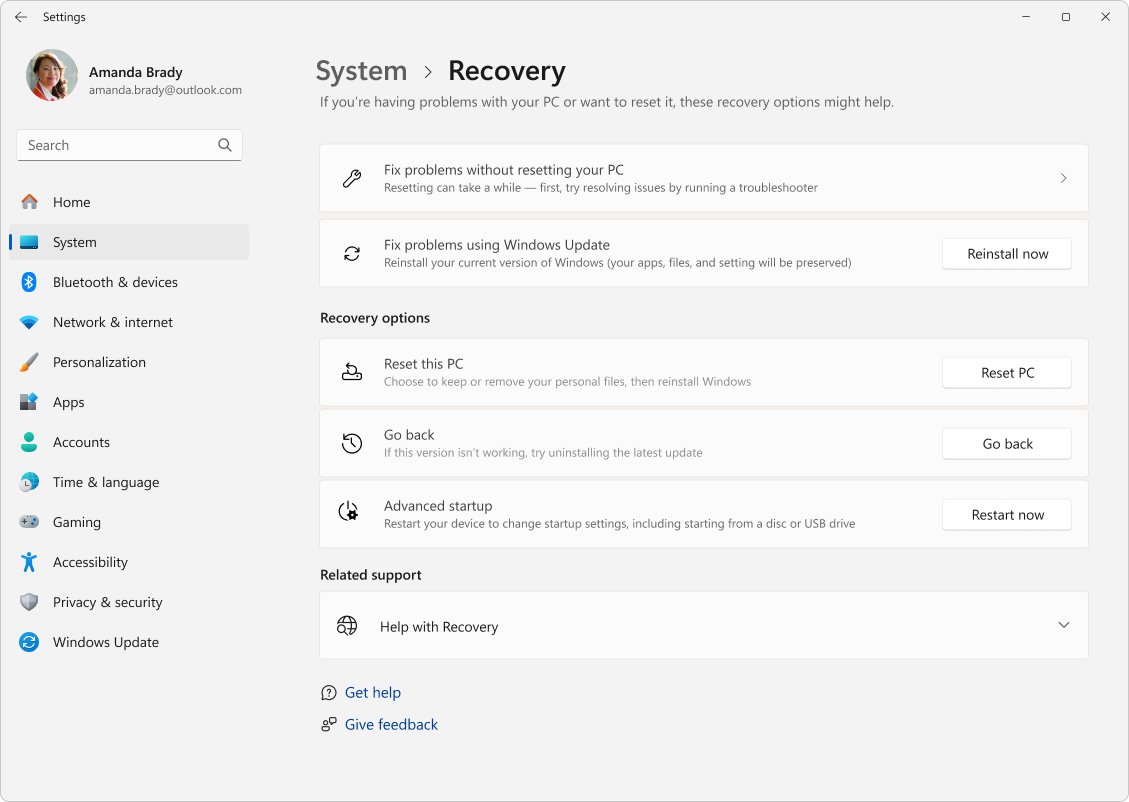
- Open Settings > System > Recovery.
- Select Go back if the option is available, and follow the prompts.
After that period, you need to back up your files by hand and do a clean install of Windows 10. Windows 10 support ended on October 14, 2025, so it no longer gets free security fixes.
Windows upgrade stuck at blank screen with only Recycle Bin & Taskbar
Setup restarts several times and can take a long while, so give it time before you act. Microsoft links a blank screen after an update mainly to incompatible drivers or an incomplete update.
Only the Recycle Bin and taskbar show on the desktop
A stalled Windows process or a driver problem has left the desktop half loaded.
- Press Ctrl + Shift + Esc to open Task Manager.
- Find Windows Explorer, right-click it, and select Restart.
- If it is not listed, go to File > Run new task, type
explorer.exe, and press Enter. - Press Windows + Ctrl + Shift + B to reset the graphics driver. A beep or a flicker means it worked.
The screen stays blank after the upgrade restarts
The graphics driver may not work with Windows 11, or the display output is pointing at the wrong screen.
- Disconnect external displays and other peripherals, and check that the cables are secure.
- Press Windows + P, press P again, then press Enter to cycle the display modes.
- Press and hold the power button for 20 seconds to force a restart.
- If the screen is still blank, hold the power button for 10 seconds to shut down, and repeat 2 to 3 times until Windows enters Recovery Mode.
- Go to Troubleshoot > Advanced Options > Startup Settings > Restart, then press F5 for Safe Mode with Networking.
- In Device Manager, expand Display adapters, right-click your GPU, and select Update driver or Roll back driver.
A blank screen with a blinking cursor
The UEFI or BIOS cannot find a boot device, and the boot order may still point at the USB drive.
- Unplug the USB flash drive and restart the PC.
- Open the firmware boot settings with the key your PC maker specifies.
- Set the internal drive back as the first boot device, then save and restart.
Media Creation Tool Windows 11 upgrade errors
Start with Microsoft's general fixes: unplug nonessential hardware, install pending updates, and free up disk space. Then match the code you see.
"There was a problem running this tool"
The tool stopped before the media was finished.
- Run MediaCreationTool.exe again as an administrator.
- Check your internet connection and the free space on the target drive.
- If it still stops, work through the Media Creation Tool error fixes, or use the Windows 11 Installation Assistant instead.
0xC1900101 errors, such as 0xC1900101 – 0x20017
An error beginning with 0xC1900101 is usually a driver error.
- Make sure the PC has at least 20 GB free.
- Run Windows Update a few times, and install every update it offers.
- Unplug external drives, docks and other hardware you do not need.
- Open Device Manager, and update or uninstall any device with a yellow exclamation mark.
- Open Command Prompt as an administrator and run
chkdsk/f C:, then restart when asked. - Run
DISM.exe /Online /Cleanup-image /Restorehealth, then try Setup again.
0xC1900200 – 0x20008 or 0xC1900202 – 0x20008
The PC may not meet the minimum requirements for Windows 11.
- Run the PC Health Check app to see which requirement failed.
- Fix the setting it names if the hardware supports it, then run Setup again.
- If the hardware itself falls short, stay on your current version of Windows.
0x80070070 – 0x50011, 0x50012 or 0x60000
The PC likely does not have enough space to install the upgrade.
- Open File Explorer and check the free space on the system drive.
- Free up space until at least 20 GB is available, then run Setup again.
0xC1900107
A cleanup from an earlier install attempt is still pending and needs a restart.
- Restart the PC and run Setup again.
- If the error returns, use Disk Cleanup to remove temporary files and system files, then retry.
0xC1900208 – 0x4000C
An incompatible app on the PC could be blocking the upgrade.
- Uninstall the incompatible app from Control Panel > Programs > Programs and Features.
- Run Setup again from the USB drive.
0x80200056
The upgrade was interrupted, usually by a restart or a sign-out.
- Plug the PC into power and keep it turned on.
- Run Setup again and stay signed in until the restarts begin.
Media Creation Tool upgrade FAQ
How do you download Media Creation Tool?
Open the Download Windows 11 page on microsoft.com and select Download Now under Create Windows 11 Installation Media. Your browser saves a file named MediaCreationTool.exe. Run that file to start. Microsoft's page is the source to use, not a third-party download site.
How do you use Microsoft Media Creation Tool?
Run MediaCreationTool.exe as an administrator and accept the license terms. Choose Create installation media for another PC, select the language, edition and 64-bit architecture, and then choose USB flash drive or ISO file. Run setup.exe from the finished media to upgrade.
How do you install Media Creation Tool?
You do not install it as a separate app. Microsoft's steps have you download MediaCreationTool.exe and run it, and the tool then walks you through creating installation media. Running the file as an administrator is the only requirement before its first screen appears.
How does the Media Creation Tool work?
The tool downloads the current Windows 11 release and writes it to a USB flash drive, or saves it as an ISO file. Running setup.exe from that media upgrades the installed Windows, while booting from the media installs a fresh copy and erases the drive.
Does Media Creation Tool have an upgrade this PC option for Windows 11?
Microsoft's Windows 11 instructions list only Create installation media for another PC. Upgrade this PC now belongs to the Windows 10 tool, which installs Windows 10. For Windows 11, make the media and run setup.exe, or use the Windows 11 Installation Assistant.
Will a Media Creation Tool upgrade delete my files?
No, not when you run setup.exe inside Windows and keep the default. Keep personal files and apps moves everything to Windows 11. Booting from the USB drive is different, because that route wipes the drive. Back up your files before either one.
Is the upgrade to Windows 11 free with Media Creation Tool?
Yes. Microsoft says upgrades to Windows 11 from Windows 10 are free, provided the device meets the minimum system requirements. The download is large, so an internet provider might charge fees on a metered connection. The tool itself comes from Microsoft at no cost.
How long does a Windows 11 upgrade take?
The time varies, and Microsoft gives no fixed figure. Download time depends on your internet speed, and Microsoft says the Windows 11 upgrade usually takes longer than a typical Windows 10 feature update. Expect several automatic restarts before the sign-on screen appears.
Can you update Windows with Media Creation Tool instead of Windows Update?
Yes. Microsoft describes installation media as an alternate method that can upgrade an existing Windows installation. It still recommends waiting until Windows Update says the upgrade is ready for the device. Use the media when you want to run Setup yourself.
Is Media Creation Tool recommended by Microsoft for upgrading?
Not as the first choice. Microsoft recommends Windows Update for a Windows 10 to Windows 11 upgrade, and calls the Installation Assistant the best option for the device you are using. Its download page aims the Media Creation Tool at reinstalls and clean installs.
Can you use Media Creation Tool on an Arm PC?
No. Microsoft states the Windows 11 Media Creation Tool cannot create installation media for Arm-based PCs and can only create media for x64 processors. An Arm-based PC needs the Windows 11 ISO for Arm64 devices linked from the Download Windows 11 page.