Plug a USB device into your PC and Windows usually sets it up on its own; for Bluetooth and wireless devices, open Settings > Bluetooth & devices > Devices > Add device on Windows 11, or Settings > Devices > Add Bluetooth or other device on Windows 10.
This guide covers USB, Bluetooth, printers, wireless displays and phones, what Windows does behind the scenes, and how to fix a device that will not connect.
Step-by-step: Adding a device on Windows 11 or Windows 10
Find your device type below and follow the path for your version of Windows. Turn the device on first and, if it needs pairing, put it in pairing mode.
| Device type | Windows 11 | Windows 10 |
|---|---|---|
| USB accessory | Plug it in. Windows usually detects it automatically. | Plug it in. Windows usually detects it automatically. |
| Bluetooth headphones, speaker, mouse or keyboard | Settings > Bluetooth & devices > Devices > Add device | Settings > Devices > Add Bluetooth or other device > Bluetooth |
| Printer or scanner | Settings > Bluetooth & devices > Printers & scanners > Add device | Settings > Devices > Printers & scanners > Add a printer or scanner |
| Wireless TV, projector or monitor | Press Windows logo key + K and select the display | Press Windows logo key + K and select the display |
| Android phone or iPhone | Open the Phone Link app and pair with the QR code | Open the Phone Link app and pair with the QR code |
Keep a wireless device close to your PC during setup. The sections below give the full steps for each route.
Windows' secret advantage: Plug-and-Play
Plug and Play (PnP) is the part of Windows that adapts to hardware changes with minimal input from you. You can add and remove devices with no manual configuration and no knowledge of computer hardware.
| What Plug and Play does | What it means when you connect a device |
|---|---|
| Recognizes hardware automatically | A new device is picked up as soon as you add it, with no manual configuration |
| Allocates hardware resources | The PnP manager assigns input/output ports, interrupt requests, direct memory access channels and memory locations, so you never set them by hand |
| Reassigns resources when needed | A new device that needs resources already in use does not force you to reconfigure the old one |
| Loads the right driver | Windows finds and loads a matching driver for the device |
| Announces hardware changes | Drivers and apps can register to be told about hardware events, so they can respond when a device arrives |
A docking station is a good example. Dock a laptop and its keyboard, mouse and monitor work without manual changes.
PnP needs support from the device, Windows and the driver together. Resources are not dynamically configurable on legacy devices, so older hardware is the most likely to need extra work.
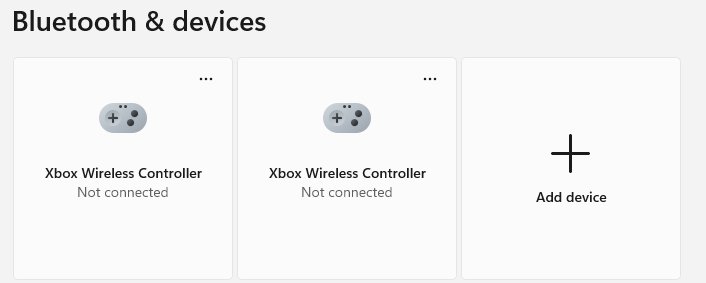
Adding a device on Windows 11
Use this route when Windows did not detect the device by itself, or when the device uses Bluetooth or another wireless connection.
- Turn the device on and, if it needs pairing, put it in pairing mode.
- Open Start and select Settings.
- Go to Bluetooth & devices > Devices.
- Select Add device.
- Choose your device from the list.
- Follow the on-screen instructions, then select Done.
The device manual explains how to make it discoverable. Earbuds often have their own routine.
Adding a device on Windows 10
The Windows 10 route uses a different page in Settings and asks for the connection type before it searches.
- Turn the device on and, if it needs pairing, put it in pairing mode.
- Open Start and select Settings.
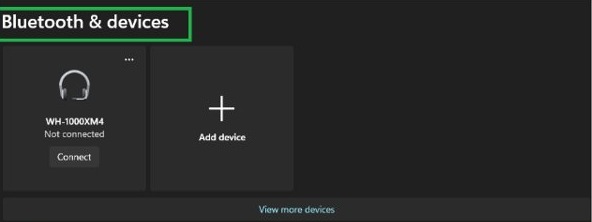
- Go to Devices > Bluetooth & other devices.
- Select Add Bluetooth or other device.
- Choose the connection type, such as Bluetooth.
- Select your device from the list, follow any prompts, then select Done.
Microsoft ended support for Windows 10 on October 14, 2025, and recommends moving to Windows 11. These steps still work on a Windows 10 PC.
How to connect a Bluetooth device to Windows 11 from quick settings
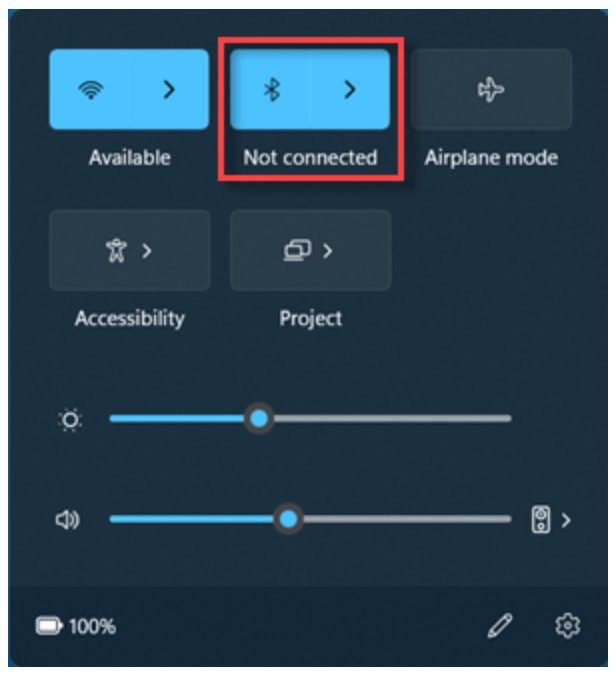
Quick settings pairs a Bluetooth device without opening the Settings app. A PC with no Bluetooth radio needs a USB Bluetooth adapter first.
- Make the Bluetooth device discoverable.
- Select the Network, Sound or Battery icon on the taskbar to open quick settings.
- Select the arrow next to the Bluetooth tile, labeled Manage Bluetooth devices.
- Select your device under New devices.
- Follow any prompts, then select Done.
If the Bluetooth tile is missing, turn Bluetooth on from Settings > Bluetooth & devices instead. On Windows 10, the Bluetooth tile in Action center is an on and off switch, so pair the device from Settings.
How to use Swift Pair to connect Bluetooth devices in Windows
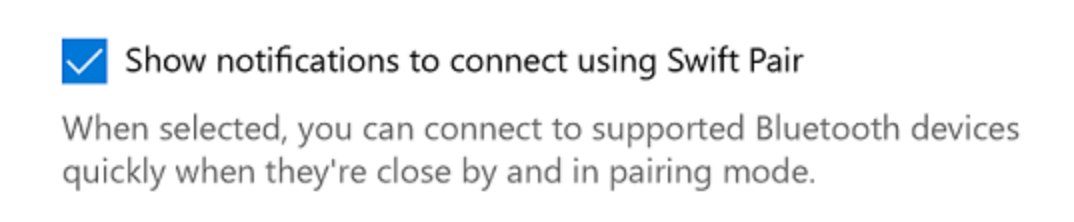
Swift Pair shows a notification when a supported device is nearby and in pairing mode. It works on Windows 11 and Windows 10.
- Make the device discoverable and keep it close to the PC.
- If Windows asks whether to allow Swift Pair notifications, select Yes.
- When the new device notification appears, select Connect.
- On Windows 10, select Close after the device connects.
How to connect a USB device to a Windows PC
Most USB accessories need no Settings page at all, because Windows looks for a driver as soon as the device is plugged in.
- Plug the device into a USB port on the PC.
- Give Windows a moment to identify it and load a driver.
- Open the device or the app that uses it.
- If nothing happens, right-click Start and select Device Manager.
- Select Action > Scan for hardware changes.
When a device still does not appear, work through the fixes for USB devices that are not recognized.
How to connect a printer or scanner to Windows 11 and Windows 10
Turn the printer on and connect it with USB, or put it on the same network as the PC. These steps are for Windows 11.
- Open Start and go to Settings > Bluetooth & devices > Printers & scanners.
- Look in the list to see whether Windows has already installed the printer.
- If it has not, select Add device next to Add a printer or scanner.
- Wait for the search to finish, then select Add device next to your printer.
- If it never appears, select The printer that I want isn't listed and then Add a new device manually.
On Windows 10, go to Settings > Devices > Printers & scanners, select Add a printer or scanner, choose your printer and select Add device.
For a printer on your network, you can connect a wireless printer over Wi-Fi.
How to connect a wireless display to Windows 11 or Windows 10
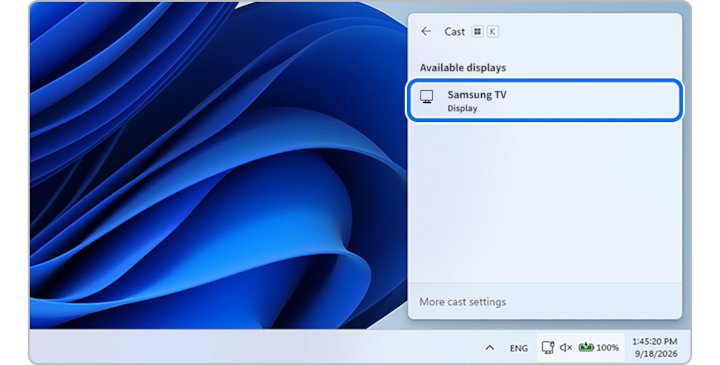
Windows casts to TVs, projectors and monitors that support Miracast, either built in or through a dongle.
- Turn on the display. If you use a Miracast dongle or adapter, plug it into the display.
- Press Windows logo key + K.
- Select the display from the list.
- Follow any on-screen instructions.
- Press Windows logo key + P to choose PC screen only, Duplicate, Extend or Second screen only.
On Windows 11, you can use the Wireless Display feature to cast from another device to your PC.
How to connect a phone to a Windows PC with Phone Link
Phone Link pairs a phone with your PC. The requirements differ by phone, and neither route supports work or school accounts.
| Phone | You need | How to pair |
|---|---|---|
| Android | Android 10 or later, Windows 10 (October 2022 update or later) or Windows 11, and both devices on the same Wi-Fi network | Open Phone Link, sign in, install Link to Windows on the phone, select Pair with QR code and scan the code |
| iPhone | iOS 16 or later, Windows 10 (May 2019 Update or later) or Windows 11, and a PC with Bluetooth Low Energy | Turn on Bluetooth on both, open Phone Link, select iPhone under Pick your phone and scan the QR code with the iPhone camera |
Once the two are paired, you can sync texts, calls and photos with Phone Link.
How to check if a device is connected in Windows 11 or Windows 10
A paired device appears in Settings, and every installed device appears in Device Manager with its status.
- On Windows 11, go to Settings > Bluetooth & devices > Devices. On Windows 10, go to Settings > Devices > Bluetooth & other devices.
- Find your device in the list.
- Right-click Start and select Device Manager.
- Expand the category for your device, right-click it and select Properties.
- Read the Device status box. Any problem shows there with an error code.
On Windows 11, you can also list all connected devices from several other places.
Extra tips to get the most out of your devices
These settings fix small annoyances once a device is connected.
| Goal | What to do | Why it helps |
|---|---|---|
| Get optional driver updates | On Windows 11, go to Settings > Windows Update > Advanced options > Optional updates. On Windows 10, select View optional updates on the Windows Update page | Optional driver updates do not install automatically |
| See more Bluetooth devices when adding | On Windows 11, set Bluetooth devices discovery to Advanced under Bluetooth & devices > Devices | The list shows all Bluetooth device types |
| Send sound to the right device | Select the Sound icon on the taskbar and choose the device | A paired headset is not always the active output |
| Reduce Bluetooth interference | Keep the Bluetooth device away from USB 3.0 ports | USB 3.0 ports can interfere with Bluetooth |
| Avoid failed pairing | Fully charge the device before you pair it | A low battery can stop a device from connecting |
| Keep a second screen useful | Press Windows logo key + P and select Extend | The display works as extra desktop space rather than a copy |
Understanding what happens behind the scenes when you connect a device
Windows matches each device to a driver through identifiers the device reports. This example follows a USB device from plug-in to driver.
| Stage | What Windows does |
|---|---|
| Detection | The USB hub driver detects the device and builds a hardware ID from it, for example USB\VID_1234&PID_5678&REV_0001 |
| Notification | The hub driver tells the PnP manager about the new device, and the manager asks for all its hardware IDs and compatible IDs |
| Search | Windows looks in the Driver Store for a driver package that matches a hardware ID, then tries the more generic compatible IDs |
| Ranking | Each match gets a rank, and the match with the lowest rank value is treated as the best one |
| Tie-break | Between equal ranks, Windows prefers the most recent driver date and then the highest version |
| Fallback | With no close match, Windows selects from increasingly general driver packages |
This explains why some devices work the moment you plug them in. A system-supplied driver can support a whole family of devices, while other hardware needs a package from its manufacturer.
Troubleshooting common issues when connecting devices
Start with the symptom you see. The four sections after this one cover the most common causes in more detail.
Device Manager shows Code 28
The drivers for the device are not installed.
- In Device Manager, right-click the device and select Uninstall device.
- Select Action > Scan for hardware changes so that Windows reinstalls it.
- If Windows asks for a driver you do not have, get it from the hardware maker's website.
Device Manager shows Code 10 or Code 43
Code 10 means the device cannot start. Code 43 means Windows stopped the device after it reported a problem.
- Open the device's Properties in Device Manager and select the Driver tab.
- Select Update Driver.
- If the code remains, get a newer driver from the hardware maker or contact the maker for a diagnosis.
Bluetooth device is connected but has no sound
Windows may be sending audio to a different output, or the device may not support A2DP.
- Select the Sound icon on the taskbar and choose your Bluetooth device.
- If that does not help, remove the device and add it again.
- Check the maker's documentation to confirm that the headphones or speaker support A2DP.
Bluetooth device keeps disconnecting
Power saving can turn off the adapter.
- Select the Battery icon on the taskbar and turn off Energy Saver on Windows 11 or Battery Saver on Windows 10.
- In Device Manager, expand Bluetooth, right-click your adapter and open Properties > Power Management.
- Clear Allow the computer to turn off this device to save power.
- Press Windows key + R, enter
services.mscand select OK. - Right-click Bluetooth Support Service and select Restart.
Device not found in the Add window
Windows can only list a device that is on, in range and discoverable. Work through these checks in order.
- Confirm that Bluetooth is turned on in Settings.
- Turn the device off and on, then put it back in pairing mode.
- Move the device close to the PC and away from USB 3.0 ports.
- On Windows 11, go to Settings > Bluetooth & devices > Devices and set Bluetooth devices discovery to Advanced under Device settings.
- On Windows 10, go to Bluetooth & other devices > More Bluetooth options and tick Allow Bluetooth devices to find this PC on the Options tab.
- Return to the add window and search again.
Driver problems when connecting a device
Windows Update installs most driver updates automatically and is the best place to start. A manual install is the fallback, and you can also install a device driver by hand if the maker only offers individual files.
- Right-click Start and select Device Manager.
- Expand the device category and right-click the device.
- Select Update driver > Search automatically for updated driver software.
- If nothing is found, select Search for updated drivers on Windows update.
- If Windows Update has nothing either, download the driver from the maker's website and select Browse my computer for drivers.
- If the problem remains, select Uninstall device > Uninstall, then restart the PC so that Windows reinstalls the driver.
If the trouble started after an update, open Properties > Driver and select Roll Back Driver. This needs administrator permissions.
Check Bluetooth settings on Windows 11 and Windows 10
These steps are for Windows 11. On Windows 10, the Bluetooth switch is at Settings > Devices > Bluetooth & other devices.
- Go to Start > Settings > Bluetooth & devices.
- Turn on the Bluetooth toggle.
- If it is already on, turn it off, wait 10 seconds and turn it back on.
- Try pairing again.
- If pairing still fails, go to Settings > System > Troubleshoot > Other troubleshooters and select Run next to Bluetooth.
On Windows 10, find the troubleshooter at Settings > Update & Security > Troubleshoot > Find and fix other problems.
Power cycle your device
Turning the device off and on is one of Microsoft's first fixes for a Bluetooth device that will not connect. Restart the PC as well if the device still fails.
- Fully charge the device if it runs on a battery.
- Turn the device off, then turn it back on.
- Put it back in pairing mode and try again.
- If it still will not connect, select Start > Power > Restart on the PC.
- After the restart, go to Windows Update in Settings and select Check for updates.
How to remove a device from Windows 11 and Windows 10
Removing a device clears its pairing, which is also the standard fix for a device that shows as paired but will not connect. These steps are for Windows 11.
- Go to Settings > Bluetooth & devices > Devices.
- Select More options (…) next to the device.
- Select Remove device.
- Select Yes to confirm.
- Select Add device to pair it again if you still need it.
On Windows 10, go to Settings > Devices > Bluetooth & other devices, select the device, select Remove device and confirm with Yes.
Connecting devices to Windows FAQ
How do I add a new device to Windows 11?
Open Settings and go to Bluetooth & devices > Devices, then select Add device and follow the prompts. Turn the device on first and put it in pairing mode if it uses Bluetooth or another wireless connection.
How do I add a new device to Windows 10?
Open Settings and go to Devices, then select Add Bluetooth or other device and choose the connection type. Select your device from the list, follow any prompts and select Done when Windows finishes.
Why can't my PC find my Bluetooth device?
The device is usually off, out of range or not discoverable, or Bluetooth is off on the PC. Put the device in pairing mode, move it closer and away from USB 3.0 ports. On Windows 11, also set Bluetooth devices discovery to Advanced.
Do I need to install drivers when I plug in a device?
Usually not. Windows finds a driver through Plug and Play and Windows Update, then loads it automatically. Some devices, including some printers, need a package from the maker when Windows cannot find a suitable driver on its own.
What is Plug and Play in Windows?
Plug and Play is the part of Windows that adapts to hardware changes. It recognizes new hardware, assigns the resources the device needs and loads a suitable driver, so you can add and remove devices with no manual configuration.
Can I connect Bluetooth devices if my PC has no Bluetooth?
Yes. Most PCs have Bluetooth built in, but a PC without it can use a USB Bluetooth adapter. Plug the adapter in, turn Bluetooth on in Settings, then pair your device in the normal way.
How do I put a device in pairing mode?
The method depends on the device, so check its manual or the manufacturer's website. Windows cannot put a device in pairing mode for you, so this step always happens on the device itself, before you select Add device.
How do I connect my phone to my Windows PC?
Open the Phone Link app on your PC and sign in with your Microsoft account. Then pair your Android phone or iPhone by scanning the QR code. Android needs the Link to Windows app, and iPhone pairing uses Bluetooth.