Recover a forgotten BIOS or UEFI password through your PC maker's ownership check, or clear it yourself on desktops that have a password jumper or Clear CMOS control.
The route depends on the brand and on which password is set: Dell can issue a release code, while Lenovo administrator passwords and Surface UEFI passwords cannot be reset by the owner at all. This is firmware security, so every route assumes you own the PC or have your organization's approval.
Recover or reset a BIOS or UEFI password
Find your situation below. Work through the row for your PC before you open the case, because some laptops have no user-side reset.
| Your situation | Do this | What to have ready |
|---|---|---|
| You still know the password | Enter BIOS setup and clear the password fields | The current password |
| Work or school PC | Ask your IT administrator, who may hold the password | Your device details |
| Dell laptop or desktop | Get a password release code from Dell Technical Support | Error code, Service Tag, proof of ownership |
| Dell desktop with a password jumper | Clear the password with the PSWD jumper | Screwdriver and the service manual |
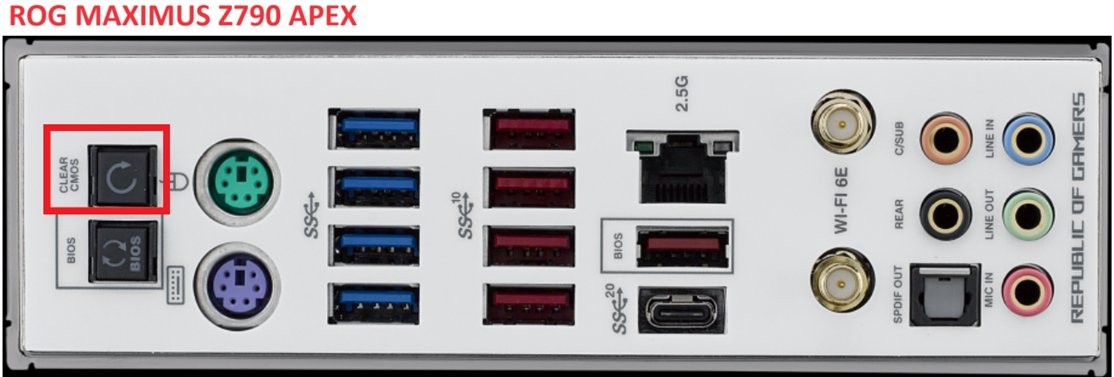
| ASUS or other desktop motherboard | Clear CMOS with the button, pins or battery | The motherboard manual |
| Lenovo administrator password | Ask Lenovo about a paid system board replacement | Proof of purchase |
| Microsoft Surface | Ask the device's administrator or request service from Microsoft | Your warranty status |
| HP and other brands | Contact the maker's support | Model and serial number |
BIOS administrator, user and hard disk passwords explained
Firmware can hold several passwords, and a reset does not always clear all of them. The names below come from Lenovo's Yoga user guide, and Dell uses admin, system and hard drive for the same kinds of lock.
| Password | What it locks | If you forget it on a Lenovo PC |
|---|---|---|
| Administrator | Opening the UEFI/BIOS setup utility | Authorized service cannot reset it; the system board is replaced for a fee |
| User | Limited setup access, available only after an administrator password exists | Ask Lenovo service |
| Master hard disk | Starting the operating system from that drive | Service cannot reset it or recover the data; the drive is replaced for a fee |
| User hard disk | Starting the operating system, available only after a master hard disk password exists | Ask Lenovo service |
None of these is your Windows sign-in. To reset your Windows password, use the Windows or Microsoft account route instead.
How to remove BIOS or UEFI password
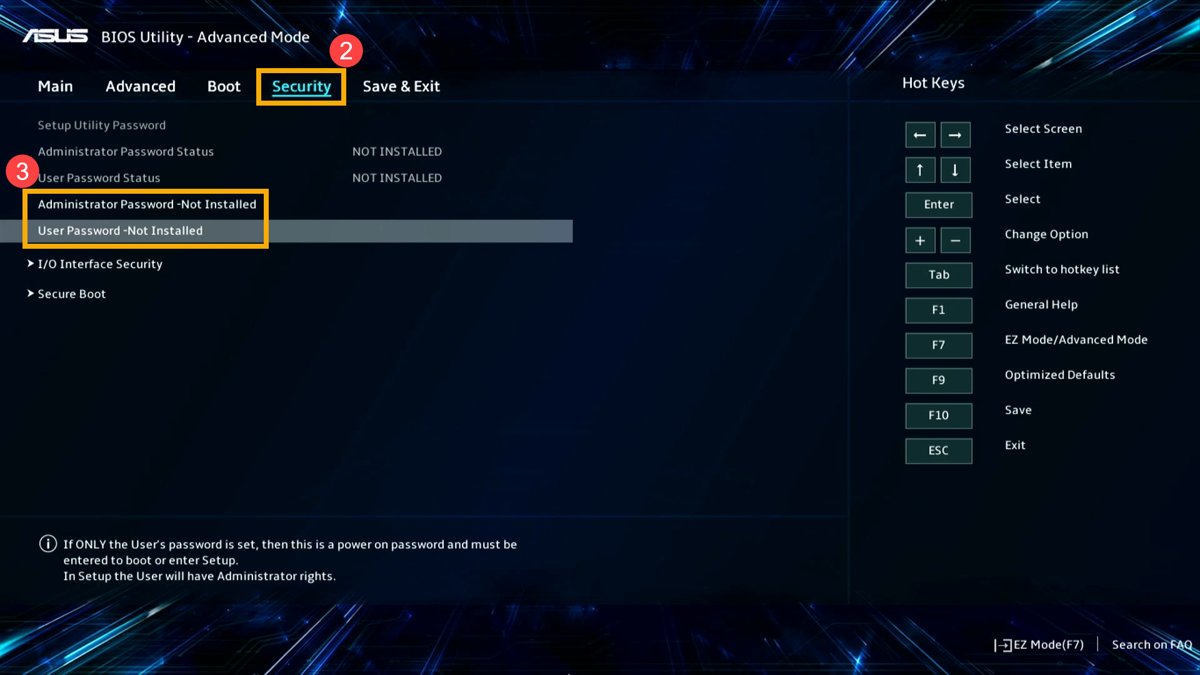
This route is only for a password you still know. ASUS and Dell both remove it by saving empty password fields.
- Restart the PC and open BIOS setup with your maker's key, such as F2 on Dell.
- Enter the current password when asked.
- Open the Security section.
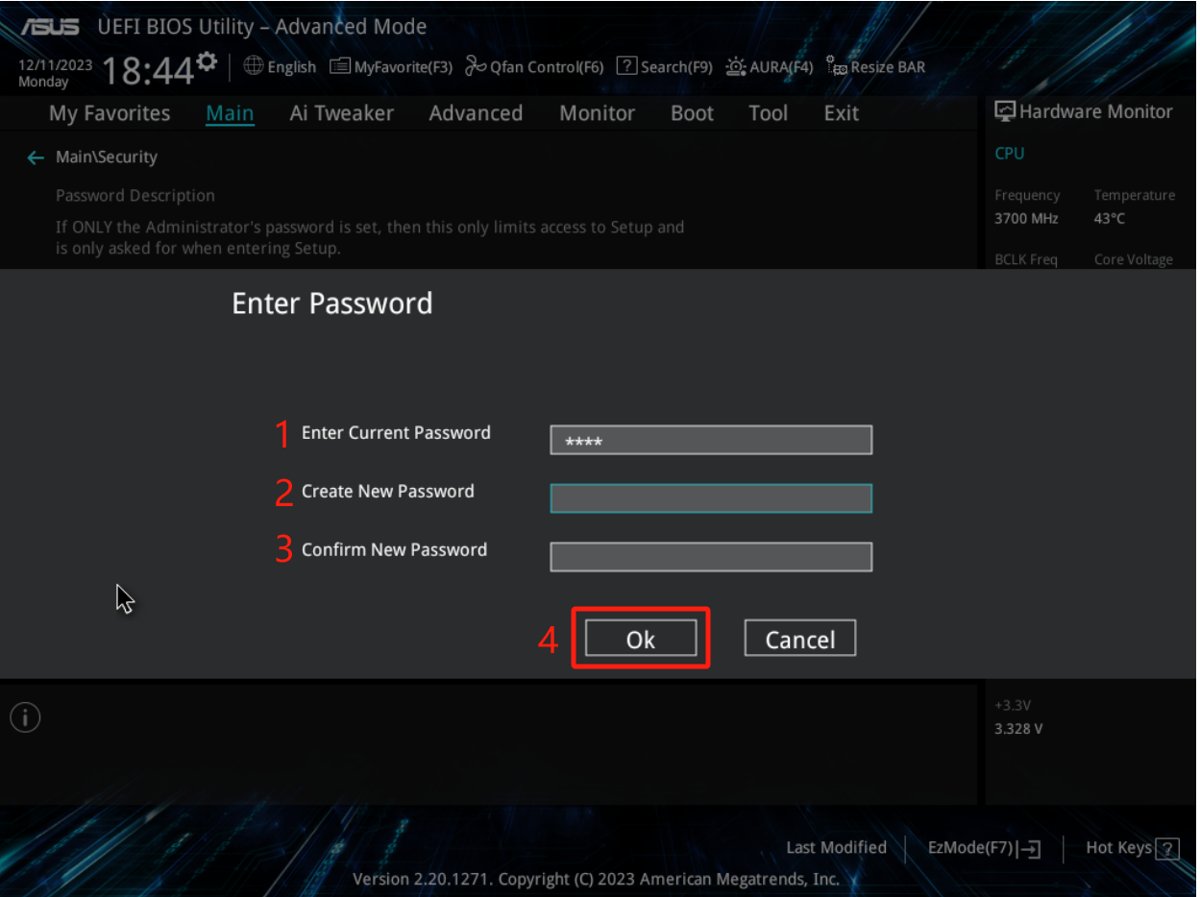
- Select the password you want to remove and enter the current one.
- Leave the new password and confirmation fields blank.
- Save your changes and exit.
How to reset a Dell BIOS password with a release code
Dell offers this for all of its computers. It requires ownership verification, and Dell cannot create release codes for NVMe SSDs.
- Turn on the PC and enter a wrong password 3 to 5 times until an error code appears.
- Write the code down exactly as shown.
- Note your computer model and Service Tag, and find your proof of purchase.
- Contact Dell Technical Support and give them the code and proof of ownership.
- Enter the release code Dell provides at the password prompt.
If recovery is not possible, Dell says a motherboard replacement may be needed. With Master Password Lockout turned on, Dell cannot assist at all and the motherboard or hard drive must be replaced.
How to clear a Dell desktop BIOS password with the PSWD jumper
Dell laptops do not have this jumper. Clearing it removes all BIOS passwords, including system, setup and hard drive passwords, but not your files, Windows password or online accounts.
- Power off the computer and disconnect all cables.
- Get your model's service manual from Dell Support and locate the jumper labeled PSWD or PASSWORD, because its position varies by model.
- Open the case with a screwdriver.
- Take the small plastic cap off the password jumper.
- Reconnect power and turn on the computer without the cap in place.
- Let it finish booting, then shut it down.
- Put the jumper cap back on, close the case and reconnect the cables.
How to clear CMOS to reset a BIOS password on an ASUS motherboard
ASUS says Clear CMOS wipes the Real Time Clock memory that holds the date, time, BIOS password and BIOS setup parameters. Check your board's manual under Manual & Document to see which control it has.
| Your board has | Do this with the PC off and the power cord removed | Then |
|---|---|---|
| Clear CMOS or CLR_CMOS button | Press the button for about 5 to 10 seconds | Plug in and power on |
| CLRTC pins | Short the 2 pins with a metal object or jumper cap for about 5 to 10 seconds | Plug in and power on |
| CMOS battery in a holder | Remove the battery, clear with the button or pins, then refit the battery | Plug in, power on and reset the date and time |
| Wired 2-pin CMOS battery | Unplug the 2-pin cable, clear with the button or pins, then reconnect it | Plug in, power on and reset the date and time |
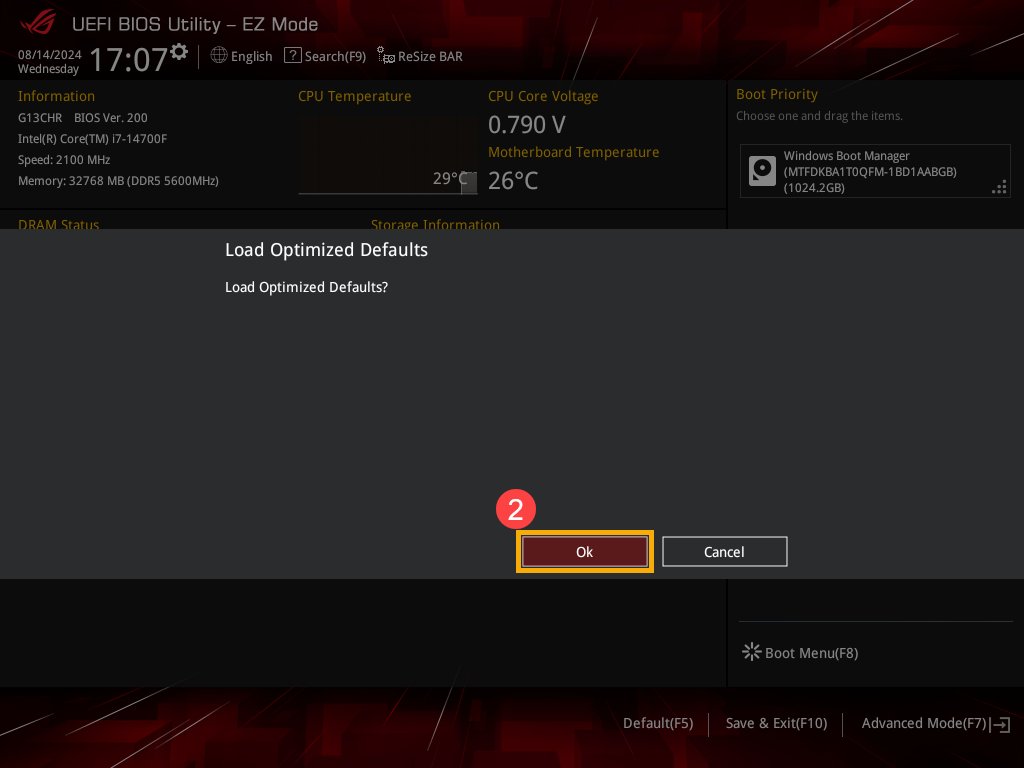
After the restart, press F1 to enter setup, F5 for Load Optimized Defaults, and F10 to save and leave. Other motherboard makers use their own labels, so follow your board's manual.
Forgot UEFI password for Surface
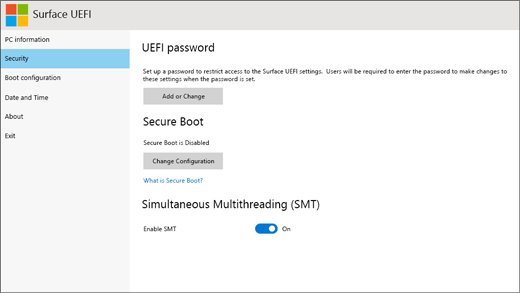
Microsoft states plainly that you cannot reset a Surface UEFI password and that Microsoft cannot retrieve it. That leaves two routes.
- Ask your IT department or the previous owner, if someone else manages the device.
- Open the Surface app or the Surface support page and select Get Help.
- Check your warranty status.
- Create a service order and print the shipping label, or use a Microsoft Authorized Service Provider where one is available.
Are BIOS password reset tools safe?
Skip third-party BIOS password generators. Dell says these tools are not authorized and describes them as a way for a physically present attacker to get past BIOS and hard drive passwords. If a drive was set to wipe when a recovery password is used, its data is wiped. Buy nothing from a site promising a master password; use the maker's ownership check instead.
BitLocker recovery key after a BIOS password reset
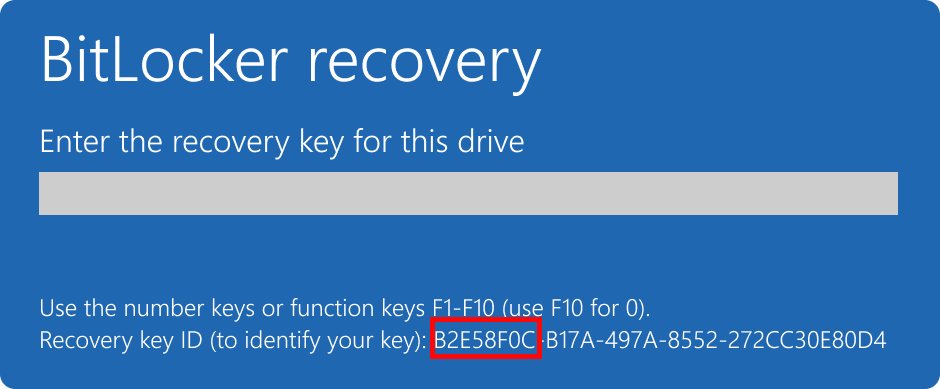
A firmware change can make Windows ask for a recovery key at the next start. Microsoft lists clearing or disabling the TPM, a new motherboard with a new TPM, and BIOS or UEFI upgrades among the triggers.
- Sign in to your Microsoft account at
aka.ms/myrecoverykeyfrom another device. - Match the key to the first 8 digits of the key ID on the recovery screen.
- Check any printout or USB flash drive if the key is not in your account.
- Save the 48-digit recovery password somewhere away from the PC before you change the firmware.
Microsoft Support cannot retrieve or recreate a lost key. For a planned firmware change, you can suspend BitLocker first so that you are not asked for the key at all.
What special key gets you into BIOS?
Microsoft lists Esc, Delete, F1, F2, F10, F11 and F12 as the common keys, and the startup screen often names the right one. When a startup password does not block Windows, you can also restart into the firmware from Windows.
| PC | Key or route |
|---|---|
| Dell | F2 right after power-on, or F12 for the boot menu |
| HP | Esc repeatedly at power-on, then F10, or F10 directly |
| ASUS | Hold F2, then press Power; some older desktops use Del |
| Lenovo Yoga | F2 repeatedly at the logo, or the Novo Button menu |
| Surface | Hold Volume Up, press and release Power, then release at the UEFI screen |
| Any UEFI PC from Windows | Settings > System > Recovery > Restart now > Troubleshoot > Advanced options > UEFI Firmware Settings |
To check which firmware type you have, compare legacy BIOS and UEFI before you start changing settings.
How do I manually reset BIOS to default?
Loading defaults fixes bad settings, not passwords. ASUS confirms that restoring BIOS settings will not remove your BIOS password, so you still need to get past any setup password first.
- On an ASUS notebook or all-in-one, press F9, confirm OK, then press F10 and confirm.
- On an ASUS desktop, press F5 to load defaults, then F10 to save and exit.
- On a Dell with a modern UEFI BIOS, select Load Defaults, keep BIOS Defaults selected, select OK, then save and exit.
- On a Dell with a legacy BIOS, press F9 and select Yes, then press F10.
- On an HP laptop, open the Exit or System Configuration tab, select Restore Defaults or Load Setup Defaults, then save with F10.
When the firmware itself is damaged rather than misconfigured, you need to recover the BIOS on a laptop instead of resetting it.
How to tell if a BIOS password is removed
- Restart the PC and watch for the password prompt, which should no longer appear.
- Open BIOS setup and check that no password is requested.
- Open the Security section and check that the password you cleared is no longer listed as set.
- Set the correct date and time if a CMOS clear reset them.
- Start Windows and enter your BitLocker recovery key if it asks for one.
BIOS password reset not working
The password prompt is still there after clearing CMOS
The password may not be held in the memory you cleared. Dell laptops have no password jumper, and a Lenovo administrator password needs a system board replacement.
- Confirm in your manual that the board has a clear control for that password.
- Contact the maker's support with your model, serial number or Service Tag.
- Have your proof of purchase ready, because Dell and Lenovo ask for it.
Please enter setup to recover BIOS settings
This prompt follows a settings reset, and ASUS shows one after a CMOS clear.
- Press F1 to enter setup.
- Set the date and time.
- Press F5 for Load Optimized Defaults.
- Press F10 to save and leave.
Windows will not boot after a BIOS reset
HP notes that a reset can change the boot order or other settings, which can stop the operating system loading.
- Restart and open BIOS setup again.
- Put the internal drive first in the boot order.
- Check the Secure Boot and storage settings.
- Save and restart.
BIOS recovery not working
A password reset and a firmware recovery are separate jobs, and recovery steps differ by maker.
- Confirm that the PC actually needs firmware recovery, not a password reset.
- Follow the recovery steps for your exact model.
- Contact the maker's support if the PC still fails to start.
BIOS password reset FAQ
How to reset, remove or recover BIOS passwords?
If you know the password, clear it in the BIOS Security section. If you forgot it, ask your PC maker for its ownership-verified route, or clear CMOS or the password jumper on a desktop that supports it. Lenovo and Surface owners need service, not a reset.
What happens when you reset your BIOS?
Firmware settings return to factory defaults. Your date, boot order, Secure Boot and virtualization choices can change, so review them afterwards. HP says a reset does not touch files on your drive, because the BIOS operates separately from storage. A setup password usually stays in place.
Does resetting BIOS delete everything?
No. Resetting the BIOS restores firmware settings and leaves files on your drive alone, according to HP. Dell also says that clearing a password does not erase your files. Settings can still stop Windows booting until you correct them, and a BitLocker-protected PC may ask for its recovery key at the next start.
Does resetting PC reset BIOS?
No. Reset this PC is a Windows recovery feature that reinstalls Windows and keeps or removes your files. Firmware settings and BIOS passwords live outside Windows, so a Windows reset does not clear them. To change them, you need to open BIOS setup.
Can you factory reset from BIOS?
BIOS setup restores firmware defaults only, not Windows. To factory reset Windows, go to Settings, System, Recovery, then Reset PC. If Windows will not start, Windows Recovery Environment offers Troubleshoot, then Reset this PC. Back up your files first.
Why does my BIOS keep resetting?
A weak or dead CMOS battery is the usual cause. Dell lists wrong BIOS dates and settings lost at power-off as the signs, and a battery usually lasts a few years. Some Dell Latitude laptops have no CMOS battery and reset when the main battery drains.
Does updating BIOS reset PC?
A BIOS update replaces firmware and does not reinstall Windows, and Dell states that it does not delete your data. Microsoft lists BIOS or UEFI upgrades as a BitLocker recovery trigger, so suspend BitLocker first. A Dell BIOS administrator password can also make the update fail.
What is a BIOS recovery?
BIOS recovery restores damaged firmware when an update fails or the PC will not start, often from a recovery file on a USB drive. The keys and files differ by maker. It is a different job from resetting a forgotten BIOS password.