You cannot sign in to iCloud email while your Apple Account is locked, so regain the account first with a password reset, Request Access or account recovery, then open icloud.com/mail.
If Apple's recovery messages go to the locked mailbox, you can still track the request at iforgot.apple.com. The steps below cover every lock message, recovery without your inbox, and how to reopen your mail on each device.
How to access iCloud email when your account is locked
A lock applies to the whole Apple Account, and iCloud Mail uses that same sign-in. The route back is through the account.
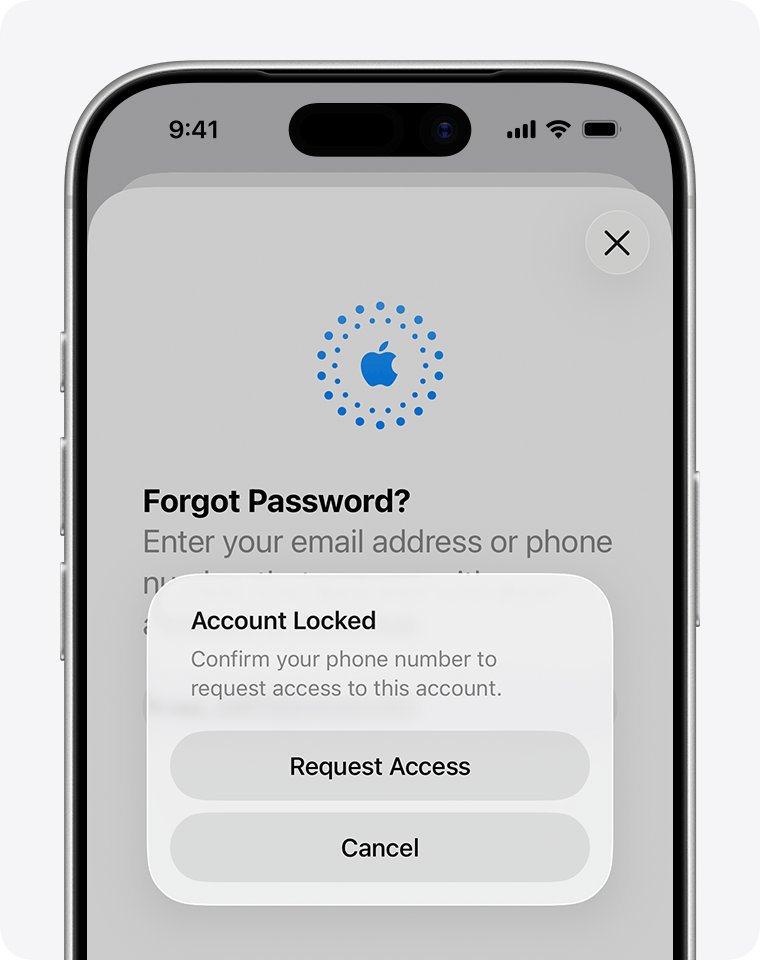
- On the sign-in screen, select Forgot password?, or tap Request Access if the alert offers it.
- Follow the onscreen instructions, which send you to a trusted device or ask for recovery details.
- Set a new password you can remember.
- Go to icloud.com/mail and sign in with the new password.
- Enter the six-digit verification code, then open your Inbox.
You can reset your Apple Account password with a trusted device or recovery details, and the next sections show which one fits.
iCloud account locked messages and how to get email back
The alert you see decides your next step, and the fixes for a locked Apple Account go deeper on each message.
| Message you see | What it means | What to do for your mail |
|---|---|---|
| "This Apple Account has been disabled for security reasons" | Too many wrong password or account entries | Reset the password, then sign in to iCloud Mail |
| "This Apple Account has been locked for security reasons" | Apple locked it automatically to protect you | Reset the password, then sign in to iCloud Mail |
| Apple Account is locked or not active | You may be able to ask for access | Tap Request Access in the alert |
| "This Apple Account is locked and can't be used" | The access request failed or was denied | Create a new Apple Account; the old mailbox stays closed to you unless you regain the account |
| "Your Media & Purchases account has been disabled" | Media and store purchases are affected | Tap Continue to ask for reactivation |
How to unlock iCloud email from a trusted iPhone or Mac
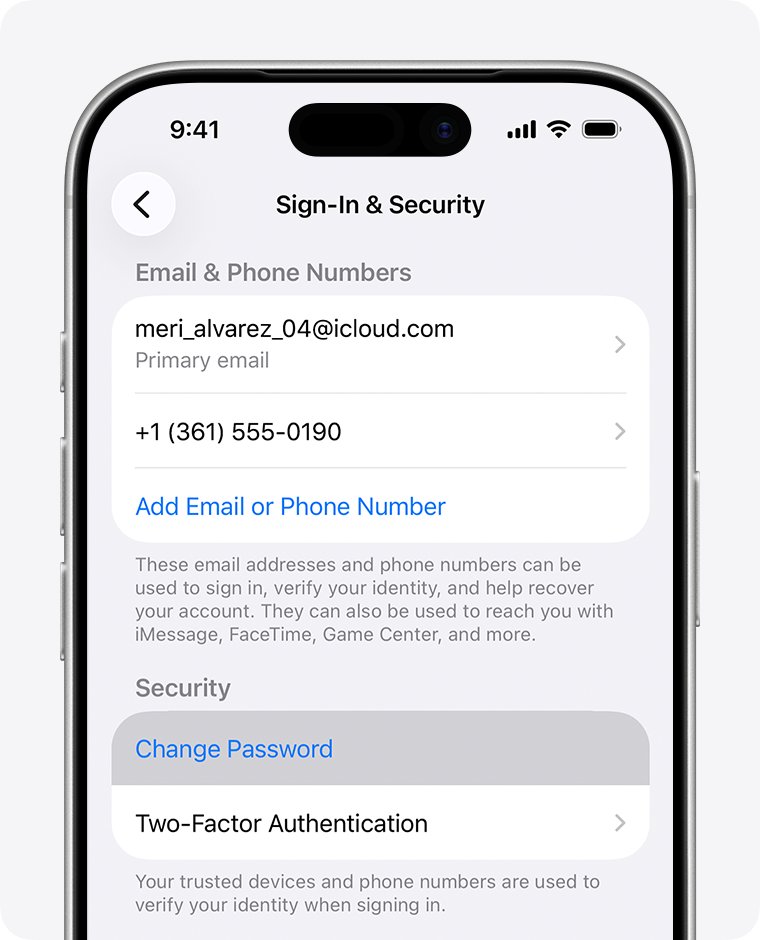
This is the easiest route. A device already signed in to your account can change the password without account recovery, so check old iPads and Macs too.
- On the iPhone or iPad, open Settings and tap your name.
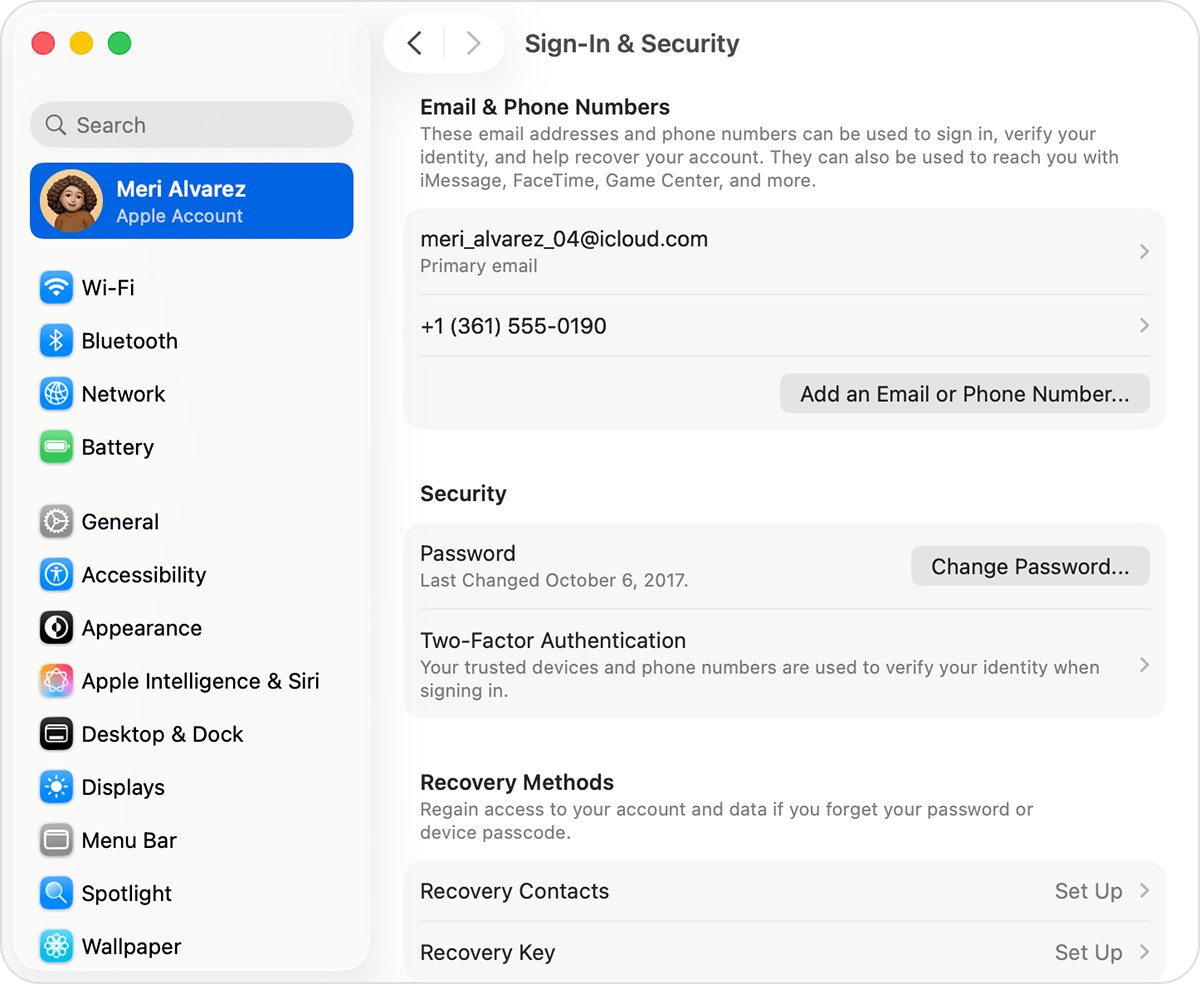
- Tap Sign-In & Security.
- Tap Change Password.
- Follow the onscreen instructions to set a new password.
- If asked, choose Remove Other Devices or Keep All Devices Signed In.
- Sign in at icloud.com/mail with the new password.
On a Mac, go to Apple menu > System Settings, click your name, click Sign-In & Security, then click Change Password. You might have to wait one hour if Stolen Device Protection requires a security delay.
How to access iCloud email without a trusted device
With no signed-in device, Apple asks for recovery factors. Have these ready before you select Forgot password?.
| What you still have | What to do |
|---|---|
| A trusted number or device you can get back within days | Wait until you have it; you regain access faster that way |
| Your trusted phone number on a new phone | Enter the two-factor code sent to that number |
| A recovery contact | Ask them for the six-digit recovery code |
| An email address on the account that you can open | Keep that inbox ready, because Apple might ask you to use it |
| The credit card on the account | Enter the CVV; if the issuer declines, select Don't have access to this card |
| A recovery key or security key | Follow Apple's separate process for that optional feature |
| None of these | Request account recovery |
How to start iCloud account recovery for a locked email
Account recovery can take several days or more, and Apple Support cannot shorten the wait. You can run Apple Account recovery from a borrowed device, even for recovery without your old number or email.
- On a device with iOS 17 or later or macOS 27 or later, go to iforgot.apple.com in Safari.
- On a borrowed device instead, open the Apple Support app, go to Support Tools, select Reset Password, then select Help Someone Else.
- Enter your account details and follow the instructions.
- Write down the email address and phone number you entered, because status checks need the same details.
- If you started on the web, turn off all your Apple devices during the wait.
Do not submit a second request unless you have found more recovery factors. Another request does not speed things up and might extend the wait.
How to check iCloud account recovery status without email
Apple sends a confirmation email within 72 hours, and that is a problem if the message lands in the mailbox you cannot open. You do not need the email to follow the request.
- Go to iforgot.apple.com.
- Enter the same email address and phone number you used to start the request.
- Read the expected recovery time shown for the active request.
- Watch the phone number you used, because Apple also sends a text or automated call when the account is ready.
- If no text or call arrives, go to apple.com/recover after the expected time.
Entering different details at iforgot.apple.com might extend the wait. If the site shows no active request, it was not submitted or was canceled, and you can start a new one.
How to cancel iCloud account recovery without the email
Recovery emails carry a cancellation link, which you cannot reach in a locked mailbox. Signing in or changing the password on a signed-in device cancels the request too.
| Your situation | What to do | Effect on recovery |
|---|---|---|
| You remember the password | Sign in successfully | Canceled, and you can use the account at once, including iCloud Mail |
| You found a device still signed in | Change the password on that device | Canceled, and the new password opens the account |
| A signed-in device you cannot unlock | Turn it off | Continues, because activity from that device would cancel the request |
| You did not start this recovery | Use the cancellation link if you can open the email, then change your password and review your account security | Canceled; someone may be trying to get into your account |
How do I access my iCloud email on my PC or laptop
Any browser works once the account is unlocked, on Windows or on a Mac. A desktop mail app needs one extra authorization step.
- Open a web browser and go to icloud.com/mail.
- Sign in with your Apple Account and the new password.
- Enter the verification code from a trusted device or trusted number.
- To use Outlook 2021 or later on Windows, add the account with your Apple Account email address.
- Click Allow when prompted to authorize the app.
You can also sign in to iCloud email on each device once the account is unlocked.
How do I access my iCloud email on iPhone after unlocking
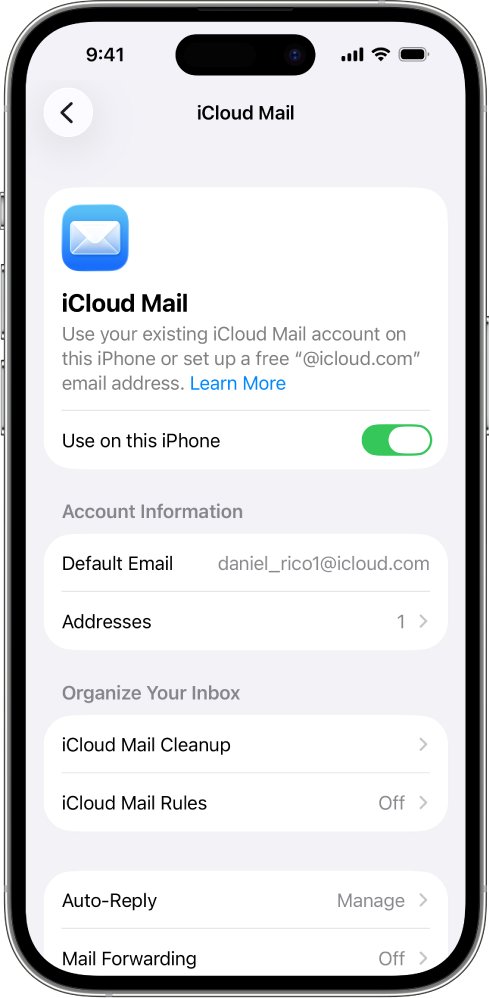
You must be signed in to the same Apple Account with iCloud Mail turned on, or the device cannot send or receive from that address.
- Open Settings and tap your name.
- Sign in with the new password if iPhone asks.
- Tap iCloud, then tap Mail.
- Turn on Use on this iPhone.
- Open the Mail app and tap a mailbox in the iCloud section.
On a Mac, go to System Settings, click your name, click iCloud, click Mail, and turn on Sync this Mac. Open the Mail app and click a mailbox in the iCloud section.
iCloud email server settings for other mail apps
Use these values only if your email app cannot authorize with your Apple Account. iCloud Mail supports IMAP and SMTP, and it does not support POP.
| Setting | Incoming (IMAP) | Outgoing (SMTP) |
|---|---|---|
| Server name | imap.mail.me.com |
smtp.mail.me.com |
| Port | 993 | 587 |
| Security | SSL required; try TLS if SSL shows an error | SSL required; try TLS or STARTTLS if SSL shows an error |
| Username | The name part of your address, or the full address if that fails | Your full iCloud Mail address |
| Password | An app-specific password | The same app-specific password |
Can't access iCloud email after unlocking your account
iCloud email on iPhone is not updating after the password change
The device can stop syncing if it was signed out, if Mail is off, or if iCloud storage is full.
- Sign in again in Settings with the new password.
- Check that Use on this iPhone is on under iCloud > Mail.
- Go to Settings > Apps > Mail > Mail Accounts > Fetch New Data, and turn on Push.
- Check your iCloud storage limit, then turn the iPhone off and back on.
icloud.com/mail will not load in the browser
The browser, the network or the iCloud Mail service itself can block the page.
- Check Apple's system status page for iCloud Mail.
- Update your browser and clear its cache.
- Try a different internet connection, then contact your network administrator if only one connection fails.
Outlook or another mail app rejects the iCloud password
Changing or resetting your Apple Account password revokes all app-specific passwords automatically.
- Sign in at account.apple.com.
- Select App-Specific Passwords in the Sign-In and Security section.
- Select Generate an app-specific password and follow the steps.
- Paste the new password into the app.
Account recovery confirmation email never arrived
It can take up to 72 hours, or the request may have been canceled.
- Wait the full 72 hours.
- Check spam or junk folders in any mailbox you can open.
- Go to iforgot.apple.com and check whether the request is active.
- Submit a new request only if it is not active.
Request denied and the account stays locked
Apple could not restore access, and shows "This Apple Account is locked and can't be used."
- Create a new Apple Account for new mail.
- Give your contacts and services the new address.
- If a device is stuck on Activation Lock and you have proof of purchase, start an Activation Lock support request.
How to forward iCloud email to another address
Once you are back in, a forwarding rule keeps a second copy of new mail in another inbox you control. Copies stored in iCloud still count against your iCloud storage.
- Go to icloud.com/mail and sign in.
- Select the settings button at the top of the Mailboxes list, then choose Settings.
- Select Mail Forwarding in the sidebar.
- Select the Forward my email to checkbox and type the other address.
- Leave Delete messages after forwarding unchecked to keep a copy in iCloud.
How to set up an iCloud recovery contact
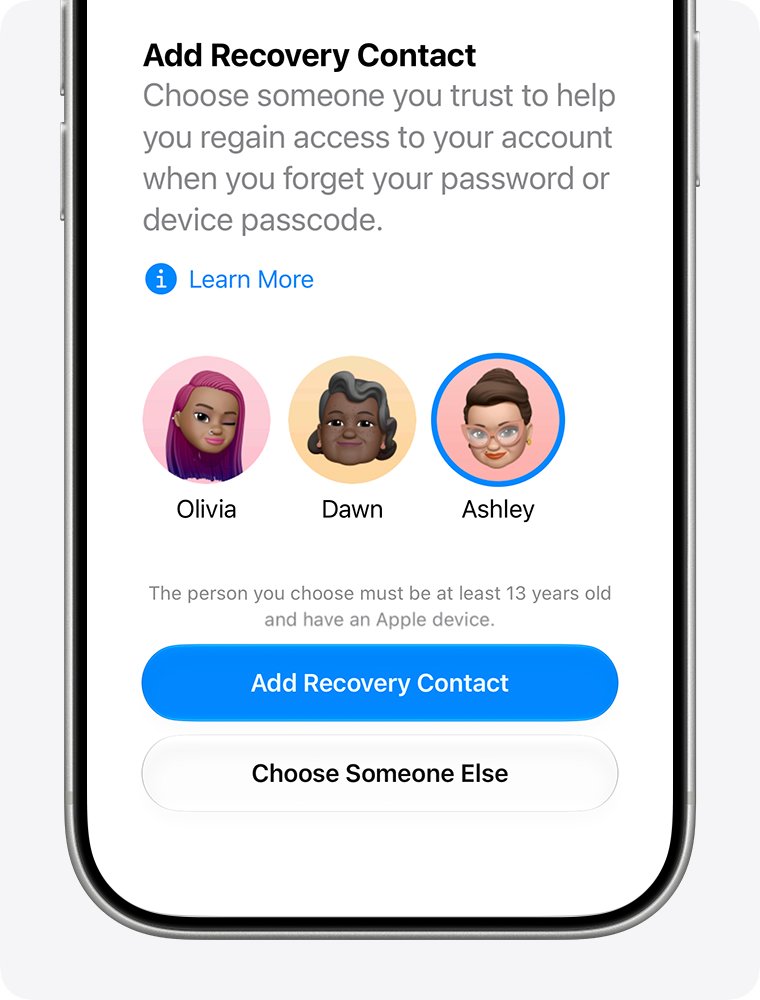
A recovery contact gets you a code without any access to your account, which can spare you the full recovery wait. You can add up to five, and both of you need iMessage turned on.
- Go to Settings and tap your name.
- Tap Sign-In & Security, then tap Recovery Contacts.
- Tap Add Recovery Contact and follow the onscreen steps.
- Choose a recommended contact, or tap Choose Someone Else.
- Ask that person to accept the invitation in Messages, unless they are in your Family Sharing group.
While you are in Sign-In & Security, add a second trusted phone number that is not tied to this iPhone. If your iPhone is your only trusted device and holds your only number, losing it leaves you unable to receive codes.
Locked iCloud email FAQ
Why can't I access my iCloud email?
A locked or disabled Apple Account stops you signing in to every Apple service, including iCloud Mail. If your account is fine, check the iCloud Mail system status, your iCloud storage limit, and whether Mail is turned on for the device.
Can I access iCloud email on PC?
Yes. Go to icloud.com/mail in a browser on a phone, tablet or computer and sign in to your Apple Account. Outlook 2021 or later on Windows can also connect after you authorize it with your Apple Account.
How do I access my iCloud email account online?
Go to icloud.com/mail and sign in with your Apple Account email address or phone number and password, then enter the verification code. This requires an unlocked account, so reset the password first if Apple shows a lock message.
How do I access my iCloud email inbox?
On iPhone or Mac, open the Mail app and select a mailbox in the iCloud section. On the web, go to icloud.com/mail. Mail must be turned on in iCloud settings, and the device must use the same Apple Account.
How do I access my iCloud email address if I forgot it?
Try each email address or phone number you may have used, because any one on the account works for sign-in. On a signed-in device, go to Settings, tap your name, then Sign-In & Security to see them listed.
Why do I need an iCloud email?
You do not need one to use an Apple Account, since other addresses work for sign-in. iCloud Mail is optional, so you can decide whether an iCloud address alongside your existing email is useful.
How long does a locked iCloud account take to recover?
A password change on a trusted device can work right away. Account recovery might take several days or longer, and a confirmation message within 72 hours gives the date and time to expect access.
Can Apple Support unlock my iCloud email faster?
No. Apple says the account recovery wait is fixed and Apple Support cannot shorten it. Submitting another request without new recovery factors can make the wait longer, so track the existing request at iforgot.apple.com instead.