Install an auto-refresh extension from the Microsoft Edge Add-ons store, because Edge's settings and keyboard shortcuts offer manual reload only and no refresh timer.
This guide covers extensions, a DevTools script, bookmarklets, the built-in features that keep a tab ready, and fixes for a refresh that stops working.
How to auto refresh a page in Microsoft Edge
An extension is the fastest route, and it keeps refreshing without any code. The controls differ by extension, so follow the labels in the one you install.
- Select Extensions to the right of the address bar. If it is missing, select Settings and more > Extensions.
- Select Get Extensions for Microsoft Edge.
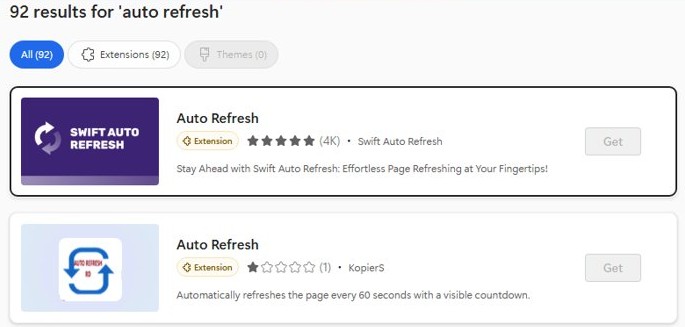
- Search for
auto refresh, then select Get beside the extension you choose. - Review the permissions, then select Add extension.
- Open the page you want to refresh, select the extension's icon, set the interval and start it.
Auto refresh extension vs script in Microsoft Edge
| Your situation | Use this | Why |
|---|---|---|
| You want a refresh timer that lasts between sessions | An Add-ons store extension | It runs after you close DevTools and needs no code |
| You cannot install extensions on a managed PC | The DevTools script | It needs only the Console, and you close a tab to stop it |
| You refresh the same site often and want one click | A bookmarklet on the favorites bar | It starts the same script from a favorite |
| You own the page | A meta refresh tag in the HTML |
Every visitor gets the refresh without any browser setup |
| You only need one fresh copy of the page | Ctrl + R or F5 | A timer adds nothing when one reload is enough |
Why auto-refresh is useful in Edge
Auto-refresh saves you from pressing reload on a page whose content changes while you are away from it. It suits pages that do not update themselves.
| Page you are watching | What the refresh gives you | A sensible starting interval |
|---|---|---|
| Status or monitoring dashboards | Current figures on a wall screen or second monitor | 1 to 5 minutes |
| Order, delivery or ticket pages | A new status without repeated manual reloads | 5 to 15 minutes |
| Pages you are building locally | A preview of your latest saved changes | A few seconds to 1 minute |
| News or live score pages with no live updates | New posts appear without any action from you | 1 to 5 minutes |
Method 1: Using built-in Edge features
Edge has no setting that reloads a tab on a timer. Its startup options load your chosen pages once when the browser opens, and its sleeping tabs feature does the opposite of a refresh by pausing background tabs after two hours of inactivity.
These built-in features still help, because they stop a tab from going to sleep in the first place. Use these steps for any page that runs a refresh extension or script.
- Select Settings and more > Settings.
- Select System and performance, then Performance.
- Under Always keep these sites active, select Add site.
- Enter the full URL, then select Add.
To load a page fresh each time Edge opens, select Start, home, and new tab page in Settings, then choose your option under On startup.
Microsoft Edge refresh page shortcut keys
These shortcuts do a single reload rather than a timed one. You can also refresh and hard refresh Microsoft Edge from the toolbar if a page keeps showing old content.
| Shortcut | Platform | What it does |
|---|---|---|
| F5 or Ctrl + R | Windows | Reload the current tab |
| Shift + F5 or Ctrl + Shift + R | Windows | Reload the current tab, ignoring cached content |
| Command + R | Mac | Reload the current tab |
| Command + Shift + R | Mac | Reload the current tab, ignoring cached content |
Method 2: Using Edge extensions for auto-refresh
Extensions are the most reliable option because the timer runs outside the page. Limit what the extension can read as you set it up.
- Install an extension using the steps at the top of this guide.
- Select Extensions, then select … More actions beside the extension.
- Hover over This can read and change site data, then select When you click the extension.
- Open the page you want to refresh, select the extension and start its timer.
- To use it in private windows, select Manage extensions, select Details, then turn on Allow in InPrivate.
Edge can also install from the Chrome Web Store. Open the extension's page there, select Get extension or Get, select Allow if Edge asks about other stores, then select Add extension.
Auto refresh extensions in the Microsoft Edge Add-ons store
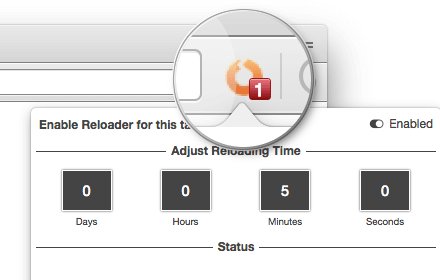
A search for auto refresh in the store returns these listings, among many others. The descriptions come from the store listings, so read the permissions and recent reviews before you install one.
| Extension | Publisher shown in the store | What the listing says it does |
|---|---|---|
| Tab Reloader (page auto refresh) | Bermet | Custom reload time for individual tabs |
| Auto Refresh Plus | Page Monitor | Autorefresh | Automatic refresh with page monitor features |
| Page Auto Refresh | Page auto refresh | Auto refresh with multiple smart timers |
| Auto Refresh and Page Monitor | Auto Refresh Page | Refresh and page monitoring at specified intervals |
| Auto Refresh Advanced | yaagame | Random intervals and notifications |
Method 3: Using Edge Developer Tools for auto-refresh
A script of setInterval(() => location.reload(), 60000) reloads only once, because the reload wipes the timer along with the old page. The code below avoids that by opening the page in a second tab and refreshing that tab from the first one.
- Open the page you want to refresh, then press Ctrl + Shift + J (Windows, Linux) or Command + Option + J (macOS) to open the Console.
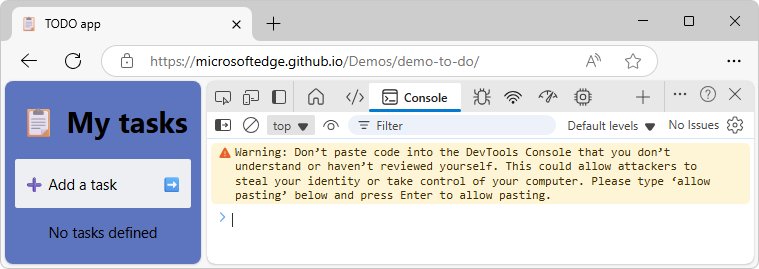
- If you plan to paste the code, type
allow pastingfirst and press Enter. Edge blocks pasting until you do. - Enter
const w = window.open(location.href); setInterval(() => w.location.reload(), 60000);and press Enter. - Keep the original tab open and watch the new tab. It reloads every 60,000 milliseconds, which is one minute.
- To change the interval, replace
60000with another value in milliseconds before you run the code.
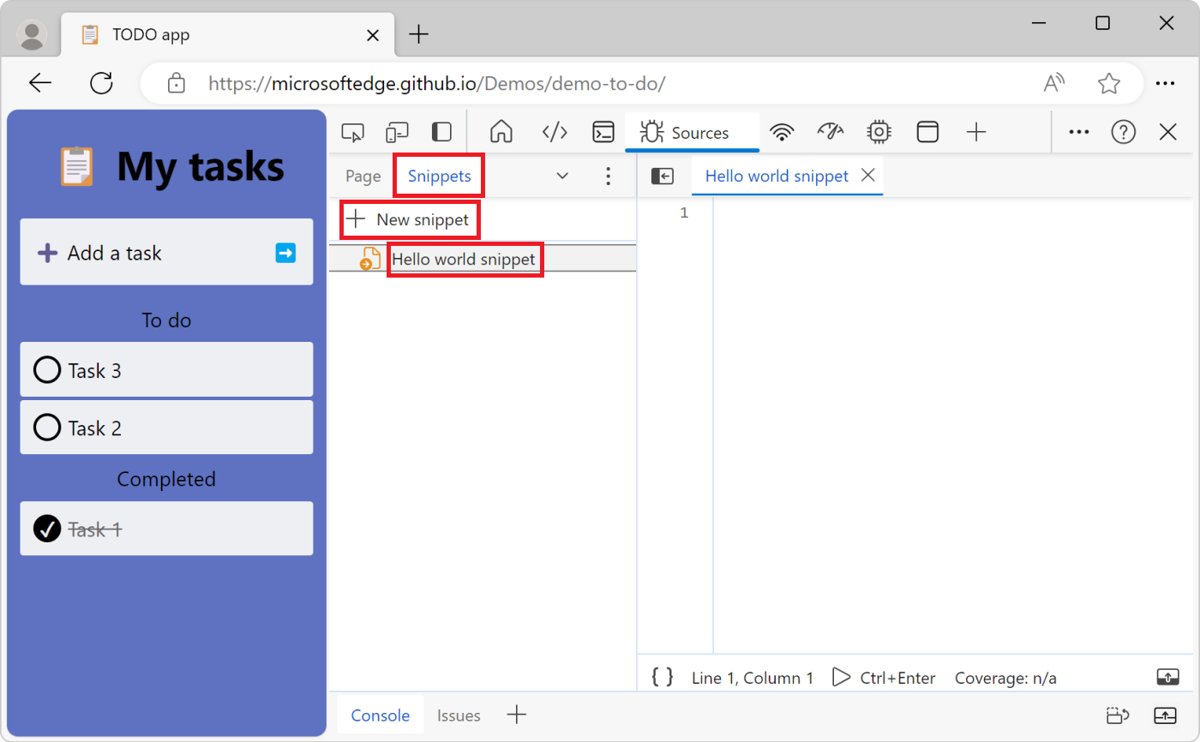
To reuse the script, open Sources in DevTools, select the Snippets tab, select New snippet, paste the code (type allow pasting if Edge asks) and press Ctrl + S. Press Ctrl + Enter to run it. A snippet runs in the page you have open at the time, and only when you start it.
Method 4: Using online services or bookmarklets
A bookmarklet is a favorite that runs JavaScript rather than opening a site. It saves you from reopening the Console each time you want the same script.
- Press Ctrl + Shift + B to show the favorites bar.
- Press Ctrl + D on any page, name the favorite
Auto refresh, and select Done. - Right-click the new favorite on the favorites bar and choose its edit command.
- Replace its URL with
javascript:void(function(){const w=window.open(location.href);if(w)setInterval(function(){w.location.reload();},60000);}());and save it. - Open the page you want to refresh, then select the favorite. Keep the original tab open while the new tab reloads.
Online auto-refresh services load your page inside their own frame. Sites that send an X-Frame-Options header of DENY or SAMEORIGIN block that, and those services see which pages you open, so never use one with a signed-in account. An extension is the better choice for private pages.
How to tell if auto refresh is working in Edge
The tab's loading indicator shows each reload, but a request log gives you timed proof.
- Right-click the refreshing page and select Inspect.
- Select the Network tool in DevTools.
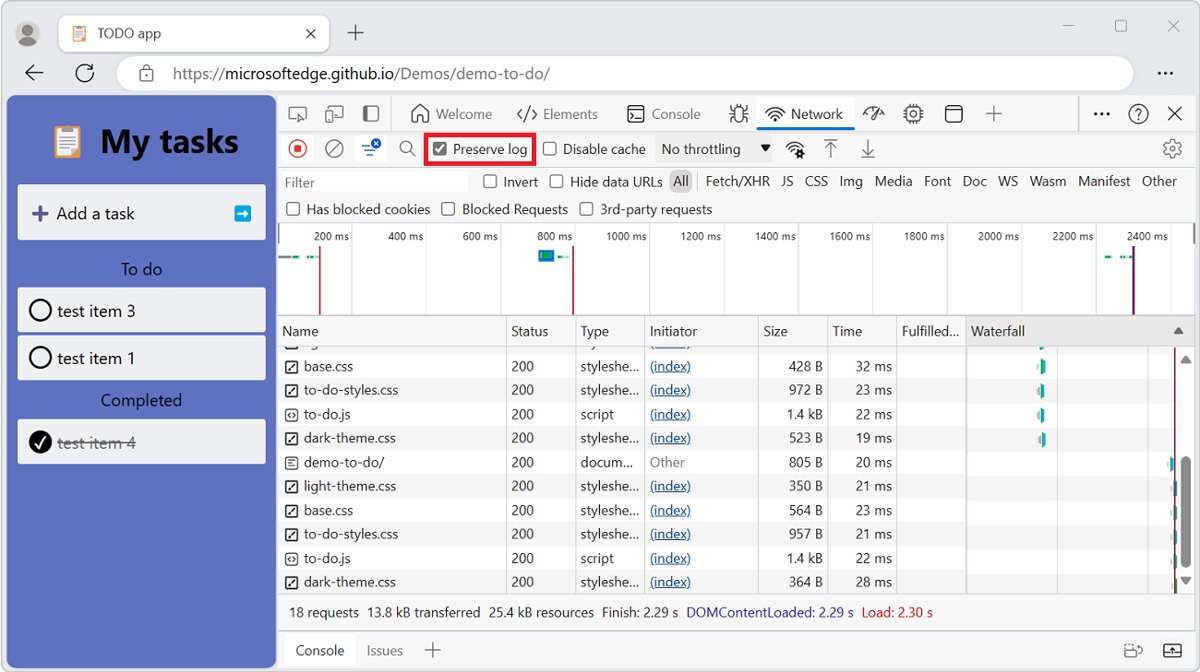
- Select the Preserve log checkbox so that requests stay listed across page loads.
- Select the Doc filter so that only page requests appear.
- Wait for two intervals. A new entry for the page should appear each time the refresh runs.
How to stop auto refresh in Microsoft Edge
You can turn off an Edge extension without removing it, which keeps it ready for later. For a script or bookmarklet, closing the original tab ends the timer.
- Select Extensions, then Manage extensions.
- Turn off the toggle next to the extension to pause it.
- To delete it, select Extensions, select More actions beside it, then select Remove from Microsoft Edge > Remove.
- For the script or bookmarklet, close the tab where you started it. The second tab stays open but stops reloading.
Tips for using auto-refresh in Edge
| Situation | What to do | Why |
|---|---|---|
| Choosing an interval | Start with the longest interval that still does the job | Each refresh sends new requests to the site and uses your device's resources |
| Filling in a form on the page | Stop the refresh before you type | A reload can clear anything you have not submitted |
| Refreshing several pages | Set each tab separately if the extension allows it | A slow-moving page does not need the same interval as a dashboard |
| Watching a page in a background tab | Add the site to Always keep these sites active | Sleeping tabs otherwise pauses it after two hours of inactivity |
| Checking for the newest version of a page | Press Ctrl + Shift + R once if the content looks stale | A normal reload can still use cached content |
Troubleshooting auto-refresh issues
Auto-refresh stops or slows when the tab is in the background
Chromium browsers throttle timers in hidden tabs, and they can check them as rarely as once per minute. Sleeping tabs can also pause the page.
- Go to Settings > System and performance > Performance.
- Add the site under Always keep these sites active.
- Use an interval of a minute or longer, or keep the page visible.
The extension does nothing on one site
The extension may have no permission on that site, or it may be turned off for InPrivate windows.
- Select Extensions > Manage extensions, then select Details under the extension.
- Check the Site access section and add the site if needed.
- For a private window, turn on Allow in InPrivate.
The Console will not let you paste the script
Edge shows a warning and blocks the first paste to protect you from self-XSS attacks.
- Type
allow pastingin the Console and press Enter. - Paste the code and press Enter, but only after you have read it.
The script or bookmarklet opens no second tab
Edge's pop-up blocker can stop window.open, which then returns nothing for the script to reload.
- Go to Settings > Privacy, search, and services > Site permissions > Pop-ups and redirects.
- Under Allowed to send pop-ups and use redirects, select Add site, enter the site's address and select Add.
- Run the script again.
The second tab opens but never reloads
The site can separate its tabs with a Cross-Origin-Opener-Policy header, or its content security policy can block a javascript: favorite.
- Press Ctrl + Shift + J in the original tab and read any error in the Console.
- Use an extension for that site, since a script in the page cannot change the site's headers.
Advanced Edge auto-refresh options
These suit developers and administrators more than everyday users. MDN warns that short automatic refreshes can disorient people using screen readers, so reserve them for pages that genuinely need them.
| Option | How it works | Best for |
|---|---|---|
meta refresh tag |
Add <meta http-equiv="Refresh" content="300" /> to the page's HTML. The page reloads 300 seconds after it fully loads. |
Pages you own or host |
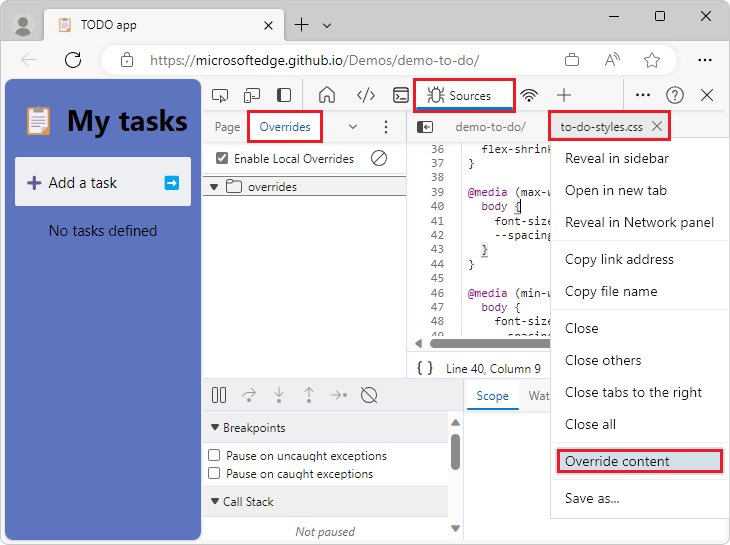
| DevTools Overrides | In Sources > Overrides, select + Select folder for overrides, select Allow, right-click the page's (index) file, select Override content, then add the meta tag to your local copy. |
Testing a refresh on a page you do not control |
SleepingTabsBlockedForUrls policy |
Lists sites that sleeping tabs, energy saver and tab discard must leave alone. It is available on Edge 88 and later for Windows and macOS. | IT admins managing dashboards across many PCs |
| Saved DevTools snippet | Right-click the snippet and select Save as to keep the script as a file on disk. | Moving the script to another PC |
Safety and performance considerations
| Risk | What can happen | How to reduce it |
|---|---|---|
| Extension permissions | An extension set to On all sites can read and change data on every site you open | Choose When you click the extension and remove extensions you no longer use |
| Pasted code | Edge warns that code you do not understand could let attackers steal your identity or take control of your computer | Run only code you have read, including the short script in this guide |
| Lost form data | A reload can discard unsaved text on the page | Do not auto-refresh pages where you are typing |
| Battery and memory use | Frequent reloads make the page load again each time, and keeping a site active exempts it from Edge's performance savings | Use the longest workable interval, and stop the refresh when you finish |
| Site load | Very short intervals send repeated requests to the site | Keep intervals in minutes, not seconds, on sites you do not run |
Microsoft Edge auto refresh FAQ
Does Microsoft Edge have a built-in auto-refresh option?
No. Edge's settings and keyboard shortcuts cover manual reloads only, and no setting reloads a tab on a timer. You need an extension from the Microsoft Edge Add-ons store, a DevTools script or a bookmarklet for timed refreshes.
What is the shortcut to refresh a page in Edge?
Press F5 or Ctrl + R on Windows, or Command + R on a Mac. Add Shift to reload while ignoring cached content, using Shift + F5 or Ctrl + Shift + R on Windows and Command + Shift + R on a Mac.
Can I use a Chrome auto-refresh extension in Edge?
Yes. Open the extension's page in the Chrome Web Store, select Get extension or Get, select Allow if Edge asks about extensions from other stores, then select Add extension. It then appears with your other Edge extensions.
Will auto-refresh work in a sleeping tab?
Not reliably. Edge can put background tabs to sleep after two hours of inactivity, and that pauses the page. Add the site under Always keep these sites active in Settings to exclude it from sleeping tabs.
Can I auto-refresh in an InPrivate window?
Yes, once you allow the extension there. Select Extensions, select Manage extensions, select Details under the extension, then turn on Allow in InPrivate in the Site access section. The timer then runs in private windows too.
Does auto-refresh clear the page's cache?
Usually not. A normal reload can still use cached content, whereas Ctrl + Shift + R or Shift + F5 ignores it. An extension may offer a cache-bypassing option, but you should check its store listing because this varies.
Why does my refresh script run only once?
Reloading a page removes the scripts and timers the Console added to it, so a timer that reloads its own page runs once. Opening a second tab and reloading it from the first keeps the timer alive in the original tab.
How do I stop a page from auto-refreshing in Edge?
Turn off or remove the extension under Extensions and Manage extensions. For the DevTools script or bookmarklet, close the tab where you started it. If the page itself uses a meta refresh tag, only the site owner can change that.