To fix most iTunes for Windows update failures, sign in as an administrator, install the latest Windows updates, get the current iTunes from the Microsoft Store, and restart the PC.
This guide also covers error 2, "Apple Application Support was not found", software update server errors, iTunes Diagnostics, and problems that appear after an update has installed.
How to fix iTunes for Windows update problems
These are the steps Apple gives for iTunes install and update failures on Windows. Run them in this order.
- Sign in to Windows with an administrator account.
- Select Start > Settings > Windows Update > Check for updates, and select Install now if an update is offered.
- Open Microsoft Store, select Library, then select Get updates.
- Install iTunes from the Microsoft Store if your copy did not come from there.
- Restart the PC.
- Open iTunes and check that the problem has gone.
iTunes for Windows update errors and how to fix each one
| What you see | Start with | Why |
|---|---|---|
| "error 2" during install or update | Administrator account, Windows updates, Microsoft Store iTunes | Apple lists this error under failed iTunes installs and updates |
| "Apple Application Support was not found" | The same steps, then a reinstall from the Microsoft Store | Apple gives the same steps for this error and error 2 |
| Help > Check for Updates is missing | Microsoft Store Library > Get updates | Apple gives that menu path only for the iTunes Download page install |
| iTunes is not listed in Get updates | Windows Update, then Get updates again | Microsoft puts a Windows update ahead of Store updates in its fixes |
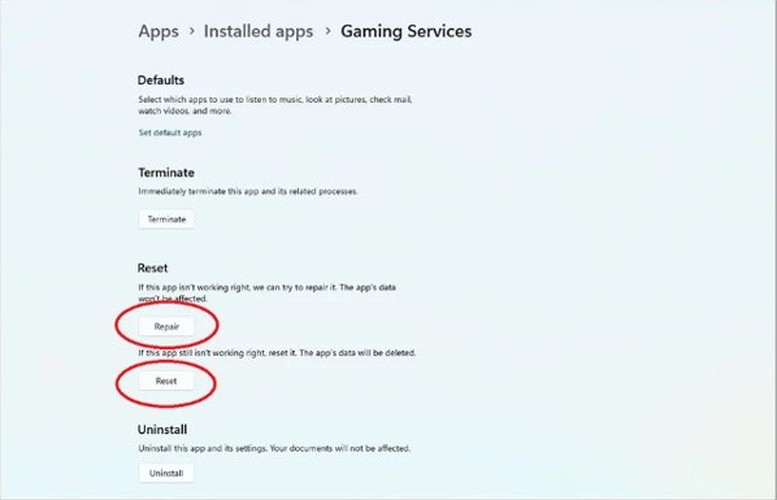
| iTunes will not open after the update | Repair, then Reset, in Advanced options | These fix the app without a full reinstall |
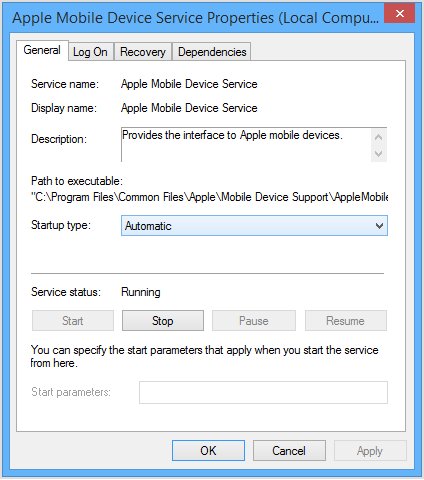
| iPhone or iPad not detected after the update | Restart the Apple Mobile Device Service | Apple's fix when iTunes does not recognise a connected device |
| Alert that iTunes cannot contact the software update server | Internet connection, hosts file, security software | The PC cannot reach Apple's update server |
Microsoft Store iTunes vs iTunes Download page: how updates differ
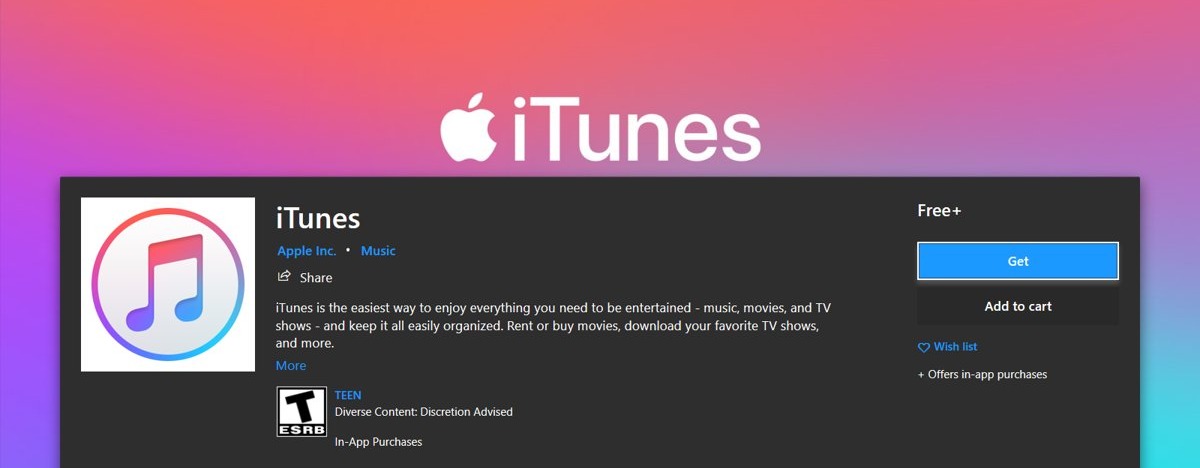
Apple gives two different update routes, so check where your copy came from before you troubleshoot. Current iTunes downloads for Windows come from the Microsoft Store.
| Update detail | Microsoft Store install | iTunes Download page install |
|---|---|---|
| Where updates come from | Microsoft Store | iTunes itself |
| Manual check | Library > Get updates | Help > Check for Updates |
| Automatic updates | New versions download automatically when App updates is on | Weekly check, set in Edit > Preferences > Advanced |
| When the automatic check runs | Handled by the Store | Only if you quit and reopen iTunes at least once in a seven-day period |
Update iTunes for Windows in Microsoft Store
This is the route Apple points to for current installs when you update iTunes on a Windows PC.
- Select Start, then select Microsoft Store from the apps list.
- Sign in to the Store with your Microsoft account if it asks.
- Select Library.
- Select Get updates and let any iTunes update finish.
- Open your profile picture, select Store Settings, and check that App updates is on.
If nothing downloads at all, reset the Microsoft Store cache and try again. Apple sends Store download and install problems to Microsoft support.
Check for Updates in iTunes for Windows
Use this only for a copy installed from the iTunes Download page.
- Open iTunes.
- Choose Help > Check for Updates.
- Follow the prompts if a new version is offered.
- Choose Edit > Preferences, then click Advanced.
- Select Check for new software updates automatically.
Change a Windows account to administrator for iTunes updates
Apple's first check for a failed iTunes install is an administrator account. On a work computer, ask your IT department instead.
- Sign in with an account that already has administrator rights.
- Open Settings > Accounts > Other user.
- Under Other users, open the entry for the account you want to change.
- Next to Account options, select Change account type.
- Choose Administrator and select OK.
- Sign in to that account and run the iTunes update again.
Administrators have complete control over the PC, so Microsoft recommends keeping their number low. You can change it back to a standard account once the update is done.
Install Windows updates before updating iTunes
Apple lists current Windows updates as the second check. Store app problems can also trace back to an out-of-date Windows.
- On Windows 11, select Start > Settings > Windows Update.
- On Windows 10, select Start > Settings > Update & Security > Windows Update.
- Select Check for updates.
- Select Install now if an update is available.
- Restart the PC when Windows asks, then update iTunes.
If Windows updates themselves fail on Windows 11, run the Windows Update troubleshooter before you return to iTunes.
Repair or reset iTunes on Windows 11
Repair and Reset are the next step when an update installed but iTunes misbehaves. Not every copy of iTunes offers them, so the Control Panel route covers the rest.
- Select Start > Settings > Apps > Installed apps.
- Select the More icon next to iTunes.
- Select Advanced options, if your copy shows it.
- Select Repair, and test iTunes when it finishes.
- Select Reset if Repair is missing or does not help.
- Without Advanced options, open Control Panel > Programs > Programs and Features, right-click iTunes, and select Repair or Change.
Uninstall iTunes on Windows and install it from Microsoft Store
A clean copy from the Store moves an older download-page install to the update route Apple now points to.
- Open Settings > Apps > Installed apps.
- Find iTunes, select More (three dots), and choose Uninstall.
- Restart the PC.
- Open Microsoft Store, then find iTunes in Library or search for it.
- Select Install and wait for it to finish.
- Open iTunes and sign in with your Apple Account.
Restart the Apple Mobile Device Service after an iTunes update
Use this when iTunes opens normally after an update but no longer sees your iPhone or iPad.
- Quit iTunes and unplug any connected iPhone, iPad or iPod.
- Press Windows logo key + R, type
services.msc, and confirm. - Right-click Apple Mobile Device Service and choose Properties.
- Set Startup type to Automatic.
- Click Stop the service, wait for it to stop, then click Start the service.
- Click OK and restart the PC.
- Open iTunes and reconnect your device.
Device problems that survive this can come from the Apple USB driver, so fix the iTunes USB driver install next. Apple says a service that keeps stopping can point to third-party security software.
Run Diagnostics in iTunes for Windows
iTunes Diagnostics gathers information about your PC and links to support articles for what it finds. It does not fix anything itself.
- Update iTunes to the latest version.
- Open iTunes and choose Help > Run Diagnostics.
- Select one test or all of them, then click Next.
- Let the tests finish and open any support links shown.
- Click Copy to Clipboard to paste the summary elsewhere, or click Save to keep it as files for an Apple Advisor.
Save creates two files, iTunes Diagnostics.rtf and iTunes Diagnostics.spx. You can open the RTF file in a text editor.
iTunes could not contact the software update server on Windows
This alert means the PC cannot reach Apple's update server. Try the update again once your connection is working.
- Open a browser on the PC and check that a web page loads.
- If nothing loads, contact your administrator or internet provider, or try another network.
- Reset the hosts file, because it can block the update server.
- Check your security software, which can also block the server when it is out of date or misconfigured.
- To update an iPhone or iPad right away, disconnect it and go to Settings > General > Software Update on the device.
The wireless route does not work on a device that is locked out or in recovery mode. Those still need a computer.
Reset the hosts file for iTunes updates on Windows
Apple sends Windows users to Microsoft's reset steps. Resetting the file can affect other software, so check your business apps afterwards if this is a work PC.
- Press the Windows key, type Notepad, and open it.
- Paste the default text from Microsoft's hosts file page.
- Choose File > Save as, type
"hosts"with the quotes, set Save as type to All files (*.*), and save to the desktop. - Open
%WinDir%\System32\Drivers\Etcin File Explorer. - Rename the existing Hosts file to
Hosts.old. - Move your new hosts file into that folder and select Continue if Windows asks for permission.
- Restart the PC and run the iTunes update again.
iTunes and third-party security software on Windows
Background security software can block iTunes installs and updates. Keep your protection on and change how it treats Apple's services.
- Make sure the PC's date, time and time zone are correct.
- Sign in with an administrator account, not a guest account.
- Keep only one security program installed, because several together can cause problems.
- Open Apple's list of ports and services.
- Ask your security software provider how to allow those ports and services.
- Restart the PC and run the iTunes update again.
Do you still need iTunes on Windows? Apple Music, Apple TV and Apple Devices apps
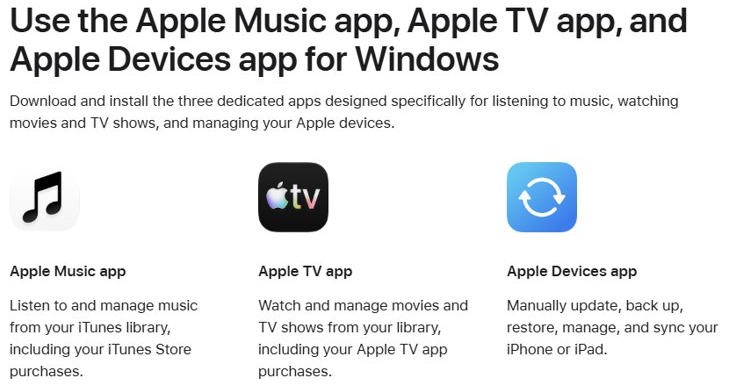
An iTunes update problem may not need solving if another Apple app now does the job. You can compare iTunes and the Apple Devices app for syncing in more detail.
| What you want to do | App Apple offers on Windows | Where to get it |
|---|---|---|
| Play and manage music, including iTunes Store purchases | Apple Music | Microsoft Store |
| Watch and manage movies and TV shows | Apple TV | Microsoft Store |
| Update, back up, restore and sync an iPhone or iPad | Apple Devices | Microsoft Store |
| Manage podcasts and audiobooks | iTunes for Windows | Microsoft Store |
Store offerings and features vary by country or region. To use Apple Devices with Apple Music and Apple TV, install those two apps first.
How to tell iTunes for Windows is up to date
- For a Store copy, open Microsoft Store and select Library.
- Select Get updates and check that no iTunes update appears.
- For a download-page copy, open iTunes and choose Help > Check for Updates.
- Check that iTunes does not offer a new version.
- Open iTunes, play an item from your library, and connect your device if you sync one.
iTunes for Windows update not working
iTunes will not uninstall before an update
Microsoft notes that some apps cannot be removed from the Settings app.
- Restart the PC.
- Open Control Panel > Programs > Programs and Features.
- Right-click iTunes and select Uninstall or Uninstall/Change.
- If iTunes still refuses to go, run a scan with Windows Security, then contact the publisher.
Microsoft Store will not download or update iTunes
Apple treats this as a Microsoft Store problem and sends you to Microsoft support.
- Sign in to the Store with your Microsoft account.
- Update Windows from Settings > Windows Update.
- Select Library > Get updates to update the Store itself.
- Contact Microsoft support if the download still fails.
iPhone or iPad error while updating through iTunes
Apple points to outdated software, a poor USB connection or security software.
- Install the latest iTunes or Apple Devices app.
- Plug the device straight into a PC USB port, not a keyboard or hub.
- Unlock the device and trust the PC if prompted.
- Restart the PC and the device.
- Try another computer on a different network.
iTunes Store will not connect after an update
An Apple outage, a network problem or a VPN can block the connection.
- Check Apple's System Status page for an outage.
- Check that other websites load on the PC.
- Check your VPN and third-party security software.
- Make sure the PC's date and time are correct.
- Try a different network.
iTunes update fails on a work computer
Your account may lack administrator rights, or your organisation may manage installs.
- Ask your IT department for administrator access or to run the update.
- Give them the exact error message.
- Ask them to run Windows Update as well, because Apple lists it as a separate check.
iTunes for Windows updates FAQ
Why won't iTunes update on my Windows PC?
The usual checks are your account type, Windows updates and where iTunes came from. Sign in as an administrator, install Windows updates, select Library and Get updates in the Microsoft Store, then restart the PC and try again.
Where is Check for Updates in iTunes for Windows?
It sits in the Help menu of a copy installed from the iTunes Download page. Apple gives a different route for a Microsoft Store install, where you select Library and then Get updates in the Store app.
Does iTunes update automatically on Windows?
A Microsoft Store copy downloads new versions automatically when App updates is on. A download-page copy checks weekly if the option is selected in Edit, Preferences, Advanced, but only if you quit and reopen iTunes within seven days.
How do I fix error 2 when installing iTunes?
Apple gives the same steps for error 2 and for Apple Application Support was not found. Sign in as an administrator, install Windows updates, install iTunes from the Microsoft Store, restart the PC, and try the install again.
What does iTunes Diagnostics do on Windows?
It gathers information about your PC and may link to support articles for issues it finds, but it does not fix anything. Choose Help, then Run Diagnostics, pick the tests, and copy or save the summary to share with an Apple Advisor.
Do I need iTunes to update my iPhone from a Windows PC?
No. Apple offers the Apple Devices app to update, back up, restore and sync an iPhone or iPad. You can also update the phone itself from Settings, General, Software Update unless it is locked out or in recovery mode.
Who do I contact if Microsoft Store won't install iTunes?
Apple tells you to contact Microsoft for help downloading, updating or managing iTunes through the Microsoft Store. Try signing in to the Store, updating Windows and updating the Store itself first, because those are the first fixes Microsoft lists.