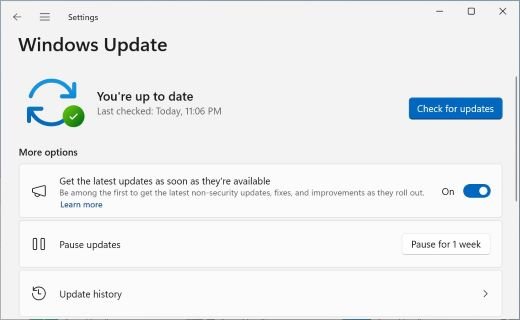
To enable the new features for the Windows 11 August 2026 Update (KB5121003), open Settings > Windows Update, turn on Get the latest updates as soon as they're available, check for updates and restart.
This guide covers what the update changed, every official way to install it, where each new setting lives, and what to do when a feature stays missing.
Enable new August 2026 features on Windows 11
KB5121003 was released on August 11, 2026 for Windows 11 versions 25H2 and 24H2. Many of its changes reach PCs through a gradual rollout, so this toggle moves your PC toward the front of the line.
- Select Start > Settings > Windows Update.
- Turn on Get the latest updates as soon as they're available.
- Select Check for Windows updates.
- Select Download & install if updates are listed.
- Restart the PC when Windows prompts you.
You only set the toggle once, and it stays on for future updates. Security updates arrive on the usual schedule whether it is on or off.
What's new in the Windows 11 August 2026 Update (KB5121003)
KB5121003 itself lists three changes: security fixes, Secure Boot targeting data and the removal of Drop Tray. It also carries the improvements from the July 28 preview update (KB5101684), and that is where the visible features came from.
| Area | What changed | Where to look |
|---|---|---|
| Security | Security fixes for the month | Applied when the update installs |
| Secure Boot | More device targeting data for receiving new Secure Boot certificates automatically | Delivered through Windows Update |
| Sharing | The Drop Tray experience (previously Drag Tray) and its setting are removed | Settings > System > Multitasking no longer lists it |
| File Explorer | Details view shows file sizes in KB, MB or GB, and middle-click opens folders in new tabs from the Address Bar and Home | File Explorer |
| Windows Search | Better handling of typos and partial names for installed apps, and more relevant Settings results | Search on the taskbar |
| Start menu account control | Refreshed design and a subscription status badge, for Microsoft accounts only | Start menu |
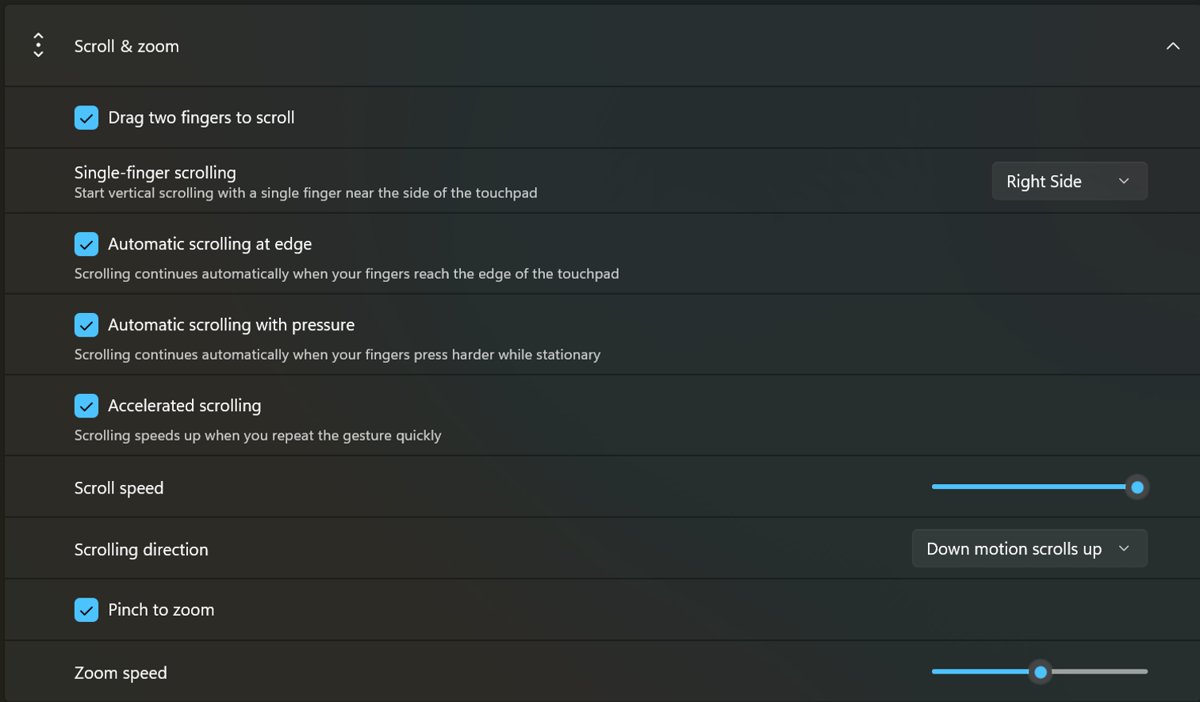
| Touchpad | Scroll and zoom speed setting, plus Accelerated scrolling for long documents | Settings > Bluetooth & devices > Touchpad |
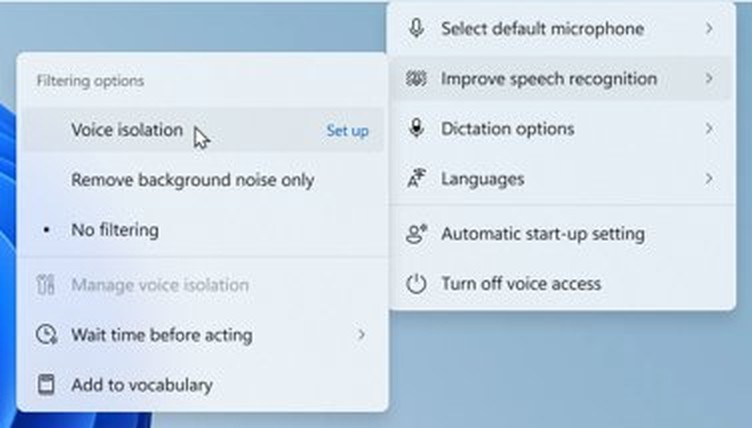
| Voice Access | Voice Isolation mode, a Remove background noise only option, and Korean language support | Voice Access settings > Improve speech recognition |
| Voice Typing | Fluid dictation is off by default for new users, with a teaching tip on first use | Voice Typing |
| Widgets | Taskbar badges use your accent color, and Weather is the only default Lock screen widget for new users | Taskbar and Lock screen |
| Windows Hello | Enhanced Sign-in Security supports peripheral fingerprint readers on desktops and other PCs | Settings > Accounts > Sign-in options |
| AI components | The Image Generation component can be removed on supported Copilot+ PCs | Copilot+ PCs only |
| Power | Power setting changes apply to all power plans, and the Energy saver threshold can be set again | Settings > System > Power & Battery |
| Windows Update | Eligible updates are bundled with the monthly security update to reduce restarts | Settings > Windows Update |
Get the latest updates as soon as they're available: on or off?
| Your situation | Use this | Why |
|---|---|---|
| You want new features early on a home PC | Turn the toggle on | Your PC is prioritized for non-security updates and improvements |
| You want the earliest non-security code | Install the optional preview update too | New features often start with PCs that install the monthly optional preview |
| You prefer fewer restarts | Leave the toggle off | Microsoft notes there may be more restarts per month with it on |
| You want only security fixes on the normal schedule | Leave the toggle off and skip optional updates | Security updates still arrive automatically either way |
| The PC is managed by your workplace | Ask your IT admin | An administrator can control the toggle through the AllowOptionalContent policy |
Install Windows 11 August 2026 security update
KB5121003 downloads and installs automatically from Windows Update, so most PCs already have it. Windows 11 monthly updates are cumulative, and a later update carries this one's changes, so Windows may offer a newer KB number instead.
- Save your work, because the install ends with a restart.
- Select Start > Settings > Windows Update.
- Select Check for Windows updates.
- Select Download & install if the update is not installing already.
- Select Restart now when the page asks for a restart.
- Open Microsoft Store, go to Downloads and install any app updates, because some features arrive through Store apps.
Install the update after it's generally available
Microsoft often starts a feature on PCs that install the monthly optional non-security preview, then turns it on by default in a later security update. Installing the current preview is the official way to get ahead of that rollout.
- Select Start > Settings > Windows Update.
- Select Advanced options.
- Select Optional updates.
- Find the update under Optional updates available and select its download and install link.
- Restart the PC when Windows prompts you.
The August preview was KB5120998, and later months have their own preview. Windows lists only what is available for your PC at the time.
Install the update before it's generally available
KB5121003 reached general availability on August 11, 2026, so this route no longer delivers that exact update. The Release Preview channel of the Windows Insider Program now delivers newer builds ahead of their general release.
- Register for the Windows Insider Program with your Microsoft account.
- Save your work, because the PC restarts during setup.
- Go to Settings > Windows Update > Windows Insider Program. You must be an administrator to see this page.
- Select Get started, link the Microsoft account you registered, and select Continue.
- Choose the Release Preview channel, then accept the agreement.
- Select Restart now.
- After the restart, go to Settings > Windows Update and select Check for Windows updates.
Preview builds can change before release, so this suits a spare PC better than your main one. Moving to another channel later can require a clean install of Windows.
Download KB5121003 from the Microsoft Update Catalog
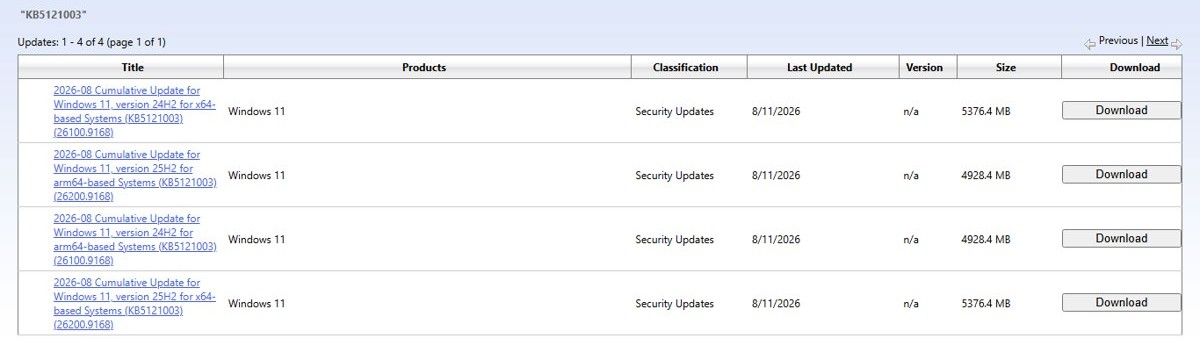
Use the Microsoft Update Catalog when a PC cannot reach Windows Update. The KB comes as two MSU files that must be installed in order: the prerequisite KB5043080 first, then KB5121003.
- Check whether the PC is x64 or arm64 under Settings > System > About.
- Go to the Microsoft Update Catalog on catalog.update.microsoft.com and search for KB5121003.
- Download the two MSU files for your architecture into one folder, such as
C:\Packages. - Open Command Prompt as an administrator.
- Install the KB5043080 file with
DISM /Online /Add-Package /PackagePath:c:\packages\<KB5043080 file name>.msu. - Install the KB5121003 file with
DISM /Online /Add-Package /PackagePath:c:\packages\<KB5121003 file name>.msu. - Restart the PC.
Microsoft also lists the Windows Update Standalone Installer as an option for these files. When Windows Update works, it is the simpler route and gives you the newest cumulative update.
How to tell if KB5121003 is installed on Windows 11
- Select Start > Settings > System > About.
- Read OS Build under Windows specifications.
- Compare it with the builds in this update: 26200.9168 on version 25H2 and 26100.9168 on version 24H2. A higher number already includes it.
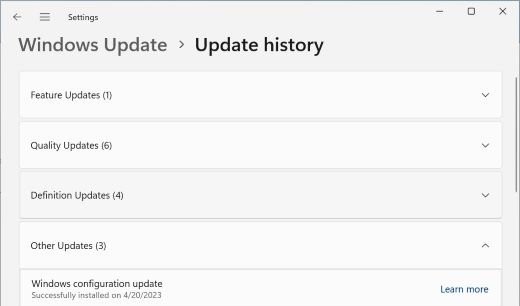
- Go to Settings > Windows Update > Update history.
- Look for KB5121003, or for a later cumulative update such as KB5124008 or KB5127648.
How to turn on Voice Isolation and new touchpad settings in Windows 11
Several features need one more choice after the update installs. The rest, such as file sizes in File Explorer, appear on their own once they reach your PC.
- For touchpad speed, go to Settings > Bluetooth & devices > Touchpad, set Scroll and zoom speed, and turn on Accelerated scrolling if you want it.
- For Voice Access, open Voice Access settings > Improve speech recognition and choose Voice Isolation or Remove background noise only. Voice Isolation needs a one-time setup.
- For a USB fingerprint reader, go to Settings > Accounts > Sign-in options to review Windows Hello Enhanced Sign-in Security.
- For battery saving, go to Settings > System > Power & Battery to set the Energy saver threshold.
- For Magnifier, go to Settings > Accessibility > Magnifier to turn the touch pan bars back on, because they are now off by default.
New Windows 11 features not showing after KB5121003
The update is installed but a feature is missing
Gradual rollout delivers features in phases, so availability varies by device and market.
- Confirm Get the latest updates as soon as they're available is on in Settings > Windows Update.
- Select Check for Windows updates and install anything listed.
- Install the current preview from Advanced options > Optional updates if you accept preview code.
- Restart the PC, then check the feature again.
- Check again after the next monthly security update, because Microsoft turns validated features on by default in a later release.
The latest updates toggle is unavailable on a work PC
An administrator can control the toggle through the AllowOptionalContent policy, and organization-managed PCs keep some new features off by default.
- Check whether the PC is managed by your workplace or school.
- Ask your IT admin whether the AllowOptionalContent policy is set for your device.
- Ask whether the policy that turns on new Windows features is enabled for your organization.
- Select Check for Windows updates after the admin changes the policy.
The new Start menu account control or subscription badge does not appear
This design is limited to Microsoft accounts, and its availability varies.
- Go to Settings > Accounts and check whether you sign in with a Microsoft account.
- Sign in with a Microsoft account if you use a local account and want this feature.
- Restart the PC and open Start to check the account control again.
Microsoft Teams or Outlook will not open on an ARM device
This is a known issue on new or freshly imaged ARM PCs such as Surface Pro 11 and Surface Laptop 7.
- Open Microsoft Store and install version 1.0.19.0 or later of the Auto Super Resolution Package.
- Select Check for Windows updates in Settings > Windows Update.
- Install an update from September 8, 2026 or later, such as KB5124008, which resolves the issue.
- Restart the PC and open the app again.
A game becomes unresponsive after KB5121003
Reports link this to peripherals or components with RGB lighting that install files similar to inpoutx64. Reported games include ARC Raiders, MARVEL Tokon: Fighting Souls and THE FINALS.
- Select Check for Windows updates in Settings > Windows Update.
- Install what is offered and restart the PC, because consumer and non-managed business PCs receive the driver block automatically.
- Launch the game again.
- On a managed PC, ask your IT admin to apply the workaround on the Windows release health site, because the mitigation does not reach those devices automatically.
How to uninstall KB5121003 or turn off the latest updates toggle
Turning the toggle off stops the early delivery, but changes already applied stay on the PC. Uninstalling removes security fixes as well, so treat it as a last resort.
- Select Start > Settings > Windows Update.
- Turn off Get the latest updates as soon as they're available if you only want to stop early delivery.
- To remove the update, select Update history under More options.
- Select Uninstall updates under Related settings.
- Choose the update in the list and select Uninstall.
- Restart the PC when Windows asks.
Some updates cannot be uninstalled. Microsoft suggests trying a reinstall of your current Windows version first on Windows 11.
Should you install KB5121003 or a newer Windows 11 update?
Install the newest cumulative update Windows Update offers instead of looking for KB5121003 specifically. Cumulative updates carry earlier improvements, and the later ones also resolve the Teams and Outlook issue on ARM devices.
The October release is KB5127648, and the KB5127648 known issues are worth weighing before you restart a PC you rely on. Windows 11 version 26H2 is also available now, and the 26H2 enablement package moves a 24H2 or 25H2 PC to it.
FAQs about the Windows 11 August 2026 Update
What is KB5121003?
KB5121003 is the Windows 11 security update released on August 11, 2026. It applies to versions 25H2 and 24H2, raises them to OS builds 26200.9168 and 26100.9168, and includes the improvements from the July 28 preview update KB5101684.
Which features are included in the Windows 11 August 2026 Update?
The update includes File Explorer file sizes in Details view, touchpad scroll and zoom speed, Voice Isolation for Voice Access, Enhanced Sign-in Security for peripheral fingerprint readers, and a refreshed Start menu account control. It also removes Drop Tray.
Will every feature be enabled on every PC?
No. Microsoft delivers many features through a gradual rollout, so availability varies by device and market. Some have extra limits: the account control design needs a Microsoft account, and the Image Generation component applies only to supported Copilot+ PCs.
Does KB5121003 install automatically?
Yes. Microsoft states that KB5121003 downloads and installs automatically from Windows Update and Microsoft Update. A PC that was offline or paused may receive a newer cumulative update instead, which already includes these changes.
Do I need KB5121003 if I already have a later update?
No. A later cumulative update such as KB5124008 or KB5127648 already contains the earlier improvements. If your OS build is higher than 26200.9168 on version 25H2 or 26100.9168 on version 24H2, you have nothing further to install.
Does turning on the latest updates toggle change security updates?
No. Security updates arrive on the usual schedule whether Get the latest updates as soon as they're available is on or off. The toggle only changes how quickly you receive non-security updates, fixes and improvements, and it can mean more restarts per month.
Is there a ViVeTool command for the KB5121003 features?
Microsoft's KB5121003 release notes list no command or feature ID for turning these features on. ViVeTool is a third-party tool outside those notes. The documented routes are the Windows Update toggle, the optional preview update and the monthly security updates.
Where did Drop Tray go after the August 2026 update?
KB5121003 removes the Drop Tray experience, previously named Drag Tray, on devices where it was available. The related setting under Settings > System > Multitasking is gone too. Microsoft says it is continuing to evaluate the experience and explore future enhancements.
Can I get KB5121003 on Windows 10?
No. KB5121003 applies only to Windows 11 versions 25H2 and 24H2. Support for Windows 10 ended on October 14, 2025, and the features in this update are part of Windows 11 servicing.