End the Outlook task in Task Manager, reopen the app, and test classic Outlook with outlook.exe /safe if the freeze returns.
These steps cover new and classic Outlook in Windows 11 and 10, crashes after updates, Event Viewer crash codes, and damaged data files and profiles.
Outlook not responding in Windows 11/10
A busy Outlook can look frozen, so rule out a waiting dialog box and a long-running task before you force it closed.
- Press Alt + Tab and look for an open Outlook dialog box. Answer it if one is waiting.
- Check the status bar at the bottom of the Outlook window for a running task, such as AutoArchive, a large attachment, or a big delete or move.
- Wait two to three minutes if a task is running, and let it finish before you try anything else.
- Right-click Start, select Task Manager, select the Outlook entry, and then select End task.
- Reopen Outlook and repeat the action that froze it.
- If classic Outlook freezes again, press Windows + R, type
outlook.exe /safe, and select OK. - Accept the default in the Choose Profile dialog if it appears, and then select OK.
If Outlook stays stable in safe mode, an add-in is the likely cause. The next sections show how to find it.
Why does my Outlook keep freezing not responding?
Microsoft lists eleven causes for this error. Match what you see to a row, and then go straight to that fix.
| What you see | Likely cause | What to do |
|---|---|---|
| The status bar shows a task in progress | Outlook is in use by another process, such as AutoArchive or mobile sync | Let the task finish before you try another action |
| Outlook works in safe mode | An add-in is interfering | Turn off COM add-ins, and then restore them one at a time |
| Freezes when you open or send a message with images | Outlook is loading external content | Stop automatic downloads in Trust Center |
| Folders with many items are slow to open | The mailbox or a single folder is too large | Move items to other folders or use AutoArchive |
| Outlook stalls on a slow network, and AppData points to a server | The AppData folder is redirected to a network location | Set the AppData registry value back to the local path |
| A new Outlook profile works normally | The old Outlook profile is corrupted | Keep the new profile and remove the old one |
| Freezes continue after add-ins and updates are ruled out | Office program files or Outlook data files are damaged | Run Online Repair, and then ScanPST |
| Crashes name a security product in Event Viewer | Antivirus software is outdated or conflicts with Outlook | Update it, and ask the vendor how to handle its Outlook integration |
| Only a clean boot stops the freeze | Another program conflicts with Outlook | Re-enable services and startup apps one group at a time |
Outlook keeps crashing or has stopped working
An add-in is the first thing to test when classic Outlook crashes or shows "Microsoft Outlook has stopped working". You can also open Outlook in safe mode by holding Ctrl while it starts.
- Close Outlook. End it in Task Manager if it will not close.
- Press Windows + R, type
outlook.exe /safe, and select OK. - Go to File > Options > Add-ins.
- Set the list to COM Add-ins, and then select Go.
- Write down the add-ins listed, clear their check boxes, and select OK. Do not use Remove.
- Restart Outlook normally and repeat the action that crashed it.
- If the crash has stopped, turn the add-ins back on one at a time, restarting Outlook after each.
- When the crash returns, restart in safe mode and turn off the last add-in you enabled.
If the app refuses to start any other way, work through the fixes for Outlook only opening in safe mode.
New Outlook app not responding
New Outlook has its own, shorter fix list. Microsoft's safe mode and COM add-in steps sit under classic Outlook only.
- Right-click Start and select Task Manager.
- Select Microsoft Outlook, and then select End task.
- Confirm that new Outlook has closed, close Task Manager, and reopen the app.
- If it still hangs, open the Start menu, find new Outlook, expand its list options with the arrow, and select Uninstall.
- Open the Microsoft Store, find Outlook, and select Get. New Outlook needs Windows 10 version 17763.0 or later.
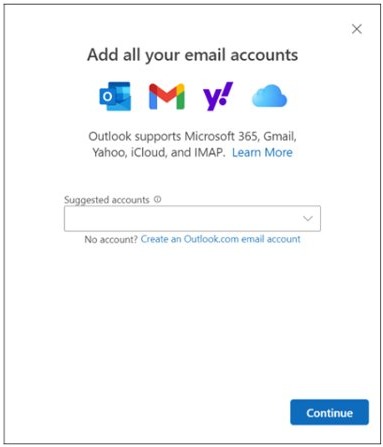
- Add your accounts when prompted if they are not added automatically.
A problem limited to one mailbox provider may have a different cause, such as new Outlook failing with iCloud. If you rely on features the new app lacks, you can switch back to classic Outlook.
Outlook keeps crashing after update
Check Microsoft's list of recent classic Outlook issues first, because it names the affected builds and any workaround.
Classic Outlook crashes right after an Office update
A newly installed build can carry a known bug until Microsoft ships the fix.
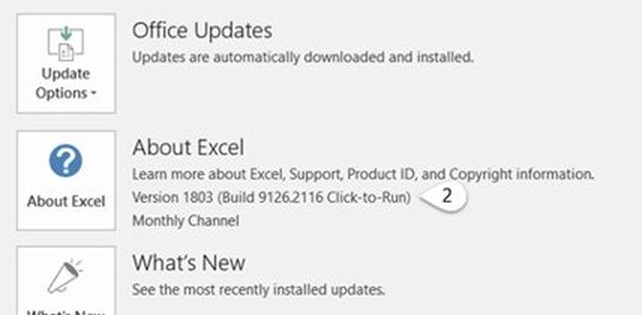
- In Outlook, go to File > Office Account > Update Options > Update Now.
- If Outlook will not stay open, open Word instead and go to File > Account > Update Options > Update Now.
- Restart Outlook after the update finishes.
- If the known-issue article gives a rollback version, open Command Prompt as an administrator and run
cd %programfiles%\Common Files\Microsoft Shared\ClickToRun. - Run
officec2rclient.exe /update user updatetoversion=<version>, using the exact version number from that article. - Select File > Office Account > Update Options > Disable Updates so Office does not reinstall the newer build.
- Turn updates back on under Update Options once Microsoft lists the fix.
Outlook hangs after a Windows update, with POP accounts or PST files
Windows updates released on January 13, 2026 made these profiles hang, and PST files stored on OneDrive may be affected too.
- Run Windows Update until it reports You're up to date. Microsoft fixed this issue through Windows.
- Restart the PC and open Outlook.
- If you cannot reach your POP folders, repair the POP profile and run
Scanpst.exeon the PST file. - Move any PST file out of your OneDrive folder if the hang returns.
Outlook crashing when replying to email
Crashes tied to one action often match a documented bug. Each group below comes with the fix Microsoft published for it.
Outlook crashes when opening or starting a new email
Outlook cannot open the Forms Library. Microsoft has fixed this in current builds, and the folder workaround still applies to older ones.
- Update Office to the latest build, and retest.
- If you must stay on an older build, close Outlook and the other Office apps.
- Press Windows + R, enter
%localappdata%\Microsoft, and select OK. - In File Explorer, select New > Folder and name it
FORMS2.
Outlook crashes when replying or forwarding on Version 2412
This issue appeared after updating to Version 2412 (Build 18324.20168). Microsoft fixed it in Current Channel Version 2501.
- Go to File > Office Account > Update Options > Update Now.
- Restart Outlook and reply to a message to test the build.
Outlook crashes when opening Viva Engage, Yammer or Power Automate emails
This affects Outlook 2021 LTSC and Outlook 2024 LTSC on builds older than the fixed ones.
- Install the latest Office updates.
- Confirm the build under File > Office Account. The final fixes are Build 14334.20662 for Outlook 2021 LTSC and Build 17932.20766 for Outlook 2024 LTSC.
Outlook crashes when accepting a shared calendar invite
Microsoft is still investigating this classic Outlook crash, and it is known to happen with the "Can view all details" permission.
- Open new Outlook or Outlook on the web.
- Accept the sharing invitation there instead of in classic Outlook.
Outlook keeps crashing when sending email
Microsoft ties freezes while sending or opening messages to external content such as remote images. Turning off automatic downloads removes that load.
Outlook freezes when you send or open a message with external images
Outlook is downloading content from outside the message.
- Go to File > Options > Trust Center > Trust Center Settings > Automatic Download.
- Select Don't download pictures or other content automatically in HTML e-mail.
- Select Warn me before downloading content when editing, forwarding, or replying e-mail.
- Select OK, and then send the message again.
Outlook freezes while a large attachment is sending
Sending or receiving a large attachment is a background task that can make Outlook unresponsive.
- Check the status bar for sending progress.
- Wait two to three minutes before you try another action in Outlook.
Outlook keeps crashing after opening
Outlook crashes and then offers to start in Safe Mode
From March 12, 2026, a new Teams Meeting Add-in build conflicted with older classic Outlook builds.
- Open Word and go to File > Account > Update Options > Update Now.
- Run an Online Repair of Office if updating is not possible.
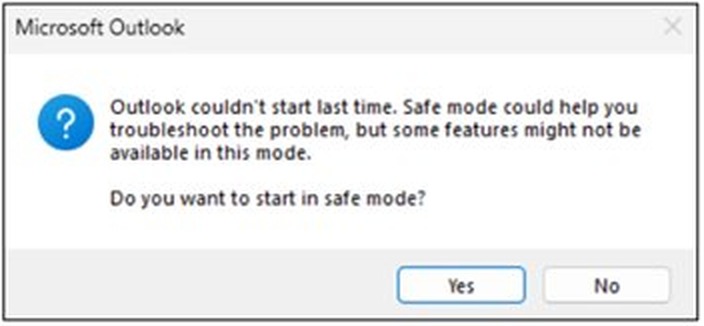
- To stay on an older build, hold Ctrl while you start Outlook, and accept safe mode.
- Go to File > Options > Add-ins > Go, clear Microsoft Teams Meeting Add-in for Microsoft Office, select OK, and restart Outlook.
Outlook crashes with MCOU.DLL as the faulting module
Microsoft detects this crash with the Kaspersky antivirus module mcou.dll, and it has no fix yet.
- Confirm the module name in Event Viewer, as shown below.
- Contact Kaspersky support and quote the module version from the event.
Outlook crashes on startup with no known issue listed
The usual suspects are an add-in, damaged Office files or a corrupted profile.
- Start Outlook in safe mode and turn off COM add-ins.
- Run an Online Repair of Office.
- Create a new Outlook profile and open Outlook with it.
How to find the Outlook crash in Event Viewer
Windows logs Outlook crashes in the Application log. The event names the module that failed, and that can point to one known cause.
- Select Search, type
Event Viewer, and open the app. - Go to Windows Logs > Application.
- Find Event 1000 or Event 1001 at the time of the crash.
- Confirm that Faulting application reads
OUTLOOK.EXE. - Note the Faulting module and the exception code, and then match them in the next table.
OUTLOOK.EXE faulting module and exception code explained
| Event details | What Microsoft links it to | Status and fix |
|---|---|---|
Faulting module MCOU.DLL |
Kaspersky antivirus module | Investigating. Contact Kaspersky support |
Faulting module MSVCP140.dll, code 0xc0000005 |
Teams Meeting Add-in on older classic Outlook builds | Fixed. Update Office or run Online Repair |
OLMAPI32.DLL, code 0xc0000409 |
Outlook cannot open the Forms Library | Fixed. Update Office or create the FORMS2 folder |
OUTLOOK.EXE, code 0xc0000005, on Version 2412 |
Crash when starting, replying to or forwarding a message | Fixed in Version 2501. Update Office |
OUTLOOK.EXE, code 0xc0000005, opening Viva Engage or Yammer mail |
Outlook 2021 LTSC and Outlook 2024 LTSC bug | Fixed. Install the latest updates |
A code that matches none of these rows still gives you something to search for in Microsoft's known issues list.
How do you troubleshoot issues that cause Outlook to crash or stop responding when using Office 365?
Microsoft's procedure for Microsoft 365 mailboxes covers hangs, crashes during idle time and crashes at startup. Its two troubleshooters run from the Get Help app and work only with classic Outlook on Windows 10 or later.
- Exit Outlook, start it with
outlook.exe /safe, and turn off COM add-ins as shown earlier. - Open Control Panel, select Uninstall a program, right-click your Office entry, and select Change > Online Repair.
- Run the Classic Outlook Connectivity troubleshooter on the same PC that has classic Outlook installed.
- Select Open if your browser asks to open Get Help, and then follow the instructions in the app.
- Create a new Outlook profile if the troubleshooter did not fix the crash.
- Run the Classic Outlook Advanced Diagnostics troubleshooter for a detailed configuration report.
How to repair Office when Outlook keeps crashing
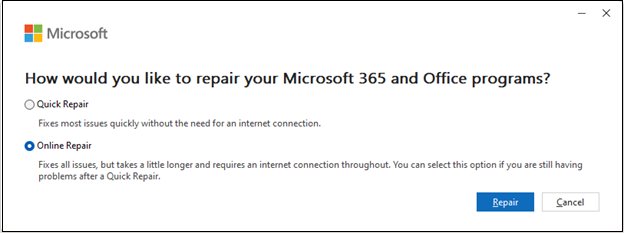
Repair covers the whole Office suite, even when only Outlook misbehaves. Quick Repair detects and replaces corrupted files, and Online Repair is the thorough option.
- Close every running Office app.
- In Windows 11, right-click Start and select Installed apps. In Windows 10, select Apps and Features.
- Select your Microsoft 365 or Office entry, and then select Modify. In Windows 11, it sits under the … menu.
- Select Quick Repair first and follow the prompts.
- If Outlook still crashes, repeat these steps and select Online Repair > Repair.
- Restart the PC if Windows asks you to.
MSI-based Office installs show a Change your installation window instead. Select Repair, and then select Continue.
How to repair Outlook PST and OST files with ScanPST
The Inbox Repair Tool installs with Outlook and repairs errors in data files. You may need to run ScanPST on Outlook more than once.
- In Outlook, go to File > Account Settings > Account Settings > Data Files, and note the file path.
- Exit Outlook.
- Open the Office folder and start
SCANPST.EXE. For Outlook 2019 and 2016, Microsoft givesC:\Program Files (x86)\Microsoft Office\root\Office16. - Select Browse, choose the data file, and select Start.
- If errors appear, select Repair. The tool creates a backup first.
- Start Outlook with the profile linked to the repaired file.
For an Exchange account, delete the offline .ost file instead. Outlook recreates it the next time it opens.
How to create a new Outlook profile to stop crashes
A new profile tests whether the old one is corrupted. Keep the old profile until the new one proves stable, because removing a profile also removes its associated data files.
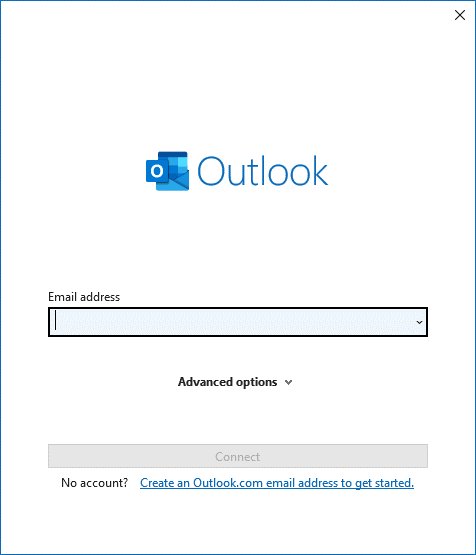
- Press Windows + R, type
Outlook.exe /profiles, and press Enter. - Select Options in the profile picker.
- Select the Prompt a profile to be used check box.
- Select New, type a profile name, and select OK.
- Choose your email address and follow the prompts to add the account.
- Open Outlook with the new profile and repeat the action that crashed it.
If the problem disappears, the original profile was corrupted. Non-Exchange accounts, such as Gmail, can be added to the new profile afterward.
Outlook freezing with a large mailbox
Each folder needs more resources to open as the mailbox grows, and a folder with many items causes the worst slowdowns.
- On the Folder tab, select New Folder.
- Enter a name in the Name box.
- Choose a location under Select where to place the folder, and select OK.
- Move items from your largest folder into the new folder.
- Repeat this for other large folders, or archive older items with AutoArchive.
Outlook not responding when AppData is redirected to a network location
Outlook stores signatures and the spelling dictionary in AppData. A slow network makes Outlook wait on each read and write when that folder lives on a server. Work PCs may have this set by policy, so ask your IT team first.
- Exit Outlook.
- Press Windows + R, type
regedit.exe, and select OK. - Go to
HKEY_CURRENT_USER\Software\Microsoft\Windows\CurrentVersion\Explorer\User Shell Folders. - Double-click the AppData value.
- In Value data, type
%USERPROFILE%\AppData\Roaming, and select OK. - Exit Registry Editor and start Outlook.
Clean boot Windows 11 to find a program conflicting with Outlook
Background services and startup apps can interfere with Outlook. A clean boot switches them off so you can test Outlook alone.
- Sign in as an administrator, select Search, type
msconfig, and open System Configuration. - On the Services tab, select Hide all Microsoft services, select Disable all, and then select Apply.
- On the Startup tab, select Open Task Manager.
- On the Startup apps tab, select each enabled item and select Disable. Note which items you changed.
- Close Task Manager, select OK in System Configuration, and restart.
- Open Outlook and repeat the action that froze it.
- If Outlook stays stable, re-enable items in small groups until the freeze returns.
To return to normal, open System Configuration, select Normal Startup on the General tab, select Enable all on the Services tab, and turn your startup apps back on.
We can’t create your rule right now says Outlook
Microsoft does not document this exact wording, but it does document a rule limit that blocks new rules. Inbox rules share 256 KB in Exchange Online, and at that limit Outlook warns that you cannot create or update a rule.
- In classic Outlook, go to File > Manage Rules & Alerts.
- Fix any rule marked Error by selecting it and correcting the links under Rule description.
- Delete old rules you no longer need, and then select OK.
- Shorten long rule names with Change Rule > Rename Rule, because the name counts toward the rule's size.
- Combine similar rules, since the number of conditions also uses space.
- Turn off rules you only need occasionally. The quota applies only to enabled rules.
- Create the rule again. In new Outlook or Outlook on the web, use Settings > Mail > Rules > Add new rule.
On Exchange Server mailboxes, an administrator can raise the quota to 256 KB with Set-Mailbox [email protected] -RulesQuota:256kb. Exchange Online cannot go above 256 KB.
How to connect Google Workspace to Outlook
A new Outlook profile starts empty, so you need to reconnect any Google account after you create one. Microsoft documents these steps for Gmail addresses, and Google Workspace Sync for Microsoft Outlook is Google's own tool for work and school accounts, which needs some administrator setup first.
- In new Outlook, open the View tab, select View settings > Accounts > Your accounts, and then select Add account.
- In classic Outlook, select File > Add Account, enter your address, and select Connect.
- Sign in through the Google window that opens.
- Select Allow on the Google account permissions window.
- Select Done when the account appears in Outlook.
If Outlook rejects a correct password, your version may not support this sign-in. Microsoft recommends turning on two-factor authentication and using an app password.
Outlook keeps crashing FAQ
How to fix Outlook keeps crashing?
Start classic Outlook with outlook.exe /safe and turn off COM add-ins first. If the crash continues, install Office updates, run an Online Repair, repair your data files with ScanPST, and test a new Outlook profile, in that order.
Why does Outlook keep crashing?
The common causes are a faulty add-in, an out-of-date Office build, damaged Office files, corrupted data files or a corrupted profile. Event 1000 in Event Viewer names the faulting module, which often narrows the cause to one of these.
Why does my Microsoft Outlook keep crashing when I do one thing?
A crash tied to one action, such as replying or accepting a calendar invite, often matches a documented bug. Check Microsoft's known issues list for classic Outlook, and then install the update or workaround it names for your build.
Why does Outlook keep crashing after opening?
Test add-ins and a damaged Office install first, because both can stop Outlook at launch. Older builds also crashed from March 12, 2026 because of a Teams Meeting Add-in conflict. Update Office from Word, and run an Online Repair if updating fails.
How do I close Outlook when it is not responding?
Right-click Start, select Task Manager, select the Outlook entry, and then select End task. Reopen Outlook afterward. Give it two to three minutes first if the status bar shows a running task, because Outlook may recover without being closed.
Does outlook.exe /safe work in new Outlook?
Microsoft lists safe mode only for classic Outlook. For new Outlook, end the task in Task Manager and reopen the app. If it keeps hanging, uninstall new Outlook from the Start menu and reinstall it from the Microsoft Store.
Can a large mailbox make Outlook freeze?
Yes. More resources are needed to open each folder as a mailbox grows, and folders holding many items cause performance problems. Move items into separate folders or archive them with AutoArchive to reduce the load on Outlook.