Turn Outlook email notifications on or off in new Outlook from View > View Settings > General > Notifications, then switch the Mail toggle.
Classic Outlook uses a different setting, and Windows has its own per-app switch. This article covers each one, sounds, and the fixes for missing alerts, printing, Outlook start-up and error 0x801901f5.
Turn off or on Windows Outlook app email notifications
These steps apply to new Outlook for Windows, the app Microsoft now offers in place of the old Mail app.
- Open new Outlook.
- Select the View tab, then select View Settings.
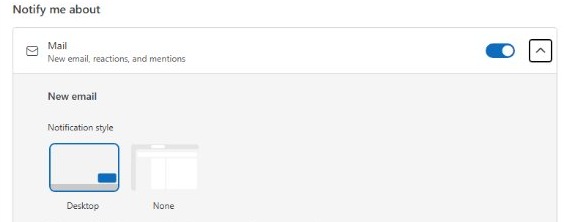
- Go to General > Notifications.
- Under Notify me about, switch Mail off to stop email alerts, or on to get them back.
- Leave Calendar and Documents as they are if you still want those alerts.
The change applies inside Outlook. Windows can still block Outlook alerts separately, so check Windows Settings if alerts stay missing after you switch Mail on.
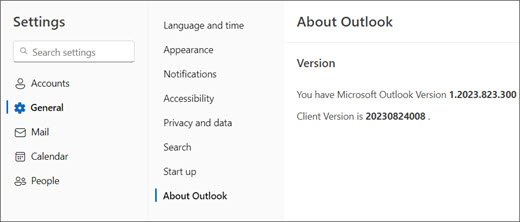
What version of Outlook do I have on Windows 11/10?
The notification setting depends on your version, so check the top-right corner and the ribbon tabs first.
| What you see | Your version | Where email notifications are |
|---|---|---|
| A gear-shaped Settings button at the top right; Home, View and Help tabs | New Outlook | View > View Settings > General > Notifications |
| No Settings button at the top right; a File tab on the ribbon | Classic Outlook | File > Options > Mail > Message arrival |
| Outlook.com open in a browser | Outlook on the web | Settings (gear icon) > General > Notifications |
| Neither desktop layout above | Windows Mail or an older, unsupported Outlook | Move to new Outlook or a supported version |
If new Outlook is missing something you rely on, you can switch back to classic Outlook from the Help tab.
Turn on or off email notifications in classic Outlook
Classic Outlook calls its email pop-up a desktop alert. One check box controls it.
- Open classic Outlook.
- Select File > Options > Mail.
- Under Message arrival, clear Display a Desktop Alert to stop the pop-up, or select it to turn the pop-up on.
- Select OK.
Turn off Outlook notifications in Windows 11 Settings
The Windows switch blocks Outlook alerts at the system level, whatever the setting inside Outlook says.
- Select Start > Settings > System > Notifications.
- Under Notifications from apps and other senders, select Outlook.
- Switch Notifications off for Outlook, or on to allow its alerts.
- With notifications on, choose Show notification banners, Show notifications in notification center and Play a sound to suit you.
- Set Priority of notifications to Top, High or Normal if Outlook alerts get buried.
The main Notifications switch at the top of the same page lets you turn off notifications for every app, not only Outlook.
Turn off Outlook notifications in Windows 10 Settings
Windows 10 keeps the same controls under different labels.
- Select Start > Settings > System > Notifications & actions.
- Check that Get notifications from apps and other senders is on if you want any alerts.
- Under Get notifications from these senders, select Outlook.
- Switch Outlook off to block its alerts, or on to allow them.
- With Outlook on, choose Show notification banners, Show notifications in action center and Play a sound when a notification arrives.
Outlook desktop alerts vs Windows notification settings
| What you want | Change this | Result |
|---|---|---|
| No email alerts, calendar alerts stay (new Outlook) | Switch Mail off under Notify me about | Calendar and document alerts keep working |
| No email pop-ups (classic Outlook) | Clear Display a Desktop Alert | The pop-up stops for new messages |
| No Outlook alerts of any kind | Switch Outlook off in Windows notification settings | Windows blocks Outlook alerts |
| A quiet record, no banners | Clear Show notification banners for Outlook in Windows | Alerts wait in the notification center |
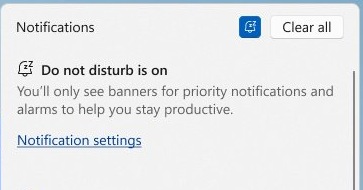
| No alerts from any app for a while | Turn on Do not disturb in Windows 11 or Focus assist in Windows 10 | Alerts stay silent until you turn it off |
Notifications cover mail arriving in your inbox. To learn when someone opens a message you sent, request an Outlook read receipt instead.
How to change or mute the Outlook notification sound
| Where | Path | Setting |
|---|---|---|
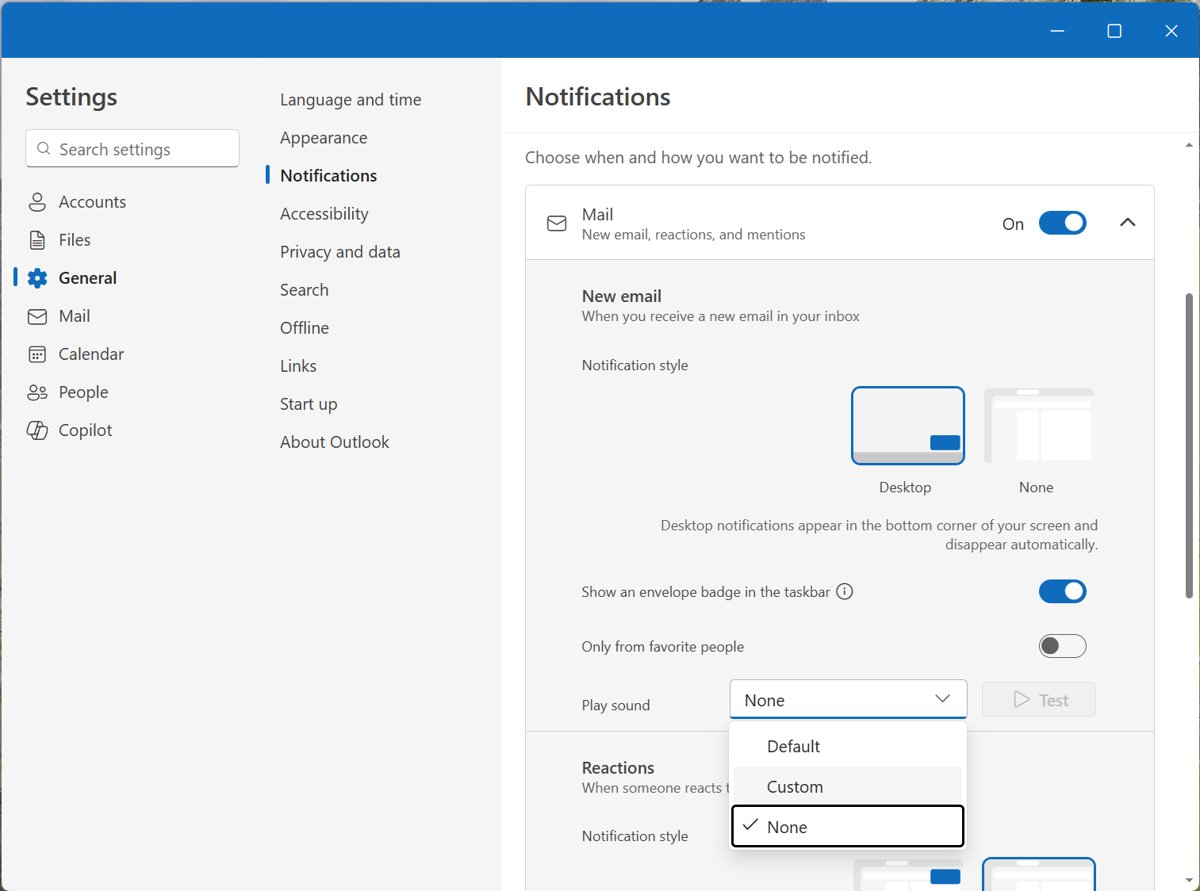
| New Outlook, email | View Settings > General > Notifications > Mail | Play Sound under New Email and Reactions |
| New Outlook, calendar | View Settings > General > Notifications > Calendar | Play Sound under Event reminders |
| Classic Outlook, email | File > Options > Mail > Message Arrival | Play a sound |
| Classic Outlook, reminders | File > Options > Advanced > Reminders | Play reminders sound |
| Windows 11, Outlook | Settings > System > Notifications > Outlook | Play a sound |
| Windows 10, Outlook | Settings > System > Notifications & actions > Outlook | Play a sound when a notification arrives |
Classic Outlook reminders can also use a different sound file. Keep the default, or browse for another file next to Play reminders sound.
How to test Outlook email notifications on Windows
- Keep Outlook open and switch to another window.
- Send a test email to your own address from a phone or another account.
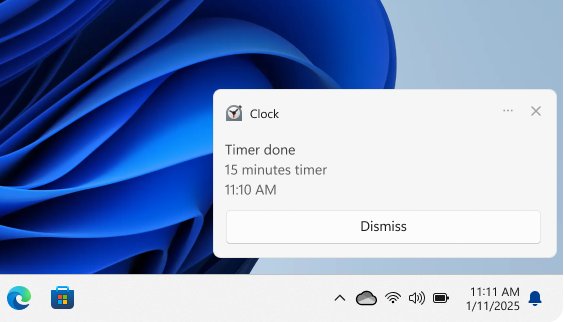
- Look for the banner in the corner of the screen when the message arrives.
- Press Windows key + N on Windows 11 or Windows key + A on Windows 10 to find the alert in the notification list.
- If you turned notifications off, confirm that the message reaches your inbox with no banner or sound.
Outlook notifications not working on Windows 11/10
Outlook alerts are silent while Teams shows Do not disturb
A Teams status of Do not disturb also suppresses Outlook alerts.
- Open Teams and check your status.
- Change the status from Do not disturb to another option.
No banners from any app in Windows 11
Do not disturb is on, or a focus session is running.
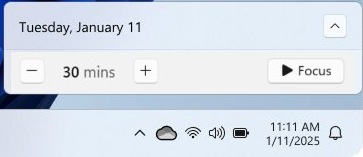
- Press Windows key + N and select the bell icon with zZ to turn off Do not disturb.
- Open Settings > System > Focus and stop any focus session.
- Open Settings > System > Notifications, then expand Turn on do not disturb automatically and review the listed conditions.
No banners from any app in Windows 10
Focus assist hides alerts when it is set to a priority or alarm mode.
- Open Settings > System > Focus assist.
- Select Off.
- Review Automatic rules and turn off any condition that matches when alerts disappear.
Outlook notifications stop on battery
Notifications can pause while Battery Saver is on.
- Open Settings > System > Power & battery on Windows 11, or Settings > System > Battery on Windows 10.
- Turn off Battery Saver.
Notification switches are greyed out
Your system administrator may have disabled notifications on a managed PC.
- Confirm that the PC belongs to a work or school organization.
- Ask your administrator to allow Outlook notifications.
Windows Mail app notifications after Mail and Calendar support ended
Use new Outlook for email alerts, because the Windows Mail app no longer sends or receives mail. Microsoft ended support for the Windows Mail, Calendar and People apps on December 31, 2024. Open Mail and Calendar and choose Open Outlook, or get new Outlook from the Microsoft Store. Local email, events and contacts can still be exported.
Outlook app won’t print emails in Windows 11
You can't find Print in new Outlook
New Outlook keeps Print on the Home tab of the ribbon.
- Select the email message.
- Open the Home tab and select Print.
- Choose a printer, a layout and the pages to print.
- Select Print again.
Classic Outlook email will not print
The wrong printer or print style is selected in the preview.
- Select the message and press Ctrl + P, or choose File > Print.
- Select a printer if none is selected.
- Select Print Options and check Printer, Print style, Page range and Copies.
- Select Print.
Nothing prints from Outlook or any other app
The problem is the printer or Windows print queue, not Outlook.
- Turn the printer off, unplug it, wait 30 seconds, then plug it in and turn it on.
- Check the USB cable, or confirm that a wireless printer is on the same network as the PC.
- Open Settings > Bluetooth & Devices > Printers & scanners, remove the printer, then select Add device.
- Install the latest driver from the printer manufacturer's website.
- Open Services, stop Print Spooler, delete the files in
%WINDIR%\system32\spool\PRINTERS, then start Print Spooler again.
Microsoft also lists an open investigation into errors when printing a Word document attached to an email in new Outlook. Its August 2026 known-issues page gives no workaround.
Fix error 0x801901f5 in Windows 11
Windows documents 0x801901F5 as BG_E_HTTP_ERROR_501: the server does not support the functionality required to fulfill the request. It comes from a server response, so it has nothing to do with the Outlook notification toggles.
Microsoft does not publish an Outlook-specific fix for this code. These steps repair the app on your side and identify who owns the server.
- Note which app showed the code and what you were doing at the time.
- Open Start > Settings > Apps > Installed apps.
- Select the More icon next to that app, then select Advanced options. Some apps do not have this option.
- Select Repair if it appears, then try the same action again.
- Select Reset if Repair is missing or does not help.
- Send the code to your IT administrator if the app connects to a company server.
Cannot open Outlook app on Windows 11/10
Classic Outlook: "Cannot start Microsoft Outlook. Cannot open the Outlook window"
An add-in, a damaged profile or damaged navigation pane settings usually blocks start-up.
- Press Windows key + R, type
Outlook /safeand select OK. - Keep the default profile in Choose Profiles and select OK.
- If Outlook opens, select File > Options > Add-ins, set Manage to COM Add-ins and select Go.
- Note the selected add-ins, clear their check boxes and select OK. Do not select Remove.
- Exit and restart Outlook, then turn add-ins back on one at a time to find the cause.
- If safe mode also fails, close Outlook, press Windows key + R, type
Outlook.exe /resetnavpaneand select OK. - If Outlook still fails, create a new Outlook profile and select it in Choose Profile.
New Outlook does not open
Windows Settings includes Repair and Reset options for installed apps.
- On Windows 11, open Settings > Apps > Installed apps, then select the More icon next to Outlook. On Windows 10, open Settings > Apps > Apps & features, then select Outlook.
- Select Advanced options. Some apps do not have this option.
- Select Repair if it appears.
- Select Reset if Repair is missing or does not help.
If Outlook will open only in safe mode, you can get Outlook out of safe mode with a few more checks. Navigation pane settings are local to each PC, so reset the Outlook navigation pane on every computer that shows the error.
Outlook email notifications FAQ
How do I get email notifications on Windows 11/10?
Turn on Mail under Notify me about in new Outlook, or select Display a Desktop Alert in classic Outlook. Then check that Outlook is allowed in Windows notification settings and that Do not disturb or Focus assist is off.
How do I turn on notifications for Outlook app?
Open Settings > System > Notifications on Windows 11 or Notifications & actions on Windows 10, then select Outlook and switch its notifications on. Check the matching setting inside Outlook too, because either one can stop alerts.
Why are my Outlook notifications not working?
A Teams status of Do not disturb, the Windows Do not disturb setting, a focus session or Battery Saver can each stop them. Outlook may also be switched off in Windows notification settings. Greyed-out switches can mean your administrator disabled notifications.
Can I turn off Outlook email alerts but keep calendar reminders?
Yes. In new Outlook, switch Mail off and leave Calendar on under Notify me about. In classic Outlook, clear Display a Desktop Alert under Message arrival, which applies to new messages rather than to the Reminders settings on the Advanced page.
How do I turn off mail or calendar sounds in Outlook?
In new Outlook, change Play Sound on the Mail or Calendar section of Notifications. In classic Outlook, clear Play a sound under Message Arrival for email and Play reminders sound under Reminders for calendar, task and flag reminders.
Do Outlook notifications work when Do not disturb is on?
Not by default. On Windows 11, open Settings > System > Notifications, select Add apps under Apps in the priority notification settings, and add Outlook. Its alerts can then still reach you while Do not disturb is on.
Does the Windows Mail app still send email notifications?
No. Microsoft ended support for Windows Mail on December 31, 2024, and the app can no longer send or receive email. Move to new Outlook for Windows or Outlook.com, then set up notifications there.