Run winget uninstall --id <AppID> in PowerShell or Command Prompt to remove most apps on Windows 11 and 10, because WinGet works in both shells and also sees apps it did not install.
The sections below cover the other routes too: Uninstall-Package for MSI programs, Remove-AppxPackage for Microsoft Store apps, msiexec and registry uninstall strings for CMD, and WMI now that the wmic tool has been removed from current Windows 11 versions.
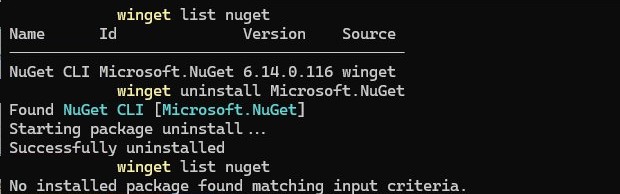
How to uninstall software using the WinGet command
The WinGet package manager is supported on Windows 10 version 1809 and later and on Windows 11, and the commands are identical in PowerShell and Command Prompt.
- Search for PowerShell or Command Prompt in the Start menu, then select Run as administrator.
- Run
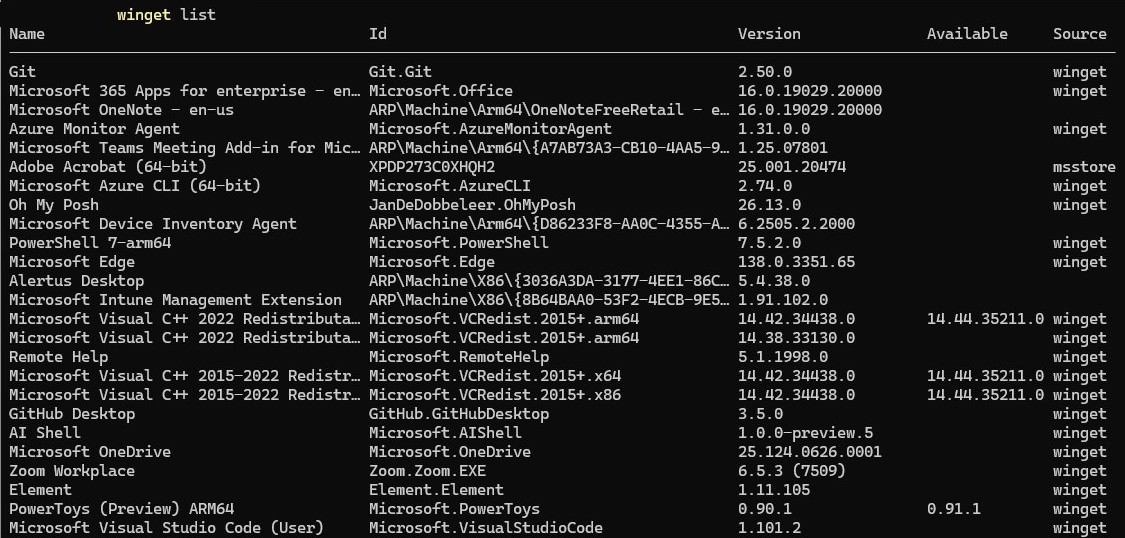
winget list "app name"and note the exact value in the Id column. Wildcards are not supported, but a partial name matches. - Run
winget uninstall --id Microsoft.PowerToys --exact, replacing the ID with yours. - Answer any prompts from the app's own uninstaller, or add
--silentto suppress its interface. - Run
winget list "app name"again to confirm the app is gone.
To remove several apps at once, list their IDs in one command: winget uninstall Microsoft.NuGet Microsoft.Edit. If you only need a one-off removal with a mouse, you can uninstall apps from Settings instead.
PowerShell vs CMD commands to uninstall apps
| Your situation | Use this | Works in |
|---|---|---|
| You want one command for almost anything | winget uninstall |
PowerShell and CMD |
| A program installed from an MSI package | Get-Package piped to Uninstall-Package |
PowerShell |
| A Microsoft Store or built-in UWP app | Get-AppxPackage piped to Remove-AppxPackage |
PowerShell |
| You have an MSI product code or package file | msiexec /x |
PowerShell and CMD |
| A program with its own EXE uninstaller | The UninstallString value from the registry |
PowerShell and CMD |
| A scripted MSI removal on local or remote PCs | Win32_Product and its Uninstall method through CIM |
PowerShell |
How to uninstall a program using PowerShell in Windows 11 or 10
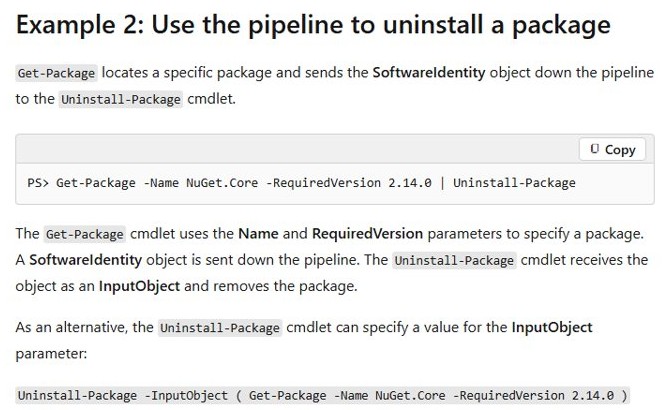
Get-Package lists software known to PackageManagement, which ships with default providers that include MSI. Uninstall-Package then removes what you pipe to it, and -WhatIf shows the result first.
- Search for Windows PowerShell in the Start menu and select Run as administrator.
- Run
Get-Package -Name "*Reader*"to find the package. The-Nameparameter accepts wildcards. - Run
Get-Package -Name "Adobe Acrobat*" | Uninstall-Package -WhatIfto preview what would be removed. - Run
Get-Package -Name "Adobe Acrobat*" | Uninstall-Package -Forceto uninstall it without a confirmation prompt. - Add
-AllVersionsif more than one version is installed, because the newest one is removed by default.
To run this on another PC, wrap it in Invoke-Command -ComputerName Server01 -ScriptBlock {Get-Package}. If a program does not appear, or the cmdlet cannot remove it, use WinGet or its registry uninstall string instead.
Uninstalling Microsoft Store (UWP) apps using PowerShell
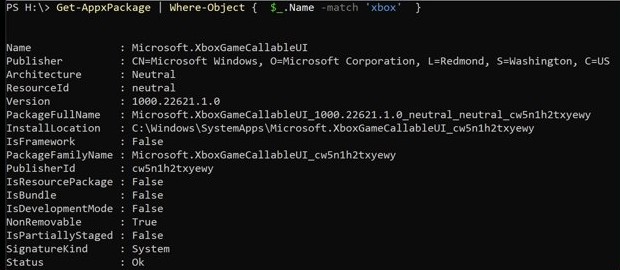
Store apps are .appx or .msix packages registered per user, so Uninstall-Package does not apply. The commands below use Snipping Tool's package, Microsoft.ScreenSketch, as the example.
- Open Windows PowerShell. A normal window is enough for your own account.
- Run
Get-AppxPackage -Name "*ScreenSketch*"and note the Name and PackageFullName values. - Run
Get-AppxPackage -Name Microsoft.ScreenSketch | Remove-AppxPackageto remove the app from your account. - To remove it for every account, open PowerShell as administrator and run
Get-AppxPackage -AllUsers -Name Microsoft.ScreenSketch | Remove-AppxPackage -AllUsers. - If that command reports a bundle problem, add
-PackageTypeFilter Bundleto theGet-AppxPackagepart, since-AllUsersworks off the parent package type. - To stop the app being installed for new accounts, run
Get-AppxProvisionedPackage -Online, copy its PackageName value and runRemove-AppxProvisionedPackage -Online -PackageName <PackageName>.
Microsoft notes that some apps are built into Windows and cannot be uninstalled, so a removal failure on a core component is expected behavior.
How to uninstall a program using CMD with msiexec
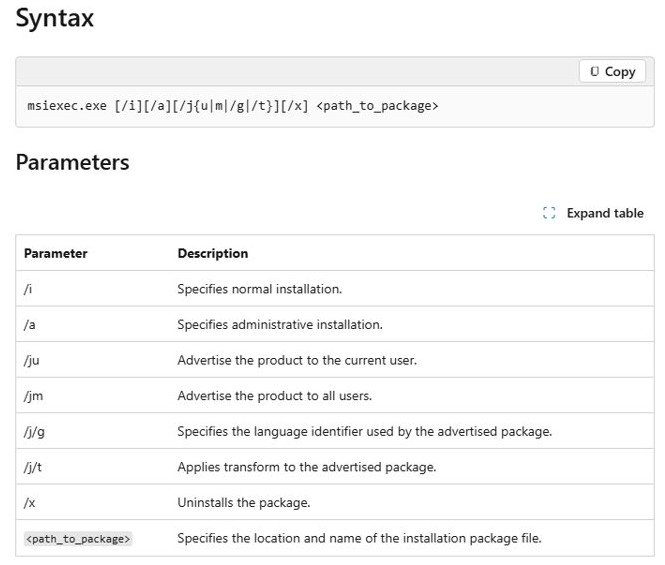
msiexec removes anything installed by Windows Installer, and it runs the same in Command Prompt and PowerShell. You need the product code, which is the name of the program's subkey in the registry.
- Search for Command Prompt in the Start menu and select Run as administrator.
- Run
reg query HKLM\Software\Microsoft\Windows\CurrentVersion\Uninstall /s /f "App name" /dand copy the GUID at the end of the key path it returns. - Run
msiexec /x {GUID}and follow the prompts, keeping the curly braces. - For an unattended removal, run
msiexec /x {GUID} /qn /norestart. - To log the run, add
/log C:\Logs\uninstall.log. The folder must already exist, because the installer does not create it.
Always pair a silent switch with /norestart. Without a restart option, a quiet Windows Installer run restarts the computer whenever it needs to, with no prompt or warning.
Using WMI to uninstall apps in Windows
The Win32_Product class exposes an Uninstall method for software installed by Windows Installer, on the local computer or a remote one. Use it through CIM cmdlets, because Get-WmiObject no longer exists in PowerShell 7 and the wmic tool is gone from current Windows 11.
Treat this as a last resort. Microsoft warns that querying Win32_Product is not optimized: it enumerates every installed product and starts a consistency check that can verify and repair packages.
- Open PowerShell as administrator.
- Run
$app = Get-CimInstance -ClassName Win32_Product -Filter "Name = 'App name'"with the exact product name. The query can take a while. - Run
$appand confirm it shows the program you expect. - Run
Invoke-CimMethod -InputObject $app -MethodName Uninstall. - Read ReturnValue in the output. A value of 0 means the uninstall completed.
Microsoft says the method does not override Group Policy, so software offered to the user through policy can be reinstalled afterward. Microsoft removed WMIC from Windows 11 version 24H2 and later in August 2026, and it cannot be added back as a Feature on Demand. WMI itself stays supported, which is why the CIM route still works.
Get the program uninstall string from the registry
Every program registered with Windows has a subkey under the Uninstall key, and its UninstallString value holds the exact command Windows runs to remove it. This is how you remove EXE-based software from a script.
- Open PowerShell as administrator.
- Run
Get-ItemProperty 'HKLM:\Software\Microsoft\Windows\CurrentVersion\Uninstall\*', 'HKLM:\Software\Wow6432Node\Microsoft\Windows\CurrentVersion\Uninstall\*' | Where-Object DisplayName -like '*App name*' | Select-Object DisplayName, UninstallString. - In CMD, run
reg query HKLM\Software\Microsoft\Windows\CurrentVersion\Uninstall /s /f "App name" /dto get the same subkey, then query it with/v UninstallString. - If the value starts with
MsiExec.exe, take the GUID from it and runmsiexec /x {GUID}. - If the value points at an EXE, paste the whole string into Command Prompt, keeping any quotes around the path.
- For a silent removal of an EXE uninstaller, check the software vendor's documentation, because each installer uses its own switch.
The Wow6432Node path holds 32-bit programs on 64-bit Windows, so check both. Software installed for one user only may not appear under HKLM; run winget list --scope user to find it.
How to list installed programs in PowerShell and CMD
These CMD and PowerShell commands each see a different slice of what is installed, so an app missing from one list is not proof it is gone.
| Command | Shell | What it lists |
|---|---|---|
winget list |
PowerShell and CMD | Apps installed through WinGet and by other means |
Get-Package |
PowerShell | Packages known to PackageManagement providers |
Get-AppxPackage |
PowerShell | Store and UWP packages in your profile. Add -AllUsers as administrator for every account |
Get-AppxProvisionedPackage -Online |
PowerShell as administrator | Packages Windows installs for each new account |
reg query on the Uninstall key |
PowerShell and CMD | Programs registered for Add or Remove Programs |
Get-CimInstance -ClassName Win32_Product |
PowerShell | Windows Installer products only, and slowly because of its consistency check |
Remove-AppxPackage vs Remove-AppxProvisionedPackage
| Command | Current account | Other existing accounts | New accounts |
|---|---|---|---|
Remove-AppxPackage |
Removed | Kept | Still installed if provisioned |
Remove-AppxPackage -AllUsers |
Removed | Removed | Still installed if provisioned |
Remove-AppxPackage -User <SID> |
Kept | Removed for that SID only | Still installed if provisioned |
Remove-AppxProvisionedPackage -Online |
Kept | Kept | Not installed |
Run whoami /user to get a SID. Combine Remove-AppxPackage -AllUsers with the provisioned command when an app must disappear from a PC entirely.
How to check if an app is uninstalled with PowerShell
- Run
winget list "app name"and confirm the app no longer appears. - Run
Get-Package -Name "App name*"for an MSI program. An error saying no package was found is the result you want. - Run
Get-AppxPackage -AllUsers -Name "*AppName*"as administrator for a Store app. Empty output means no account still has it. - Run the
reg querysearch on theUninstallkey again, which should find no match. - Open Start > Settings > Apps > Installed apps and search for the name.
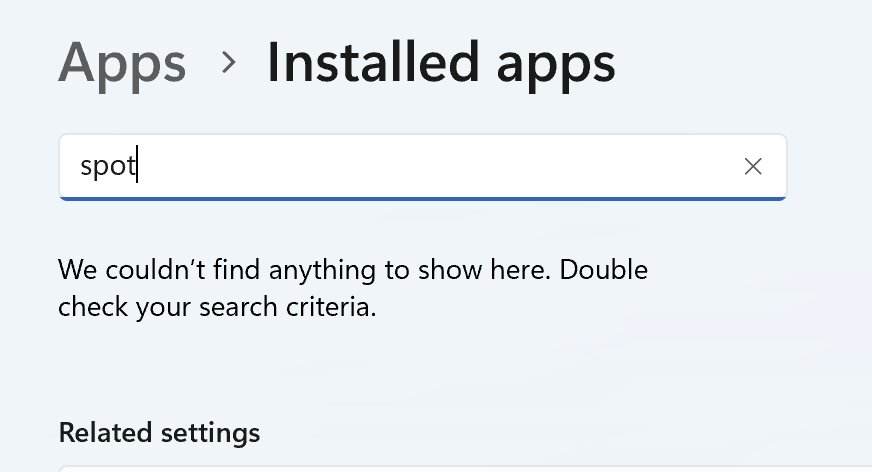
How to reinstall an app after removing it with PowerShell
- Run
winget install --id Microsoft.PowerToys --exact, using the same ID you removed, for software WinGet can find. - For a Store or built-in app, open Microsoft Store, search for the app and select Get or Install.
- For an MSI or EXE program, run the installer from the software vendor's website again.
Reinstalling an app for your account does not restore a provisioned package, so new accounts will still not receive it. When an app only misbehaves, you can repair and manage apps in Windows without removing them at all.
PowerShell uninstall not working: errors and how to fix them
'wmic' is not recognized on Windows 11
Microsoft removed WMIC from Windows 11 version 24H2 and later, and it cannot be added back as a Feature on Demand.
- Replace
wmicscripts withGet-CimInstanceandInvoke-CimMethodin PowerShell. - Use
msiexec /x {GUID}if the script has to stay in Command Prompt. - Use
winget uninstall --id <AppID>for a simple interactive removal.
'winget' is not recognized
WinGet ships inside App Installer, and it does not register until a user has signed in to Windows for the first time.
- Wait a few minutes after a first sign-in, then try the command again.
- Run
Add-AppxPackage -RegisterByFamilyName -MainPackage Microsoft.DesktopAppInstaller_8wekyb3d8bbwein PowerShell to request registration. - Confirm Windows 10 is version 1809 or later, the oldest build WinGet supports.
WinGet uninstall asks you to accept a Microsoft Store agreement
WinGet queries all of its package sources, including the Microsoft Store source.
- Add
--source wingetto the command, for examplewinget uninstall --id Microsoft.PowerToys --source winget. - Or use
--accept-source-agreementsto accept the agreement and skip the prompt.
Uninstall-Package finds no package for an installed program
Get-Package only reports packages its providers know about, and many programs use their own EXE installer.
- Run
winget list "app name"to look for it there. - Read its
UninstallStringfrom the registry and run that command. - Use Control Panel > Programs > Programs and Features if the program appears only there.
Remove-AppxPackage fails with error 0x80073CFA
This code means package removal failed, and Microsoft points to the AppXDeployment-Server event log for the reason.
- Open Event Viewer and read the AppXDeployment-Server log for the matching entry.
- Open PowerShell as administrator and retry with
-AllUsersif the app is installed for several accounts. - Check whether the app is built into Windows, because those packages cannot be uninstalled.
msiexec error 1605: this action is only valid for products that are currently installed
The product code does not match anything Windows Installer has registered, usually because the GUID is wrong or the program is already gone.
- Run the
reg querysearch again and copy the GUID, including its braces. - Check the value is under the program you meant, not a leftover entry from an older version.
msiexec error 1618: another installation is already in progress
Windows Installer runs one installation at a time.
- Let any open installer or Windows update finish.
- Restart the PC if the error continues, then run the command again.
msiexec error 1603 or a program that refuses to uninstall
Error 1603 is a general fatal error, so the log has to show the actual cause. Incomplete installs and corrupted app data are common reasons a removal fails.
- Rerun the command with
/log C:\Logs\uninstall.logand read the end of the log. - Restart the PC, which Microsoft lists first for blocked removals.
- Go to Start > Settings > Apps > Installed apps, select the app and Advanced options, then select Repair and retry.
- You can also remove apps that refuse to uninstall with the wider set of fixes.
The app comes back after you uninstall it
Group Policy can offer the software again, and a provisioned Store app installs itself for each new account.
- Run
gpresult /ron a domain PC to see which policies apply, and ask your administrator about software assigned there. - Run
Get-AppxProvisionedPackage -Onlineand remove the app's provisioned package if it is listed.
PowerShell and CMD app uninstall FAQ
How do I uninstall a program from Command Prompt?
Open Command Prompt as administrator and run winget uninstall –id followed by the app ID from winget list. For an MSI program you can also run msiexec /x with its product code, which you can find with a reg query search of the Uninstall key.
How do I uninstall a program silently from the command line?
Use winget uninstall with –silent, or msiexec /x with /qn and /norestart for an MSI program. Uninstall-Package with -Force skips its confirmation prompt. EXE uninstallers have their own silent switches, so check the vendor's documentation for those.
Does wmic product still work on Windows 11?
No. Microsoft removed WMIC from Windows 11 version 24H2 and later, and it cannot be reinstalled as a Feature on Demand. WMI itself is still supported, so call the Win32_Product Uninstall method through Get-CimInstance and Invoke-CimMethod in PowerShell.
Do I need to run PowerShell as administrator to uninstall an app?
For your own Store apps, no. Remove-AppxPackage works in a normal window for the current user. Removing a package from other accounts with -AllUsers or -User needs administrator rights, and machine-wide programs normally prompt for elevation.
Can PowerShell remove built-in Windows 11 apps?
It can remove many of them, with Remove-AppxPackage for existing accounts and Remove-AppxProvisionedPackage for new accounts. Microsoft notes that some apps are built into Windows and cannot be uninstalled, and those removals fail.
Why should you avoid Win32_Product?
The class is not query optimized. A query makes the MSI provider enumerate every installed product and start a consistency check that verifies and repairs packages. That is slow and can log event 1035 for each product, so use it only when nothing else fits.
What is the difference between msiexec /x and /uninstall?
Nothing in effect. The /uninstall option is the standard installer switch and /x is its Windows Installer equivalent. Both take a package file name or a product code, so msiexec /x {GUID} and msiexec /uninstall {GUID} remove the same product.
Can you uninstall software on a remote computer with PowerShell?
Yes. Run Get-Package and Uninstall-Package inside Invoke-Command, or point Get-CimInstance at the other computer and call the Win32_Product Uninstall method. Microsoft documents the Uninstall method as working on local or remote computers, without delegation.
Does Remove-AppxPackage delete the app for all users?
Not by default. It removes the package from the current account only. Add -AllUsers in an elevated window to remove it from every account, and use Remove-AppxProvisionedPackage to stop Windows installing it for accounts created later.
Where is the uninstall string stored in the registry?
It is in the UninstallString value of each program's subkey under HKLM\Software\Microsoft\Windows\CurrentVersion\Uninstall. On 64-bit Windows, 32-bit programs use the matching path under HKLM\Software\Wow6432Node. MSI programs name that subkey after their product code.