To factory reset AirPods Pro, close them in the case for 30 seconds, forget them on your iPhone, open the lid, and hold the setup button on the back for about 15 seconds until the status light flashes amber, then white; AirPods Pro 3 use three double-taps on the front of the case instead.
This guide covers every AirPods Pro model, resetting without an iPhone, removing them from your Apple Account before selling, and what to do when the light never turns white.
How to factory reset AirPods Pro (step by step)
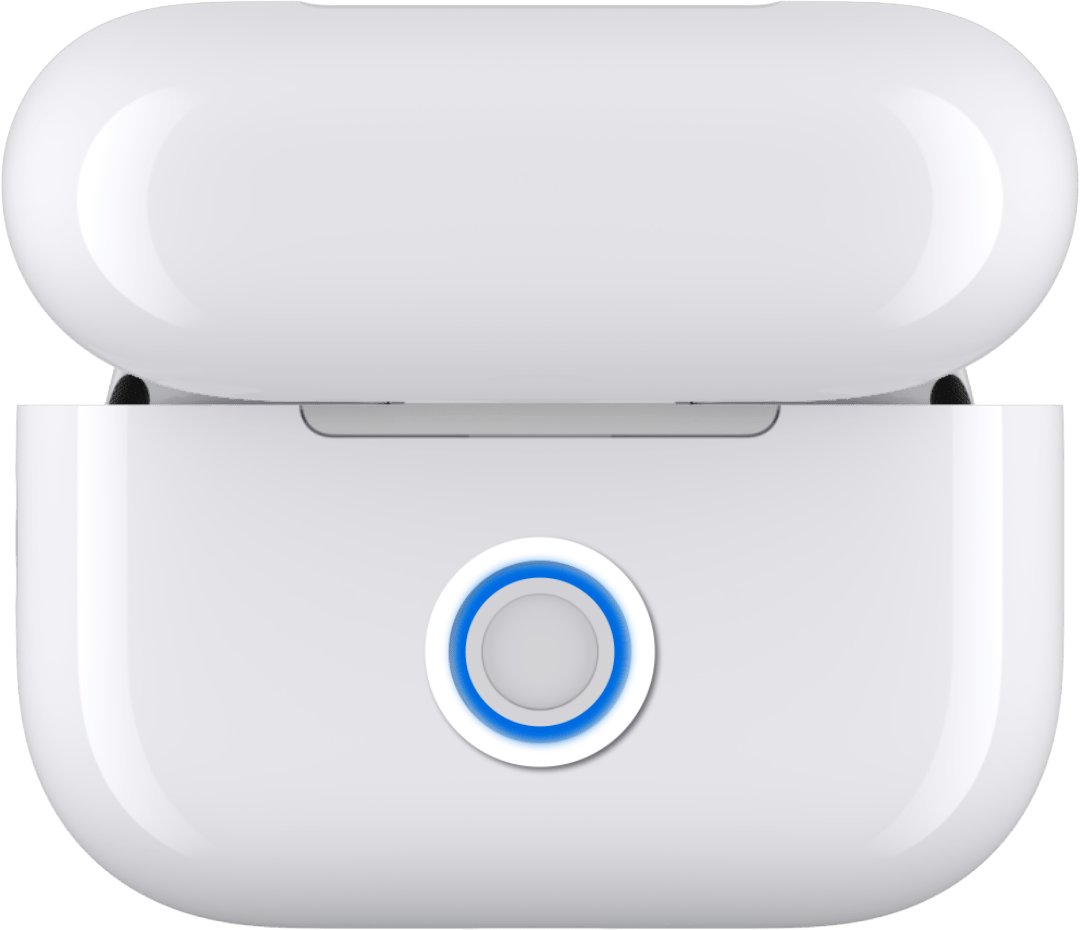
These steps work for AirPods Pro 1, AirPods Pro 2 and AirPods Pro 3. Only step 5 changes by model, because the AirPods Pro 3 case has no button on the back.
- Put both AirPods Pro in the charging case and check that both are charging.
- Close the lid and wait 30 seconds.
- On a paired iPhone or iPad, go to Settings > Bluetooth, tap the More Info button next to your AirPods, tap Forget This Device, then tap again to confirm. If they are not listed under My Devices, skip this step.
- Open the lid of the charging case.
- AirPods Pro 1 or 2: press and hold the setup button on the back of the case for about 15 seconds. AirPods Pro 3: double-tap the front of the case three times, following the light as described in the AirPods Pro 3 section below.
- Watch the status light on the front of the case. When it flashes amber, then flashes white, the reset is complete and you can release the button.
- Keep the lid open, hold the case next to your device and follow the steps on the screen to reconnect.
- Put both earbuds in your ears and play audio to test each side.
Forgetting the AirPods on an iPhone or iPad removes them from every device signed in to the same Apple Account, so you pair them only once afterwards.
Which reset method should you use?
The right route depends on your model and on what you plan to do with the AirPods afterwards. Check the back of the case first: no button there means AirPods Pro 3.
| Your situation | Use this | Why |
|---|---|---|
| AirPods Pro 1 or AirPods Pro 2 | Hold the setup button for about 15 seconds | These cases have a button on the back |
| AirPods Pro 3 | Double-tap the front of the case three times | The case has no button on the back |
| They only cut out or sound wrong now and then | Restart: close them in the case for at least 10 seconds | A restart keeps the pairing, so you have nothing to set up again |
| No iPhone or iPad is nearby | Forget them on a Mac or Apple Watch, or go straight to the case steps | The reset itself happens on the case |
| You are selling or giving them away | Remove them from your Apple Account, then reset | The next owner cannot use them until they leave your account |
How to reset AirPods Pro 3 with no button on the case
Each double-tap on an AirPods Pro 3 case follows a light cue, so watch the status light as you go. The same sequence applies to AirPods 4 and AirPods 5.
- Put both AirPods Pro 3 in the case, close the lid and wait 30 seconds.
- Forget them under Settings > Bluetooth on a paired iPhone or iPad, if they are listed.
- Open the lid of the charging case.
- Double-tap the front of the case while the status light is on.
- Double-tap again when the status light flashes white.
- Double-tap a third time when the status light flashes faster.
- When the light flashes amber, then flashes white, follow the steps on your device's screen to reconnect.
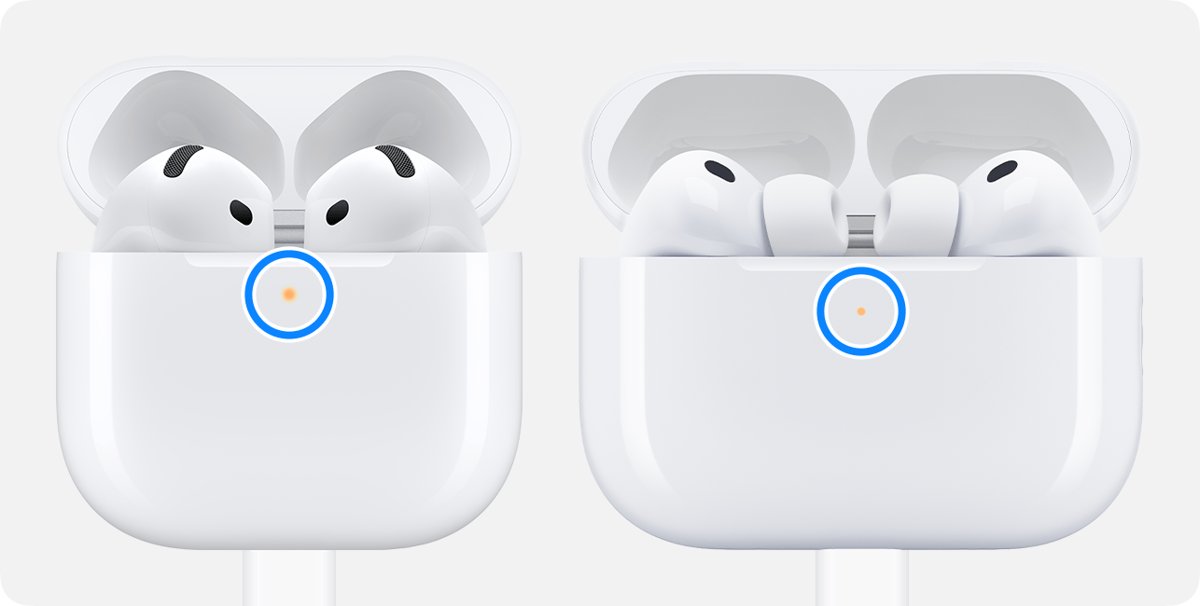
AirPods Pro status light colors during a reset
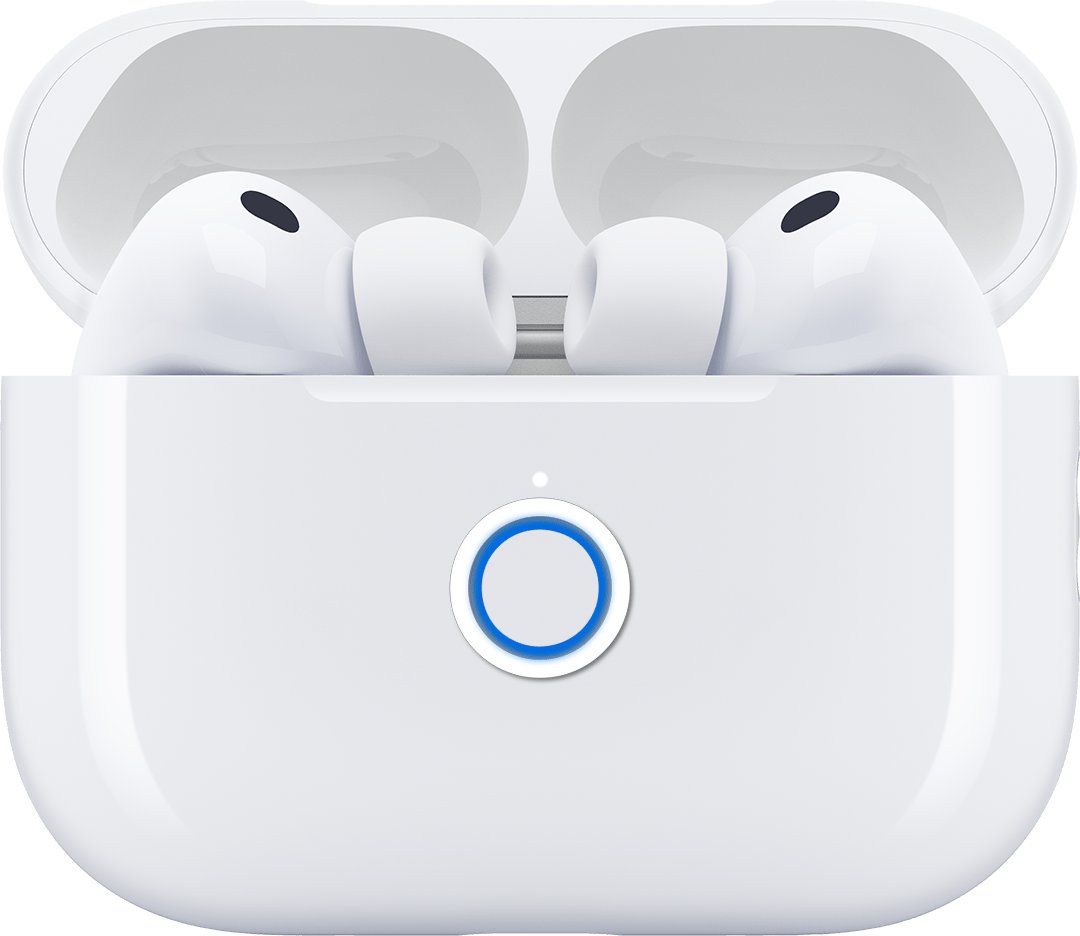
The light on the front of the case tells you whether the reset finished. Amber on its own can be a battery message, so wait for white before you stop.
| What the light does | What it means | What to do |
|---|---|---|
| Flashes amber, then flashes white | The reset is complete | Reconnect the AirPods Pro |
| Flashes white | The AirPods are ready to pair; on AirPods Pro 3, it is also the cue for the second double-tap | Select them on your device, or continue tapping |
| Flashes faster (AirPods Pro 3) | The case is waiting for the third double-tap | Double-tap the front of the case once more |
| Amber | Less than one full charge remains | Charge the case or the AirPods |
| Briefly pulsing amber (newer models) | The AirPods or the case are under 95% | Carry on; this is a charge reading |
| Flashing amber with no white (newer models) | The AirPods are under 95% and the case is under 25% | Charge the case, then repeat the reset |
| Green | Fully charged | Nothing; start the reset |
| No light | The AirPods may need charging before use | Charge them, then try again |
With the lid open and the AirPods inside, the light shows the charge of the AirPods. With the AirPods out of the case, it shows the charge of the case.
Why AirPods Pro need a factory reset in the first place
A factory reset is the last step in Apple's connection fixes, not the first thing to try. It returns the AirPods to factory settings and means pairing them again.
| Problem | Does a reset help? | Try this first |
|---|---|---|
| AirPods Pro won't charge | Yes, Apple lists this as a reason to reset | Clear debris from the charging port with a dry, soft-bristled brush |
| AirPods Pro won't connect to your iPhone, iPad or Mac | Yes, when pairing again has already failed | Update the device, turn on Bluetooth and close the lid for 15 seconds |
| Find My shows that AirPods setup is incomplete | Use the Find My removal steps instead | Wait a few minutes, because pairing can take a while |
| You are passing them to someone else | Only after you remove them from your Apple Account | Forget them, then remove them in Find My |
How to factory reset AirPods Pro without an iPhone
You can reset AirPods Pro with no iPhone in reach, because the reset happens on the case. Forgetting them first simply clears the old pairing from your devices, and Apple says to continue if they are not listed.
- On a Mac, open System Settings, click your AirPods' name in the sidebar and click Forget This Device. On an Apple Watch, open Settings > Bluetooth, tap the Info button next to the AirPods and tap Forget Device.
- Put both AirPods Pro in the case, close the lid and wait 30 seconds.
- Open the lid.
- Hold the setup button for about 15 seconds on AirPods Pro 1 or 2, or use the three double-taps on AirPods Pro 3.
- Wait for the status light to flash amber, then white.
- Pair the AirPods Pro with the device you have nearby.
On a Windows PC, put the AirPods Pro in pairing mode and connect AirPods to a Windows PC through Bluetooth settings. Android phones and other non-Apple devices also see them as a Bluetooth headset, without Siri.
How to reconnect AirPods Pro after a factory reset
A reset leaves the AirPods Pro unpaired, so they need setting up again on an iPhone or iPad. If you are signed in to iCloud, they also set up on your other supported devices that use the same Apple Account.
- Go to the Home Screen on your iPhone, which should be on the latest version of iOS.
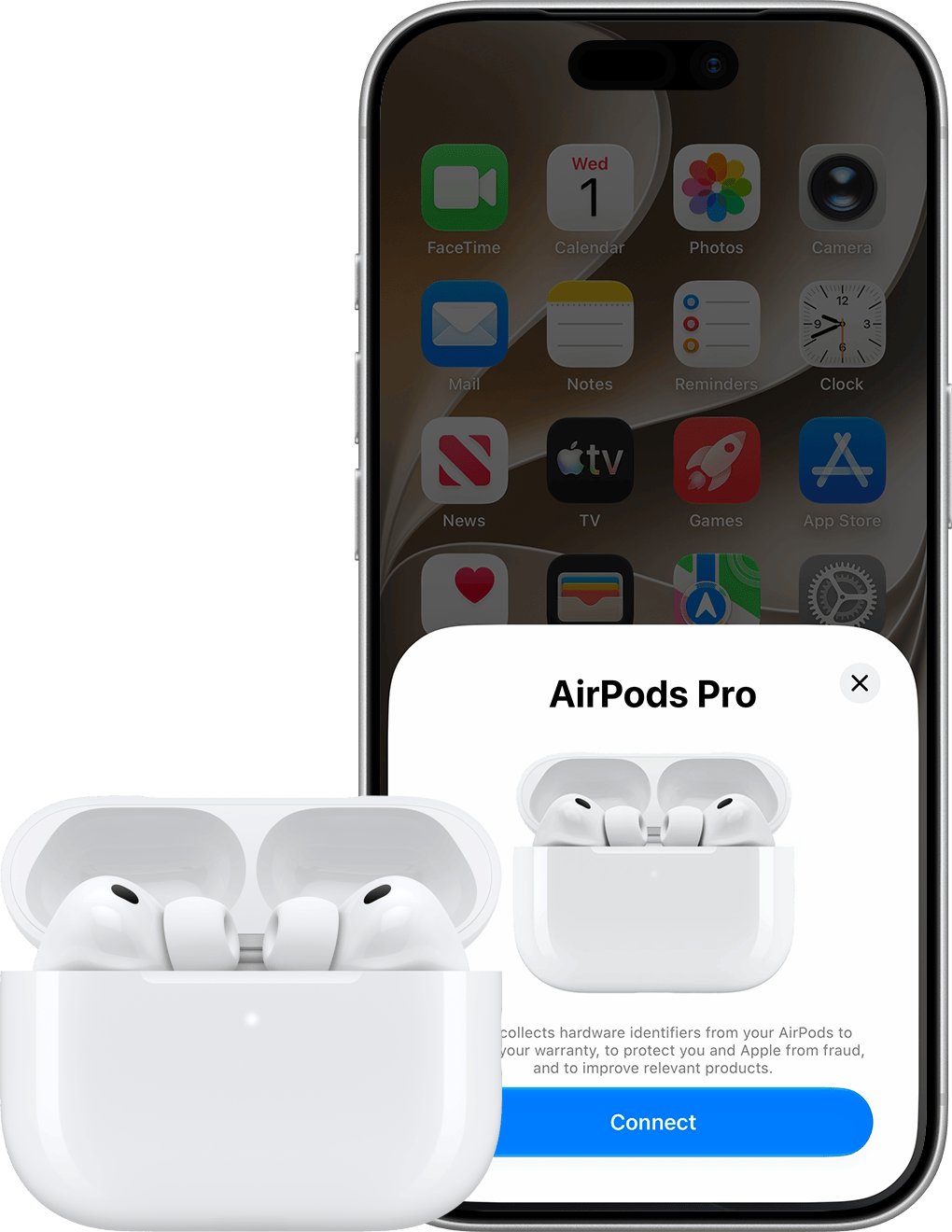
- With the AirPods Pro in the case, open the lid and hold the case next to the iPhone until the setup animation appears.
- Tap Connect, follow the on-screen instructions, then tap Done.
- If no animation appears, keep the lid open, then hold the setup button (AirPods Pro 1 or 2) or double-tap the front of the case (AirPods Pro 3) until the status light flashes white.
- Go to Settings > Bluetooth and select the AirPods Pro when they appear in the list.
- Wear both earbuds and play audio to test them.
For a Mac, an Android phone or another device, pair AirPods with that device using its own Bluetooth settings.
How to remove AirPods Pro from an Apple Account before selling
AirPods Pro can be linked to one Apple Account at a time, and a new owner needs them removed from the previous account first. Do this before the factory reset, then reset them and hand them over.
- On your iPhone or iPad, open Settings, tap your AirPods' name near the top and tap Forget This Device. They can return to your Devices list if they stay paired.
- Put the AirPods Pro in the case and close the lid. The device may need to be offline before it can be removed.
- Open the Find My app and tap Devices.
- Tap the name of your AirPods Pro.
- Tap Remove or Remove This Device, then follow any prompts.
- Run the factory reset steps at the top of this guide.
You can also remove them from Find Devices on iCloud.com. If you are clearing out other Apple gear at the same time, factory reset your iPhone and reset your Apple Watch separately, because the AirPods reset does not touch them.
Alternative approaches worth trying
Try these before a full reset, because all but the last keep your setup. A restart is the quickest test, and it costs you nothing if it fails.
| Approach | How to do it | What it changes |
|---|---|---|
| Restart the AirPods Pro | Put them in the case and close the lid for at least 10 seconds | Nothing is lost; the AirPods stay paired |
| Pair them again | Close the lid for 15 seconds, open it, then use the setup button or double-tap until the light flashes white and hold the case next to the iPhone | Repairs the connection without a reset |
| Test the audio output | With the AirPods in your ears, open Control Center, tap AirPlay and select them | Shows whether the iPhone sees them at all |
| Clean the charging case | Brush debris out of the charging port and wipe the case with a dry cloth | Removes debris from the port without touching the pairing |
| Unpair only | Tap Forget This Device on your iPhone or iPad | Removes the pairing from all devices on that Apple Account |
Letting the battery drain completely is not part of Apple's reset or connection steps, so charge the AirPods Pro rather than waiting for them to run flat.
How to clean AirPods Pro charging case contacts
A reset does not clean the case, so clear any debris from the charging port separately. Apple warns against putting anything into the charging ports, because that can damage the metal contacts.
- Take the AirPods Pro out of the case.
- Remove debris from the charging port with a clean, dry, soft-bristled brush.
- Wipe the case with a soft, dry, lint-free cloth.
- If needed, dampen the cloth slightly with isopropyl alcohol, keeping liquid out of the charging ports.
- Let the case dry before you put the AirPods Pro back.
Never use abrasive materials on the case. If the earbuds have touched sweat, soap, lotion or sunscreen, wipe them with a cloth slightly dampened with fresh water, dry them, and wait at least two hours before you put them in the case.
How to avoid needing another reset
| Habit | Why it helps |
|---|---|
| Store the AirPods Pro in the closed case | They turn off and charge whenever they are in the case with the lid closed |
| Keep the iPhone on the latest iOS | AirPods Pro 1 need iOS 13.2 or later, AirPods Pro 2 (Lightning) iOS 16.0, AirPods Pro 2 (USB-C) iOS 17.0 and AirPods Pro 3 iOS 26 |
| Restart before you reset | Ten seconds in the closed case takes far less time than setting the AirPods up again |
| Dry the earbuds before charging | Apple asks for at least two hours of drying after contact with liquids |
| Leave the charging port alone | Only a dry, soft-bristled brush belongs near it, which protects the metal contacts |
| Check the light before you assume a fault | Amber or no light can simply mean the AirPods or case need charging |
Still not working after a reset?
The status light flashes amber but never turns white
The reset sequence did not finish, so the case has not reached the white flash.
- Put the AirPods Pro in the case and close the lid for 20 seconds.
- Open the lid.
- On AirPods Pro 1 or 2, press and hold the setup button again for about 15 seconds.
- On AirPods Pro 3, double-tap while the light is on, again when it flashes white, and a third time when it flashes faster.
- With the lid open, place the case close to your device and follow the steps on the screen.
AirPods Pro won't connect after the factory reset
The device is out of date, Bluetooth is off, or the AirPods are not in pairing mode.
- Update your iPhone or iPad to the latest iOS or iPadOS, or your Mac to the latest macOS.
- Turn on Bluetooth under Settings on iPhone or iPad, or System Settings on a Mac.
- Put both AirPods Pro in the case, confirm both are charging, close the lid and wait 15 seconds.
- Open the lid and hold the setup button or double-tap the front of the case until the light flashes white.
- Hold the open case next to the iPhone or iPad and follow the steps on the screen. On a Mac, pair them manually in System Settings.
Only one AirPods Pro earbud pairs after the reset
Partial pairing, which Find My reports as an incomplete AirPods setup.
- Wait a few minutes, because pairing can take a while.
- Update iOS or iPadOS and make sure the device has a passcode.
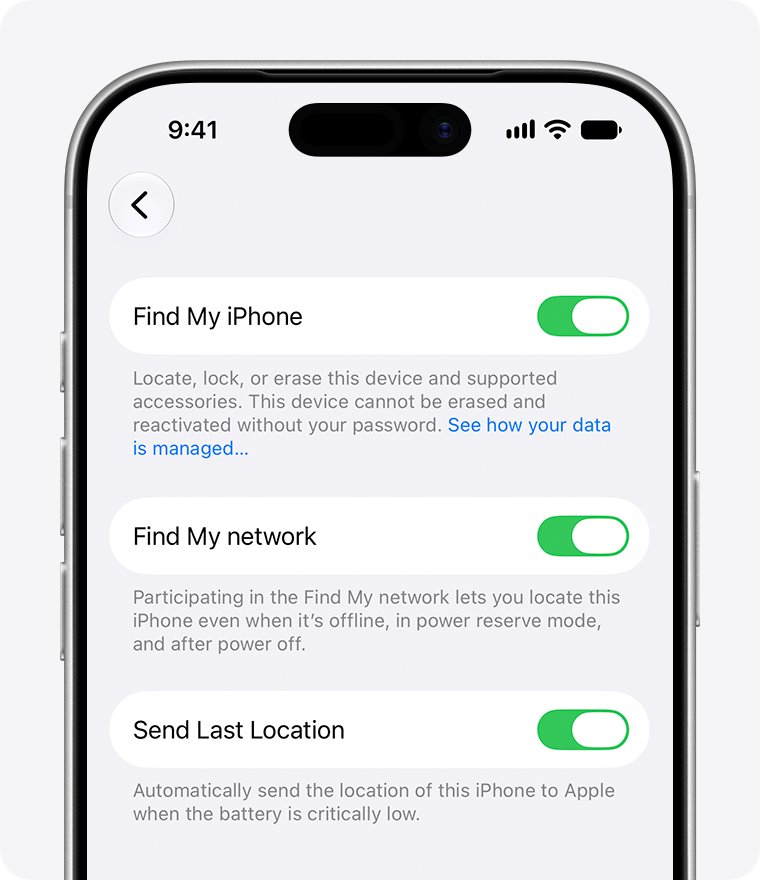
- Open Settings, tap your name, tap Find My, then Find My iPhone, and turn on Find My iPhone and Find My network.
- If it still fails, close the AirPods in the case, open Find My, tap Devices, choose the AirPods and tap Remove or Remove This Device.
- Go to the Home Screen, open the lid and follow the on-screen instructions to reconnect.
Used AirPods Pro say they belong to another Apple Account
The previous owner has not removed them from their Apple Account.
- Ask the previous owner to remove the AirPods Pro from their Apple Account.
- Close the AirPods in the case and open the lid again next to your iPhone.
- Follow the setup animation to add them to your own account.
AirPods Pro still won't charge after a reset
Debris in the port, the charger, or a fault in the AirPods or case.
- Brush out the charging port with a clean, dry, soft-bristled brush.
- Try another charger your case supports: a cable, a MagSafe charger, a Qi-certified charger or an Apple Watch charger.
- For wireless charging, center the case on the charger with the status light facing up.
- Ask Apple for service; if the problem is not covered by warranty, AppleCare+ or consumer law, you may be able to replace the AirPods for an out-of-warranty fee.
AirPods Pro factory reset FAQ
Does factory resetting AirPods Pro delete anything from my iPhone?
Apple's reset steps do not list any iPhone data being removed. The change you will see is that the AirPods leave your Bluetooth list after Forget This Device, and that removal applies to every device signed in to the same Apple Account until you pair them again.
Why does the status light flash amber but never turn white?
The reset sequence has not completed. Close the AirPods Pro in the case for 20 seconds, open the lid, and repeat the setup button hold or the three double-taps. An amber light on its own can also mean less than one full charge remains.
Do I need to reset both AirPods separately?
No. You reset AirPods Pro as a pair through the charging case, with both earbuds inside and the lid open. Apple's steps have no separate procedure for the left or right earbud, so put both in the case before you start.
Will a factory reset remove my AirPods Pro from Find My?
Do not rely on it, because Apple's reset steps do not cover Find My. To remove them, close the AirPods in the case, open the Find My app, tap Devices, choose them and tap Remove. Forget them first, or they can return to the list.
Can I factory reset AirPods Pro without an iPhone?
Yes. The reset happens on the case, so you can close the lid for 30 seconds, open it, and hold the setup button or use the three double-taps. Apple says to continue if the AirPods are not listed on a paired iPhone or iPad.
How long do you hold the button to reset AirPods Pro?
Hold the setup button on the back of the case for about 15 seconds on AirPods Pro 1 and AirPods Pro 2. Keep holding until the status light flashes amber, then flashes white. AirPods Pro 3 have no button, so they use double-taps instead.
Where is the reset button on AirPods Pro 3?
There is none. The AirPods Pro 3 case has no button on the back, so you double-tap the front of the case three times with the lid open. Wait for the white flash before the second tap and the faster flash before the third.
What is the difference between restarting and resetting AirPods Pro?
A restart means closing the AirPods Pro in the case for at least 10 seconds, and they stay paired. A factory reset returns them to factory settings, so you must set them up again on your iPhone, iPad or another device afterwards.
Should I reset AirPods Pro before selling them?
Yes, but remove them from your Apple Account first. AirPods Pro can be linked to one Apple Account, and the next owner needs them removed before they can use them. Forget them, remove them in Find My, then run the reset.
Can a factory reset fix AirPods Pro that won't charge?
It can, and Apple names charging problems as a reason to reset. Clean debris from the charging port first with a dry, soft-bristled brush. If the AirPods Pro still will not charge after a reset, ask Apple for service or a replacement.