To cast a Windows laptop to a TV, turn on a Miracast-capable TV, press Windows logo key + K on the laptop and select the TV from the list.
This guide covers Windows 11 and Windows 10, casting a Chrome tab or the whole screen to a Chromecast or Google TV, AirPlay from a MacBook, an HDMI cable, and fixes for the common casting problems.
How to cast laptop to TV: step-by-step guide
This uses Miracast, which is built into Windows 11 and Windows 10 and into many smart TVs. Keep the laptop and TV close to each other while you connect.
- Turn on the TV. If it lacks Miracast, plug a Miracast adapter into one of its HDMI ports and switch the TV to that input.
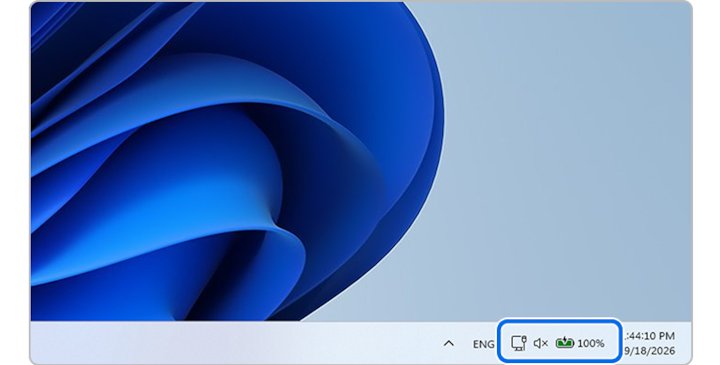
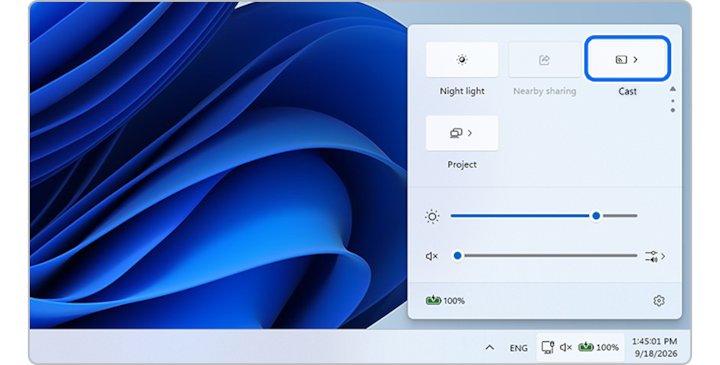
- Make sure Wi-Fi is turned on in the laptop's quick settings on the right side of the taskbar.
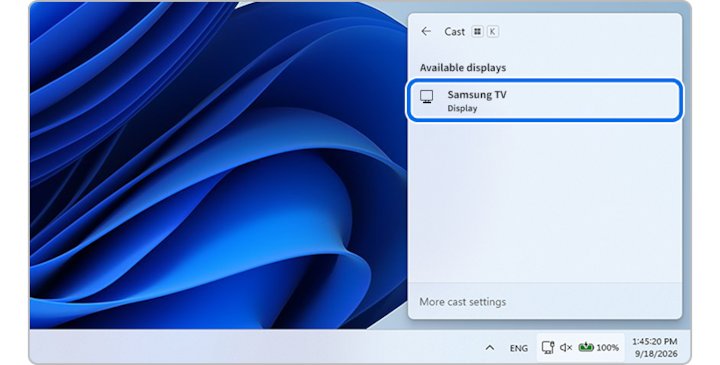
- Press Windows logo key + K on the laptop.
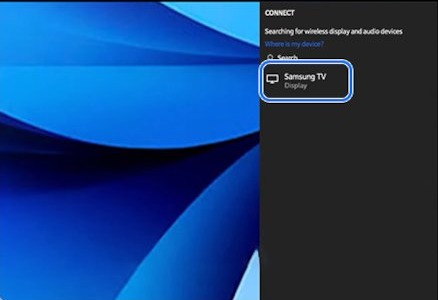
- Select your TV from the list of available displays.
- Accept the connection on the TV if it shows a prompt, and follow any on-screen instructions.
- Press Windows logo key + P and choose Duplicate to show the same picture, or Extend to use the TV as a second screen.
You can also search for Cast in Windows Search and select Connect to a wireless display, which opens Display settings at Multiple displays.
How to cast laptop to TV: everything you need to know
The right method depends on what the TV or streaming stick supports, not on the laptop alone.
| Your setup | Use this | Why |
|---|---|---|
| Windows laptop and a smart TV or adapter with Miracast | Windows logo key + K | Built into Windows, mirrors the whole screen |
| Any laptop and a Chromecast, Google TV Streamer or TV with Google Cast | Cast from Google Chrome | Sends one tab, a file or the full screen |
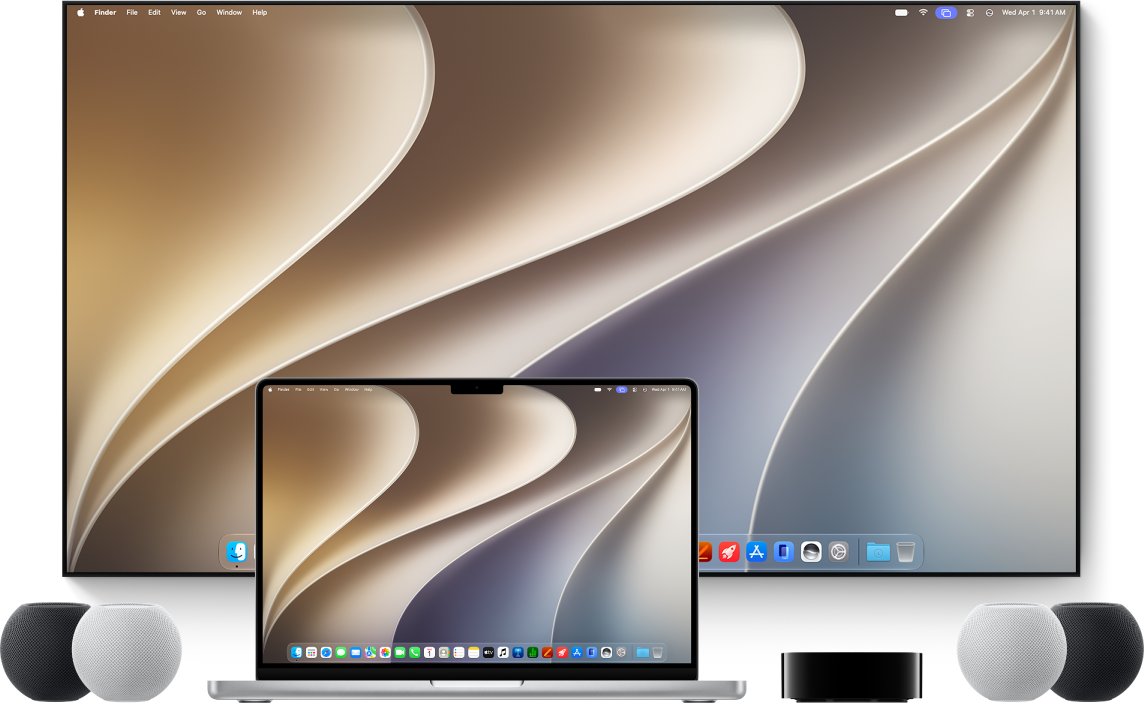
| MacBook and an Apple TV 4K or AirPlay-compatible smart TV | AirPlay Screen Mirroring | Mirror, extend or share one window |
| Any laptop with HDMI or USB-C video out | HDMI cable | No Wi-Fi needed, lowest lag |
| Windows laptop casting to another Windows PC | Wireless Display optional feature on the receiving PC | Turns the other PC into a Miracast receiver |
Why is casting a laptop to a TV so confusing?
Three wireless standards do roughly the same job, and a TV usually supports only one or two of them.
| Standard | Sender | Receiver |
|---|---|---|
| Miracast | Windows 11 and Windows 10 laptops (Windows logo key + K) | Miracast smart TVs, Miracast HDMI adapters, Windows PCs with Wireless Display |
| Google Cast | Google Chrome on Windows, Mac or Chromebook | Chromecast, Chromecast with Google TV, Google TV Streamer, TVs with Google Cast |
| AirPlay | Mac computers | Apple TV 4K and AirPlay-compatible smart TVs |
A Windows laptop does not show a Chromecast in the Windows logo key + K list, because that list only finds Miracast receivers. Use Chrome for a Chromecast.
Cast a Chrome tab or your screen to Chromecast or Google TV
The computer and the Google streaming device must be on the same Wi-Fi network, and Chrome should be up to date. If the stick is new, set up the Chromecast in the Google Home app first.
- Open Google Chrome on the laptop.
- At the top right, select More > Cast, save, and share > Cast….
- To share the whole desktop instead of the tab, select Sources > Cast screen.
- Select your Chromecast or Google TV from the list.
- To stop, select Cast on the right of the address bar, then Stop casting.
To play a local video or music file, drag it into a Chrome tab or press Ctrl + O (Windows) or Command + O (Mac), then cast that tab. On macOS 15 or later, give Chrome access in System Settings before casting.
Alternative ways to cast laptop to TV
Use one of these when Miracast is not available on the TV.
| Alternative | How to do it | Best for |
|---|---|---|
| AirPlay from a MacBook | Click Control Center in the menu bar, click Screen Mirroring, select the TV and enter the four-digit code if asked | Mac users with an Apple TV 4K or AirPlay TV |
| HDMI or USB-C cable | Connect the laptop to the TV through its HDMI port, switch the TV input, then press Windows logo key + P | Games, video calls and places with weak Wi-Fi |
| Google Cast from Chrome | More > Cast, save, and share > Cast… | Chromecast and Google TV devices |
| Miracast adapter | Plug the adapter into the TV's HDMI port, then press Windows logo key + K | Older TVs without built-in casting |
| Another Windows PC as the screen | Install Wireless Display in Settings > System > Projecting to this PC, open the Wireless Display app, then press Windows logo key + K on the laptop | Showing a laptop on a desktop PC's monitor |
On a Mac, choose whether to share one window, mirror or extend the screen. Select Set as Default to skip that choice next time, and click Stop when you are done.
Tips for casting laptop to TV Windows 11
| Task | Windows 11 | Windows 10 |
|---|---|---|
| Open the cast panel | Windows logo key + K | Windows logo key + K |
| Choose the display mode | Windows logo key + P: PC screen only, Duplicate, Extend, Second screen only | Windows logo key + P with the same four options |
| Remove a saved wireless display | Settings > Bluetooth & devices > Devices > Wireless displays & docks > Remove device | Settings > Devices, then remove the display |
| Let another PC receive | Settings > System > Projecting to this PC | Settings > System > Projecting to this PC |
Tips for a smoother casting experience
| Tip | Why it helps |
|---|---|
| Put the laptop and streaming device on the same Wi-Fi network | Google Cast and AirPlay only find receivers on the same network |
| Cast a Chrome tab instead of the whole screen for video | Tab audio plays on the TV; screen casting may keep audio on the laptop |
| Update the laptop's display and Wi-Fi drivers and the adapter's firmware | Microsoft lists outdated drivers and firmware as a cause of wireless display failures |
| Use an HDMI cable for games and fast motion | A wired link avoids the delay of wireless encoding |
| Choose Duplicate or Extend with Windows logo key + P | Extend lets you keep notes on the laptop while the TV shows a video |
How to confirm your laptop is casting to the TV
- Look at the TV: it should show your desktop or the cast tab within a few seconds.
- On Windows, press Windows logo key + K again; the TV should be listed as connected, with a Disconnect option.
- In Chrome, check for the Cast connected icon to the right of the address bar and a Display icon on the cast tab.
- Play a short video and confirm the sound comes from the TV.
Still not working? Troubleshooting casting problems
Why can't I cast my laptop to my TV? The TV does not appear in the list
The TV, adapter or laptop does not support Miracast, Wi-Fi is off or missing, or the receiver uses Google Cast or AirPlay instead.
- Press Windows logo key + K. If Windows says you need to connect an external display with a cable, the laptop lacks Miracast support.
- Turn on Wi-Fi from the quick settings on the taskbar.
- Check that the TV supports Miracast and is switched on; if not, add a Miracast adapter to its HDMI port.
- For a Chromecast or Google TV, cast from Chrome instead of Windows logo key + K.
Laptop won't cast to TV after it worked before
A stale pairing or outdated driver or firmware.
- Restart the laptop and the TV or adapter.
- Open Settings > Bluetooth & devices > Devices, select the display under Wireless displays & docks and select Remove device.
- Update the laptop drivers and the adapter firmware from the manufacturer's support site.
- Press Windows logo key + K and connect again.
Video plays but there is no sound on the TV
Screen casting in Chrome may keep the audio on the laptop.
- Stop the screen cast.
- Open the video in a Chrome tab and cast the tab instead, so the sound plays on the TV.
Casting lags or the connection drops
Weak Wi-Fi between the laptop and the receiver.
- Move the laptop closer to the TV or streaming device.
- Give the Chromecast or Google TV a strong Wi-Fi signal.
- Switch to an HDMI cable for gaming or long sessions.
Another Windows PC does not show up as a target
The Wireless Display optional feature is not installed or not open on the receiving PC.
- On the receiving PC, open Settings > System > Projecting to this PC and select Optional features.
- Install Wireless Display, then launch the Wireless Display app.
- Make sure the receiving PC has Wi-Fi turned on and is set up to be discovered.
Frequently asked questions
Can a laptop cast to a TV?
Yes. A Windows 11 or Windows 10 laptop casts to Miracast TVs and adapters with Windows logo key + K, any laptop with Chrome casts to Google Cast devices, and a Mac uses AirPlay. A cable works with every laptop that has HDMI or USB-C video output.
How do I cast my laptop to a TV wirelessly?
On Windows, turn on the Miracast TV, press Windows logo key + K and select the TV. For a Chromecast, open Chrome and choose More, Cast, save, and share, then Cast. For an Apple TV, use Screen Mirroring in the Mac's Control Center.
What is the shortcut to cast a laptop to a TV?
Press Windows logo key + K on Windows 11 or Windows 10 to open the list of wireless displays. Press Windows logo key + P afterwards to switch between Duplicate, Extend and Second screen only.
How do I cast my laptop to a TV without HDMI?
Use a wireless method: Miracast with Windows logo key + K, Google Cast from Chrome to a Chromecast or Google TV, or AirPlay from a Mac. Older TVs without any of these need a streaming stick or Miracast adapter plugged into the TV.
Can I cast my laptop to a TV via Bluetooth?
No. Bluetooth does not carry a screen picture to a TV. Windows uses Miracast over Wi-Fi for wireless displays, and Chromecast and AirPlay also need Wi-Fi. Bluetooth only connects speakers, headphones and input devices.
How do I cast my laptop to a Chromecast?
Connect the laptop and the Chromecast to the same Wi-Fi network, open Chrome, select More, then Cast, save, and share, then Cast, and pick the Chromecast. Choose Sources, then Cast screen, to show the whole desktop.
How do I cast YouTube from my laptop to a TV?
Open YouTube in Chrome and cast the tab to your Chromecast or Google TV, or use the Cast button in the YouTube player. On a Miracast TV, press Windows logo key + K and play the video full screen.
Can I cast my laptop to a TV without Wi-Fi?
Use an HDMI or USB-C cable, which needs no network at all. Chrome casting and AirPlay need the laptop and receiver on the same network, so they do not work without Wi-Fi.
How do I stop casting my laptop to the TV?
On Windows, press Windows logo key + K and select Disconnect. In Chrome, select the Cast icon next to the address bar and choose Stop casting. On a Mac, click Screen Mirroring and click Stop.
Do I need a Chromecast if my TV is already smart?
Not if the TV has Google Cast or Miracast built in. A smart TV without either needs a streaming device or adapter before a laptop can cast to it wirelessly.
Best way to cast a laptop to a TV
Use Windows logo key + K for Miracast TVs, Chrome for Chromecast and Google TV, AirPlay for Macs, and an HDMI cable when you need the most stable picture. Each TV understands one or two casting standards, so matching the method to the receiver solves most connection problems before they start.