Robocopy is a command-line file copy tool built into Windows 11 and Windows 10, while Microsoft Robocopy GUI was a separate 2006 TechNet Magazine add-on whose direct download link on Microsoft's site now returns a 404 error.
The sections below cover how to run Robocopy, its main switches, exit codes and fixes, and how saved job files replace the old graphical tool.
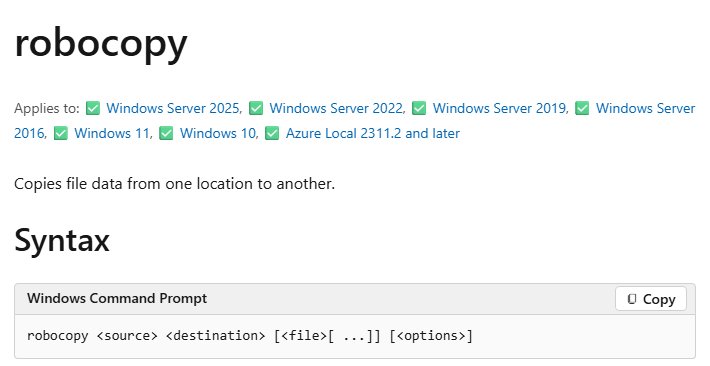
Robocopy in Windows
Robocopy copies file data from one location to another, using the pattern robocopy <source> <destination> [<file>] [<options>]. You run it from Command Prompt or PowerShell, and there is nothing to install.
- Open Command Prompt or PowerShell from the Start menu.
- Type
robocopy C:\Source D:\Backup /E /Lto preview the copy without changing anything. - Check the listed files, then press the Up arrow and remove
/L. - Press Enter to copy all files and subfolders, including empty ones.
Replace C:\Source and D:\Backup with your own folders, and wrap any path containing a space in quotation marks.
Robocopy Windows 11 download and install
You do not need a Robocopy download for Windows 11, because the tool is built into Windows. Microsoft's documentation states that Robocopy is built into Windows. Run where robocopy in Command Prompt, and Windows prints the location of the tool.
Older references to the Windows Server 2003 Resource Kit Tools describe how Robocopy used to be delivered, and they do not apply to Windows 11 or Windows 10.
How to use Robocopy in Windows 11
A safe first run has three parts: preview, copy and read the result. File Explorer copies on a single thread, while Robocopy adds retries, logging and multi-threading.
- Open Command Prompt. Run Command Prompt as administrator if you plan to use
/Bor/ZB. - Preview the job with
robocopy C:\Source D:\Backup /E /L. - Run the copy with a log:
robocopy C:\Source D:\Backup /E /R:2 /W:5 /LOG:D:\Backup.log. - Open
D:\Backup.logand look for failed files. - Run the same command again to copy only what changed.
The /R:2 /W:5 pair matters. Without it, Robocopy retries a failed copy up to 1,000,000 times with a 30-second wait between tries.
Robocopy switches
Robocopy has more than 80 options. These are the ones that decide what gets copied and what happens when a copy fails.
| Switch | What it does | When to use it |
|---|---|---|
/S |
Copies subfolders, excluding empty ones | You do not need empty folders |
/E |
Copies subfolders, including empty ones | Most full folder copies |
/LEV:<n> |
Copies only the top n levels of the tree | Shallow copies |
/Z |
Copies in restartable mode | Unstable networks; it is slower |
/B |
Copies in backup mode, overriding file permissions that block access | Administrator window only |
/ZB |
Uses restartable mode and switches to backup mode if access is denied | Mixed permissions on an unreliable link |
/J |
Copies using unbuffered I/O | Files larger than 1 GB |
/COPY:<flags> |
Sets which file properties are copied; default is DAT |
Keeping permissions or owner details |
/DCOPY:<flags> |
Sets what is copied for folders; default is DA |
Keeping folder time stamps |
/COPYALL |
Copies all file information, same as /COPY:DATSOU |
Migrations that keep security data |
/MIR |
Mirrors a tree, same as /E plus /PURGE |
Exact copies; it deletes extras |
/PURGE |
Deletes destination items no longer in the source | Cleaning up a backup |
/MOV |
Moves files, deleting them from the source after copying | Clearing files from a source |
/MOVE |
Moves files and folders | Moving a whole tree |
/MT:<n> |
Copies with n threads, from 1 to 128; default is 8 | Many small files |
/XF, /XD |
Excludes matching files or folders | Skipping temp data |
/XO |
Excludes source files older than the destination copy | Never overwriting newer files |
/MAXAGE:<n>, /MINAGE:<n> |
Excludes files older or newer than n days or a date | Copying by age |
/R:<n>, /W:<n> |
Sets the retry count and the seconds between retries | Almost every job |
/L |
Lists files only, without copying, deleting or time stamping | Test runs |
/V |
Shows verbose output, including all skipped files | Finding out why a file was skipped |
/LOG:<file>, /LOG+:<file> |
Writes status to a log, overwriting or appending | Any job you need to review |
/TEE |
Writes status to the console and the log | Watching a logged job |
/NP |
Hides copy progress | Faster runs |
/MON:<n>, /MOT:<m> |
Keeps watching the source and runs again after n changes or m minutes | Simple continuous sync |
/RH:hhmm-hhmm |
Sets the run times when new copies can start | Copying outside work hours |
/SAVE:<job>, /JOB:<job> |
Saves options to a job file, then reuses them | Repeat tasks |
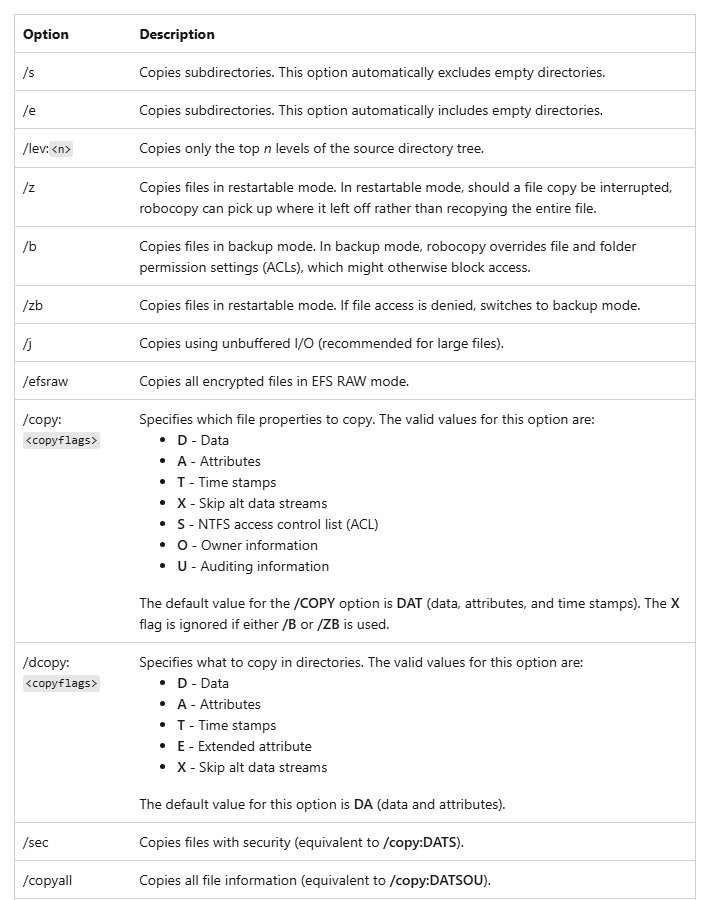
Robocopy /COPY and /DCOPY flags
| Flag | Meaning | Works with |
|---|---|---|
| D | Data | /COPY, /DCOPY |
| A | Attributes | /COPY, /DCOPY |
| T | Time stamps | /COPY, /DCOPY |
| S | NTFS access control list | /COPY |
| O | Owner information | /COPY |
| U | Auditing information | /COPY |
| E | Extended attribute | /DCOPY |
| X | Skip alternate data streams | /COPY, /DCOPY |
/COPY:X is ignored when you use /B or /ZB. /COPYALL does not include the /DCOPY:E extended attribute request.
Windows 11 Robocopy examples
| Task | Command | Note |
|---|---|---|
| Copy a folder and all subfolders | robocopy C:\Records D:\Backup /E /LOG:D:\Backup.log |
Keeps empty folders |
| Copy with permissions and owner | robocopy C:\Records D:\Backup /E /COPYALL |
Use an administrator window |
| Copy with 16 threads | robocopy C:\Records D:\Backup /E /COPY:DAT /MT:16 /LOG:D:\Backup.log |
Log output for better speed |
| Copy one file to a share | robocopy C:\Reports "\\Marketing\Videos" yearly-report.mov /MT /Z |
Restarts if the link drops |
| Move recent files only | robocopy C:\Records D:\Backup /S /MAXAGE:7 /MOV /LOG:D:\Backup.log |
Skips files older than 7 days |
| Skip temp files and a folder | robocopy C:\Records D:\Backup /E /XF *.tmp /XD Cache |
Wildcards work with /XF |
| Skip every file already there | robocopy C:\Source D:\Backup /XC /XN /XO |
Ignores newer, older and changed-size copies |
| Limit the I/O rate to 1 MB per second | robocopy C:\Records D:\Backup /iorate:1m |
Minimum throttled rate is 524,288 bytes |
| Show time left per file | robocopy C:\Records D:\Backup /E /ETA |
Adds estimated time of arrival |
A /LOG: path overwrites any existing log. Use /LOG+: to add to the same file on every run.
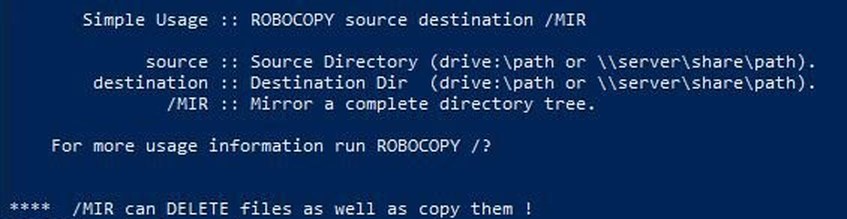
Robocopy /MIR command to mirror a folder
/MIR makes the destination match the source. It copies new and changed items, and it deletes destination items that are not in the source.
robocopy C:\Records D:\Backup /MIR /R:2 /W:5 /LOG:D:\Backup.logRun it with /L added first, and read the planned deletions. Match the source and destination folder levels exactly, because Microsoft warns that a mismatch leads to large-scale deletions and recopies.
You should see: A destination folder that matches the source, and a log that lists what changed.
Robocopy skips the top-level System Volume Information folder on both sides when you use /MIR or /PURGE on a volume root.
Speed up Robocopy with /MT and /J
Multi-threading helps most with many small files, because several transfers run at once. Writing to the console is also slow, so send the output to a log.
robocopy C:\Source D:\Backup /E /MT:16 /NP /LOG:D:\Backup.log/MT:16 copies with 16 threads, /NP hides per-file progress and /LOG writes the output to a file. /MT cannot be used with /IPG or /EFSRAW.
You should see: A faster run with the job's output in D:\Backup.log and little on screen.
Too many threads can hurt speed. Microsoft says two threads per CPU core is generally safe, and it advises testing on your own hardware.
For files larger than 1 GB, replace /MT:16 with /J to try unbuffered I/O.
Difference between XCopy and Robocopy
Both tools ship with Windows and share some switches. Robocopy adds mirroring, threads and retry control, while the XCOPY command stays simpler for small jobs.
| Feature | Robocopy | XCopy |
|---|---|---|
| Mirror and delete extras | /MIR, /PURGE |
No switch |
| Multi-threaded copy | /MT:<n> |
No switch |
| Retry control | /R:<n>, /W:<n> |
No switch |
| Restartable mode | /Z |
/Z |
| Unbuffered copy | /J |
/J |
| Preview without copying | /L |
/L |
| Exclude files | /XF, /XD on the command line |
/EXCLUDE: with a list file |
| Long paths | Supported unless you add /256 |
May fail with an insufficient memory error past 255 characters |
| Failure signal | Exit code 8 or higher | Exit codes 1 to 5 |
Windows 11 Robocopy error 0 and other exit codes
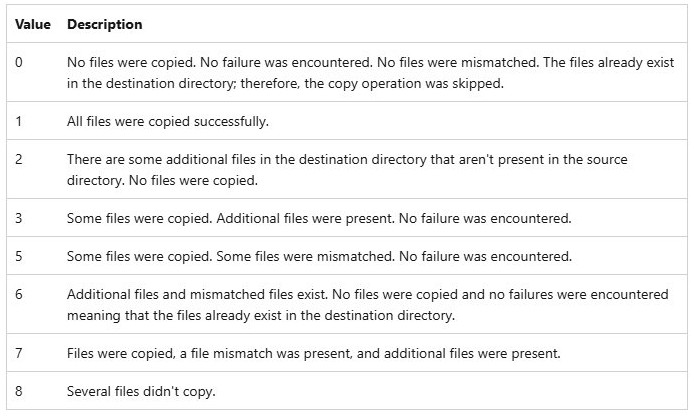
Robocopy's exit code is a status report, not a simple pass or fail. Code 0 means nothing needed copying, and any value of 8 or higher means at least one failure.
| Exit code | What it means | Failure? |
|---|---|---|
| 0 | No files copied, no failure, no mismatches; the files already exist in the destination | No |
| 1 | All files copied successfully | No |
| 2 | Extra files exist in the destination; no files copied | No |
| 3 | Some files copied and extra files present, with no failure | No |
| 5 | Some files copied and some mismatched, with no failure | No |
| 6 | Extra and mismatched files exist; no files copied, no failure | No |
| 7 | Files copied, with mismatched and extra files present | No |
| 8 | Several files did not copy | Yes |
Use Microsoft Robocopy GUI
Robocopy GUI is a graphical front end written by Derk Benisch, a systems engineer in Microsoft's MSN Search group. TechNet Magazine published it in November 2006, so the article predates Windows 11 and says nothing about supporting it.
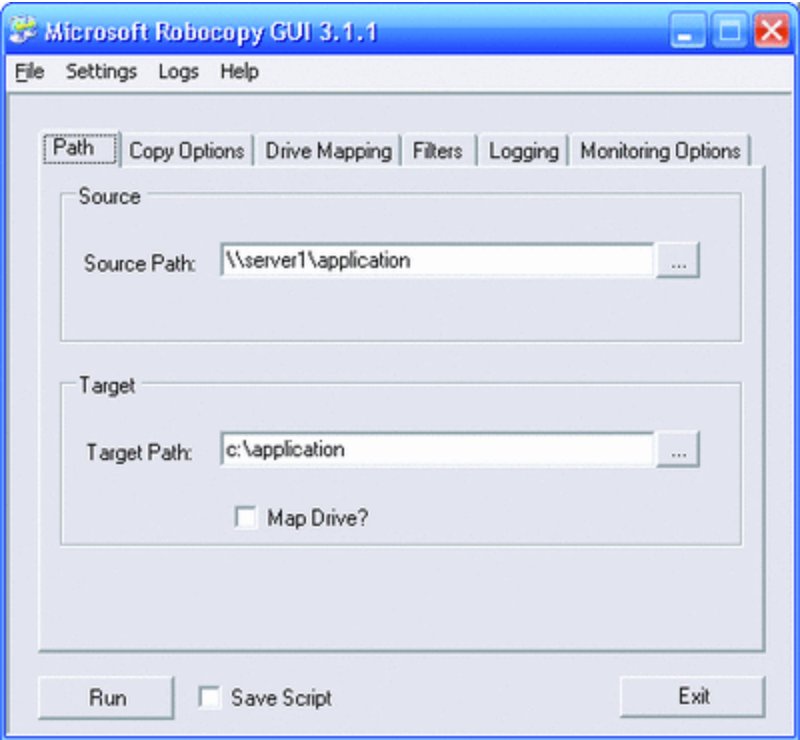
If you already have a copy, it builds a Robocopy command through these options.
- Enter the source and target paths.
- Choose any custom options and filters you want to apply.
- Choose whether to create a drive mapping.
- Choose where to store the logs.
- Save the script and your default settings so you can reuse them.
- Run the script, and start building another one while it runs if you need to.
The tool includes a help file and an embedded copy of the Robocopy reference guide.
Robocopy GUI download for Windows 11
Microsoft's original Robocopy GUI download no longer works, so skip copies on other sites and use saved Robocopy jobs instead. The direct download link on Microsoft's archived TechNet Magazine article returned a 404 error when checked in November 2026. A copy on a third-party site did not come from Microsoft, and it may not be the file Microsoft published.
RichCopy, the free tool that the same magazine later recommended over Robocopy GUI, has the same problem: its download link also returns a 404 error. Microsoft described RichCopy as provided as-is and not supported.
Microsoft Robocopy GUI options as Robocopy switches
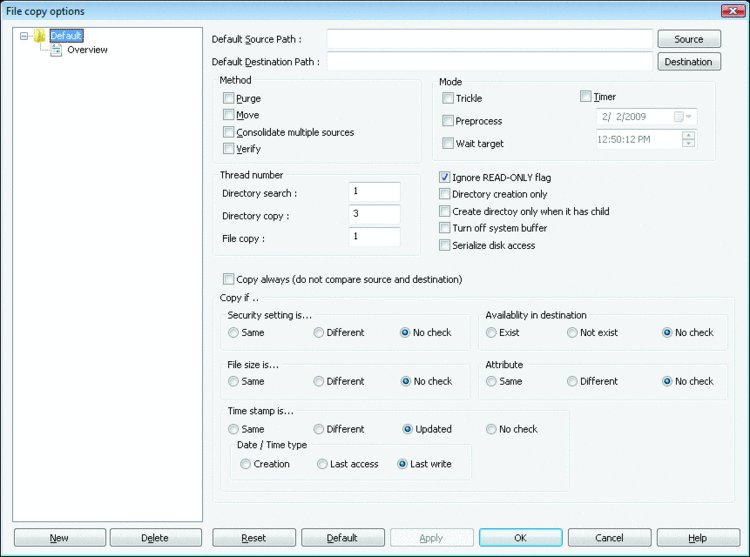
Each option in the old tool maps to something you can type. This table turns the graphical choices into command-line switches.
| Robocopy GUI feature | Command-line equivalent | Example |
|---|---|---|
| Source and target paths | The first two arguments | robocopy C:\Source D:\Backup |
| Custom options | Copy and retry switches | /E /R:2 /W:5 |
| Filters | File selection switches | /XF *.tmp /MAXAGE:30 |
| Drive mapping | A UNC path in place of a drive letter | "\\Marketing\Videos" |
| Log location | Logging switches | /LOG:D:\Backup.log /TEE |
| Saved scripts | Job files | /SAVE:backupjob, /JOB:backupjob |
| Saved defaults | /REG for retry values only |
/R:2 /W:5 /REG |
| Embedded reference | Microsoft's Robocopy command page | Search Microsoft Learn for robocopy |
Windows 11 Robocopy GUI alternative with saved job files
A saved job gives you what most people wanted from the GUI: a reusable copy task you do not have to retype. Copy, retry and logging options must come before /SAVE.
- Open Command Prompt in a folder where you keep your scripts.
- Run
robocopy C:\Source D:\Backup /E /R:2 /W:5 /LOG:D:\Backup.log /SAVE:backupjob /QUITto save the job without running it. - Run
robocopy /JOB:backupjobfrom the same folder to start the saved task. - Put that line in a batch file if you want a double-click shortcut.
You can create and run a batch file for the job, then use Task Scheduler to run it on a timetable.
How to tell if a Robocopy copy finished without errors
The on-screen summary is easy to misread, so check the exit code straight after the run.
- In Command Prompt, run
echo %errorlevel%; in PowerShell, run$LASTEXITCODE. - Treat any value below 8 as a run with no failure.
- Open the log and search it for failed files if the value is 8 or higher.
- Run the same command with
/Ladded; an empty list of files shows nothing is left to copy.
Microsoft notes that Robocopy can report byte counts for files whose metadata changed. In the output, Newer means file data was copied, and Modified means only metadata was updated.
Robocopy not working on Windows 11
Windows 11 Robocopy skipped directories or files
Robocopy does not recopy identical items, and /S leaves out empty folders.
- Use
/Ein place of/Sto include empty folders. - Add
/Vto see every skipped file in the output. - Add
/ISto copy identical files again,/ITfor tweaked files or/IMfor modified files.
Robocopy ERROR 5: Access is denied
Your account cannot read the source or write to the destination.
- Open Command Prompt or PowerShell as administrator.
- Add
/ZBto fall back to backup mode when access is denied. - If you are copying security data, check that the destination supports it, or use
/COPY:DAT.
Robocopy ERROR 32: file in use
Another process has the file open, so a short wait rarely helps.
- Close the app using the file.
- Set low retries with
/R:1 /W:1so the job moves on. - Run the job again later to catch the file.
Robocopy seems stuck on one file
The default is 1,000,000 retries with a 30-second wait between them.
- Press Ctrl + C to stop the job.
- Add
/R:2 /W:5to the command. - Run it again; failed files are logged and the job continues.
Robocopy ERROR 53 or 67: network path or name not found
Windows cannot find the network path or share name you entered.
- Check the server and share name in the path.
- Open the share in File Explorer to confirm you can reach it.
- Add
/TBDif the job should wait for a share name to be defined.
Destination folder disappeared after copying a whole drive
Data copied from a device root gives the destination folder hidden and system attributes.
- Open Command Prompt as administrator.
- Run
attrib -s -h D:\Backup, using your own destination path. - Open the folder in File Explorer to confirm it is visible.
Robocopy runs slowly
Console output, single-threaded runs and /Z restart mode all slow a copy.
- Add
/MTand send the output to a file with/LOG. - Add
/NPto hide file progress. - Remove
/Zor/ZBunless the network is unstable.
Robocopy in Windows 11 FAQ
What is Robocopy in Windows?
Robocopy is a Windows command-line tool that copies file data from one location to another. It adds restartable copies, multi-threading, retries, logging and mirroring, which File Explorer does not offer. Microsoft describes it as optimized for high-performance local and remote copy tasks.
Is Robocopy part of Windows 11?
Yes. Microsoft's documentation states that Robocopy is built into Windows, so Windows 11 needs no download or separate install. Open Command Prompt or PowerShell and run a robocopy command directly, or run where robocopy to see where the tool is located.
Is Robocopy installed on Windows 10?
Yes. Robocopy is built into Windows, which includes Windows 10, so you can run it straight from Command Prompt or PowerShell. Add /L to your first command to preview the file list before anything is copied or deleted.
Is Robocopy on all Windows machines?
Microsoft says Robocopy is built into Windows and documents it for current Windows Server releases as well. Very old systems differed, because Windows Server 2003 got it through the Resource Kit Tools. Run where robocopy to check any machine you are unsure about.
Is Robocopy a Microsoft tool?
Yes. Robocopy is a Microsoft command, documented in the Windows Commands reference on Microsoft Learn. Robocopy GUI was also written by a Microsoft engineer, but it was a free add-on published through TechNet Magazine and is separate from the command that ships with Windows.
How to use Robocopy on Windows 10?
Use the same syntax as Windows 11. Open Command Prompt, preview with robocopy C:\Source D:\Backup /E /L, then remove /L to run the copy. Add /R:2 /W:5 to keep failed files from stalling the job, and /LOG: to keep a record.
Is there a Robocopy GUI for Windows 11?
Windows 11 has no built-in Robocopy GUI, and Microsoft's 2006 Robocopy GUI download link no longer works. Saved job files give you a reusable task: save it once with /SAVE:backupjob, then start it with robocopy /JOB:backupjob.
What does Robocopy exit code 1 mean?
Exit code 1 means all files copied successfully. It is a success result, although many scripts treat any non-zero value as an error. Any code below 8 means no failure occurred, and 8 or higher means at least one file failed.