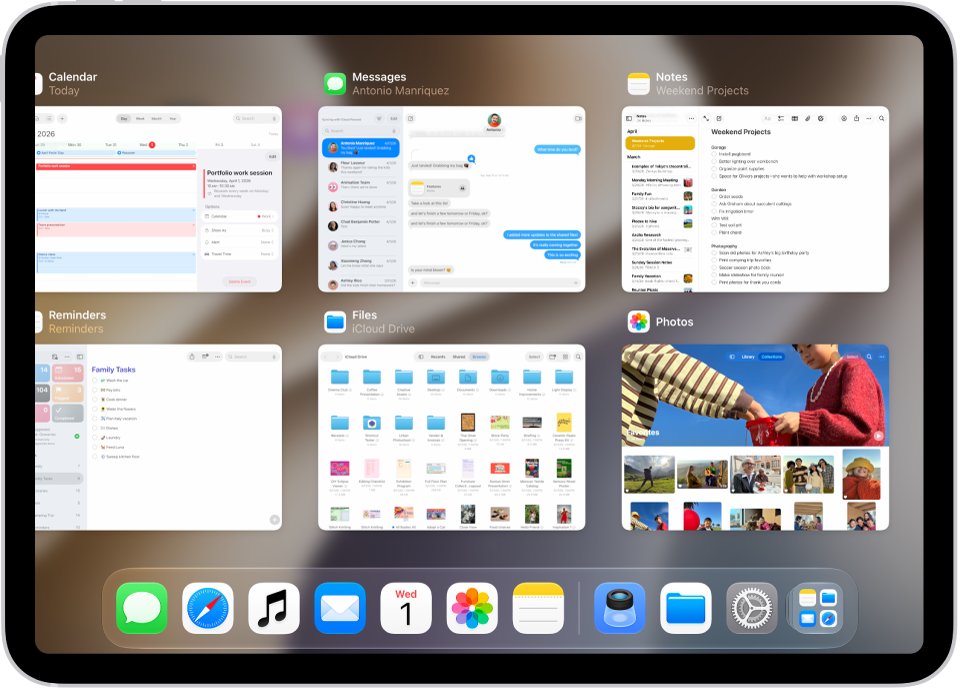
To close an app on iPad, swipe up from the bottom edge, pause in the center of the screen and lift your finger, then swipe up on the app's preview.
The same gesture works on every current iPad, with extra routes for models with a Home button, apps open in a window and apps that will not respond.
How to close apps on iPad
Apple calls the screen of open apps Exposé on iPadOS 26 and later. iPadOS 18 and earlier call it the App Switcher, and the steps are the same.
- Swipe up from the bottom edge of the screen, pause in the center of the screen, then lift your finger.
- Swipe right or left through the previews to find the app you want to close.
- Swipe up on the app's preview to close it.
- Repeat the swipe for any other app you want to close.
- Swipe up from the bottom edge of the screen to return to the Home Screen.
To open the app again, tap it on the Home Screen, in App Library or in the Dock.
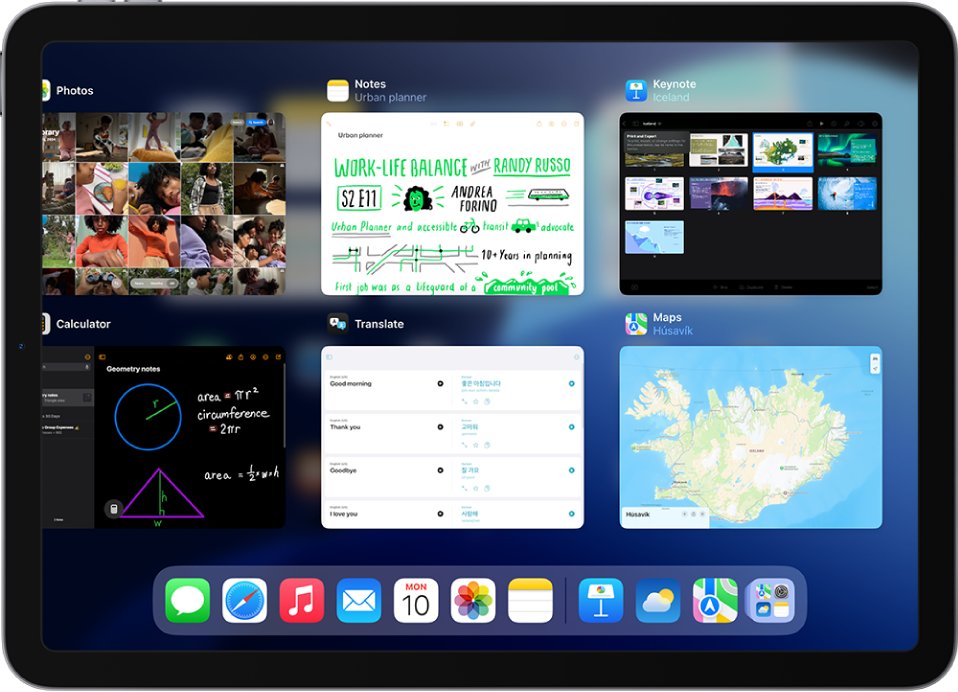
How to close apps on iPad Pro, iPad Air, iPad mini and iPad 10th generation
The closing swipe is identical across models, even between the iPad (A16) and iPad Air (M4). The only difference is whether a Home button gives you a second way to open the screen of open apps.
| iPad model | Button on the front | How to open the screen of open apps |
|---|---|---|
| iPad Pro 11-inch (all models), iPad Pro 12.9-inch (3rd generation and later), iPad Pro 13-inch | No Home button | Swipe up from the bottom edge, pause, then lift your finger |
| iPad Air (4th and 5th generation), iPad Air 11-inch and 13-inch | No Home button | Swipe up from the bottom edge, pause, then lift your finger |
| iPad mini (6th generation) and iPad mini (A17 Pro) | No Home button | Swipe up from the bottom edge, pause, then lift your finger |
| iPad (10th generation) and iPad (A16) | No Home button | Swipe up from the bottom edge, pause, then lift your finger |
| iPad (7th, 8th and 9th generation), iPad Air (3rd generation), iPad mini (5th generation) | Home button | Double-click the Home button, or use the same swipe and pause |
| iPad Pro 12.9-inch (1st and 2nd generation), iPad Pro (10.5-inch) and iPad Pro (9.7-inch) | Home button | Double-click the Home button, or use the same swipe and pause |
Touch ID in the top button still counts as no Home button, because the front of that iPad has no round button below the screen.
How to close apps on iPad with a Home button
- Double-click the Home button to show your open apps.
- Swipe right or left to find the app you want to close.
- Swipe up on the app's preview to close it.
- Press the Home button once to return to the Home Screen.
Apple documents the double-click for iPadOS 18 and earlier, and describes the swipe and pause for all models on newer versions. If a double-click does nothing on your iPad, use the swipe from the bottom edge.
How to close apps on iPad without swiping up
Closing an app from Exposé always ends with an upward swipe on its preview. The window controls are the one way to close an app with a tap, and they only appear when the app sits in a window.
| Route | What it replaces | How to use it |
|---|---|---|
| Window controls | The whole swipe | Tap the controls at the top left of the window, then tap the close button |
| Four or five finger pinch | The first swipe that opens the App Switcher | Go to Settings > Multitasking & Gestures, turn on Four & Five Finger App Switching, then pinch and pause with four or five fingers |
| AssistiveTouch | The first swipe that opens the App Switcher | Go to Settings > Accessibility > Touch > AssistiveTouch, turn it on, then open the App Switcher from its onscreen menu |
| Home button | The first swipe that opens the App Switcher | Double-click the Home button on models that have one |
Pinch, AssistiveTouch and the Home button only open the screen of open apps. You still swipe up on the preview to close the app, so window controls are the tap-only option.
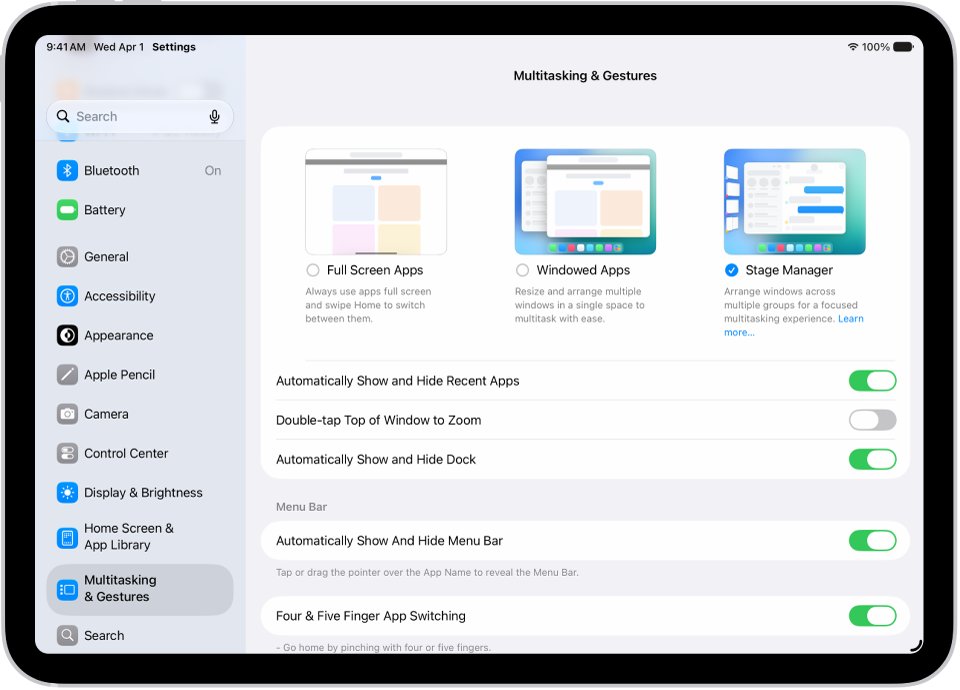
How to close apps on iPad in Windowed Apps or Stage Manager
Windowed Apps and Stage Manager live in Settings > Multitasking & Gestures, alongside Full Screen Apps, which can also fix a broken app layout on iPad. The window controls sit at the top left of a resized window.
- If the app is full screen, tap the app's name at the top of the screen to show the window controls.
- Tap the window controls at the top left of the window.
- Tap the close button to close the window.
- Use the minimize button instead if you only want to move the window out of the way.
If the closed window shared the screen with one other window, that window returns to full screen automatically, so closing it is also a way to get rid of split screen on iPad.
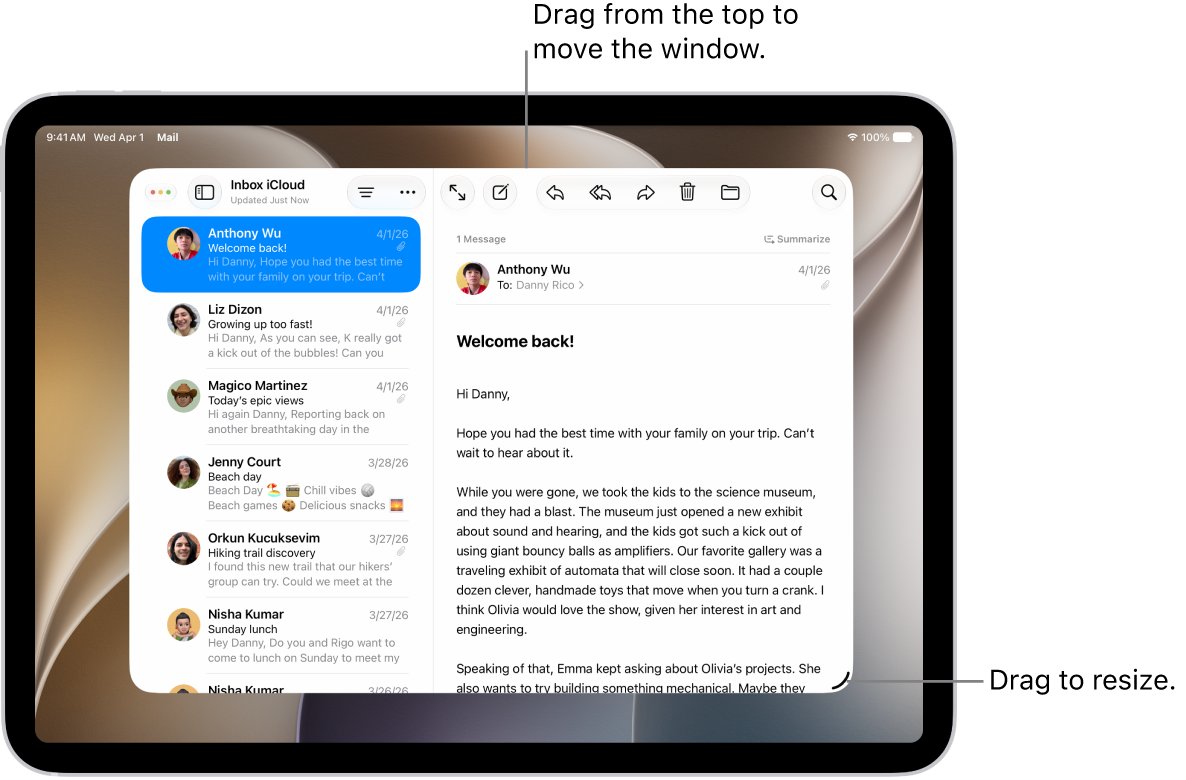
How to close all apps on iPad
Apple's iPad User Guide describes closing apps one at a time from Exposé and lists no button that closes every app together. Windowed Apps does have one setting that clears all windows when you go home.
- Open the Settings app on your iPad.
- Tap Multitasking & Gestures, then select Windowed Apps.
- Turn on Close All Windows After Swiping Home.
- Swipe up from the bottom of the screen to go to the Home Screen. Your open windows close instead of staying open.
To only clear the screen, swipe up from the bottom, then swipe up again. That minimizes all windows and leaves them open.
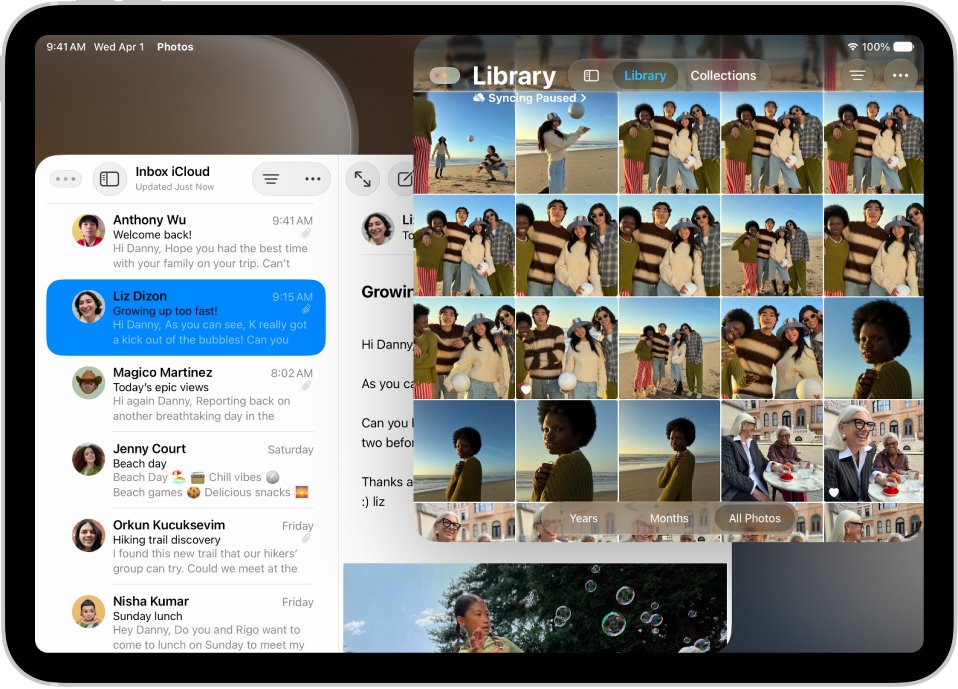
Tips for closing apps on iPad
| Tip | Why it matters |
|---|---|
| Close an app only when it stops responding | Apple says there is typically no reason to quit an app otherwise |
| Leave apps open to save battery | iPad manages background apps automatically, so quitting apps you are not using does not prolong battery life |
| Turn off Background App Refresh if an app drains power | Go to Settings > General > Background App Refresh and choose Wi-Fi, Wi-Fi & Cellular Data or Off |
| Check Settings > Battery before closing anything | It shows the share of battery each app used, which points to the real drain |
| Swipe along the bottom edge to switch apps | You move between open apps and pick up where you left off, with no need to close one first |
| Restart the iPad if reopening does not help | Apple lists a restart as the next step when an app stays unresponsive after you quit and reopen it |
Closing an app keeps it installed, so it is not a way to free up storage. When battery life is the real complaint, these iPad battery fixes go further than closing apps.
Why can't I close apps on my iPad
Most cases come down to the swipe not pausing long enough, or the iPad itself being frozen.
Swiping up only takes you to the Home Screen or shows the Dock
A short swipe goes home or reveals the Dock. Exposé needs a pause in the middle of the screen.
- Start at the very bottom edge and swipe up to the center of the screen.
- Pause there, then lift your finger.
- Swipe up on the preview of the app you want to close.
There are no window controls on the app
A full screen app hides the controls until you tap its name.
- Tap the app's name at the top of the screen.
- Tap the window controls that appear, then tap the close button.
- If nothing appears, close the app from Exposé instead.
The app still freezes after you close and reopen it
The problem is outside that one app session, so a restart is the next step.
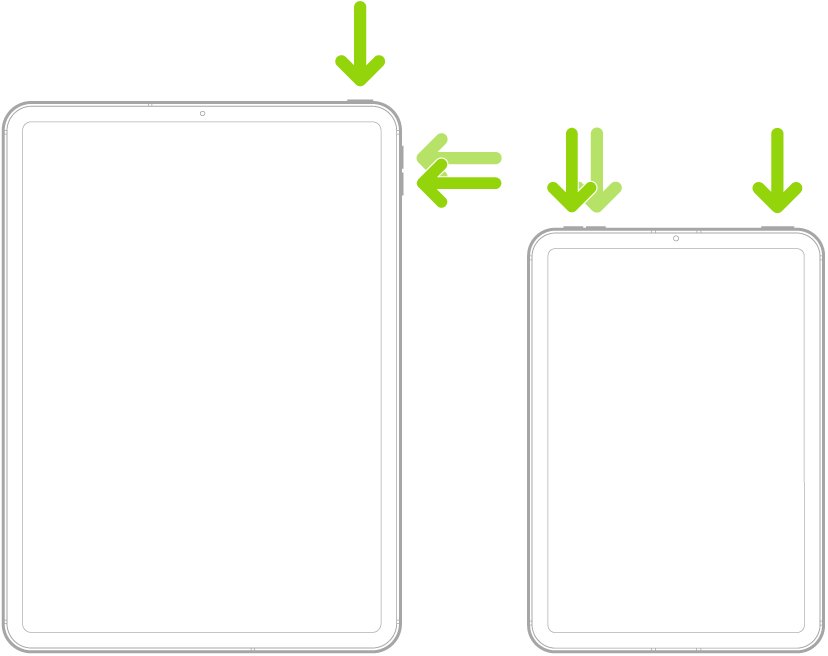
- Press and hold the top button and either volume button until the sliders appear. On an iPad with a Home button, press and hold the top button.
- Drag the top slider to power off, then turn the iPad back on.
- Open the app again and check whether it responds.
The screen ignores every swipe
iPad itself has stopped responding, so gestures cannot reach Exposé. You can force restart your iPad with the buttons.
- Without a Home button, press and quickly release the volume button nearest the top button.
- Press and quickly release the volume button farthest from the top button.
- Press and hold the top button, then release it when the Apple logo appears.
- With a Home button, press and hold the top button and the Home button together, then release both at the Apple logo.
How to tell an app is closed on iPad
- Open Exposé with the swipe and pause from the bottom edge.
- Swipe through the previews and look for the app. A closed app no longer has a preview.
- Tap the app on the Home Screen, in App Library or in the Dock to open it again.
Close apps on iPad FAQ
Why should I close apps on my iPad?
Close an app when it stops responding or seems frozen, then open it again to clear the problem. Apple says there is typically no other reason to quit an app, because iPad manages apps in the background for you.
Will closing apps delete any data?
No. Closing an app does not uninstall it or remove the app's stored content, and it stays on your Home Screen or in App Library. If you are partway through typing in an app that has not saved, save your work first where you can.
Is it necessary to close apps on an iPad?
No. Apps you switch away from can stay open, and you can pick up where you left off when you return. Apple advises quitting an app only if it is not responding, not as routine upkeep.
Can I close all my apps at once?
Apple's guide lists no single command that closes every app in Exposé, so swipe up on each preview. In Windowed Apps, turning on Close All Windows After Swiping Home closes your open windows each time you go to the Home Screen.
Do I need to close apps to save battery life?
No. Apple states that quitting apps you are not using does not prolong battery life on iPad. To reduce battery drain, check Settings > Battery for the apps using the most power and adjust Background App Refresh.
How do I close apps on iPad with no Home button?
Swipe up from the bottom edge, pause in the center of the screen and lift your finger to open Exposé. Then swipe up on the app's preview. This covers iPad Pro, iPad Air, iPad mini and the iPad 10th generation and A16 models.
How do I close apps on iPad 7?
The iPad (7th generation) has a Home button, so double-click the Home button to show your open apps, then swipe up on the app's preview. The swipe and pause from the bottom edge also opens the same screen.
How do I close apps on iPad mini 6?
The iPad mini (6th generation) has no Home button. Swipe up from the bottom edge, pause in the center of the screen and lift your finger, then swipe up on the preview of the app you want to close.