To save an email thread in Outlook, open the newest message, select More actions > Print > Print, choose Microsoft Print to PDF, and save the file, because each reply normally carries the earlier messages below it.
This guide covers PDF, EML, MSG and PST copies in new Outlook, classic Outlook, Outlook on the web and Outlook for Mac, plus fixes when messages go missing.
Save an entire Outlook thread as a PDF
Replies and forwards include the original message below the new text by default, so the newest message normally shows the whole conversation. These steps work in new Outlook and Outlook on the web.
- Open the thread and select the newest message so it shows in the reading pane, or double-click it to open its own window.
- In the message header, select More actions > Print > Print.
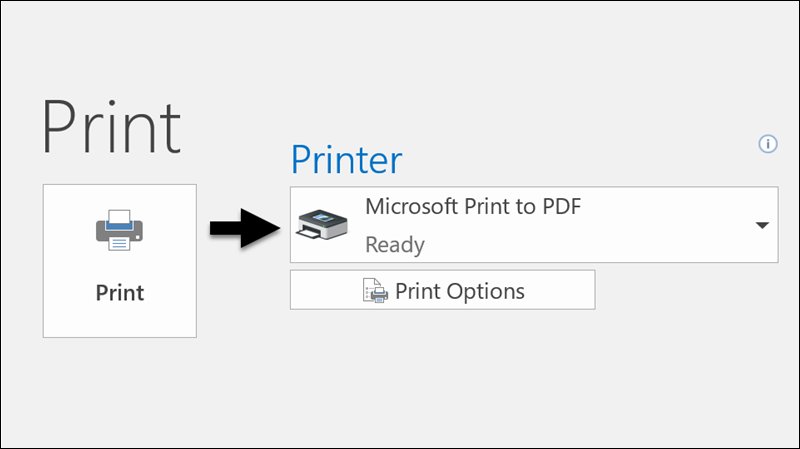
- In the Printer drop-down, select Microsoft Print to PDF.
- Select Print.
- In the Save Print Output As box, choose a folder, type a file name and select Save.
- Open the PDF and check that the oldest message appears at the end.
If someone replied without the earlier text, the PDF stops at that reply. Repeat the steps on the older messages and start each file name with the date, so the set stays in order.
Quick choice: which Outlook method should you use?
| Your situation | Use this | What you end up with |
|---|---|---|
| You want one readable copy of the thread to keep or share | PDF through Microsoft Print to PDF | One file that opens in any PDF reader, without the attachments |
| You need one original message that still opens in Outlook | EML or MSG | One file per message, so a long thread means many files |
| You want the thread stored apart from your mailbox and searchable in Outlook | A new PST data file in classic Outlook | A copy of the messages and their attachments in one data file |
| You want the whole folder or account that holds the thread | The PST export wizard | A backup of everything you select, with attachments |
| You use Outlook on a Mac | The macOS print dialog, or an .olm export in legacy Outlook for Mac | A PDF, or an archive for Outlook for Mac |
| You want to send the thread to someone | Forward the newest message, or forward the messages as attachments | A new email that carries the thread |
| You are on an iPhone | Outlook for iOS: More options at the top right of the conversation > Print | A print job for the conversation. Outlook for Android does not support printing emails |
Which Outlook format should you use?
A PDF gives you pages to read, while EML, MSG and PST give you messages that still open in Outlook. Attachments are where the formats differ most.
| Format | What it stores | Attachments | Where it opens |
|---|---|---|---|
| The printed pages of one message, including any earlier messages quoted in it | Not stored in the file, so save them separately | Any PDF reader | |
| EML | One message, downloaded from Outlook on the web | Open the file and confirm they are there before you rely on it | New Outlook, and Outlook on the web by dragging it to the reading pane |
| MSG | One Outlook message object | Part of the file format | Classic Outlook and Outlook for Mac. New Outlook and the web need a qualifying Microsoft 365 subscription |
| PST | Mail folders in an Outlook data file | Included in an export | Classic Outlook. New Outlook also needs classic Outlook installed |
| OLM | An archive from legacy Outlook for Mac | Import the archive and check them before you delete the originals | Outlook for Mac |
Before saving: make sure the whole thread is visible
A conversation includes the messages in the same thread with the same subject line. Turn on grouping first so you can see what the saved copy should contain.
| Outlook version | Turn on conversation view | Show more of the thread |
|---|---|---|
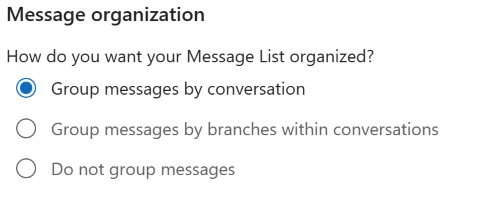
| New Outlook and Outlook on the web | Select Settings > Mail > Reading Pane, then Group messages by conversation under Message organization | Expand the conversation in the message list before you save |
| Classic Outlook | Select View > Show as Conversations, then All mailboxes or This folder | Select View > Conversation Settings > Show Messages from Other Folders |
| Outlook for Mac | Make sure Show as Conversations is ticked in the View menu | Select the arrows beside the conversation to expand it |
In classic Outlook, a triangular icon in the message list marks a conversation with several messages, and selecting it expands them. Show Messages from Other Folders also adds your own replies from Sent Items to the conversation.
Method 1: Save the entire visible thread as a PDF
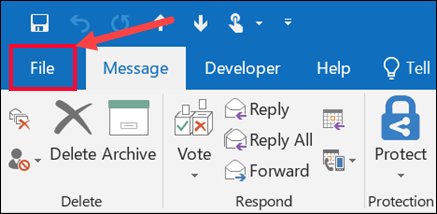
Classic Outlook prints through the File tab, and PDF is not one of its default Save as types. Printing to Microsoft Print to PDF is the way to get the file.
- Double-click the newest message in the thread to open it.
- Select File > Print.
- In the Printer drop-down, choose Microsoft Print to PDF.
- Select Print.
- In the Save Print Output As box, choose a folder, enter a file name and select Save.
A PDF does not preserve the attachments or a message you can reopen and reply to in Outlook. Keep an MSG copy as well if you might need either one.
Save one message from a thread as EML or MSG
These commands act on one message, so pick the exact message inside the expanded conversation. The steps below cover new Outlook, Outlook on the web and Outlook.com.
- Expand the conversation and select the message you want.
- In new Outlook, select More actions > Save as in the message header, or right-click the message and select Save as.
- Choose a folder or cloud location, rename the file if you want, and select Save.
- In Outlook on the web or Outlook.com, select More actions > Download instead. The file saves as .eml or .msg, usually in your Downloads folder.
To open a saved file in new Outlook, drag it onto the reading pane, or right-click it in File Explorer and select Open with > Outlook (new).
Method 2: Save an individual message as EML or MSG
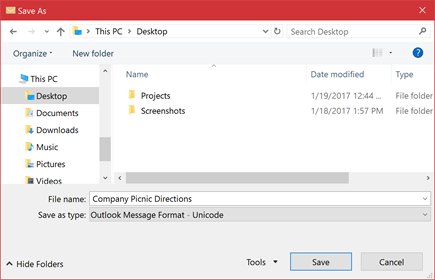
Classic Outlook saves the open message through File > Save As. Its message type is .msg, and .eml is not among the formats Microsoft lists for it.
- Double-click the message to open it.
- Select File > Save As.
- Choose the folder where the file should go.
- Enter a name in the File name box.
- In the Save as type list, keep the default or choose another type.
- Select Save.
Microsoft lists these save formats for classic Outlook: Outlook message format (.msg), Outlook message format – Unicode (.msg), HTML, MHT, text only and Outlook template. Pick a .msg type when the copy must stay a real Outlook message.
Save an entire thread in an Outlook PST archive
A dedicated data file holds just this one conversation. Copying keeps the originals in your mailbox, while Move would take them out.
- In classic Outlook, go to the Inbox and select New Items > More Items > Outlook Data File.
- Enter a File name, tick Add Optional Password only if you want one, and select OK.
- In the Folder pane, right-click the new data file, select New Folder, type a name for the thread and press Enter.
- Expand the conversation, click the first message, then hold Ctrl and click each other message.
- On the ribbon, in the Move group, select Move > Copy to Folder.
- Select the new folder and confirm.
Outlook stores new data files in Documents\Outlook Files. A password must be entered every time the data file is opened, so keep it somewhere safe.
Method 3: Export the thread or folder to a PST archive
Use the export wizard when the thread sits in a folder you want to keep whole. Save the file before you remove the email account from Outlook, so the copy already exists.
- In classic Outlook, select File > Open & Export > Import/Export.
- Select Export to a file, then Next.
- Select Outlook Data File (.pst), then Next.
- Select the mail folder that holds the thread, or the account name to export everything. Only one account exports at a time.
- Keep Include subfolders ticked if you want the folders under it, then select Next.
- Select Browse, enter a file name and select OK. Use a new name if you have exported before.
- Select Finish, and add a password in the Create Outlook Data File box if you want one.
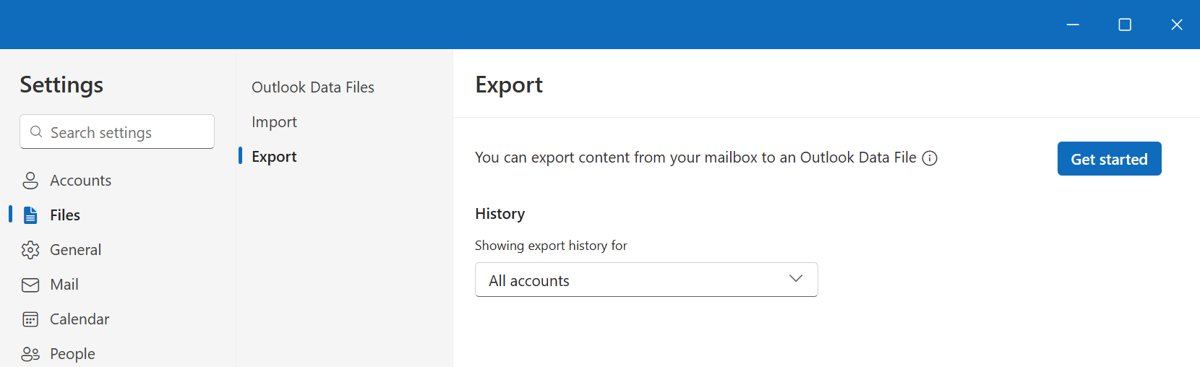
In new Outlook, go to Settings > Files > Export, select Get started and pick the mailbox or specific folders in the wizard.
Exports include attachments. Folder properties, message rules and blocked senders lists stay behind.
Fix missing messages before saving the thread
The PDF contains only one email
A reply can leave out the earlier text, because Do not include original message is one of the reply options.
- Expand the conversation in the message list and find the older messages.
- Print each older message to Microsoft Print to PDF.
- Start each file name with the date so the PDFs read in order.
Your own replies or moved messages are missing from the thread
They sit in Sent Items or another folder, outside the folder you are viewing.
- In classic Outlook, select View > Conversation Settings.
- Tick Show Messages from Other Folders.
- In new Outlook or on the web, open Sent Items and save those replies separately.
Older messages in the thread do not appear
Classic Outlook syncs only 12 months of mail for Exchange and Microsoft 365 accounts by default.
- Select File > Account Settings > Account Settings.
- Select the account and select Change.
- Under Offline Settings, move the slider to All. Cached Exchange Mode must stay on for this setting.
- Wait for the older mail to download, then look at the thread again.
- If messages are missing from the mailbox list too, fix emails missing from the Outlook inbox before you save anything.
A reply with a changed subject sits outside the thread
A conversation groups messages with the same subject line.
- Search your mailbox for the sender or for words from that reply.
- Save the message on its own, and use the same date-first file name as the rest of the set.
PST problems that can make messages disappear
Older emails are missing from the PST export
Outlook exports only what it has downloaded, and the default is the past 12 months of mail.
- Go to Account settings > Account Name and Sync Settings and move the slider to All.
- On an Exchange or Microsoft 365 account, clear Use Cached Exchange Mode under Offline Settings instead if the export still stops short.
- Restart Outlook and wait for the mail to appear.
- Run the export again with a new file name.
Subfolders are missing from the PST
Include subfolders was cleared in the export wizard.
- Start the export again from File > Open & Export > Import/Export.
- Tick Include subfolders when you select the folder.
Messages left the mailbox after you archived them
AutoArchive moves old items instead of copying them, and Move does the same to a single thread.
- Select File > Open & Export > Open Outlook Data File.
- Select the .pst file and select Open. It appears near the bottom of the Folder pane.
- Open the folder inside it and copy the messages back with Move > Copy to Folder.
OneDrive shows Processing changes or A file is in use
OneDrive blocks automatic sync of .pst files, and a large one can slow its sync.
- In the Folder pane, right-click the data file and select Close "Outlook Data File". Closing does not delete the file.
- Move the file to a folder OneDrive does not sync.
- Open it again with File > Open & Export > Open Outlook Data File.
New Outlook will not open the PST
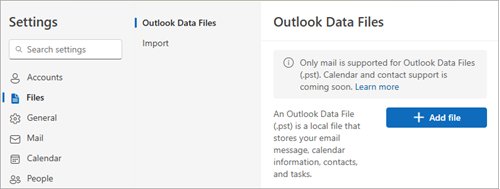
Opening a .pst in new Outlook requires classic Outlook on the same PC, in the same 32-bit or 64-bit architecture.
- Install classic Outlook if it is not already on the PC.
- In new Outlook, go to Settings > Files > Outlook Data Files.
- Select Add file, choose the .pst and select Open.
Save an Outlook email thread on a Mac
macOS has PDF built into its print dialog, so a Mac does not need Microsoft Print to PDF. Conversations on Outlook for Mac list the newest message on top.
- In Outlook for Mac, make sure Show as Conversations is ticked in the View menu.
- Select the newest message in the thread.
- Open the File menu and select Print.
- In the Print dialog, click PDF, or click the arrow beside it and choose Save as PDF.
- Enter a file name, pick a location and click Save.
- Optionally, click Security Options to require a password to open the PDF.
Messages in Junk E-Mail and Deleted Items are not part of conversations on Outlook for Mac, so save any of those separately.
Export an email thread from Outlook for Mac
Legacy Outlook for Mac exports to an .olm archive, the only export type it offers. Microsoft set October 2026 as the end of support for legacy Outlook for Mac, so use the PDF route above if you have moved to the new version.
- On the Tools tab, choose Export. If it is not there, look for Export on the File menu.
- In the Export to Archive File (.olm) box, tick the items you want and choose Continue.
- In the Save archive file as box, select Where or choose Downloads under Favorites, then select Save.
- Wait for the notification, then choose Finish.
How to save an email thread as an attachment
Classic Outlook can attach several selected messages to one new email, which is handy for sending yourself a copy of the thread.
- Expand the conversation and click the first message.
- Hold Ctrl and click each other message, or hold Shift and click the last one for a continuous group.
- On the Home menu, select Forward, or press Ctrl+F.
- Address the new message, which opens with the selected messages attached, and select Send.
For a single message, select More in the Respond group, then Forward as Attachment. Outlook on the web forwards only one message at a time.
If the thread holds sensitive details, encrypt the email before you send it.
How to save an email thread to a folder
The folder can be a place on your PC or a folder inside Outlook. Copying into an Outlook folder leaves the original messages where they are.
| Where you want the thread | Do this | Result |
|---|---|---|
| A folder on your PC | Save the PDF or message file, and choose that folder in the save box | A file you can back up or share |
| An Outlook folder, in new Outlook or on the web | Select the messages, right-click, select Copy to folder and choose the folder. Use Copy to a different folder if it is not listed | A second copy inside your mailbox |
| An Outlook folder, in classic Outlook | Select the messages, then select Move > Copy to Folder in the Move group | A second copy inside your mailbox |
How to save an email thread to SharePoint
Save the thread as a file first, then upload that file to a document library. You need contributor permissions on the library.
- Save the thread as a PDF or the messages as .msg files.
- Open the SharePoint document library in your browser.
- Select Upload at the top of the library.
- In the Add a document box, select Choose Files.
- Select the file and select OK.
You can also drag the file from File Explorer onto the library, which works best in Microsoft Edge or Google Chrome.
How to check a saved email thread PDF is complete
- Expand the conversation in Outlook and count the messages.
- Open the PDF and match each sender and date against that list.
- Scroll to the end of the PDF and confirm that the oldest message is there.
- Open any saved .msg or .eml file and confirm that its attachments are present.
- For a PST, select File > Open & Export > Open Outlook Data File, open it from the Folder pane and count the messages.
Best workflow for important records
Keep a reading copy and the original messages together, because a PDF leaves out the attachments and an .msg file holds only one message. This set covers both gaps for contracts, complaints and approvals.
- Turn on conversation view and expand the thread.
- Save the newest message as a PDF for easy reading.
- Save each message that has its own attachment or unique content as an .msg or .eml file.
- Save the attachments: Download all in new Outlook or on the web, or Save All Attachments in classic Outlook.
- Put everything in one folder, and start each file name with the date and sender.
- Copy the folder to a safe location, such as a USB flash drive or another hard drive.
Best approach for records or evidence
A dispute, audit or legal request raises the bar, because someone may ask for the messages as well as the printed pages. Ask your legal or compliance team which format it accepts before you delete anything from the mailbox.
Keep the original message files alongside the PDF, and leave the messages in the mailbox until the matter closes. A PDF is a printed copy of what the message showed, while an .msg or .eml file is a message you can reopen in an email app.
Save Outlook email thread FAQ
How do I save an email thread as a file in Outlook?
Print the newest message to Microsoft Print to PDF for one file that holds the quoted thread. For original messages, use Save as in new Outlook, File > Save As in classic Outlook, or Download on the web.
How do I save a whole email thread in Outlook?
Save the newest message as a PDF if every reply kept the earlier text. To store every message separately in Outlook format, create a new PST data file in classic Outlook and copy the conversation's messages into it.
Can Outlook save an entire email thread as one MSG file?
No. An .msg file stores one message, so a thread of ten messages needs ten files. Use a PDF of the newest message or a PST data file when you want the whole conversation kept in one file.
Why did my PDF contain only one email?
The print command covers the message you opened, and that message shows earlier ones only if the sender kept the original text. Open the newest message and print again, or print each older message to its own PDF.
Does printing an Outlook thread include its attachments?
Not by default. New Outlook and Outlook on the web print the email without its attachments. Classic Outlook has a Print attached files option under File > Print > Print Options, which stays on until you clear it.
Will a PST include attachments?
Yes. When Outlook exports emails to a .pst file, it includes any attachments on those emails. It leaves out folder properties such as views and permissions, along with message rules and blocked senders lists.
Why are older emails missing from my PST export?
Outlook exports only the mail it has downloaded, and the default is the past 12 months. Move the sync slider to All, or turn off Cached Exchange Mode, let the mail download, and then export again.
Can new Outlook import a PST?
Microsoft's import steps for new Outlook start at Settings > Data files > Import, but its export article still says PST import is unsupported there. If you do not see that option, import the file with classic Outlook instead.
How do I keep email threads together in Outlook?
Turn on conversation grouping. In new Outlook and on the web, choose Group messages by conversation under Settings > Mail > Reading Pane. In classic Outlook, select View > Show as Conversations, then All mailboxes or This folder.
How do I leave an email thread in Outlook?
In classic Outlook, select the conversation, then Ignore > Ignore Conversation in the Delete group. Current and future messages go to Deleted Items, so save anything you need first. You can recover the conversation with Stop Ignoring Conversation while it stays in Deleted Items.
How do I email an email thread to someone?
Forward the newest message, since a forward includes the original message and its attachments below your text. To send each message intact, select them in classic Outlook and select Forward, which attaches them to one new email.