You cannot push a laptop screen past its hardware limit, but you can reach that limit by turning off automatic dimming and battery savers, then using HDR or a brighter preset if the display supports one.
This guide covers the exact settings on Windows and Mac, calibration for a picture that looks dim, and what to do when full brightness still looks dark.
The fastest way to make a laptop screen brighter than max
Most screens that look stuck below maximum are being held down by a power or auto-brightness setting. Clear those first.
- Plug in the charger, so battery-saving features stop lowering the display.
- On Windows 11, open Settings > System > Display and drag the Brightness slider to 100.
- Select Brightness to expand it, then set Change brightness based on content to Off.
- Open System > Power & battery > Energy saver and turn off Lower screen brightness when using energy saver.
- On a Mac, choose Apple menu > System Settings > Displays and drag Brightness all the way up.
- Still on the Mac, open Battery > Additional Options and turn off Slightly dim the display on battery.
That is the true maximum on a standard display. The sections below cover HDR, presets and calibration for displays that have more to give or a picture that looks flat.
Why would you need a brighter screen?
The right fix depends on why the screen feels too dim, so match your situation first.
| Your situation | What is usually limiting it | Start with |
|---|---|---|
| Working outdoors or near a window | Auto-brightness or the battery dimming setting | Windows or Mac settings below, on charger power |
| Screen dims when you unplug | Energy saver on Windows; Slightly dim the display on battery on a Mac | The power settings in the Windows and Mac sections |
| Brightness shifts as the page changes | Change brightness based on content or Intel Display Power Savings | Turn off content-based brightness |
| HDR video or games look dull | HDR is off, or it switched off on battery | Turn on HDR on a Windows laptop, or use a Mac XDR preset |
| Everything looks grey at 100% | Color profile, dark wallpaper or dark mode | Calibrate the display and use the visibility settings |
| The screen was bright and has faded | Possible driver or hardware fault | The dim screen fixes near the end of this guide |
Can you make a laptop screen brighter than 100%?
Only the panel itself produces light, and 100% on the slider is the most the laptop normally gives it for everyday content. Everything else changes when that limit applies or how the image is drawn.
| Option | What it really changes | Adds light beyond the normal maximum? |
|---|---|---|
| Turning off auto-brightness and battery savers | Removes a cap so the slider can reach the real top | No, but it often feels like it |
| Color calibration | Creates a new color profile, so midtones can look lighter | No |
| HDR on a capable Windows laptop | Lets HDR content use more of the panel; the desktop still follows the normal slider | Only for HDR content |
| XDR presets on a capable MacBook Pro | Sets the brightness range for the mode you pick | Up to the limit the preset states |
| Third-party brightness apps | Change the image or use a display's existing range | No app can exceed the panel's own peak |
| PowerToys Power Display | Controls external monitors over DDC/CI, not built-in panels | No |
1. How to make a laptop screen brighter than max on Windows
These steps clear every Windows limit on the built-in display. You can also adjust screen brightness in several other ways once they are off.
- Select Start > Settings > System > Display and drag Brightness to 100.
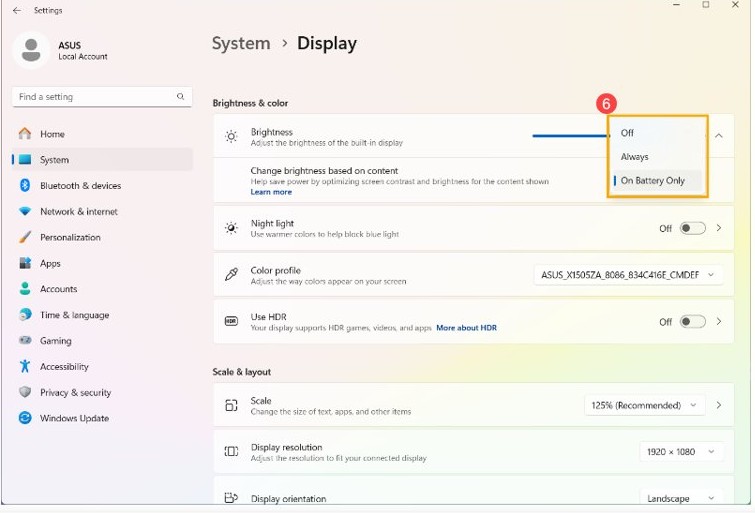
- On Windows 11, select Brightness and turn off Change brightness automatically when lighting changes. On Windows 10, clear the same check box under Brightness and color.
- On Windows 11, set Change brightness based on content to Off. Older builds label this control Help improve the battery by optimizing the content shown and brightness.
- On Windows 11, open System > Power & battery > Energy saver and turn off Lower screen brightness when using energy saver.
- On Windows 10, open System > Battery and clear Lower screen brightness while in battery saver.
- Plug in the charger and check the slider again; it should still read 100.
Energy saver alone reduces display brightness by 30% on Windows 11 24H2 and later, so that toggle is often the biggest single gain. Microsoft notes that Off for content-based brightness can shorten battery life.
You can also turn off adaptive brightness on Windows 10 with a few extra options if the check box is missing.
How to calibrate a laptop display in Windows for a brighter picture
Calibration does not add light, but a poor color profile can make a bright panel look dull. This is the Windows color calibration tool, and it creates a new profile for the display.
- On Windows 11, open Settings > System > Display > Color profile.
- Select Calibrate display.
- On Windows 10, type calibrate display color into the Settings search box and open the result.
- Follow the on-screen steps, and compare the picture with something familiar such as a photo you know well.
- Finish the tool so that Windows saves the new color profile.
On an HDR-enabled external display, Calibrate display opens the Windows HDR Calibration app instead.
You can change the display color profile on Windows 11 if the new one looks wrong.
How to turn on HDR on a laptop for more brightness
HDR helps only on an HDR-capable panel, and only for HDR content. Microsoft says SDR brightness on a built-in display still follows the regular brightness setting, so the desktop does not get brighter.
- Open Settings > System > Display and select the built-in display.
- Turn on HDR. On Windows 10, turn on Use HDR under Windows HD Color settings.
- Select HDR, then drag HDR content brightness to change HDR brightness relative to SDR.
- Expand the HDR section and clear Turn off HDR when my PC is running on battery if you want HDR while unplugged.
- To tune the picture, select Display calibration for HDR video > Calibrate.
- Drag the slider right to add detail in bright areas such as snow or sunlight, then select Exit full screen.
The display can go black for a moment when HDR switches on or off. Running HDR on battery reduces battery life, which is why Windows may turn it off when you unplug.
How to turn off Display Power Savings in Intel Graphics Command Center
If brightness still shifts with on-screen content on an Intel laptop, the graphics driver has its own power saving feature. Microsoft recommends leaving it on if battery life matters most.
- Open Intel Graphics Command Center, which is available from the Microsoft Store.
- Select System in the left menu, then Power in the top menu.
- Slide Power Efficiency to the left to favor graphics quality.
- If brightness still changes, set Display Power Savings to Off.
2. How to make a laptop screen brighter than max on Mac
macOS has three things that can hold a MacBook below its top level: automatic brightness, battery dimming and Low Power Mode.
- Choose Apple menu > System Settings, then click Displays in the sidebar.
- Drag the Brightness slider all the way to the right.
- Turn off Automatically adjust brightness if the Mac dims itself in your lighting. The option appears only on a Mac with an ambient light sensor.
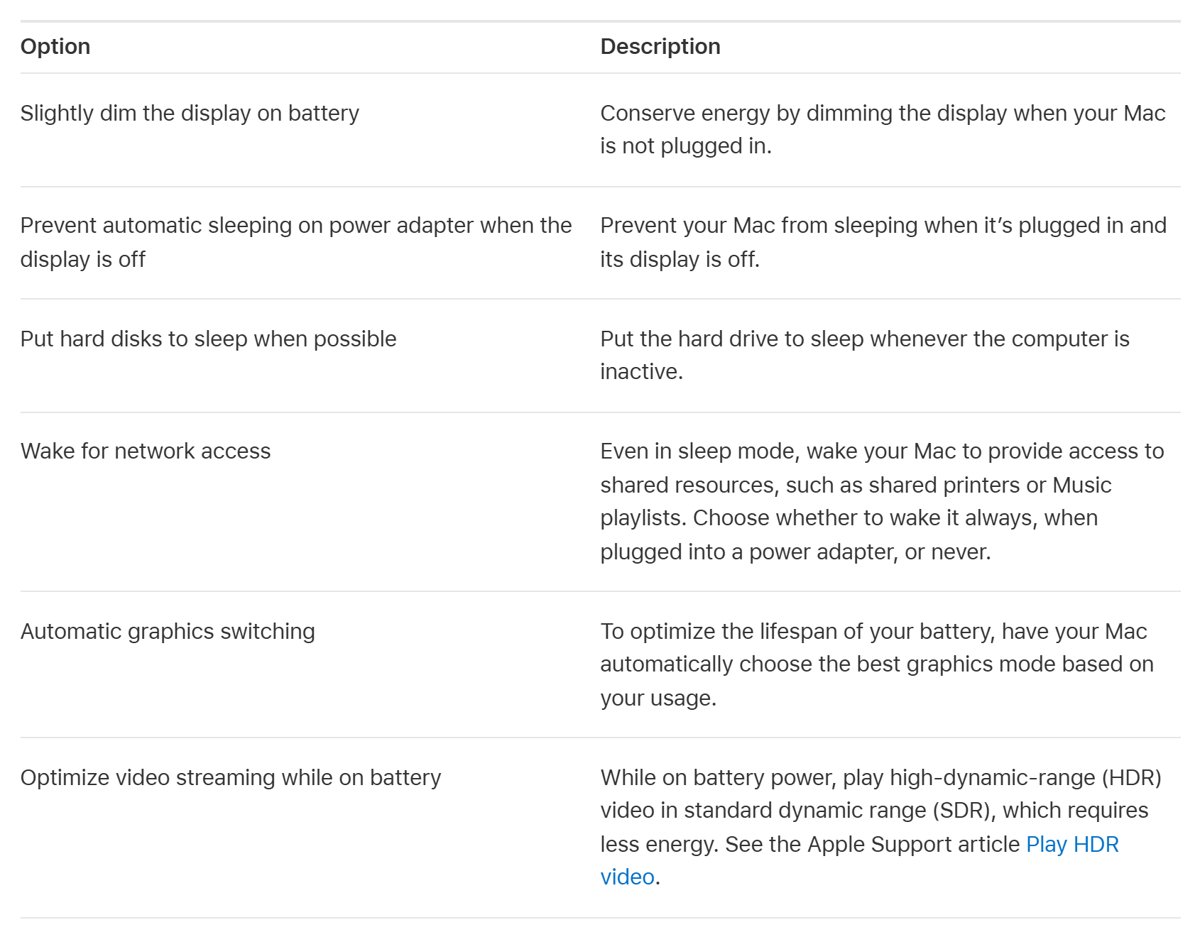
- Click Battery in the sidebar, open Additional Options, and turn off Slightly dim the display on battery.
- On the same page, turn off Optimize video streaming while on battery so HDR video stays in HDR when unplugged.
- Open the Low Power Mode pop-up menu and choose Only on Power Adapter to stop it running on battery.
Apple warns that turning off automatic brightness may affect battery life, energy use and long-term display performance, so turn it back on when you no longer need the extra level.
If you run Windows on a Mac, fix the Boot Camp brightness control separately, because these macOS settings do not apply there.
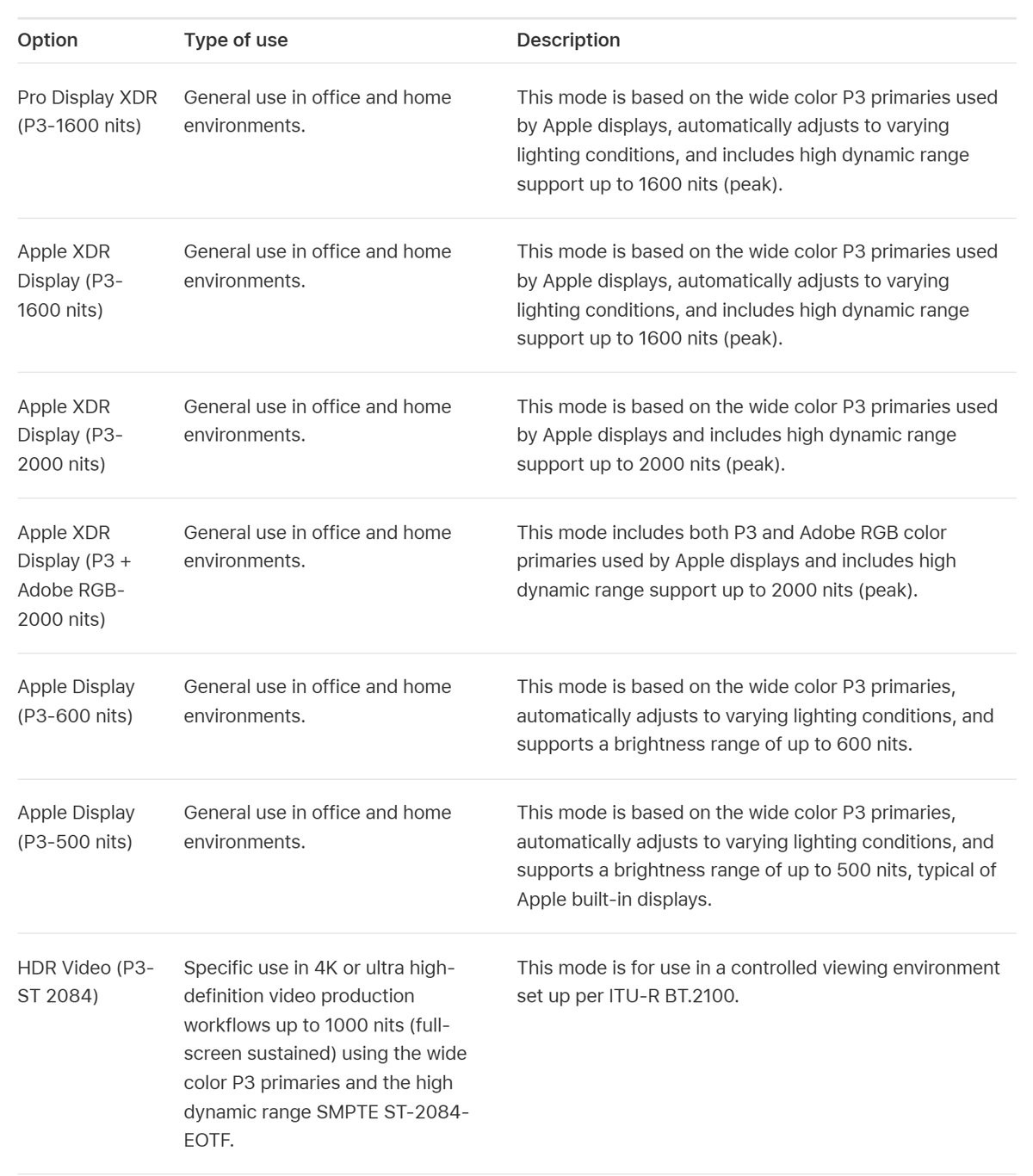
MacBook Pro display presets and their brightness limits
On a MacBook Pro with an XDR display, a preset sets the brightness range. Choose Apple menu > System Settings > Displays, then pick one from the Preset pop-up menu.
Not every preset appears on every model, and the options in Displays can change or be limited by the mode you pick.
| Preset | Stated brightness | Notes |
|---|---|---|
| Apple XDR Display (P3-1600 nits) | HDR up to 1600 nits peak | Adjusts automatically to lighting |
| Apple XDR Display (P3-2000 nits) | HDR up to 2000 nits peak | For displays that reach this level |
| Apple XDR Display (P3 + Adobe RGB-2000 nits) | HDR up to 2000 nits peak | Adds Adobe RGB primaries |
| Apple Display (P3-600 nits) | Range up to 600 nits | Adjusts automatically to lighting |
| Apple Display (P3-500 nits) | Range up to 500 nits | Adjusts automatically to lighting |
| HDR Video (P3-ST 2084) | Up to 1000 nits full-screen sustained | Reference mode for HDR video |
Apple rates the MacBook Pro with PROLED XDR display at up to 1000 nits across the full screen. Its 2000-nit peak applies only to a portion of the screen.
3. Quick ways to adjust brightness on any laptop
Use whichever control is nearest. All of them move the same setting, so none goes higher than the sliders above.
| Laptop | Control | How to use it |
|---|---|---|
| Windows 11 | Quick settings | Select the Network icon on the taskbar and move Brightness |
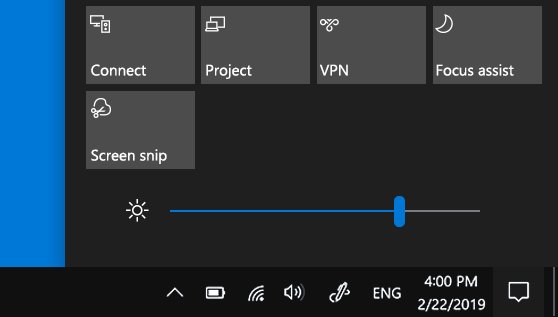
| Windows 10 | Windows Action Center | Select the action center icon on the taskbar and move Brightness |
| Windows 11 or 10 | Keyboard shortcuts | Press Win + A to open the panel, or Win + I to open Settings |
| ASUS | Brightness keys | Press Fn + F5 to raise and Fn + F4 to lower on models that use those hotkeys |
| Dell Latitude 5000 and 7000 (after March 2019) | Brightness keys | Press F6 or F7 alone with Fn Lock off, or hold Fn with them when Fn Lock is on; Fn + Esc toggles Fn Lock |
| Mac | Brightness keys | Press the increase key in the top row; hold Option with it to open Displays |
| Mac | Control Center | Open Control Center from the menu bar and drag Brightness |
4. Advanced tips for better screen visibility
These settings do not change the backlight. They make the screen easier to read by putting lighter or higher-contrast content on it, which helps most in bright rooms.
| What to change | On Windows | On Mac |
|---|---|---|
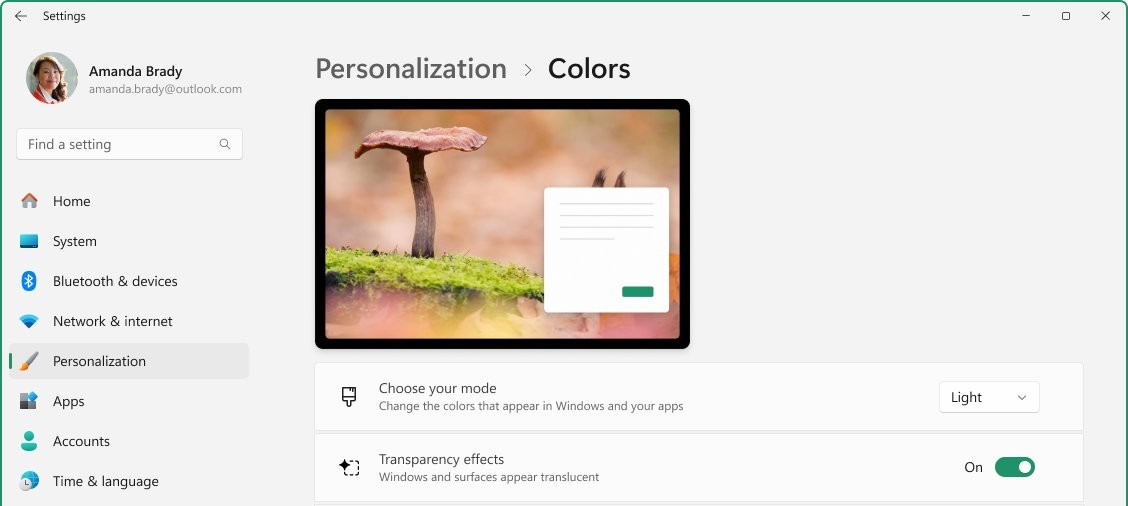
| Disable dark mode | Settings > Personalization > Colors > Choose your mode > Light | System Settings > Appearance > Light |
| Replace a low contrast wallpaper | Choose a lighter image in Settings > Personalization > Background | Choose a lighter image in System Settings > Wallpaper |
| Raise contrast | Windows 11: Settings > Accessibility > Contrast themes. Windows 10: Settings > Ease of Access > High contrast | Use the Contrast slider in Displays, if your display shows one |
| Remove see-through panels | Energy saver already turns off transparency effects while on | System Settings > Accessibility > Display > Reduce transparency |
To switch a Windows contrast theme on or off quickly, press left Alt, left Shift and Print Screen together.
How to tell if your laptop screen is at full brightness
- Plug in the charger and open a plain white page in your browser.
- Check that the Brightness slider sits at its top position in Displays or Settings > System > Display.
- Unplug the charger and watch the white page for a minute.
- If it dims, a battery setting is still active, so recheck the power steps for your system.
- Open a dark page and then the white page again. If brightness changes between them on Windows, content-based brightness is still on.
- Compare the result with the brightness your laptop maker lists for your model. A screen at that level has no more to give.
Laptop screen dim at full brightness: how to fix it
Laptop screen dims when you unplug the charger
A battery feature is lowering the display.
- On Windows 11, turn off Lower screen brightness when using energy saver under Settings > System > Power & battery > Energy saver.
- On a Mac, turn off Slightly dim the display on battery under System Settings > Battery > Additional Options.
- Unplug again and confirm that the brightness holds.
Windows brightness slider is missing or does nothing
The display driver may be out of date or faulty. On an external monitor, the slider may not appear at all.
- Right-click Start and open Device Manager.
- Expand Display adapters, right-click your graphics adapter and select Update driver.
- Select Search automatically for updated driver software.
- If the trouble began after an update, open Properties > Driver and select Roll Back Driver.
- Restart, then fix brightness that will not change on Windows 10 if the slider stays stuck.
MacBook display is slow to reach full brightness
Apple says the display can need time to warm up.
- Give the display time to warm up.
- Press the Increase Brightness key to make sure brightness is not turned off.
- In Displays, turn on Automatically adjust brightness or Ambient light compensation, if your Mac offers them.
Laptop screen is still dark at 100% after every setting
This points to hardware, such as the panel or its backlight, rather than a setting.
- Connect an external monitor and compare the picture on both screens.
- If the external monitor looks normal, the laptop's own panel or backlight is the likely cause.
- Contact the laptop maker with your model and what you tested. Surface owners can select Get Help in the Surface app.
Laptop screen brightness FAQ
Why is my laptop screen so dark at full brightness?
A battery or automatic setting is usually holding it down. Check energy saver, content-based brightness and auto-brightness on Windows, or battery dimming on a Mac. If the screen stays dark after that, test it against an external monitor to rule out a hardware fault.
Can I increase screen brightness beyond maximum without third-party apps?
Yes, as far as the hardware allows. Windows and macOS settings can remove the software caps on brightness, and HDR or an XDR preset can use more of a capable panel. Nothing raises a standard display above its own hardware limit.
Can a brightness app make my screen brighter than 100%?
No app can make a panel emit more light than its hardware peak. An app can change how the image is drawn, or use a range the display already has. Clear the built-in limits first, because that is often the bigger gain.
Does increasing brightness affect battery life?
Yes. Energy saver lowers display brightness to save power, and Microsoft notes that turning off content-based brightness can shorten battery life. Apple offers battery dimming for the same reason. Expect less time on a charge when you run the screen at its maximum.
Does HDR make a laptop screen brighter?
Only for HDR content on an HDR-capable panel. Microsoft says SDR brightness on a built-in display still follows the regular brightness setting, so everyday apps and the desktop look the same. HDR video and games can show brighter highlights once HDR is on.
How do I make my MacBook screen brighter than max?
Turn off Slightly dim the display on battery and Automatically adjust brightness, then drag the Brightness slider to full. On a MacBook Pro with an XDR display, open the Preset menu in Displays and choose an Apple XDR Display preset for more HDR range.
Is it bad to keep a laptop screen at maximum brightness?
It costs battery life first. Apple also warns that turning off automatic brightness may affect energy use and long-term display performance on a Mac. Use full brightness when you need it, such as outdoors, and let the automatic setting manage the rest of the time.
What is the keyboard shortcut for laptop screen brightness?
It depends on the laptop maker, and Windows has no universal shortcut for it. Many ASUS models use Fn + F5 to raise brightness, and some Dell Latitude models use F6 and F7. On a Mac, press the increase brightness key in the top row.