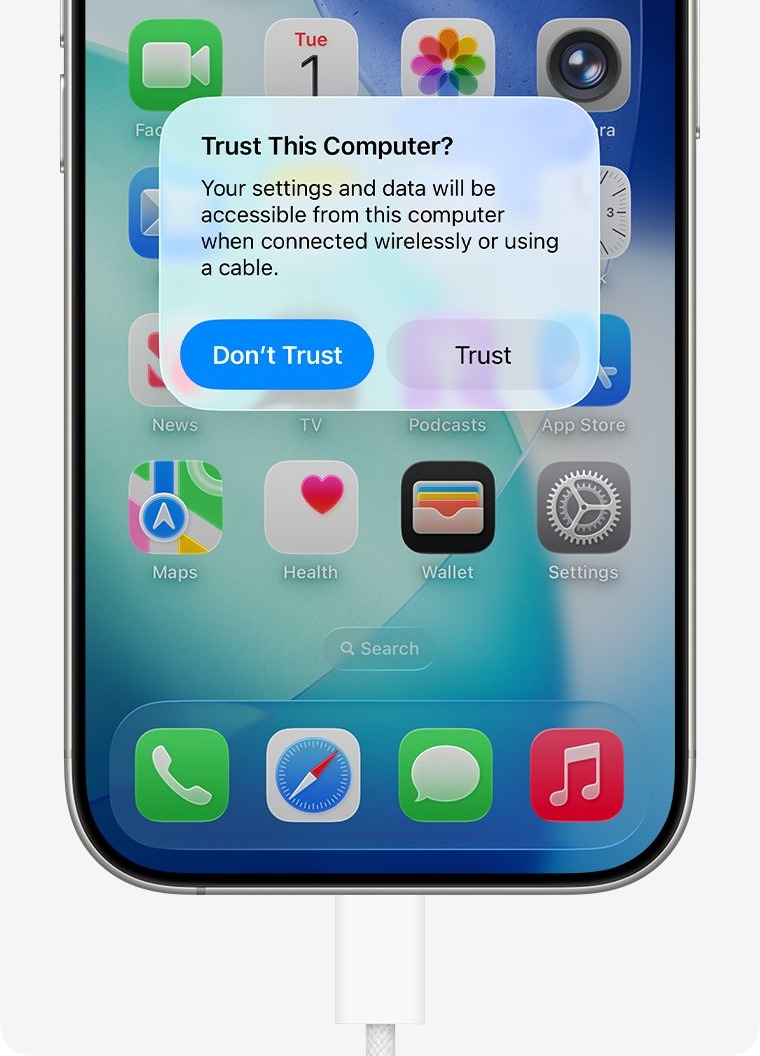
Unlock your iPhone 17, connect it straight to the computer with a USB-C cable that supports data, then reset Location & Privacy so the Trust This Computer alert asks again.
This guide covers Windows and Mac, the cable and port tests that separate a software fault from a hardware one, and when to ask Apple for service.
Fastest fix when iPhone 17 shows no Trust This Computer prompt
Work through these in order and test the connection after each one. Keep the iPhone unlocked throughout.
- Unlock the iPhone and leave the Home Screen visible.
- Plug a USB-C cable that supports both data and charging straight into a USB port on the computer.
- Open the Apple Devices app on Windows or Finder on a Mac.
- If the alert appears, tap Trust and enter your passcode.
- If it does not appear, disconnect and reconnect the cable, restart the computer, then restart the iPhone.
- Go to Settings > General > Transfer or Reset iPhone > Reset > Reset Location & Privacy, then connect again.
To restart iPhone 17, hold a volume button and the side button until the power-off slider appears, drag it, wait 30 seconds, then hold the side button until the Apple logo shows. A frozen phone needs a force restart instead.
iPhone 17 USB-C port issues: match the symptom to the cause
| What you see | Likely cause | Try this first |
|---|---|---|
| iPhone 17 charges, but no alert and no device on the computer | Cable without data support, or a stale trust setting | Use a cable that supports data and charging, then reset Location & Privacy |
| No chime or vibration when you plug in | Poor connection or debris in the port | Check the cable and clear debris from the port |
| You tapped Don't Trust earlier | The computer is blocked from your content | Reset Location & Privacy so the alert asks again |
| You tapped Trust, but nothing appears on the computer | Outdated software or a software conflict on the computer | Update macOS, Windows or the Apple Devices app |
| The alert returns every time you connect | Automatic backups are on | Tap Trust; this is normal on iOS 16 and later |
| Liquid Detected in USB-C Connector appears | Moisture in the port or cable | Unplug and let the iPhone and cable dry |
| Same failure with several data cables and computers | A fault in the iPhone itself is likely | Contact Apple for service |
What port does the iPhone 17 have?
Every iPhone 17 model uses USB-C, but the data speed differs. A slow transfer is normal on the standard model, while a phone that never appears on the computer is a real fault.
| iPhone | Connector | Data speed |
|---|---|---|
| iPhone 17 | USB-C | USB 2, up to 480 Mb/s |
| iPhone 17 Pro | USB-C | USB 3, up to 10 Gb/s with a compliant USB 3 cable |
| Included USB-C Charge Cable (1 m) | USB-C | Charging and USB 2 speeds only |
| iPhone 15 and iPhone 16 | USB-C | Depends on the model; USB 3 is limited to the Pro models |
| iPhone 13 | Lightning | Not a USB-C phone |
How to reset Location & Privacy on iPhone 17
This is the fix for a prompt that never appears or a Don't Trust answer you want to change. Afterward, the alert asks again on computers you trusted before.
- Disconnect the iPhone from the computer.
- Open Settings and tap General.
- Tap Transfer or Reset iPhone, then tap Reset.
- Tap Reset Location & Privacy and confirm.
- Unlock the iPhone and connect it to the computer again.
- Tap Trust when the alert appears, then enter your passcode.
This reset also returns your location and privacy settings to their defaults, so review those settings afterward.
iPhone 17 not connecting to PC on Windows 11
On Windows, a connected iPhone should appear in the sidebar of the Apple Devices app. If the app opens but does nothing, repair the Apple Devices app before you test the phone again.
- Open Microsoft Store, search for Apple Devices, then select Get or install any update shown.
- Install pending Windows updates and confirm the PC's date, time and time zone are correct.
- Open the Apple Devices app and unlock the iPhone.
- Connect the iPhone with a USB-C cable that supports data.
- Tap Trust on the iPhone. If the PC shows a dialog, select Trust This iPhone.
- Look for the iPhone in the app's sidebar.
- If it is missing, try a different USB port, then a different PC.
If you use iTunes from the Microsoft Store, make sure iTunes Mobile Device Helper is enabled as a startup item. Run only one security program, and ask its vendor to allow the services Apple products use if the conflict remains.
If other USB devices fail on the same PC too, fix USB devices Windows does not recognize before you blame the iPhone.
iPhone 17 not connecting to Mac or showing in Finder
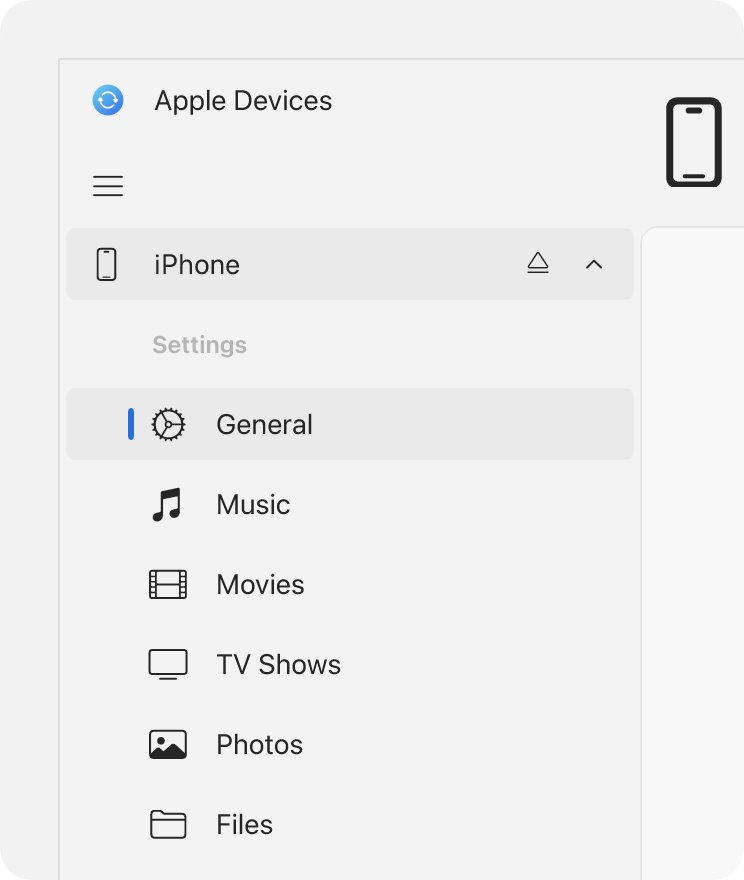
On a Mac, the connected iPhone appears in the Finder sidebar. Mac laptops with Apple silicon also ask you to approve new accessories first.
- Update macOS in System Settings > General > Software Update.
- Unlock the Mac and the iPhone, then connect them with a USB-C cable that supports data.
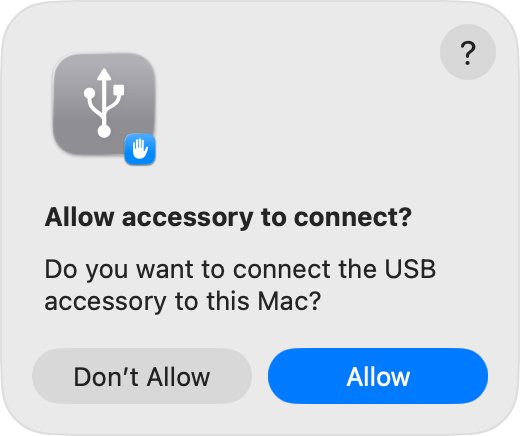
- If the Mac asks whether to allow the accessory, choose Allow.
- Tap Trust on the iPhone and enter your passcode.
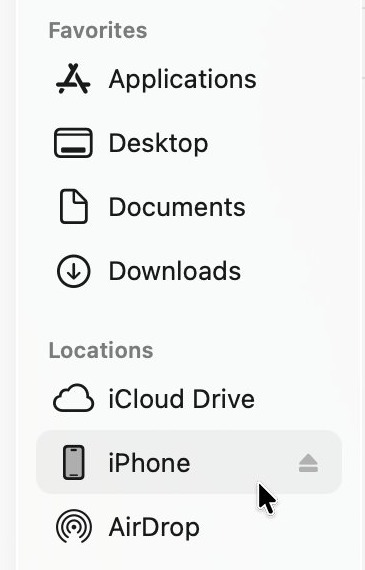
- Open Finder. If the sidebar is hidden, choose View > Show Sidebar.
- On a Mac laptop with Apple silicon, check System Settings > Privacy & Security > Accessories if the iPhone stays missing.
- Try a different cable, a different port, then a different Mac.
Clicking Don't Allow on a Mac stops it from recognizing the device, although the alert returns next time. VPN and other third-party security software can also block connections, so check those apps if every cable fails on one Mac only.
How to clean iPhone USB-C port
Debris is the first thing to check when the iPhone does not chime or vibrate on connection. Apple's instruction is simply to remove debris from the port, and it names no cleaning tool.
- Unplug the cable from the iPhone and the computer.
- Look into the USB-C port on the bottom of the iPhone under a bright light.
- Remove any loose debris you can see, without forcing anything into the port.
- Plug the cable in firmly and check that it seats fully.
- Connect to the computer again and watch for the chime or vibration.
If debris is packed in or the port looks damaged, leave it for Apple or an Apple Authorized Service Provider. A wet port is different: Apple says not to use heat or compressed air to dry it, and not to insert cotton swabs or paper towels.
iPhone USB port not working: test the port, cable and computer
Charging alone does not prove the data link works, since power can still flow when data does not. These tests isolate the faulty part.
| Test | Result | What it means |
|---|---|---|
| Swap to a cable that already transfers data with another device | iPhone appears | The first cable was the problem |
| Move to a different USB port on the same computer | iPhone appears | The first port was the problem |
| Connect to a different computer | iPhone appears | Software on the first computer is the likely cause |
| Try a different USB cable or charger after an accessory alert | Alert stops | The original cable or charger is damaged or unsupported |
| Connect several data cables to several computers after a reset | iPhone never appears | The iPhone likely needs service |
Once the connection works, you can back up iPhone 17 to your PC or retry a music transfer to a new iPhone 17.
Wired Accessories setting on iPhone 17 for USB connections
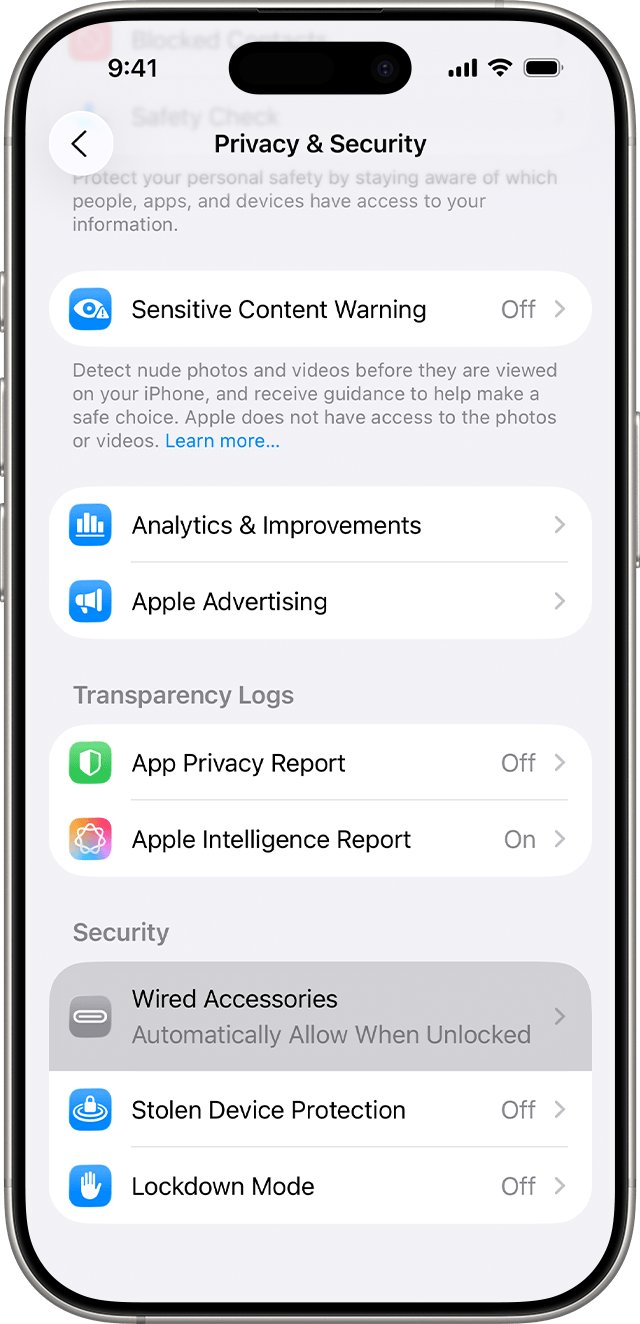
iPhone 17 controls USB connections in Wired Accessories. The default, Automatically Allow When Unlocked, means an unlocked iPhone is the normal starting point for any cable test.
- Open Settings and tap Privacy & Security.
- Scroll to the Security section and tap Wired Accessories.
- Choose Always Ask, Ask for New Accessories, Automatically Allow When Unlocked or Always Allow.
- Unlock the iPhone and reconnect the cable.
Storage accessories always need an unlocked iPhone, whatever you choose here. Lockdown Mode has the same effect on computers and accessories, so unlock the iPhone before you connect if you use it.
How to tell if iPhone 17 trusts your computer
- Unlock the iPhone and connect the cable.
- Check that the iPhone shows it is charging, which confirms the cable is seated.
- Look for the iPhone in the Finder sidebar on a Mac or the Apple Devices sidebar on Windows.
- Select it and open its sync or backup options.
- Start a small sync or a backup. If the alert asks again during a backup, tap Trust, which is expected on iOS 16 and later.
iPhone 17 USB-C port repair and warranty
If the tests point to the iPhone, start a request from the Get started button on Apple's iPhone repair page. Back up first by any route still working, such as iCloud.
| Option | What happens |
|---|---|
| Genius Bar or Apple Authorized Service Provider | A technician inspects the iPhone, explains the options and handles the repair |
| Mail-in repair | Apple sends a prepaid box, with no appointment needed |
| Express Replacement with AppleCare | Apple sends a replacement iPhone before you return yours |
| Apple Limited Warranty | Covers manufacturing issues for one year from purchase, not accidental damage |
| Liquid damage | Not covered by the warranty or AppleCare, according to Apple |
iPhone 17 connection issues with computers and cables
iPhone 17 charges but never appears on the computer
The cable may not carry data, or a trust setting or computer software is blocking the connection.
- Use a cable that supports both data and charging.
- Unlock the iPhone before you plug in.
- Reset Location & Privacy and connect again.
- Update iOS in Settings > General > Software Update, then update the computer.
- Try a different port and a different computer.
The Trust alert appears but your answer is not accepted
Software on the computer or a damaged setting on the iPhone is getting in the way.
- Update macOS, iTunes or the Apple Devices app.
- Disconnect and reconnect the iPhone.
- Restart the computer, then the iPhone.
- Reset Location & Privacy.
- As a last step, go to Settings > General > Transfer or Reset iPhone > Reset > Reset Network Settings.
iPhone USB-C port loose
Debris can stop the plug seating fully, and a worn cable can feel loose in any port.
- Check the port for debris and remove anything loose.
- Plug the cable in firmly.
- Try a different cable to see whether the looseness follows the cable.
- If every cable feels loose, contact Apple for service.
iPhone charger port not working
A damaged cable or adapter, a dirty port or a weak power source can stop charging.
- Check the cable and USB adapter for damage, and stop using anything broken.
- Use a wall outlet with firm connections between the cable, adapter and outlet.
- Remove any debris from the charging port.
- Restart the iPhone and charge for about 30 minutes.
- If it still will not charge, contact Apple for service.
Liquid Detected in USB-C Connector
The iPhone found moisture in the port or on the cable.
- Unplug the cable from the iPhone and from the computer or adapter.
- Tap the iPhone gently against your hand with the connector facing down.
- Leave it in a dry, airy spot for at least 30 minutes, then try again.
- If the alert returns, allow up to 24 hours to dry.
- If it appears with any Apple cable when everything is dry, get service.
Reset Network Settings also removes saved Wi-Fi networks and passwords, cellular settings, and VPN and APN settings, so keep it for last.
iPhone 17 USB-C port FAQ
Does iPhone 17 come with a USB-C cable?
Yes. The iPhone 17 box lists a 1 m USB-C Charge Cable alongside the phone and documentation. That cable handles charging and USB 2 data speeds, so it is suitable for testing the Trust This Computer alert on a computer.
What port does the iPhone 17 have?
The iPhone 17 has a USB-C connector. It supports charging, DisplayPort video and USB 2 data at up to 480 Mb/s. It can also connect to Macs, iPads, external storage and other accessories that are compliant with USB-C.
Does iPhone 17 use USB-C?
Yes. Apple lists USB-C on iPhone 15 and later, which includes iPhone 17. You can charge it from a USB-C power adapter that supports USB Power Delivery or from a computer's USB-C port, and you can sync data over the same connector.
Is iPhone 17 Pro USB-C?
Yes. iPhone 17 Pro uses USB-C and reaches USB 3 speeds of up to 10 Gb/s with a compliant USB 3 cable. The included cable stays at USB 2 speeds, so a faster cable is needed for large file transfers.
How do I clean an iPhone USB-C port?
Unplug the cable, look into the port under a bright light and remove any loose debris without forcing anything in. Then plug the cable in firmly. If the port is wet, do not use heat, compressed air, cotton swabs or paper towels. Let it air dry instead.
Why did iPhone change to USB-C?
Apple describes USB-C as a universally accepted standard for charging, data syncing, audio and video. The same connector works with Macs, iPads, AirPods Pro 2 and later, and external storage, so one cable covers most of those devices from iPhone 15 onward.
Does iPhone 15 have a USB-C port?
Yes. iPhone 15 is the first generation Apple lists with USB-C, and later models keep it. The iPhone 15 Pro also supports USB 3 speeds of up to 10 Gb/s with a compliant USB 3 cable.
Does iPhone 13 have a USB-C port?
No. iPhone 13 uses a Lightning connector, and its box included a USB-C to Lightning cable. That cable plugs into USB-C on the charger or computer side, but the phone's own port is Lightning.
Can I set up Wi-Fi sync if the USB-C port will not connect?
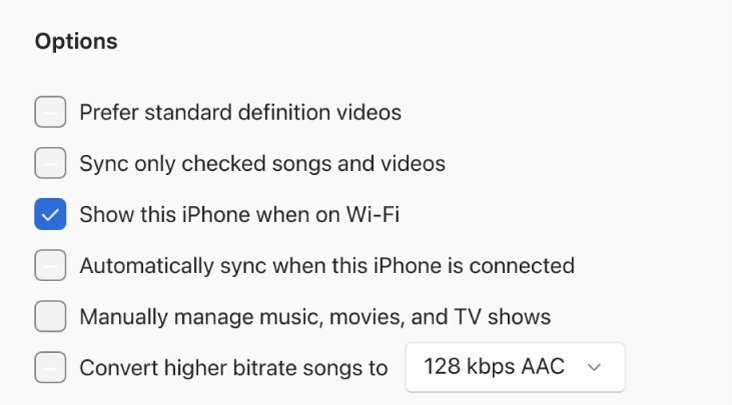
Only if you enabled it earlier. Apple's steps for Show this iPhone when on Wi-Fi start with a USB or USB-C connection to the Apple Devices app. With it already enabled, connect both devices to the same Wi-Fi network and check the sidebar.
Does a faulty iPhone 17 USB-C port need repair?
Book Apple service if iPhone 17 charges but stays invisible on several computers with several data cables, after you have updated everything and reset Location & Privacy. At that point the cable, the computer and the trust setting have each been ruled out, which leaves the iPhone itself. A new iPhone with a manufacturing fault falls under the one-year Apple Limited Warranty.