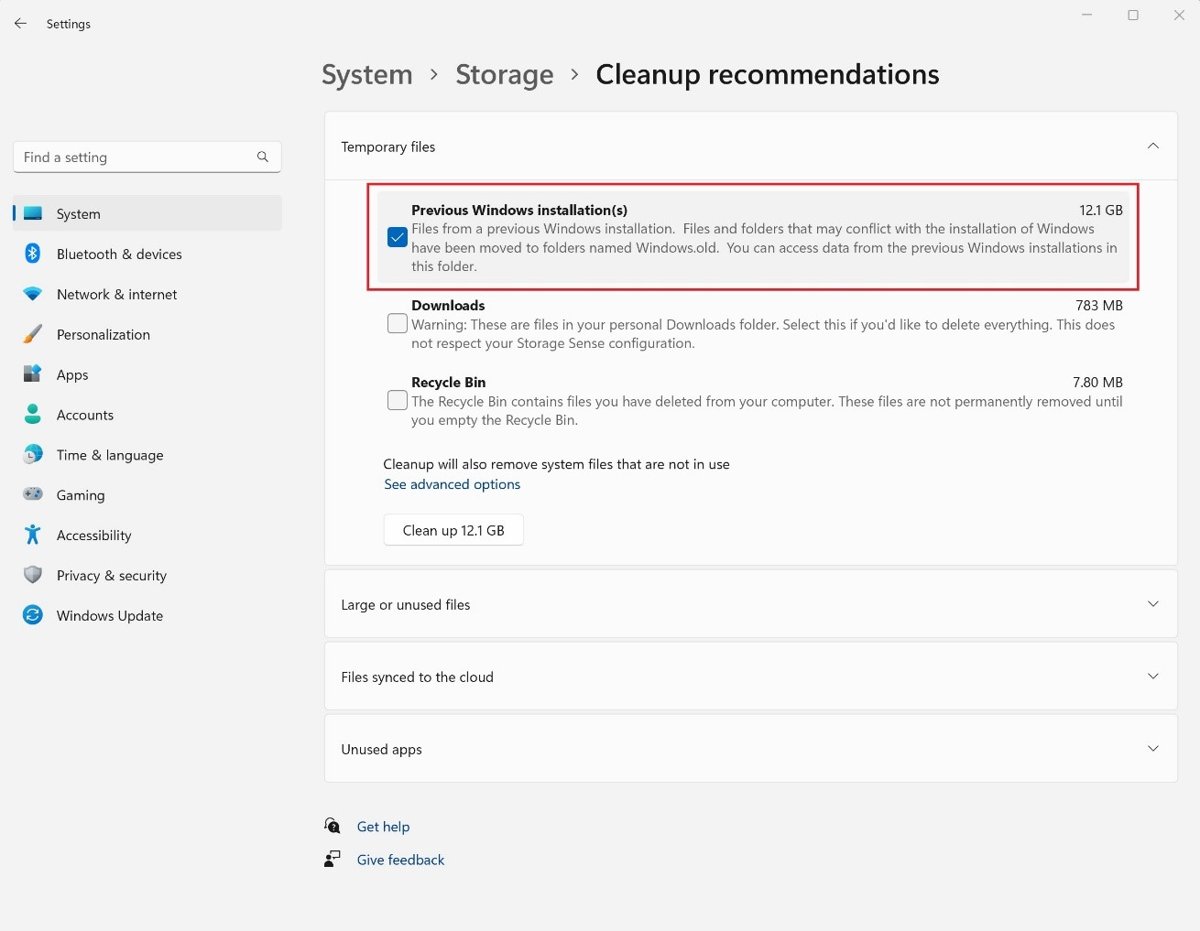
To delete Windows.old in Windows 11, open Settings > System > Storage > Cleanup recommendations, check Previous Windows installation(s) and select Clean up.
This guide also covers Temporary files, Disk Cleanup, Command Prompt, copying your files out first and what to do when the folder refuses to go.
How to delete Windows.old in Windows 11
This is Microsoft's Windows 11 route, and it needs administrator rights.
- Open Settings and select System.
- Select Storage.
- Select Cleanup recommendations.
- Check Previous Windows installation(s).
- Select the Clean up button, which shows the file size.
This cannot be undone. Once the folder is gone, you cannot return to your previous version of Windows.
Remove Windows.old in Windows 11 with Settings, Disk Cleanup or cmd
All three end in the same place, so pick the one that matches your situation.
| Your situation | Use this | Why |
|---|---|---|
| Windows 11 is working normally | Settings > Cleanup recommendations | It shows the size and needs no commands |
| Cleanup recommendations does not list it | Settings > Temporary files | Microsoft's other Settings route for the same files |
| You prefer the classic tool | Disk Cleanup > Clean up system files | It removes previous Windows installations |
| You want a command | cleanmgr /autoclean |
It deletes files left behind after an upgrade |
| The folder survives all of the above | takeown, icacls and rd |
Last resort for leftover files you do not own |
On Windows 10, the Windows.old cleanup path is different because the Storage page is laid out differently.
What is the Windows.old folder in Windows 11?
Windows.old is the copy of your previous Windows installation that an upgrade leaves on the system drive.
| Question | Answer |
|---|---|
| Where is it? | C:\Windows.old |
| What is inside? | The files that let you go back to your previous version of Windows, plus user folders from the old install |
| When can it hold your personal files? | When you chose Nothing on the Choose what to keep screen during the upgrade |
| How long does Windows keep it? | 10 days in most cases, then Windows deletes most of its content |
| What else removes it? | Any later install, upgrade, refresh or reset deletes the existing folder |
| What does not create it? | Reset this PC. A fresh install from installation media formats the drive instead |
Can you delete Windows.old folder in Windows 11?
Yes, as soon as you are confident your files and settings are correct. Microsoft says you can safely delete the previous installation yourself to free drive space. Keep it only if you may roll back within the 10-day window, or if you still need files from the old install.
How to get files out of Windows.old in Windows 11
Do this before deleting anything. It takes an administrator account, and a standard account is prompted for administrator credentials.
- Right-click Start and select File Explorer.
- Under This PC, select the C: drive.
- Open Windows.old, then open Users.
- Open the folder for the user whose files you need. Select Continue if a permission message appears, then reopen the folder.
- Open the folder that holds your files, such as Documents, Pictures or Desktop.
- Copy the files or folders you want and paste them into a location outside Windows.old.
- Repeat for any other folders or users.
How to go back to the previous version of Windows before you delete Windows.old
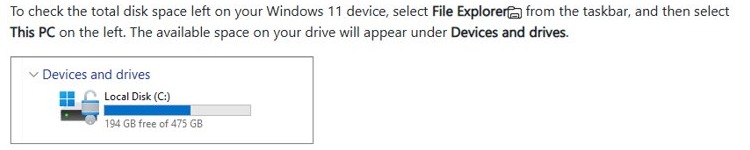
Going back needs the windows.old and $windows.~bt folders, so it only works before you delete them. Your personal files stay, but apps and drivers installed after the upgrade are removed. First remove any user accounts you added after the upgrade, and keep the USB drive handy if you upgraded from one.
- Open Settings and select System.
- Select Recovery.
- Select Go back if the option is available, then follow the prompts.
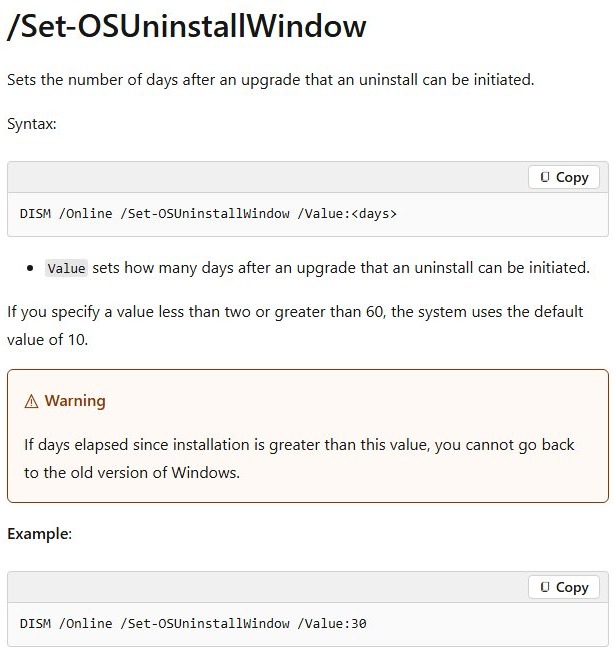
To see how many days the rollback window allows, run DISM /Online /Get-OSUninstallWindow in an administrator Command Prompt. To extend it before it closes, run DISM /Online /Set-OSUninstallWindow /Value:30. A value below 2 or above 60 falls back to the default of 10.
How to delete Windows.old folder in Windows 11 from Temporary files
Use this route when you prefer the Temporary files list. The check box can appear as Previous version of Windows or Previous Windows Installation(s).
- Open Settings > System > Storage.
- Under your hard drive information, select Temporary files.
- Check Previous version of Windows or Previous Windows Installation(s).
- Select Remove files.
From the same page, you can also delete temporary files that you no longer need.
How to delete Windows.old file in Windows 11 with Disk Cleanup
The previous installation is a system file here, so the first Disk Cleanup screen does not show it until you select Clean up system files.
- Select Start, type disk cleanup and open it.
- Select the C: drive and select OK.
- Select Clean up system files, choose C: again and select OK.
- When the scan finishes, check Previous Windows installation(s).
- Select OK, then select Delete files to confirm.
Delete Windows.old in Windows 11 with cmd
Select Start, type cmd, right-click Command Prompt and select Run as administrator. Then run this command.
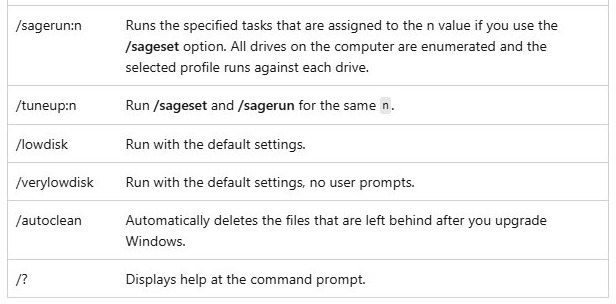
cleanmgr /autocleanMicrosoft documents /autoclean as automatically deleting the files left behind after you upgrade Windows. To open Disk Cleanup for one drive instead, run cleanmgr /d C:.
You should see: no Windows.old folder on the C: drive once the cleanup finishes. If the folder is still there, use the next section.
How to force delete Windows.old in Windows 11 with takeown and rd
Microsoft's Windows.old instructions use Settings and Disk Cleanup, so treat these general file commands as a last resort. Copy out anything you need first, because rd /q deletes the whole tree without asking.
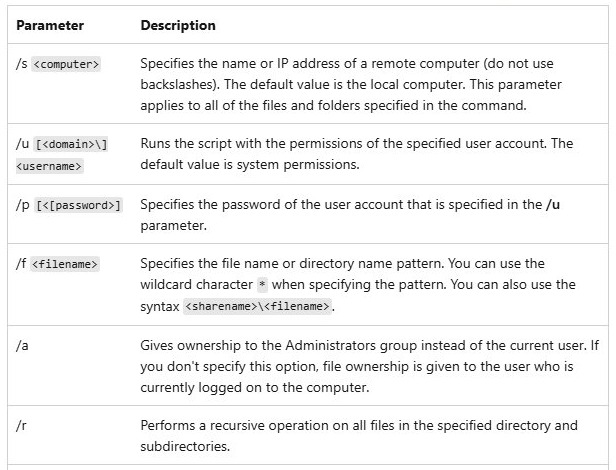
takeown /f C:\Windows.old /a /r /d Y
icacls C:\Windows.old /grant Administrators:F /t /c /q
rd /s /q C:\Windows.old
Run the three lines one at a time in an administrator Command Prompt. takeown gives ownership to the Administrators group, icacls grants that group full access, and rd removes the folder and everything inside it.
You should see: Command Prompt returns to the prompt after rd, and C: no longer shows Windows.old.
How to tell if Windows.old is deleted in Windows 11
- Open File Explorer, select This PC and open the C: drive. The Windows.old folder should be gone.
- Open Settings > System > Storage > Cleanup recommendations. Previous Windows installation(s) should no longer be listed.
- Open Settings > System > Recovery. Go back should no longer be available.
Tips for deleting Windows.old in Windows 11
| Tip | Why it matters |
|---|---|
| Check your files before you delete | Windows.old may be the only copy if you chose Nothing during the upgrade |
| Check how long ago you upgraded | Inside the 10-day window, deleting the folder ends your rollback option |
| Use an administrator account | Microsoft's delete steps require administrator privileges |
| Read the size on the Clean up button | It tells you how much space you actually get back |
| Back up to OneDrive or a USB drive before the next upgrade | A later install, upgrade, refresh or reset deletes the existing folder |
Unable to delete Windows.old in Windows 11
Access is denied in File Explorer
Windows.old holds files from the old install that your account may not own, so the way you delete files and folders normally can stop at a permissions prompt.
- Use Cleanup recommendations or Temporary files in Settings > System > Storage instead.
- Run Disk Cleanup and select Clean up system files if Settings does not offer it.
- Use the
takeown,icaclsandrdcommands only if the folder is still there.
Previous Windows installation(s) is not listed
Windows deletes most of the content 10 days after an upgrade, so the entry can disappear while a smaller folder remains.
- Open the C: drive in File Explorer and check whether Windows.old still exists.
- Open Temporary files and look for Previous version of Windows.
- Run
cleanmgr /autocleanfrom an administrator Command Prompt. - Use the
takeown,icaclsandrdcommands if the folder remains.
The directory is not empty
The rd command cannot remove a folder that still holds hidden or system files.
- Run
attrib -s -h C:\Windows.old\*.* /s /din an administrator Command Prompt. - Run
rd /s /q C:\Windows.oldagain.
The process can't access the file because it is being used by another process
The rd command cannot delete the folder your Command Prompt is currently in.
- Run
cd /d C:\to move out of the folder. - Run
rd /s /q C:\Windows.oldagain.
Windows.old in Windows 11 FAQ
How to delete Windows.old folder in Windows 11?
Open Settings, select System, then Storage, then Cleanup recommendations. Check Previous Windows installation(s) and select Clean up. Disk Cleanup also removes it after you select Clean up system files. The action needs administrator rights and cannot be undone.
What is the Windows.old folder?
Windows.old is the copy of your previous Windows installation that an upgrade leaves on the C: drive. It holds the files needed to go back to that version, and it can also hold personal files from the old install.
Is it safe to delete Windows.old?
Yes, once you are confident your files and settings are correct. Microsoft says you can safely delete the previous installation yourself. Deleting it removes your option to go back, so copy out any files you still need first.
Can I delete Windows.old if I need more storage?
Yes. Microsoft says removing previous Windows installations can free a large amount of space, and it advises doing so only if you do not plan to restore the old version. Windows would otherwise remove most of it after 10 days.
Will deleting Windows.old affect my current setup?
Your current Windows 11 installation keeps running, because Windows.old is only the previous installation. What you lose is the Go back option in Recovery and any old files you did not copy out. Check your documents before you delete it.
How much space does Windows.old usually take?
It varies with what was on your previous installation, and Microsoft does not publish a typical figure. Open Settings, select System, Storage and Cleanup recommendations, and the Clean up button shows the exact size for your PC.
Does Windows 11 delete Windows.old automatically?
Yes. Microsoft says Windows automatically deletes most of the Windows.old content 10 days after an upgrade. Any later install, upgrade, refresh or reset also deletes the existing folder, so anything you left inside it is lost.
How to delete old Windows 11 files after an upgrade?
Use Cleanup recommendations in Settings, or run Disk Cleanup and select Clean up system files, then Previous Windows installation(s). You can also run cleanmgr /autoclean, which deletes the files left behind after you upgrade Windows.
Can I get Windows.old back after deleting it?
No. Microsoft says deleting your previous version of Windows cannot be undone, and you will not be able to go back to it. If you still need that version, run Go back in Settings before you delete the folder.
Does Storage Sense delete Windows.old?
Microsoft describes Storage Sense as cleaning up unnecessary temporary files with default settings, and it does not list previous installations in that run. Its own help page points to Settings, System, Storage and Temporary files for removing Windows.old.