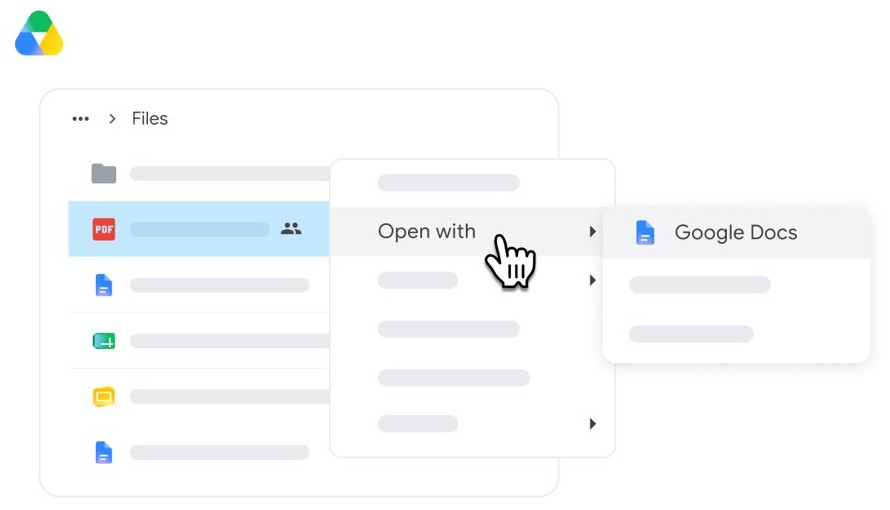
To convert a PDF to Google Docs, upload it to Google Drive, right-click the file and select Open with > Google Docs.
This guide covers Drive's file limits, what happens to formatting, converting on a Mac or phone, batches of PDFs, and Google Sheets and Slides.
Step by step tutorial: Convert PDF to Google Docs
Google documents this conversion for drive.google.com on a computer, so the steps are the same in a browser on Windows, Mac or ChromeOS. Keep the PDF at 2 MB or smaller for the most dependable text.
- Go to drive.google.com on your computer and sign in.
- Click New in the top-left corner, then select File upload.
- Select the PDF and confirm the upload.
- Right-click the uploaded PDF in Google Drive.
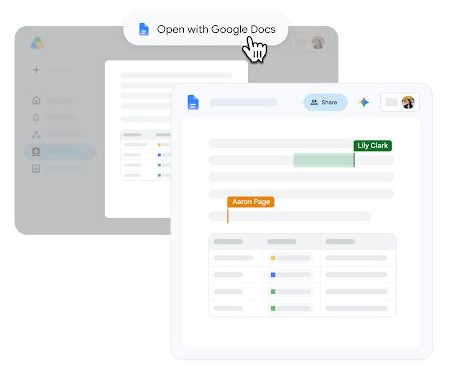
- Select Open with, then Google Docs.
- Check the new document against the PDF and repair any layout that did not carry over.
How to convert PDF to Google Doc on Mac, Windows or phone
| Your device | What to do | Why |
|---|---|---|
| Windows PC, Mac or Chromebook | Use the steps above in a browser at drive.google.com | Google's conversion steps start from drive.google.com on a computer |
| Mac or PC with Drive for desktop | Drag the PDF into the Google Drive folder, then convert it at drive.google.com | The folder uploads files to Drive, and the conversion step still happens in the browser |
| Android phone or tablet | Tap New > Upload in the Google Drive app, then convert the PDF later on a computer | Google's help describes the app upload, and points to a computer for conversion |
| PDF open in Chrome | Select Save to Drive at the top right of the PDF viewer, then convert it at drive.google.com | The file lands in the Saved from Chrome folder in Drive |
PDF requirements for Google Docs conversion
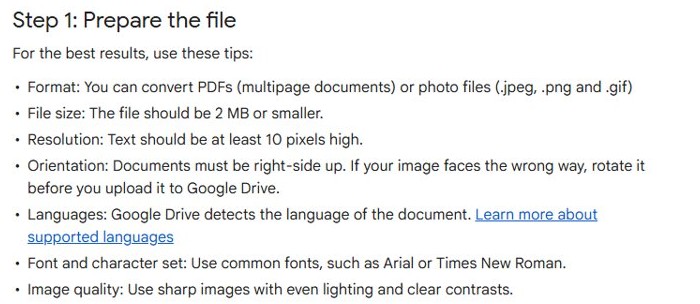
Google publishes these conditions for its optical character recognition (OCR) conversion. Check them first when a PDF comes out badly.
| Requirement | Google's guidance | What to do if it fails |
|---|---|---|
| File type | Multipage PDF, or a .jpeg, .png or .gif photo | Save the page in one of these formats |
| File size | 2 MB or smaller | Reduce the file before uploading it |
| Text height | At least 10 pixels high | Export or scan at a higher resolution |
| Orientation | Pages must be right-side up | Rotate sideways or upside-down pages first |
| Fonts | Common fonts such as Arial or Times New Roman work best | Expect more errors with decorative fonts |
| Image quality | Sharp, evenly lit, strong contrast | Rescan a dim or blurred page |
| Language | Drive detects the language automatically | No setting is needed for a single conversion |
How to convert PDF to Google Drive
Moving a PDF into Google Drive is an upload, and the file stays a PDF until you open it with Google Docs. Three routes on a computer put it there.
- Open drive.google.com in a browser on your computer.
- Click New, then File upload, and select the PDF.
- Or open a folder in Drive and drag the PDF into the window.
- Or install Drive for desktop and drag the PDF into the Google Drive folder on your computer.
- Look for the file in My Drive until you move it to another folder.
Uploading a PDF with the same name as a file already in Drive saves it as a revision of that file. Select Keep both files if you want two separate copies.
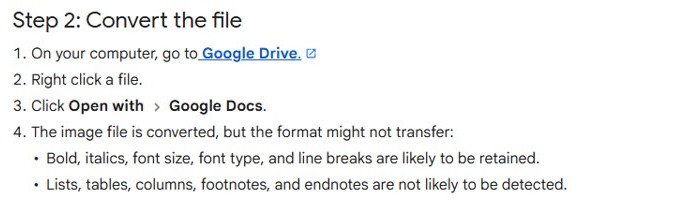
What happens to PDF formatting in Google Docs
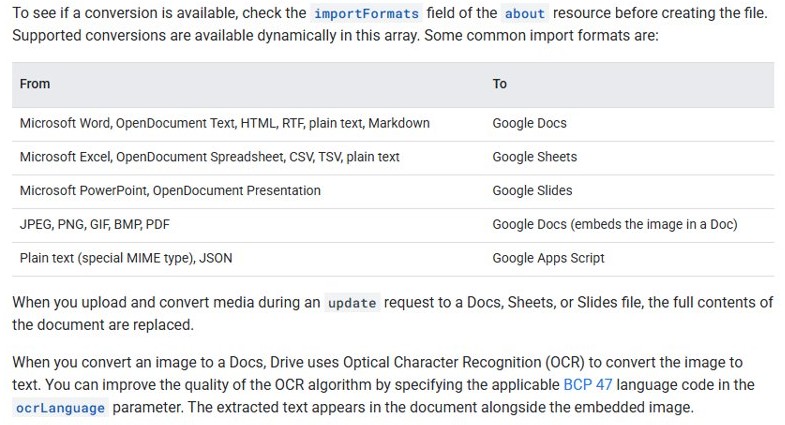
Conversion reads the text with OCR rather than copying the page layout, so a simple letter survives far better than a designed report. Google's developer documentation adds that Drive embeds the image in the new Doc and places the extracted text alongside it.
| Element | Result after conversion |
|---|---|
| Bold and italics | Usually kept |
| Font size and font type | Usually kept |
| Line breaks | Usually kept |
| Lists | Often not detected |
| Tables and columns | Often not detected |
| Footnotes and endnotes | Often not detected |
A PDF that depends on its tables or columns may be a better fit for a Word route, so you can convert the PDF to Word and compare the two results.
How to convert PDF to Google Docs for editing
The converted file is a normal Google Doc, so the cleanup happens with the usual editing tools. Work through it in this order so that layout changes do not undo your text fixes.
- Open the converted document next to the original PDF.
- Correct misread words, numbers and names first.
- Rebuild lists and tables that came through as plain lines of text.
- Add any footnotes or endnotes that the conversion dropped.
- Delete any embedded page image once you no longer need it for reference.
- Adjust the layout last, for example to set the margins or indent paragraphs.
You can keep working on the file away from a connection once you use Google Docs offline.
How to convert PDF to Google Doc in bulk
Google's help steps describe converting a file you right-click, and they do not offer a batch option for PDFs. These routes handle several files.
| Your situation | Route | How it works |
|---|---|---|
| A few PDFs | Repeat Open with > Google Docs for each file | Upload the files together with Folder upload, then convert them one at a time |
| Many PDFs and a developer on hand | Google Drive API upload with conversion to the Google Docs type | The Drive API import table lists PDF as a source that converts to Google Docs |
| Scanned PDFs through the API | Set the ocrLanguage parameter |
A BCP 47 language code improves the quality of the OCR |
The Drive setting Convert uploads to Google Docs editor format is not a confirmed shortcut for PDFs, because Google's description of it names only files like Microsoft Word documents.
How to convert PDF to Google Sheets or Google Slides
Neither app takes a PDF directly. Google's Sheets import list has .xls, .xlsx, .ods, .csv, .txt and related spreadsheet formats but not PDF, and its Slides conversion list has no PDF either. Go through Google Docs instead.
- Convert the PDF to Google Docs with Open with > Google Docs.
- Check that the text and figures you need came through correctly.
- Copy the text from the document.
- Paste it into your sheet or slide.
- Rebuild the rows or columns by hand, because tables are often not detected.
How to convert Google Doc to PDF
Going the other way keeps your edited document as a fixed copy for sharing or printing. Google gives two routes, and the second one suits very large files in Chrome.
- Open the document in Google Docs.
- Click File > Download and choose the PDF file type.
- Find the PDF in your downloads.
- For a large file in Chrome, click File > Print instead.
- Next to Destination, select Save as PDF and click Save.
How to tell if a PDF converted to text in Google Docs
A successful conversion produces editable text, not only a picture of the page. This check takes a few seconds.
- Open the new document from Google Drive.
- Scroll past any embedded page image to the text.
- Click inside a sentence and type a character.
- Delete the character if it appears where you typed it.
- Compare a few names and numbers with the PDF.
A document with an image and no text below it did not produce readable OCR. Work through the fixes in the next section.
Tips: Convert PDF to Google Docs
| Tip | Why it helps |
|---|---|
| Rotate pages before uploading | Google says documents must be right-side up |
| Rescan with even lighting and strong contrast | OCR reads sharp, high-contrast pages most accurately |
| Keep the file at 2 MB or below | This is the size Google specifies for OCR conversion |
| Split a long PDF into sections | Each smaller file has a better chance of staying under the size guidance |
| Proofread names and figures | Misread characters are easy to miss in otherwise clean text |
| Watch the Google Docs character limit | A document can hold up to 1.02 million characters |
| Keep the original PDF in Drive | You still have the source layout when rebuilding tables and columns |
PDF not converting to Google Docs correctly
Match what you see in the new document to the fix below.
The PDF is too large to convert cleanly
Google's OCR guidance specifies a file of 2 MB or smaller.
- Compress the PDF or split it into smaller files.
- Upload each smaller file to Google Drive.
- Select Open with > Google Docs for each one.
The converted text is garbled or full of wrong characters
OCR depends on sharp images, text at least 10 pixels high and right-side-up pages.
- Rotate any sideways or upside-down pages.
- Rescan the document at a higher resolution with even lighting.
- Upload the new PDF and convert it again.
Tables, columns or lists came out as plain lines
Google says lists, tables, columns, footnotes and endnotes are often not detected.
- Keep the original PDF open for reference.
- Rebuild each table or list by hand in Google Docs.
Google Drive will not load in the browser
Google links this to the browser, its extensions or its cached data.
- Update your browser.
- Open Drive in an incognito or private window.
- Turn off browser extensions one at a time.
- Clear the browser cache and open Drive again.
Convert PDF to Google Docs FAQ
Can I convert PDF to Google Doc?
Yes. Upload the PDF to Google Drive, right-click it and select Open with, then Google Docs. Drive creates an editable document using OCR. Layout elements such as tables, columns and footnotes may need rebuilding by hand afterwards.
How do I convert PDF to Google Doc free?
Use Google Drive with a Google Account, since anyone with an account can create in Docs and import PDF files. The Open with, Google Docs route needs no extra converter. Some other features sit behind paid Google Workspace plans.
How do I convert PDF to Google Doc on Mac?
Open drive.google.com in a browser on your Mac, upload the PDF, right-click it and select Open with, then Google Docs. The steps match Windows because the conversion happens in Google Drive rather than in a Mac app.
How do I convert PDF to Google Doc online?
Google Drive does this in the browser with no software to install. Sign in at drive.google.com, click New, then File upload, select the PDF, then right-click the file and choose Open with, then Google Docs.
Can I convert a PDF to a Google Doc on my phone?
Google's conversion instructions tell you to go to drive.google.com on your computer. You can upload the PDF from the Google Drive app on Android with New and then Upload, then finish the conversion later from a computer.
How do I convert PDF to Google Sheets?
Google Sheets has no direct PDF import, because PDF is not on its list of file types. Convert the PDF to Google Docs first, copy the text you need, paste it into a sheet and rebuild the rows and columns.
How do I convert PDF to Google Slides?
Google's Slides conversion list has PowerPoint and .odp formats but no PDF, so there is no direct route. Convert the PDF to Google Docs first, then copy the text you need into your slides and rebuild the layout there.
How do I change from Google Docs to PDF?
Open the document, click File, then Download, and choose the PDF file type. The PDF downloads to your computer. For a large file in Chrome, use File, then Print, and set Destination to Save as PDF.