Windows saves a downloaded JPG as JFIF when the Extension value for image/jpeg in the registry points to .jfif, so change that value to .jpg.
This guide also covers renaming JFIF files you already have, saving images as JPG or JPEG, file associations on Windows 11, and images that still will not save in the format you want.
Windows saving JPG downloaded from the internet as JFIF
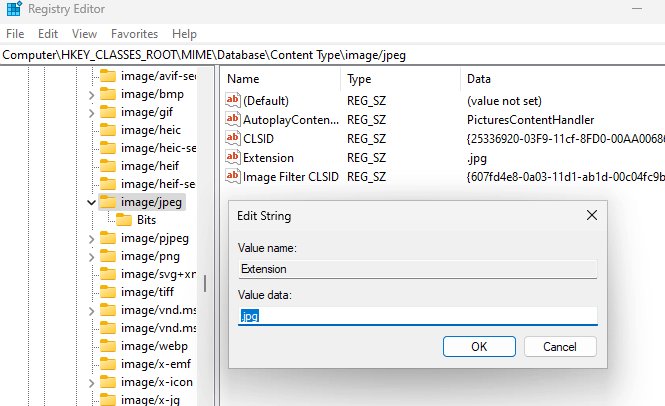
Windows stores a preferred file name extension for each MIME type under HKEY_CLASSES_ROOT\MIME\Database\Content Type. Microsoft describes its browser checking the Extension entry there to name a downloaded file.
- Open Start, search for
regedit.exe, and open Registry Editor. Provide administrator permission if prompted. - Go to
HKEY_CLASSES_ROOT\MIME\Database\Content Type\image/jpeg. - With that key selected, choose File > Export, pick a location, enter a file name, and select Save.
- In the right pane, double-click Extension.
- Change the value data from
.jfifto.jpg, then select OK. - Close Registry Editor and restart the browser.
- Restart the PC if the browser still offers
.jfif.
The edit only changes the extension offered for new downloads. Images already saved as .jfif keep that name until you rename them.
JFIF to JPG fix for one image, many images or every download
| Your situation | Use this | Why |
|---|---|---|
| Every new download arrives as JFIF | Registry Extension value | Sets the extension offered for image/jpeg downloads |
| One JFIF image already on the PC | Rename in File Explorer | No software needed, and the picture data stays as it is |
| A whole folder of JFIF images | ren *.jfif *.jpg |
One command changes every matching file in the folder |
| One image from a website | Type .jpg in the save dialog |
Leaves the registry alone |
| The image is really PNG or another format | Open it in Paint and save as JPEG | A rename does not convert a file to another format |
What is the difference between JPG, JPEG and JFIF?
A JFIF file is already a JPEG-compressed image, so the extension is the only thing that looks wrong. JFIF files shown by web browsers normally use the .jpg extension.
| Term | What it means |
|---|---|
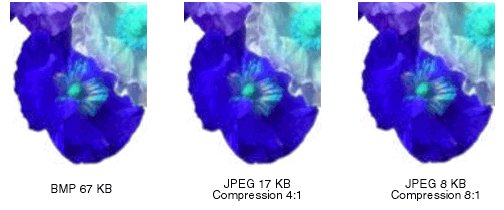
| JPEG | A compression scheme for images, not a file format. It suits scanned photographs and natural scenes. |
| JFIF | JPEG File Interchange Format, a file format commonly used to store and transfer JPEG-compressed images. |
.jpg and .jpeg |
File name extensions that Windows lists together as a Joint Photographic Experts Group photo file. |
.jfif |
An extension for the same kind of image data. It appears on a download when the registry's Extension value points to it. |
image/jpeg |
The standard MIME type for these images. It is the key the registry fix edits. |
| Exif | A format used by digital cameras. It holds a JPEG-compressed image plus details such as the date taken and exposure time. |
How to change JFIF to JPG in Windows 11
You can change a file name extension without converting the file. That is exactly what is needed here, because the picture inside a JFIF file is already JPEG data.
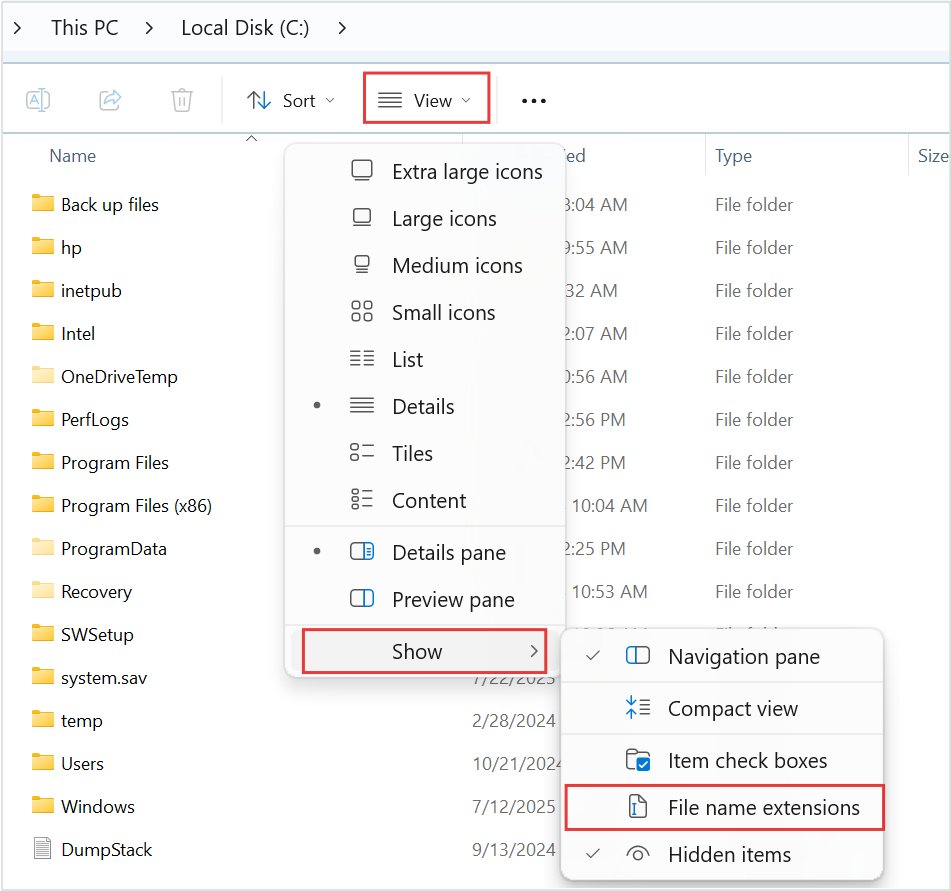
- Open File Explorer and go to the folder that holds the image.
- Select View > Show, then select File name extensions.
- Right-click the image and select Rename.
- Replace
.jfifwith.jpg. - Press Enter, and confirm the change if Windows warns you.
The same steps turn .jpeg into .jpg. You can also change a file type or extension for other formats this way, as long as the file's real format matches the new name.
How to rename all JFIF files to JPG at once
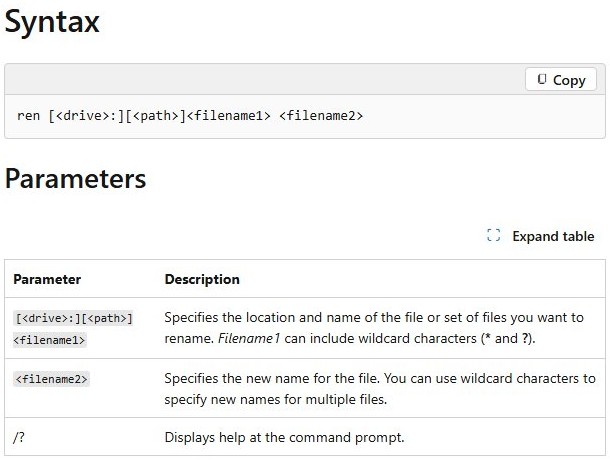
Open Command Prompt and use cd to move to the folder that holds the images. The ren command works on the current folder and accepts wildcards.
ren *.jfif *.jpgThe first wildcard matches every file ending in .jfif, and the second keeps each file's name while changing its extension to .jpg. Use ren *.jpeg *.jpg to change JPEG files instead.
You should see: The prompt returns with no message and the files in the folder now end in .jpg.
How to save as JPG from a browser
This route fixes a single download without touching the registry. The labels below come from Chrome, and other browsers offer a similar save command.
- Right-click the image and select Save image as.
- In the save dialog, click the File name box.
- Replace
.jfifat the end of the name with.jpg. - Choose a folder and select Save.
If Chrome saves files without showing the dialog, open Settings > Downloads and turn on Ask where to save each file before downloading.
How to save as JPEG on Windows
Use a re-save when the image is not JPEG data at all, such as a PNG or screenshot. Saving from an editor writes a real JPEG file, which a rename cannot do.
- Right-click the image and select Open with > Paint.
- Select File > Save as.
- Choose the JPEG option.
- Enter a file name and choose a folder.
- Select Save.
In Word, PowerPoint or Excel, right-click a picture, select Save as Picture, and pick JPEG in the Save as type list.
On Windows 11, Snipping Tool saves captures to your Screenshots folder automatically. Use its Save as button when you want another copy with a different name or location.
Should I save as JPEG or PNG?
Save photos as JPEG and save graphics with sharp edges or transparent areas as PNG.
| What matters | JPEG | PNG |
|---|---|---|
| Compression | Loses some information, often imperceptibly, and more at higher compression | Keeps all information |
| Transparency | Not supported | Supported through an alpha value for each pixel |
| Color depth | 24 bits per pixel, more than 16 million colors | 8, 24 or 48 bits per pixel for color |
| Works well for | Scanned photos and natural scenes | Web graphics |
| Weak spot | Line drawings, blocks of solid color and sharp boundaries can blur | No information is discarded to shrink the file |
How to open unknown file type in Windows 11
A .jfif image usually opens in any app that opens JPEG files. For other extensions, Windows lets you choose an app or search for one.
- In File Explorer, select View > Show > File name extensions so you can read the extension.
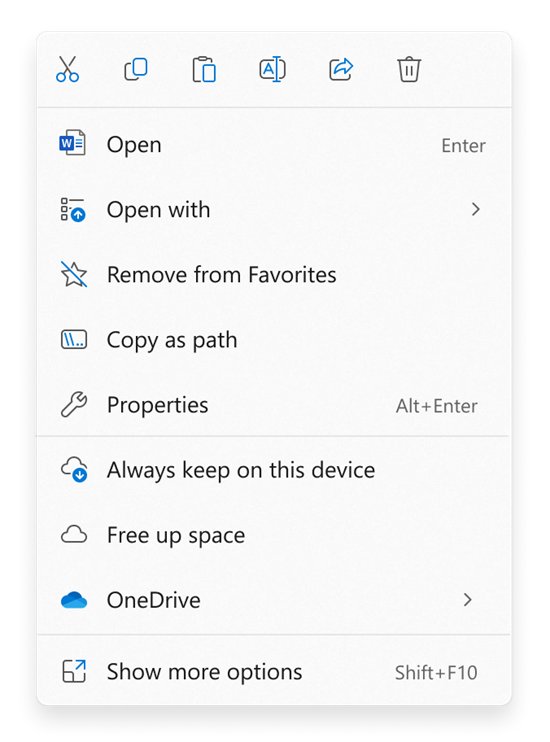
- Right-click the file and select Open with.
- Pick an app from the list.
- If no app fits, search Microsoft Store for the extension and install an app that supports it.
The same Open with route works when you open HEIC, ZIP and APK files on Windows.
Set or change file associations & extensions in Windows 11
File associations decide which app opens an extension. They do not decide the extension a browser gives a download, so this section does not replace the registry fix.
- Open Settings and select Apps > Default apps. The
ms-settings:defaultappsshortcut opens the same screen. - In the search bar, type
.jfif. - Select the matching result.
- Choose the app you want to open JFIF images.
- Repeat with
.jpgand.jpegso every JPEG image opens in the same app.
Remove file type associations using Registry Editor in Windows 11
Settings is the safer place to change an association. Use this route only to clear a per-user registration, because HKEY_CURRENT_USER\Software\Classes overrides the default settings for your account.
- Open Start, search for
regedit.exe, and open Registry Editor. - Go to
HKEY_CURRENT_USER\Software\Classes\.jfif. - With that key selected, choose File > Export and save a backup.
- Right-click the
.jfifkey and select Delete. - Select Yes to confirm.
- Restart the PC so Windows picks up the change.
If the key does not exist, your account has no registration for that extension in this location. Change the app from Default apps instead.
How to see the JFIF or JPG extension in File Explorer
- Open File Explorer and go to your downloads folder.
- Select View > Show, then select File name extensions.
- Download a test image from a site that previously gave you
.jfif. - Read the name in the save dialog or the folder. It now ends in
.jpg.
How to restore the image/jpeg registry value
- Open Start, search for
regedit.exe, and open Registry Editor. - Choose File > Import.
- Select the file you exported before the edit, then select Open.
You can also double-click Extension under image/jpeg and type the earlier value back in.
Images not saving as JPG in Windows
An image still saves as JFIF after the registry fix
A browser can take the name from the site, and a file marked as an attachment keeps the name in its URL.
- Close and reopen the browser, then restart the PC.
- Download the image again and type
.jpgin the save dialog. - For a file already saved, rename it to
.jpgin File Explorer.
Pictures not saving as JPEG because the save dialog has no JPEG option
The site sent a different format, so the dialog offers that format instead.
- Save the image in the format offered.
- Open the saved file in Paint.
- Select File > Save as and choose the JPEG option.
A renamed image will not open
Changing a file name extension does not convert the file, so the real format no longer matches the new name.
- Rename the file back to its original extension.
- Open it in an app that supports that format.
- Save a new copy as JPEG from that app.
The ren command says Duplicate file name or file not found
A file with the new name already exists, or the folder has no matching files.
- Type
dir *.jfifto list the matching files in the current folder. - Use
cdto move to the right folder if the list is empty. - Rename the conflicting
.jpgfile, then run the command again.
JFIF and JPG FAQ
How do I fix JFIF to JPG in Windows 11?
Show file name extensions in File Explorer, right-click the image, select Rename, and replace .jfif with .jpg. The picture inside is already JPEG data. For a whole folder, run ren *.jfif *.jpg in Command Prompt.
How do I stop Windows from saving JPEGs as JFIF?
Open Registry Editor, go to HKEY_CLASSES_ROOT\MIME\Database\Content Type\image/jpeg, and change the Extension value from .jfif to .jpg. Export the key first as a backup, then restart your browser and test with a fresh download.
How do I change JPEG to JPG?
Rename the file and replace .jpeg with .jpg, because both extensions identify the same type of JPEG image. To change every file in a folder, open Command Prompt there and run ren *.jpeg *.jpg. The image quality does not change.
Why JPG and JPEG?
They are two extensions for the same type of image. Windows lists jpg and jpeg together as a Joint Photographic Experts Group photo file, so apps treat them the same way. Renaming one to the other leaves the picture data unchanged.
Should I save as JPEG or PNG?
Choose JPEG for photos and pictures with many colors, because it makes smaller files with loss that is often hard to see. Choose PNG for graphics, sharp edges and transparent areas, because it keeps all information and supports transparency.
How do I save a file as a JPEG file?
Open the image in Paint, select File, select Save as, and choose the JPEG option. In Office apps, right-click a picture, select Save as Picture, and pick JPEG in the Save as type list before you select Save.
How do I save an image as a JPEG from a website?
Right-click the image, select Save image as, and make sure the file name ends in .jpg. If the site sent another format, save it first, open it in Paint, and save a JPEG copy from there.
How do I save as a JPEG on Windows without the JFIF extension?
Type the name with .jpg at the end in the save dialog, or set the image/jpeg Extension value in the registry to .jpg. The registry change affects new downloads, and you still need to rename any JFIF files you saved earlier.