Turn on Windows PowerShell 2.0 Engine in Windows Features on Windows 11 version 23H2 or earlier. Microsoft removed the feature from version 24H2 starting in August 2025, so newer PCs have only its temporary ps2DLC.zip package.
This guide covers both routes, the .NET Framework 3.5 dependency, how to start the 2.0 engine, and how to move old scripts off it.
How to enable or install Windows PowerShell 2.0 in Windows 11
Your Windows 11 version decides the route. Press Windows + R, type winver.exe and press Enter to read it, then match it to a row.
| Windows 11 version | What to do | What to expect |
|---|---|---|
| 21H2, 22H2 or 23H2 | Turn on Windows PowerShell 2.0 Engine in Windows Features, or use the Enable-WindowsOptionalFeature command |
The optional feature still exists. Version 23H2 Home and Pro left support in November 2025, and Enterprise and Education follow in November 2026. |
| 24H2 with updates from August 2025 or later | Migrate the script first. Use ps2DLC.zip only if that is not possible | The optional feature is gone. Microsoft calls ps2DLC.zip a last-resort, temporary mitigation. |
| 25H2, 26H1, 26H2 and later | Migrate the script first. Treat ps2DLC.zip as the same last resort | Microsoft says later Windows 11 releases do not include PowerShell 2.0. |
Windows Insider preview builds lost the feature in July 2025, so they follow the second row.
Enable PowerShell 2.0 in Windows Features on Windows 11
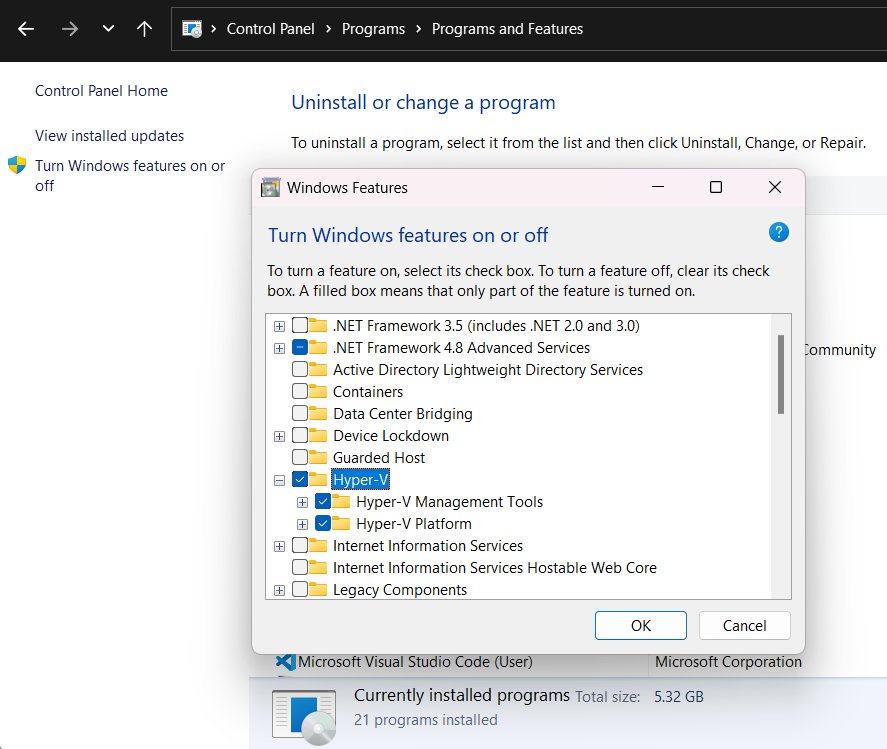
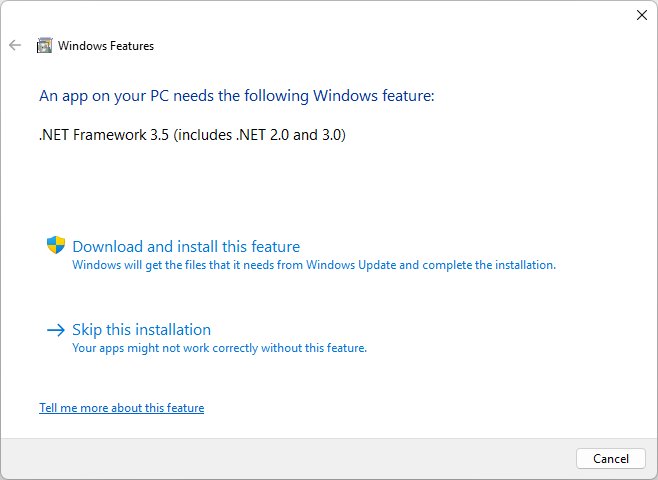
Use this on version 23H2 or earlier. The dialog is the same one that turns on .NET Framework 3.5, which the engine depends on.
- Select Start and type
Windows Featuresin the search bar. - Open Turn Windows features on or off.
- Expand the Windows PowerShell 2.0 node in the list.
- Select the Windows PowerShell 2.0 Engine check box.
- Select the .NET Framework 3.5 (includes .NET 2.0 and 3.0) check box if it is clear.
- Select OK and wait for Windows to apply the changes.
- Restart your computer if Windows asks you to.
Enable PowerShell 2.0 with Enable-WindowsOptionalFeature
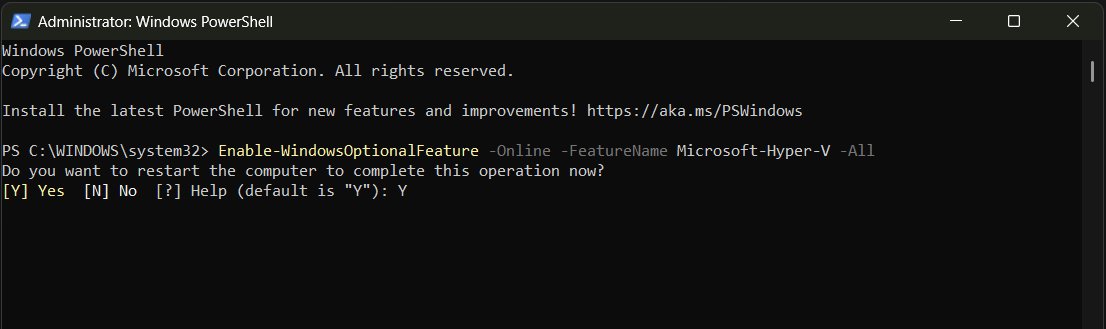
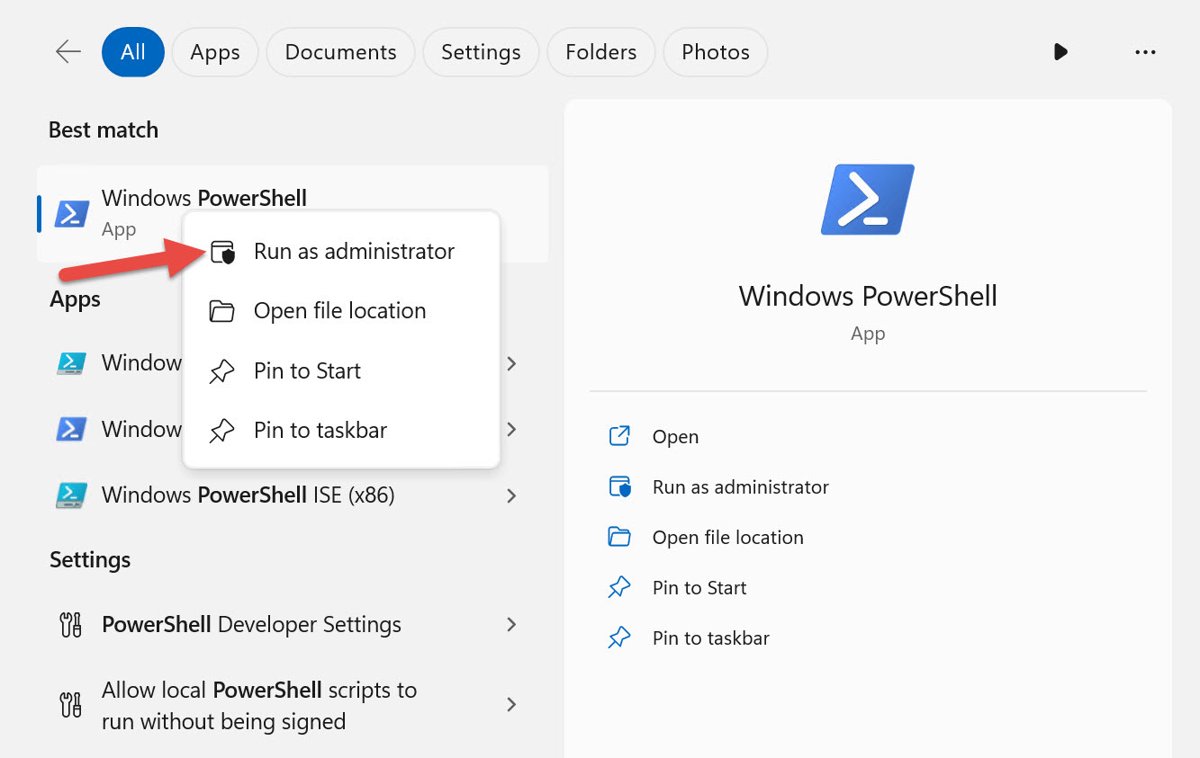
This does the same job from a terminal, which suits scripted setups on version 23H2 or earlier. Start by opening an elevated window: run PowerShell as administrator, then paste the command.
Enable-WindowsOptionalFeature -Online -FeatureName MicrosoftWindowsPowerShellV2 -All-Online targets the running copy of Windows. -All also enables the parent feature, and -NoRestart can be added if you want to delay a required reboot.
You should see: The command ends without an error, and the check further down this page reports State : Enabled.
Install PowerShell 2.0 on Windows 11 24H2 with ps2DLC.zip
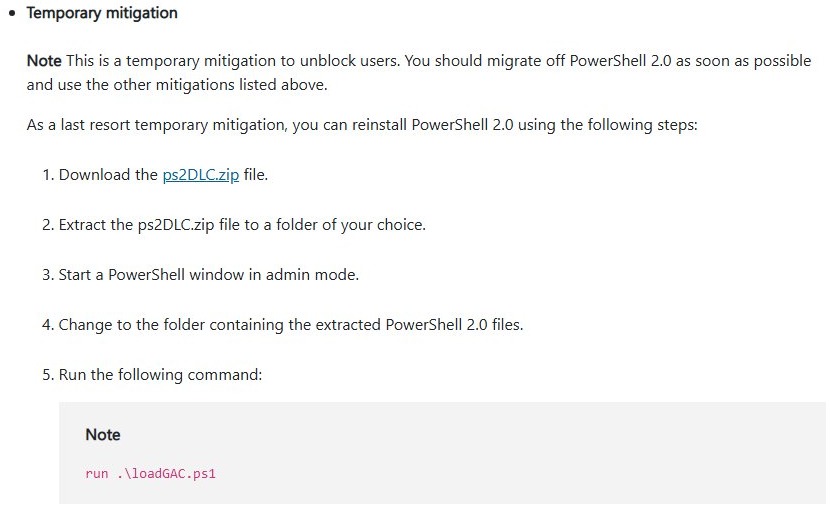
Microsoft offers this only as a last resort to unblock you while you migrate. The download link sits in its PowerShell 2.0 removal article (KB5065506), so take the file from that page and nowhere else.
- Open the Microsoft article and select the ps2DLC.zip link under Temporary mitigation.
- Extract the ZIP file to a folder of your choice.
- Start a PowerShell window as administrator.
- Change to the folder that holds the extracted files, for example
cd C:\ps2DLC. - Run
.\loadGAC.ps1. - Test the result with
powershell.exe -Version 2as shown below.
Microsoft tells users to move off PowerShell 2.0 as soon as possible after using this package. Plan the migration before you rely on it.
.NET Framework 3.5 requirement for PowerShell 2.0
The Windows PowerShell 2.0 engine needs .NET Framework 2.0.50727 at minimum, and .NET Framework 3.5 fulfils that. Windows 11 ships with .NET Framework 4, which does not run apps built for versions 1.1 through 3.5.
| Windows 11 version | How to get .NET Framework 3.5 | Internet needed |
|---|---|---|
| 25H2 and earlier | Windows Features: select .NET Framework 3.5 (includes .NET 2.0 and 3.0) and select OK | Yes, unless you use matching installation media |
| 26H1 (build 28000) and later | Standalone installer linked from Microsoft's Windows 11 .NET Framework 3.5 page. It is no longer a Windows component | Yes, to download the installer |
You do not need the two Windows Communication Foundation child items under .NET Framework 3.5 for the PowerShell engine.
How to check if PowerShell 2.0 is installed on Windows 11
Run this in an elevated PowerShell window. It reads the state of the optional feature on versions that still include it.
Get-WindowsOptionalFeature -Online -FeatureName MicrosoftWindowsPowerShellV2The State line reads either Enabled or Disabled. Any other result means the engine is not available through Windows Features on this build.
You should see: State : Enabled. On a PC that used ps2DLC.zip, rely on the version test in the next section instead.
Run PowerShell in version 2.0 mode
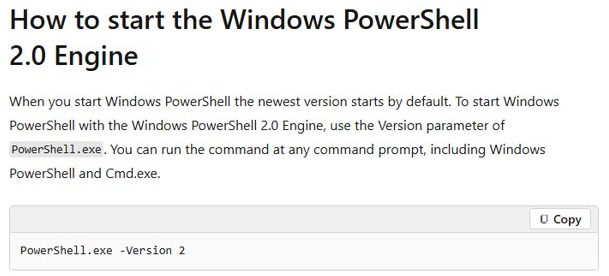
Having the engine installed does not make it the default. You start it per session, and Windows PowerShell 5.1 stays the normal shell for everything else.
powershell.exe -Version 2
$PSVersionTable.PSVersion
The first line opens a new session on the 2.0 engine, and the second prints the version running in it. To run one script directly, use powershell.exe -Version 2 -File .\script.ps1.
You should see: The Major column shows 2. A 5 means Windows started PowerShell 5.1 because the 2.0 engine is not there.
You can check the PowerShell version the same way in any window. A script that starts with #requires -version 2 also launches the 2.0 engine when it is installed, and ignores that line when it is not.
Why was PowerShell 2.0 removed from Windows 11?
Microsoft's stated reasons are cleaning up legacy code, reducing the complexity of the PowerShell ecosystem and improving Windows security. The removal followed eight years of deprecation notices.
| Date | What changed |
|---|---|
| Windows 7 era | PowerShell 2.0 ships as a built-in part of Windows 7 |
| August 2017 | Microsoft deprecates it in the Windows 10 Fall Creators Update, version 1709, and keeps it as an optional feature |
| June 2025 | Microsoft repeats the deprecation notice on its Windows features list |
| July 2025 | Windows Insider preview builds drop the feature |
| August 2025 | Windows 11 version 24H2 stops including it |
| September 2025 | Windows Server 2025 stops including it |
PowerShell 2.0 vs PowerShell 5.1 vs PowerShell 7
Windows PowerShell and PowerShell are two separate products. Most scripts that ask for version 2 run unchanged on the 5.1 copy already on your PC.
| Version | Built on | Runs on | Status on Windows 11 |
|---|---|---|---|
| Windows PowerShell 2.0 | .NET Framework CLR 2.0 | Windows | Removed from 24H2 and later |
| Windows PowerShell 5.1 | Full .NET Framework | Windows only | Included, supported, no new features |
| PowerShell 7 | Modern .NET | Windows, Linux and macOS | Separate install, actively developed |
If you are replacing an old toolchain, you can install PowerShell 7 beside 5.1 without changing the existing shell.
Is PowerShell 2.0 a security risk?
Leave PowerShell 2.0 off unless one named script or app still needs it. Microsoft has marked it as legacy since 2017 and lists improved Windows security among its reasons for removing it. The PowerShell team points to enhanced transcription logging and AMSI protection in Windows PowerShell 5.x as the security reasons to move.
Migrate PowerShell 2.0 scripts to PowerShell 5.1
Microsoft's primary guidance is to move instead of reinstalling. Most of this work is removing a version request that no longer does anything useful.
- Search your scripts, shortcuts and scheduled tasks for
-Version 2and-v 2. - Delete that switch and run the script on PowerShell 5.1.
- Delete any
#requires -version 2line at the top of a script if it still runs correctly without it. - Rebuild .NET 2.0 or 3.5 apps that host
System.Management.Automation.dllagainst .NET Framework 4.6 or later. - Change old installers to check for
%systemroot%\system32\WindowsPowerShell\v1.0\powershell.exerather than a PowerShell 2.0 registry key. - Update server products and third-party tools to a version that does not need PowerShell 2.0.
How to disable or remove PowerShell 2.0 in Windows 11
Clear the Windows PowerShell 2.0 Engine check box in Turn Windows features on or off, or use the command below in an elevated window. Windows PowerShell 5.1 keeps working either way.
Disable-WindowsOptionalFeature -Online -FeatureName MicrosoftWindowsPowerShellV2This turns off the optional feature on versions that still include it. Microsoft's ps2DLC.zip steps do not list an uninstall command.
You should see: Get-WindowsOptionalFeature now reports State : Disabled.
PowerShell 2.0 not working on Windows 11
Windows PowerShell 2.0 is missing from Windows Features
Your build is on version 24H2 or later, where the optional feature no longer exists.
- Run
winver.exeto confirm the version. - Try the script on PowerShell 5.1 without
-Version 2. - Use ps2DLC.zip only if the script still fails.
powershell -Version 2 opens PowerShell 5.1 instead
Windows cannot find the 2.0 engine, so it starts its default version rather than failing.
- Run
$PSVersionTable.PSVersionto confirm which version opened. - Remove
-Version 2if the script behaves correctly on 5.1. - Update any script that relies on behavior unique to 2.0.
.NET Framework 3.5 fails with 0x800f0906, 0x800f0907, 0x800f081f or 0x800F0922
Windows could not download the feature files, a policy blocked the download, the source files were missing, or setup failed while applying them.
- Open Microsoft's .NET Framework 3.5 error page and follow the steps for your code.
- Install from Windows installation media if the error remains or the PC is offline.
- Use media from the same Windows version, because a mismatch can leave the system unserviceable.
Running scripts is disabled when you run loadGAC.ps1
Restricted is the default execution policy on Windows client PCs, and it blocks all script files.
- Run
Set-ExecutionPolicy -ExecutionPolicy RemoteSigned -Scope Processin the same window. - Run
Unblock-File -Path .\loadGAC.ps1so RemoteSigned accepts the downloaded script. - Run
.\loadGAC.ps1again, then close the window to discard the session policy.
An old installer says PowerShell 2.0 is required
Older software can try to install or enable PowerShell 2.0 during setup, which fails on current Windows versions.
- Check the vendor's site for a release that drops the PowerShell 2.0 requirement.
- Install that newer version instead of the old package.
- Use ps2DLC.zip only if no newer version exists.
Windows PowerShell 2.0 on Windows 11 FAQ
Is Windows PowerShell 2.0 available in Windows 11?
Only on version 23H2 and earlier as an optional feature. Microsoft removed it from version 24H2 starting in August 2025, and later Windows 11 releases do not include it. Those PCs can use the temporary ps2DLC.zip package from Microsoft as a last resort.
Why would someone enable PowerShell 2.0?
The usual reason is an old script or host program that cannot run on later versions. Apps compiled for CLR 2.0 cannot load newer PowerShell without changes, and some older server tools and installers still look for the 2.0 engine. Microsoft expected such cases to be rare.
Is PowerShell 2.0 safe to use?
It is a deprecated legacy component, so use it only for the one task that needs it. Microsoft lists improved Windows security among its reasons for removing it, and the PowerShell team points to transcription logging and AMSI protection in version 5.x as reasons to move.
Can PowerShell 2.0 be removed after enabling it?
Yes. Clear Windows PowerShell 2.0 Engine in Turn Windows features on or off, or run Disable-WindowsOptionalFeature -Online -FeatureName MicrosoftWindowsPowerShellV2 as administrator. Microsoft's ps2DLC.zip instructions do not include an uninstall command, so plan that route carefully.
What version of PowerShell comes with Windows 11 by default?
Windows 11 includes Windows PowerShell 5.1, the latest release of that product. Microsoft no longer adds features to it, but it remains supported with Windows. PowerShell 7 is a separate product that you install yourself, and it runs alongside version 5.1.
Do all scripts work in PowerShell 2.0?
No. Scripts that use features added in version 3.0 or later cannot run on the older engine. Going the other way is easier, because Microsoft says version 5.1 is backward-compatible for almost all commands and modules. Test the script on 5.1 before installing anything.
Is PowerShell 7 the same as Windows PowerShell?
No, they are two separate products. Windows PowerShell ships in Windows, uses the full .NET Framework and runs only on Windows. PowerShell 7 is built on modern .NET, runs on Windows, Linux and macOS, and is installed separately from the version in Windows.
What happens to a scheduled task that requests PowerShell 2.0 after removal?
Windows starts the default version, PowerShell 5.1, instead of the 2.0 engine. Most tasks keep working, though a script that depends on behavior unique to 2.0 can fail. Microsoft's fix is to remove the -Version 2 requirement from the task or script.