To install Office web apps as a PWA on Windows 11 or Windows 10, sign in at www.microsoft365.com in Microsoft Edge or Google Chrome and choose Install this site as an app (Edge) or Install page as app (Chrome).
This guide covers the Microsoft 365 home app, Word, Excel, PowerPoint and Outlook as separate apps, pinning and auto-start, where the apps show up in Windows, and how to remove them again.
Install Office or Microsoft 365 web apps on Windows 11/10
Microsoft Edge ships with Windows 11 and Windows 10, so it is the shortest route. The installed app opens Microsoft 365 in its own window, with its own taskbar icon and Start menu entry.
- Open Microsoft Edge and go to www.microsoft365.com.
- Select Sign in and use your personal Microsoft account or your work or school account.
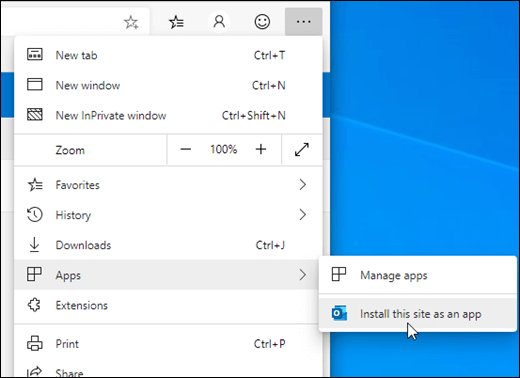
- Select Settings and more (the three dots at the top right of the window).
- Select Apps, then Install this site as an app. In some Edge versions, Apps sits under More tools.
- Select Install in the prompt that appears.
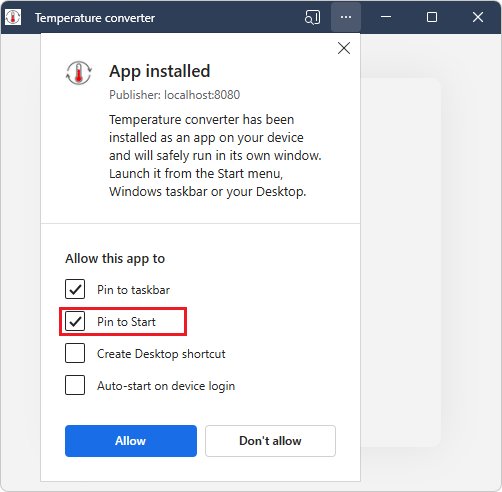
- In the dialog that opens after installing, tick Pin to taskbar, Pin to Start or Auto-start on device login if you want them.
If Edge recognises the page as an installable PWA, an App available icon also appears at the right end of the address bar. Selecting it and then Install does the same job in one click.
What is an Office PWA on Windows 11?
A progressive web app (PWA) is a website that the browser installs like a normal program. Microsoft's Edge documentation states that on Windows, PWAs behave just like other apps.
| Behaviour | Office web app in a browser tab | Office web app installed as a PWA |
|---|---|---|
| Window | Shares the browser window with other tabs | Opens in its own window without the tab strip |
| Taskbar | Shows as the browser icon | Gets its own icon that you can pin |
| Start menu | No entry | Listed with your other apps, and can be pinned to Start |
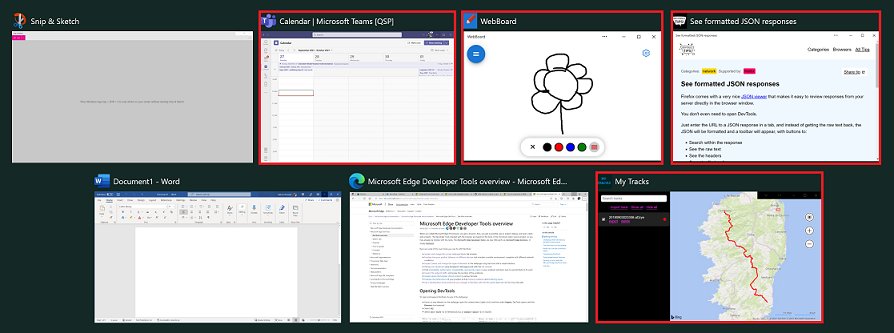
| Alt + Tab | Appears as the browser | Appears as its own app |
| Settings > Apps | Not listed | Listed under Add or remove programs and can be uninstalled there |
| Sign in and files | Your Microsoft 365 account and OneDrive | The same account and files, because it is still the web version |
A PWA does not install the desktop Office programs. It is a shortcut window around Microsoft 365 for the web, so documents still live in OneDrive or SharePoint.
How to install Word, Excel and PowerPoint as separate apps in Edge
Each Office web app can get its own PWA, so Word, Excel and PowerPoint sit on the taskbar as three separate icons. Install them one at a time from the page each app opens on.
- Sign in at www.microsoft365.com in Microsoft Edge.
- Open the App Launcher (the grid of dots at the top left) and select Word.
- When Word for the web opens, select Settings and more > Apps > Install this site as an app.
- Select Install in the prompt.
- Go back to the Microsoft 365 window, open the App Launcher again and repeat steps 3 and 4 for Excel and PowerPoint.
Repeat the same steps for OneNote or any other app in the launcher. Each one appears as its own card on the edge://apps page.
How to install Office web apps in Google Chrome
Chrome installs web apps on Windows 11 and Windows 10 the same way. The menu wording is different from Edge.
- Open Google Chrome and sign in at www.microsoft365.com, or open Word, Excel or PowerPoint from the App Launcher.
- Select More (the three vertical dots at the top right).
- Select Cast, save, and share, then Install page as app.
- Follow the on-screen prompt to finish the install.
- On sites that support it, select the Install icon at the right end of the address bar instead of using the menu.
Chrome lists every installed web app on the chrome://apps page. Right-click an app there to create a shortcut or turn on Launch at startup.
How to install Outlook PWA in Chrome and Edge
Outlook on the web and Outlook.com install the same way. Microsoft supports this for Outlook.com, Outlook on the web for Microsoft 365, and Outlook on the web for Exchange Server 2019.
- Sign in to your Outlook.com or Outlook on the web account in Edge or Chrome.
- In Edge, select Settings and more > Apps > Install this site as an app.
- In Chrome, select Customize and control Google Chrome (the three dots), then Install Outlook.
- Confirm the install in the prompt.
- Pin the new Outlook icon to the taskbar so mail opens with one click.
Microsoft states that the installed Outlook PWA lets you access your account while offline.
How to pin Office web apps to the taskbar and Start menu
Edge keeps these options on each app's Details page at edge://apps. Chrome splits them between the app window and chrome://apps.
| What you want | Microsoft Edge | Google Chrome |
|---|---|---|
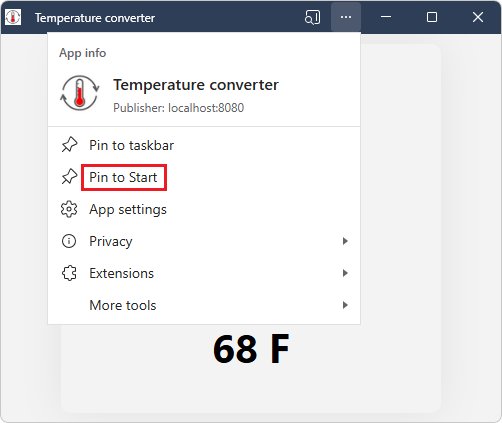
| Pin to the taskbar | edge://apps > Details on the app card > Pin to taskbar, or Pin to taskbar in the app's own Settings and more menu |
Right-click the app's icon on the taskbar while it runs and choose Pin to taskbar |
| Pin to Start | edge://apps > Details > Pin to Start, or the Pin to Start checkbox during install |
Launch it from the Start menu, right-click its entry and choose Pin to Start |
| Desktop shortcut | edge://apps > Details > Create Desktop shortcut |
chrome://apps > right-click the app > Create shortcut > Create |
| Open at Windows sign-in | edge://apps > Details > turn on Auto-start on device login |
chrome://apps > right-click the app > Launch at startup |
Auto-start suits Outlook more than Word or Excel. Starting every Office app at sign-in adds windows you then have to close.
Where are installed web apps in Windows 11 and Windows 10?
An installed Office PWA shows up in several places, and each one is useful for a different job.
| Place | How to get there | What you can do there |
|---|---|---|
| Start menu | Select Start and look in the app list | Launch the app or pin it to Start |
| Taskbar | Visible while the app is open | Pin it, or right-click for app shortcuts |
| Edge apps page | Type edge://apps in the Edge address bar |
Open, sort, view Details, auto-start or uninstall Edge apps |
| Edge menu | Settings and more > More tools > Apps > View apps | Right-click an app and choose Manage app |
| Chrome apps page | Type chrome://apps in the Chrome address bar |
Open, create a shortcut, set Launch at startup |
| Windows Settings | Start > Settings, then search Add or remove programs | View app information or uninstall it like any other app |
How to tell if an Office web app is installed on Windows 11
- Close the browser window, then select Start and look for the app by name, for example Microsoft 365 or Word.
- Launch it from Start. It should open in its own window with no tab strip.
- Press Alt + Tab. The app should appear as its own entry, separate from Edge or Chrome.
- Open Settings and search Add or remove programs. The app should be in the list of installed apps.
- In Edge, open
edge://apps. The app should have its own card with Open and Details.
If the app is missing from Start but present on edge://apps, open its Details and select Pin to Start.
Office web apps vs Office desktop apps
The PWA is the free web version in an app window. It does not replace a Microsoft 365 or Office 2024 desktop install.
| Office web apps (PWA) | Office desktop apps | |
|---|---|---|
| Cost | Word, Excel and PowerPoint for the web are free with a Microsoft account | Needs a Microsoft 365 subscription or an Office license |
| Install | A browser install from Edge or Chrome, no setup program | A full download and install |
| Storage | Files saved to OneDrive; free accounts get 5 GB | Files can be saved locally or to OneDrive |
| Co-authoring | Real-time collaboration on files saved in and shared from OneDrive | Also supported for files in OneDrive or SharePoint |
| Connection | Needs an internet connection for Word, Excel and PowerPoint; Outlook gives offline access to your account | Works offline on local files |
| Work or school accounts | Available apps depend on what your organization has set up | Depends on the license your organization assigns |
If you need the full programs instead, you can install and activate Microsoft 365 from your account page.
How to uninstall Office web apps in Edge, Chrome and Windows
Removing the PWA does not delete any documents. Your files stay in OneDrive and still open at microsoft365.com.
- In Microsoft Edge, go to
edge://apps. - Select Details on the Office app's card.
- Select Uninstall.
- Choose whether to also delete the app's history and data, then select Uninstall again to confirm.
For a Chrome app, open the app, select More > Uninstall followed by the app name, then select Remove. Tick Also delete data from Chrome if you want its stored data gone too.
Either kind of PWA can also be removed from Windows itself. Open Settings, search Add or remove programs, select the app and uninstall it, the same way you uninstall other Windows apps.
Office web app not working after install on Windows 11
The Office PWA disappears every time you sign out
Microsoft documents that PWAs are not supported in FSLogix profile environments, which many virtual desktops use.
- Ask your IT team whether your PC uses FSLogix or another roaming profile system.
- If it does, use Microsoft 365 in a normal browser tab instead of an installed app.
- Pin microsoft365.com as a browser favourite so it is still one click away.
Chrome shows "App update available" on an Office app
The site changed its app name or icon, and Chrome asks before applying it.
- Select Review app update at the top right of the app window.
- Select Update if the new name and icon match Microsoft 365, Word, Excel, PowerPoint or Outlook.
- Select Uninstall instead if the name or icon now imitates a different app, then reinstall from microsoft365.com.
The install option is missing from the menu
The menu path differs between Edge and Chrome, and between Edge versions.
- In Edge, check both Settings and more > Apps and Settings and more > More tools > Apps.
- In Chrome, look under More > Cast, save, and share for Install page as app.
- Look for the App available or Install icon at the right end of the address bar.
- On a work PC, ask your administrator whether browser policy controls app installs.
Office web apps PWA FAQ
Are Office web apps free to install as PWAs?
Yes. Word, Excel and PowerPoint for the web are free with a Microsoft account, and installing them as a PWA in Edge or Chrome costs nothing. Free accounts include 5 GB of OneDrive storage for your files.
Does installing Office as a PWA install the desktop Office apps?
No. A PWA only wraps Microsoft 365 for the web in its own window. The desktop versions of Word, Excel and PowerPoint need a Microsoft 365 subscription or an Office license and a separate install.
Can I install Outlook PWA in Chrome?
Yes. Sign in to Outlook.com or Outlook on the web in Chrome, select Customize and control Google Chrome, then select Install Outlook. The app then opens from its own taskbar icon.
Do Office PWAs work offline?
Microsoft states that the installed Outlook app gives access to your account while offline. Word, Excel and PowerPoint for the web are documented as needing an internet connection, so plan to be online when you edit files in them.
Where do installed web apps show up in Windows 11?
Installed web apps appear in the Start menu, on the taskbar while open, in Alt + Tab, and under Add or remove programs in Settings. Edge also lists them at edge://apps and Chrome at chrome://apps.
How do I make an Office web app start with Windows?
In Edge, open edge://apps, select Details on the app and turn on Auto-start on device login. In Chrome, open chrome://apps, right-click the app and select Launch at startup.
Does uninstalling the Office PWA delete my documents?
No. Uninstalling removes the app window and, if you choose, its browser data. Documents saved to OneDrive stay there and open again at microsoft365.com.
Can I use a work or school account with Office web apps?
Yes. Sign in at microsoft365.com with your work or school account before you install the app. Which apps appear depends on what your organization has set up for your account.