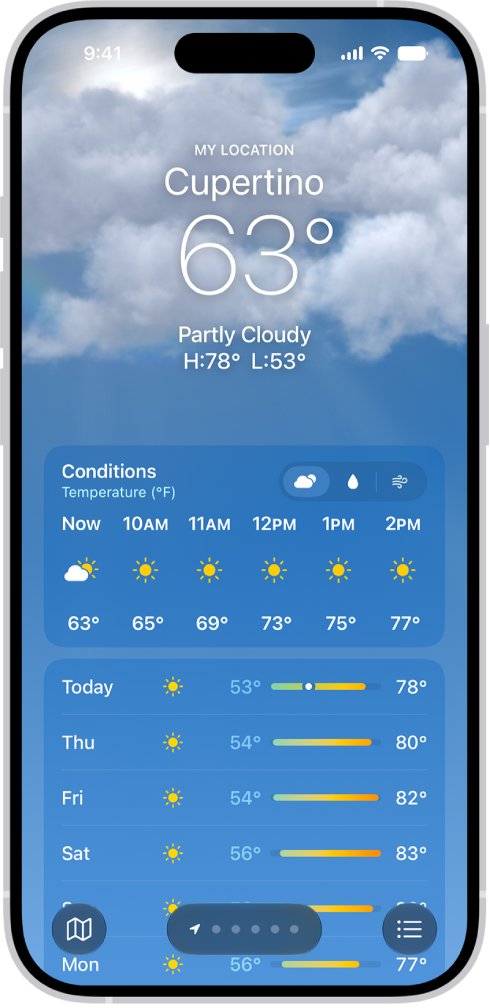
A weather widget that shows a blank page icon on the iPhone Lock Screen instead of the temperature is not showing a forecast, so fix it by letting Weather use your location, opening the Weather app to refresh it, and then removing and adding the widget again.
The steps below cover location access, Low Power Mode, the widget's location setting, restarting and updating iOS, and what to do when the widget disappears or shows the wrong temperature.
How to fix a blank weather widget on iPhone Lock Screen
Work through these in order and lock the iPhone after each one to see whether the temperature returns.
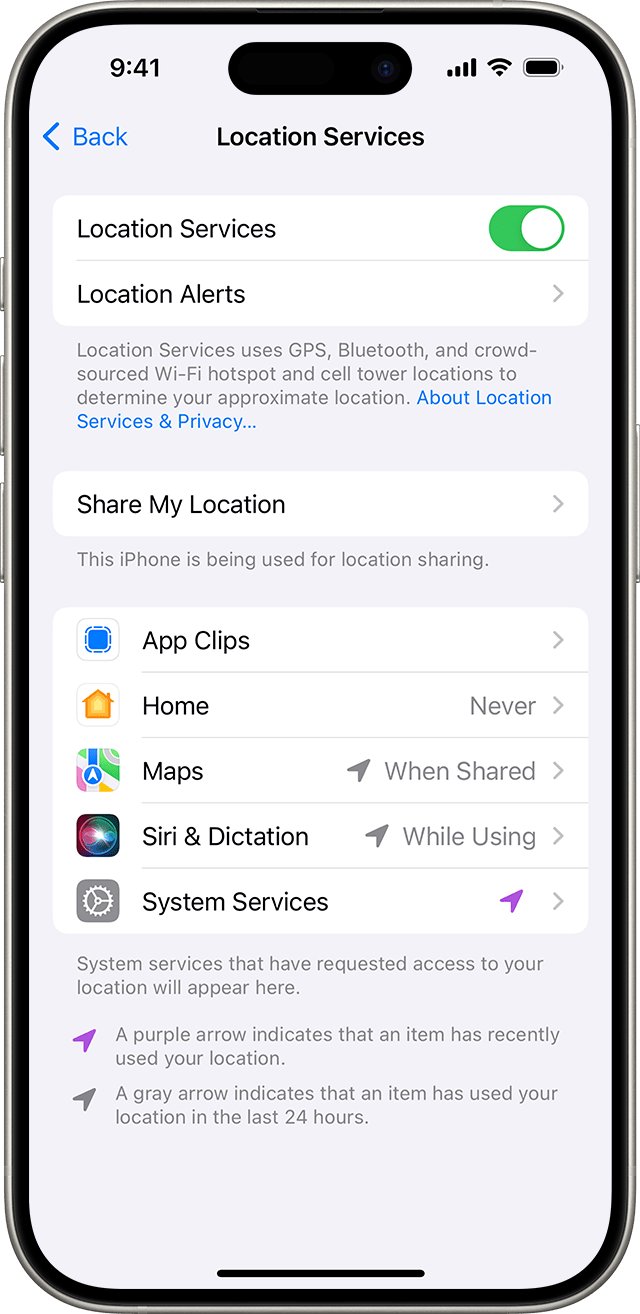
- Go to Settings > Privacy & Security > Location Services and make sure Location Services is on.
- Tap Weather, select While Using the App or Always, and turn on Precise Location.
- Open the Weather app and check that your current location loads with conditions.
- Turn off Low Power Mode in Settings > Battery (or Battery > Power Mode on iPhone 15 and later).
- Touch and hold the Lock Screen, tap Customize, remove the Weather widget, then add it back with Add Widgets.
- Restart the iPhone and install any update in Settings > General > Software Update.
What does the blank icon on the iPhone weather widget mean?
The blank page is not one of the condition icons Apple lists for Weather, so it does not mean fog, haze or any other weather. The real icons the widget should show are these.
| Type of weather icon | Conditions it can show |
|---|---|
| Sky | Clear or mostly clear, partly cloudy, cloudy |
| Visibility | Haze, fog |
| Wind | Windy or breezy |
| Rain | Drizzle or freezing drizzle, rain, heavy rain, thunderstorm |
| Snow and ice | Snow, heavy snow or blizzard, freezing rain, sleet or wintry mix |
| Night | Clear or mostly clear, partly cloudy, drizzle |
| Sun times | Sunrise, sunset |
When the widget shows a blank page in place of one of these, it has no current conditions to display. Weather uses Location Services for the forecast at your current location, so location access is the first thing to check.
How to turn on Location Services for the Weather widget on iPhone
A widget set to My Location needs Weather to have location access. While Using the App allows access when the app or one of its features, such as a widget, is on screen.
- Open Settings and tap Privacy & Security.
- Tap Location Services and turn on Location Services if it is off.
- Scroll down and tap Weather.
- Select While Using the App or Always; Never stops the forecast for your current location.
- Turn on Precise Location to make the current-location forecast more accurate.
- Open the Weather app once so it fetches conditions for your location, then lock the iPhone.
If Weather is set to Ask Next Time Or When I Share, pick a permanent option instead, because a widget cannot answer a permission prompt.
How to add a weather widget to the iPhone Lock Screen
Removing the widget and adding it back clears a widget that is stuck. If the original question was "where is my weather widget", these steps also put it back after it has gone.
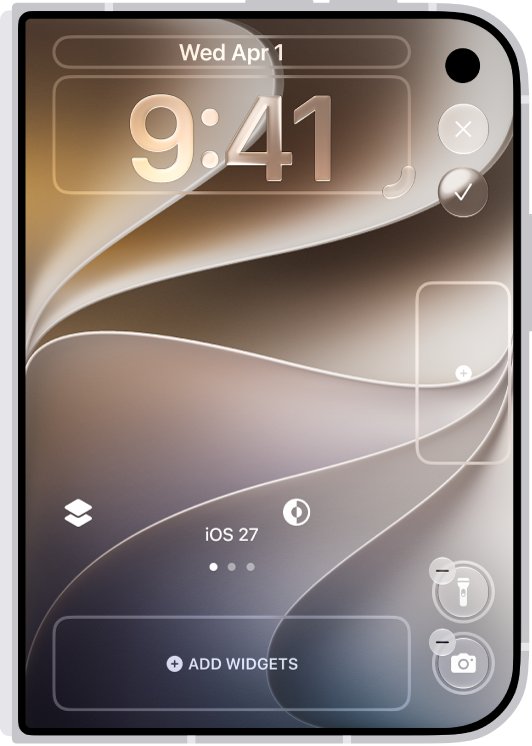
- Press the side button to show the Lock Screen, then touch and hold it until Customize appears.
- Tap Customize, then tap the Lock Screen preview.
- Tap the widget area below the time, then tap the remove button on the Weather widget.
- Tap Add Widgets, scroll to Weather and tap the widget size you want.
- Tap the screen outside the widget panel, then tap Done.
- Lock the iPhone and check that the temperature and a condition icon appear.
Want weather across the whole Lock Screen instead? Create a new Lock Screen, scroll the wallpaper options to Weather and tap Get. You can change the iPhone Lock Screen wallpaper and widgets at any time from the same Customize screen.
How to change weather widget location on iPhone
A widget can follow your current location or show a fixed city. A fixed city keeps working even when location access is off, which is a useful test.
- For a Home Screen widget, touch and hold the Weather widget.
- Tap Edit "Weather" (or Edit Stack for a Smart Stack).
- Tap My Location, then search for a city or tap a location from your list.
- Tap outside the widget to return to the Home Screen.
- For the Lock Screen widget, open Customize, tap the Weather widget and pick the location there if your iOS version shows the option.
If a fixed city shows conditions but My Location stays blank, the problem is location access, not the widget, the same cause behind the iPhone No Location Found message.
Weather widget not updating in Low Power Mode on iPhone
Low Power Mode reduces background activity on iPhone and turns off Background App Refresh. On iPhone 15 Pro and later, Adaptive Power can switch it on by itself when the battery drops below 20%.
- Look at the battery icon in the status bar; yellow means Low Power Mode is on.
- On iPhone 15 and later, go to Settings > Battery > Power Mode and turn off Low Power Mode.
- On iPhone 14 and earlier, go to Settings > Battery and turn off Low Power Mode.
- Or swipe down from the top-right corner to open Control Center and tap the battery icon.
- Open the Weather app once, then lock the iPhone and check the widget.
Low Power Mode turns off by itself when the iPhone charges to 80% or higher, so a widget that recovers after charging points to this cause.
iPhone weather widget not working after an iOS update
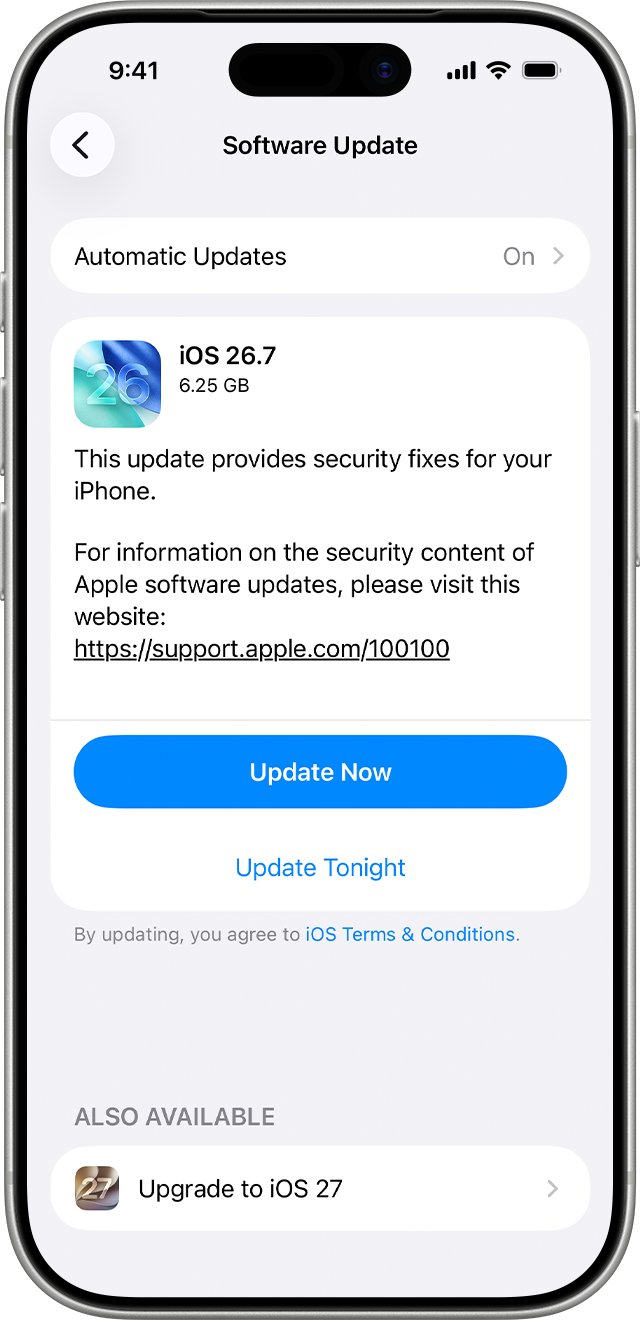
If the blank icon appeared after an update and the steps above did not clear it, restart the iPhone and install any newer iOS release.
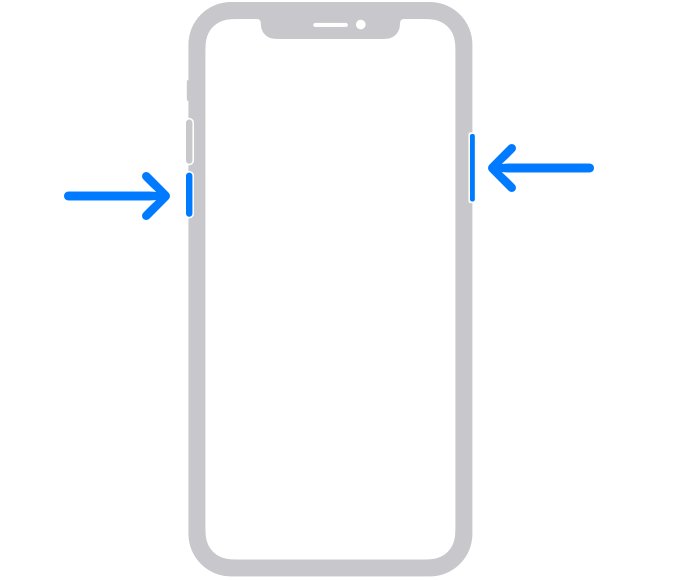
- On iPhone X or later, press and hold either volume button and the side button until the power-off slider appears.
- Drag the slider and wait 30 seconds for the iPhone to turn off.
- Press and hold the side button until the Apple logo appears.
- Plug the iPhone into power and connect to Wi-Fi.
- Go to Settings > General > Software Update and tap Download and Install if an update is listed.
- After the update, open Weather, then remove and re-add the Lock Screen widget.
On iPhone 8, SE (2nd or 3rd generation) and earlier, hold the side button alone to reach the power-off slider.
Weather widget not working on iPhone Lock Screen
The blank icon comes back after removing and re-adding the widget
The widget still has no conditions for your location, usually because Weather cannot use Location Services.
- Check Settings > Privacy & Security > Location Services > Weather is not set to Never.
- Open Weather, tap the list button and tap My Location to load it.
- Edit a Home Screen Weather widget to a fixed city to test whether conditions load at all.
Weather widget shows wrong temperature
Approximate location, or a widget set to a different city than the one you are in.
- Turn on Precise Location for Weather in Location Services.
- Check the widget is set to My Location rather than a saved city.
- If the app itself is wrong, open Weather, tap the list button, tap the more button and tap Report an Issue.
What happened to my weather widget? It is gone from the Lock Screen
iPhone switched to a different Lock Screen, often because that Lock Screen is linked to a Focus that turned on.
- Touch and hold the Lock Screen and swipe through your Lock Screens.
- Tap the one that has the Weather widget to switch back to it.
- In Customize, tap Focus at the bottom of a Lock Screen to see which Focus is linked to it.
The widget is fine when unlocked but hidden when locked
Lock Screen access to widgets is turned off.
- Go to Settings > Face ID & Passcode (or Touch ID & Passcode) and enter your passcode.
- Under Allow Access When Locked, turn on the options for the features you want on the Lock Screen.
- Lock the iPhone and check the widget.
iPhone Lock Screen weather widget FAQ
Why doesn't my weather widget work on iPhone?
Weather needs Location Services to show conditions for your current location, and Low Power Mode turns off Background App Refresh. Set Weather to While Using the App or Always in Location Services, turn off Low Power Mode, open the Weather app, then remove and re-add the widget.
Where is my weather widget on iPhone?
Lock Screen widgets sit below the time. If yours has gone, touch and hold the Lock Screen to check you are on the right Lock Screen, or tap Customize, then Add Widgets, and choose Weather to put it back.
How do I add a weather widget to my iPhone Lock Screen?
Touch and hold the Lock Screen, tap Customize, tap the Lock Screen preview, then tap Add Widgets. Choose Weather, pick a widget size, tap outside the panel and tap Done.
How do I change the weather widget location on iPhone?
For a Home Screen widget, touch and hold it, tap Edit "Weather", tap My Location and search for a city. Choosing My Location again returns the widget to your current location.
How do I turn off the weather widget on the iPhone Lock Screen?
Touch and hold the Lock Screen, tap Customize, tap the Lock Screen preview and tap the widget area. Tap the remove button on the Weather widget, then tap Done.
What happened to my weather icon on iPhone?
A blank page in place of the weather icon means the widget has no current conditions to display. Give Weather location access, open the app to refresh it, and re-add the widget if the icon does not return.
Why does my weather widget show the wrong temperature?
The widget may be set to a saved city, or Weather may be using your approximate location. Set the widget to My Location and turn on Precise Location for Weather in Settings > Privacy & Security > Location Services.