To update a Bluetooth driver in Windows 11, open Device Manager, expand Bluetooth, right-click your Bluetooth adapter and select Update driver > Search automatically for drivers, then restart if Windows asks.
If Windows finds nothing newer, the latest driver comes through Windows Update optional updates or from your PC manufacturer's support site; this guide covers each route, the Windows 10 differences, and how to undo an update that breaks Bluetooth.
How to update Bluetooth drivers in Windows 11/10
Device Manager is the fastest route and works the same way on Windows 11 and Windows 10. The adapter name often includes the word "Bluetooth" or "Radio".
- Right-click Start and select Device Manager.
- Expand the Bluetooth category.
- Right-click your Bluetooth adapter and select Update driver.
- Select Search automatically for drivers.
- Follow the on-screen instructions to install any driver it finds, then select Close.
- Select Start > Power > Restart if you are prompted to restart.
If Device Manager reports The best drivers for your device are already installed, Windows has no newer driver in its own catalog. That does not mean your PC maker has nothing newer, so try the next two routes.
Update Bluetooth drivers in Windows 11 with Windows Update
Windows Update is Microsoft's recommended way to get drivers, the same route it uses to update drivers on Windows 11 for every other device. Bluetooth drivers and firmware from your PC maker often sit under optional updates rather than in the main list.
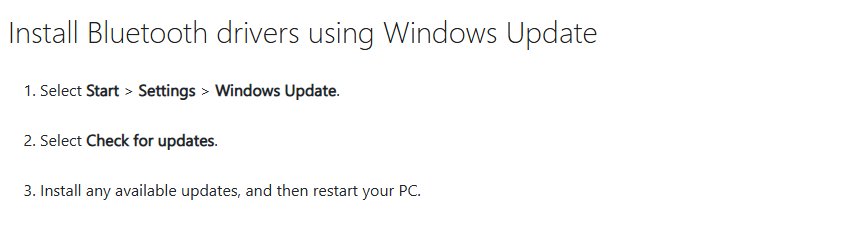
- Select Start > Settings > Windows Update.
- Select Check for updates and install anything it offers.
- Select Advanced options > Optional updates.
- Tick any Bluetooth driver, BIOS, UEFI or firmware update listed for your PC.
- Select Download & install.
- Select Restart now when the installation finishes.
Optional updates can include firmware from the PC manufacturer, which can fix Bluetooth problems that a driver update alone does not.
How to update Bluetooth driver in Windows 10
Device Manager steps are identical on Windows 10, including Windows 10 Pro; only the Windows Update path differs. Microsoft ended support for Windows 10 on October 14, 2025, so new Bluetooth drivers for it are less likely.
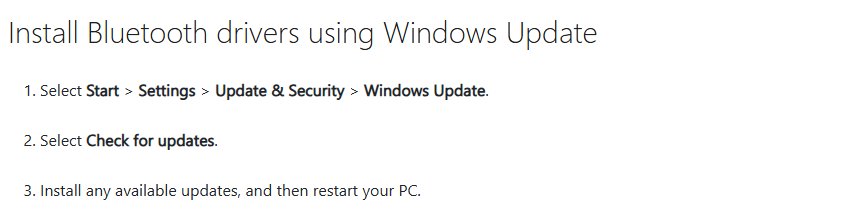
- Select Start > Settings > Update & Security > Windows Update.
- Select Check for updates and install any updates offered.
- Restart your PC.
- If Bluetooth still misbehaves, right-click Start, select Device Manager and expand Bluetooth.
- Right-click the Bluetooth adapter and select Update driver > Search automatically for drivers.
- Restart again if prompted.
How to download the latest Bluetooth driver from your PC manufacturer
Microsoft advises getting a newer Bluetooth driver from your PC manufacturer when Windows cannot find one. Laptop and desktop makers often ship drivers tuned for their own hardware.
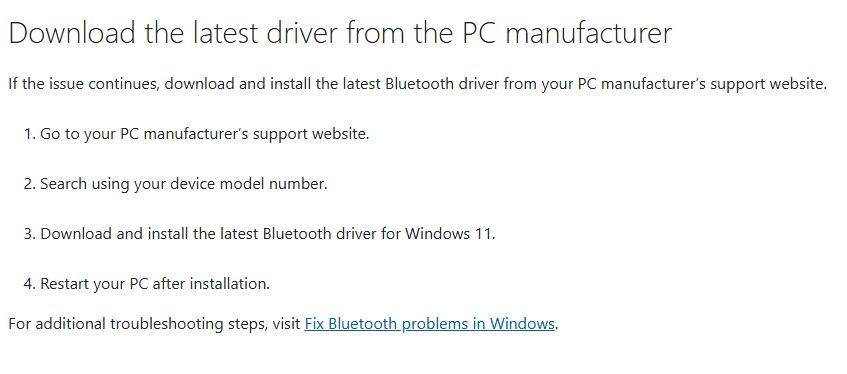
- Note your PC's exact model number.
- Open the support or drivers page on your PC manufacturer's own website.
- Search for your model number and choose Windows 11 (or Windows 10) as the operating system.
- Download the latest Bluetooth driver listed for your model.
- If the download is an .exe file, double-click it and follow the installer.
- Restart your PC when the installer finishes.
Many laptops use an Intel adapter, and the Intel Wireless Bluetooth driver is a fallback when your PC maker has nothing newer. Download drivers only from the hardware maker's site, never from a third-party driver updater.
How to manually install a Bluetooth driver in Windows 11
Use this when the manufacturer's download is a folder of files rather than an installer, the same way you would manually install any device driver. You need at least one file with an .inf extension and one with a .sys extension.
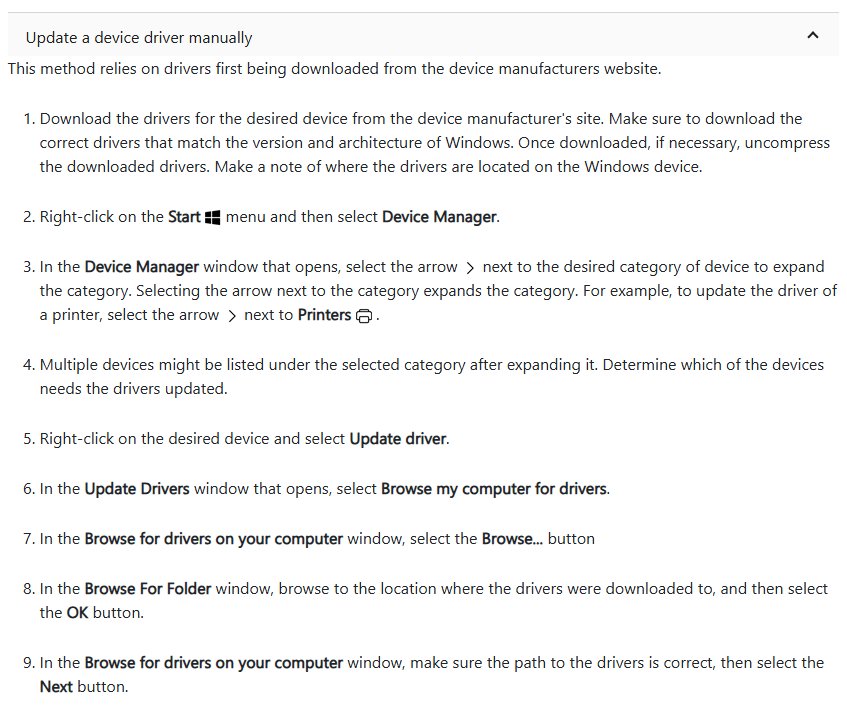
- Extract the downloaded driver files to a folder you can find, such as your Downloads folder.
- Right-click Start and select Device Manager.
- Expand Bluetooth and right-click the adapter; if it is not there, look under Other devices.
- Select Update driver > Browse my computer for drivers.
- Select Browse, choose the folder with the driver files and select OK.
- Select Next and follow the steps, then select Close.
- Restart your PC if prompted.
Is my Bluetooth driver up to date in Windows 11?
Three checks tell you whether the update took and Windows has nothing newer to offer.
- Open Device Manager, expand Bluetooth and make sure the adapter shows no yellow exclamation point.
- Right-click the adapter, select Update driver > Search automatically for drivers and look for The best drivers for your device are already installed.
- Right-click the adapter, select Properties and open the Driver tab to see the installed driver's details; compare them with your PC maker's download page.
- Select Start > Settings > Bluetooth & devices and check that the Bluetooth toggle is present and on.
- Pair or reconnect one Bluetooth device to confirm it connects.
How to roll back a Bluetooth driver in Windows 11
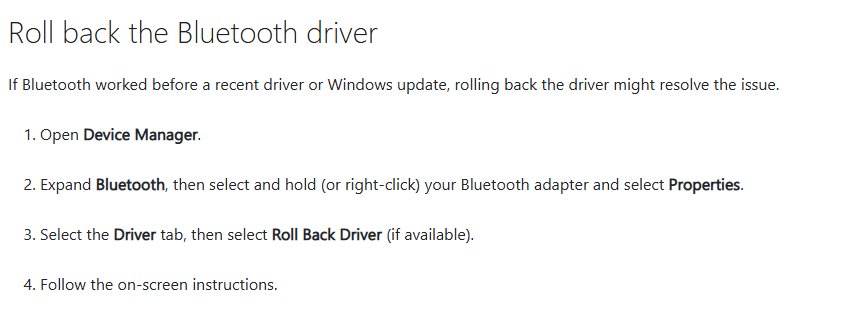
Roll back when Bluetooth worked before a recent driver or Windows update. You need administrator rights, and the option appears only when Windows has an earlier driver to return to.
- Right-click Start and select Device Manager.
- Expand Bluetooth, right-click the adapter and select Properties.
- Open the Driver tab and select Roll Back Driver.
- Choose a reason and select Yes.
- Restart your PC if prompted.
If rollback is unavailable, you can reinstall the Bluetooth driver from a clean state instead.
Bluetooth driver update not working in Windows 11
"The best drivers for your device are already installed"
Windows has no newer Bluetooth driver in its catalog, but your PC maker may.
- Select Settings > Windows Update > Advanced options > Optional updates and install any Bluetooth or firmware item.
- Check your PC manufacturer's support page for your model.
- Install the newer driver and restart.
Bluetooth stopped working after a driver update
The new driver does not suit your adapter or your PC maker's firmware.
- Open Device Manager > Bluetooth, right-click the adapter and select Properties.
- On the Driver tab, select Roll Back Driver and confirm with Yes.
- Restart and test a Bluetooth device.
Bluetooth icon or toggle missing after the update
The Bluetooth hardware hit a driver or firmware error and stopped responding.
- Hold Shift, then select Start > Power > Shut down (not Restart).
- Wait one minute and turn the PC back on.
- If Bluetooth is still missing, open Device Manager, right-click the adapter and select Uninstall device > Uninstall.
- Shut down again, turn the PC on, and let Windows reinstall the driver.
- If it does not return, select Action > Scan for hardware changes in Device Manager.
No Bluetooth category in Device Manager
The adapter is listed elsewhere, is hidden, or the PC has no Bluetooth hardware.
- Expand Other devices and look for an unknown or Bluetooth device.
- Select View > Show hidden devices.
- Check your PC's product specifications to confirm it has Bluetooth.
- Install the Bluetooth driver from your PC manufacturer's site.
Bluetooth driver update FAQ
How do I update my Bluetooth driver on my computer?
Right-click Start, open Device Manager, expand Bluetooth, right-click the adapter and choose Update driver > Search automatically for drivers. If nothing newer is found, check Windows Update optional updates and your PC manufacturer's support site.
How do I install Bluetooth drivers on Windows 11?
Download the Bluetooth driver for your model from the PC manufacturer and run the .exe installer. For a folder of .inf and .sys files, use Device Manager > Update driver > Browse my computer for drivers and point it at the folder.
How do I manually reinstall Bluetooth drivers in Windows 11?
In Device Manager, right-click the Bluetooth adapter and select Uninstall device > Uninstall. Shut down, turn the PC back on, and Windows reinstalls the driver; if it does not, select Action > Scan for hardware changes.
How do I update the Bluetooth driver on Windows 10 Pro?
Windows 10 Pro uses the same steps as Home. Run Settings > Update & Security > Windows Update > Check for updates, then use Device Manager > Bluetooth > Update driver > Search automatically for drivers if Bluetooth still has problems.
Does Windows Update update Bluetooth drivers automatically?
Windows Update delivers drivers and is the route Microsoft recommends. Some Bluetooth drivers and firmware updates appear only under Settings > Windows Update > Advanced options > Optional updates, so check there as well.
Why does Windows say the best Bluetooth driver is already installed?
That message means Windows has nothing newer in its own catalog. Your PC manufacturer may still publish a newer Bluetooth driver for your exact model, so check its support site.
Can I undo a Bluetooth driver update?
Yes. Open the adapter's Properties in Device Manager, select the Driver tab and choose Roll Back Driver, then restart. The option needs administrator rights and works only when Windows has an earlier driver to return to.