To fix Outlook not connecting to the server, turn off Work Offline, confirm the PC is online, then repair the email account from File > Account Settings if Outlook still shows Disconnected.
This guide covers each fix in order, from restarting Outlook to safe mode, data file repair, server settings and updates, for classic Outlook and new Outlook for Windows.
How to reconnect Outlook to the email server
Classic Outlook and new Outlook for Windows differ in where settings live: classic Outlook has a File tab, while new Outlook has a Settings button at the top right. The steps below are for classic Outlook unless they say otherwise.
- Look at the status bar at the bottom of the Outlook window for Working Offline or Disconnected.
- If it says Working Offline, select the Send / Receive tab and select Work Offline so the button is no longer shaded.
- Open a web browser and load any website to confirm the PC is online.
- Sign in to the same mailbox in Outlook on the web; if mail loads there, the server is fine and the problem is in the Outlook app.
- Close Outlook completely, then open it again and wait for the status bar to clear.
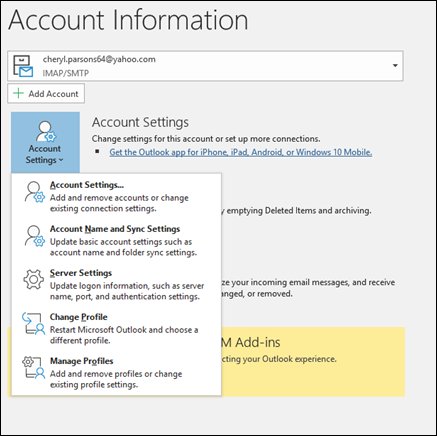
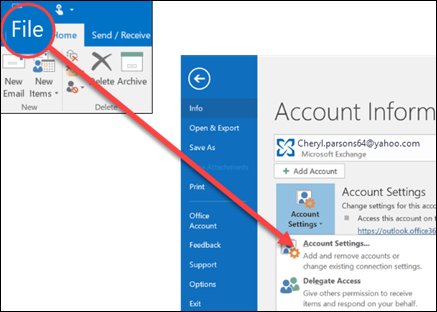
- If Outlook still shows Disconnected, select File > Account Settings > Account Settings, choose the account on the Email tab, and select Repair.
Working Offline affects every account in classic Outlook at once, so one click can make all of them stop sending and receiving.
Outlook Disconnected vs Working Offline: what each status means
The message Outlook shows points to the fix. Match what you see to a row, then jump to that section.
| What you see | What it means | Fix to try first |
|---|---|---|
| Working Offline in the status bar | Outlook was switched offline on purpose or by accident | Turn off Work Offline on the Send / Receive tab |
| Disconnected in the status bar | Outlook cannot reach your mail server | Check the internet, restart Outlook, then repair the account |
| Outlook keeps asking for your password | The password changed or expired, or the user name is wrong | Update the password in Server Settings |
| Red markers in Test Account Settings | Server names, ports or encryption do not match your provider | Correct the server settings and test again |
| "Outlook can't open your data file" or the set of folders | The .pst or .ost data file may be damaged | Run the Inbox Repair tool, or let Outlook rebuild the .ost |
| Outlook crashes or hangs at startup | An add-in may be failing | Start Outlook in safe mode and turn off add-ins |
| Outlook 2016 or 2019 with a Microsoft 365 mailbox | These versions are no longer supported for connecting to Microsoft 365 | Update to a supported Outlook version |
Restart Outlook
A restart clears a stuck connection attempt and makes Outlook contact the server again from scratch.
- In classic Outlook, select File > Exit; in new Outlook, close the window.
- Press Ctrl + Shift + Esc to open Task Manager.
- On the Processes tab, select any Outlook entry that is still running and select End task.
- Open Outlook again and wait a minute for it to connect.
- If the status bar still shows Disconnected, restart Windows and open Outlook once more.
Check your internet connection
Outlook needs a working connection to reach the server. Test the connection outside Outlook so you know which side the problem is on.
- Open a web browser and load a couple of different websites.
- If no site loads, fix the network first: check Wi-Fi or the cable, and restart the router and modem.
- If websites load, sign in to your mailbox in Outlook on the web.
- If Outlook on the web also fails, the problem is the account or the mail service, not your PC.
- On a work or school Microsoft 365 account, ask your admin to check Service health for Exchange Online.
If only Outlook fails while the web version works, carry on with the fixes below; they all target the Outlook app and its profile.
Fix Outlook by disabling offline mode
In classic Outlook, Work Offline stops all sending and receiving. The button label never changes, so check whether it is shaded.
- Open classic Outlook and select the Send / Receive tab.
- Look at Work Offline: a shaded background means Outlook is offline.
- Select Work Offline once so the background is clear.
- Check that Working Offline has gone from the status bar at the bottom of the window.
- If an Exchange or Microsoft 365 account has no Work Offline button, turn on Cached Exchange Mode, which Microsoft recommends for Microsoft 365 accounts.
New Outlook for Windows handles this differently. Its offline setting in Settings > General > Offline only controls which mail is saved on the PC, and it syncs automatically when the connection returns.
Resolve server error by repairing your Outlook email account
Repair lets Outlook diagnose and fix errors in the mail profile that stop it from connecting. It works in classic Outlook.
- In classic Outlook, select File.
- Select Account Settings > Account Settings.
- On the Email tab, choose the account that will not connect.
- Select Repair.
- Follow the prompts in the wizard, then restart Outlook when it finishes.
The Repair option is not available when Outlook 2016 connects to an Exchange account. In that case, re-add the account or create a new profile instead.
Re-add your email account to Outlook
Removing and adding the account again rebuilds its settings. Removing the account from Outlook does not close the email account, and mail stored on the server stays there.
- In classic Outlook, select File > Account Settings > Account Settings.
- Select the account, then select Remove.
- Read the warning that offline cached content for this account will be deleted from this PC, then select Yes.
- Select File and, under Account Information, select Add Account.
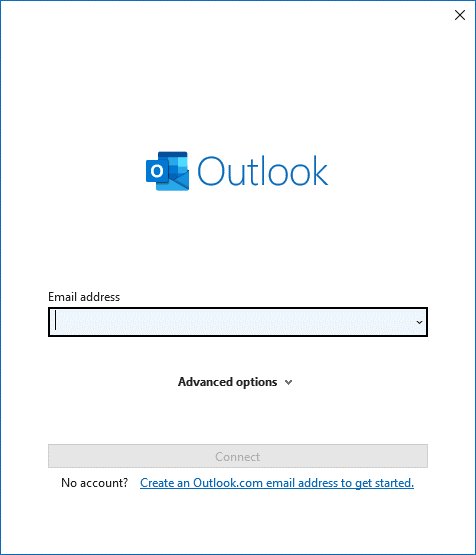
- Enter your email address, select Connect, then enter your password.
- Select Done when Outlook finishes setting up the account.
In new Outlook, open Settings, go to Accounts > Your accounts, select Manage next to the account and select Remove, then select Add Account to set it up again. If automatic setup fails for a Gmail, Yahoo or ISP mailbox, set up the account manually as IMAP or POP with your provider's server details.
Classic Outlook will not remove the last account in a profile until you create another location for its data.
Create a new Outlook profile to fix connection problems
A corrupted Outlook profile is one of the most common reasons Outlook stops sending and receiving. A new profile starts with clean account and data file settings.
- Hold Shift while you start classic Outlook to open the profile picker.
- Alternatively, press Windows key + R, type
Outlook.exe /profiles, and press Enter. - Select Options, then select New.
- Type a name for the profile and select OK.
- Add your email account when Outlook asks, and finish setup.
- Select Prompt a profile to be used if you want to choose between the old and new profile at each start.
Enter Outlook's safe mode and disable add-ins
Safe mode starts Outlook without add-ins. If Outlook connects in safe mode, an add-in is the likely cause.
- Close Outlook, right-click Start and select Run, or press Windows key + R.
- Type
outlook /safeand select OK. - If Outlook connects in safe mode, select File > Options > Add-ins.
- Next to Manage, choose COM Add-ins and select Go.
- Clear the check box for every add-in and select OK.
- Exit Outlook and start it normally, then turn add-ins back on one at a time until the problem returns.
Holding Ctrl while you double-click the Outlook shortcut also starts safe mode, and there are more ways to open Outlook in safe mode on Windows 11. New Outlook for Windows does not support COM add-ins, so these steps apply to classic Outlook.
Repair Outlook's data file
A damaged .pst or .ost file can stop Outlook from opening folders or syncing. The Inbox Repair tool, SCANPST.EXE, checks and fixes .pst files. Back up the file before you start.
- In classic Outlook, select File > Account Settings > Account Settings and open the Data Files tab to see where the file is stored.
- Exit Outlook.
- Open
C:\Program Files (x86)\Microsoft Office\root\Office16, the location Microsoft lists for Outlook 2016 and 2019, and open SCANPST.EXE. - Select Browse and choose the Outlook Data File (.pst).
- Select Start, and if the scan finds errors, select Repair.
- Run the scan again if it still reports errors, then start Outlook with the same profile.
For an Exchange or Microsoft 365 account, you can delete the offline data file (.ost) instead, and Outlook creates a new one the next time it opens. If SCANPST.EXE is elsewhere on your PC, the SCANPST.EXE locations by Office version cover other installs.
Fix server connection by updating Outlook
Out-of-date Outlook builds are one of the most common causes of send and receive failures with Microsoft 365.
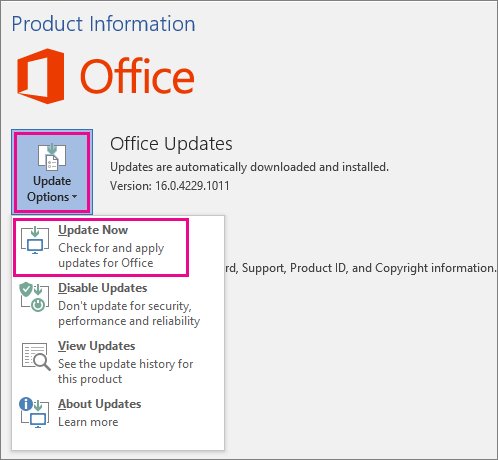
- In classic Outlook, select File > Office Account.
- Under Product Information, select Update Options.
- Select Enable Updates first if Update Now is missing.
- Select Update Now and wait for Office to check for and install updates.
- Close the update window, restart Outlook, and run Windows Update as well.
If you see only an About button, the install is likely volume licensed or managed by Group Policy, so ask your IT help desk.
Support for connecting Outlook 2016 and Outlook 2019 to Microsoft 365 services ended on October 10, 2023, and for Office LTSC 2021 on October 13, 2026. Older versions may still connect, but they can run into reliability problems.
Connect Outlook to your email server without any problems
If the account connects in no profile at all, the server settings are probably wrong. Compare them with your provider's details and let Outlook test them.
- Type control panel in the taskbar search box and open Control Panel.
- Search for and open Mail, then select Email Accounts.
- Select the account and select Change.
- Check Incoming mail server and Outgoing mail server against your provider's settings, and confirm the User Name and Password.
- Select More Settings, open the Advanced tab, and compare the server port numbers and encryption types.
- Select OK, then Test Account Settings.
- Green check marks mean the settings work; select Close, Next and Finish.
Red markers mean some settings are still wrong. Correct them and test again, or ask your email provider to confirm the details.
Outlook.com IMAP and SMTP server settings
Use these when you add an Outlook.com, Hotmail or Live address to an app as IMAP or POP. POP and IMAP access is off by default, so turn it on first in Outlook.com under Settings > Mail > Forwarding and IMAP.
| Setting | Server | Port | Encryption |
|---|---|---|---|
| IMAP (incoming) | outlook.office365.com | 993 | SSL/TLS |
| POP (incoming) | outlook.office365.com | 995 | SSL/TLS |
| SMTP (outgoing) | smtp-mail.outlook.com | 587 | STARTTLS |
| User name and sign-in | Your full email address | – | OAuth2 / Modern Auth |
In Outlook itself, add a Hotmail or Live address with the Outlook.com account type rather than Exchange or IMAP, or folders and existing mail may not sync.
How to tell if Outlook is connected to the server
- Check that the status bar no longer shows Working Offline or Disconnected.
- On the Send / Receive tab, confirm the Work Offline button has a clear background.
- Send a test message to your own address and wait for it to arrive in the Inbox.
- Check that the message has left the Outbox folder.
- For a POP or IMAP account, run Test Account Settings and look for green check marks on both the incoming and outgoing tests.
Outlook keeps asking for password and other server connection errors
Outlook keeps asking for your password
The password was changed with the provider or has expired, Caps Lock is on, or the user name is not the full email address.
- Check that Caps Lock is off and that the user name is your full email address.
- Change the password with your email provider if it expired.
- In Outlook, select File > Account Settings > Server Settings and enter the new password under Incoming mail.
- Select Next > Done.
IMAP setup never asks for a password
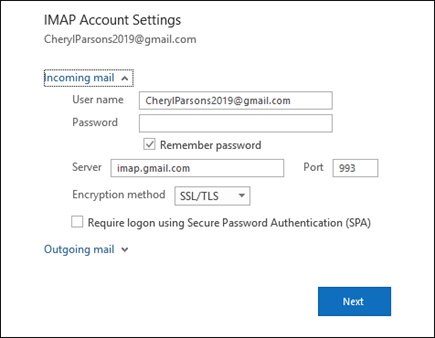
Secure Password Authentication is turned on for an account that does not use it.
- On the IMAP details page, clear Require logon using Secure Password Authentication (SPA).
- If that fails, open Control Panel > Mail > Email Accounts, select New on the Email tab, and enter the name, address and password there.
- Select Next, finish setup, and select Finish.
Gmail, Yahoo or iCloud rejects the correct password
Some providers require an app password instead of your normal password in Outlook.
- Create an app password in your email provider's account security settings.
- Enter the app password in Outlook instead of your normal password.
- Run Test Account Settings to confirm Outlook can sign in.
Outlook.com IMAP connection error in several mail apps
Microsoft reports a known issue when one Outlook.com account is set up as IMAP in multiple email clients.
- Sign in at account.live.com/activity with the affected account.
- Under Recent activity, expand the Session Type event that matches the time of the error.
- Select This was me to authorize the IMAP connection.
- Connect the account in your IMAP app again.
Messages stuck in the Outbox
Outlook is offline, or the outgoing (SMTP) server settings are wrong.
- Turn off Work Offline on the Send / Receive tab.
- Confirm the outgoing server, port and encryption against your provider's settings.
- Open the Outbox after the account tests green and check that the message has gone.
Outlook will not start normally after a crash
Automated safe mode may have disabled a broken add-in or file.
- Select File > Options > Add-Ins.
- On the Manage menu, choose Disabled Items and select Go.
- Re-enable only the items you need, and leave a problem add-in off.
- Run the classic Outlook troubleshooters in the Get Help app if startup or profile problems continue.
Outlook not connecting to server FAQ
Why is Outlook not connecting to the server?
The usual causes are Work Offline being on, no internet connection, a corrupted profile, wrong server settings, a changed password or an out-of-date Outlook build. Check the status bar first, then repair the account from File > Account Settings.
How do I get Outlook back online?
In classic Outlook, select the Send / Receive tab and select Work Offline so its background is no longer shaded. The Working Offline text in the status bar disappears, and Outlook starts sending and receiving again for every account.
Why does Outlook say Disconnected?
Disconnected means Outlook cannot reach your mail server. Check that websites load, sign in to Outlook on the web to test the mailbox, restart Outlook, and repair the account or create a new profile if the status stays.
Does removing an email account from Outlook delete my emails?
No. Removing an account from classic Outlook deletes only the offline cached content on your PC and does not close the account. Mail kept on the server downloads again when you add the account back.
Can Outlook 2016 still connect to Microsoft 365?
It may still connect, but Microsoft ended support for connecting Outlook 2016 and 2019 to Microsoft 365 services on October 10, 2023. Unsupported versions can lose features and hit reliability problems, so update to Microsoft 365 Apps or a supported release.
What are the Outlook.com server settings?
Outlook.com uses outlook.office365.com on port 993 with SSL/TLS for IMAP, port 995 for POP, and smtp-mail.outlook.com on port 587 with STARTTLS for outgoing mail. Sign in with your full email address and OAuth2.
How do I start Outlook in safe mode?
Press Windows key + R, type outlook /safe and select OK, or hold Ctrl while you double-click the Outlook shortcut and select Yes. To leave safe mode, exit Outlook and start it again normally.
Why does Outlook keep asking for my password?
Outlook asks again when the password was changed with the provider, has expired, or is typed with Caps Lock on, or when the user name is not your full email address. Update the password in File > Account Settings > Server Settings.