iPhone error -18 ("The iPhone could not be restored. An unknown error occurred (-18)") is fixed the same way as Apple's other unknown restore errors: update the software on your computer, connect the iPhone directly with a different cable, restart both devices, and restore again in recovery mode if needed.
This guide covers what the error points to, each fix in order, how to keep your data, what to do when the computer cannot see the iPhone, and when the phone needs Apple service.
How to fix iPhone error -18 when restoring
Try the restore again after each step, starting with the quickest. Most unknown restore errors come from outdated computer software or a weak USB connection.
- Update your Mac, or on a Windows PC update the Apple Devices app (or iTunes) from the Microsoft Store.
- Plug the iPhone straight into a USB port on the computer, not into a keyboard or USB hub.
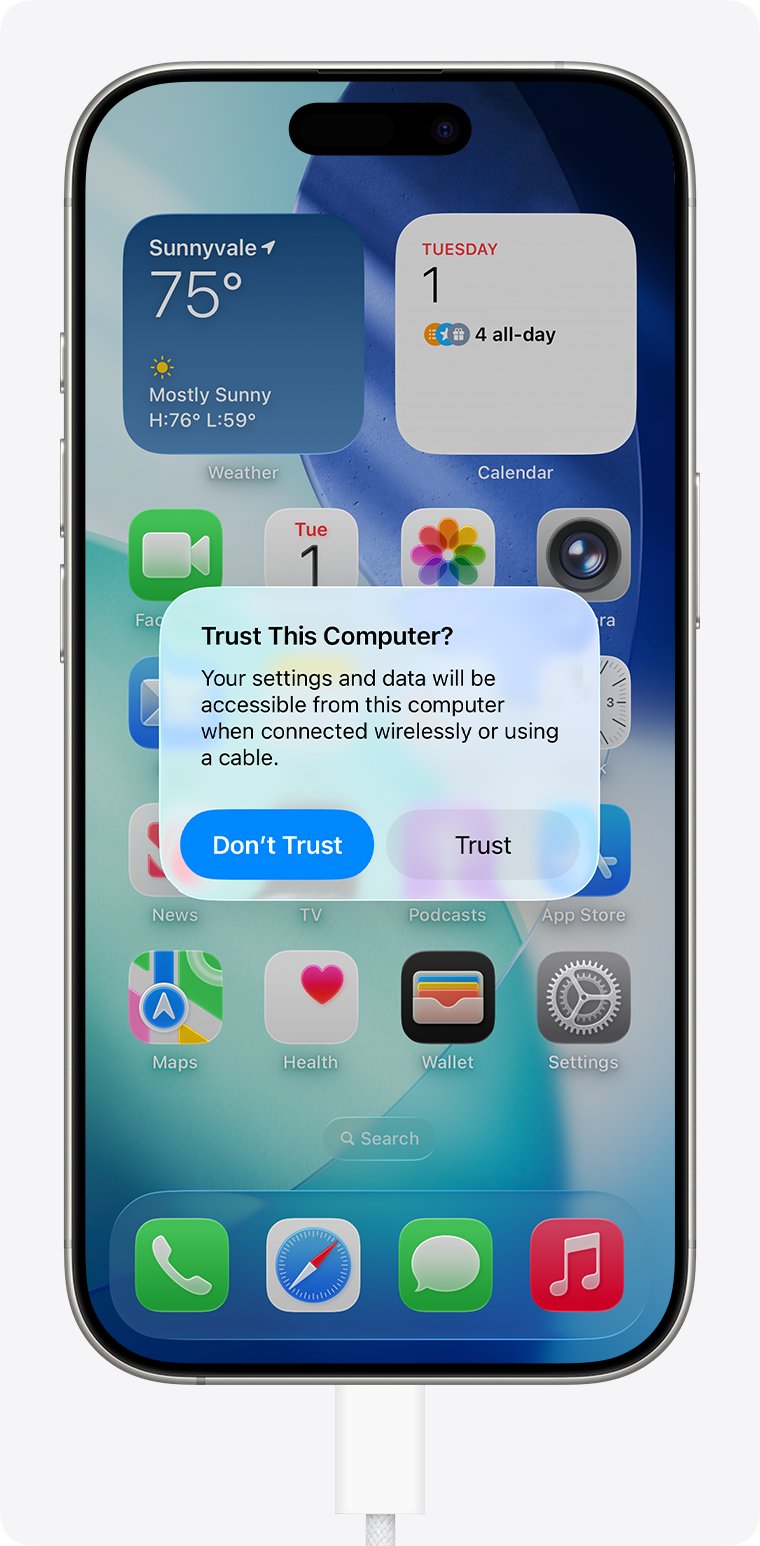
- Unlock the iPhone and tap Trust if the Trust This Computer? alert appears.
- Swap to another Apple USB cable that supports data and charging, or a different USB port.
- Turn the computer off and on, then restart the iPhone.
- Select Update instead of Restore when both options appear, so the software is reinstalled without erasing your data.
- If error -18 returns, put the iPhone in recovery mode and select Restore.
What does iPhone error -18 mean?
Apple's list of iOS update and restore errors has no entry for -18 or for 18, so there is no Apple-specific cause to look up. Treat it as a general "An unknown error occurred" failure, and use the table below if a different number appears on a later attempt.
| Error shown | What Apple says it points to | First thing to try |
|---|---|---|
| -18 or 18 | Not listed by Apple | The general steps above, then recovery mode |
| 10 | The iPhone's software is too new for the Mac or PC | Update macOS, iTunes or the Apple Devices app |
| 9, 4005, 4013, 4014 | The iPhone disconnected or the computer lost the connection during the restore | Force restart the iPhone, then choose Update |
| 17, 1109, 1638, 1639, 3000-3020, 3100-3999 (including 3194) | The computer can't reach Apple's software update servers | Check the internet connection and security software settings |
| 13, 1600, 1601, 1602, 1603, 1604, 1611, 1643-1650, 2000, 2001, 2002, 2005, 2006, 2009 | USB cable, port or computer problem | Use the Apple cable and a port on the computer itself |
| 1, 3, 11, 12, 13, 16, 20, 21, 23, 26-29, 34-37, 40, 56, 1002, 1004, 1011, 1012, 1014, 1667, 1669 | Possible hardware issue | Retry with a reliable cable and network, then contact Apple |
| 4037 | The iPhone is locked | Unlock the iPhone and try again |
Back up iPhone before restoring after error -18
A restore erases everything on the iPhone and installs the latest iOS. If the phone still works, back it up first so you can put your data back afterwards.
- Back up the iPhone to iCloud, or to your Mac in Finder or your PC with the Apple Devices app.
- On the iPhone, open Settings and tap your name.
- Tap Find My, then Find My iPhone, and turn it off.
- Enter your Apple Account password and tap the done button on the keyboard.
If the iPhone no longer starts, skip the backup and go to recovery mode; an earlier iCloud or iTunes backup can still be restored after setup.
Update the Apple Devices app, iTunes or macOS to fix restore error -18
- On a Mac, open the Apple menu, choose System Settings, select General, then Software Update, and install any update.
- On a Windows PC, open the Microsoft Store and update the Apple Devices app, which handles update, backup and restore for iPhone and iPad.
- If you still restore with iTunes for Windows, update it from the Microsoft Store as well.
- Restart the computer after the update and check for updates once more.
- Reconnect the iPhone and run the restore again.
Fix iPhone could not be restored error -18 with another cable, port or computer
- Use the USB cable that came with the iPhone, or another Apple-certified cable that carries data as well as charge.
- Plug it into a USB port on the computer itself. Keyboard ports often lack the power a restore needs.
- If the iPhone does not chime or vibrate when connected, unplug it and check the charging port for debris.
- Switch to a different USB port and try again.
- Restore on another computer that uses a different network to rule out the first computer.
Restart iPhone and the computer to clear unknown error -18
- Turn off the computer, then turn it back on.
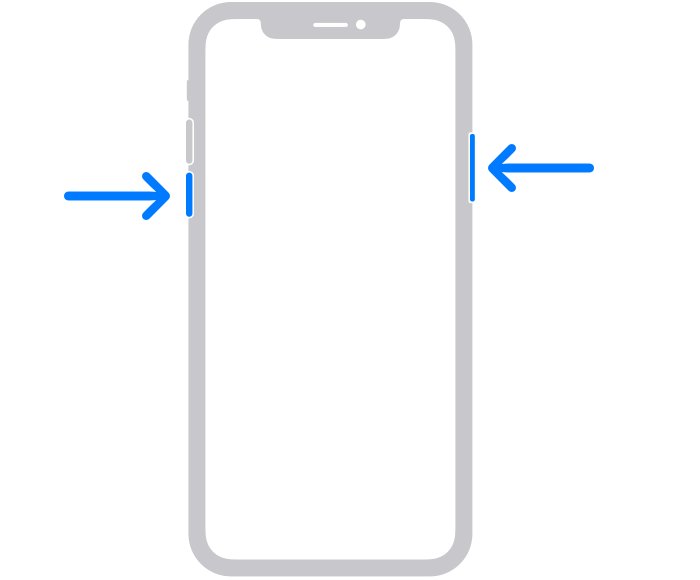
- On iPhone X or later, press and hold either volume button and the side button until the power-off slider appears.
- Drag the slider, wait 30 seconds, then press and hold the side button until the Apple logo appears.
- If the iPhone is frozen on iPhone 8 or later, press and quickly release Volume Up, press and quickly release Volume Down, then press and hold the side button until the Apple logo appears.
- On iPhone 7 or iPhone 7 Plus, hold the side button and Volume Down together until the Apple logo appears.
- On iPhone 6s or earlier, hold the side (or top) button and the Home button until the Apple logo appears.
Update iPhone instead of restoring to keep your data
When the computer offers both choices, Update reinstalls iOS and keeps your personal data, while Restore erases the iPhone. Try Update first unless the phone is already in recovery mode.
- Connect the iPhone to the computer with a USB cable.
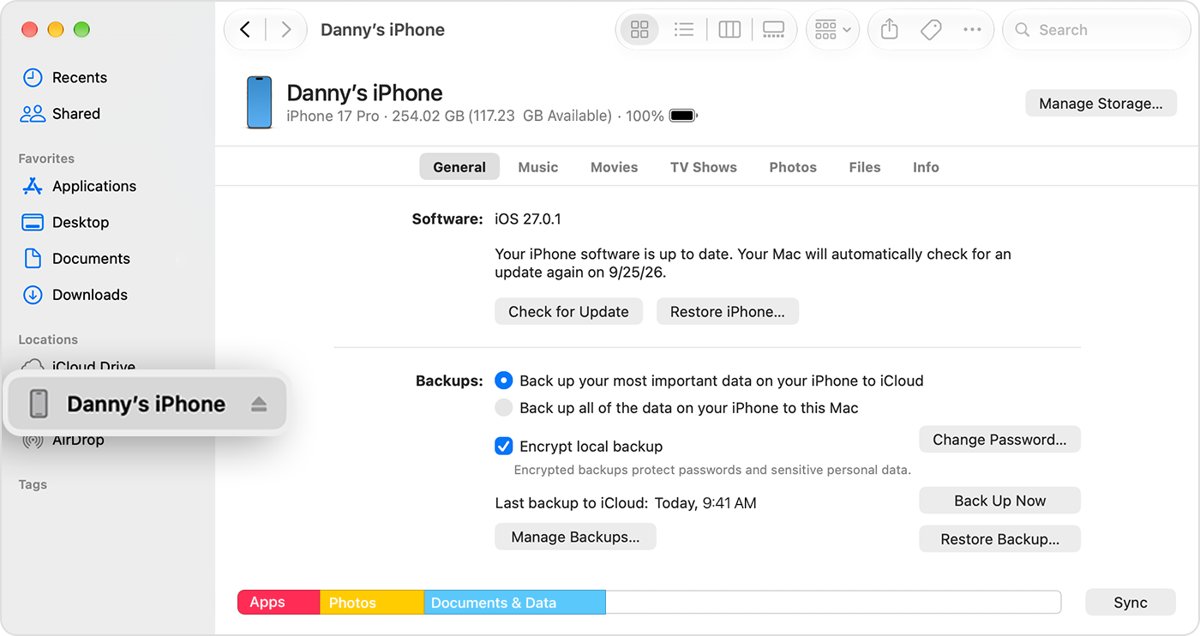
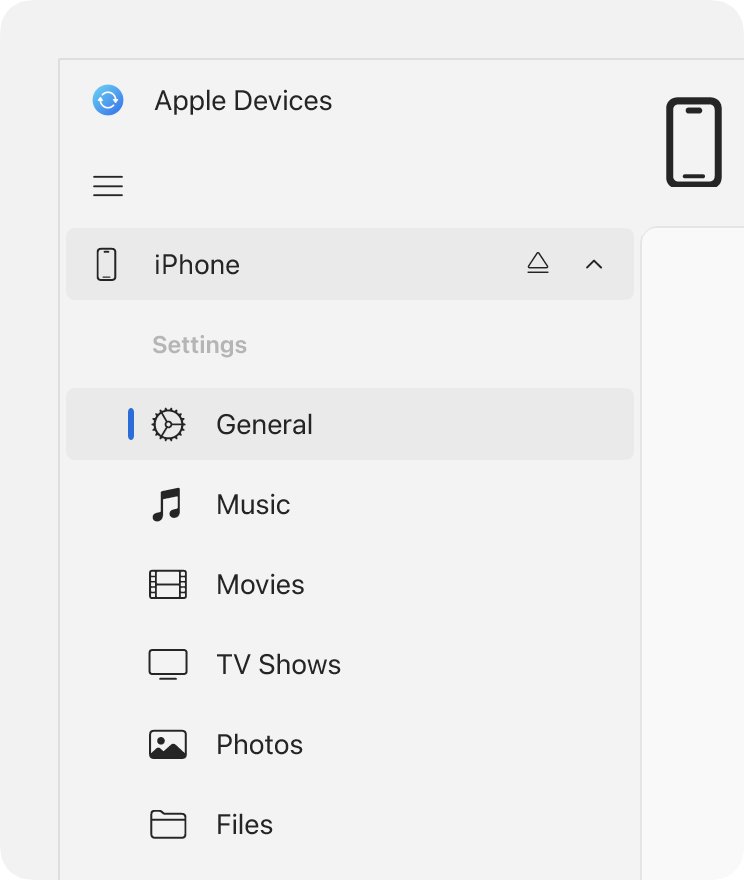
- Open Finder on a Mac, or the Apple Devices app on a PC, and select the iPhone in the sidebar.
- When the update or restore options appear, select Update.
- Keep the iPhone connected until the update finishes and the phone restarts.
- If the iPhone starts up in recovery mode during the update, restore it instead and then set it up from a backup.
Restore iPhone in recovery mode after error -18
Recovery mode is the route when the iPhone shows the Apple logo for minutes with no progress bar, sits on the Connect to computer screen, or the computer will not finish a normal restore. If the phone is stuck on the support.apple.com/iphone/restore screen, these are the same steps.
- Update your Mac, or get the latest Apple Devices app on your PC.
- Connect the iPhone with a USB cable and open Finder on a Mac or the Apple Devices app on a PC.
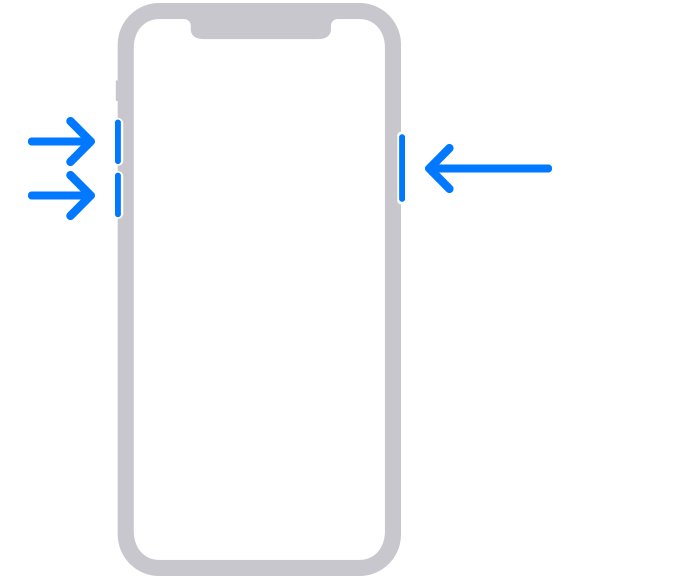
- On iPhone 8 or later, including iPhone SE (2nd generation and later), press and quickly release Volume Up, press and quickly release Volume Down, then hold the side button until the Connect to computer screen appears.
- On iPhone 7 or iPhone 7 Plus, hold the top (or side) and Volume Down buttons until the Connect to computer screen appears.
- On iPhone 6s or earlier, including iPhone SE (1st generation), hold the Home and top (or side) buttons until the Connect to computer screen appears.
- Locate the iPhone on the computer and select Restore when the Update or Restore options appear.
- Wait while the computer downloads iOS. If the download takes over 15 minutes and the iPhone leaves recovery mode, let the download finish, then repeat the button steps.
- When the restore completes, set up the iPhone.
Restore iPhone to factory settings with Finder or the Apple Devices app
Use this route when the iPhone still starts normally but needs a clean reinstall. It removes all information and settings, though it does not delete an eSIM.
- Turn off Find My iPhone and connect the iPhone to the computer.
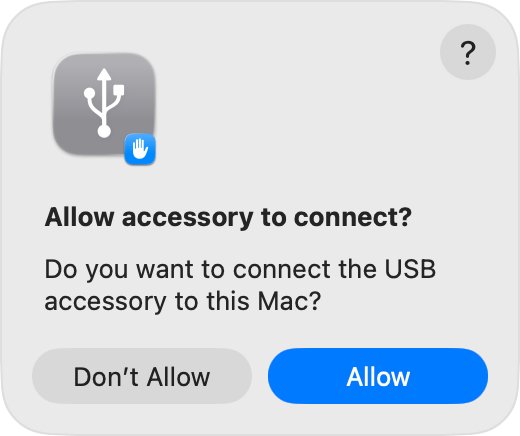
- On a Mac, click Allow if the Allow accessory to connect? alert appears.
- Open Finder on a Mac or the Apple Devices app on a PC, and select the iPhone in the sidebar.
- Click Trust on the computer, tap Trust on the iPhone, and enter the passcode.
- Click Restore iPhone and follow the onscreen instructions.
- If asked to create a backup, click Back Up or Don't Back Up, then click Restore to confirm.
- Review the terms and click Agree. The Hello screen appears when the restore finishes.
An IPSW file is not needed for this; the computer downloads the current iOS itself. If you do have one, restoring an iPhone with an IPSW file works through the same Finder or Apple Devices window.
How to tell if an iPhone restore completed
- Look for the Hello screen on the iPhone; it appears once the restore has finished.
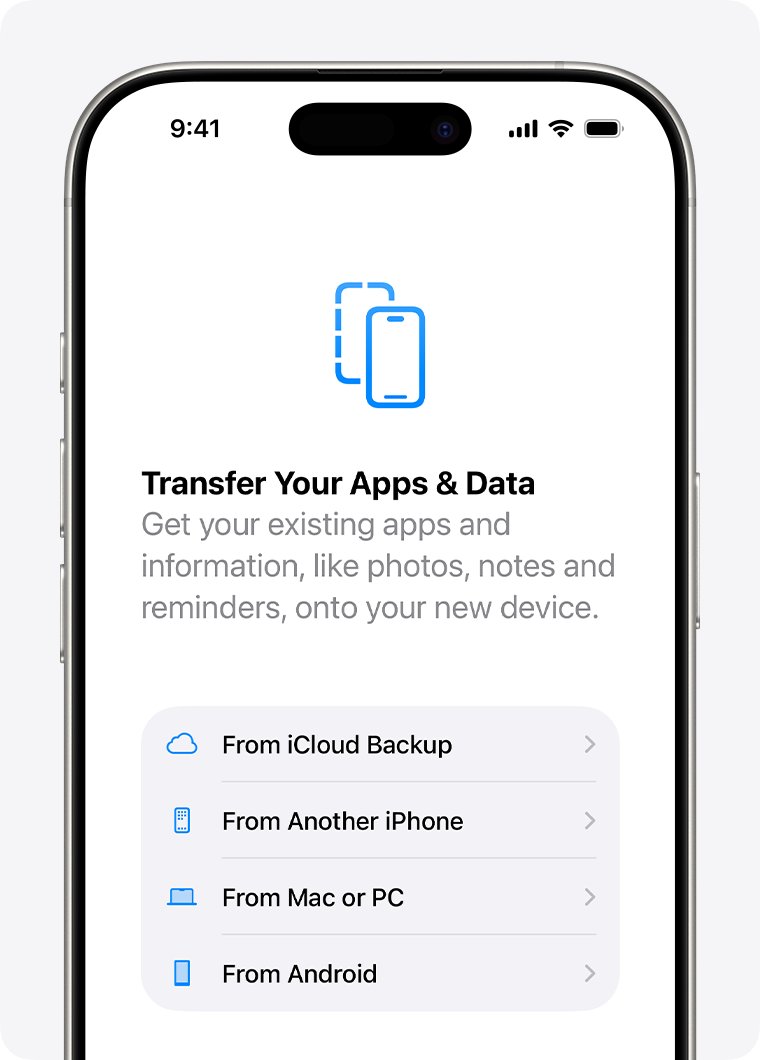
- Follow the setup steps until you reach Transfer Your Apps & Data.
- Tap From iCloud Backup, sign in, and choose the most recent backup, or use Restore Backup in Finder or the Apple Devices app.
- Keep the iPhone on Wi-Fi and power, or connected to the computer, until the progress bar or sync finishes.
- Give photos, music and apps time to keep downloading from iCloud after setup.
iPhone not recognized by the computer during a restore
iPhone does not appear in Finder on a Mac
The Trust prompt was missed, the sidebar is hidden, or the cable carries charge only.
- Click Allow on the Mac if Allow accessory to connect? appears, and tap Trust on the iPhone.
- In Finder, choose View > Show Sidebar if the sidebar is hidden.
- Try another cable that supports data and charging, another USB port, or another Mac.
- Check that macOS and iOS are both up to date.
Apple Devices app on Windows does not show the iPhone
An outdated app or Windows version, a software conflict, or a poor connection.
- Open the Apple Devices app before you connect the iPhone.
- Tap Trust on the iPhone when the alert appears.
- Update Windows and the Apple Devices app, then try another cable or USB port.
- If you tapped Don't Trust by mistake, reset location and privacy settings on the iPhone so the alert appears again.
iTunes cannot read the contents of the iPhone before the restore
Apple has no separate fix for this message, so handle it as a connection problem between the computer and the iPhone.
- Update the Apple Devices app, iTunes or macOS.
- Connect directly to the computer and restart both devices.
- Back up what you can, then restore in recovery mode.
iTunes error code -18 keeps coming back on Windows
Error -18 returns after updating and changing cables
Third-party security software or the network can stop iTunes and the Apple Devices app reaching the iPhone or Apple's servers.
- Sign in to an administrator account on the PC, not a guest account.
- Check that the date, time and time zone on the PC are correct.
- Update your security software and ask its vendor to allow the ports and services Apple products use.
- Make sure only one security app is installed.
- Restore on another computer with a different internet connection.
Restore fails on a work or school network
Proxies, firewalls and other network controls on managed networks can block Apple's update servers.
- Ask the network administrator whether Apple's software update servers are blocked.
- Restore at home or on another network instead.
When iPhone error -18 needs Apple service
Contact Apple Support or book a repair if a recovery-mode restore still fails with error -18 on a second computer and cable. Apple says a device needs service when it cannot be updated or restored with recovery mode, or when recovery mode can't be used because a button doesn't work or sticks.
Other restore failures follow the same pattern; error 1109 during an iPhone restore is a network error with its own fixes.
iPhone error -18 FAQ
What does iPhone error code -18 mean?
It means the restore or update failed with an unknown error that Apple does not document separately. Apple's error list has no entry for -18, so use the general fixes: update the computer software, change the cable and port, restart both devices, and restore in recovery mode.
Why does my iPhone say it could not be updated with error -18?
The computer lost track of the update partway through. Update macOS, iTunes or the Apple Devices app, connect the iPhone directly to the computer, restart both devices, and select Update again. If the phone ends up in recovery mode, select Restore instead.
Is iPhone restore error code 18 the same as -18?
Neither 18 nor -18 appears in Apple's list of update and restore errors, so both are handled with the same general steps. If a later attempt shows a listed number, such as 9 or 4013, follow the fix Apple gives for that number.
How do I fix iPad error code -18?
Use the same steps as on iPhone: update the computer, connect the iPad directly with a working cable, restart both, and choose Update before Restore. If that fails, put the iPad into recovery mode with its own button sequence and restore it from Finder or the Apple Devices app.
How do I fix iTunes error code -18 on a Windows PC?
Update iTunes and the Apple Devices app from the Microsoft Store, sign in as an administrator, and check the PC's date and time. Then connect the iPhone directly, restart both devices, and retry. The Apple Devices app now handles iPhone backup, update and restore on Windows.
How do I fix Apple Devices error -18?
Treat it like the same error in Finder or iTunes. Update the Apple Devices app from the Microsoft Store, open it before you connect the iPhone, tap Trust on the phone, use a direct USB connection, restart both devices, and restore in recovery mode if needed.
Can I fix iPhone error -18 without losing data?
Often, yes. Select Update instead of Restore, which reinstalls iOS and keeps your personal data. A restore always erases the iPhone, so back it up first if it still works, then restore from that backup after setup.