When the Windows key or WinKey stops working on Windows 11, the usual cause is a Game Mode or Win Lock switch on the keyboard, followed by a stalled Windows Explorer, a policy or registry setting that blocks the key, or a key remap.
This guide shows how to test the key, then works through each fix from the quickest to the deepest, with the exact menu paths and commands.
Windows key or WinKey not working
These steps clear the two most common causes in under a minute. Task Manager is the starting point because it opens without the Windows key.
- Look for a lit Game Mode or Win Lock indicator on the keyboard and press that button to switch it off.
- Press the Windows key. If the Start menu opens, the fix is done.
- Press Ctrl + Shift + Esc to open Task Manager.
- Find Windows Explorer in the list, right-click it and select Restart.
- Press the Windows key again. If nothing happens, restart the PC and continue with the fixes below.
Why is Windows key not working?
| What you notice | Likely cause | Fix to use |
|---|---|---|
| A light is on next to a Game or Win Lock key | Keyboard Game Mode blocks the Windows key | Turn off Game Mode on the keyboard |
| The Windows key fails on the On-Screen Keyboard too | Windows itself is blocking or ignoring the key | Group Policy, registry or Start menu fixes |
| The key works on the On-Screen Keyboard but not on the physical keyboard | The keyboard, its driver or a keyboard mode | Game Mode, a different USB port, or reinstall the keyboard driver |
| Windows + R and Windows + E do nothing either | The Turn off Windows Key hotkeys policy is on | Set that policy back to Not Configured |
| The key does something else, or nothing, after you installed a key tool | PowerToys Keyboard Manager or another remap | Remove the remap |
| Shortcuts such as Windows + E work but the Start menu never opens | The Start menu package is not registered for your account | Re-register the Start menu with PowerShell |
| The key stopped after someone edited the registry | A Scancode Map value removes the key | Delete the Scancode Map value and restart |
How do I know if my Windows key is working?
The On-Screen Keyboard separates a hardware fault from a Windows problem, because its Windows key does not depend on the physical keyboard.
- Select Start > Settings > Accessibility > Keyboard.
- Turn on the On-Screen Keyboard toggle.
- Select the Windows key on the On-Screen Keyboard and check whether the Start menu opens.
- Press the Windows key on your physical keyboard and compare the result.
- Turn the On-Screen Keyboard toggle off when you finish testing.
If the Start menu opens only from the on-screen key, the physical keyboard or its mode is at fault. If neither key works, the cause is inside Windows. You can also turn on the on-screen keyboard from the sign-in screen through the Accessibility button.
Windows key not working on gaming keyboard
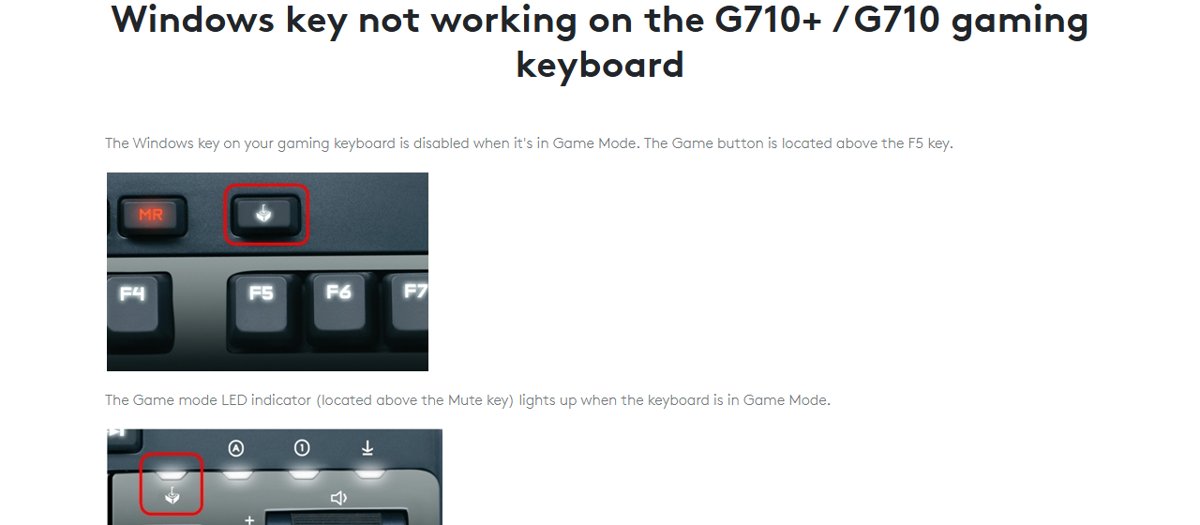
Gaming keyboards disable the Windows key in Game Mode so the Start menu cannot pull you out of a game. Logitech documents this for several G-series models.
- Find the Game Mode, Game or Win Lock key on the keyboard. The keyboard's manual or the maker's support page shows where it sits on your model.
- Check whether its indicator light is on, which shows Game Mode is active.
- Press the key once to turn Game Mode off and watch the light go out.
- Press the Windows key to confirm the Start menu opens.
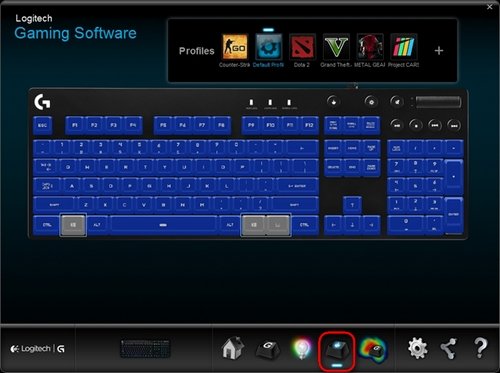
- If you want Game Mode for other keys, open the keyboard maker's software and set the Windows key to stay enabled in its Game Mode settings.
On the Logitech G810, the Game/Windows key toggles Game Mode, and the Windows and Menu keys are disabled by default in that mode. On the G710 and G710+, the Game Mode button is above F5 and its LED sits above the Mute key.
Restart Windows Explorer to fix the Windows key
The Windows key hands its press to Windows Explorer and the Start menu. A stalled Explorer process ignores it until it restarts.
- Press Ctrl + Shift + Esc to open Task Manager.
- Find Windows Explorer in the process list.
- Right-click it and select Restart. The taskbar disappears for a moment and comes back.
- If Windows Explorer is not listed, select File > Run new task, type
explorer.exeand press Enter. - Press the Windows key to test it.
Enable Windows key hotkeys in Group Policy Editor
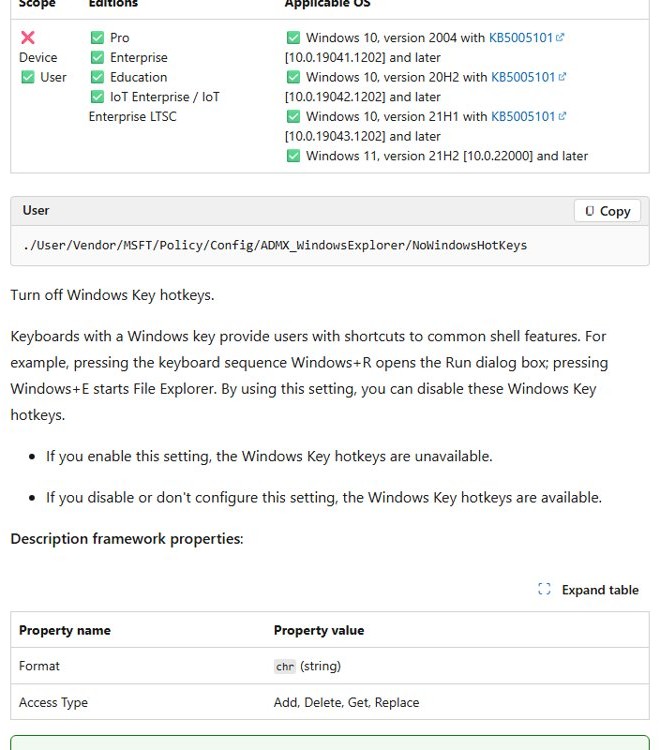
The Turn off Windows Key hotkeys policy disables shortcuts such as Windows + R and Windows + E. It is a per-user setting stored as the NoWinKeys value, and Group Policy Editor exists on Windows 11 Pro, Enterprise and Education.
- Press Ctrl + Shift + Esc, select File > Run new task, type
gpedit.mscand press Enter. - Go to User Configuration > Administrative Templates > Windows Components > File Explorer.
- Double-click Turn off Windows Key hotkeys.
- Select Not Configured or Disabled, then select OK.
- Restart the PC and test the Windows key.
On Windows 11 Home, open Registry Editor, go to HKEY_CURRENT_USER\Software\Microsoft\Windows\CurrentVersion\Policies\Explorer, delete the NoWinKeys value if it exists, and restart. On a work or school PC, the policy comes from your IT department and returns until they change it. If gpedit.msc will not start from Run, there are other ways to open Group Policy Editor on Windows 11 Pro.
Re-enable Windows key in Registry Editor (Scancode Map)
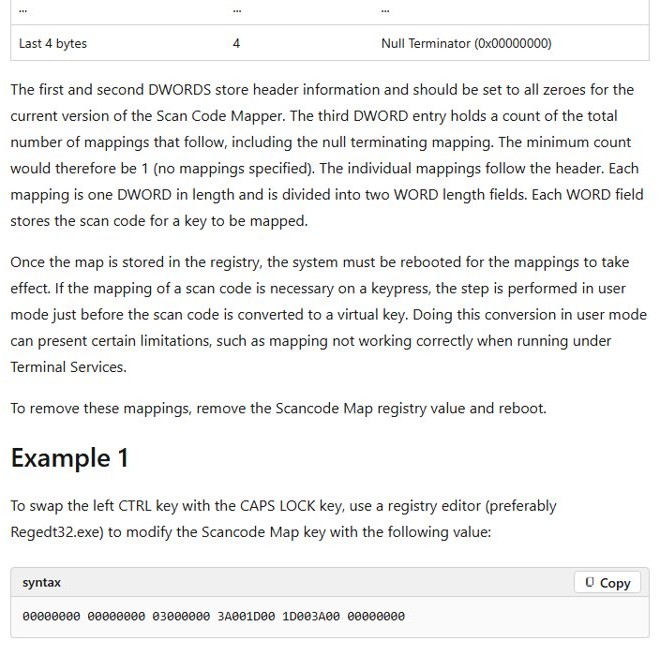
Windows' Scan Code Mapper can remove a key entirely through a Scancode Map value. Some key-disabling tips and tools write this value, and it stays in force for every user until it is removed.
- Press Ctrl + Shift + Esc, select File > Run new task, type
regeditand press Enter. - Select File > Export and save a backup of the registry before changing anything.
- Go to
HKEY_LOCAL_MACHINE\SYSTEM\CurrentControlSet\Control\Keyboard Layout. Do not confuse it with the separate Keyboard Layouts key. - Look for a value named
Scancode Mapin the right pane. - Right-click
Scancode Mapand select Delete, then confirm. - Restart the PC, because Scan Code Mapper changes take effect only after a reboot.
Deleting Scancode Map removes every key mapping stored there, not only the Windows key. If you rely on other mappings, note them from the backup first.
Check PowerToys Keyboard Manager for a Windows key remap
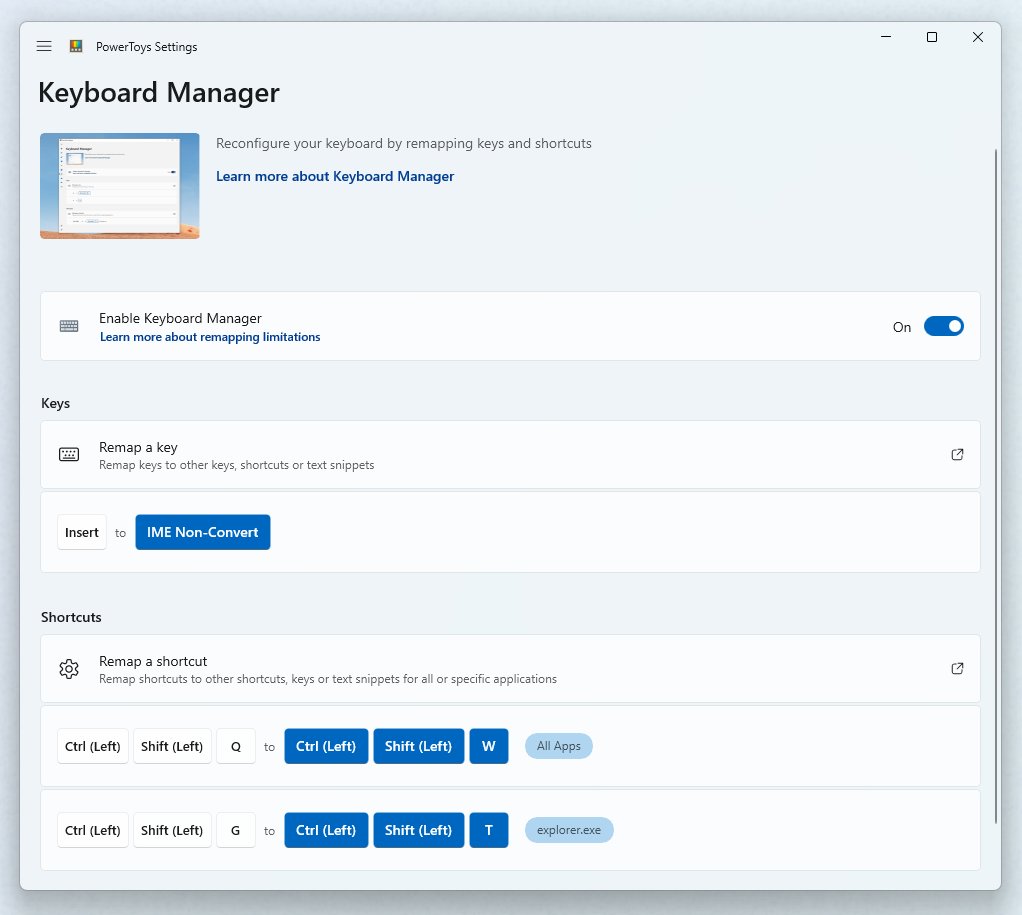
PowerToys Keyboard Manager can remap the Windows key to another key or to nothing. Remaps work only while PowerToys runs, so they also explain a key that fails on some days and not others.
- Open PowerToys from the notification area or from the app list.
- Select Keyboard Manager in the left pane.
- Select Remap a key and look for a row with Win in the Select column.
- Delete that row, or change its To send value back to Win, and save.
- Select Remap a shortcut and remove any shortcut that starts with Win that you did not set up.
- Test the key, or switch Keyboard Manager off in PowerToys Settings to rule it out.
Windows + L and Ctrl + Alt + Del cannot be remapped, because Windows reserves them. The Copilot key sends a Windows key shortcut, which is why the same tool can remap the Copilot key as well.
Windows key works but Start menu won't open
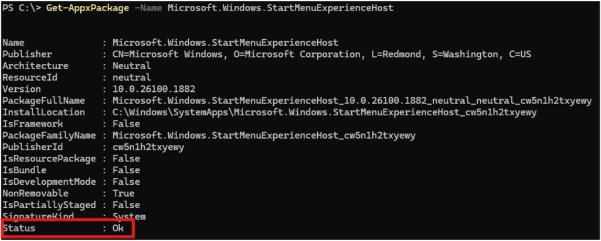
If Windows + E still opens File Explorer but the Windows key alone does nothing, the key is fine and the Start menu is not working. Microsoft's fix is to register the Start menu package for your account again.
Add-AppxPackage -Path "C:\Windows\SystemApps\Microsoft.Windows.StartMenuExperienceHost_cw5n1h2txyewy\AppxManifest.xml" -Register -DisableDevelopmentModeRegisters the Start menu app (StartMenuExperienceHost) for the signed-in user. Run it from a normal, non-elevated PowerShell window: open Task Manager, select File > Run new task, type powershell and press Enter. An elevated window would register the package to the administrator instead of you. Check first with Get-AppxPackage -Name Microsoft.Windows.StartMenuExperienceHost.
You should see: The command returns to the prompt without a red error, and the Windows key opens the Start menu again.
If Get-AppxPackage *StartMenu* -AllUsers in an elevated window returns nothing, the package is missing for every user. Microsoft supports no way to reinstall it by hand, so roll back the last update, reset the PC or restore a backup instead.
Reinstall keyboard driver in Windows 11
When the on-screen Windows key works and the physical one does not, a fresh keyboard driver is the next test after Game Mode.
- Plug a USB keyboard into a different USB port on the PC itself, or test a second keyboard, to rule out the hardware.
- Right-click Start and select Device Manager.
- Expand the keyboards category, right-click your keyboard and select Update driver > Search automatically for updated driver software.
- If no update is found, right-click the keyboard again and select Uninstall device, then Uninstall.
- Restart the PC so Windows reinstalls the keyboard driver.
- Install the keyboard maker's software again if the keyboard uses one for its special keys.
If several keys fail and not only the Windows key, the problem is the whole keyboard, and the fixes for a keyboard not typing on Windows 11 apply.
Windows key not working FAQ
Why isn't my Win key working?
The most common reason is a Game Mode or Win Lock switch on the keyboard. After that come a stalled Windows Explorer, the Turn off Windows Key hotkeys policy, a Scancode Map registry value, a PowerToys remap or a Start menu that is not registered.
How do I fix the Win key not working?
Switch off Game Mode on the keyboard, then restart Windows Explorer from Task Manager with Ctrl + Shift + Esc. If the key still fails, clear the Windows key policy, delete any Scancode Map value, remove PowerToys remaps and reinstall the keyboard driver.
Why is the Windows key not working on my keyboard only?
If the Windows key on the On-Screen Keyboard opens Start but the physical key does not, the cause is the keyboard. Check for a Game Mode light, try another USB port, and reinstall the keyboard driver in Device Manager.
How do I know if my Windows key is working?
Press it and see whether the Start menu opens. To tell a hardware fault from a Windows fault, turn on the On-Screen Keyboard in Settings > Accessibility > Keyboard and select its Windows key. If that opens Start, Windows is fine.
Why does the Win key not work on Windows 11 when other shortcuts do?
If Windows + E or Windows + R still work, the key itself is fine and the Start menu is failing. Restart Windows Explorer, then register the Start menu package again with the Add-AppxPackage command from a non-elevated PowerShell window.
Why doesn't the Windows key work in games?
Many gaming keyboards block the Windows key in Game Mode so the Start menu cannot interrupt play. Logitech's G810 and G710, for example, disable it whenever Game Mode is on. Press the Game Mode key again to get the Windows key back.
Do these fixes work for the Win key on Windows 10?
Yes. The Turn off Windows Key hotkeys policy and the Scancode Map registry value apply to Windows 10 as well, and a keyboard's Game Mode works the same on any version of Windows. Restarting Windows Explorer from Task Manager also works on Windows 10.