Windows 11 can turn Caps Lock off when you press either Shift key, but only the Caps Lock key turns it on with a physical keyboard. You switch this behavior in the Text Services and Input Languages dialog, reached from Advanced keyboard settings.
This guide covers that setting on Windows 11 and Windows 10, the touch keyboard's double-tap Shift for all caps, Toggle keys sounds, remapping or disabling Caps Lock, and fixes when Caps Lock, Shift or the Windows key stop working.
How to use the Shift key to enable or disable Caps Lock in Windows 11/10
Windows stores one of two choices for turning Caps Lock off: press Caps Lock again (the default), or press either Shift key. The choice applies to your user account and stays after a restart.
- Press Windows logo key + I to open Settings.
- Select Time & language > Typing.
- Select Advanced keyboard settings. You can also press Windows logo key + R, type
ms-settings:keyboard-advancedand press Enter. - Select the Language bar options link to open the Text Services and Input Languages dialog box.
- Switch from the Language Bar tab to the key settings tab next to it.
- In the Caps Lock group, choose the option to press the Shift key instead of the Caps Lock key.
- Select OK to save the change.
Press Caps Lock, type a few letters, then press Shift. Caps Lock should switch off and the keyboard light should go out.
Use Shift key to turn off Caps Lock instead of pressing Caps Lock again
The two settings are mutually exclusive, so Shift either turns Caps Lock off or it does not. Neither setting lets Shift turn Caps Lock on with a physical keyboard.
| Setting | What turns Caps Lock on | What turns Caps Lock off | Where it applies |
|---|---|---|---|
| Default (Caps Lock key) | Caps Lock | Caps Lock again | Physical keyboard, current user |
| Shift key option | Caps Lock | Either Shift key | Physical keyboard, current user |
| Touch keyboard double-tap Shift | Double-tap Shift | Tap Shift again | Windows touch keyboard only |
| Caps Lock removed with Scancode Map | Nothing | Nothing | All users and all keyboards |
Microsoft provides the Shift option to match local keyboard conventions and personal preference, so either behavior is normal for Windows.
Turn on all caps with the Shift key on the Windows 11 touch keyboard
The touch keyboard is the one place where Shift itself can lock capitals on. It appears when you tap a text box on a touchscreen PC in tablet mode.
- Press Windows logo key + I to open Settings.
- Select Time & language > Typing.
- Expand Touch keyboard.
- Turn on Use all uppercase letters when I double-tap Shift.
- Tap a text box to open the touch keyboard, then double-tap Shift to type in capitals.
Change Caps Lock back to the Caps Lock key in Windows 11
Switch back when Shift keeps cancelling capitals you meant to type, which is the most common complaint after the setting is changed.
- Open Settings > Time & language > Typing > Advanced keyboard settings.
- Select Language bar options.
- In Text Services and Input Languages, switch to the key settings tab.
- In the Caps Lock group, choose the option to press the Caps Lock key.
- Select OK, then test with Caps Lock and Shift in Notepad.
What are the Toggle keys on the computer keyboard?
Caps Lock, Num Lock and Scroll Lock are toggle keys: each press switches a mode on or off. Windows also has an accessibility feature named Toggle keys that plays a tone for each switch.
| Accessibility feature | What it does | Keyboard shortcut |
|---|---|---|
| Toggle keys | High tone when Caps Lock, Num Lock or Scroll Lock turns on, low tone when it turns off | Hold Num lock for five seconds |
| Sticky keys | Lets you press shortcut keys such as Ctrl+S one at a time | Press Shift five times |
| Filter keys | Ignores brief or repeated keystrokes | Hold right Shift for eight seconds |
If the Num Lock light behaves oddly as well, you can turn Num Lock on or off from the keyboard, the sign-in screen or the registry.
How to enable sound for Caps Lock toggle in Windows 11
A tone is the quickest way to know Caps Lock changed without looking at the keyboard light, which many laptops do not have.
- Press Windows logo key + U to open Accessibility settings.
- Select Keyboard.
- Turn on the Toggle keys switch.
- Press Caps Lock. You hear a high tone when it turns on and a low tone when it turns off.
- On Windows 10, turn on Play a sound whenever you press Caps Lock, Num Lock, or Scroll Lock on the same Keyboard page.
Turn on Notify me when I turn on Sticky, Filter, or Toggle keys from the keyboard if you want a prompt when the Num Lock shortcut switches Toggle keys.
Remap Caps Lock key with PowerToys Keyboard Manager
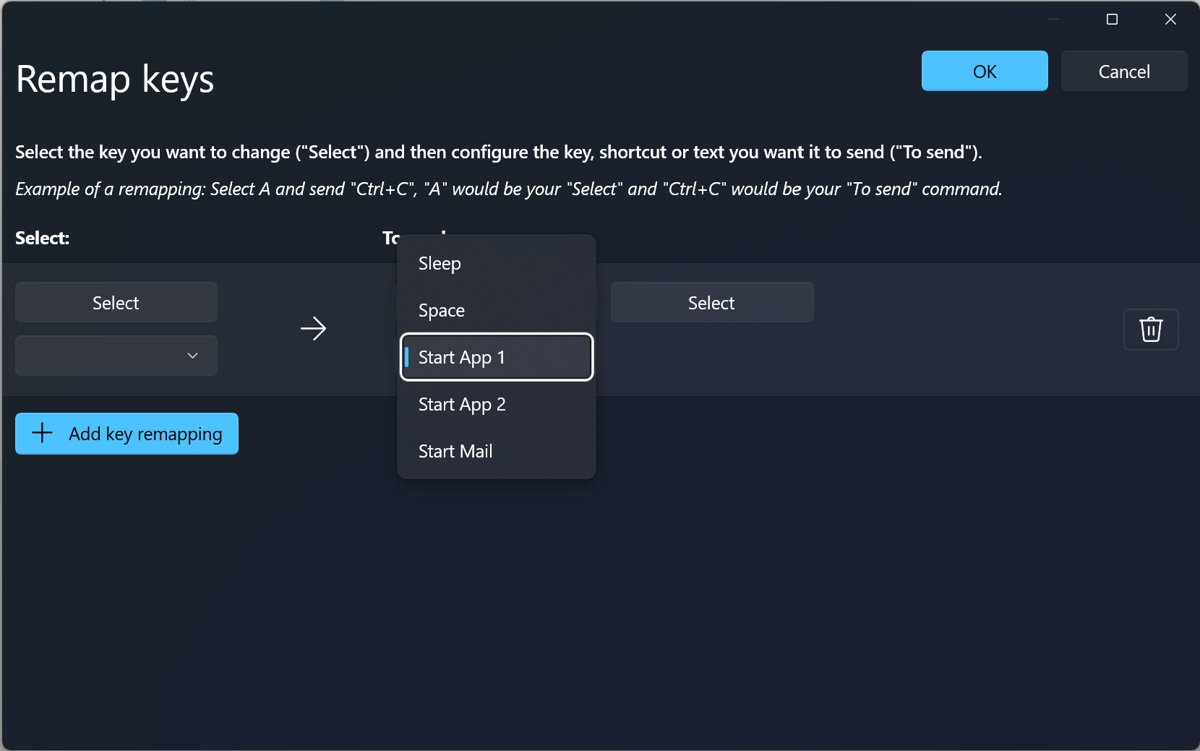
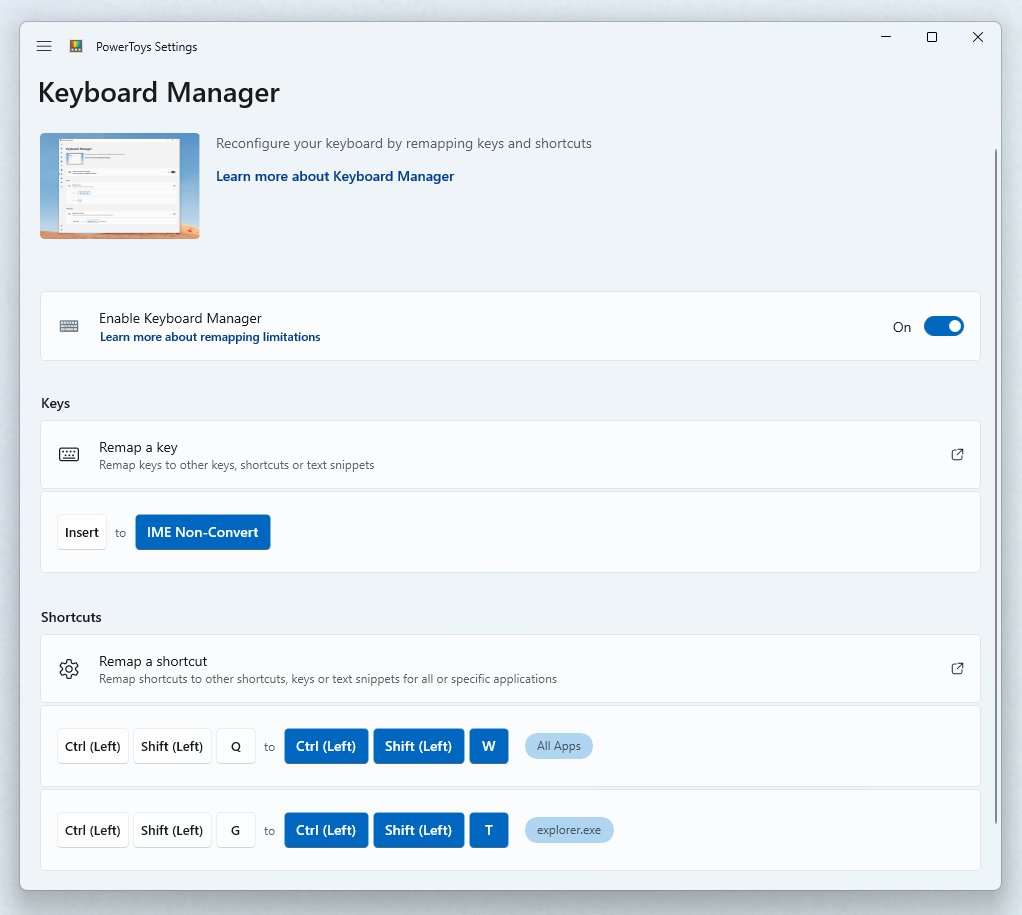
Microsoft PowerToys can turn Caps Lock into another key, such as Shift or Ctrl, without editing the registry. You first need to install Microsoft PowerToys on the PC.
- Open PowerToys Settings and select Keyboard Manager.
- Make sure Keyboard Manager is turned on.
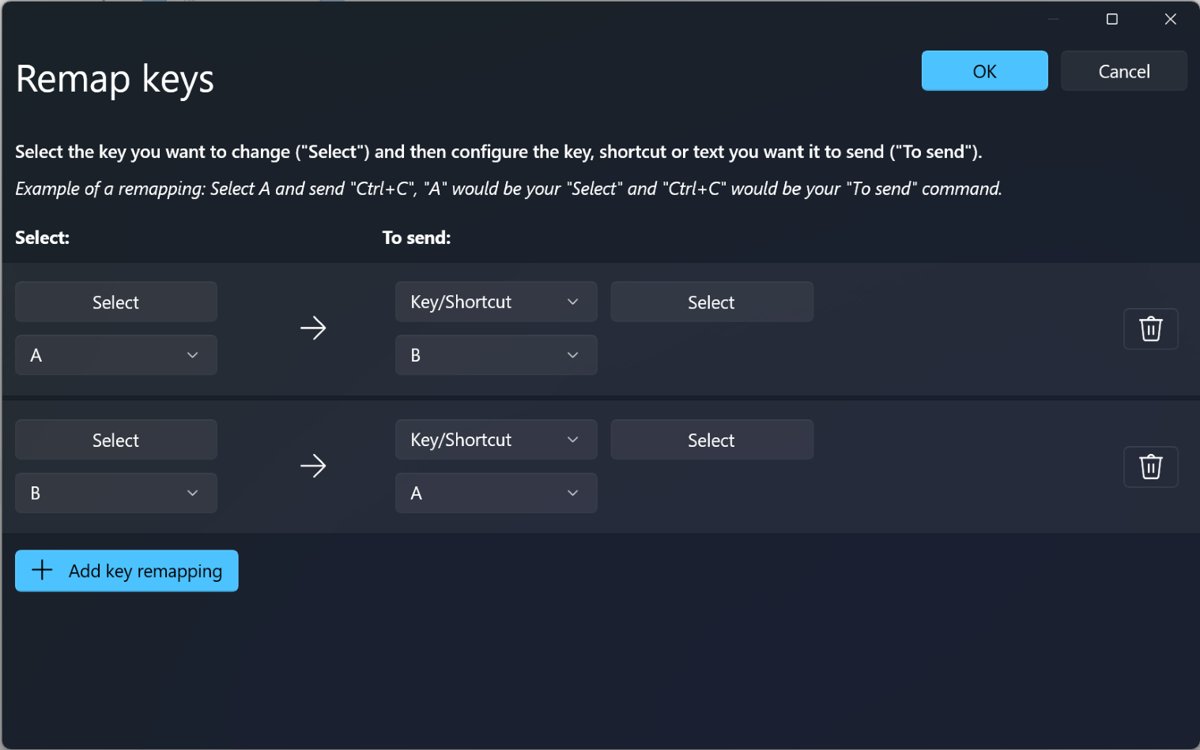
- Select Remap a key, then Add key remapping.
- In the Select column, choose Caps Lock.
- In the To send column, choose the key you want, for example Shift.
- Select OK. The remap works straight away, with no restart.
The remap only works while PowerToys runs, and it does not apply on the sign-in or password screen. For windows running as administrator, run PowerToys as administrator too.
Disable Caps Lock key in Windows 11 with the registry
The Scancode Map value removes Caps Lock at system level, so it works without any app running. It applies to every user and every keyboard on the PC, and it needs a restart.
Open Command Prompt as administrator and run this command. It maps the Caps Lock scan code (0x3A) to nothing.
reg add "HKLM\SYSTEM\CurrentControlSet\Control\Keyboard Layout" /v "Scancode Map" /t REG_BINARY /d 00000000000000000200000000003A0000000000 /fThe first eight bytes are an empty header, 02000000 is the entry count (one mapping plus the closing null entry), 00003A00 sends Caps Lock to 0x00, and the last four zero bytes end the map.
You should see: After a restart, pressing Caps Lock does nothing and the Caps Lock light stays off.
To get Caps Lock back, open Registry Editor, delete the Scancode Map value under that key and restart the PC.
How to tell if Caps Lock is on in Windows 11
- Look at the Caps Lock light on the keyboard, if it has one.
- Open Notepad and type a few letters. Capitals mean Caps Lock is on.
- Press Shift once. If the next letters come out lowercase without pressing Caps Lock, the Shift option is active.
- Turn on Toggle keys and press Caps Lock: a high tone means on, a low tone means off.
- If nothing changes at all, check for a PowerToys remap or a Scancode Map value.
Windows key or WinKey not working on Windows 11
Test the Windows logo key with Windows logo key + E, which opens File Explorer. If only the Windows key fails, a key lock or a policy is the usual cause.
- Check the keyboard's manual for a Windows key lock or game mode switch and turn it off.
- Open the keyboard maker's own software, if installed, and make sure the Windows key is not disabled there.
- On Windows 11 Pro, Enterprise or Education, select Start, type
gpedit.mscand press Enter. - Go to User Configuration > Administrative Templates > Windows Components > File Explorer.
- Open Turn off Windows Key hotkeys, set it to Not Configured and select OK, then sign out and back in.
- Unplug and reconnect the keyboard, or try a different USB port.
- Connect another keyboard. If its Windows key works, the original key has failed.
The same policy is stored as the NoWinKeys value under HKEY_CURRENT_USER\Software\Microsoft\Windows\CurrentVersion\Policies\Explorer. If that value exists on a Home PC, delete it in Registry Editor and sign out.
Caps Lock key not working in Windows 11/10
Caps Lock turns off as soon as you press Shift
The Shift option for turning off Caps Lock is selected for your account.
- Open Settings > Time & language > Typing > Advanced keyboard settings > Language bar options.
- On the key settings tab, choose the Caps Lock key option.
- Select OK.
Caps Lock does nothing when pressed
A PowerToys remap or a Scancode Map value has removed or reassigned the key.
- Close PowerToys or turn off Keyboard Manager in PowerToys Settings, then press Caps Lock again.
- Open Registry Editor and go to
HKEY_LOCAL_MACHINE\SYSTEM\CurrentControlSet\Control\Keyboard Layout. - Delete the Scancode Map value if it exists, then restart.
Caps Lock is stuck on and the key is broken
The physical key or keyboard has failed, so Windows never receives the key press.
- Press Windows logo key + Ctrl + O to open the On-Screen Keyboard.
- Select the Caps Lock key on the On-Screen Keyboard to switch Caps Lock off.
- Unplug and reconnect the keyboard, try another USB port, or replace the batteries on a wireless model.
- Update the keyboard driver in Device Manager > Driver > Update Driver.
Caps Lock plays a beep every time
Toggle keys is turned on, often after holding Num Lock for five seconds.
- Press Windows logo key + U and select Keyboard.
- Turn off the Toggle keys switch.
If other keys fail too, work through the fixes for a keyboard not typing on Windows 11.
Shift key not working on keyboard in Windows 11
Pressing Shift five times opens Sticky Keys
The Sticky keys shortcut is on, so repeated Shift presses toggle the feature.
- Press Windows logo key + U and select Keyboard.
- Turn off Sticky keys, and turn off its keyboard shortcut inside the Sticky keys settings.
Shift is ignored or needs a long press
Filter keys was turned on by holding the right Shift key for eight seconds.
- Open Settings > Accessibility > Keyboard.
- Turn off the Filter keys switch.
- Test Shift in Notepad.
Shift types another key or a shortcut
Shift is remapped in PowerToys Keyboard Manager.
- Open PowerToys Settings > Keyboard Manager.
- Select Remap a key and delete the row that remaps Shift.
Only one Shift key works
One key switch has failed or is blocked by dirt.
- Test each Shift key in Notepad to find which one fails.
- Clean around the key, then test the keyboard on another PC.
- Replace the keyboard if the key fails on every PC.
Sticky Keys has its own pop-up and shortcut options, so you can also disable Sticky Keys completely if it keeps appearing.
What is the Shift key used for in Windows?
Shift types capitals and the upper symbol on each key, and it changes many mouse and keyboard actions in Windows 11.
| Press | What happens |
|---|---|
| Shift + letter | Types a capital letter |
| Shift + arrow keys in File Explorer | Selects multiple items |
| Shift + Delete | Deletes the item permanently without the Recycle Bin |
| Shift + F10 | Opens the context menu for the selected item |
| Shift + right-click | Opens the Show more options menu |
| Ctrl + Shift + Esc | Opens Task Manager |
| Windows logo key + Shift + S | Captures part of the screen |
| Ctrl + Shift | Switches keyboard layout when several are installed |
| Shift + select a taskbar app | Opens another instance of the app |
Shift key and Caps Lock FAQ
How do I use the Shift key to turn off Caps Lock?
Open Settings > Time & language > Typing > Advanced keyboard settings, select Language bar options, and choose the Shift key option on the key settings tab of Text Services and Input Languages. After that, pressing either Shift key switches Caps Lock off.
Can the Shift key turn Caps Lock on?
Not on a physical keyboard. The Caps Lock key always turns it on; the Shift setting only changes how it turns off. On the Windows touch keyboard, double-tapping Shift locks capitals when Use all uppercase letters when I double-tap Shift is on.
Why does Shift turn off Caps Lock on my computer?
Your account has the Shift option selected in Text Services and Input Languages, or the PC was set up with that option for a regional keyboard convention. Switch the Caps Lock group back to the Caps Lock key option and Shift stops cancelling Caps Lock.
Why can't I use my Shift key?
Sticky Keys or Filter Keys is usually on, a PowerToys remap is active, or the key itself has failed. Turn off Sticky keys and Filter keys under Settings > Accessibility > Keyboard, then test the key on the On-Screen Keyboard and on another PC.
What is the Shift key?
The Shift key is a modifier key on both sides of the keyboard. Holding it types capital letters and the upper symbols on number and punctuation keys, and it changes shortcuts such as Shift + Delete, Shift + F10 and Ctrl + Shift + Esc.
How do I turn on Shift keys?
Windows has no feature called Shift keys. Pressing Shift five times turns on Sticky Keys, which lets you press keyboard shortcuts one key at a time. You can also turn it on with the Sticky keys switch under Settings > Accessibility > Keyboard.
How do I use the Shift key to select multiple files?
Select the first file in File Explorer, then hold Shift and press the arrow keys to extend the selection one item at a time. Release Shift when every file you want is highlighted, then copy, move or delete them together.
How do I check if my Shift key is working?
Open Notepad and hold each Shift key in turn while typing letters; capitals mean that Shift key works. If neither works, turn off Sticky keys and Filter keys, then test the keyboard on another PC to rule out a hardware fault.