When a wireless mouse stops working, put in fresh batteries or charge it, make sure its power switch is on, and unplug the USB receiver for about 10 seconds before plugging it back in.
The 17 checks below start with those hardware basics and move on to range, USB ports, mouse settings, drivers, Fast Startup, Windows updates and System Restore, for USB-receiver and Bluetooth mice on Windows 11 and Windows 10.
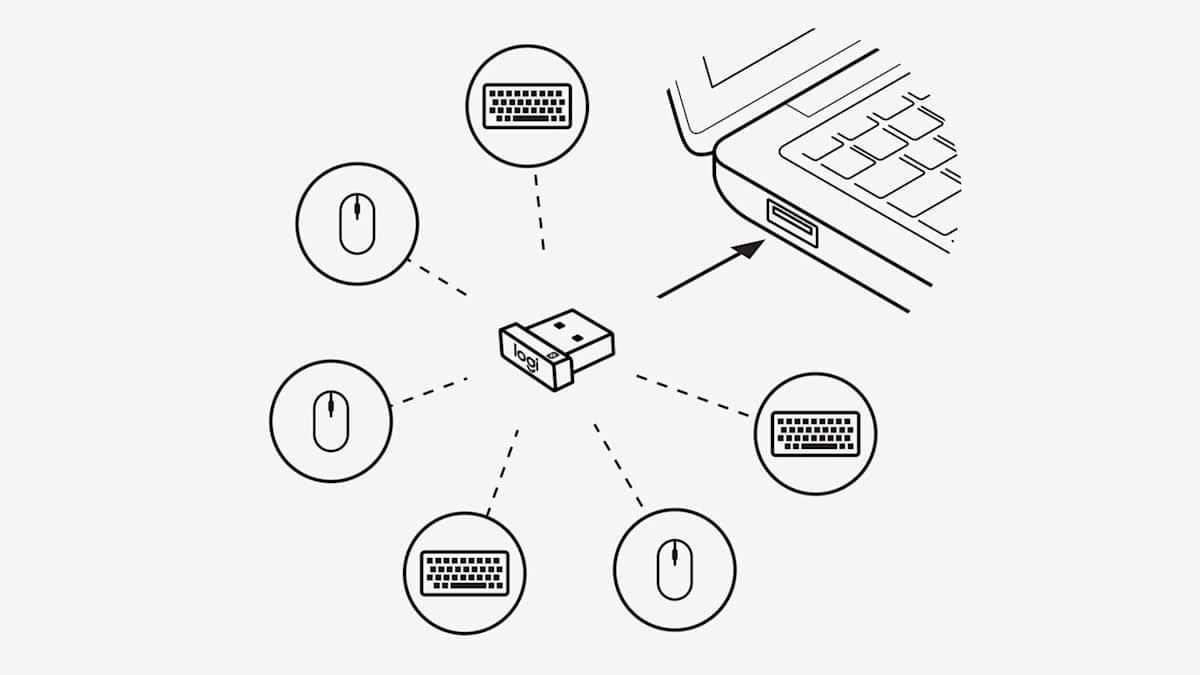
1. Replace/recharge wireless mouse battery
A low battery is the most common reason a wireless mouse lags, drops out or stops moving. A light that blinks red, or no light at all, usually means the batteries are low.
- Turn the mouse over and open the battery compartment, usually under a sliding cover on the bottom.
- Check the batteries sit the right way round, matching the + and – marks inside.
- Replace them with new batteries rather than ones taken from another device.
- For a rechargeable mouse, connect it with the USB cable that came with it and let it charge.
- For a Bluetooth mouse, check the reported battery level under Settings > Bluetooth & devices.
- Move the mouse and check that the cursor responds smoothly.
How to use Windows 11 without a mouse
Several checks below need Settings or Device Manager. These keys get you there while the mouse is dead. On a laptop the touchpad also works, and if it has stopped too, fix the touchpad first.
| Press | What it does |
|---|---|
| Windows key + I | Opens Settings |
| Windows key + S | Opens search, so you can type a setting or app name |
| Windows key + X | Opens the Quick Link menu (Device Manager, Shut down or sign out) |
| Windows key + R | Opens the Run box for commands such as rstrui.exe |
| Tab / Shift + Tab | Moves forward or back through options in a window |
| Arrow keys, Enter, Spacebar | Move within a group, select, and tick or clear a check box |
| Shift + F10 | Opens the right-click menu for the selected item |
| Mouse keys | Moves the pointer with the numeric keypad; turn it on in Settings > Accessibility > Mouse |
2. Turn on mouse power switch
Most wireless mice have an on/off switch or button on the bottom to save battery in a bag. It is easy to knock it off without noticing.
- Turn the mouse over and find the power switch or button.
- Slide or press it to the on position.
- Watch for the status light, which shows the mouse has power.
- If the mouse is already on, turn it off and on again to reset its connection.
- On a Microsoft mouse, hold the pairing button for 5-7 seconds; a blinking light confirms it has power.
3. Be within range of the receiver
Logitech rates its Unifying receiver at up to 33 feet (10 meters), but walls, the PC case and metal shorten that sharply. Interference often shows up as a jumpy or lagging pointer before the mouse drops out.
- Move the mouse closer to the receiver or to the PC and test it.
- If the receiver sits in a port on the back of a desktop, move it to a front port; the case can block the signal.
- Keep other electrical devices at least 8 inches (20 cm) from the receiver.
- Move wireless speakers, phones, monitors and the PC's power supply away from the receiver where you can.
- Do not use the mouse directly on a metal desk or surface; use a mouse pad.
- Keep it away from microwave ovens, fluorescent lights, cordless phones and wireless cameras.
4. Remove and plug again
Pulling the receiver out lets Windows unload the driver and reconnect cleanly. For a Bluetooth mouse, removing and pairing it again does the same job.
- Unplug the USB receiver, wait about 10 seconds, and plug it back in.
- Look for a Reset button on the bottom of the mouse or on the receiver, and press it if there is one.
- For a Bluetooth mouse, open Settings > Bluetooth & devices > Devices.
- Select More options (…) next to the mouse, then Remove device > Yes.
- Put the mouse in pairing mode; on Microsoft mice, hold the pairing button for 5-7 seconds until the light blinks.
- Select Add device > Bluetooth, pick the mouse, and follow any prompts.
If a Microsoft mouse's pairing light flashes three times and turns off, it is still paired to another PC in range. Remove it from that PC first. A wireless keyboard on the same receiver that also drops out needs the same treatment, and you can fix the wireless keyboard with similar steps.
5. Change USB ports
A faulty port, an unpowered hub or a nearby USB 3.0 device can stop a receiver from working. Moving a receiver between ports can also make it lose its link, so give it a few seconds after each move.
- Plug the receiver into a different USB port directly on the PC.
- If it was in a USB hub, remove the hub and plug the receiver straight into the PC.
- If you must use a hub, make sure it has its own power.
- If the receiver sits in a USB 3.0 port, try a USB 2.0 port instead.
- Wait a few seconds for Windows to set the receiver up, then move the mouse.
6. Restart computer
A restart reloads drivers. Unlike Shut down with Fast Startup on, Restart always performs a full boot cycle.
- Save your work and close open apps.
- Press Windows key + X to open the Quick Link menu.
- Use the arrow keys to select Shut down or sign out, then choose Restart.
- Leave the receiver plugged in while Windows restarts.
- Sign in and test the mouse before opening other apps.
7. Remove other USB peripherals
Other USB devices can interfere with a wireless receiver, especially USB 3 drives and hubs sitting next to it. KVM switches and hubs are not supported by many receivers.
- Unplug USB drives, hubs and other peripherals you are not using.
- Move any USB 3 device or hub that must stay connected farther from the receiver.
- Take the receiver off a KVM switch and plug it directly into the PC.
- For a Bluetooth mouse, turn off other Bluetooth devices connected to the PC.
- Test the mouse, then reconnect the other devices one at a time to find the one causing trouble.
8. Control cursor speed
A mouse that works but feels sluggish or overshoots often only needs a different mouse pointer speed.
- Select Start > Settings > Bluetooth & devices > Mouse.
- Drag the slider next to Mouse pointer speed left to slow the pointer or right to speed it up.
- Move the mouse across the screen to test the new speed.
- On Windows 10, go to Settings > Devices > Mouse > Additional mouse options > Pointer Options and adjust the speed there.
9. Increase cursor precision
Enhance pointer precision makes the pointer more accurate when you move the mouse slowly. It helps with small targets such as window edges and text.
- Select Start > Settings > Bluetooth & devices > Mouse.
- Find Enhance pointer precision.
- Switch it On.
- Test slow, small movements, and switch it off again if the pointer feels less predictable to you.
10. Clean mouse optical lens
Dirt on the sensor causes jittery or random pointer movement, and a crack in the sensor lens does the same.
- Turn the mouse off.
- Turn it over and find the sensor window on the bottom.
- Blow dust out with compressed air.
- Wipe the sensor gently with a cotton swab.
- Check the lens for cracks; a cracked lens means the mouse needs replacing.
- Turn the mouse on and test it on a clean mouse pad.
11. Increase double-click speed
If double-clicks open nothing, Windows may be expecting faster clicks than you make. Move the slider toward Slow to give yourself more time, or toward Fast if single clicks register as double-clicks.
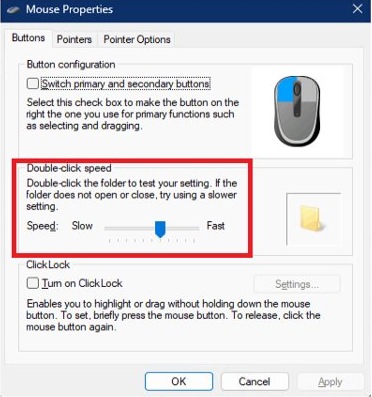
- Select Start > Settings > Bluetooth & devices > Mouse.
- Under Related settings, select Additional mouse settings.
- Make sure the Buttons tab is selected in Mouse Properties.
- Under Double-click speed, drag the Speed slider.
- Select OK and test by double-clicking a folder.
12. Reinstall mouse driver
Reinstalling the driver clears a corrupted driver install. Windows puts the driver back by itself after a restart.
- Save your work and close all apps.
- Press Windows key + X and select Device Manager.
- Expand Mice and other pointing devices; a mouse can also appear under Human Interface Devices.
- Select the wireless mouse, press Shift + F10 (or right-click it), and choose Uninstall device.
- Select Uninstall to confirm.
- Restart the PC from Shut down or sign out > Restart; Windows reinstalls the driver.
13. Update driver/install support software
Windows Update supplies most mouse drivers. Some mice also need the maker's own software for receiver pairing, extra buttons and firmware updates.
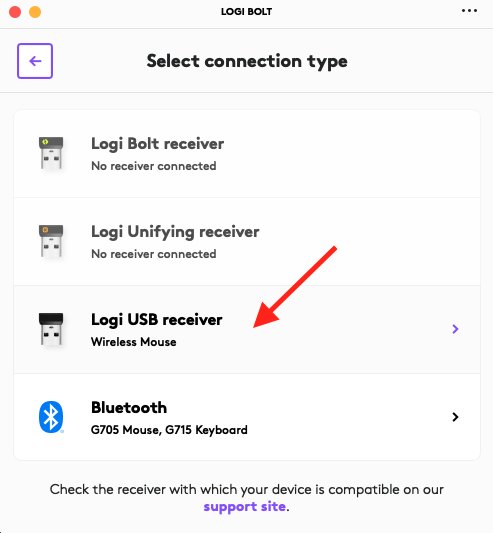
- Open Device Manager and expand Mice and other pointing devices.
- Right-click the mouse and select Update driver.
- Select Search automatically for updated driver software.
- If none is found, select Search for updated drivers on Windows update.
- Install the maker's own app if your mouse uses one: Logi Options+ for Logitech, Microsoft Mouse and Keyboard Center for Microsoft mice.
- Install any firmware update the app offers, then test the mouse.
Get drivers only from Windows Update or the mouse maker's own website. For Logitech models, the Logitech mouse fixes cover receiver pairing in Options+ and Connection Utility.
14. Disable Fast Startup
With Fast Startup on, Shut down saves the Windows kernel session to disk, so a stuck driver can survive a shutdown. Turning it off makes every shutdown a clean one. Microsoft does not recommend disabling it permanently, so use it as a test.
- Press Windows key + S, type Control Panel, and open it.
- Open Power Options.
- Select Choose what the power buttons do.
- Clear the Turn on fast startup (recommended) check box.
- Select Save Settings.
- Shut down the PC, start it again, and test the mouse.
Logitech also suggests turning off USB power saving: in Power Options, open Change Plan Settings > Change Advanced Power Settings > USB Settings > USB Selective Suspend Setting, and set both values to Disabled.
15. Update Windows 10 and Windows 11
Windows Update delivers mouse and Bluetooth driver fixes along with the system updates.
- On Windows 11, select Start > Settings > Windows Update.
- On Windows 10, select Start > Settings > Update & Security > Windows Update.
- Select Check for updates.
- Install everything offered, including driver updates.
- Restart when Windows asks, then test the mouse.
16. Uninstall updates
If the mouse stopped right after a Windows update, removing that update can bring it back. Some updates cannot be uninstalled, and removing a security update leaves the PC exposed until it is reinstalled.
- Select Start > Settings > Windows Update.
- Under More options, select Update history.
- Under Related settings, select Uninstall updates.
- Find the update installed just before the mouse stopped working.
- Select Uninstall next to it and restart the PC.
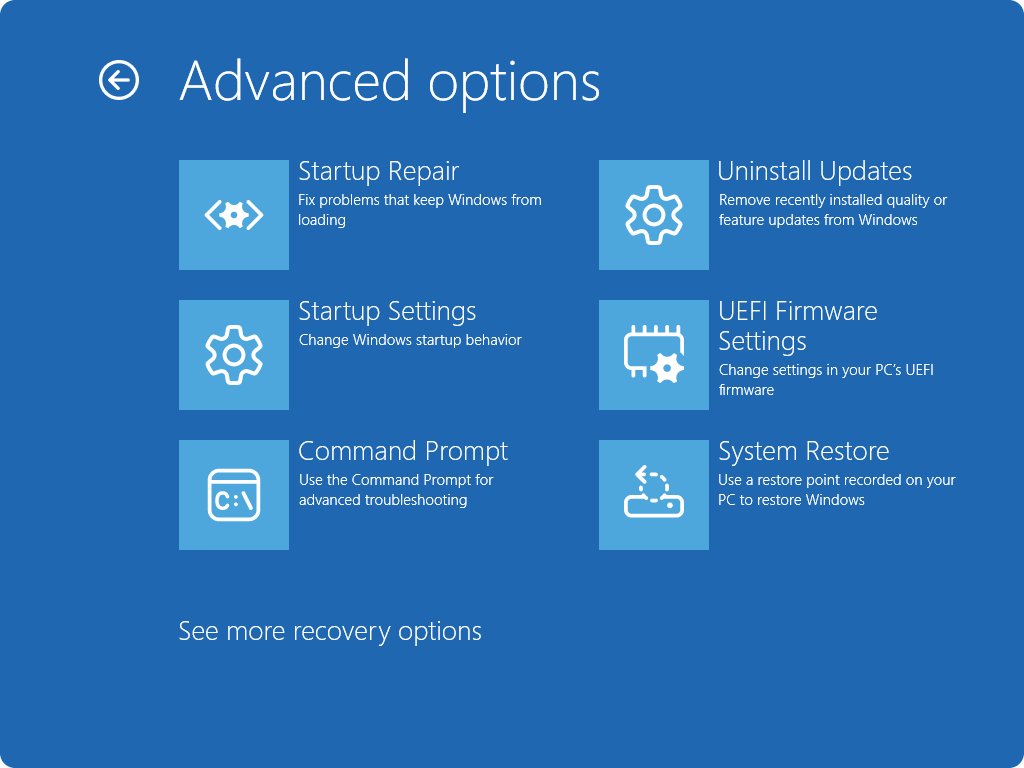
17. Restore to an earlier state
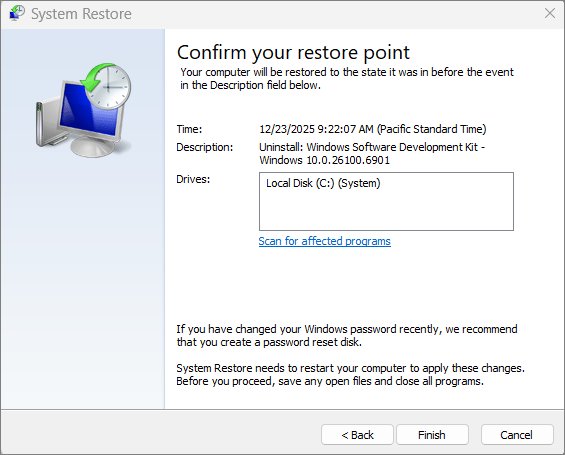
System Restore returns system files, registry settings, drivers and installed programs to a restore point. Your personal files are not affected.
- Press Windows key + R, type
rstrui.exeand press Enter. - In Restore system files and settings, select Next.
- Pick a restore point dated before the mouse stopped working; tick Show more restore points if you need older ones.
- Select Scan for affected programs to see what will be removed.
- Select Next, then Finish.
- Let Windows restart, then test the mouse.
You can also reach it from Control Panel > Recovery > Open System Restore, or from Windows RE under Troubleshoot > Advanced options > System Restore.
How to tell if Windows detects your wireless mouse
- Press Windows key + X and select Device Manager.
- Expand Mice and other pointing devices and look for an entry that appears when the receiver is plugged in and disappears when you unplug it.
- For a Bluetooth mouse, open Settings > Bluetooth & devices > Devices and find the mouse in the list.
- Plug the receiver and mouse into another PC with fresh batteries in the mouse.
- If the mouse works there, the problem is on your PC; if it fails there too, the mouse or receiver needs replacing.
Wireless mouse not working FAQ
How do I know if my wireless mouse battery is dead?
A blinking red light or no light at all usually means the batteries are low or dead. A pointer that lags, jumps or does not move is another sign. Put in brand new batteries or charge the mouse before trying any other fix.
How far can a wireless mouse be from the receiver?
Logitech rates its Unifying receiver at up to 33 feet (10 meters) in good conditions. Walls, metal surfaces, the PC case and other electronics cut that range, so keep the mouse close and other devices at least 8 inches from the receiver.
How do I reconnect a wireless mouse receiver?
Unplug the USB receiver, wait about 10 seconds, and plug it back into a port directly on the PC. Press the Reset button on the mouse or receiver if there is one. Some brands need their own app, such as Logi Options+, to pair again.
Does a wireless mouse work in a USB 3.0 port?
Yes, but USB 3 ports and devices can interfere with nearby 2.4 GHz receivers. If the mouse lags or drops out in a USB 3.0 port, move the receiver to a USB 2.0 port or away from USB 3 drives and hubs.
Does a wireless mouse need a driver?
Most wireless mice work with the driver Windows installs automatically. Some devices need the maker's driver or software for pairing, extra buttons and firmware updates. Get those only from Windows Update or the manufacturer's own website.
Can Fast Startup stop a wireless mouse from working?
It can keep a stuck driver loaded, because Fast Startup saves the kernel session to disk at shutdown. Restart always does a full boot, so restart first. Turning off Fast Startup in Power Options is a further test.
Why does my Bluetooth mouse lag after sitting idle?
Bluetooth mice go into hibernation after about 8-10 minutes of inactivity to save battery. Reconnecting can take several seconds when you move the mouse again, so a short delay after a break is normal and not a fault.
Will System Restore delete my files?
No. System Restore returns system files, registry settings and installed programs to an earlier restore point without affecting personal files. Apps and drivers installed after that point are removed, and Scan for affected programs lists them first.
Stay wireless: when to replace a wireless mouse
Replace the mouse when it fails on a second PC with brand new batteries and its receiver plugged directly into a USB port; if it works on the other PC, keep it and fix the Windows side with checks 12 to 17. Batteries, range and the receiver port cause most wireless mouse failures, and a test on another PC separates a dead mouse from a driver or update problem in a couple of minutes.
A wired mouse that fails the same way needs the general mouse fixes instead, since range and batteries do not apply.