To reboot Windows 11, select Start > Power > Restart, and the PC closes your apps, shuts down and starts again on its own.
This guide also covers keyboard and Command Prompt restarts, a full reboot that skips fast startup, restarting into safe mode, recovery, BIOS or a USB drive, and what to do when Windows 11 reboots by itself.
Step-by-step tutorial on rebooting Windows 11
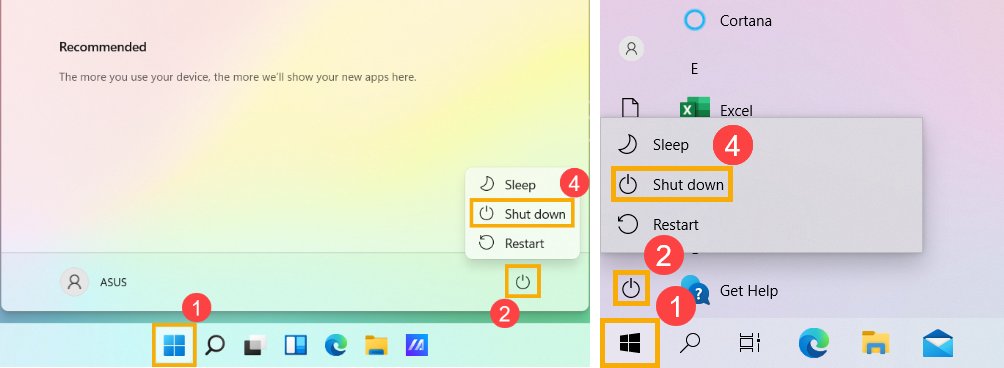
The Start menu restart is the standard way to reboot. Windows closes open files and tells running apps and services to save their data before the PC powers down.
- Save your work and close any apps that hold unsaved files.
- Select Start on the taskbar.
- Select the Power icon at the bottom of the Start menu.
- Select Restart.
- Wait while the PC shuts down and starts again, then sign in with your PIN, password or Windows Hello.
If Windows has updates waiting, the power menu offers an update-and-restart option instead. Pick it to finish installing them during this reboot.
How to reboot Windows 11 with keyboard
Three keyboard routes reach the restart option without the mouse. Use them when the Start menu will not open or a touchpad stops responding.
- On the desktop with no windows open, press Alt + F4. Windows shows its shut down prompt.
- Use the arrow keys to choose Restart in the list, then press Enter.
- Or press Ctrl + Alt + Del to open the security screen, select the Power icon and choose Restart.
- Or press Win + X to open the Quick Link menu, which is the same menu as right-clicking Start.
- In the Quick Link menu, move to the shut down entry near the bottom and select Restart.
Alt + F4 closes the active window first if one is open, so press it until the desktop is clear before you expect the shut down prompt.
How to reboot Windows 11 from command prompt
The shutdown command restarts the PC from Command Prompt, PowerShell or the Run box. Without a time-out, Windows waits 30 seconds before it restarts.
shutdown /r /t 0/r restarts the computer after shutdown, and /t 0 removes the 30-second wait. Any time-out above zero also implies /f, which closes running apps without warning and can lose unsaved work.
You should see: Windows closes and the PC restarts without a countdown.
Run shutdown /r /t 60 /c "Restarting for maintenance" to give a one-minute warning with a message, and shutdown /a in a new window to cancel a pending restart during the time-out.
If you script restarts, the Command Prompt and PowerShell restart commands also handle scheduled and remote restarts.
How to completely reboot Windows 11
With fast startup on, Shut down saves the Windows kernel session to the hibernation file and reloads it at the next power-on. That is quicker, but it is not a cold start.
For a full reboot, use a restart or the /g switch, which fully shuts down and restarts the computer.
- Save your work and close your apps.
- Select Start, type cmd and open Command Prompt.
- Type
shutdown /g /t 0and press Enter. - Wait for Windows to shut down fully and start again.
- Sign in. If Automatic Restart Sign-On is on, Windows signs in, locks the PC and reopens apps that registered for restart.
shutdown /s without /hybrid does not prepare the PC for fast startup, so it is the full shut down to use when you want the next power-on to be a cold start.
How to reboot Windows 11 in safe mode
Safe mode starts Windows with a limited set of files and drivers. If a problem goes away in safe mode, default settings and basic drivers are not the cause.
If the drive is encrypted with BitLocker, have your BitLocker recovery key ready before you start.
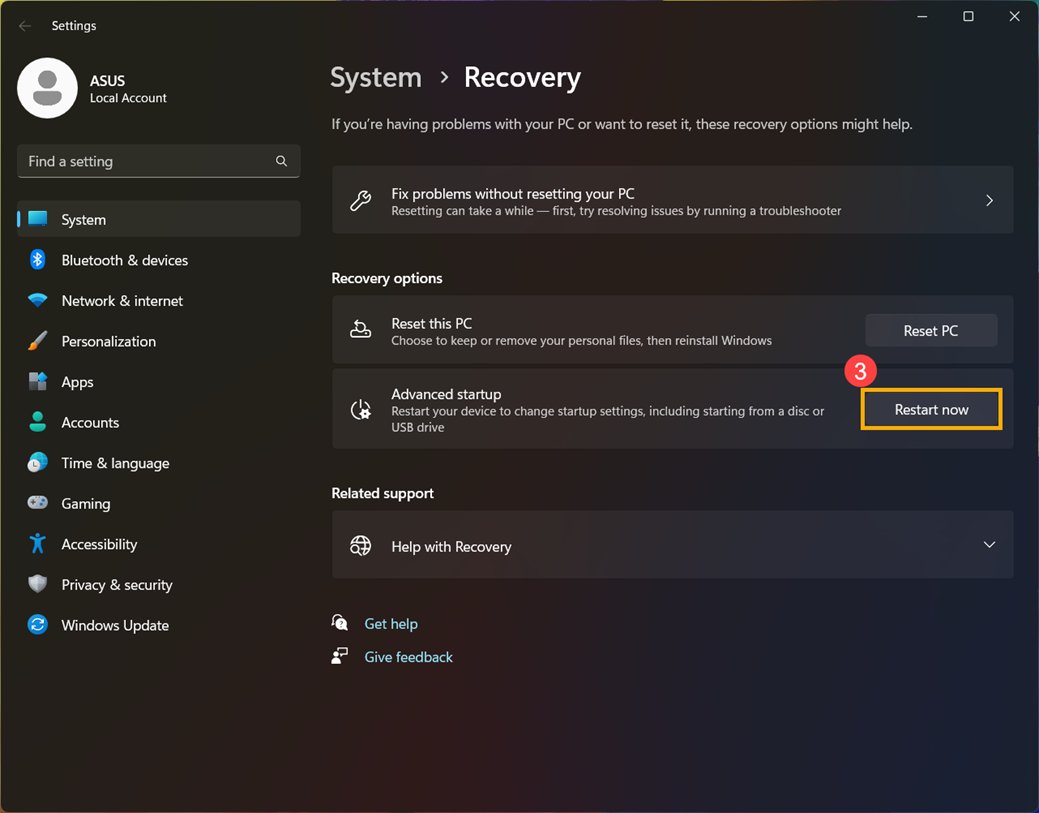
- Open Settings > System > Recovery.
- Next to Advanced startup, select Restart now.
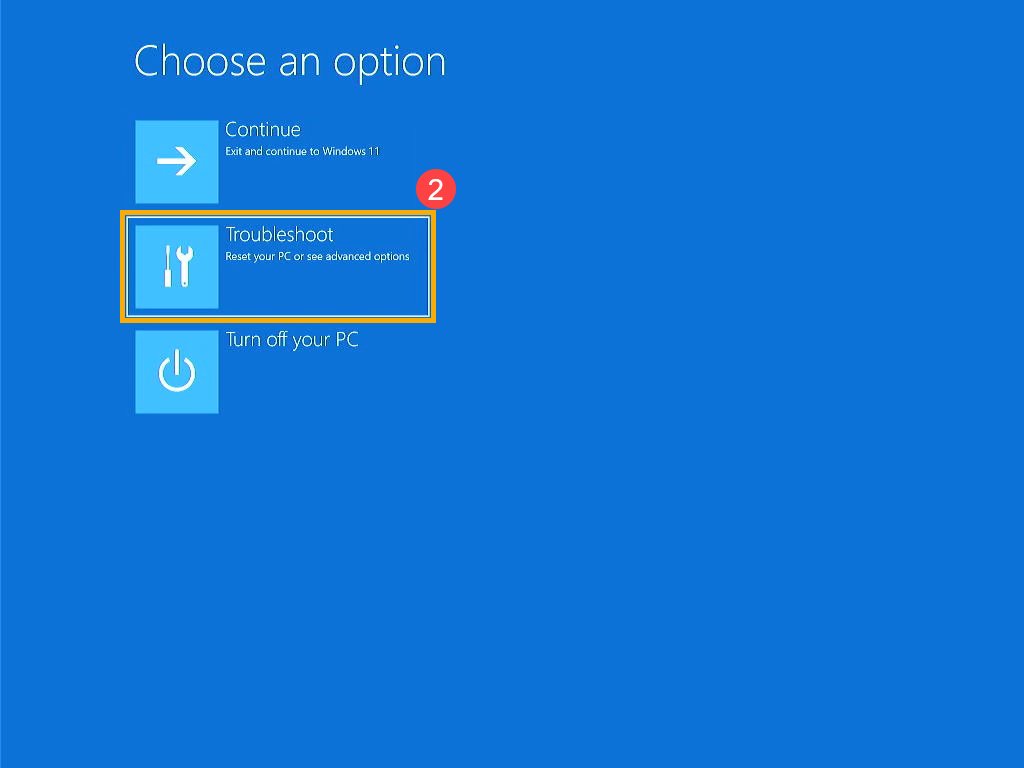
- On the blue menu, select Troubleshoot > Advanced options > Startup Settings > Restart.
- When the Startup Settings list appears, press 4 or F4 for Enable Safe Mode.
- Press 5 or F5 for Safe Mode with Networking if you need the internet, or 6 or F6 for Safe Mode with Command Prompt.
- To leave safe mode, restart the PC normally.
If the PC keeps starting in safe mode, press Win + R, type msconfig, select OK, open the Boot tab and clear Safe boot under Boot options.
How to reboot Windows 11 in recovery mode
Recovery mode is the Windows Recovery Environment. It holds Startup Repair, Startup Settings, System Restore, Uninstall Updates, Command Prompt and Reset this PC.
- Hold down Shift and select Start > Power > Restart. This also works from the power button on the sign-in screen.
- Or open Settings > System > Recovery and select Restart now next to Advanced startup.
- Or run
shutdown /r /o /t 0in Command Prompt to restart straight into the advanced boot options menu. - On the menu, select Troubleshoot to reach the recovery tools, or Continue to go back to Windows.
If Windows cannot start, it opens the recovery environment by itself after two failed starts in a row. You can force this by holding the power button as the Windows logo appears, twice, then letting the third start run.
Windows 11 reboot to BIOS
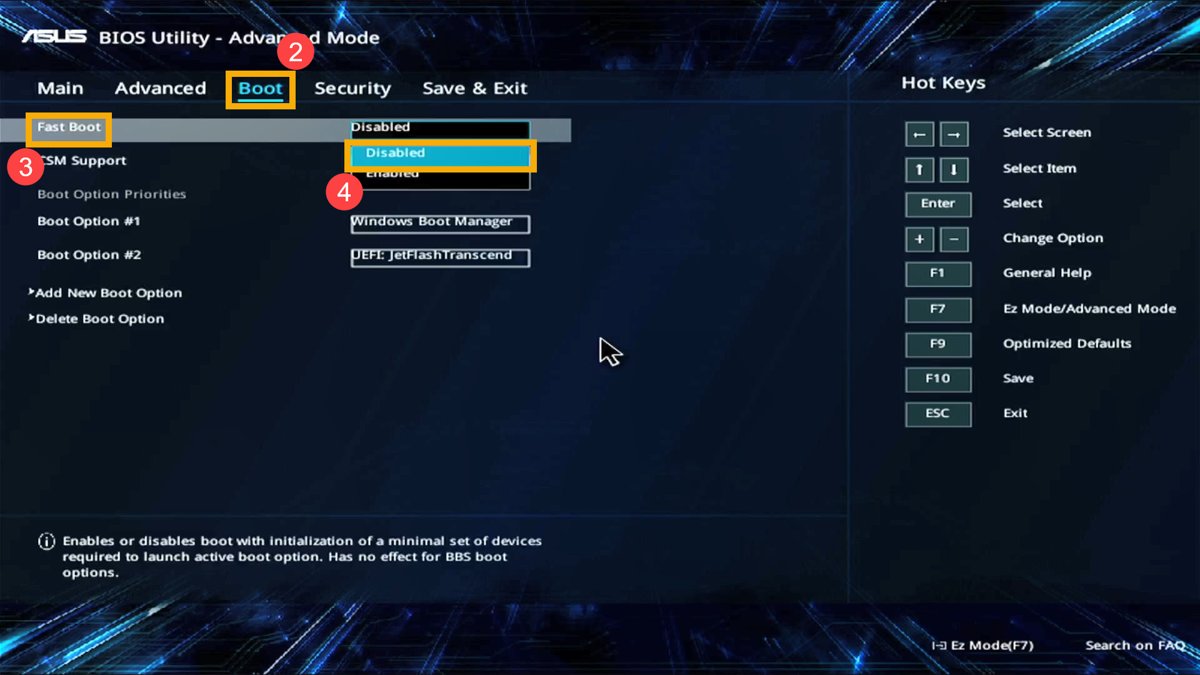
On UEFI PCs, Windows can restart straight into the firmware settings, so you do not need to catch a key at power-on.
- Open Settings > System > Recovery and select Restart now next to Advanced startup.
- Select Troubleshoot > Advanced options.
- Select UEFI Firmware Settings and confirm the restart.
- The PC restarts into its UEFI setup screen, where you can change the boot order or Secure Boot settings.
- As a command, run
shutdown /r /fw /t 0from an administrator Command Prompt to do the same in one step.
If UEFI Firmware Settings is missing from the menu, the PC uses legacy BIOS, and you need the key your PC maker shows during startup.
Windows 11 reboot to USB
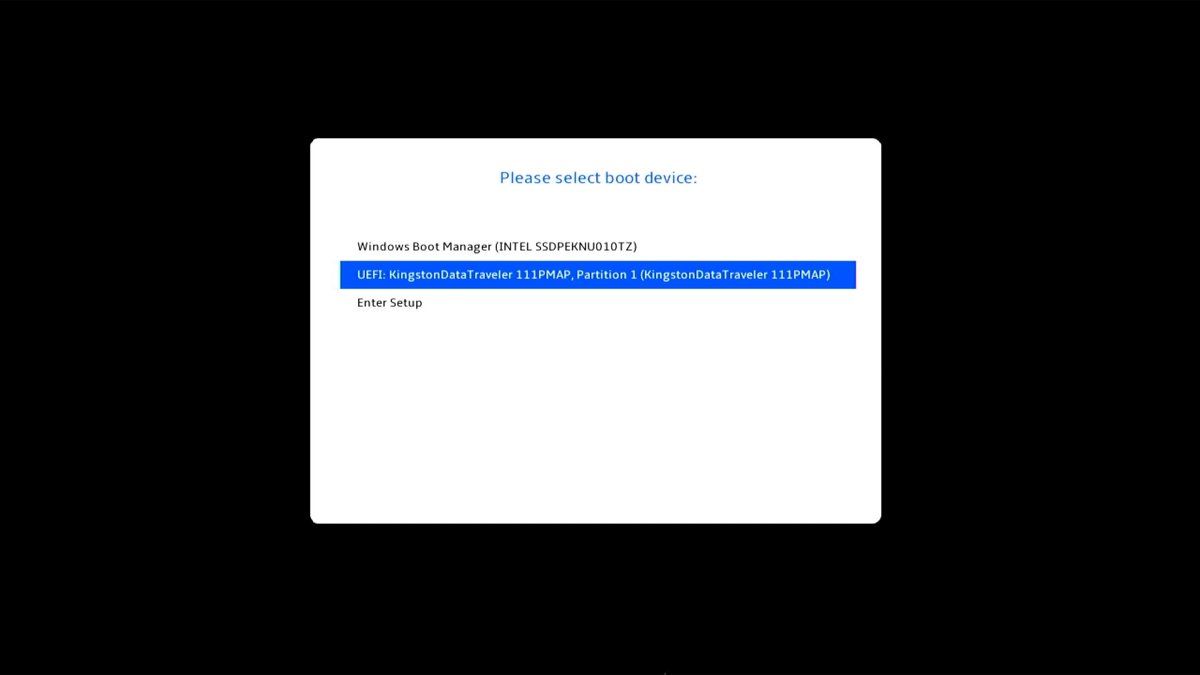
The advanced startup menu can boot a USB drive on UEFI PCs, such as a recovery drive or Windows installation media.
- Plug in the bootable USB drive.
- Open Settings > System > Recovery and select Restart now next to Advanced startup.
- Select Use a device.
- Choose the USB drive from the list. The PC restarts and boots from it.
- From Windows installation media, select Next on the setup screen and then Repair my PC to reach the recovery tools.
If the drive is not listed, change the boot order in the firmware settings, or check the PC maker's site for its boot menu key.
Why did my system reboot in Windows 11?
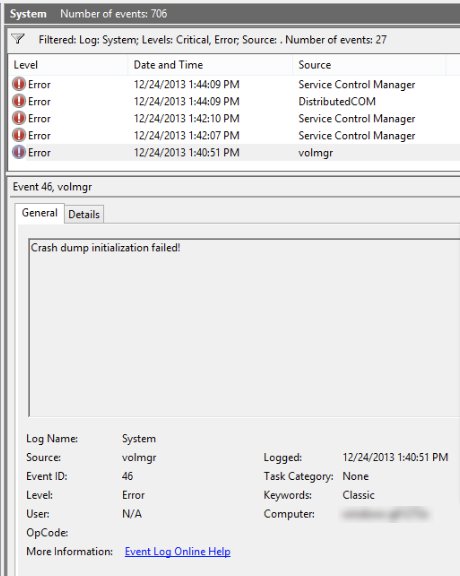
Windows logs every restart in the System event log. The event ID tells you whether a person, an app, an update or a crash caused it.
- Press Win + R, type
eventvwr.mscand select OK to open Event Viewer. - Expand Windows Logs and select System.
- Select Filter Current Log and enter the event IDs 1074, 41, 6008.
- Read 1074 entries first: they name the app or user that requested the restart, including restarts from Start or Ctrl + Alt + Del.
- Treat 41 (Kernel-Power) as an unclean restart. A nonzero BugcheckCode in its details means a Stop error caused it.
- Check 6008 for the time of an unexpected shutdown, then look at the events just before it in the System and Application logs.
Event 41 with a zero BugcheckCode and zero PowerButtonTimestamp usually points to power loss, a drained or removed battery, a weak power supply or overheating.
Tips for rebooting Windows 11
A restart fixes the most when you pick the right type of restart for the job.
| Tip | Why it matters |
|---|---|
| Close unused apps first, then restart if the PC is still slow | Microsoft's own performance advice puts a restart after closing apps and tabs |
| Use Restart, not the power button | Holding the power button skips the clean shutdown and logs an Event ID 41 |
| Choose the update-and-restart option when it appears | Some updates finish installing only during a restart |
| Set active hours | Windows avoids automatic update restarts during the hours you use the PC |
Use shutdown /g for a cold start |
Shut down with fast startup reloads a saved kernel session instead |
| Keep the BitLocker recovery key handy | Startup Settings and other recovery tools can ask for it on encrypted PCs |
Avoid /f unless an app will not close |
Forced closes can lose unsaved data |
How to stop Windows 11 from rebooting
Windows 11 reboots every day or overnight
Updates install automatically and sometimes need a restart to finish.
- Select Start > Settings > Windows Update > Advanced options.
- Select Active hours.
- In Adjust active hours, choose Automatically, or choose Manually and set the hours you use the PC.
Windows 11 PC keeps rebooting after an error
Windows restarts automatically after a Stop error, so the blue screen flashes by too fast to read.
- Search Start for advanced system settings and open it.
- On the Advanced tab, select Settings under Startup and Recovery.
- Clear Automatically restart and select OK.
- When the error appears again, note the stop code, then check Event ID 41 for the matching BugcheckCode.
Windows 11 is stuck in a reboot loop
Windows fails, restarts and fails again before you can reach the desktop.
- Let the PC fail to start twice so it opens the recovery environment, or boot from a recovery drive.
- Select Troubleshoot > Advanced options > Startup Repair.
- If that does not help, go to Startup Settings > Restart and press 9 or F9 for Disable automatic restart on system failure.
- Use Uninstall Updates in the same menu if the loop began after an update.
The PC restarts at random with no error
Event ID 41 with zero codes usually means a power, battery, memory or heat problem.
- Plug a laptop into the charger and check that a desktop's power cable and supply are secure.
- Turn off any overclocking in the firmware settings.
- Check temperatures and clean blocked vents.
- Test the memory and confirm the power supply can carry any hardware you added.
On managed business PCs, hotpatch security updates can install without a restart, which cuts the number of update reboots.
Frequently asked questions about rebooting Windows 11
Why should I reboot my Windows 11 computer?
A reboot closes every app and background process and starts Windows fresh, which clears many slowdowns and glitches. Windows also needs a restart to finish installing some updates, so rebooting when Windows Update asks keeps the PC current.
Is it safe to reboot my computer often?
Yes. A restart from Start closes files cleanly and lets apps and services save their data first. What is not safe as a habit is holding the power button, which skips that clean shutdown and can lose unsaved work.
How often should I reboot my Windows 11 computer?
Windows 11 does not need a fixed restart schedule. Restart when Windows Update asks you to finish installing, when the PC feels slow after closing unused apps, or when a device or app stops working properly.
Can I reboot using keyboard shortcuts?
Yes. Press Alt + F4 on an empty desktop and choose Restart, press Ctrl + Alt + Del and use the Power icon, or press Win + X and pick Restart from the shut down entry in the Quick Link menu.
How do I reboot Windows 11 from cmd?
Open Command Prompt and run shutdown /r /t 0. The /r switch restarts the PC and /t 0 removes the default 30-second wait. Use shutdown /r /o /t 0 to restart into the advanced boot options menu instead.
What should I do if my computer doesn't reboot properly?
If the PC freezes during restart, hold the power button as a last resort. If Windows then fails to start twice, it opens the recovery environment, where Startup Repair, Uninstall Updates and safe mode can get it working again.
Why does Windows 11 reboot every day?
Daily reboots usually come from updates that need a restart to finish. Set active hours in Settings > Windows Update > Advanced options, and check Event Viewer for Event ID 1074 to see which process requested each restart.
Is rebooting the same as resetting Windows 11?
No. Rebooting only restarts the PC and keeps everything. Resetting with Reset this PC returns Windows to factory settings, with a choice to keep or remove your personal files. Reset this PC is one of the tools in the Windows recovery environment.